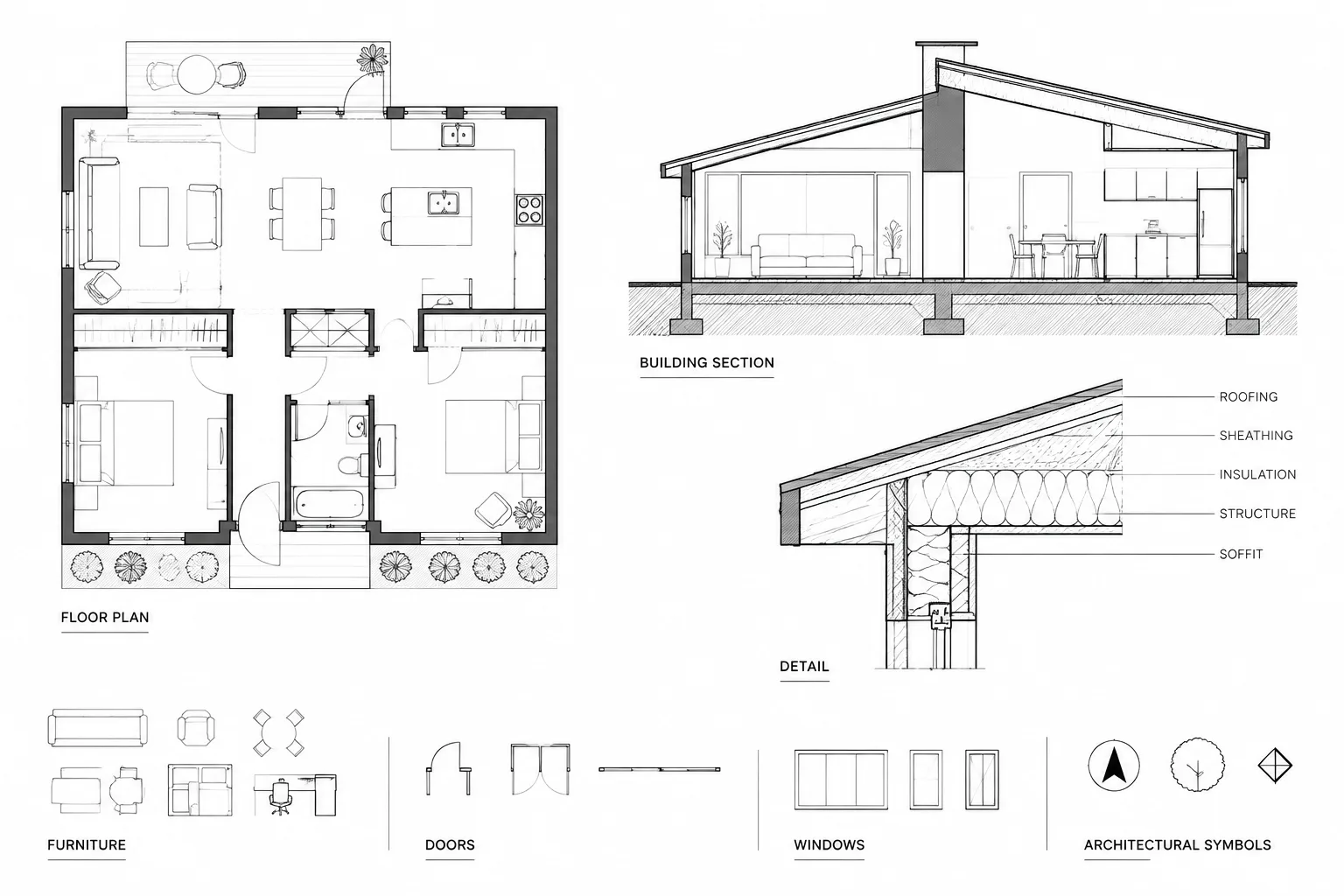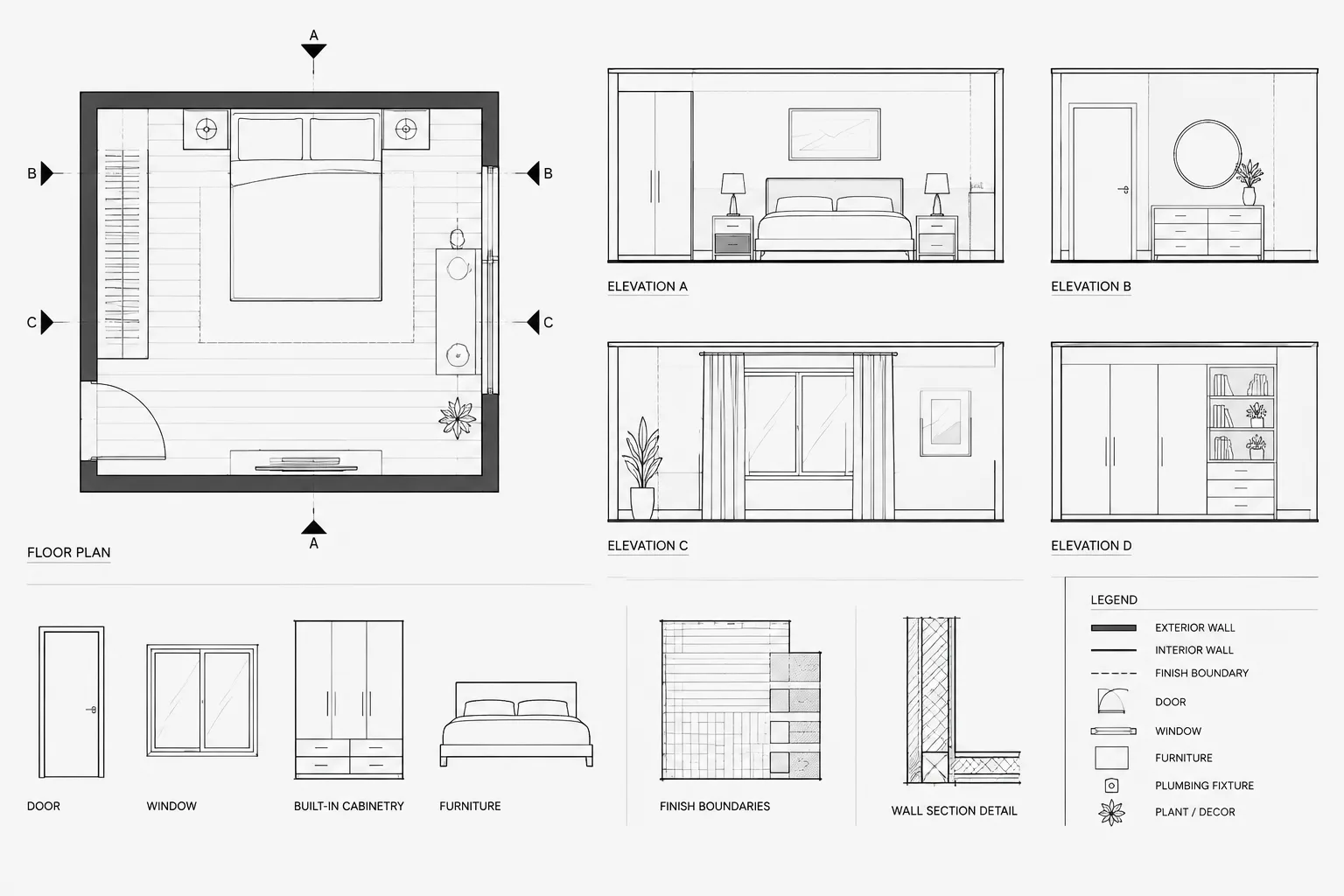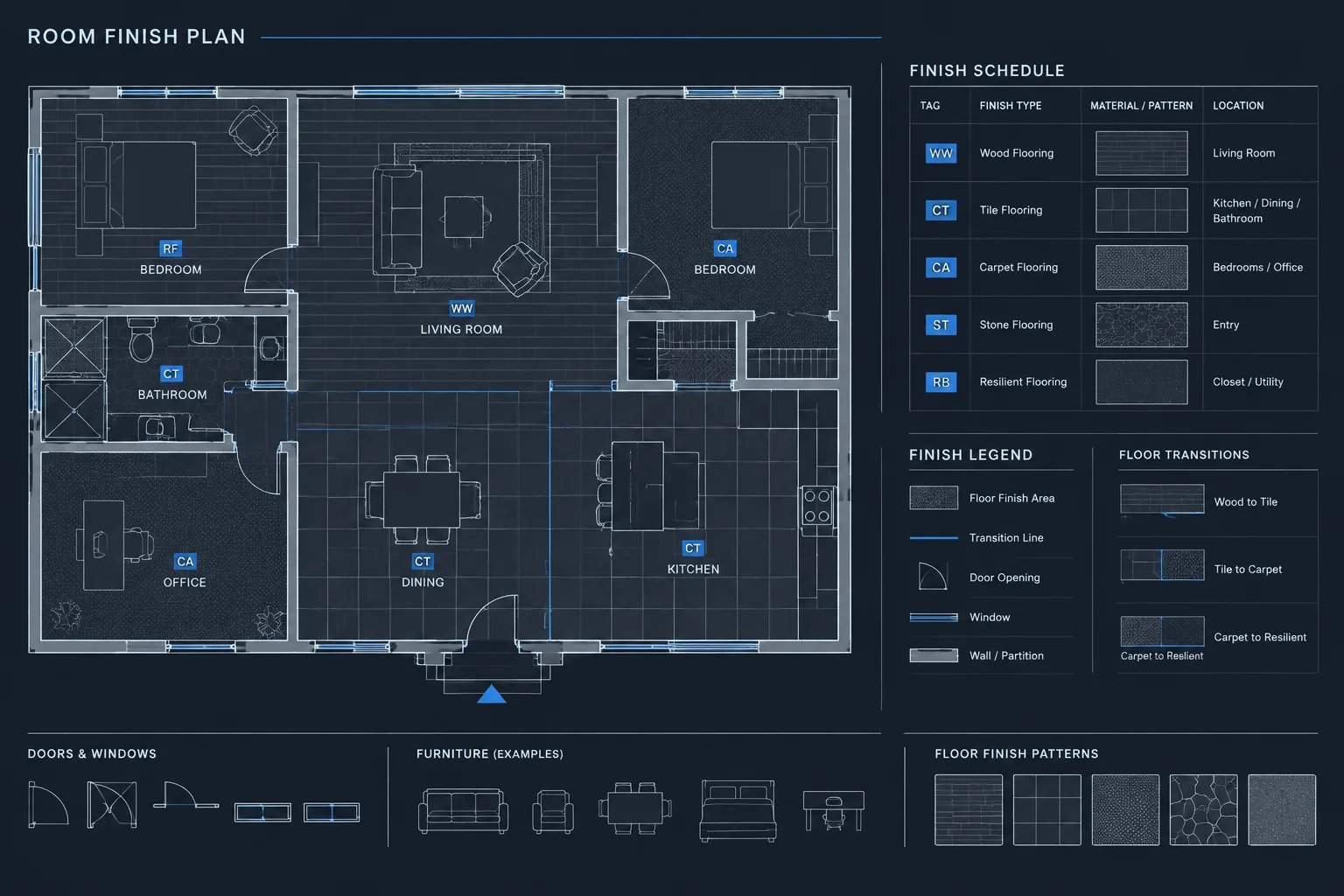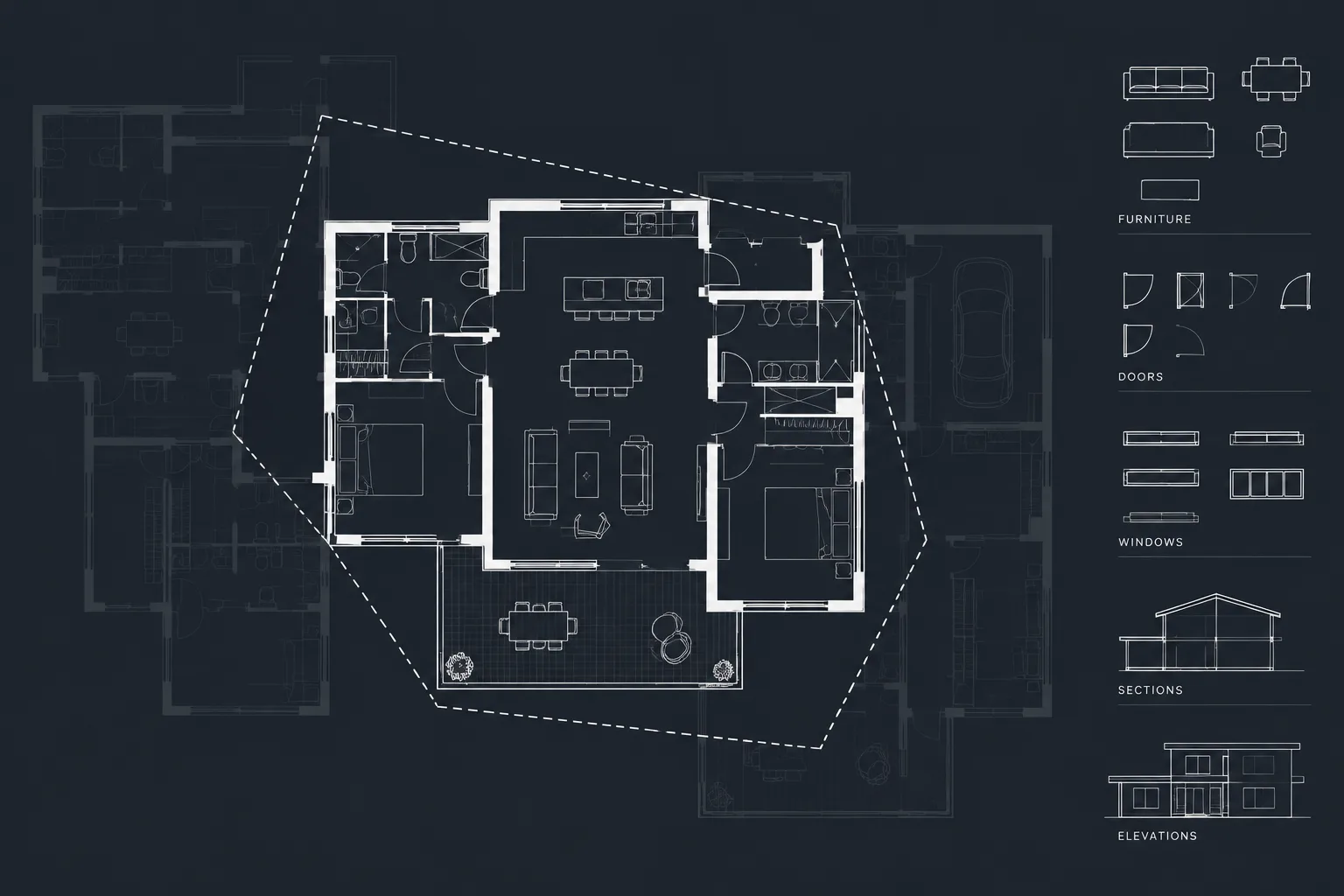
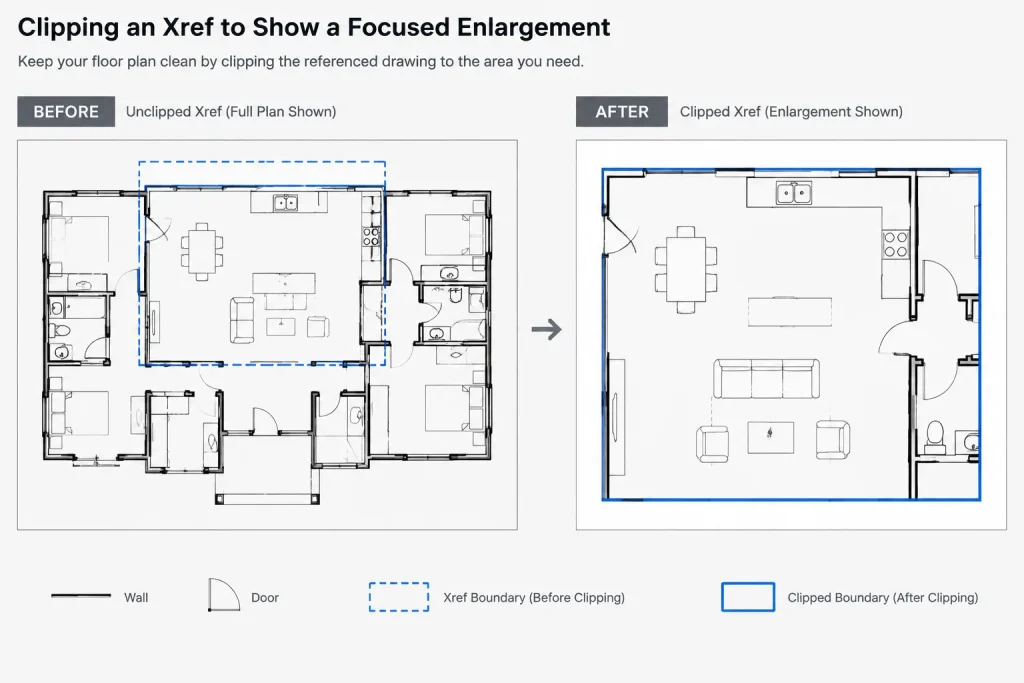
Clipping xrefs in AutoCAD helps architectural drafters create focused views from larger coordinated backgrounds. The workflow is especially useful when a sheet needs only part of a floor plan, site plan, consultant file, or shared base drawing.
This guide explains how to treat an xref clip as a controlled display condition rather than a substitute for coordinate management, layer organization, or source-file correction. It also identifies review steps that help prevent hidden context, disconnected annotation, and misleading drawing edges.
Architectural reference files often contain much more information than a particular drawing needs to display. A consultant background may cover an entire building, while an enlarged plan shows only one room group. A site reference may include several buildings, but a sheet focuses on a single entrance. Clipping an xref lets the drafter limit the visible portion of that reference without editing its source geometry.
Used carefully, clipping can simplify sheets, reduce visual clutter, and support repeated uses of the same background. Used carelessly, it can hide relevant work, confuse collaborators, or create unexplained gaps at the edge of a view. The goal is not simply to crop a reference. It is to create a controlled display condition that remains understandable throughout coordination, plotting, and file exchange.
What an xref clipping boundary does
An xref clipping boundary controls which part of an attached reference is displayed in the host drawing. Geometry outside the boundary is hidden from that particular view of the reference, but it is not deleted from the source DWG. Reloading the xref updates the visible referenced geometry while preserving the host drawing’s clipping setup.
This distinction is important. Clipping is a display tool, not a source-editing method. It should not be used to conceal geometry that is incorrect, obsolete, or located at the wrong coordinates. Those conditions should be resolved in the responsible source file.
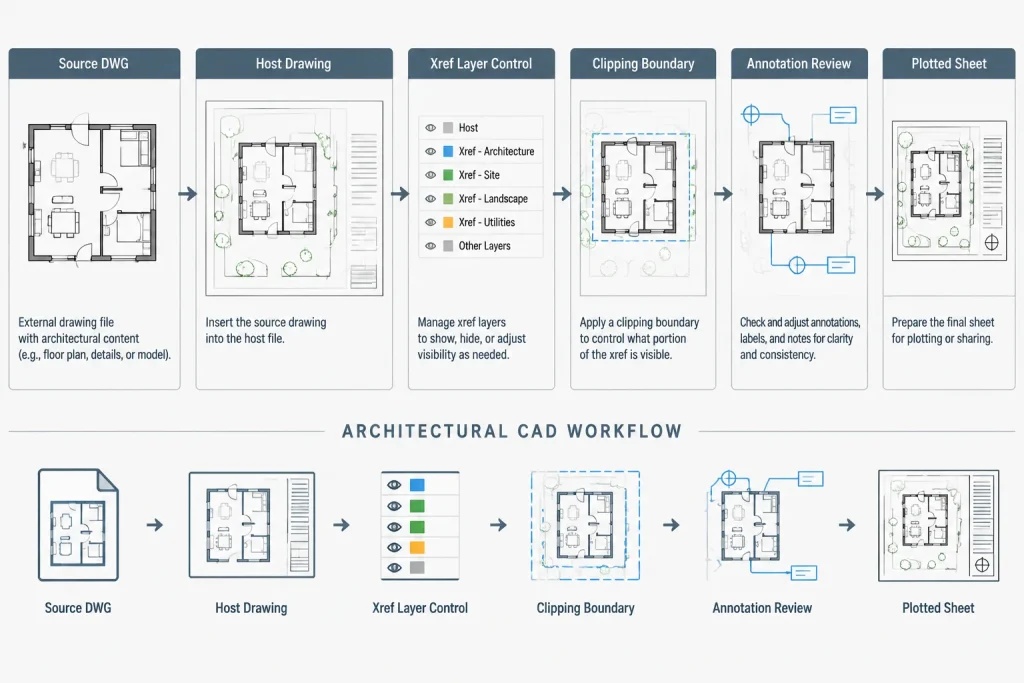
A clipping boundary also differs from freezing xref layers. Layer controls hide selected categories of objects, while a clipping boundary limits the geographic or plan area that can be seen. Many drawings require both: layer control to determine what appears and clipping to determine where it appears.
Where clipping is useful in architectural drawings
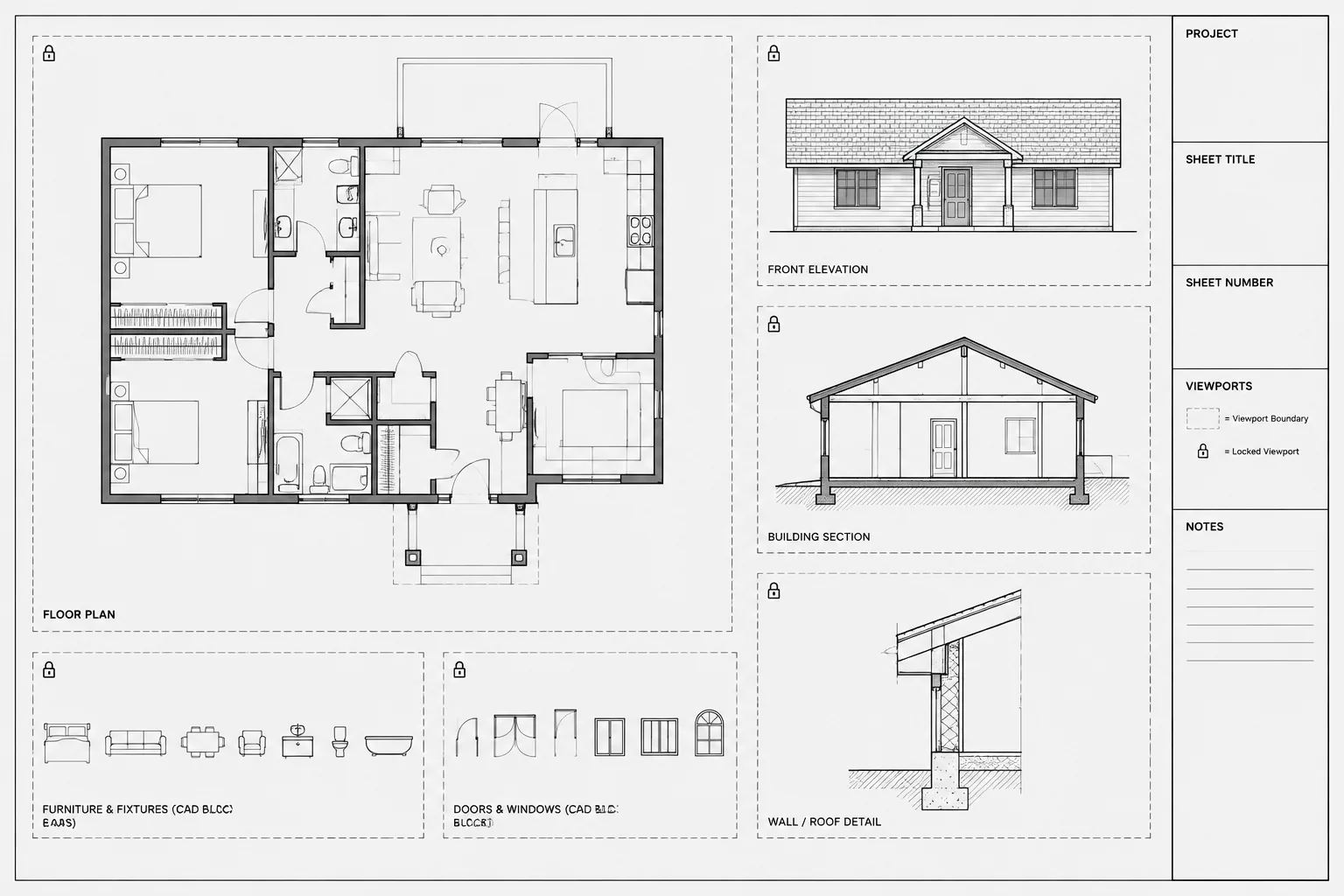
- Enlarged plans: Display the relevant portion of a floor-plan background without showing unrelated rooms beyond the enlargement area.
- Partial plans: Use a coordinated building background while limiting each sheet to its assigned zone.
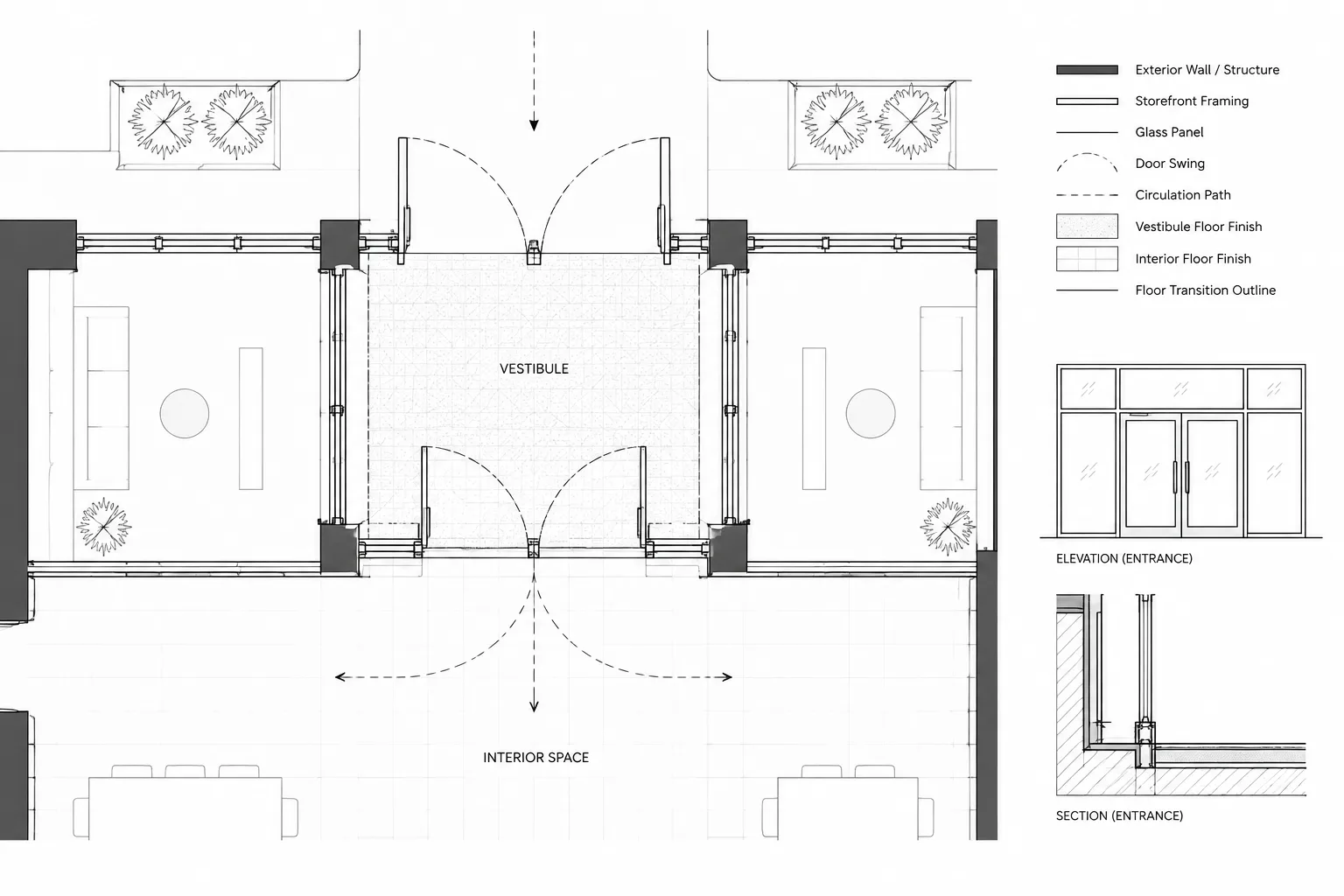
- Interior elevations and details: Isolate nearby plan information used for drafting or reference without displaying the full floor.
- Tenant or department layouts: Focus on one controlled project area while retaining alignment with the larger building file.
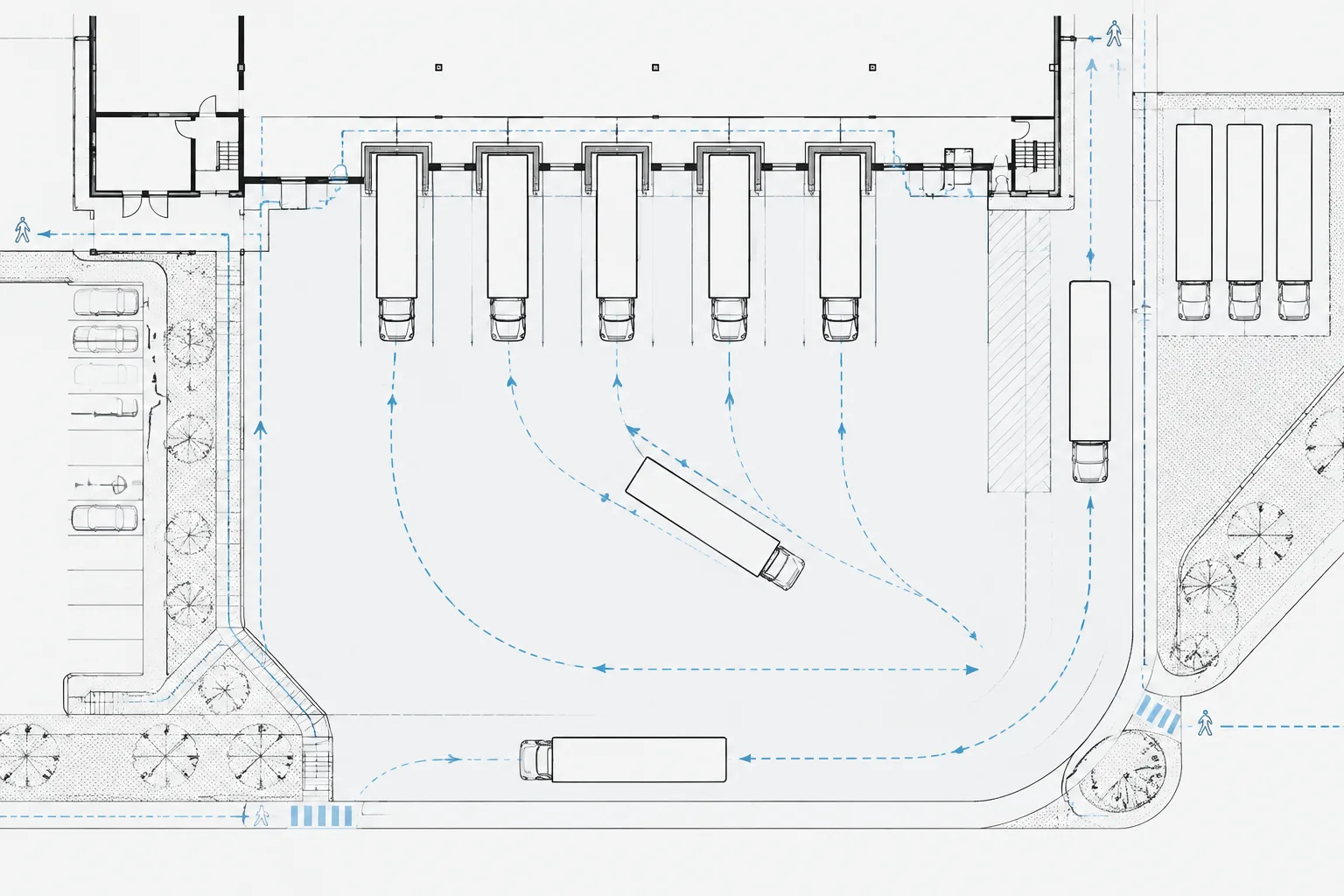
- Site and campus drawings: Show a selected building or work area from a broader base plan.
- Consultant coordination: Limit a discipline background to the architectural area being reviewed while preserving the original coordinates.
Clipping is less appropriate when the unwanted information can be removed through a clear layer-visibility rule, when the reference should be split into separate source files, or when the drawing needs surrounding context for safe coordination.
A reliable clipping workflow
1. Verify the reference before clipping
Confirm that the xref is attached using the project’s established insertion point, scale, rotation, and coordinate method. A clip can make a misaligned reference appear acceptable because only a small area is visible. Compare recognizable control points such as grids, major wall intersections, shafts, or survey control before limiting the display.
Also review the xref path and status. A clipping boundary is not useful if the reference is unresolved, points to the wrong file, or depends on an uncoordinated local copy.
2. Establish layer visibility first
Set the xref layer visibility needed for the target drawing before creating the clipping boundary. Freeze or override irrelevant layers according to the office workflow, then evaluate the remaining geometry. This makes it easier to determine whether clipping is actually necessary and where the boundary should fall.
Avoid using an unusually complex boundary to work around poor layer organization. If the clip repeatedly weaves around notes, symbols, or unrelated objects, the source file or layer strategy may need attention.
3. Define a simple boundary
Use a rectangular or straightforward polygonal boundary that corresponds to a meaningful drawing area. Good boundaries commonly follow a match line, enlargement limit, building zone, room group, or other recognizable division.
Do not place the boundary exactly against important visible geometry unless that edge is intentional. Future source-file revisions may move walls, tags, or equipment across the clip. Allow enough contextual area to make updates noticeable during review.
4. Apply the clip to the correct xref instance
Select the intended xref instance and apply the clipping boundary with the appropriate clipping tool. This selection deserves attention when a host drawing contains several references with similar names or multiple insertions of the same source file.
Different instances of a reference can be displayed for different purposes, but each instance should be identifiable. If repeated insertions are part of the workflow, use clear layer placement and documentation so another drafter can understand which instance supports each view.
5. Review the clipping frame
The clipping frame can assist editing and troubleshooting, but it may be distracting on a finished sheet. Configure its display and plotting behavior according to the project’s CAD standards, then verify the plotted result rather than relying only on the model-space display.
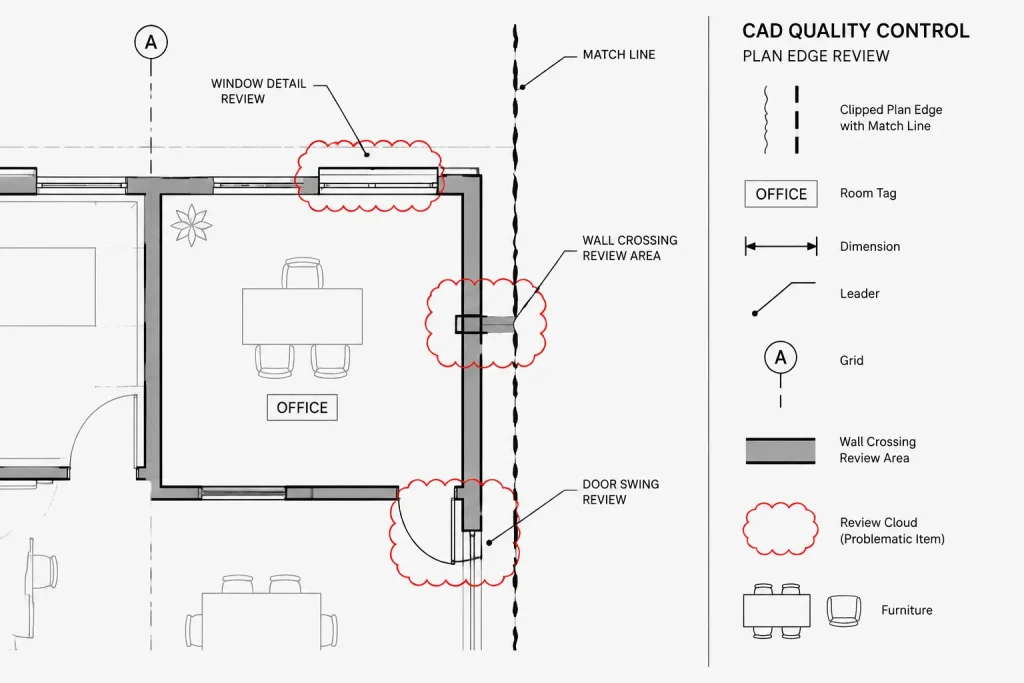
When a frame is intentionally hidden, provide another understandable graphic limit where needed, such as a match line, viewport crop, break line, or enlargement boundary. Readers should not mistake a clipped edge for the actual end of construction.
6. Keep host annotation outside the xref
Place sheet-specific notes, dimensions, callouts, and detail references in the responsible host drawing unless the annotation belongs to the shared source. Xref clipping does not automatically manage independent host annotation. A tag can remain visible even when the referenced object it describes has been clipped away.
After changing a boundary, inspect annotation near every edge. Look for dimensions with hidden extension origins, leaders pointing to invisible objects, room tags without rooms, and section markers whose referenced geometry is no longer shown.
7. Reload and plot-test the result
Reload the reference to confirm that the boundary survives a normal update. Then produce a test plot or PDF using the intended page setup. Check lineweights, halftones, hatch edges, masks, and objects crossing the clipped limit. Plot review often reveals clipped content that was difficult to notice against the dark model-space background.
Clipping compared with other visibility methods
| Method | Best use | Main caution |
|---|---|---|
| Xref clipping | Showing only a selected physical area of a reference | Relevant context may be hidden as the source changes |
| Xref layer control | Hiding categories such as annotation, furniture, or grids | Layer changes can affect a larger area than intended |
| Viewport clipping | Controlling the shape of a sheet view | It affects the entire viewport, not just one reference |
| Source-file editing | Correcting or reorganizing responsible geometry | Changes affect every drawing that uses the source |
| Separate source files | Managing genuinely independent buildings, zones, or packages | Additional files require disciplined coordination |
Nested references and clipped context
An architectural xref may contain nested structural, civil, survey, or equipment references. Clipping the parent reference can limit the displayed nested content along with it. This may produce a clean view, but it can also hide a coordination issue just beyond the boundary.
Before issuing a clipped drawing, temporarily review the surrounding reference context. Pay particular attention to elements that naturally cross drawing limits, including grids, corridors, exterior paving, utility routes, roof edges, and continuous walls. The clipped presentation should not replace a broader coordination review.
Common clipping problems
The wrong side of the reference is visible
Review the boundary orientation and the current clipping mode. Do not redraw or move the xref merely to correct an inverted display condition. Changing the reference position can break coordination with other files.
Objects disappear unexpectedly after an update
The source geometry may have moved across the existing boundary. Temporarily display or expand the clip, reload the xref, and compare the updated source against the intended drawing limit.
A clipped edge looks like a construction edge
Add an appropriate drawing-limit convention or revise the composition so the cropped condition is clear. A reader should be able to distinguish a display boundary from an actual wall, slab, property line, or finish termination.
Selection is difficult
Complex overlapping references, locked layers, and hidden frames can make clipped xrefs hard to identify. Use controlled layer isolation or reference-management tools to confirm the selected file and instance before editing the boundary.
The file is confusing after consultant handoff
Recipients may not realize that a reference has been clipped. Include clipping in the DWG review process, keep reference names clear, and avoid unexplained duplicate xref instances. If the recipient needs the full background, confirm that the source files are included and that the visible crop is not mistaken for missing source geometry.
Quality-control checklist
- Confirm the xref path, coordinates, scale, and rotation before clipping.
- Use layer visibility controls before deciding on the clip extent.
- Keep the boundary simple and related to a recognizable drawing limit.
- Verify that the correct xref instance is clipped.
- Review surrounding geometry temporarily for coordination context.
- Check dimensions, tags, leaders, and callouts near the boundary.
- Confirm how the clipping frame displays and plots.
- Reload all references and inspect the drawing after source updates.
- Plot-test the sheet using its intended page setup.
- Explain unusual clipping conditions before sharing the DWG.
Use clipping as a presentation control, not a repair
Clipping xrefs in AutoCAD is most effective when the underlying references are already coordinated and well organized. It can turn a large background into a focused architectural view without sacrificing the shared source or project coordinates. The strongest workflow combines simple boundaries, disciplined layer control, visible drawing limits, and routine review of the hidden context.
If clipping is repeatedly needed to conceal incorrect geometry or compensate for poorly divided files, address the source organization instead. A clean crop can improve a sheet, but it cannot replace reliable reference management.
Document the reason for each clipped reference
A clipping boundary is easier to maintain when its purpose is evident from the drawing organization. The host file, xref layer placement, view title, match line, or enlargement limit should help another CAD user understand why only part of the reference appears.
Unexplained clipping is particularly risky in files that pass between architects, consultants, builders, and outside drafting teams. A recipient may interpret the cropped display as the full extent of the available background. Clear file naming and drawing-limit graphics reduce that ambiguity without altering the referenced geometry.
Review the hidden context when the design changes
A boundary that worked during early drafting may become unsuitable after walls, equipment, circulation, or site elements are revised. Revisit the surrounding context whenever the source background changes substantially or the sheet scope expands.
Temporarily exposing the full reference can reveal objects that now cross the crop, annotation that has lost its subject, or coordination conditions immediately outside the displayed area. After reviewing the context, restore the intended clip and confirm the plotted composition.
Separate presentation decisions from coordination decisions
A clean sheet view and a complete coordination review are different objectives. Clipping can improve presentation, but coordination should still consider relevant geometry beyond the visible boundary. When an issue involves misplaced or outdated source objects, resolve it with the party responsible for that reference rather than adjusting the crop to conceal it.
Frequently asked questions about clipped xrefs
Does clipping an xref delete geometry from the referenced DWG?
No. The boundary changes what is displayed in the host drawing. It does not remove the hidden objects from the source reference.
Should xref clipping replace layer visibility control?
No. Layer controls determine which object categories appear, while clipping limits the visible drawing area. Architectural files often use both methods for different purposes.
Why can objects disappear after an xref is reloaded?
Referenced geometry may have moved beyond the existing clipping boundary. Temporarily reveal more of the xref, compare the revised background with the intended view limit, and adjust the boundary only when the drawing scope requires it.
Can separate insertions of the same xref show different areas?
Separate xref instances can support different display conditions. Each instance should remain clearly identifiable so drafters do not edit the wrong boundary or confuse duplicate references during coordination.
Can a clipped edge be mistaken for a real building edge?
Yes. Use an appropriate match line, enlargement limit, break convention, or other drawing cue when the crop could be confused with an actual wall, slab, property line, or finish termination.
What should be checked before sharing a drawing with clipped references?
Confirm the reference status, identify unusual clipping conditions, inspect annotation near the boundaries, review hidden context, and verify the plotted output. Recipients should be able to distinguish a deliberate crop from missing source information.