Construction lines in AutoCAD provide a temporary framework for aligning architectural geometry without turning every reference into finished drawing content. Used carefully, xlines, rays, and finite guide lines can make plan development, view projection, and geometric layout easier to verify.
The key distinction is not simply which object extends farther. Drafters must also consider direction, selection behavior, layer control, plotting, and whether the reference should remain available for later coordination. The following workflow explains how to choose and manage each guide type while keeping the DWG organized.
Construction geometry helps architectural drafters establish alignments before committing to finished drawing objects. It can project wall locations between views, align elevation features with a floor plan, establish roof slopes, locate repeated elements, and provide a visual framework for complex details.
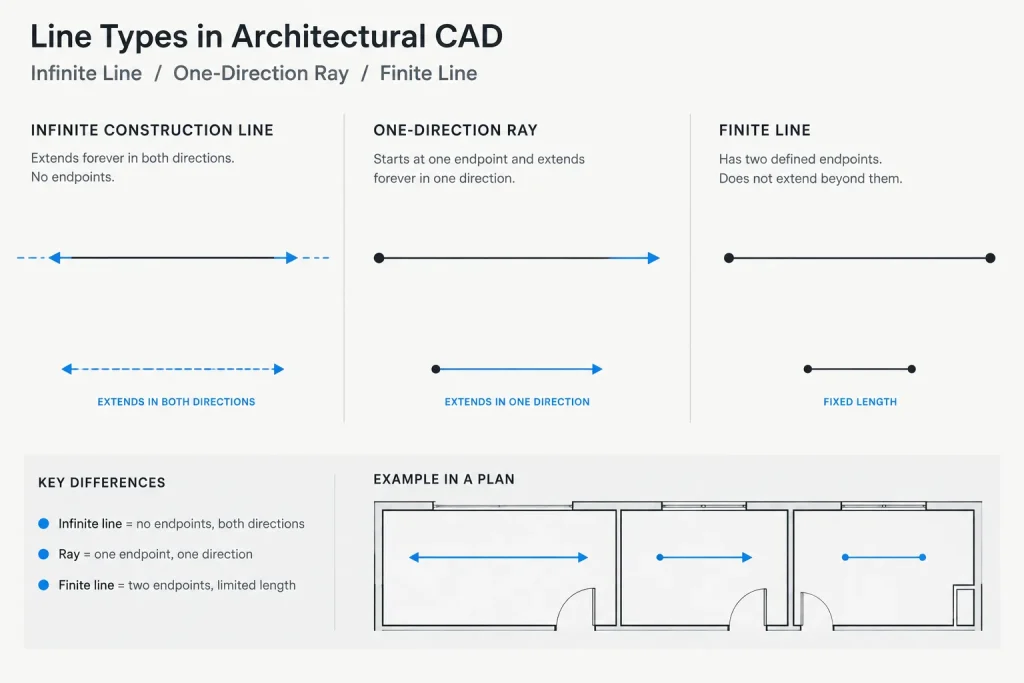
AutoCAD offers several ways to create this geometry. An xline extends infinitely in both directions, a ray starts at a defined point and extends infinitely in one direction, and a standard line has two finite endpoints. Each is useful, but only when its purpose, layer, and eventual disposition are clear.
This guide explains how to use construction lines in AutoCAD without allowing temporary geometry to clutter the architectural DWG file or appear unexpectedly on issued sheets.
Xlines, Rays, and Regular Lines Compared
| Object | Geometry | Useful architectural applications | Main caution |
|---|---|---|---|
| Xline | Infinite in both directions | Projecting grids, datums, wall faces, opening centers, and major alignments | Can cross the entire model and make selection or navigation difficult |
| Ray | Begins at one point and continues infinitely in one direction | Roof slopes, sight lines, directional projections, and angled layout studies | May be overlooked because it has only one finite end |
| Line | Finite between two endpoints | Local guides, detail layouts, trim limits, and short-term reference geometry | Can be mistaken for finished drawing work if not separated by layer |
An xline is often the best choice when the required projection distance is not yet known. Because it crosses the working area regardless of zoom level, it can connect related geometry without requiring the drafter to estimate a suitable line length. A ray provides similar flexibility when the projection should proceed in only one direction.
Regular lines remain useful for localized construction work. Their limited length reduces visual clutter, and their endpoints can provide convenient snap locations. The disadvantage is that temporary lines may visually resemble permanent walls, edges, or detail components.
Create a Dedicated Construction Layer
Construction objects should normally be placed on a clearly named layer rather than mixed with walls, grids, dimensions, or annotation. A dedicated layer makes the geometry easier to identify, isolate, lock, freeze, or remove.
A practical construction layer should have:
- A recognizable color that contrasts with finished architectural linework.
- A simple linetype that remains visible at normal working zoom levels.
- A nonplot setting when the office workflow permits it.
- A descriptive name that distinguishes temporary guides from permanent reference grids.
Nonplot status is useful protection, but it should not replace drawing cleanup. Temporary objects can still interfere with selection, object snaps, file review, and geometry checks even when they do not print. Before issuing or sharing a DWG, decide whether the guides are still useful or should be deleted.
Do not place permanent structural or architectural grids on a temporary construction layer. Grid lines, level datums, reference planes, and similar documented elements have drawing-set functions that differ from disposable drafting guides.
A Reliable Construction-Line Workflow
1. Identify the controlling geometry
Begin with a verified object or reference: a grid intersection, wall face, floor level, opening centerline, property corner, or other project-specific control. Avoid projecting from approximate graphics when an exact source is available.
2. Set the construction layer current
Changing layers before drawing the guide reduces later cleanup. It also gives the temporary geometry an immediately recognizable appearance.
3. Choose the appropriate guide object
Use an xline when the alignment must pass through an entire work area. Use a ray when the projection has a meaningful origin and direction. Use a finite line when the guide only needs to serve a small detail or bounded portion of a view.
4. Place the guide with object snaps
Snap to known endpoints, intersections, centers, midpoints, or other intentional locations. A construction line placed approximately defeats its purpose and can transfer errors into multiple views.
5. Draft finished geometry from the guide
Use the construction object as a snap reference rather than tracing visually. Keep finished objects on their proper architectural layers. The guide should control alignment, not become part of the final component accidentally.
6. Verify before hiding or deleting it
Check that the resulting objects align with the correct control points and that no unintended object was created on the construction layer. Then retain, hide, or remove the guide according to the drawing workflow.
Using Construction Lines in Floor Plans
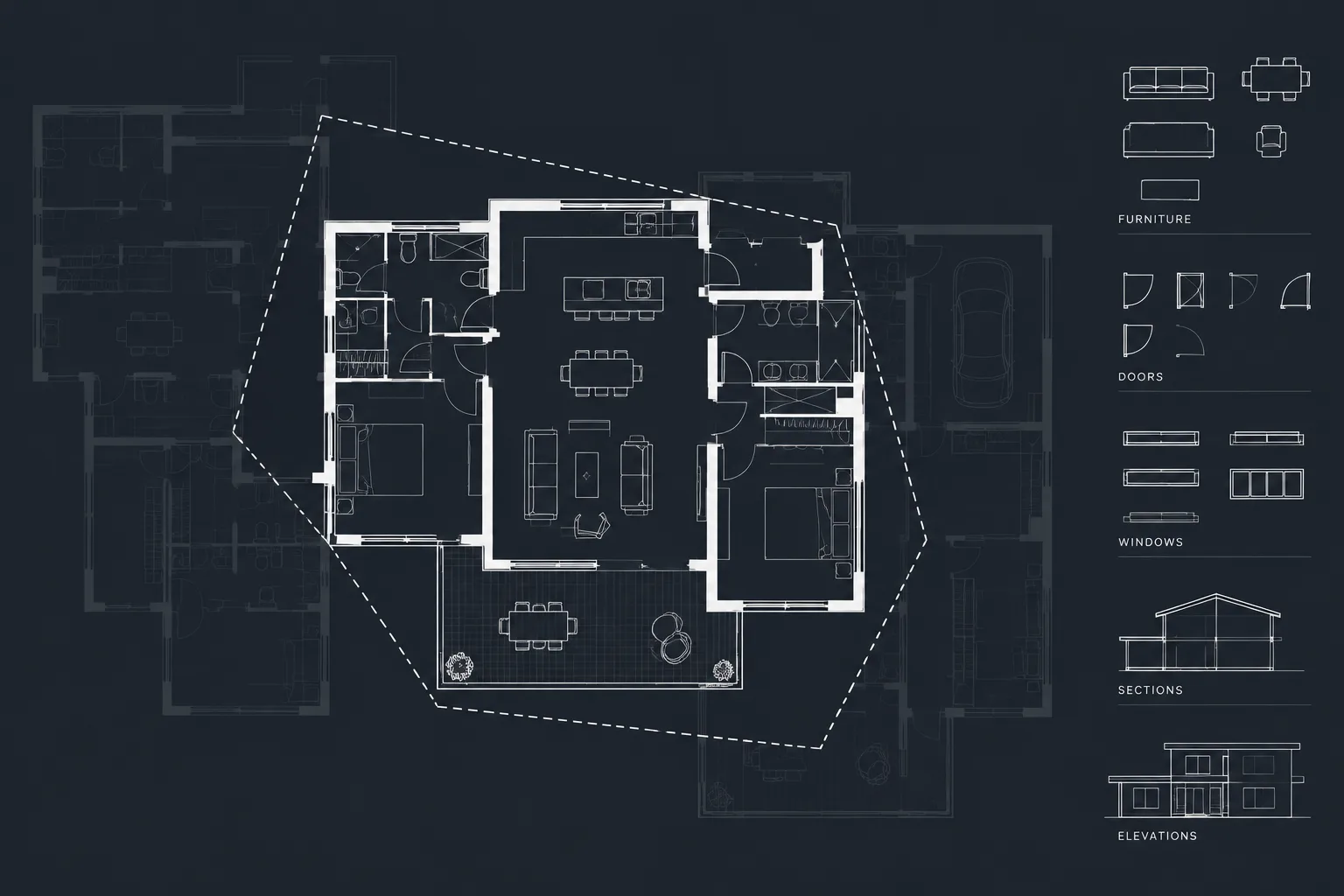
In a floor plan, xlines can help extend important alignments through crowded geometry. Typical uses include projecting a column centerline, checking whether door and window openings align, carrying a corridor edge through multiple rooms, or comparing wall faces across separated plan areas.
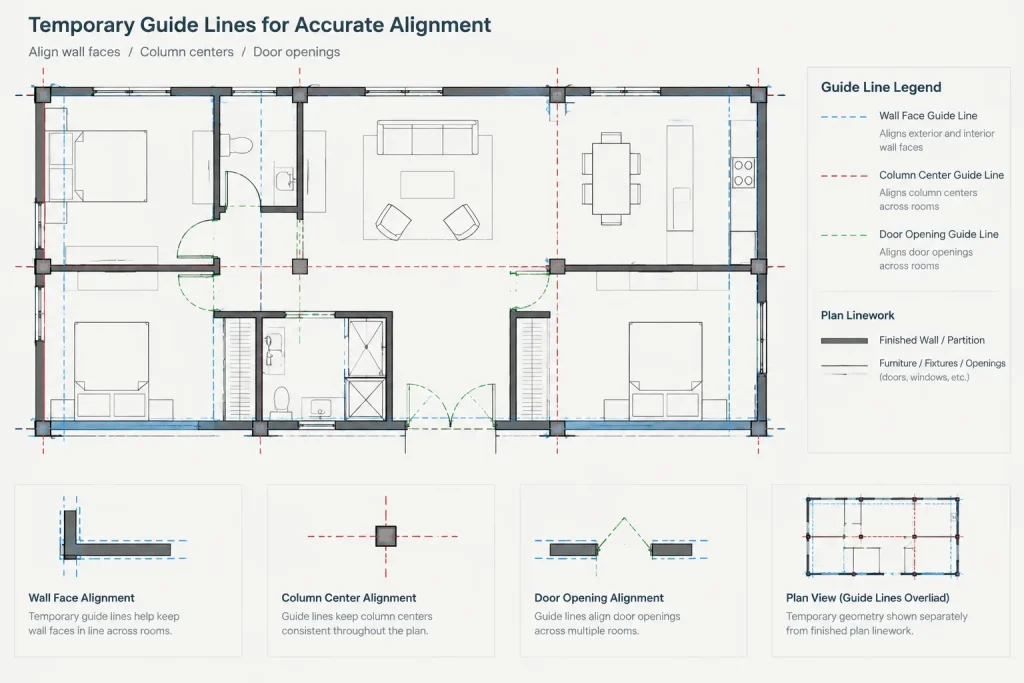
Construction geometry is also useful when laying out repeated bays. Establish the first verified control, create the required guide framework, and then place finished elements from that framework. Do not assume every repeated spacing is identical; confirm design intent and project information before copying geometry.
For renovations, guides can distinguish inferred alignments from surveyed or field-verified conditions. Keep those guides separate from documented existing construction, and do not allow a visually convenient projection to override conflicting field information.
Projecting Plans into Elevations and Sections
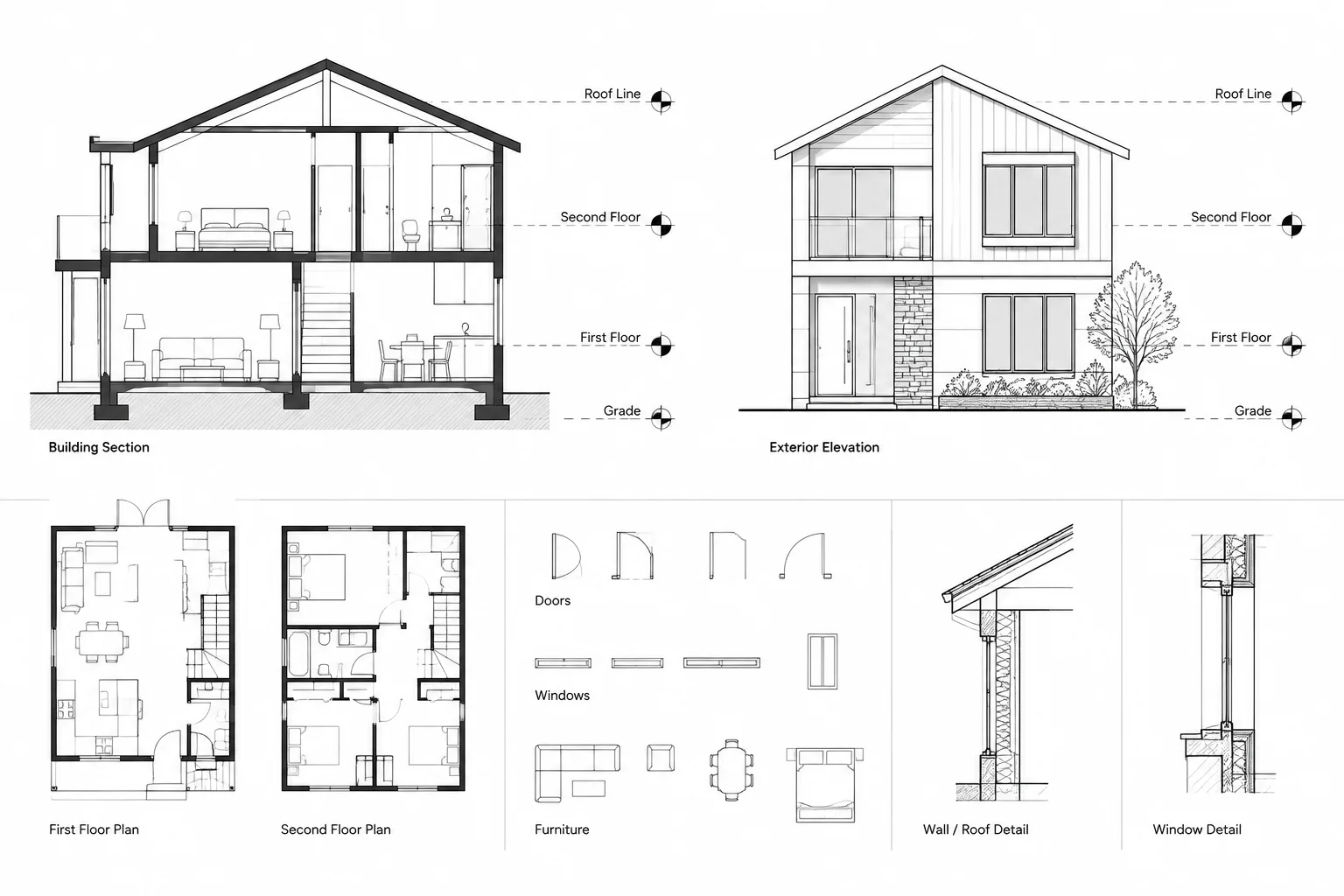
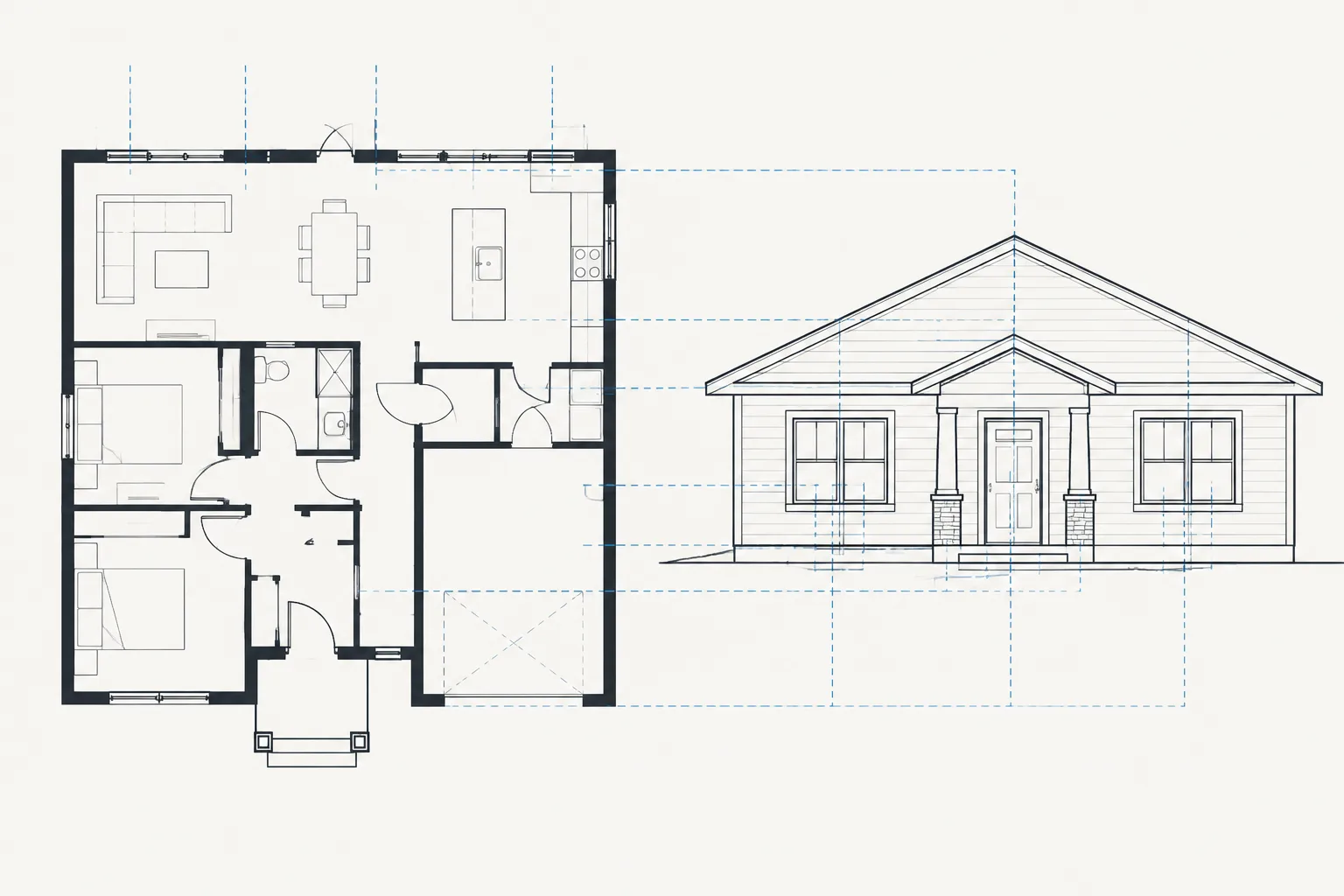
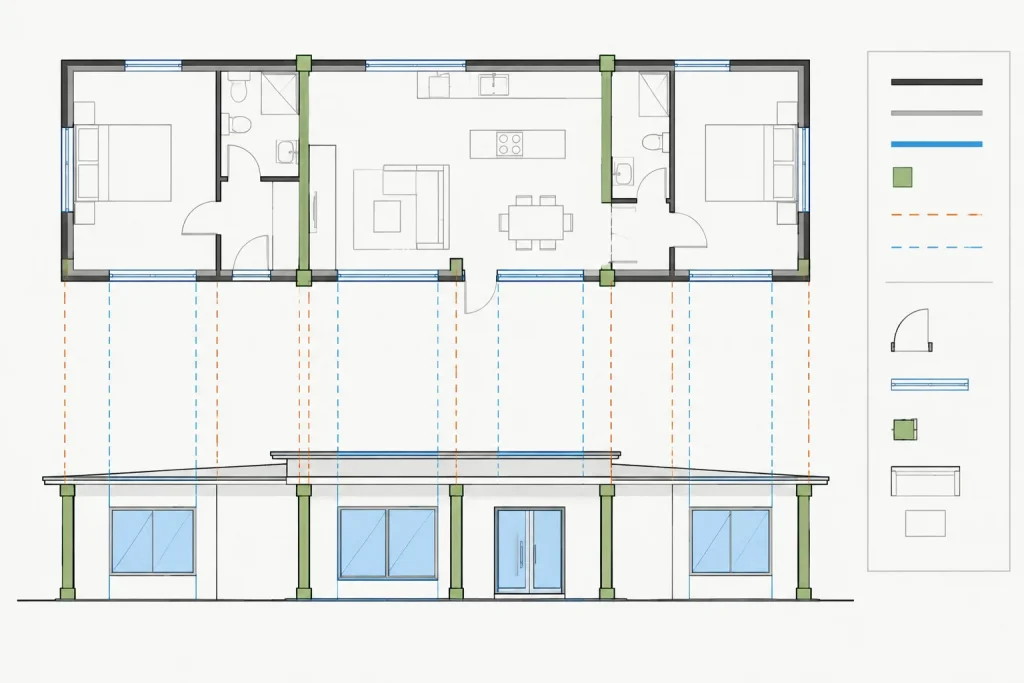
One of the most effective uses of construction lines is coordinating orthographic views drafted in the same DWG. Vertical xlines can project plan features into an elevation, including opening edges, wall returns, columns, joints, and casework limits. Horizontal guides can carry floor levels, ceiling relationships, sill locations, and other verified heights across elevations and sections.
A disciplined sequence is important:
- Confirm that the plan, elevation, and section use a compatible origin and orientation.
- Project from actual source geometry rather than from text, dimensions, or hatch boundaries.
- Use separate guides for distinct faces when assembly thickness or offsets matter.
- Complete the target view on its correct layers.
- Compare the finished view back to the source before removing the guides.
Construction lines improve alignment, but they do not create automatic coordination. If the plan changes later, independently drafted elevations and sections still require review and revision.
Angled Guides and Geometric Layout
Not every architectural relationship is horizontal or vertical. Angled xlines and rays can support roof studies, stair-related drafting, diagonal wall layouts, site geometry, and detail development. A ray is particularly useful when an angled condition originates at a known point and only needs to extend toward the area being developed.
Angle-based guides should be derived from verified geometry or project criteria. Avoid choosing an angle solely because it looks close on screen. Where two surfaces or alignments meet, use exact intersections and object snaps to establish the resulting geometry.
For bisectors, offsets, and similar geometric operations, inspect the result rather than assuming the selected side or direction was correct. Dense drawings can make an incorrectly oriented guide appear plausible.
Selection and Object-Snap Problems
Because xlines and rays extend indefinitely, they can influence drafting far beyond the visible area where they were created. A cursor may detect an intersection with a guide that appears unrelated to the local work. Large numbers of guides can also complicate window selections and make it harder to identify finished objects.
If construction geometry begins to interfere with drafting:
- Freeze or turn off the construction layer when the guides are not needed.
- Lock the layer if the geometry should remain visible but unchanged.
- Use layer isolation while developing or reviewing the guide framework.
- Delete obsolete guides instead of accumulating them throughout the project.
- Check selected-object properties when a line behaves differently than expected.
Be cautious when trimming, extending, or modifying nearby work. An infinite object may participate as a boundary even when its most relevant point is outside the current view.
Construction Geometry Versus Permanent Reference Geometry
Temporary guides and permanent references may look similar, but they should not be managed as the same drawing content. A guide exists to help create other geometry. A permanent reference communicates project information or supports continued coordination.
Before deleting a guide, ask whether it represents an ongoing control that other team members need. If so, it may belong on a formal reference or grid layer with suitable graphics and documentation. If it only records a drafting step, it should usually remain temporary.
Quality-Control Checklist
- Confirm that construction objects are on the intended layer.
- Check that guide locations came from verified geometry.
- Look for finished objects accidentally drawn on the construction layer.
- Freeze the layer and confirm that no required drawing information disappears.
- Review model-space extents for stray or distant construction objects.
- Confirm that temporary geometry does not appear in plotted viewports.
- Remove obsolete guides before external DWG sharing when they provide no coordination value.
- Retain permanent grids and datums on appropriate documented layers.
Use Guides as Tools, Not Drawing Content
Construction lines in AutoCAD are most valuable when they support a controlled drafting process: establish a verified reference, project it accurately, create finished geometry on the correct layers, and then clean up the temporary framework. Xlines are effective for broad two-way projections, rays are useful for directional layouts, and finite lines suit localized work.
The goal is not to fill the DWG with guides. It is to use the minimum construction geometry needed to produce accurate, coordinated architectural drawings while keeping the file clear for the next drafter, reviewer, or consultant.
Choosing a Guide by Drafting Intent
A useful guide begins with a clear question: does the alignment need to cross the full drawing area, begin at a meaningful origin, or remain confined to a local detail? This decision helps prevent an unnecessarily large construction framework from developing around a simple task.
- Use an xline when geometry must be projected through separated views or across an area whose final extent is not yet established.
- Use a ray when the starting point matters and the projection should continue in a single direction.
- Use a finite line when visible endpoints aid snapping or when the reference should remain close to the work being developed.
The most expansive object is not automatically the most efficient. A local guide can reduce visual interference, while an infinite guide can avoid repeated extensions when coordinating distant geometry.
Reviewing Guides During a Team Handoff
Temporary geometry should be understandable to someone who did not create it. Before handing off a DWG, isolate the construction layer and inspect what remains. Guides that clearly support current coordination may be retained, but unexplained, duplicated, or obsolete objects should be evaluated and removed when appropriate.
Next, hide or freeze the construction layer and review the architectural drawing without it. This check can reveal finished edges, symbols, or other required objects that were accidentally placed on the temporary layer. It can also expose incomplete geometry that only appeared complete because a guide was visible beneath it.
Diagnosing an Unexpected Alignment
When projected work does not align as expected, inspect the source before adjusting the result visually. Confirm that the guide was snapped to the intended architectural object, that the source object itself is correct, and that the target view uses a compatible orientation. Also check whether a nearby xline or ray supplied an unintended snap intersection.
Moving finished geometry until it looks aligned can conceal the original problem. Correcting the controlling reference first provides a more reliable basis for related plans, elevations, sections, and details.
Frequently Asked Questions
What is the difference between an xline and a ray in AutoCAD?
An xline extends infinitely in both directions through its defining location. A ray has a defined origin and extends infinitely in only one direction. The better choice depends on whether the drafting relationship is bidirectional or directional.
Should construction lines be placed on a nonplot layer?
A nonplot construction layer can help prevent temporary geometry from appearing on sheets, but it is not a substitute for cleanup. Guides may still affect selection, snapping, review, and file organization.
Can a regular line be used as construction geometry?
Yes. A finite line is often preferable for a local layout because it limits clutter and provides visible endpoints. It should still be separated from finished work so that its temporary purpose remains clear.
Why are xlines affecting snaps outside the visible work area?
Because an xline is infinite, it can create intersections beyond the portion currently visible on screen. Isolating, freezing, or turning off the construction layer can help determine whether an unexpected snap comes from an infinite guide.
Should construction guides remain in a shared DWG?
Retain them only when they continue to support coordination and their purpose is understandable to other users. Obsolete drafting aids should generally be removed, while permanent grids and datums should be managed as documented reference geometry rather than temporary guides.
Do construction lines automatically coordinate plans and elevations?
No. They provide accurate projection references, but independently drafted views still require review whenever the source geometry changes.