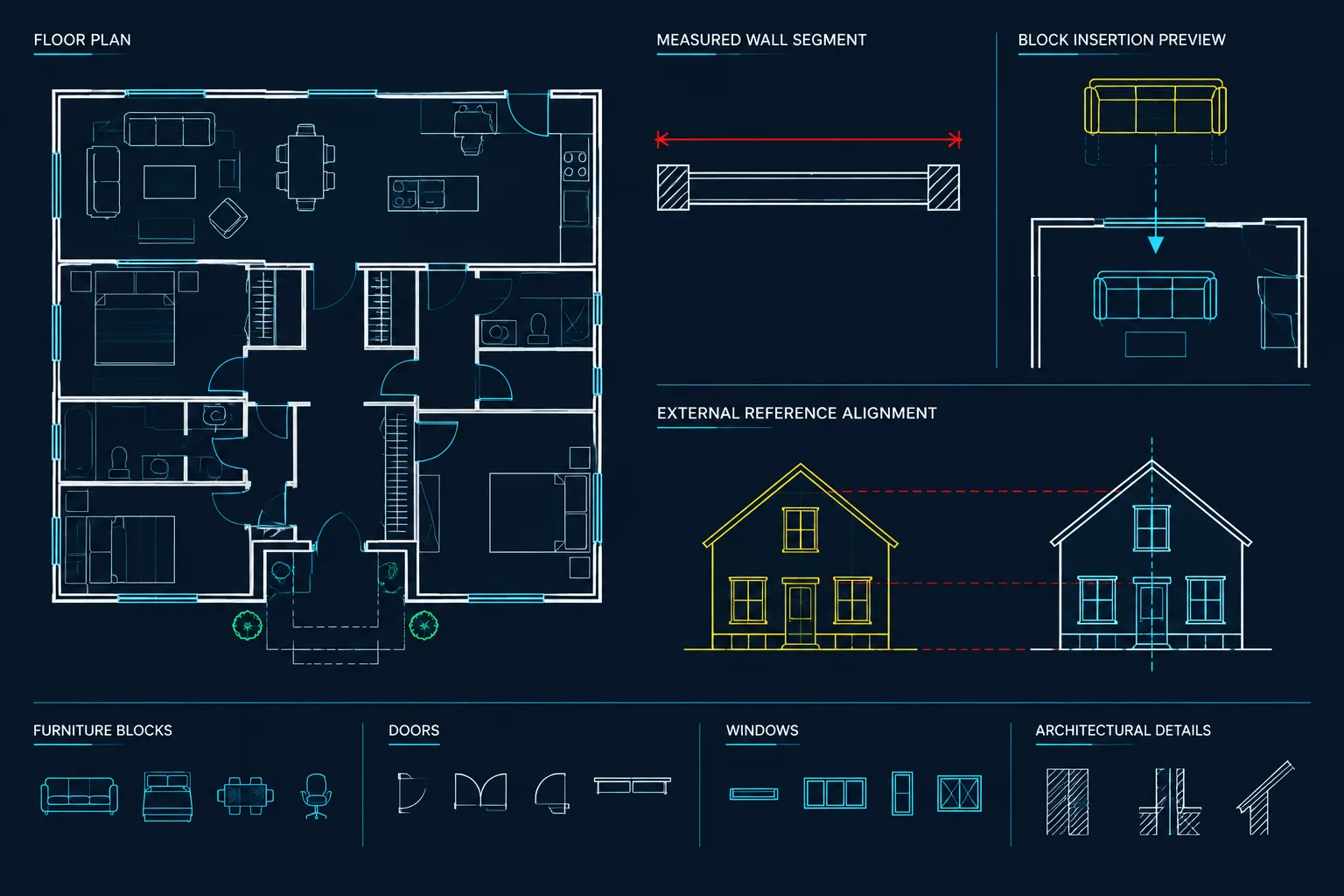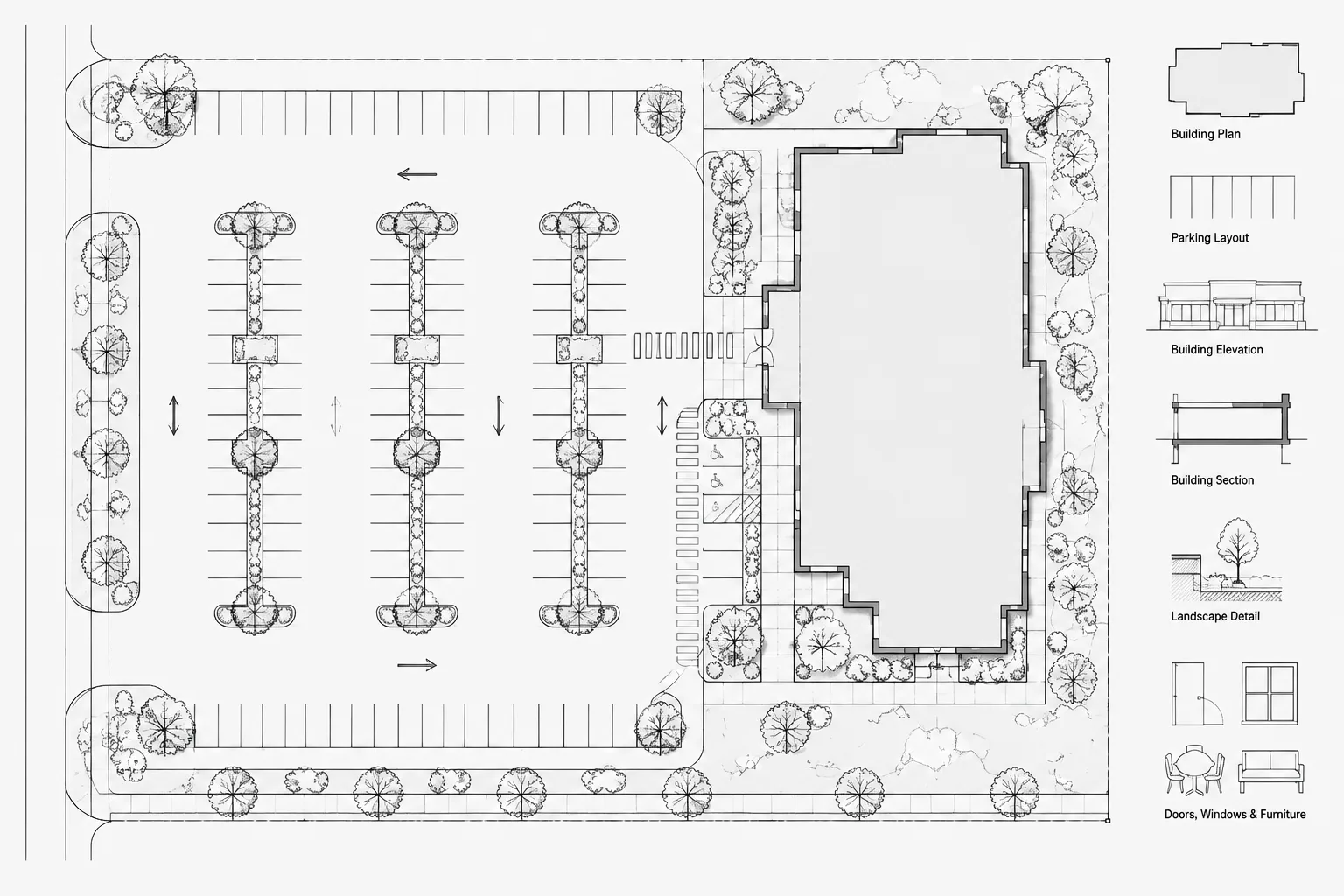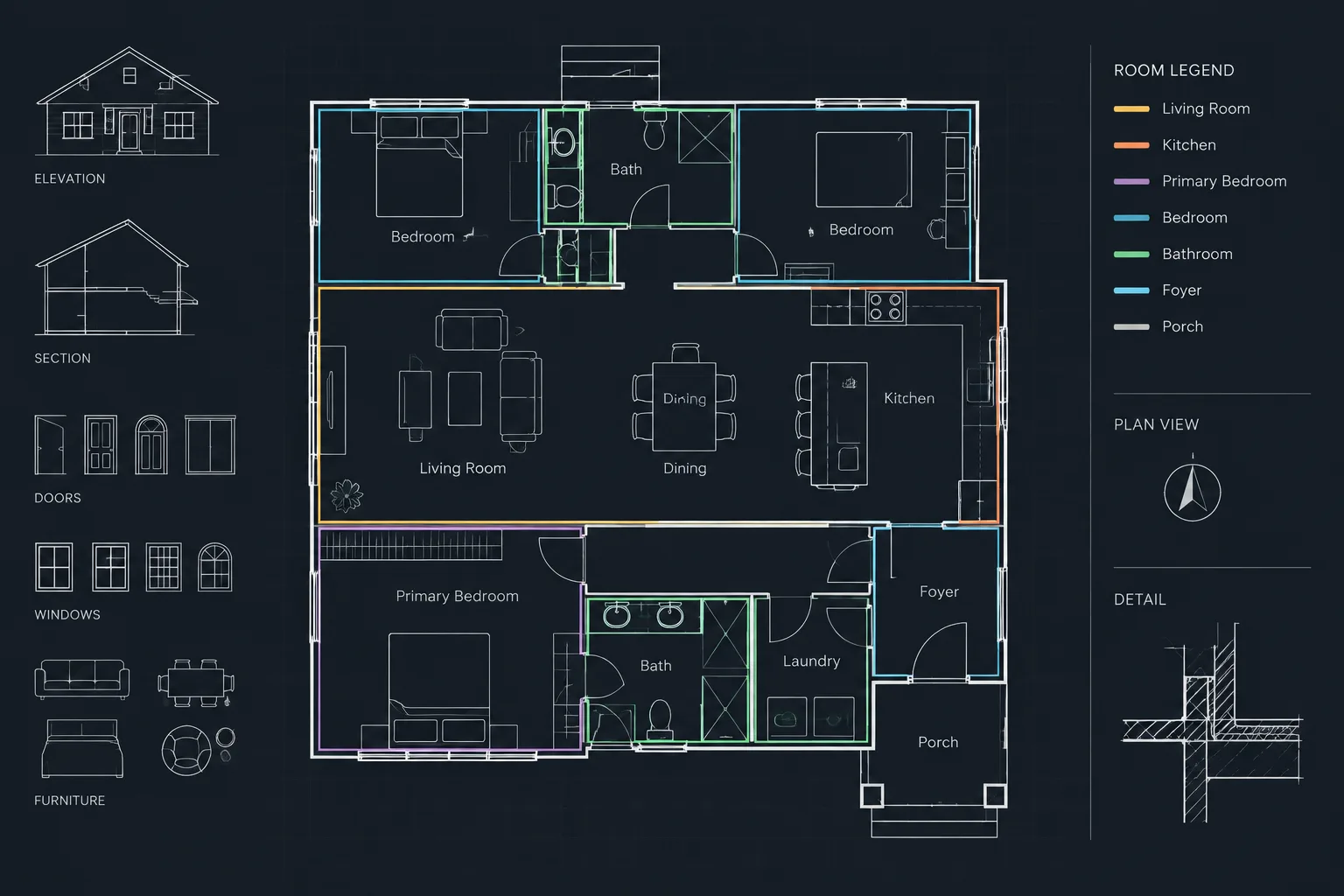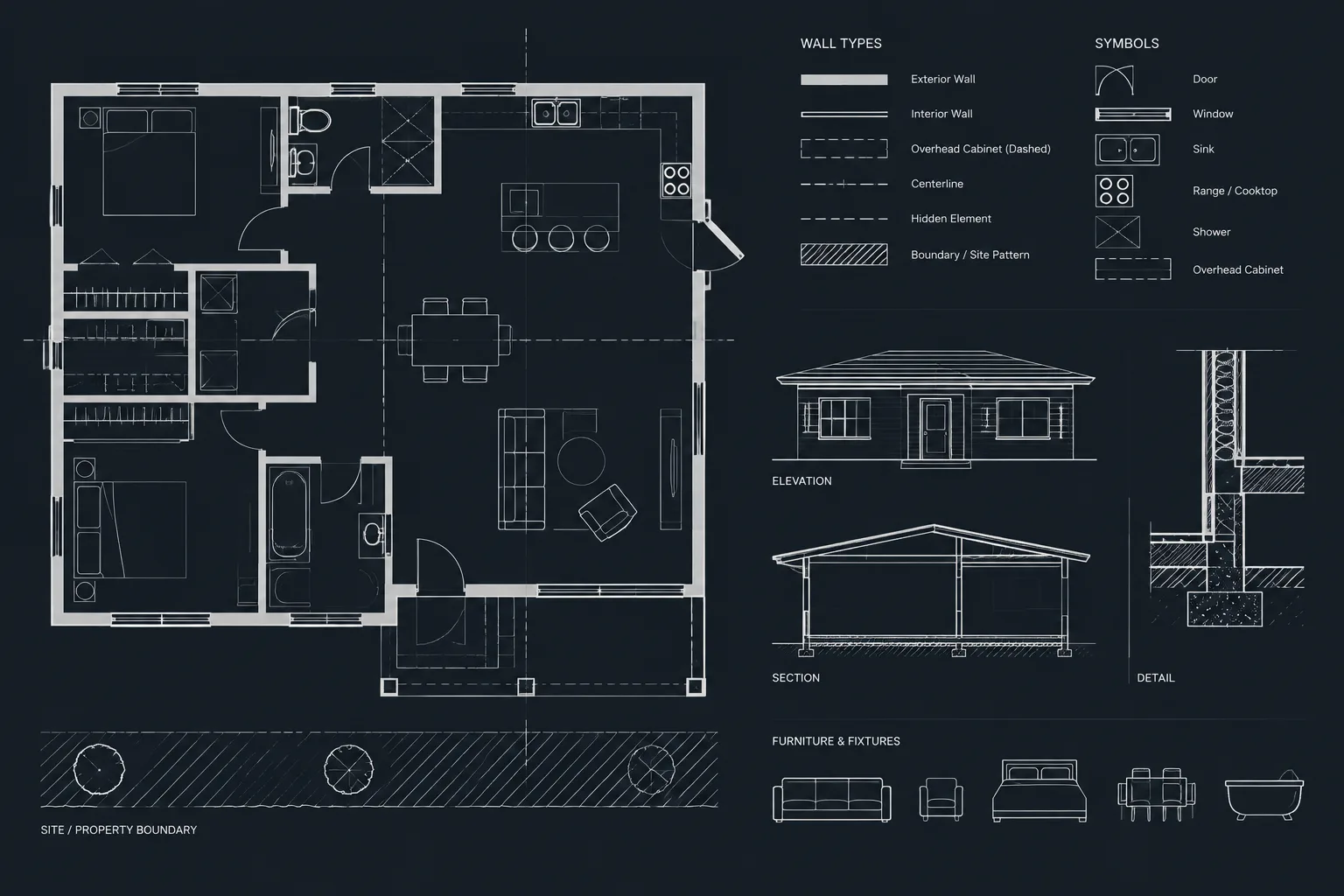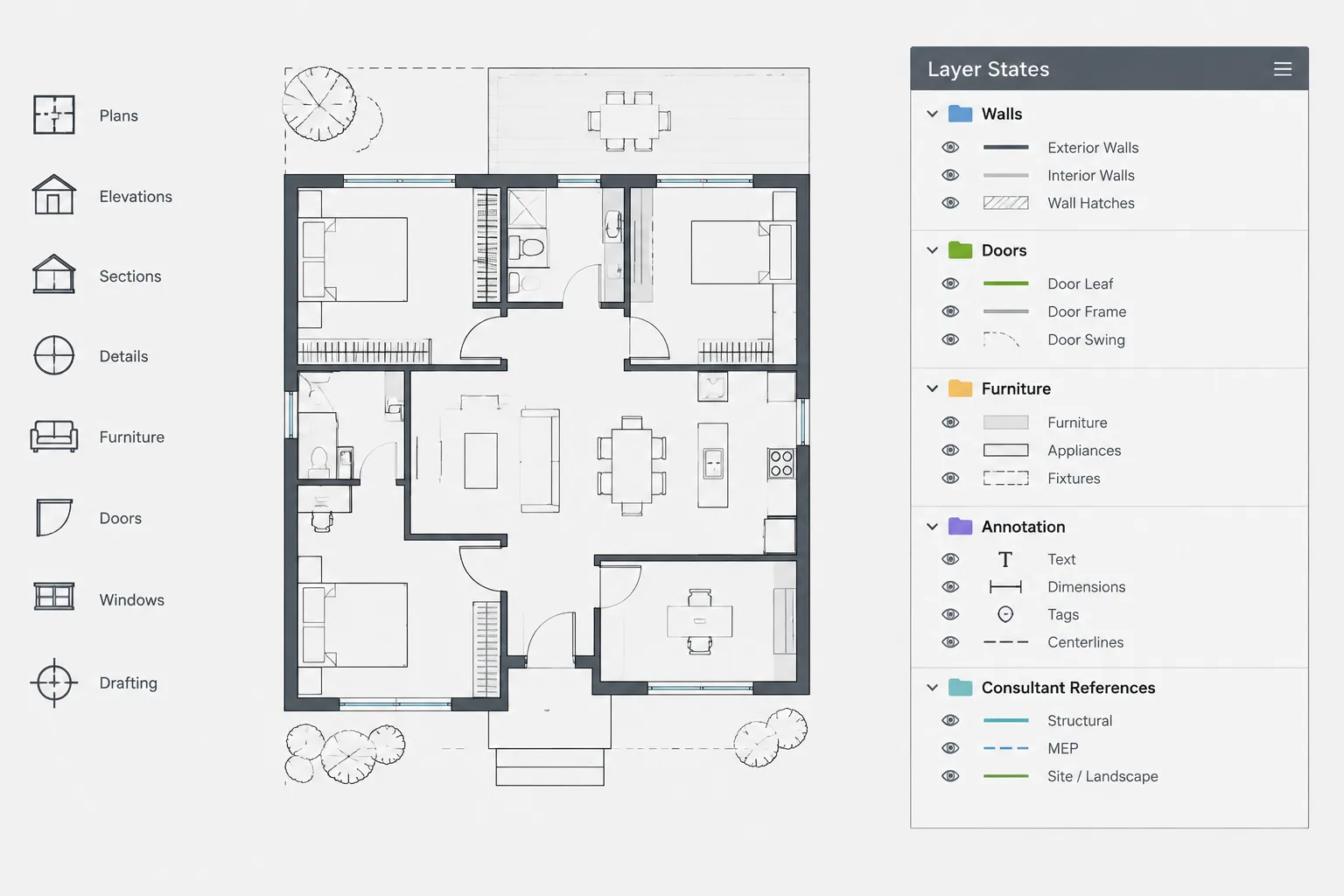
Layer visibility often becomes difficult to manage when one architectural model supports design work, consultant coordination, backgrounds, and multiple sheet views. An effective AutoCAD layer states workflow turns selected layer conditions into repeatable configurations rather than relying on manual changes or individual memory.
This guide explains how to define useful states, choose what they should restore, coordinate them with external references and viewport overrides, and verify that the resulting drawing display remains dependable.
Architectural DWG files often contain more information than any single drawing view should display. A floor plan may share geometry with furniture plans, reflected ceiling plans, consultant backgrounds, presentation views, and coordination overlays. Manually changing dozens of layer settings each time is slow and can produce inconsistent results.
AutoCAD layer states provide a controlled way to save and restore selected layer conditions. They can help a team move between working views, plotting configurations, and coordination setups without rebuilding the layer display from memory. However, a layer state is only reliable when its purpose, restoration settings, and relationship to viewports and external references are understood.
What Is an AutoCAD Layer State?
A layer state is a named record of layer conditions in a drawing. Depending on the properties selected for restoration, it can remember settings such as whether layers are on, off, frozen, locked, plottable, or assigned particular colors, linetypes, and lineweights.
Restoring a layer state applies the recorded conditions to the relevant layers. This makes a layer state useful as a repeatable display preset, but it should not be treated as a substitute for a coordinated layer standard. If objects are placed on incorrect layers, restoring a state will not correct their classification.
Layer states are especially useful when one model-space file supports several tasks. Typical examples include:
- Displaying an architectural plan with or without furniture.
- Creating a simplified background for structural or MEP coordination.
- Isolating demolition, existing, and new construction information.
- Switching between an editing view and a cleaner plotting view.
- Displaying annotation appropriate to a particular plan type.
- Temporarily emphasizing consultant reference layers during coordination.
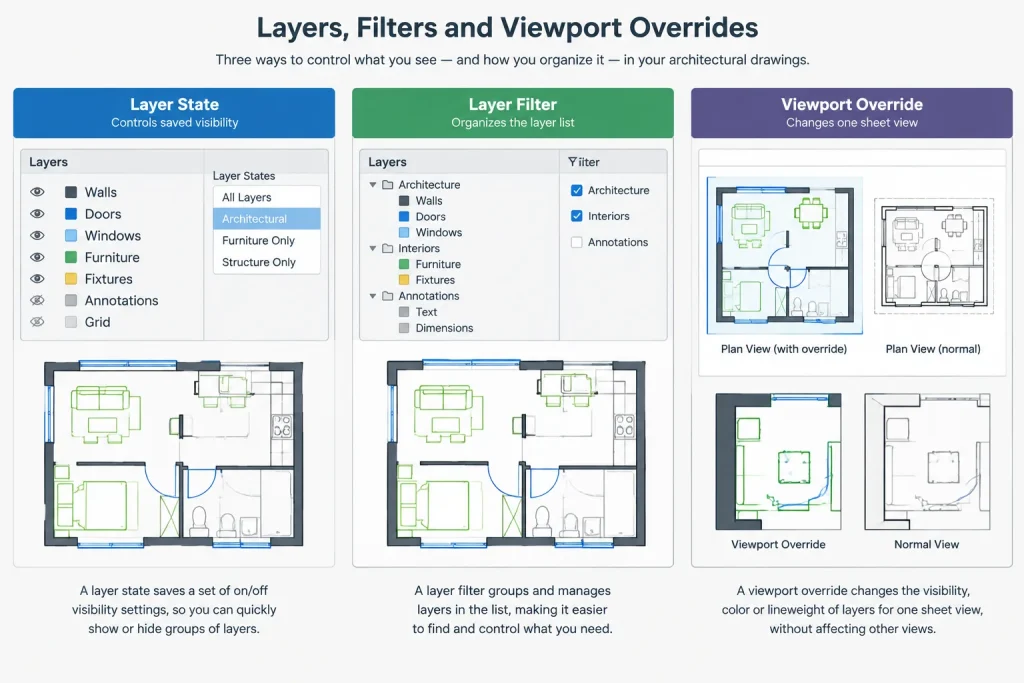
Layer States, Layer Filters, and Viewport Overrides
These tools solve different problems and should not be used interchangeably.
| Tool | Primary purpose | Typical architectural use |
|---|---|---|
| Layer state | Saves and restores a defined set of layer conditions | Switching between plan, background, coordination, and plotting configurations |
| Layer filter | Organizes or narrows the layer list | Finding architectural, annotation, furniture, or xref layers more quickly |
| Viewport layer override | Changes layer display in a specific paper-space viewport | Giving the same model different graphic appearances on separate sheets |
A filter helps users find layers; it does not automatically create a drawing presentation. A viewport override controls a specific viewport; it does not necessarily describe the intended model-space working condition. A layer state records a repeatable configuration and may interact with viewport-specific properties depending on where it is created and which restoration options are enabled.
Start with a Clearly Defined Use Case
Avoid creating a layer state simply because the current display looks useful. First define what the state is supposed to accomplish. A clear purpose produces a state that other team members can understand and verify.
Useful categories might include:
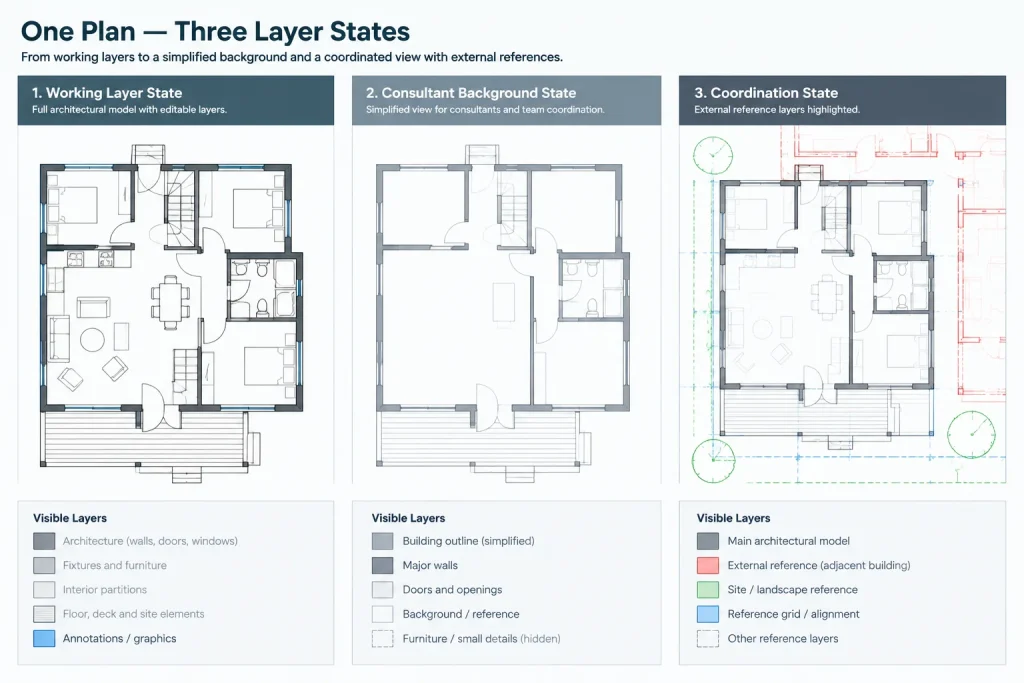
- Working states: configurations intended for editing, tracing, or checking geometry.
- Coordination states: configurations that expose structural, mechanical, electrical, plumbing, civil, or survey information.
- Background states: simplified architectural displays prepared for consultant use.
- Sheet states: configurations associated with a particular drawing type or viewport setup.
- Diagnostic states: temporary configurations used to locate unexpected objects, nonplotting content, or imported layers.
Do not mix several purposes into one state. For example, a consultant background state should not also be the team’s diagnostic state for finding hidden layers.
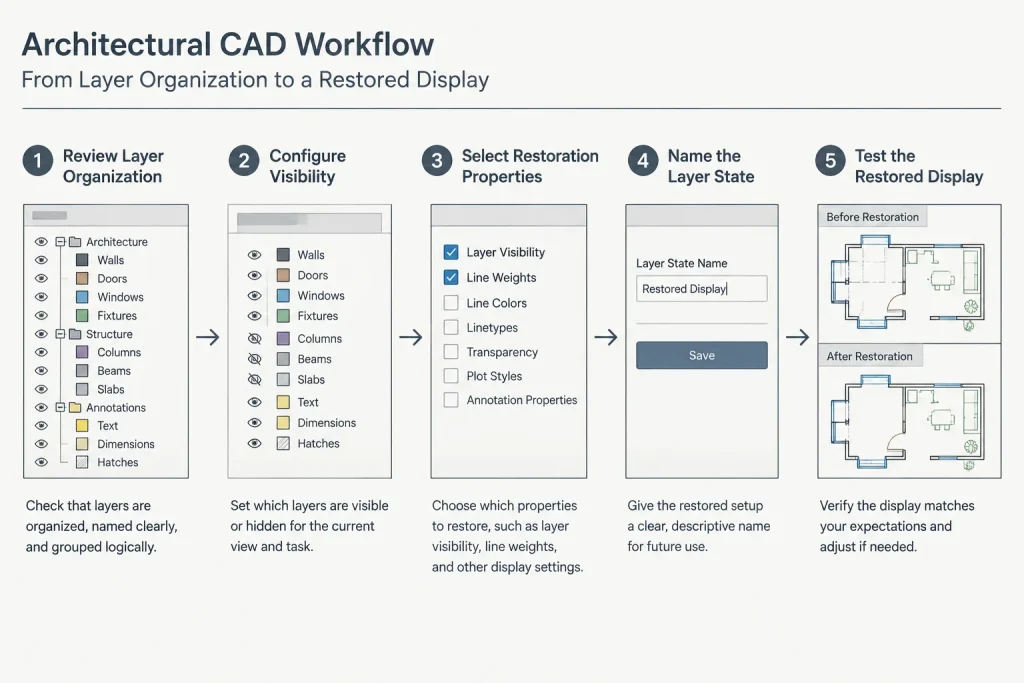
A Reliable Layer-State Setup Workflow
1. Review the layer structure
Before saving a state, inspect the drawing for duplicate layer concepts, unexplained names, unresolved external references, and object-level property overrides. Confirm that major object groups are placed on appropriate layers. A layer state cannot produce a dependable architectural background when walls, doors, notes, and furniture are mixed indiscriminately.
2. Establish the intended display
Turn layers on or off, freeze or thaw them as needed, and set the required lock and plot conditions. If the state is being prepared inside a layout viewport, verify whether the desired changes are global or specific to that viewport.
Use graphic property changes cautiously. Saving color, linetype, or lineweight settings can be appropriate when the state is meant to control presentation. It may be undesirable when the office expects those properties to remain governed by the main layer standard.
3. Choose restoration properties deliberately
Review which layer properties the state will restore. Do not assume every available property should be included. A coordination state may need to control visibility and locking without rewriting layer colors. A plotting state may need broader graphic control.
Also consider how the state should respond to layers created after it was saved. Depending on the selected settings, unrecorded layers may remain visible or may be turned off when the state is restored. Test this behavior before relying on the state in production.
4. Name the state by purpose
Use a naming pattern that communicates function rather than the name of the person who created it. A practical format may identify the discipline, drawing use, and condition, such as an architectural working view, consultant background, demolition coordination view, or furniture plan display.
Avoid vague names such as “Good,” “Final,” or “Use This.” These become meaningless as the drawing evolves.
5. Save and document the state
Add a short description where the drawing environment allows it. The description should explain when the state is used, whether it is intended for model space or a viewport, and whether it changes graphic properties or only visibility.
6. Test restoration
Change several relevant layer conditions and then restore the state. Confirm that the expected layers return to the intended condition. Test both ordinary drawing layers and xref-dependent layers when external references are part of the workflow.
Using Layer States with External References
Xref layers require special attention because their names are tied to the referenced drawing and its reference identity in the host file. Renaming, replacing, rebinding, or restructuring references can prevent an older state from matching layers as expected.
After an xref update, check whether:
- New reference layers have appeared.
- Previously recorded layers have been renamed or removed.
- The xref reference name has changed.
- Visibility settings still support the intended plan.
- Consultant additions are unexpectedly visible in plotted views.
Layer states should therefore be reviewed after significant consultant updates. They are not a permanent shield against changes in referenced files.
Model Space and Paper Space Considerations
A model-space working state usually supports editing and coordination across the drawing. A viewport-oriented state may support the appearance of one sheet view. Keep these roles distinct.
When restoring a state in a layout, confirm whether it is changing global layer properties, viewport-specific properties, or both. An unintended global change can affect other views, while an unintended viewport-only change may leave model space looking unchanged.
For sheet production, viewport overrides are often the more precise tool when several sheets display the same model differently. Layer states can still help establish or recover those configurations, but the team should understand which settings belong to the drawing globally and which belong only to a viewport.
Common Layer-State Problems
The restored view does not match the saved view
Check the selected restoration properties, newly created layers, renamed layers, xref changes, and viewport context. Also look for object-level color or linetype overrides that are independent of layer settings.
A state changes too much
The state may be restoring graphic properties that should remain controlled by the office layer standard. Edit the state or recreate it with a narrower set of restoration properties.
New consultant layers appear unexpectedly
The state may not contain those layers, or its treatment of unrecorded layers may not match the intended workflow. Review and update the state after evaluating the new information rather than hiding it automatically.
Users cannot tell which state is current
Layer conditions can change after a state is restored, so the drawing may no longer match the saved configuration. Treat restoration as an action, not proof that the file remains compliant. A quick visual and layer review is still necessary before plotting.
Quality-Control Checklist
- Give every production layer state a defined purpose.
- Use consistent, descriptive names.
- Record only the properties that the state actually needs to control.
- Distinguish global layer settings from viewport-specific overrides.
- Test the state after saving or editing it.
- Review states after xref names or consultant layer structures change.
- Check how new and unrecorded layers behave when the state is restored.
- Remove obsolete test states before issuing or archiving the drawing.
- Do not use layer states to conceal poor object-layer organization.
- Verify plotted output rather than assuming the restored state is correct.
Build Layer States into the Drawing Workflow
The greatest value of layer states is repeatability. A small, maintained set of purposeful states is more useful than a long list of undocumented snapshots. Incorporate them into the project template or drawing setup only when the required layers and xrefs are predictable, and update them as the project structure changes.
Used carefully, AutoCAD layer states can reduce repetitive layer management, make consultant coordination easier, and help architectural drawings return to known display conditions. Their reliability depends on disciplined layer organization, deliberate restoration settings, clear naming, and routine testing.
Deciding When a Layer State Is the Right Tool
Create a layer state when a recognizable drawing condition will be restored repeatedly. Good candidates have a clear purpose, use a reasonably stable layer structure, and can be checked against an expected visual result.
A layer state may not be the best response when the real problem is incorrect object classification, inconsistent layer naming, or uncontrolled object-level properties. Those issues should be corrected at their source. Likewise, a graphic treatment needed only in a particular sheet viewport may be better handled through viewport-specific controls.
Use a state for repeatable conditions
- A working display used regularly during editing or coordination.
- A controlled architectural background prepared for another discipline.
- A plan-type display that consistently includes or suppresses defined information.
- A diagnostic configuration that the team needs to reproduce during checking.
Avoid saving temporary clutter
Not every useful screen condition deserves a permanent name. Temporary isolation, exploratory visibility changes, and personal troubleshooting views can make the state list harder to understand. Save a condition only when another user can identify its purpose and confirm whether it has been restored correctly.
Team Handoff and Drawing Review
Before handing off a drawing, review each production state as part of the drawing environment rather than as an isolated preset. Confirm that its name still describes its purpose, its recorded properties remain appropriate, and its xref-dependent layers still correspond to the current reference structure.
The receiving user should also know whether a state is intended for model-space work, sheet preparation, consultant export, or troubleshooting. This context helps prevent a state from being restored in the wrong environment or mistaken for a complete plotting setup.
Practical review questions
- Does the restored display communicate the intended drawing type?
- Are important layers hidden only because the state is outdated?
- Do newly introduced layers require an explicit visibility decision?
- Are graphic changes coming from layer properties, viewport overrides, or object-level overrides?
- Does the state remain understandable without relying on the original author?
Layer states are most dependable when they are treated as maintained project controls. They should be reviewed alongside layer organization, reference management, viewport setup, and plot checking rather than assumed to remain correct automatically.
Frequently Asked Questions
Do layer states move objects onto the correct layers?
No. A layer state restores recorded layer conditions, but it does not reclassify drawing objects. Walls, furniture, annotation, and other content must already be assigned to appropriate layers.
Should every layer property be included in a saved state?
Only include properties required by the state’s purpose. A visibility-focused coordination state may not need to restore colors, linetypes, or lineweights, while a presentation-oriented state may require broader graphic control.
Why can a restored state look different after an xref update?
The referenced drawing may contain new, renamed, or removed layers, or the reference identity may have changed in the host drawing. Review the affected layers and update the state only after deciding how the revised consultant information should display.
Can layer states replace viewport layer overrides?
Not in every situation. Viewport overrides are useful when the same model needs different graphics in separate sheet views. Layer states can help establish repeatable conditions, but the team must distinguish global layer settings from viewport-specific presentation.
How can a team tell whether a drawing still matches a restored state?
Restoration is only a point-in-time action. Later layer changes, xref updates, or viewport adjustments can alter the display. Review the visible information and layer conditions again before plotting or issuing the drawing.
Should temporary troubleshooting states be kept?
Keep them only when they support a repeatable team process. Personal experiments and obsolete diagnostic states should be removed so users can identify production configurations without ambiguity.