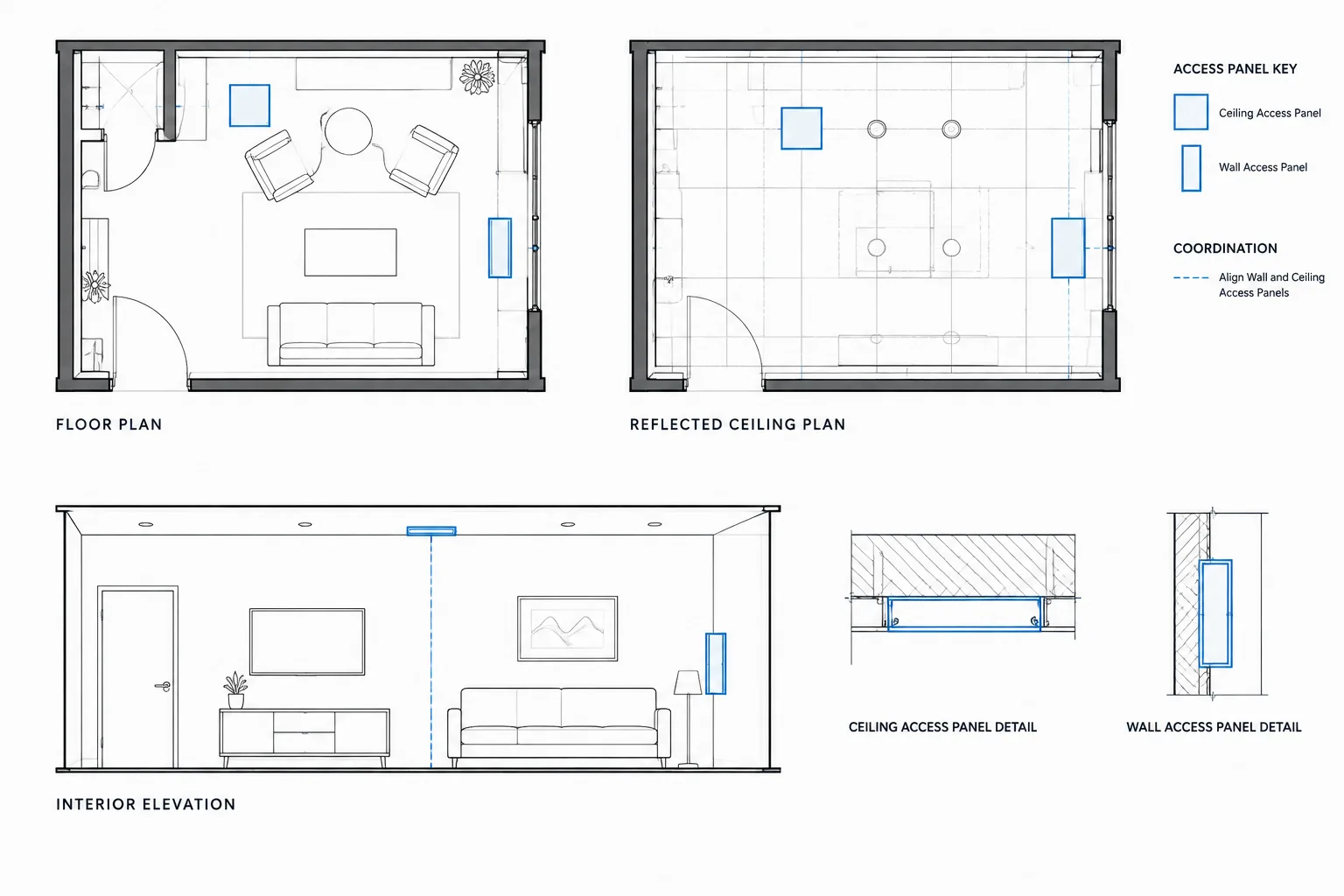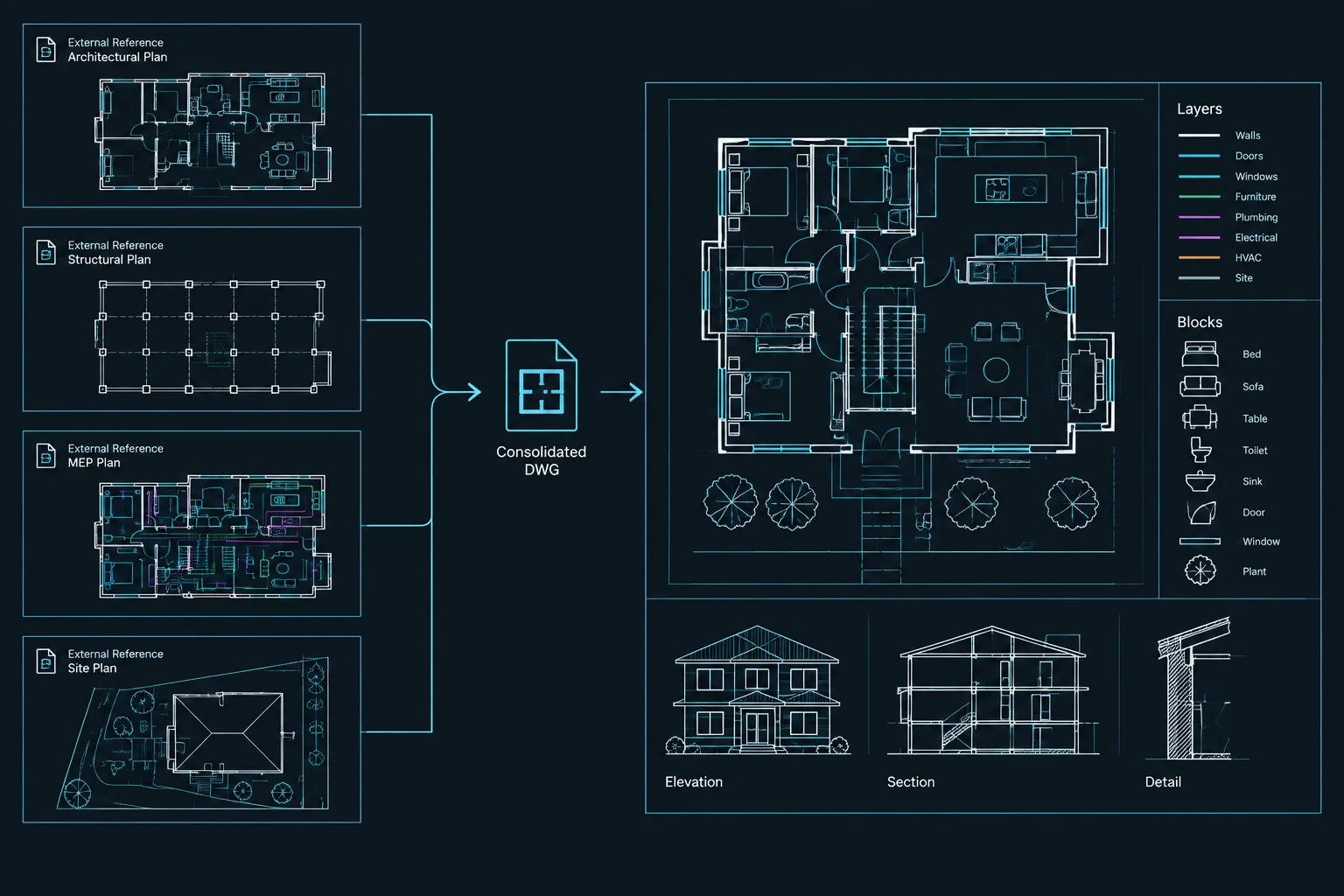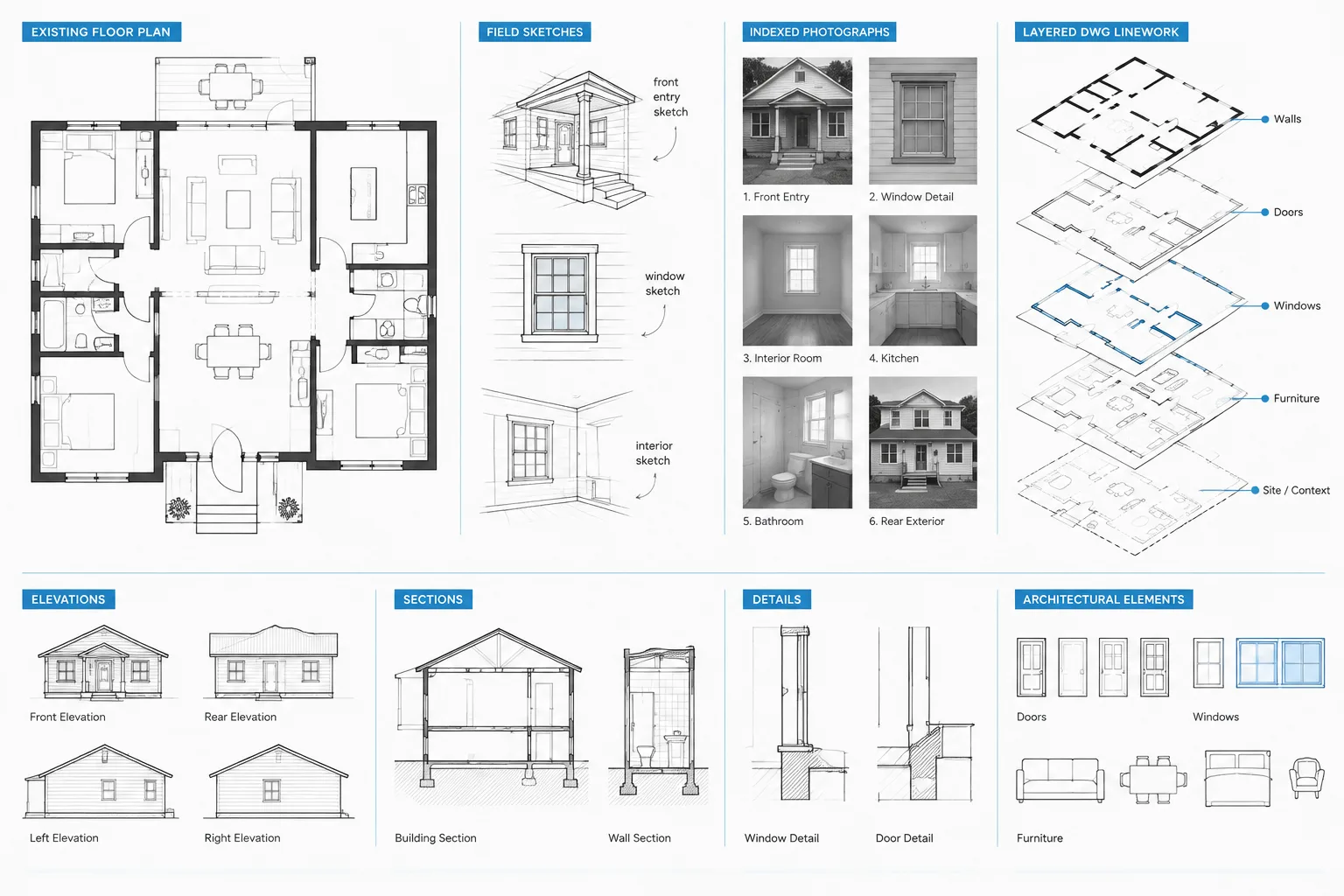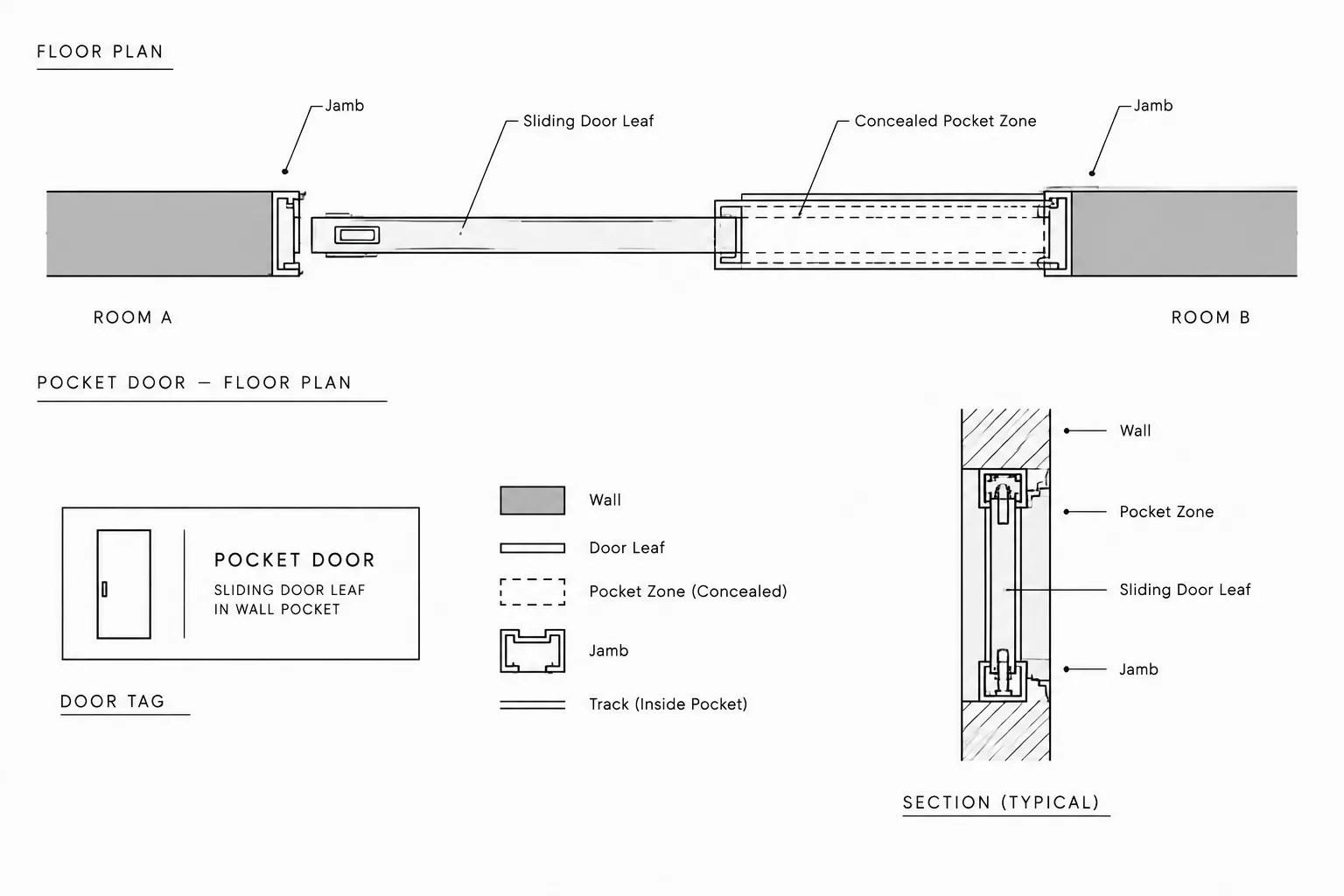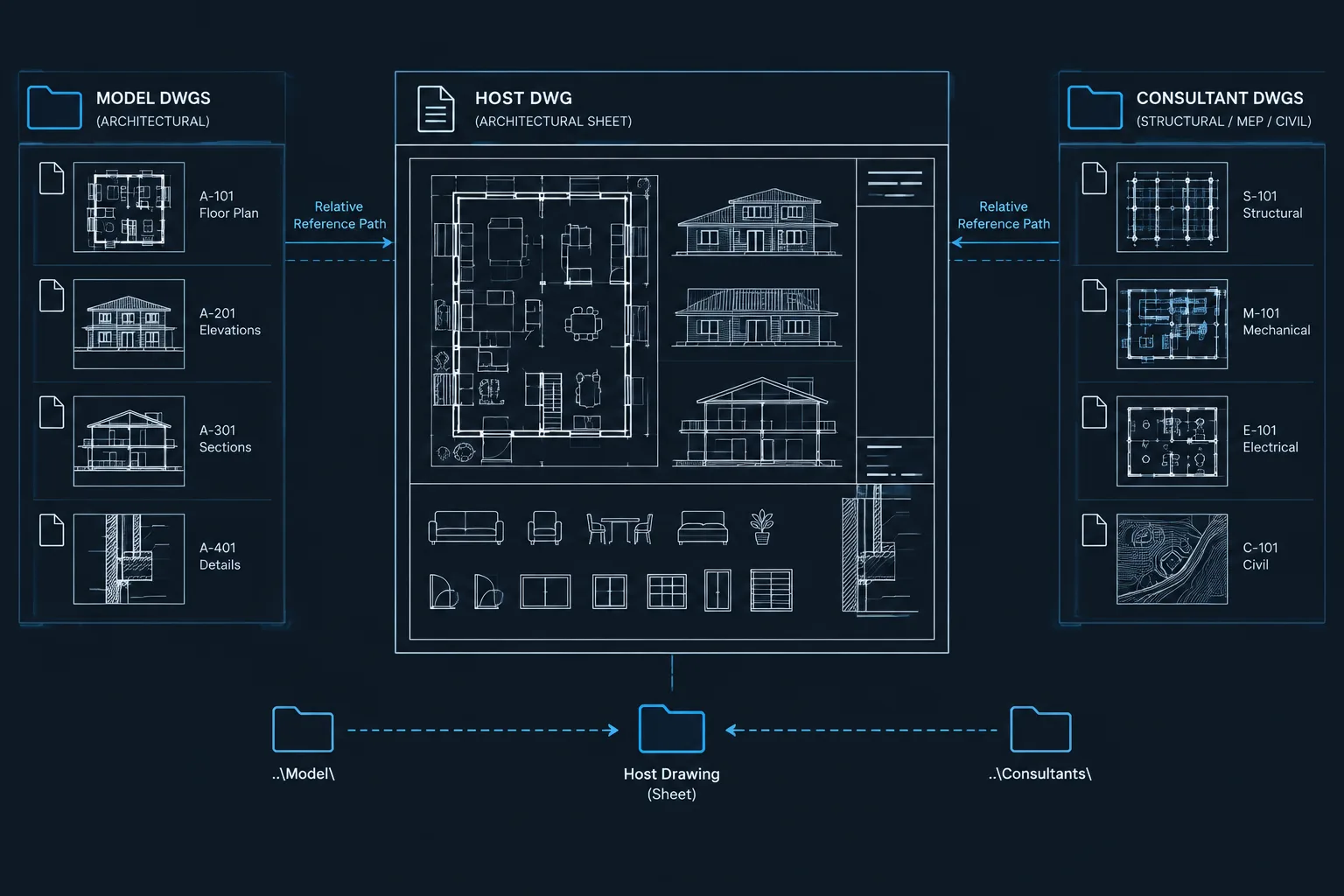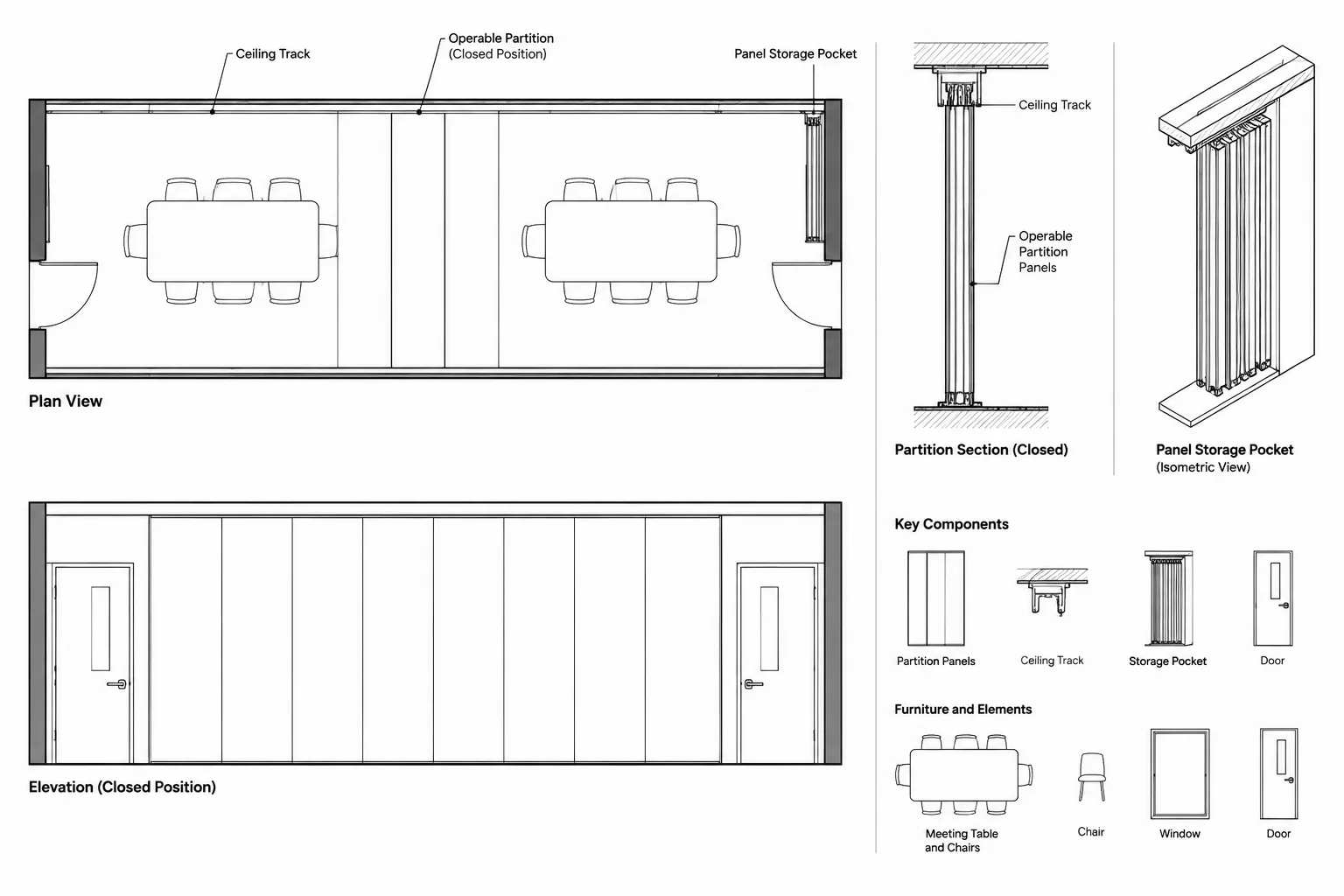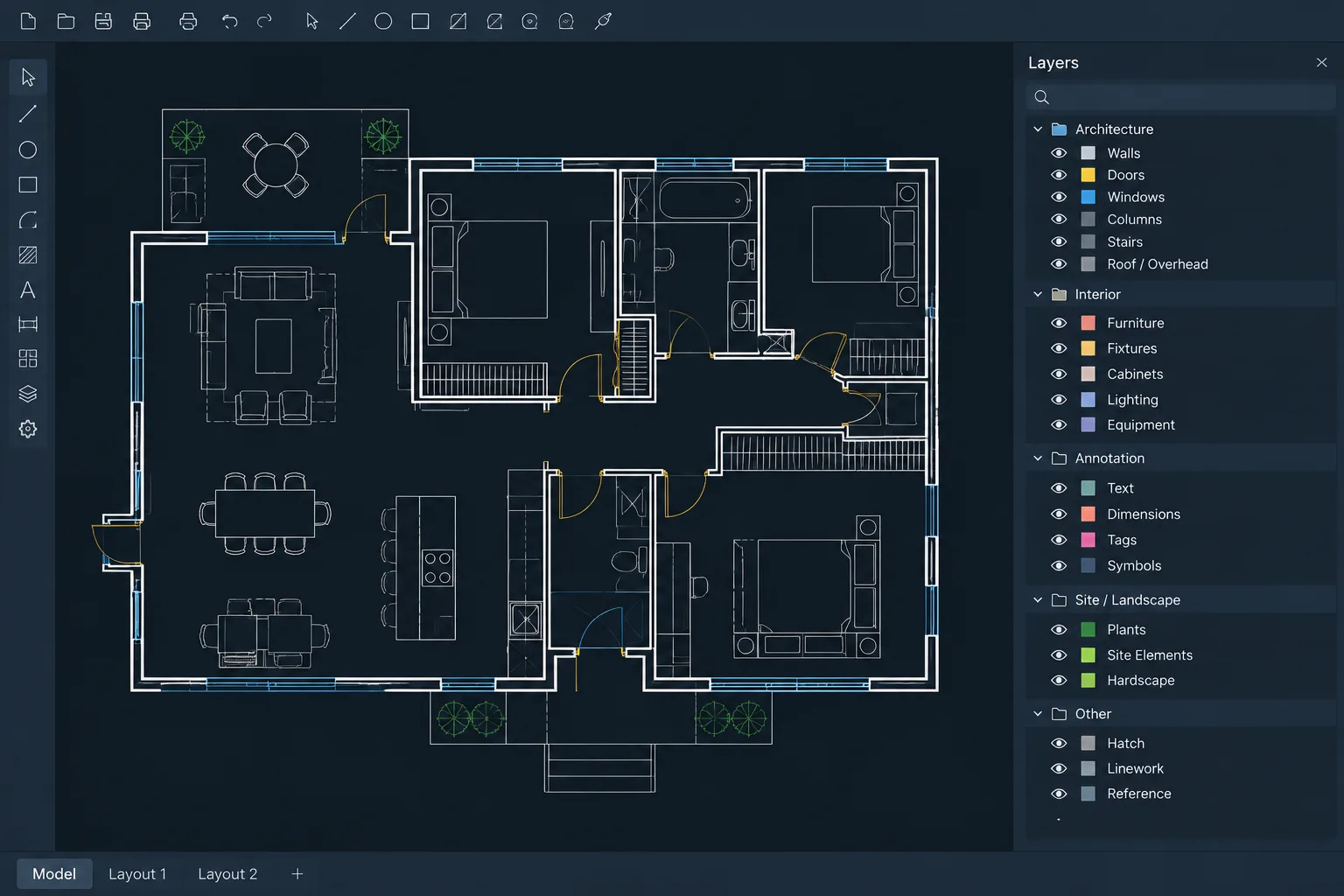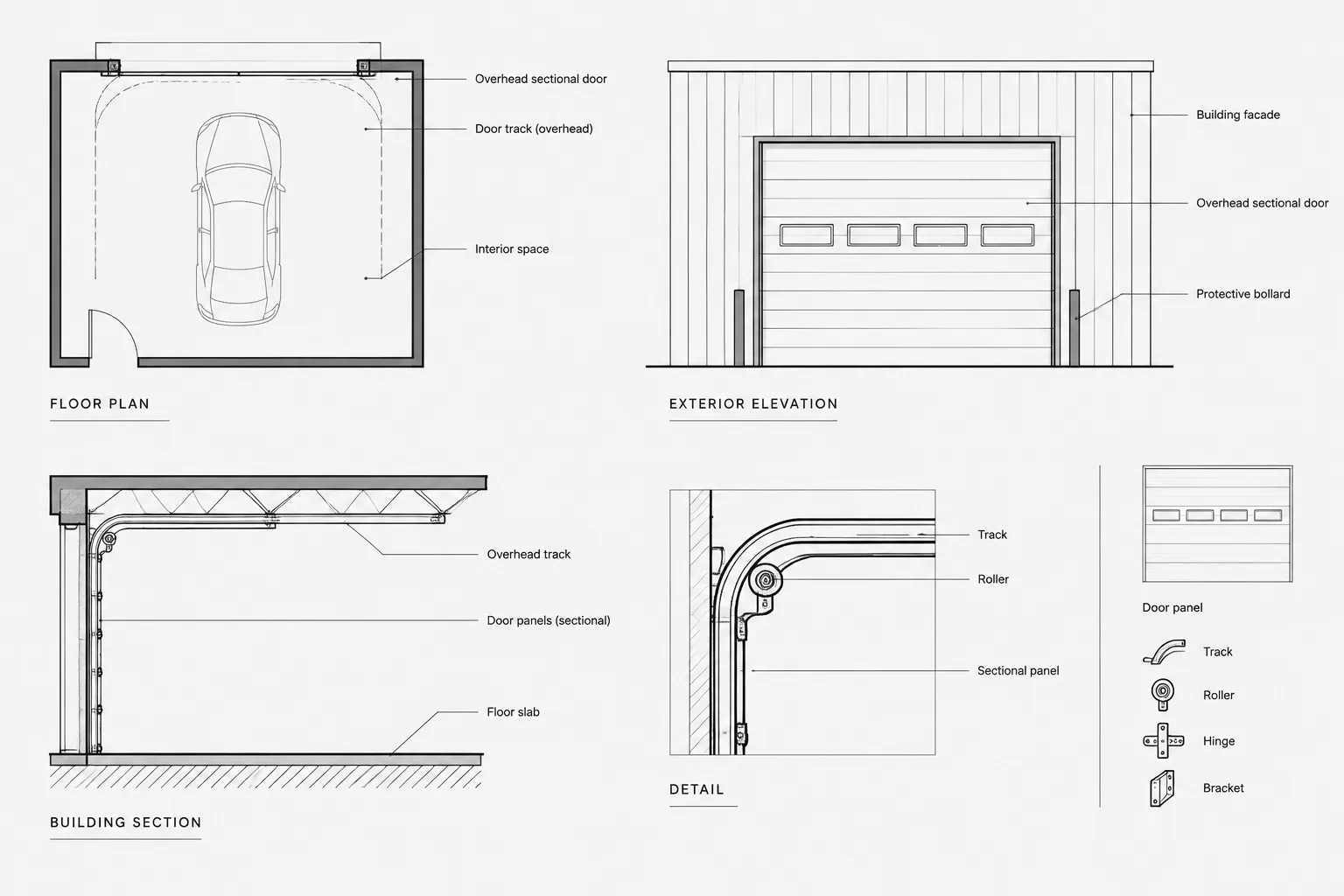
Architectural CAD PDF problems are easier to resolve when the investigation follows the same path the drawing follows: from geometry and object properties through layers, viewports, plot controls, and final PDF rendering. The goal is not merely to make one sheet look acceptable, but to identify the setting responsible for the result.
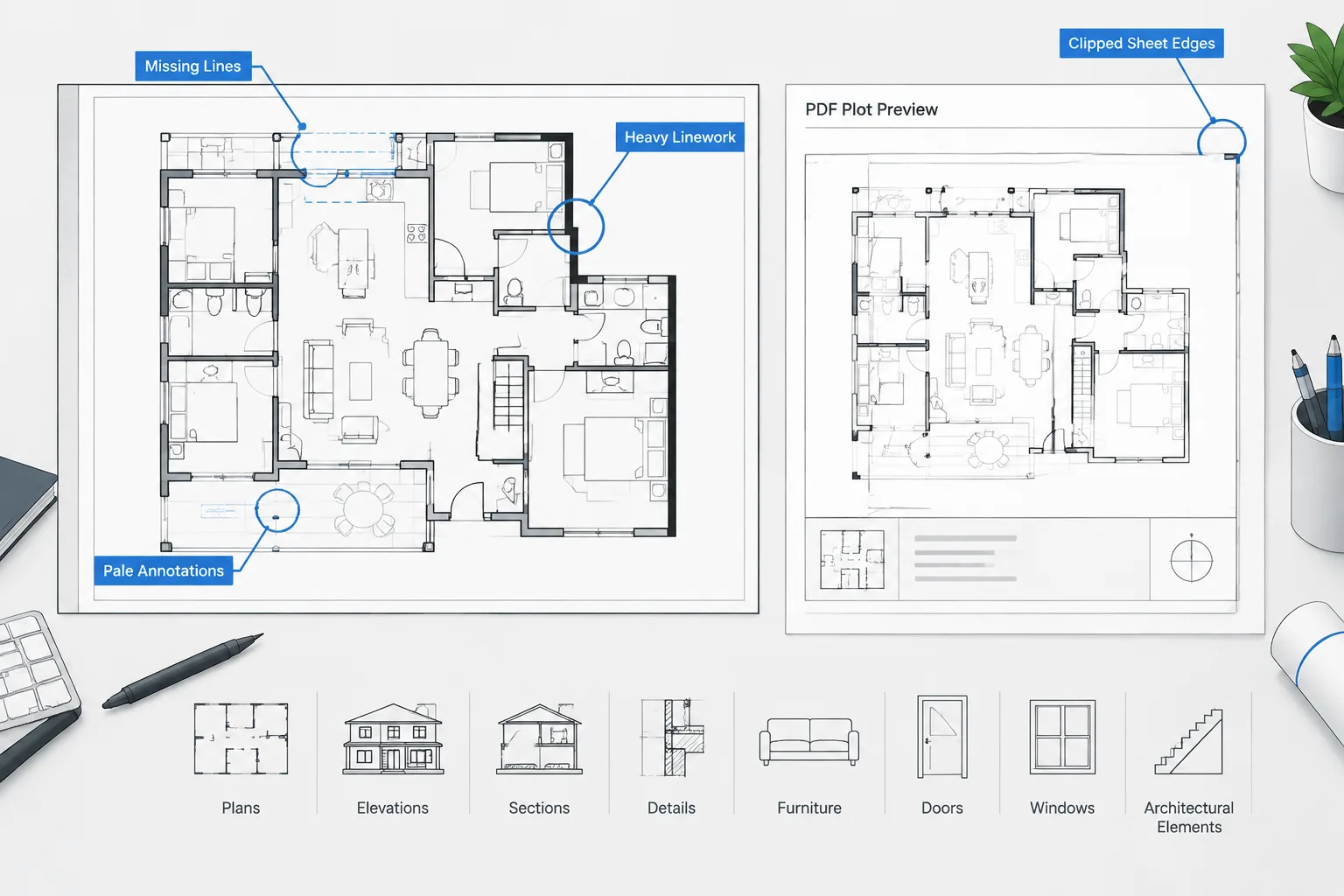
This workflow helps narrow the problem before production content is changed. It is useful for reviewing missing linework, inconsistent graphic hierarchy, dark hatches, faint annotation, clipped sheet content, and differences between otherwise similar layouts.
A drawing can look correct in the CAD editor and still produce a PDF with missing lines, unexpected colors, heavy poche, faint text, clipped views, or inconsistent lineweights. These problems are frustrating because the visible symptom may be several steps removed from its actual cause.
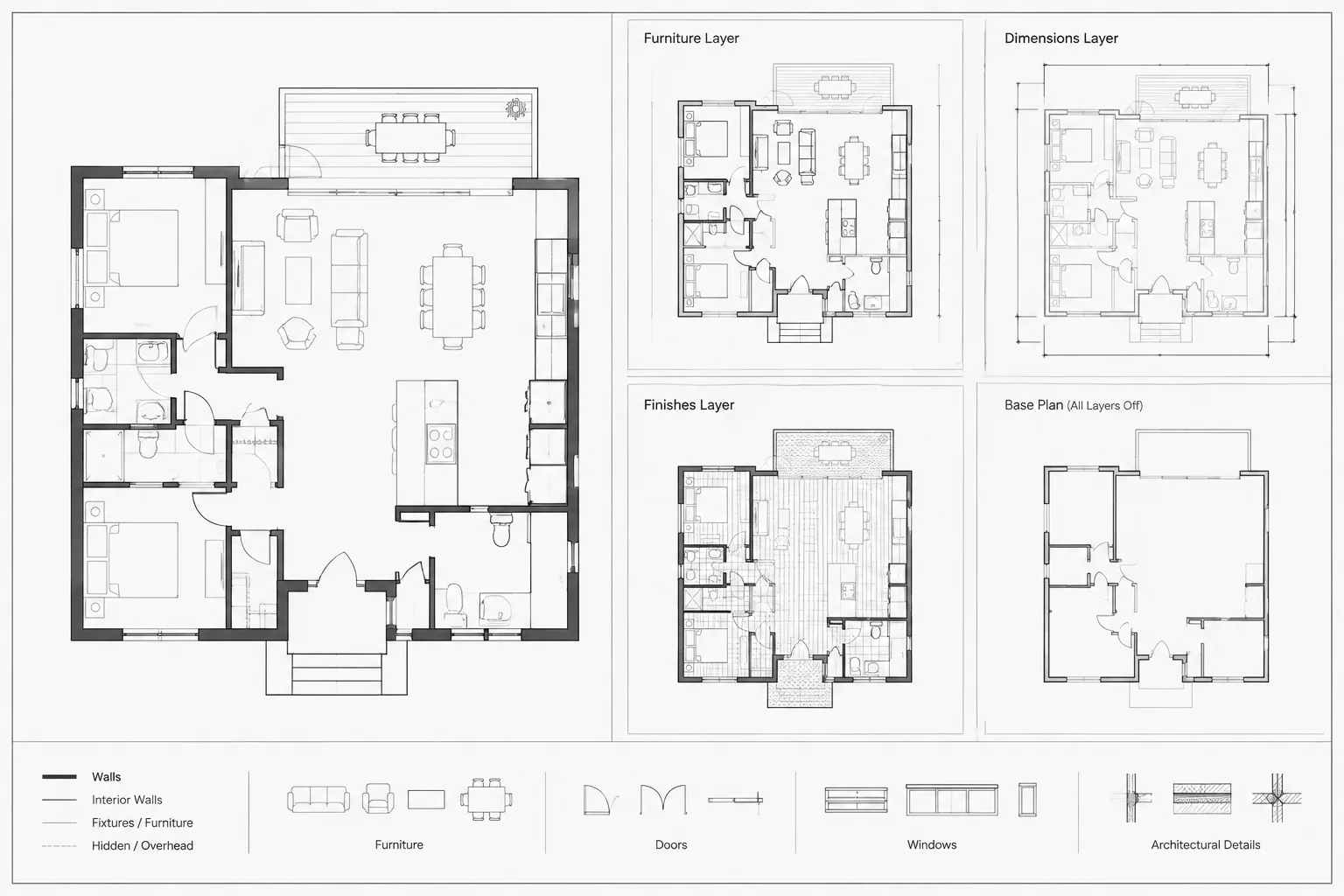
A reliable troubleshooting process separates the drawing into layers of responsibility: model geometry, object properties, layer settings, viewport controls, plot styles, page setup, and PDF output. Checking those areas in a consistent order is usually faster than changing random settings and plotting repeatedly.
Start by Defining the Plotting Symptom
Before editing the drawing, identify exactly what is wrong. Avoid a general description such as “the PDF looks bad.” Instead, determine whether the issue affects a specific object, one viewport, one sheet, or the entire drawing set.
- Missing: Objects are visible in CAD but absent from the PDF.
- Too heavy or too light: Lines plot with an unsuitable visual weight.
- Wrong color: Objects retain display colors or convert unexpectedly.
- Clipped: Part of the title block, viewport, annotation, or drawing view is cut off.
- Obscured: Hatches, masks, filled regions, or overlapping objects cover information.
- Inconsistent: Similar objects plot differently between sheets or viewports.
- Pixelated or distorted: Underlays, images, gradients, or transparent content reproduce poorly.
This classification provides an important clue. A problem affecting one object usually points toward that object’s properties or draw order. A problem affecting one viewport suggests a viewport override or visibility setting. A problem across the entire sheet is more likely associated with the page setup, plot style, or output configuration.
Compare the Editor, Plot Preview, and Final PDF
Use three checkpoints rather than judging only the final file. First inspect the drawing in model space or the sheet layout. Then review the plot preview. Finally, open the resulting PDF in a separate viewer.
If the problem appears in the editor, it is probably a drawing-content issue. If the editor looks correct but the preview is wrong, investigate plotting settings. If the preview looks correct but the exported PDF looks wrong, the issue may involve the PDF output method, transparency processing, fonts, raster content, or the viewer itself.
When possible, test the PDF in more than one viewer before revising the DWG. Display artifacts can be caused by a viewer’s rendering behavior rather than by missing information in the file.
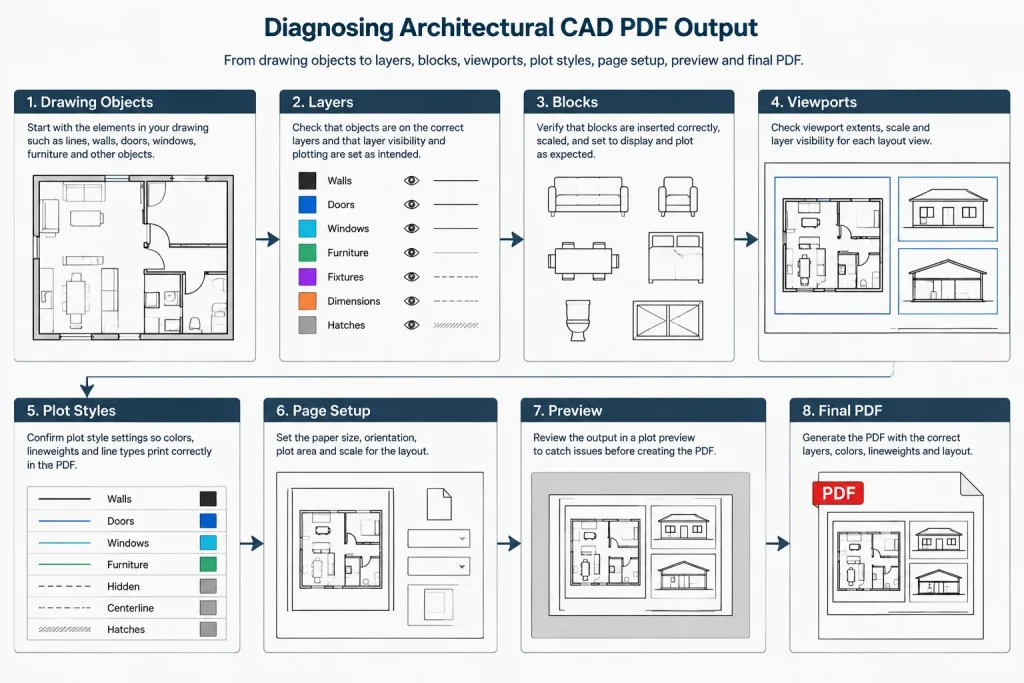
Use a Layered Diagnostic Workflow
Check the object
Select an affected line, polyline, hatch, block, or text object and inspect its properties. Compare it with a nearby object that plots correctly. Look for differences in layer, color, linetype, lineweight, transparency, elevation, and plot-related properties.
Objects with manual property overrides can behave differently from other content on the same layer. In architectural drawings, using layer-controlled properties generally makes plotting more predictable. Overrides may be appropriate in some situations, but they should be intentional and documented by the office workflow.
Check the layer
Confirm that the object’s layer is intended to plot. A layer may be visible on screen while its plotting status is disabled. Also check whether the layer is frozen in the relevant viewport or controlled by a layer state.
Do not assume that a familiar layer name has familiar settings. Imported details, consultant backgrounds, and downloaded blocks can introduce layers with unexpected colors, lineweights, or non-plot behavior.
Check the block definition
If the affected object is inside a block, inspect the block rather than repeatedly changing the inserted reference. Nested geometry may use fixed colors or lineweights, or it may sit on an unexpected internal layer. Attributes can also have properties that differ from the rest of the block.
Test one copy before redefining a block used throughout the project. A block correction can affect many plans, elevations, details, legends, or schedules at once.
Check the viewport
When a problem occurs only on one sheet or in one view, inspect the viewport. Confirm its scale, clipping boundary, layer visibility, and viewport-specific layer overrides. Also verify that annotations are positioned for the intended view and that the viewport has not been accidentally panned.
A plan may appear correct in model space while plotting differently because the sheet viewport applies its own color, linetype, lineweight, or freeze settings. Compare the affected viewport with a similar viewport that produces the desired result.
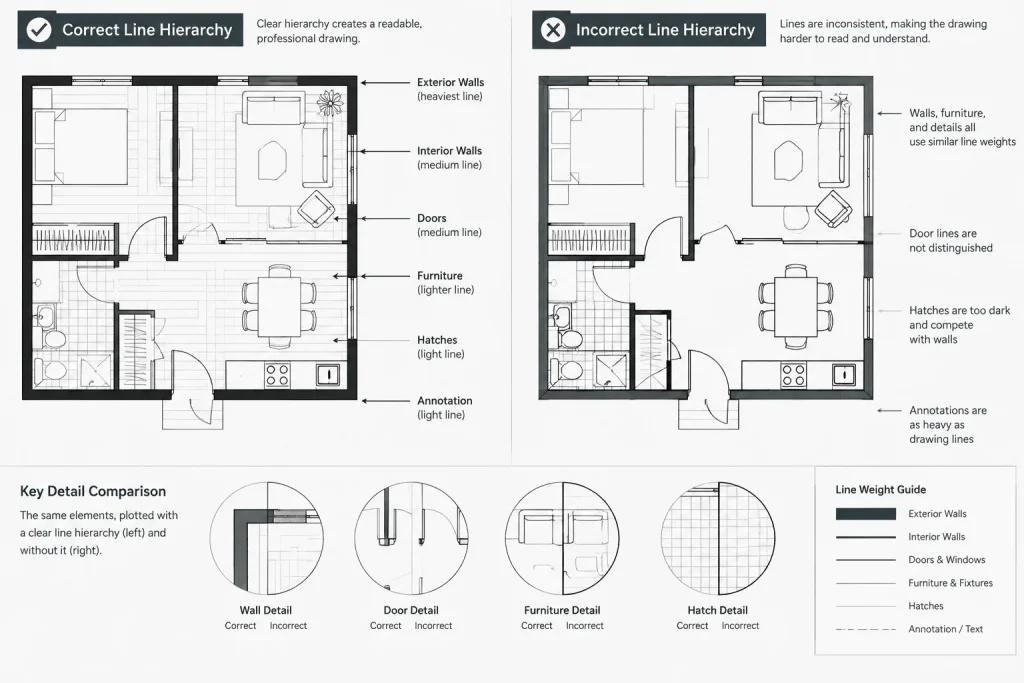
Check the plot style
Plot styles translate drawing properties into printed appearance. Depending on the office setup, the result may be controlled by object colors or by named plotting styles. Confirm that the expected plot-style system and file are assigned to the layout.
If one color plots too heavily, do not immediately edit every object using that color. First determine whether the color is intentionally mapped to that output weight. Changing the plot-style mapping may affect multiple drawing categories, so review the consequences across a representative sheet before adopting the change.
Check the page setup
Review the layout’s output device, paper selection, plot area, orientation, scale, centering or offset, plot-style assignment, and other enabled plotting options. A copied layout may retain a page setup that differs from the rest of the set.
Saved page setups reduce accidental variation. They also make it easier to compare a problem sheet against a known working configuration instead of reviewing every option from memory.
Common Symptoms and Likely Causes
| Symptom | Areas to inspect | Useful test |
|---|---|---|
| Visible object does not plot | Layer plot status, viewport freeze, object layer, clipping, block contents | Copy a simple test line onto a known plotting layer near the missing object |
| Line plots too heavily | Object lineweight, layer lineweight, color mapping, polyline width | Compare properties with a nearby line that plots correctly |
| Text is faint or missing | Text color, layer status, font availability, masking, annotation placement | Plot a small sample using a known office text style |
| Hatch becomes a dark mass | Pattern density, scale, lineweight, overlap, output resolution | Isolate the hatch and preview it without surrounding geometry |
| View differs between sheets | Viewport overrides, layer states, viewport scale, xref visibility | Compare viewport layer settings side by side |
| Sheet edge is clipped | Paper choice, printable area, plot offset, title-block placement | Preview the full layout boundary using the intended page setup |
| Background covers notes | Draw order, solid fills, hatches, wipeouts, transparency | Temporarily isolate overlapping objects to identify the cover element |
Separate Lineweight Problems from Polyline Width
A heavy-looking object is not always using a heavy plotted lineweight. A polyline can have geometric width, which creates an actual band in the drawing. Lineweight, by contrast, is a display and plotting property associated with the object or layer.
If a wall, boundary, or diagram line appears unexpectedly thick, inspect both settings. Reducing the plotted lineweight will not remove geometric polyline width. Likewise, changing polyline width is not the right correction when the issue comes from a plot-style mapping.
Review Hatches, Transparency, and Draw Order
Dense hatch patterns can merge visually when reduced to sheet scale. A hatch that seems acceptable when viewed closely in model space may become muddy in the plotted view. Evaluate patterns from the layout at the intended viewport scale and in the plot preview.
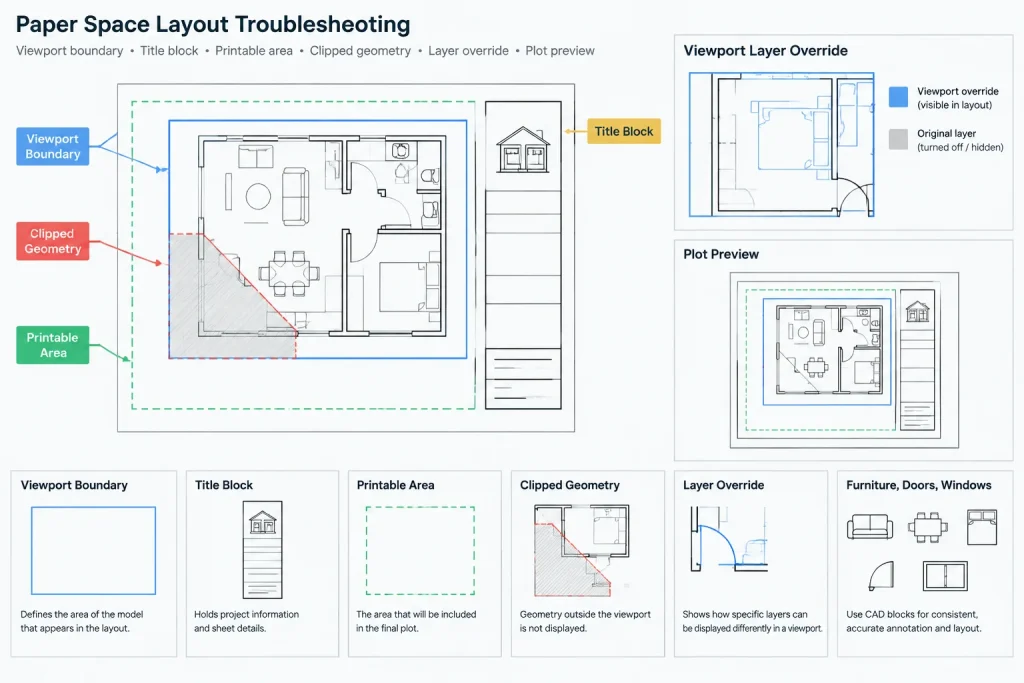
Transparency and overlapping fills can also increase PDF processing complexity. Use them deliberately and verify their output rather than assuming the editor display will match the PDF. For obscured notes or linework, check draw order and background masks before changing colors or duplicating geometry.
Test with a Controlled Sample
For a complicated sheet, create a temporary diagnostic area containing representative lines, text, hatches, blocks, and background references. Place the samples on known layers and plot them with the same page setup.
If the samples reproduce correctly, the problem is probably local to the original objects or viewport. If the samples also fail, focus on the plot style, page setup, or output configuration. This controlled test reduces the number of possible causes without requiring destructive edits to the production drawing.
Avoid Fixes That Hide the Real Problem
Several quick fixes can make one PDF look acceptable while making the DWG less reliable. Avoid tracing over missing content, exploding every block, changing large groups of objects to manual properties, or creating duplicate geometry solely for plotting. These actions complicate future revisions and can produce new conflicts.
Instead, correct the controlling source whenever practical. That source may be a layer, block definition, xref, viewport override, plot-style mapping, or page setup. If an exception is necessary, keep it limited and make its purpose clear to other CAD users.
Finish with a Sheet-Level Quality Check
After correcting the apparent issue, review the complete sheet rather than only the repaired area. A plot-style or layer change may improve one element while altering others. Check drawing hierarchy, annotation readability, poche, hatches, reference backgrounds, title-block content, and sheet extents.
Then compare related sheets. Architectural drawing sets depend on consistency: the same wall category, room tag, grid, keynote, and background should have a predictable plotted appearance wherever it occurs. A disciplined troubleshooting workflow turns PDF review from trial and error into a repeatable quality-control process.
Document the Cause, Not Just the Correction
Once the sheet plots correctly, record what caused the problem and where it was corrected. A short note identifying the affected object, layer, viewport, block, plot style, page setup, or output method can prevent another CAD user from reversing the fix or repeating the investigation.
This is especially valuable when a drawing contains consultant references, imported details, legacy blocks, or sheet-specific overrides. Without a record, an intentional exception can look like an accidental inconsistency during later revisions.
Use the Smallest Reproducible Test
If the cause remains unclear, reduce the test until only the affected content and its immediate controls remain. Compare the problem object with known working geometry, test the relevant viewport independently, and use the same plotting configuration. Change only one controlling condition at a time.
A focused test makes the result easier to interpret. Changing object properties, layer settings, viewport controls, and page setup simultaneously may produce a better PDF, but it does not reveal which change solved the problem or whether the other changes introduced new inconsistencies.
Make Plot Review Part of Drawing Coordination
PDF quality control should evaluate more than whether every object appears. Review whether the plotted hierarchy communicates the drawing clearly: primary cut elements, secondary linework, annotation, reference backgrounds, hatches, fills, and title-block information should remain visually distinguishable.
When the same content appears on related sheets, compare its output across those sheets. Consistent results usually indicate that shared layers, block definitions, references, viewport settings, and plotting controls are working together as intended. Differences provide a useful starting point for the next diagnostic comparison.
Frequently Asked Questions
Why can a CAD PDF look wrong when plot preview looks correct?
The difference may occur during PDF creation or display rather than in the drawing itself. Fonts, transparency, raster content, filled objects, and viewer rendering can affect the final appearance. Open the PDF in another viewer and compare it with the preview before modifying the DWG.
Why is an object visible in CAD but missing from the PDF?
Check the object’s layer, the layer’s plot status, viewport visibility, clipping, block contents, draw order, and masking objects. Comparing the missing object with nearby geometry that plots correctly can reveal the controlling difference.
Should I change object colors to fix incorrect lineweights?
Not until you know how the assigned plot style interprets those colors. A color may be intentionally mapped to a particular plotted appearance. Changing individual objects can hide a plot-style or layer-management problem and create inconsistent results elsewhere.
What should I inspect when only one viewport plots incorrectly?
Compare that viewport with a working viewport. Review viewport-specific layer visibility and overrides, the clipping boundary, view position, scale, and annotation placement. A model-space view can appear correct while a sheet viewport applies different controls.
How can I tell whether a heavy line is caused by lineweight or polyline width?
Inspect both the plotting properties and the geometry. Lineweight controls plotted appearance, while polyline width creates a physically wide shape in the drawing. Correcting one will not necessarily change the other.
When is a corrected PDF ready for issue?
Recheck the complete sheet and compare related sheets rather than reviewing only the repaired area. Confirm that extents, annotation, drawing hierarchy, hatches, backgrounds, title-block content, and repeated drawing elements remain consistent. Project-specific approval should follow the responsible team’s quality-control process.