Drafting plumbing fixture layouts in architectural CAD requires more than placing recognizable symbols. Each fixture participates in a network of walls, doors, casework, accessories, service connections, clearances, elevations, and consultant information. Effective coordination depends on knowing which geometry controls the layout and how a change in one view affects the rest of the drawing set.
This guide presents a practical workflow for creating, reviewing, and revising fixture layouts. It focuses on dependable reference geometry, readable CAD organization, cross-discipline comparison, and quality-control habits rather than project-specific dimensions or universal block assumptions.
Plumbing fixture layouts affect much more than the appearance of a bathroom, kitchen, utility room, or break area. Fixture locations influence partition placement, door operation, accessible clearances, casework, plumbing connections, wall backing, accessories, and interior elevations. A plan that looks acceptable at a glance can still contain conflicts that become obvious only when the drawing is reviewed against elevations or consultant backgrounds.
A reliable architectural CAD workflow treats each fixture as a coordinated component rather than a generic symbol. The goal is not merely to place blocks. It is to establish dependable reference points, protect required space, communicate mounting relationships, and keep the architectural and plumbing drawings aligned as the design changes.
Begin with verified project information
Before arranging fixtures, identify which information is authoritative for the current phase. Architectural drawings may establish room geometry and design intent, while plumbing drawings may define connection locations and fixture designations. Interior design documents, equipment schedules, accessibility criteria, and manufacturer information may add further requirements.
Do not assume that a downloaded CAD block includes correct dimensions, clearances, mounting data, or connection points. Verify the selected fixture against current project documentation before relying on its geometry.
- Confirm the fixture type and project designation.
- Check the current room layout and partition types.
- Identify doors, casework, accessories, and equipment sharing the room.
- Review applicable accessibility and building requirements with the project team.
- Confirm whether the fixture is floor-mounted, wall-mounted, counter-mounted, or integrated into casework.
- Determine which consultant background is current.
Use blocks that support coordination
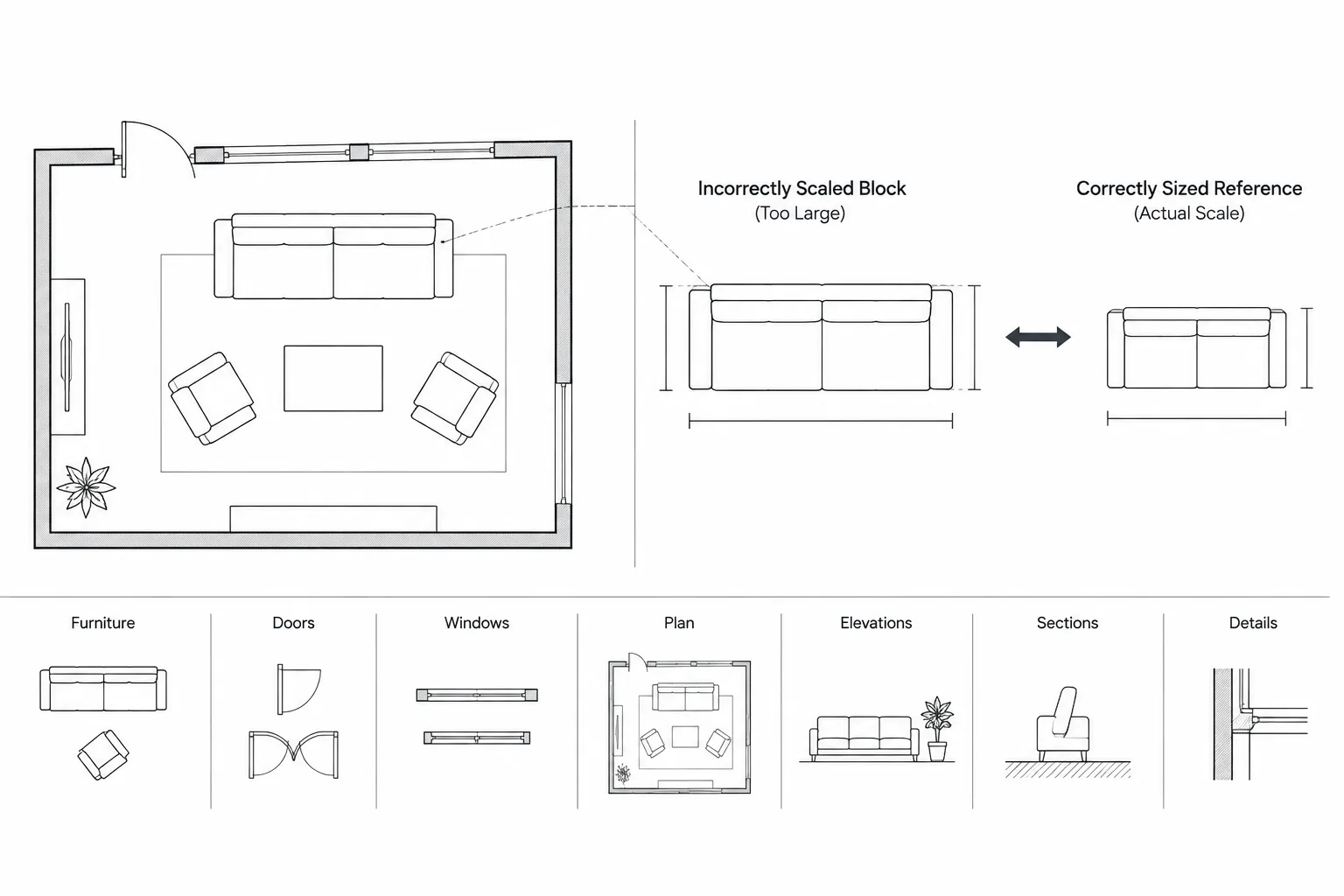
A useful fixture block should be simple enough to read at the intended plan scale while retaining the geometry needed for layout decisions. Overly detailed blocks can make drawings heavy and visually confusing. Blocks that are too abstract may hide critical projections or mounting relationships.
Choose a logical insertion point. For a fixture centered on a plumbing connection or wall bay, the insertion point may align with its centerline. For a fixture governed by a corner or casework opening, a controlled edge or reference corner may be more useful. The important point is consistency: team members should be able to replace or reposition the block without guessing which point controls its location.
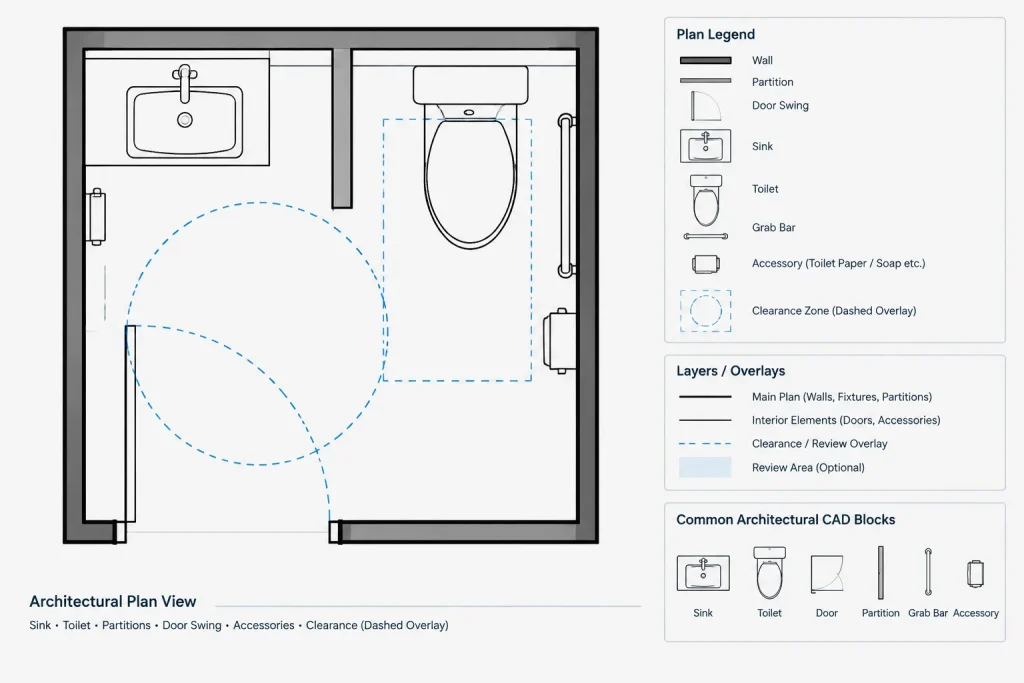
Separate the fixture from its clearance graphics
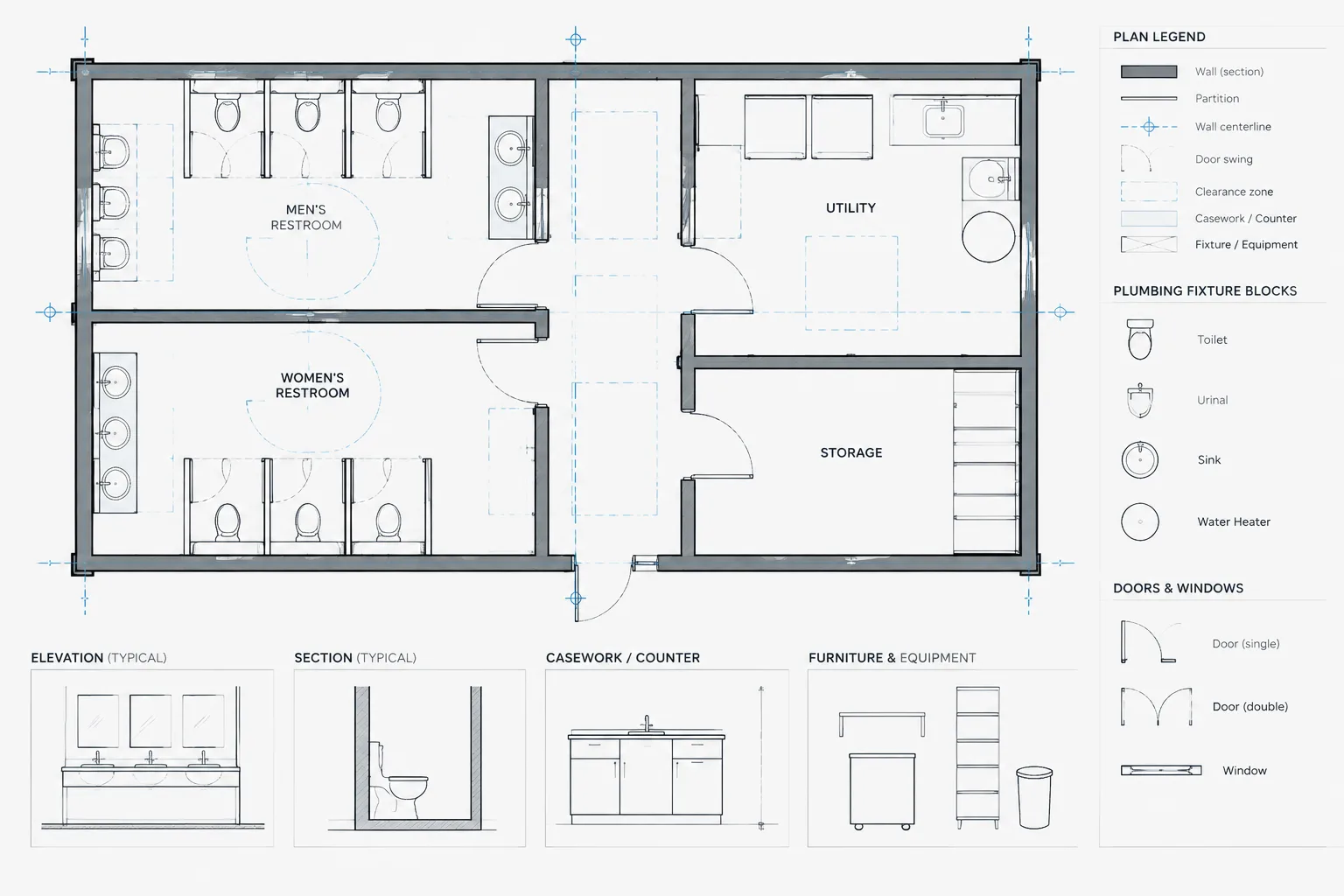
Required approach areas, transfer spaces, door maneuvering areas, and maintenance zones should not be embedded invisibly in the fixture symbol. Place coordination clearances on dedicated layers or use separate nested graphics that can be displayed during review and suppressed on presentation drawings when appropriate.
Clearance outlines should be treated as review tools, not as universal proof of compliance. Their size and position must be verified for the project, fixture configuration, jurisdiction, and applicable criteria.
Establish layout control lines before placing fixtures
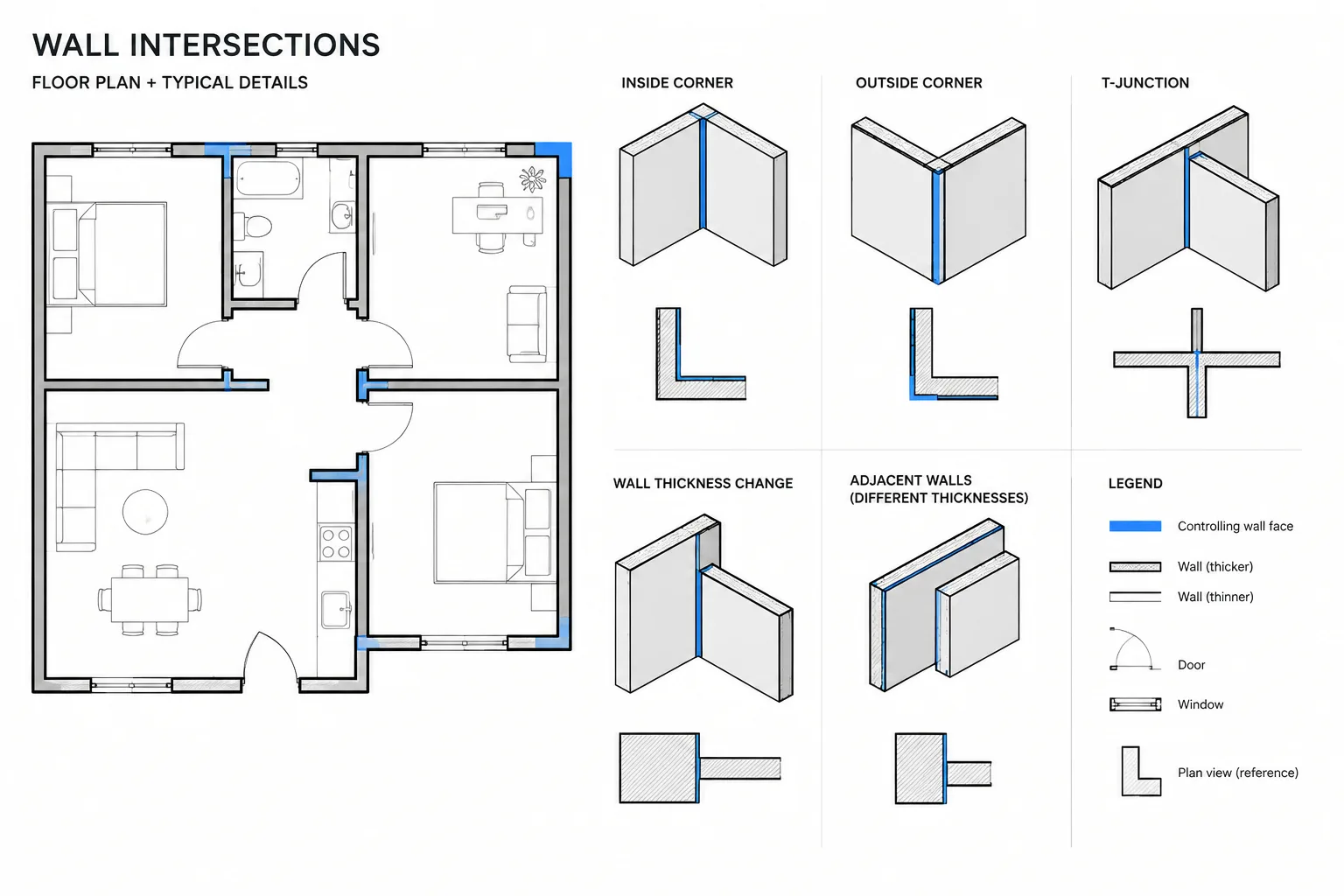
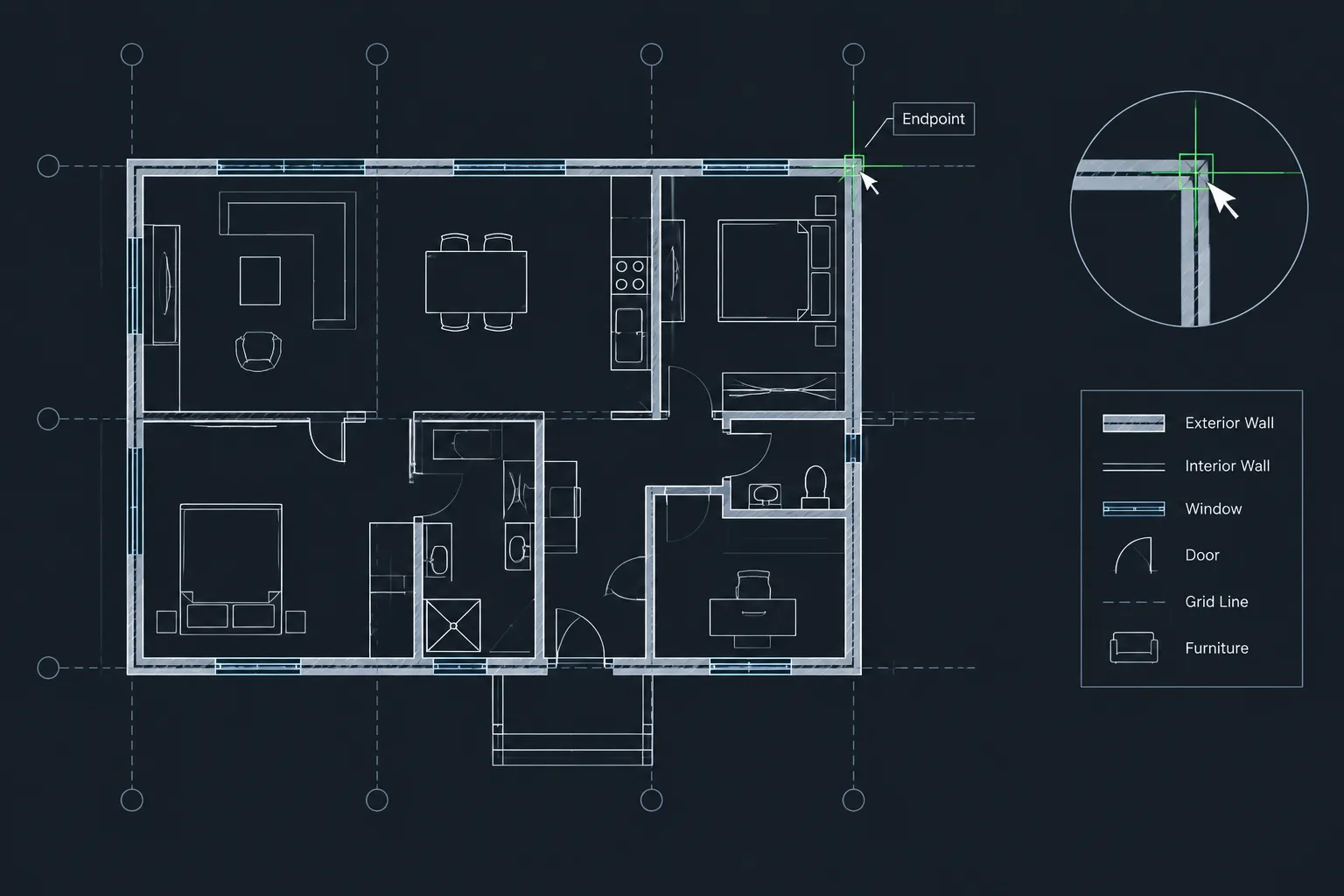
Fixtures are easier to coordinate when they reference stable geometry. Start with finished wall faces, partition centerlines where appropriate, casework edges, structural grids, or other agreed control lines. Avoid locating fixtures from temporary construction lines or from objects likely to move independently.
Common control relationships include:
- A fixture centerline aligned with a wall, stall, mirror, light, or ceiling element.
- A fixture edge coordinated with a countertop opening or cabinet module.
- A row of fixtures organized around a consistent spacing concept.
- A sink centered within a casework bay rather than within the overall room.
- A floor drain or utility connection coordinated with nearby equipment.
Use construction geometry on a non-plot layer while testing alternatives. Once the layout is approved, remove unnecessary guide objects or retain only the control lines needed for future revisions.
Check the room as a coordinated system
A fixture should never be reviewed in isolation. Display all elements that occupy the same plan area, including doors, wall projections, counters, toilet partitions, grab bars, dispensers, radiators, access panels, and movable equipment. Turn on consultant backgrounds when connection locations or service zones affect the arrangement.
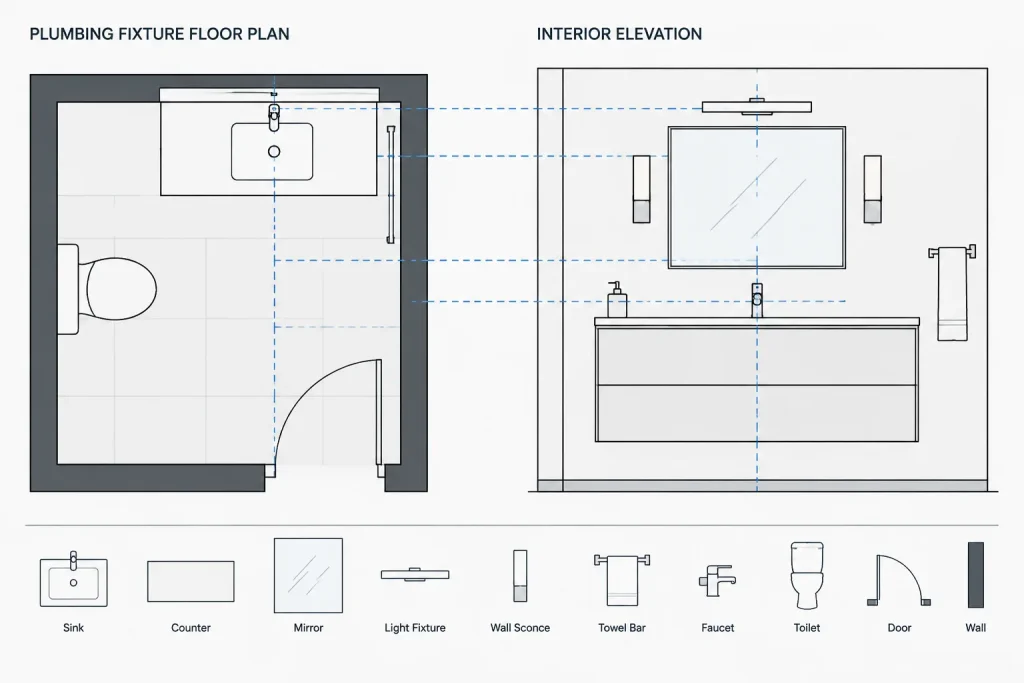
| Coordination item | What to review in CAD |
|---|---|
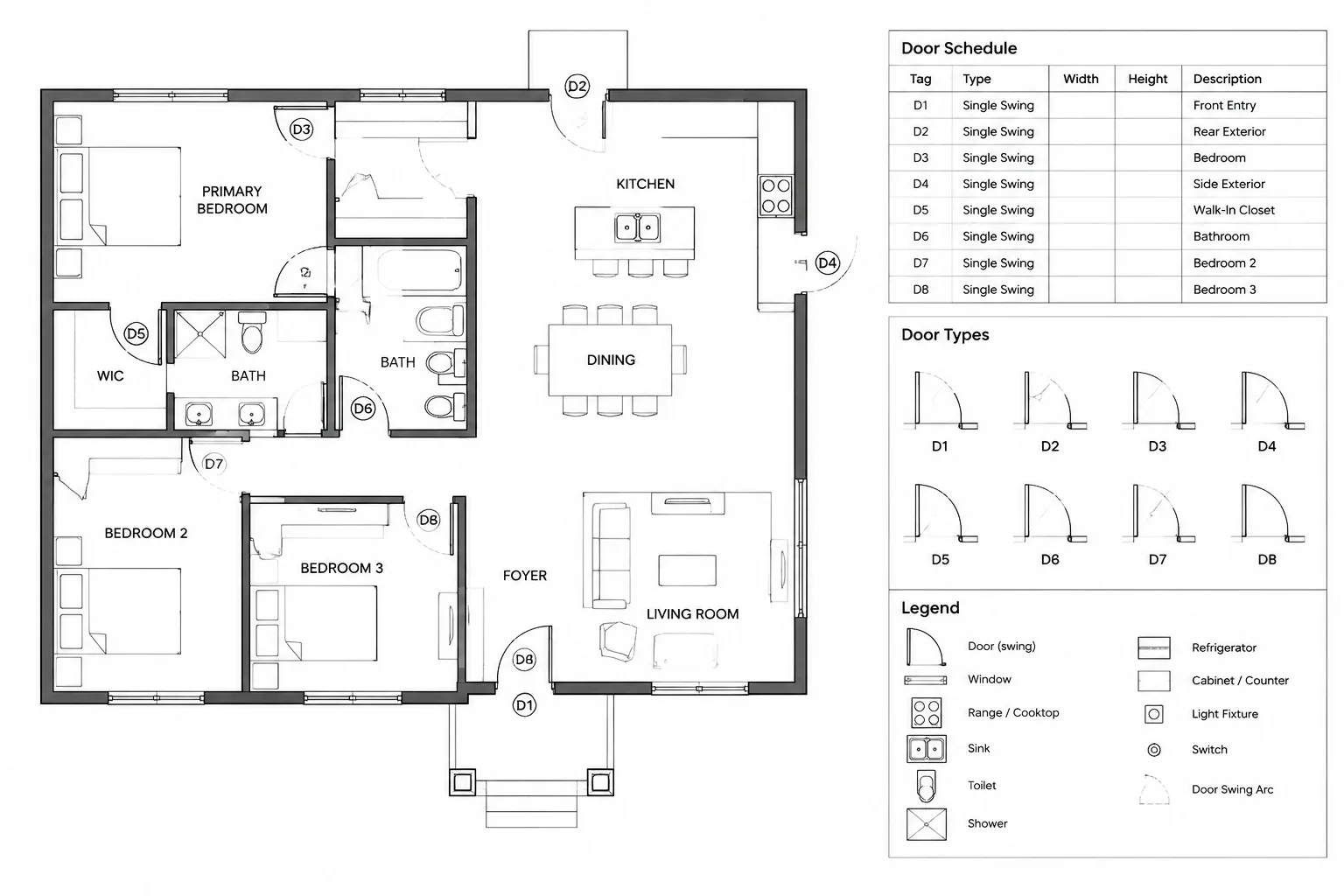
| Doors | Swing arcs, open-door position, hardware side, and conflicts with fixtures or accessories |
| Partitions | Finished faces, wall thickness, plumbing cavities, and required backing locations |
| Casework | Counter openings, cabinet divisions, removable panels, and fixture projections |
| Accessories | Mounting zones, reach relationships, mirrors, dispensers, and grab bars |
| Plumbing services | Connection alignment, riser or chase relationships, and consultant routing intent |
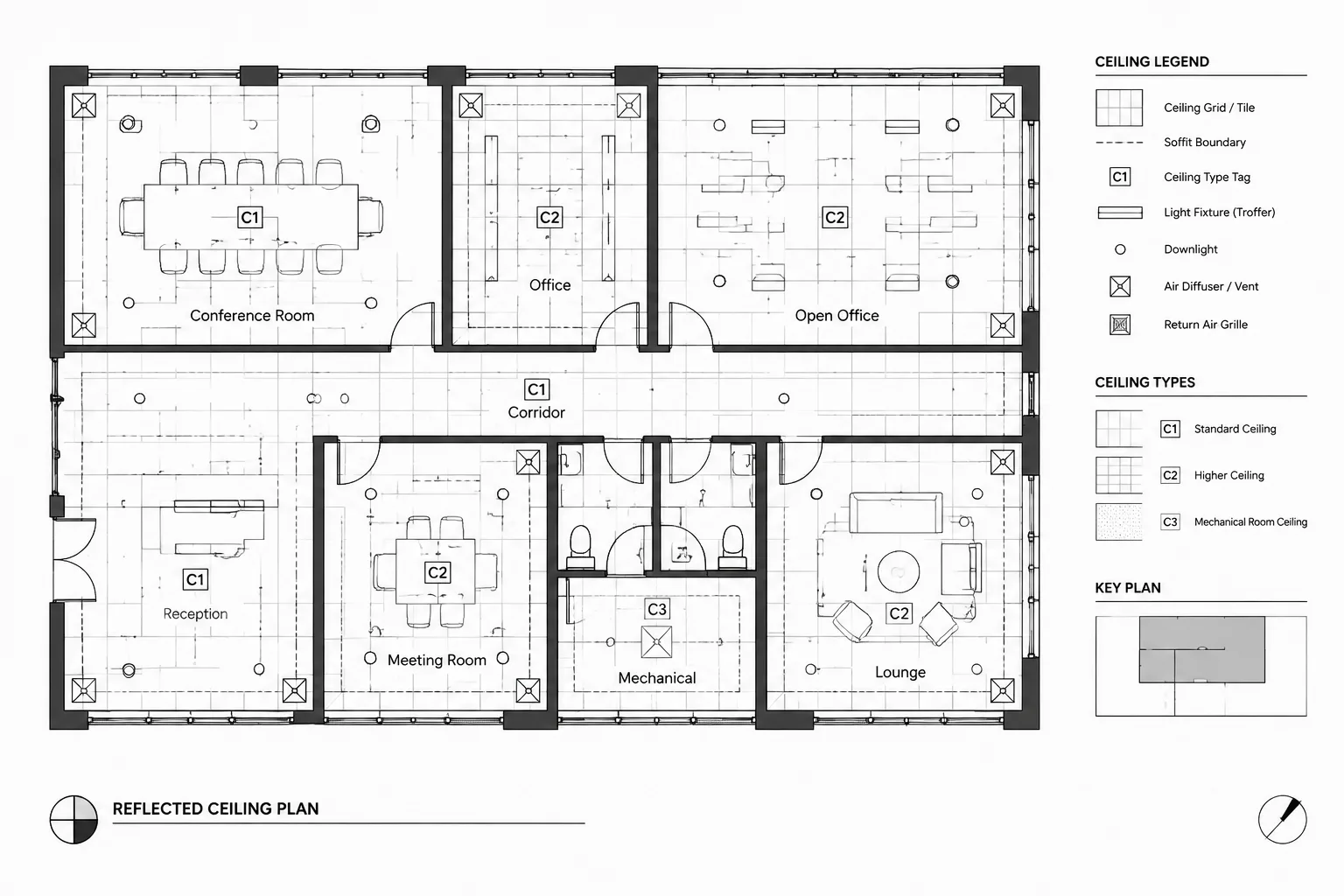
| Ceiling elements | Lights, diffusers, soffits, and fixture centerline relationships where visually important |
Run an interference review with clearance layers visible. A door arc crossing a fixture symbol is an obvious conflict, but subtler problems may include an accessory placed behind an open door, a counter that blocks service access, or a plumbing chase that reduces usable room width.
Coordinate plan locations with elevations
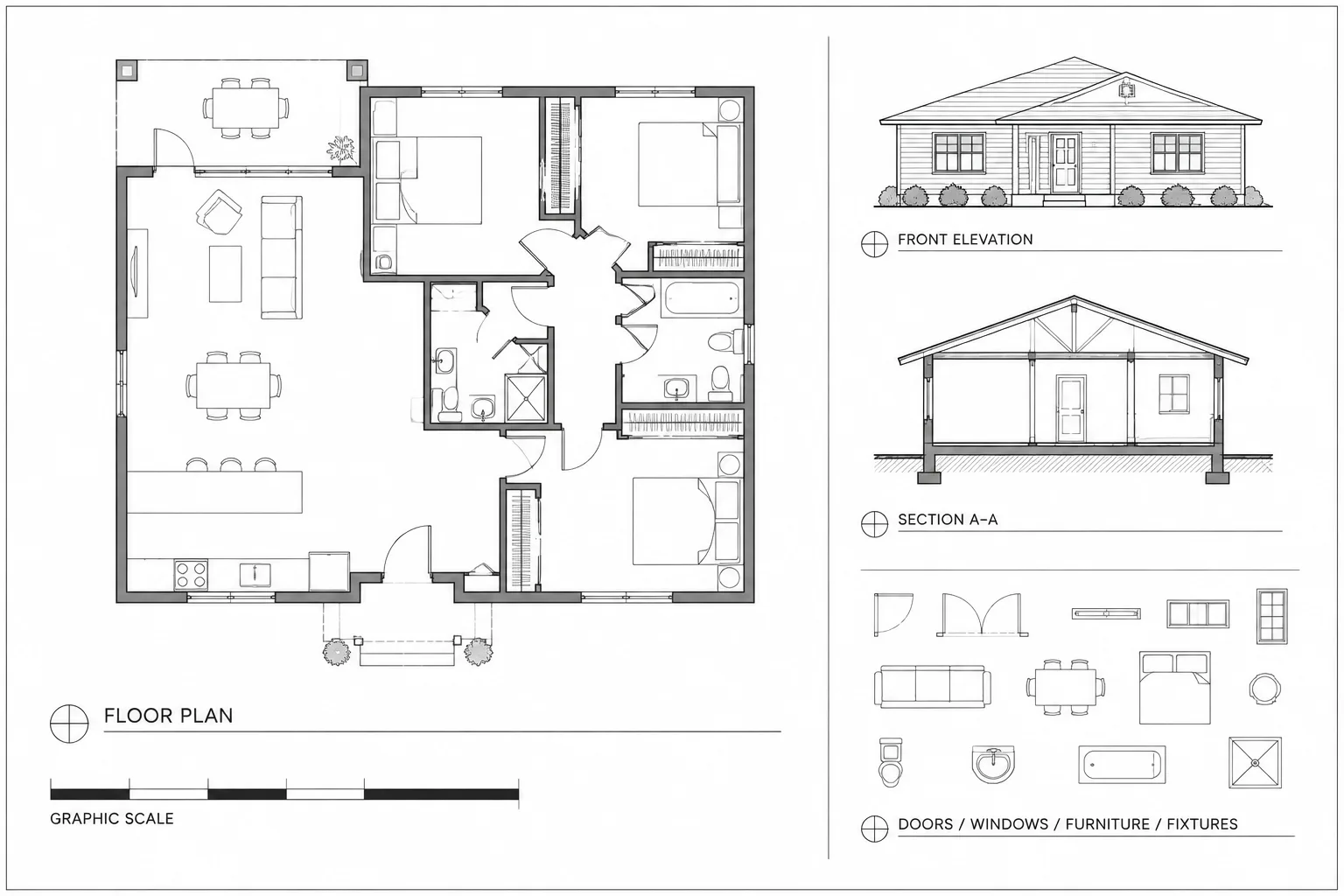
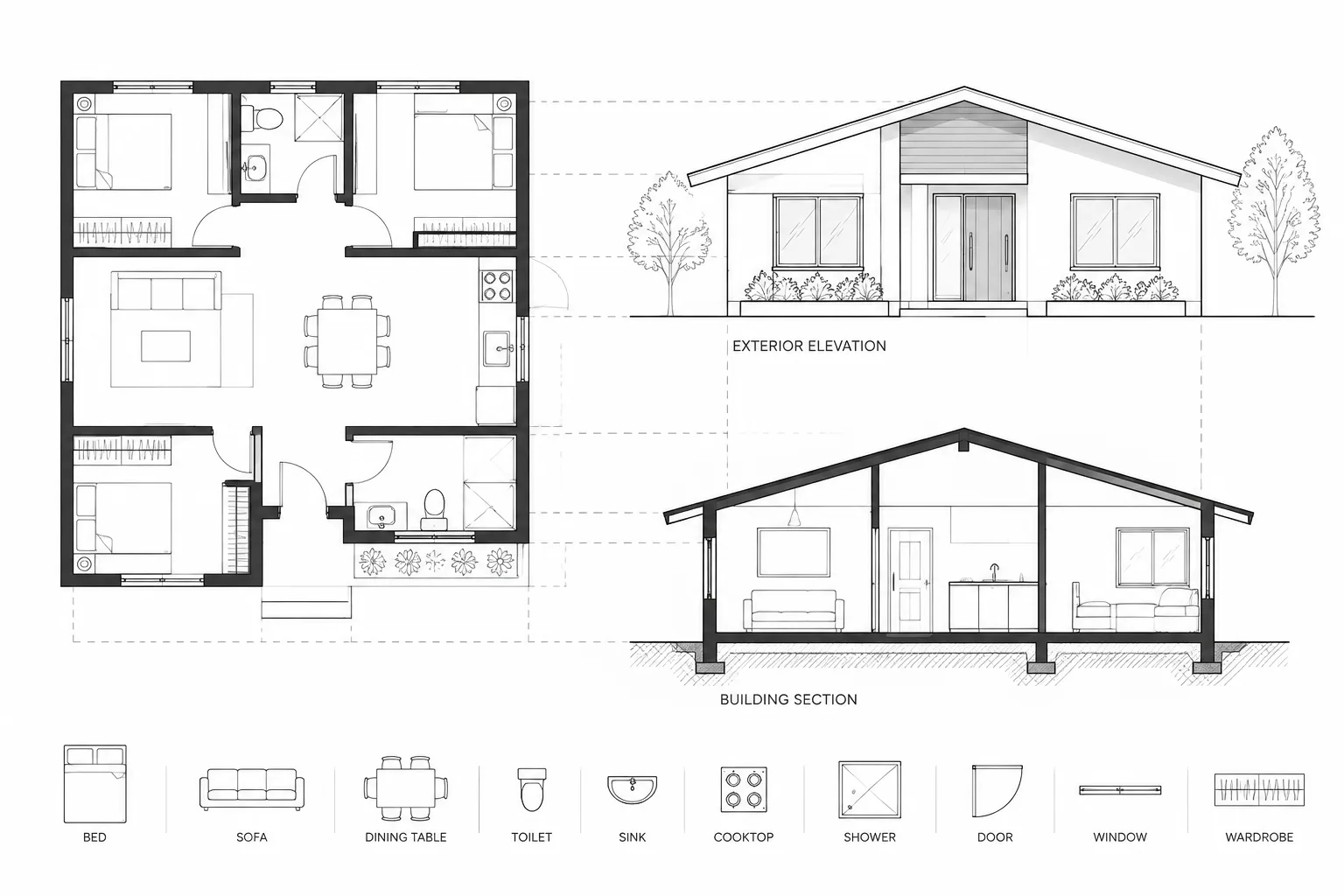
Plans communicate horizontal position, but many plumbing fixture decisions depend on vertical relationships. Interior elevations or enlarged wall elevations should show fixture placement relative to counters, mirrors, accessories, tile patterns, wall cabinets, outlets, and other mounted components.
Use matching centerlines and consistent reference geometry between the plan and elevation. If the sink moves in plan, its mirror, light, backsplash, accessories, and plumbing connection may also need adjustment. When possible, keep plan and elevation geometry organized so that related views can be compared without searching across unrelated files.
Identify what each view should control
The plan may control fixture centerlines, offsets from walls, and clearance relationships. An elevation may control mounting positions, vertical alignment, and accessory organization. A section may be needed to explain recessed items, wall cavities, counter profiles, or service access. Assigning a clear purpose to each view reduces duplicated dimensions and contradictory information.
Coordinate with plumbing consultant backgrounds
Architectural and plumbing plans often develop at different speeds. Attach the current consultant drawing as an external reference using the project’s established origin and file-management method. Do not move a consultant background by eye to make it appear aligned.
Compare fixture locations and designations systematically. Useful review questions include:
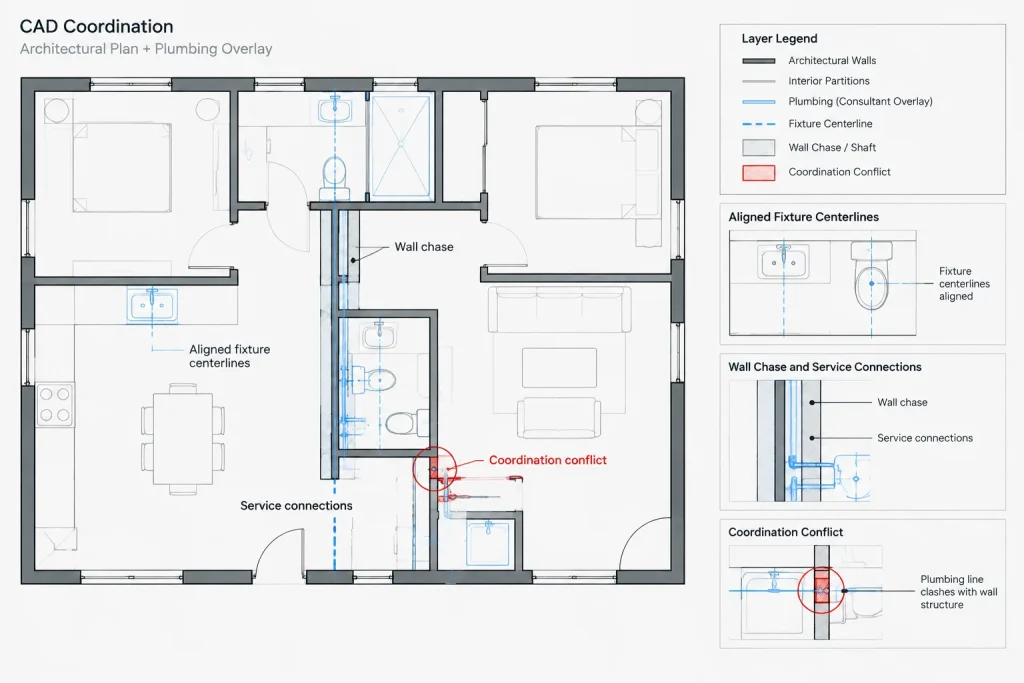
- Does each architectural fixture have a corresponding plumbing fixture where required?
- Are centerlines and wall relationships consistent?
- Have fixtures been removed from one discipline but left in another?
- Do plumbing connections align with the intended mounting condition?
- Are chases and service spaces reflected in the architectural plan?
- Do fixture tags correspond with the current schedules and specifications?
When a discrepancy appears, document it rather than silently editing a referenced consultant file. Resolve which discipline will update the controlling information, then reload the revised background and verify the change.
Organize layers for editing and review
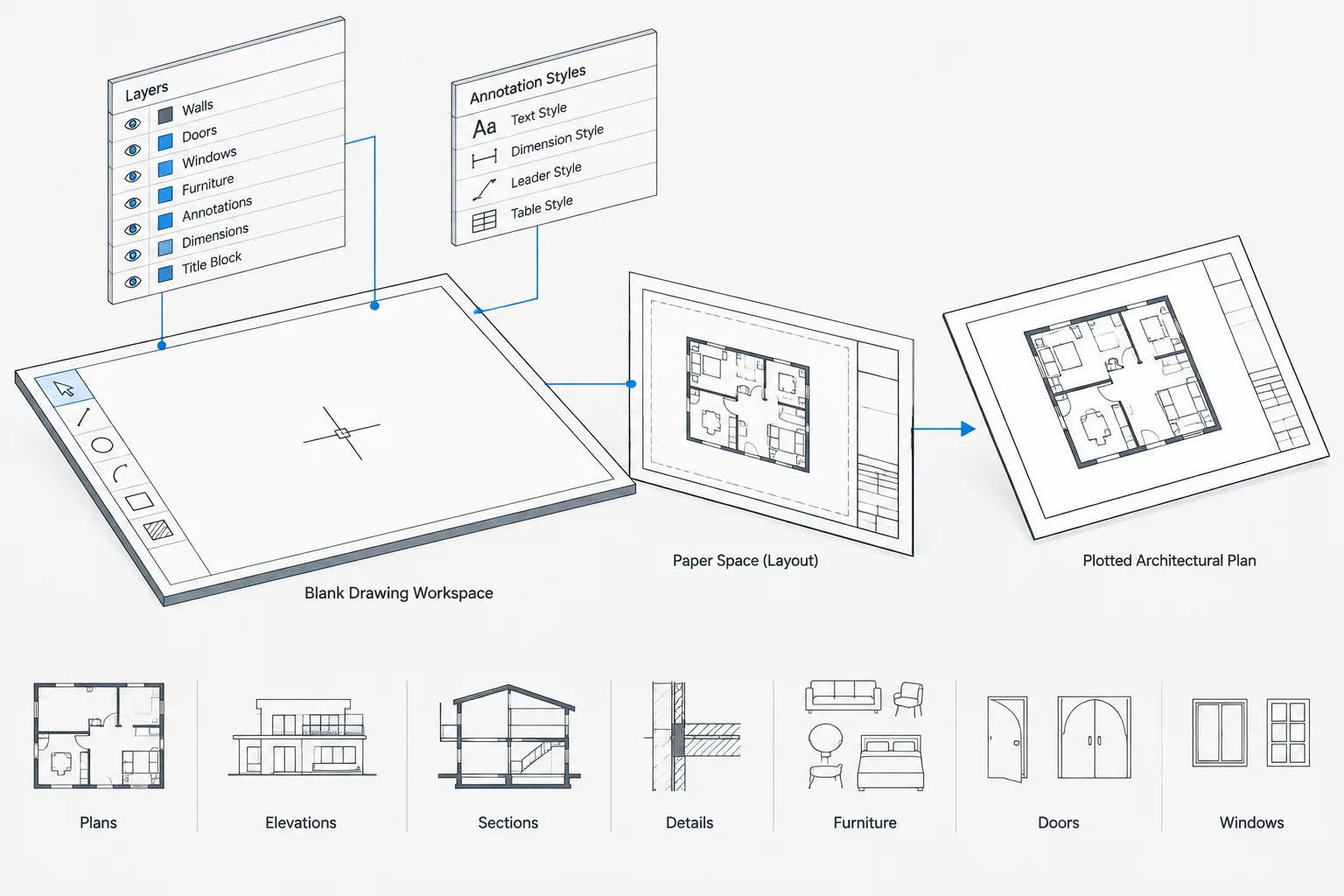
Layer organization should allow fixture symbols, tags, clearances, consultant references, and temporary coordination graphics to be controlled separately. Use the project’s established naming convention rather than creating isolated layer names for a single room.
A practical separation may include architectural fixtures, fixture tags, clearance or accessibility review graphics, overhead items, demolition fixtures, and plumbing backgrounds. Keep temporary markups distinct from issued drawing content. Objects should generally follow their layer properties unless a documented graphic exception is needed.
Dimension the layout from stable references
Dimension fixtures from finished faces, control centerlines, grids, or other references that will remain meaningful during construction and revision. Avoid long chains that accumulate small changes or dimensions taken from unrelated movable objects.
Not every fixture needs multiple locating dimensions. Provide enough information to establish design intent without creating redundant strings that can disagree. Centerline dimensions are often useful when alignment matters, while edge dimensions may be appropriate for counters, openings, or equipment with a controlled face. Verify that the chosen reference matches how the component is actually positioned.
Quality-control checklist before issue
- Confirm that all fixture blocks are at the correct drawing scale and orientation.
- Verify fixture types and designations against current project information.
- Display clearance graphics and review overlaps.
- Check door swings, casework, partitions, accessories, and access panels.
- Compare architectural fixture locations with the current plumbing background.
- Review corresponding elevations and sections for alignment.
- Check that dimensions reference stable geometry.
- Remove abandoned blocks, duplicate symbols, and temporary construction lines.
- Confirm that hidden coordination layers are not accidentally set to plot.
- Plot a test sheet and review readability at the intended output scale.
A coordinated fixture plan is more than a symbol layout
Good plumbing fixture layouts combine clear geometry with disciplined coordination. Blocks provide a starting point, but control lines, clearance reviews, consultant comparisons, elevations, and verified project data make the drawing dependable. By treating each fixture as part of a larger room system, CAD users can identify conflicts earlier and produce plans that are easier for architects, consultants, builders, and reviewers to understand.
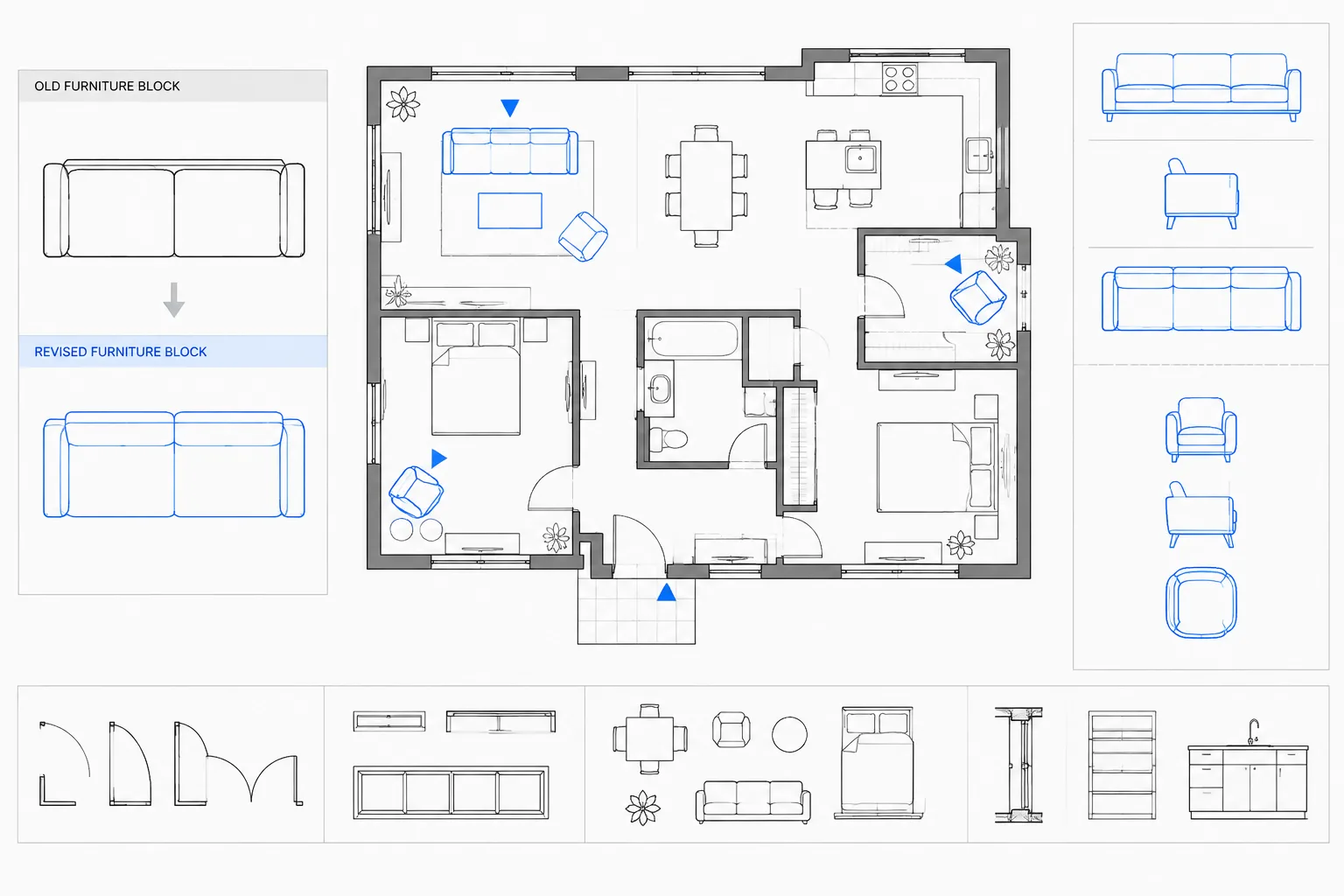
Managing fixture layout revisions
Fixture coordination should continue after the initial layout is accepted. Partition adjustments, product selections, casework development, and consultant revisions can alter the space available around a fixture or move the connection it depends on. A useful revision review begins by identifying what changed, which views are affected, and which discipline owns the controlling information.
Review related elements as a group rather than moving only the visible fixture block. A revised fixture location may affect its tag, locating dimensions, clearance graphics, wall backing, counter opening, accessories, elevation alignment, and plumbing background. Updating these relationships together reduces the risk of leaving contradictory information elsewhere in the drawing set.
Use a room-based review sequence
- Confirm the background: Verify that the architectural and consultant files represent the current issue being reviewed.
- Inspect controlling geometry: Check finished wall faces, centerlines, casework edges, openings, and other references used to locate fixtures.
- Display coordination layers: Turn on clearance graphics, door swings, accessories, overhead items, and service zones needed for the review.
- Compare related views: Trace each plan change into elevations, sections, enlarged plans, schedules, and details where applicable.
- Record unresolved items: Mark discrepancies clearly instead of making assumptions about another discipline’s intent.
- Review the plotted result: Confirm that symbols, tags, linework, and references remain legible in the issued drawing context.
Distinguish design intent from reference information
Clear drawing ownership helps teams resolve discrepancies efficiently. Architectural geometry may communicate room organization and finish relationships, while plumbing information may communicate service connections and system intent. Product information may govern the selected fixture configuration. When these sources disagree, the conflict should be documented and resolved through the project coordination process rather than concealed by graphic adjustments.
A well-coordinated CAD plan therefore functions as a communication tool as well as a layout drawing. Its blocks, layers, dimensions, references, and related views should make the intended relationships understandable and make later changes easier to verify.
Frequently asked questions
What should control a plumbing fixture location in an architectural plan?
The control should reflect the design relationship that matters. Depending on the condition, that may be a finished wall face, fixture centerline, casework opening, partition bay, structural grid, or another stable project reference. Avoid locating fixtures from temporary geometry or objects likely to move independently.
Can a downloaded plumbing fixture CAD block be used without checking it?
No downloaded block should be assumed to match the selected product or project criteria. Review its geometry, insertion point, orientation, visible projection, and relationship to current project information before using it for coordination.
Should clearance graphics be included inside the fixture block?
Keeping review clearances separate usually provides better display control. Dedicated layers or separately controlled nested graphics allow the team to show clearances during coordination without confusing them with the fixture outline. The graphics still require project-specific verification.
How should architectural and plumbing CAD backgrounds be compared?
Attach the current consultant background using the project’s established origin and file-management procedure. Compare fixture designations, centerlines, wall relationships, connection intent, chases, and service areas. Document discrepancies rather than moving the referenced file or editing consultant information without coordination.
Why must plumbing fixture plans be checked against elevations?
A plan shows horizontal relationships but cannot fully communicate mounting and vertical alignment. Elevations and sections help coordinate fixtures with counters, mirrors, accessories, cabinets, finishes, wall cavities, and service access. Matching reference geometry helps reveal inconsistencies between views.
What should be updated when a fixture moves?
Review the fixture tag, dimensions, clearances, accessories, backing, casework openings, plumbing connections, elevations, sections, schedules, and related consultant information. The exact list depends on the fixture and drawing set, but the change should not be treated as an isolated block move.