Choosing the correct layer control is a scope decision, not merely a display preference. Before hiding or protecting geometry, determine whether the condition should affect the general drawing, a temporary editing session, or only a particular layout viewport.
This guide explains how common architectural CAD layer visibility controls differ and how those differences affect drafting, coordination, plotting, and troubleshooting. Use it to select a control intentionally rather than applying whichever option removes the immediate visual clutter.
Layer names determine where architectural CAD objects belong, but layer visibility controls determine what users can see and edit at a given moment. Commands such as Freeze, Off, Lock, and Isolate may appear interchangeable because each can reduce drawing clutter. In practice, they serve different purposes and can produce very different results in model space, layouts, and plotted sheets.
A reliable workflow uses these controls deliberately. Temporary editing conditions should not accidentally become permanent sheet settings, and viewport-specific changes should not alter the working model for everyone else. Understanding the distinctions is especially important in drawings containing external references, multiple plan types, consultant backgrounds, and several paper space viewports.
Quick comparison of layer visibility controls
| Control | What it does | Typical architectural use | Main caution |
|---|---|---|---|
| Off | Hides objects on the layer | Temporarily removing visual clutter during drafting | The hidden layer may be overlooked during review |
| Freeze | Hides the layer and excludes its objects from display regeneration | Suppressing substantial categories of geometry that are not needed | Freezing the current layer or a required reference layer can interrupt work |
| Lock | Keeps objects visible but restricts editing | Protecting backgrounds, grids, or verified geometry | Visible objects may still be mistaken for editable project geometry |
| Isolate | Temporarily emphasizes selected layers while suppressing or locking others, depending on settings | Focused editing of walls, doors, notes, or another specific system | An unfinished isolation state can confuse the next user |
| Viewport Freeze | Hides a layer only in a selected layout viewport | Creating different sheet views from a coordinated model | Model space may look correct while an individual sheet remains incomplete |
Layer Off: a simple temporary visibility switch
Turning a layer off hides its objects from view and prevents them from plotting while that state applies. It is useful when geometry is temporarily distracting but may need to be restored quickly. For example, a drafter editing room tags might turn off furniture or overhead elements to make selections easier.
Off is often appropriate for short working sessions because it communicates a straightforward condition: the layer still belongs in the drawing, but it is not currently displayed. However, hidden content remains easy to forget. Before issuing a drawing, review the complete layer list rather than assuming that the current display represents everything in the file.
Good uses for Layer Off
- Temporarily hiding dense annotation during geometry edits.
- Removing a reference category while checking alignment.
- Reducing overlapping symbols during object selection.
- Testing whether a drawing remains understandable without a secondary graphic layer.
Avoid treating Off as a substitute for proper layer organization. If unrelated objects must always be hidden together, the underlying layer structure may need improvement.
Layer Freeze: removing unneeded geometry from the active display
Freezing a layer also makes its objects invisible, but frozen-layer geometry is excluded from display regeneration. This distinction can matter in large architectural files containing extensive site information, consultant backgrounds, detailed hatches, or repeated building areas.
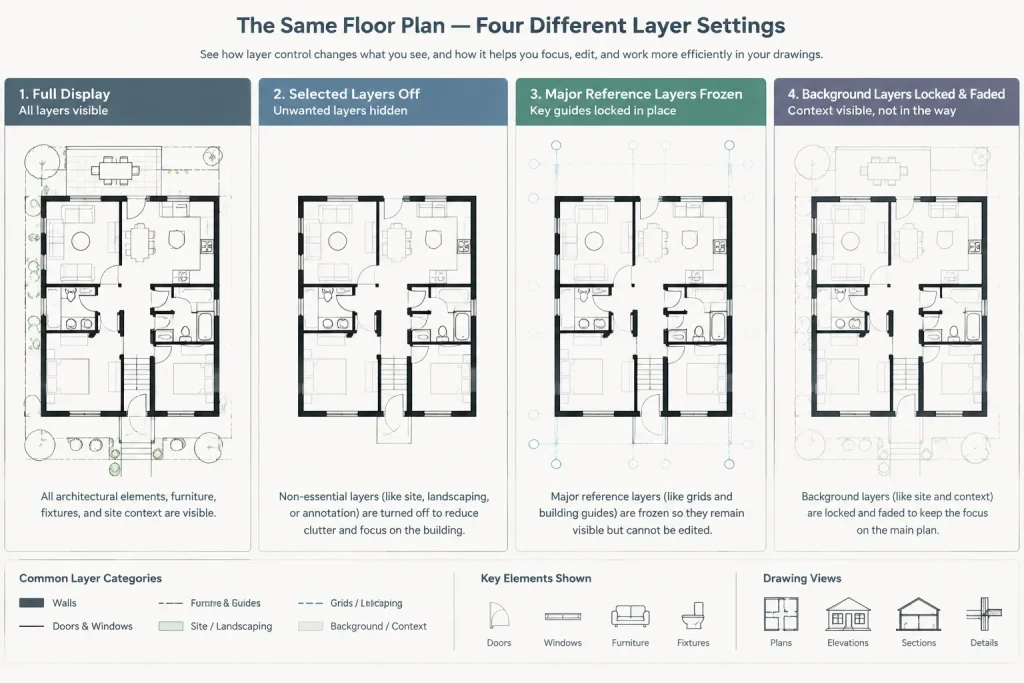
Freeze is generally more appropriate than Off when an entire category of information is not required for the current task. A user preparing an interior plan might freeze landscape, roof, or remote site layers rather than repeatedly processing information unrelated to the view.
Do not freeze layers casually in shared files. A drawing that opens with important layers frozen can appear incomplete to another team member. Saved visibility conditions should have a clear purpose, especially when the file functions as an external reference for other drawings.
Freeze does not replace file cleanup
Freezing a layer can improve the working display, but it does not correct duplicated objects, excessively complex blocks, unnecessary hatch boundaries, or poorly managed external references. If a DWG remains unstable or difficult to navigate, investigate the geometry and reference structure rather than relying only on frozen layers.
Layer Lock: keep context visible while protecting it
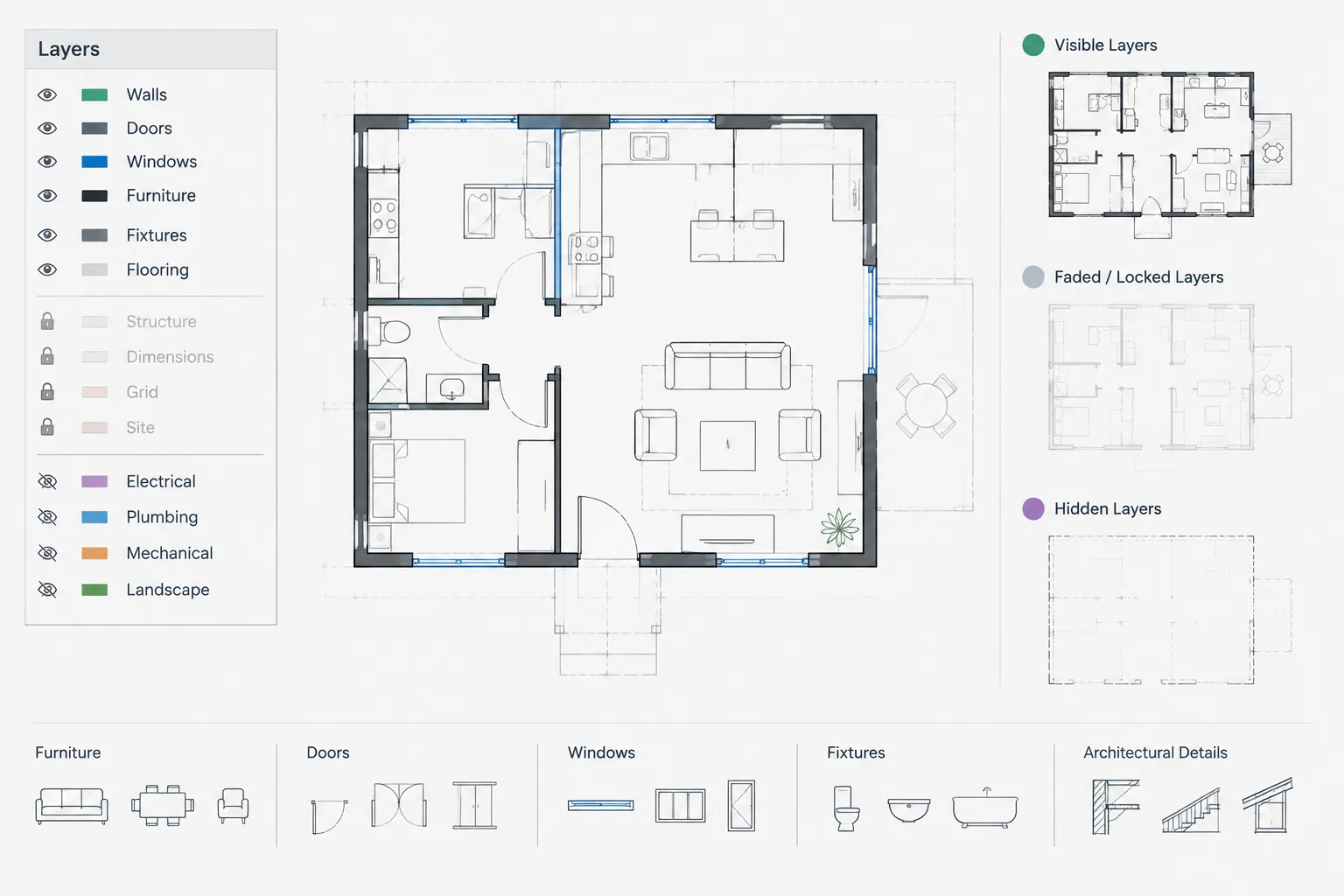
Locking is fundamentally different from hiding. Objects on locked layers remain visible and can provide alignment or coordination context, but normal editing of those objects is restricted. Depending on the user’s display settings, locked-layer objects may appear faded to help distinguish them from active work.
This is particularly useful for architectural backgrounds. A drafter can lock column grids, an existing-conditions survey, a consultant reference, or verified wall geometry while placing notes and dimensions. The visible information remains available for snapping and visual comparison without being as vulnerable to accidental moves or deletions.
Locking should not be presented as a security mechanism or an approval status. It is an editing aid. Users can unlock the layer, and the presence of a lock does not prove that the geometry is current, correct, or coordinated.
Recommended locking workflow
- Confirm that objects are assigned to the correct layers before locking them.
- Lock stable context while leaving active design layers editable.
- Use clear layer names so users understand what has been protected.
- Unlock only the category that requires revision instead of unlocking the entire drawing.
- After editing, confirm whether the layer should return to its protected state.
Layer Isolate: focus without rebuilding the display manually
Layer isolation provides a fast way to concentrate on selected content. A user selects one or more objects, isolates their layers, completes an edit, and then restores the previous layer condition. This can be effective when cleaning wall intersections, revising door tags, checking room boundaries, or editing a dense group of ceiling symbols.
The exact visual result can depend on the isolation settings. Non-isolated layers may be turned off, or they may remain visible in a locked and faded condition. Teams should understand which behavior is active because the two modes support different tasks. Fully hiding other layers creates a clean workspace, while locking and fading them preserves coordination context.
Always end the isolation session when the task is complete. Files saved in an isolated condition often cause confusion because later users may believe geometry is missing. Before closing or sharing the DWG, restore the layers and inspect the broader drawing.
Viewport Freeze: control individual sheets without changing the model
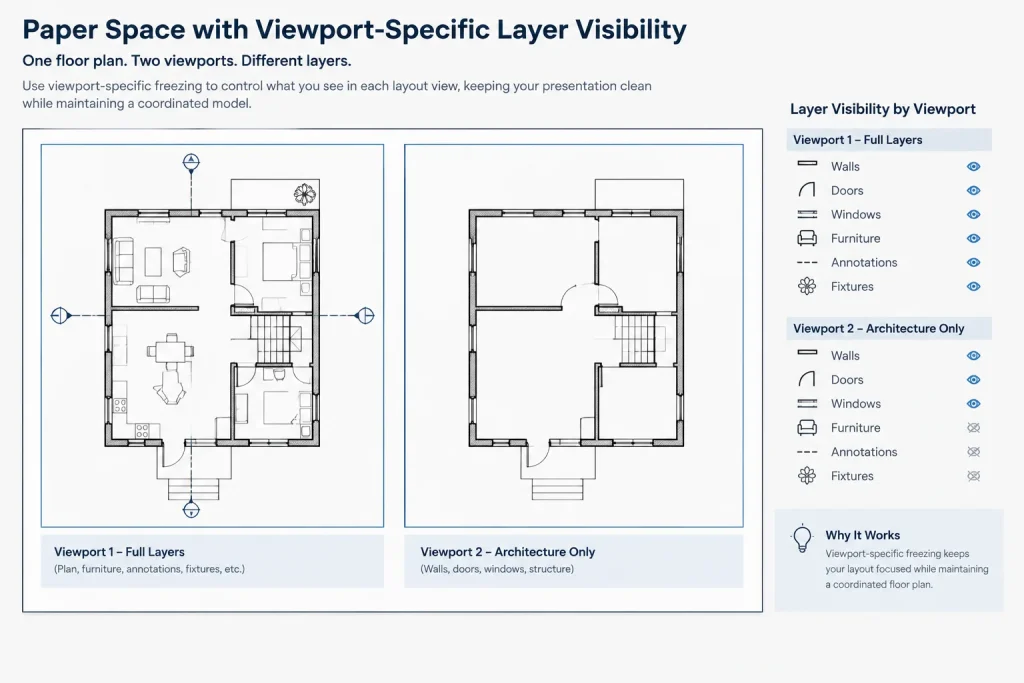
Viewport Freeze is one of the most useful controls for architectural sheet production. It suppresses a layer in a particular paper space viewport while allowing that layer to remain visible in model space and in other viewports.
Consider a coordinated plan model containing dimensions, room tags, furniture, ceiling information, and reference geometry. A floor plan viewport may display room tags and plan dimensions, while another viewport may suppress those layers to present a cleaner background for a different drawing purpose. Viewport Freeze allows both views to originate from the same coordinated geometry.
The critical distinction is scope. Standard Freeze affects the general drawing display, while viewport-specific freezing affects selected layout views. When troubleshooting missing information, determine whether the layer is globally frozen, viewport-frozen, turned off, or affected by another visibility setting.
New viewport visibility requires planning
Layer settings can also influence whether information appears in newly created viewports. This is useful for keeping construction-only layers or working notes out of future sheet views, but it can also hide required content unexpectedly. Include new-viewport behavior in template reviews and sheet setup checks rather than leaving it to chance.
A practical architectural editing workflow
- Identify the scope of the task. Decide whether the change concerns the whole model, one discipline background, or one sheet viewport.
- Protect stable context. Lock geometry that must remain visible but should not be changed.
- Reduce clutter deliberately. Use Off for quick temporary hiding, Freeze for substantial unneeded categories, or Isolate for focused editing.
- Edit only the intended layers. Confirm the current layer before drawing new objects and check object properties after copying existing content.
- Restore temporary states. End isolation and restore working layers before broader coordination.
- Review layouts separately. Activate each relevant viewport and inspect viewport-frozen layers rather than relying only on model space.
- Plot a test sheet. A plotted or exported review can reveal missing content that was not obvious in the editing display.
Common layer visibility mistakes
Using global Freeze for a sheet-specific need
If information should disappear from only one sheet, globally freezing its layer may remove it from other views that still require it. Use viewport-specific control when the graphic decision belongs to an individual viewport.
Leaving working notes visible in plotted views
Construction lines, temporary revision marks, and coordination notes should be placed on intentionally managed layers. Do not depend on last-minute manual hiding without checking every layout.
Assuming a locked layer is verified
A lock indicates an editing condition, not technical validation. Confirm the source, date, alignment, and coordination status of background information independently.
Saving a file while layers remain isolated
This can make a complete drawing appear empty or damaged. Restore the normal display and use a named, documented visibility method if a special state must be preserved.
Troubleshooting only from model space
A layer may be visible in the model but frozen in one viewport. Check the actual layout and activate the affected viewport before changing global layer settings.
Quality-control checklist
- Confirm that required layers are visible in model space.
- Inspect every issued viewport for viewport-specific freezing.
- Restore temporary layer isolation states.
- Verify that locked layers are intentionally protected.
- Check that working and non-plot information is managed consistently.
- Review external-reference layer visibility in the host drawing.
- Test the final plotted or exported sheets, not only the live DWG display.
Effective architectural CAD layer visibility controls are less about hiding objects and more about managing scope. Off and Freeze simplify the working display, Lock protects visible context, Isolate supports focused editing, and Viewport Freeze creates sheet-specific presentations. Used with a consistent review process, these controls make complex DWG files easier to edit without sacrificing coordinated output.
How to choose the appropriate layer control
Start by asking what must remain visible and where the change should apply. If background geometry must stay available for reference but should not be edited, locking is usually the clearest approach. If information is temporarily distracting, turning its layer off may be sufficient. Freezing is more appropriate when an unneeded category of geometry should be removed from the active display, while isolation supports a focused task followed by restoration of the broader drawing.
Sheet presentation requires a separate decision. When a layer should remain available in the coordinated model but disappear from a particular layout view, use viewport-specific control rather than changing the global layer state. This distinction helps prevent a local graphic requirement from affecting other plans or sheets.
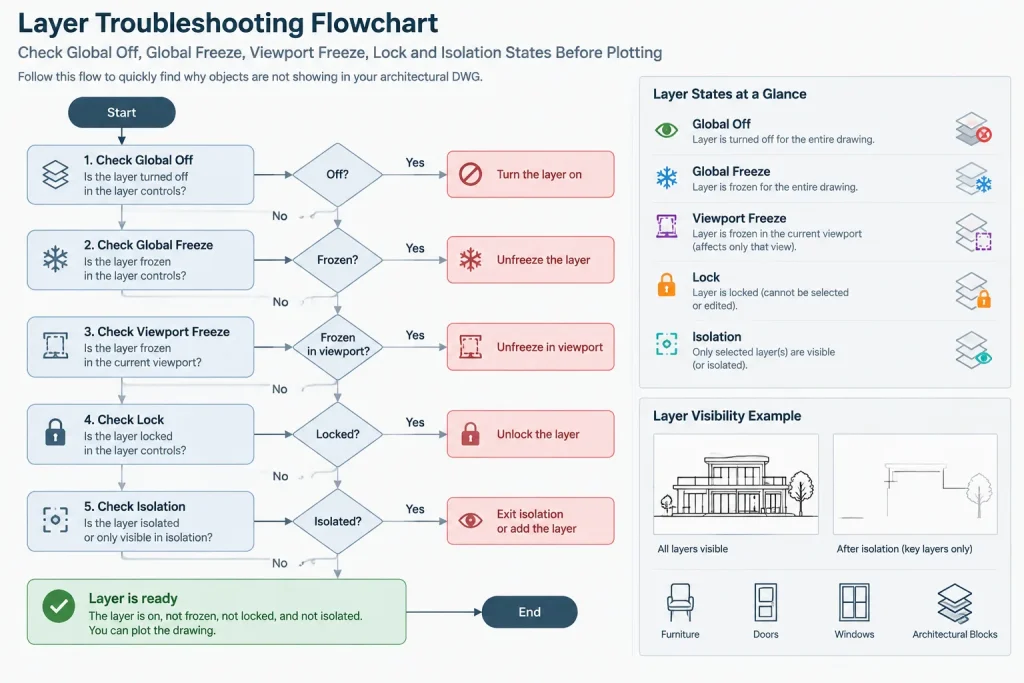
A troubleshooting sequence for missing CAD objects
When expected content disappears, avoid immediately thawing or turning on every layer. Broad changes can disrupt intentional sheet settings and make the original problem harder to identify.
- Check object scope: Determine whether the issue occurs throughout the drawing or only in a layout viewport.
- Inspect the assigned layer: Confirm that the missing object belongs to the expected layer rather than a similarly named layer.
- Review global visibility: Check whether the layer is off or frozen in the general drawing state.
- Review the active viewport: Activate the affected layout viewport and inspect its layer visibility condition.
- Check isolation: Confirm that a temporary isolated state is not suppressing unrelated layers.
- Inspect references: If the object comes from an external reference, review visibility in both the referenced drawing and the host drawing.
- Verify output: Examine the plotted or exported result before assuming that the editing display represents the final sheet.
Team workflow and handoff considerations
Temporary layer states become coordination problems when their purpose is not apparent to the next user. Before saving a shared DWG, restore completed isolation sessions, confirm intentional locks, and review whether global freezing is appropriate for everyone using the file.
For recurring presentation conditions, use a documented workflow that the project team understands. Consistency is more valuable than relying on memory, especially when several viewports, external references, and discipline backgrounds are involved.
Frequently asked questions
What is the main difference between Layer Off and Layer Freeze?
Both hide layer content, but freezing also excludes that layer’s objects from display regeneration. Off is commonly used as a quick visibility switch, while Freeze is better suited to substantial categories of geometry that are not needed for the current task.
Should a background layer be frozen or locked?
Lock it when the background must remain visible for alignment, snapping, or coordination but should be protected from routine editing. Freeze it when the background is unnecessary for the current task and should not appear in the active display.
Does locking a layer confirm that its geometry is correct?
No. A lock is an editing control, not proof of approval, accuracy, or coordination. The information still requires independent review.
Why is a layer visible in model space but missing from a sheet?
The layer may be frozen specifically in that layout viewport. Activate the affected viewport and inspect its layer settings before changing the global drawing state.
Why can Layer Isolate cause confusion in a shared file?
An unfinished isolation state can make valid geometry appear missing. Restore the normal layer condition after focused editing and before handing off or sharing the drawing.
Can layer visibility controls replace good layer organization?
No. Visibility controls help manage the current view, but they do not correct misplaced objects, unclear layer names, duplicated geometry, or poorly managed external references.
What should be checked before plotting?
Review the relevant layouts and viewports, restore temporary isolation states, inspect viewport-specific freezing, confirm intentional locks, and examine the plotted or exported output.