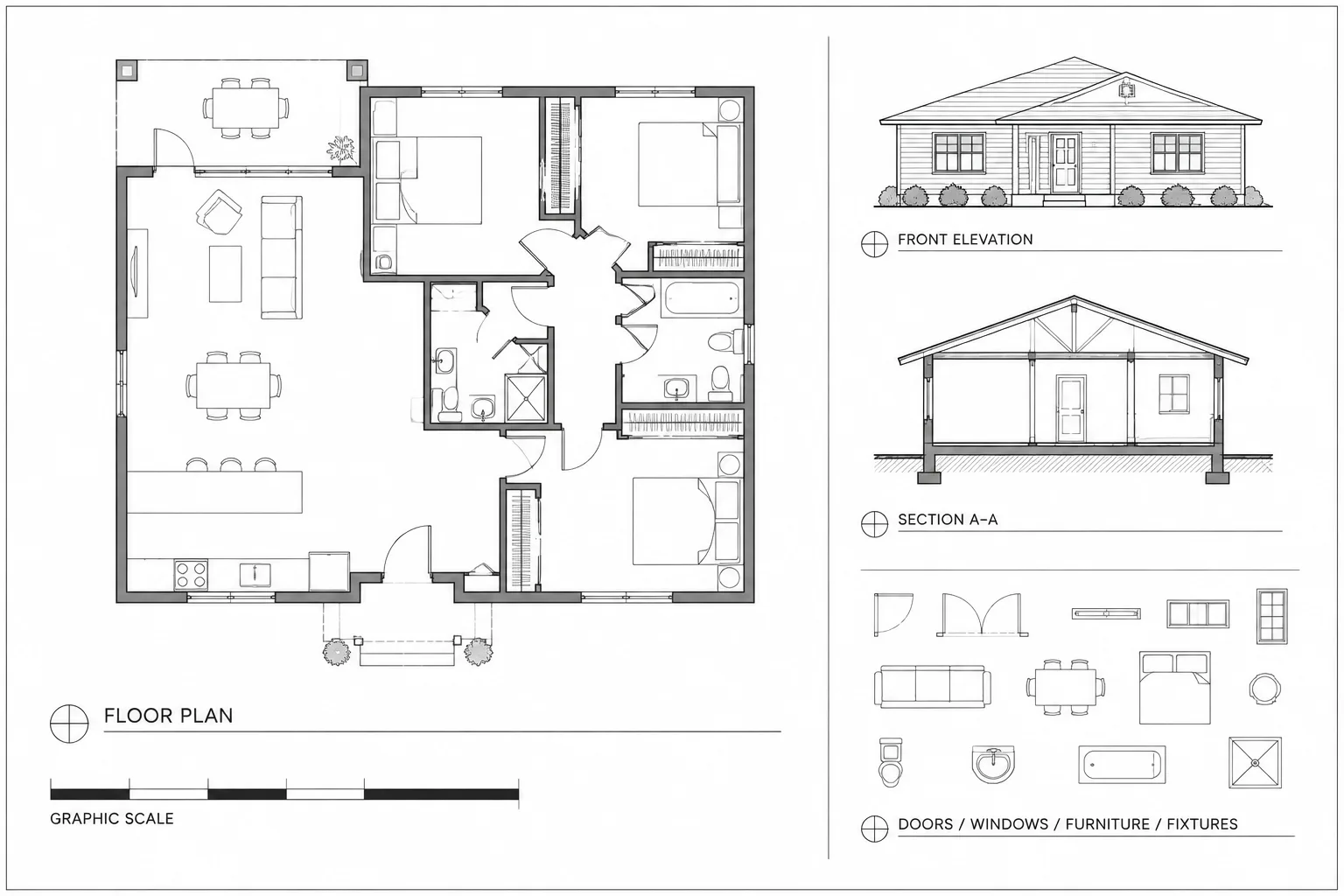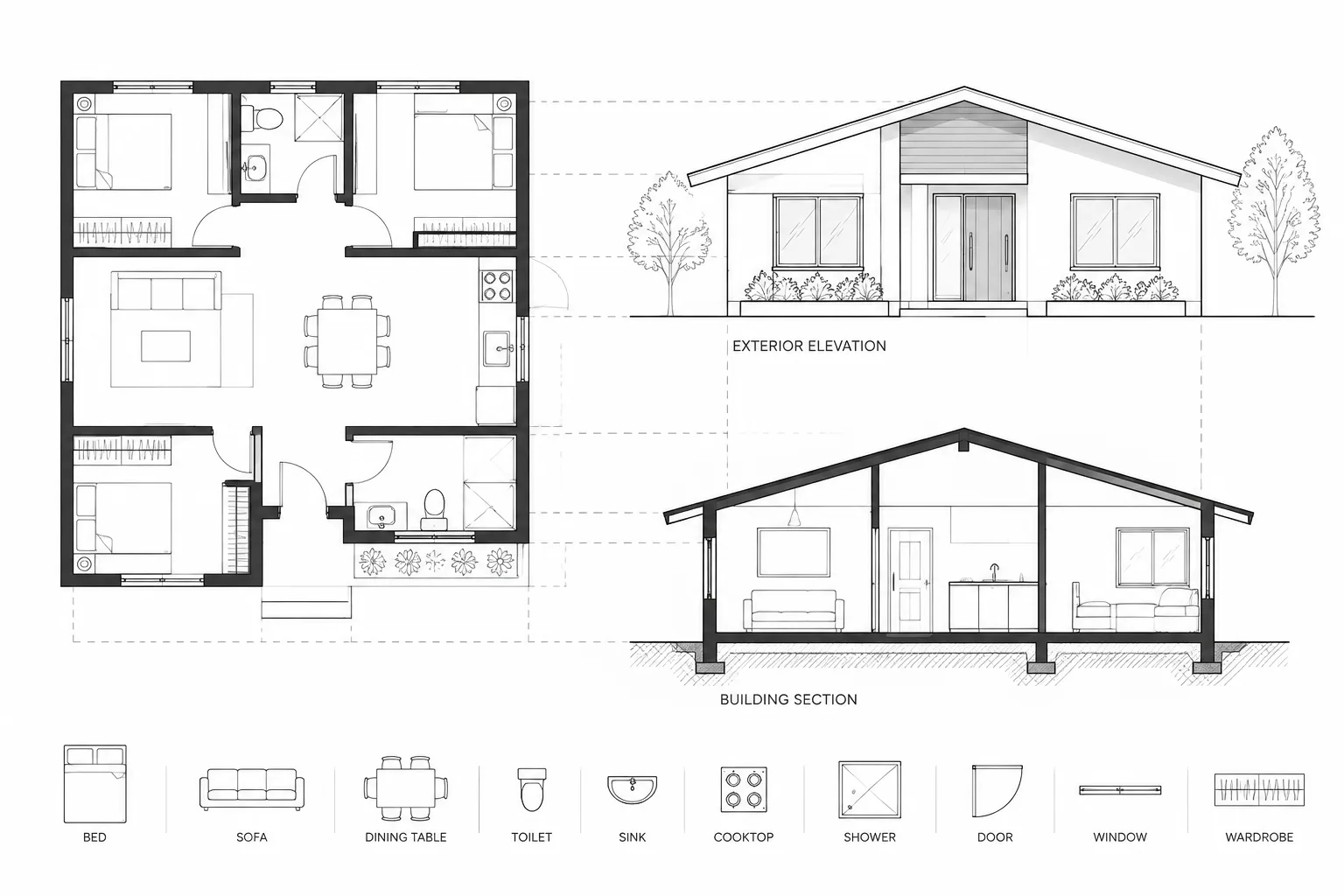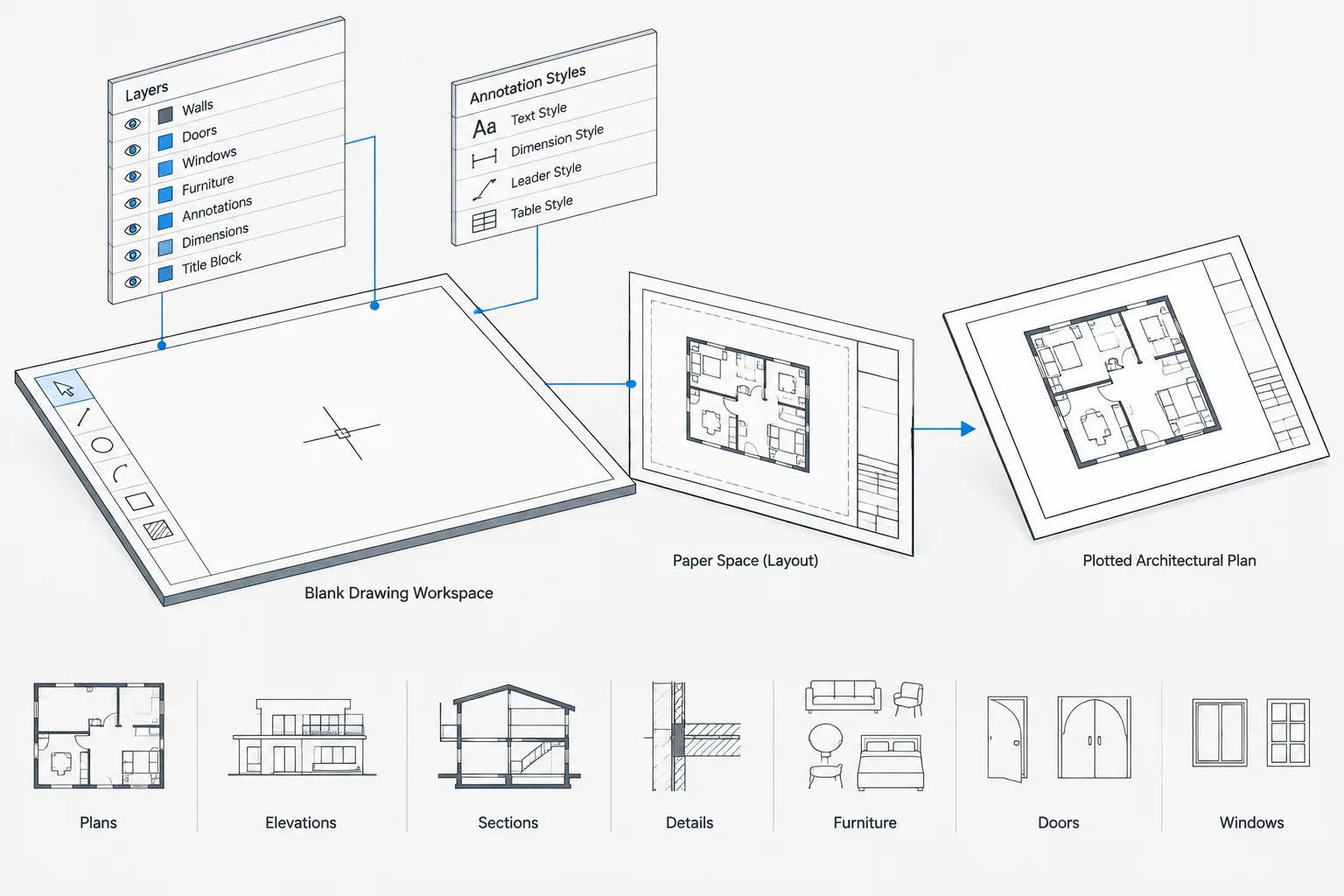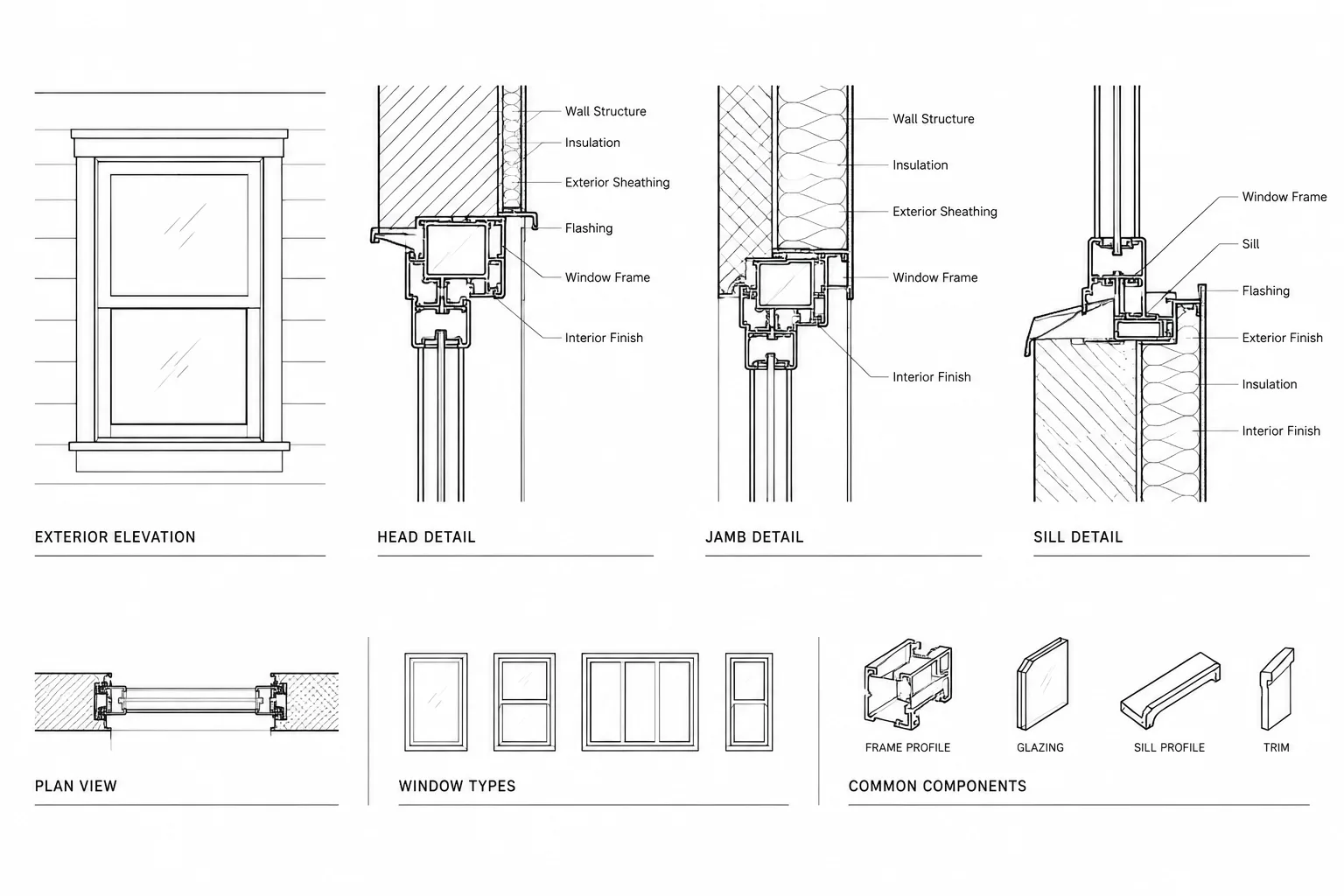
Wall intersections in architectural CAD are small areas with an outsized effect on drawing clarity. Gaps, overlapping lines, unstable hatch boundaries, and incorrectly joined wall layers can obscure construction intent and complicate later revisions.
This guide presents a practical cleanup and coordination method for corners, T-junctions, cross intersections, thickness changes, and material transitions. It emphasizes dependable geometry, clear graphic hierarchy, and coordination with the surrounding drawing set rather than cosmetic linework fixes.
Wall intersections are among the most frequently edited areas of an architectural floor plan. A corner that looks simple may involve finish layers, structural components, existing construction, rated assemblies, columns, door openings, or walls of different thicknesses. If these conditions are drafted without a consistent method, the plan can accumulate gaps, overlaps, stray lines, misleading poche, and geometry that is difficult to revise.
A reliable workflow treats each intersection as part of the wall system rather than as an isolated graphic patch. The goal is not merely to make the corner look clean at one plotting scale. The geometry should remain understandable, editable, and coordinated with dimensions, wall types, elevations, sections, and consultant backgrounds.
Why Wall Intersections Require Deliberate Drafting
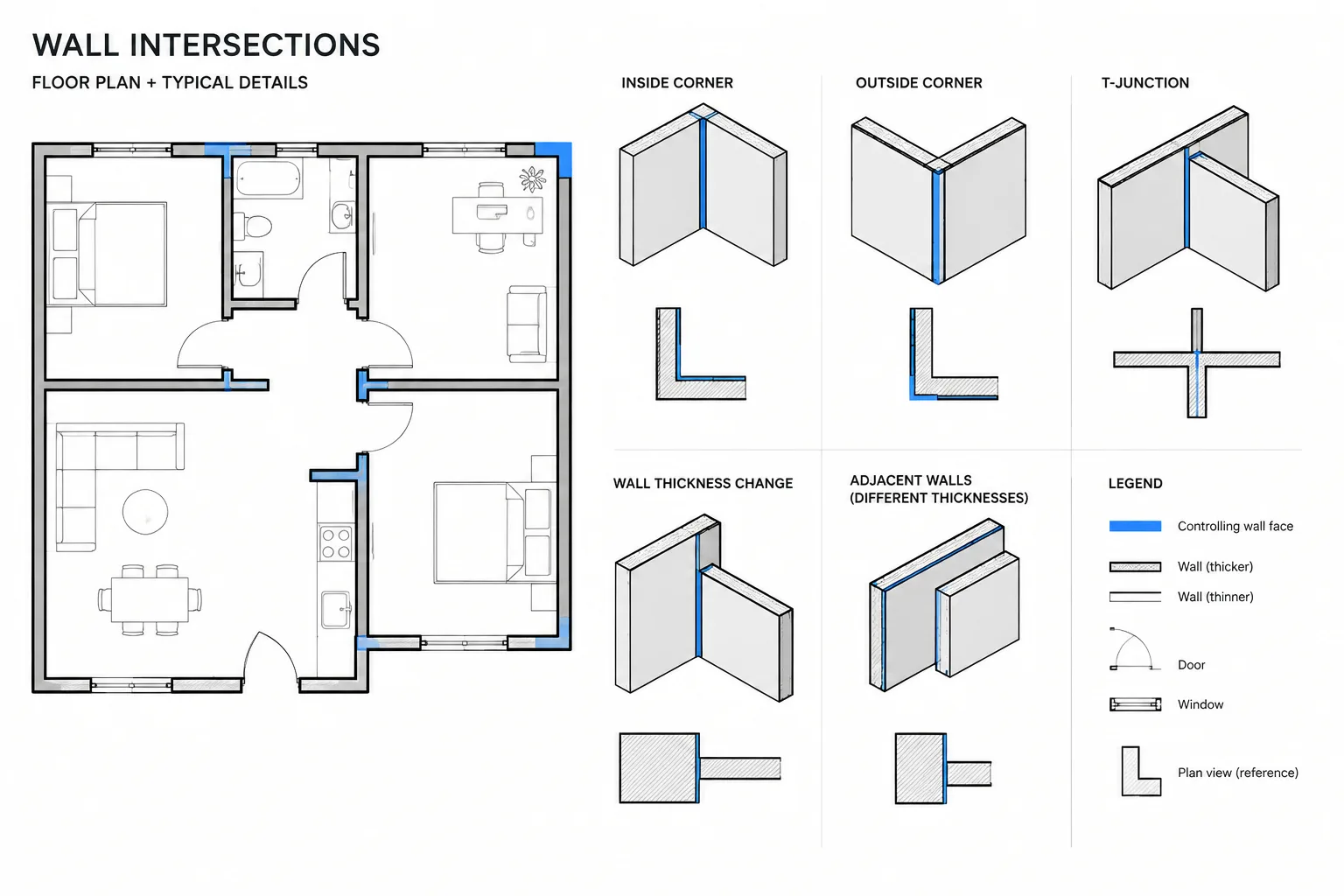
Architectural walls are often represented by parallel boundary lines, hatches, poche, centerlines, or combinations of these elements. When two walls meet, their representations must communicate which wall continues, which wall terminates, and how the materials relate.
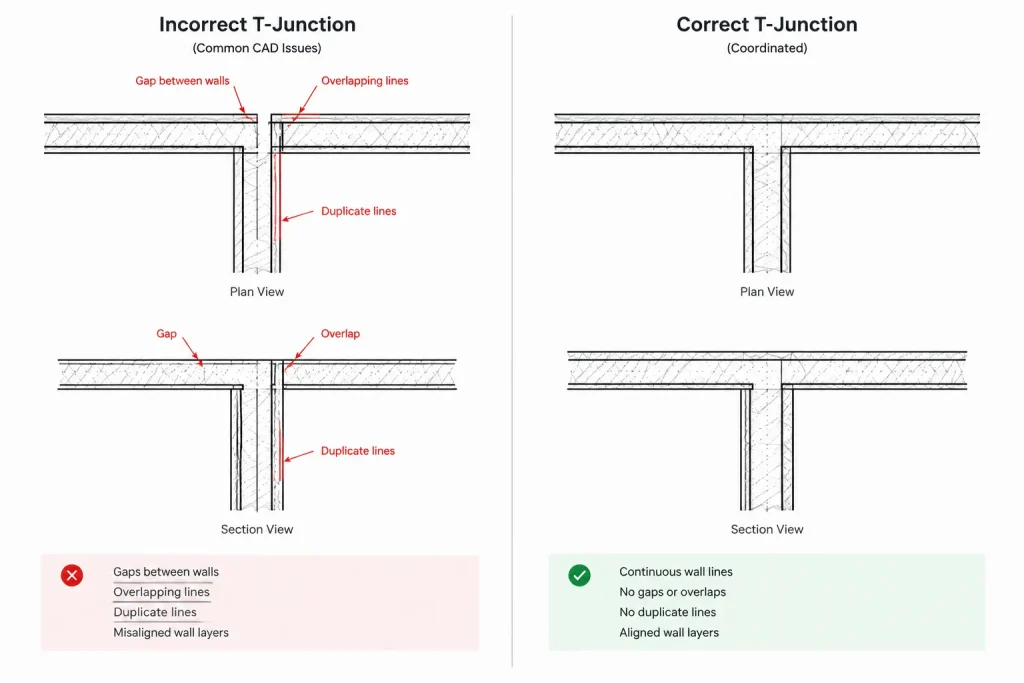
Common problems include:
- Wall faces that stop short of a corner or extend beyond it.
- Duplicate lines that plot darker than adjacent geometry.
- Finish lines that incorrectly cross through another assembly.
- Hatches leaking through small gaps or obscuring important edges.
- T-junctions that imply the wrong construction sequence.
- Wall cleanup that breaks when a wall moves.
- Columns, shafts, or openings hidden beneath wall graphics.
- Dimensions referencing temporary or decorative lines instead of stable wall faces.
These errors can be visually minor while still creating coordination problems. An ambiguous junction may affect room boundaries, finish extents, opening locations, or the interpretation of a section cut.
Start with the Construction Intent
Before trimming lines, identify what the intersection represents. Determine whether each wall is existing, new, demolished, full height, partial height, exterior, interior, or part of a distinct assembly. Review the relevant wall types and nearby section or detail references when available.
Ask four basic questions:
- Which wall or assembly is continuous?
- Which wall terminates at the junction?
- Are finishes continuous, interrupted, or different on each side?
- Does the plan need to show every layer, or is a simplified representation appropriate for the drawing scale?
Do not infer concealed construction solely from a generic CAD block, hatch, or nearby condition. Where the design information is incomplete, flag the intersection for review rather than creating a polished but unsupported detail.
Establish Stable Wall Geometry
Clean intersections begin with controlled wall geometry. Use the project’s established reference convention, such as a wall face, structural face, or centerline, and apply it consistently. Avoid switching reference methods casually between adjacent rooms.
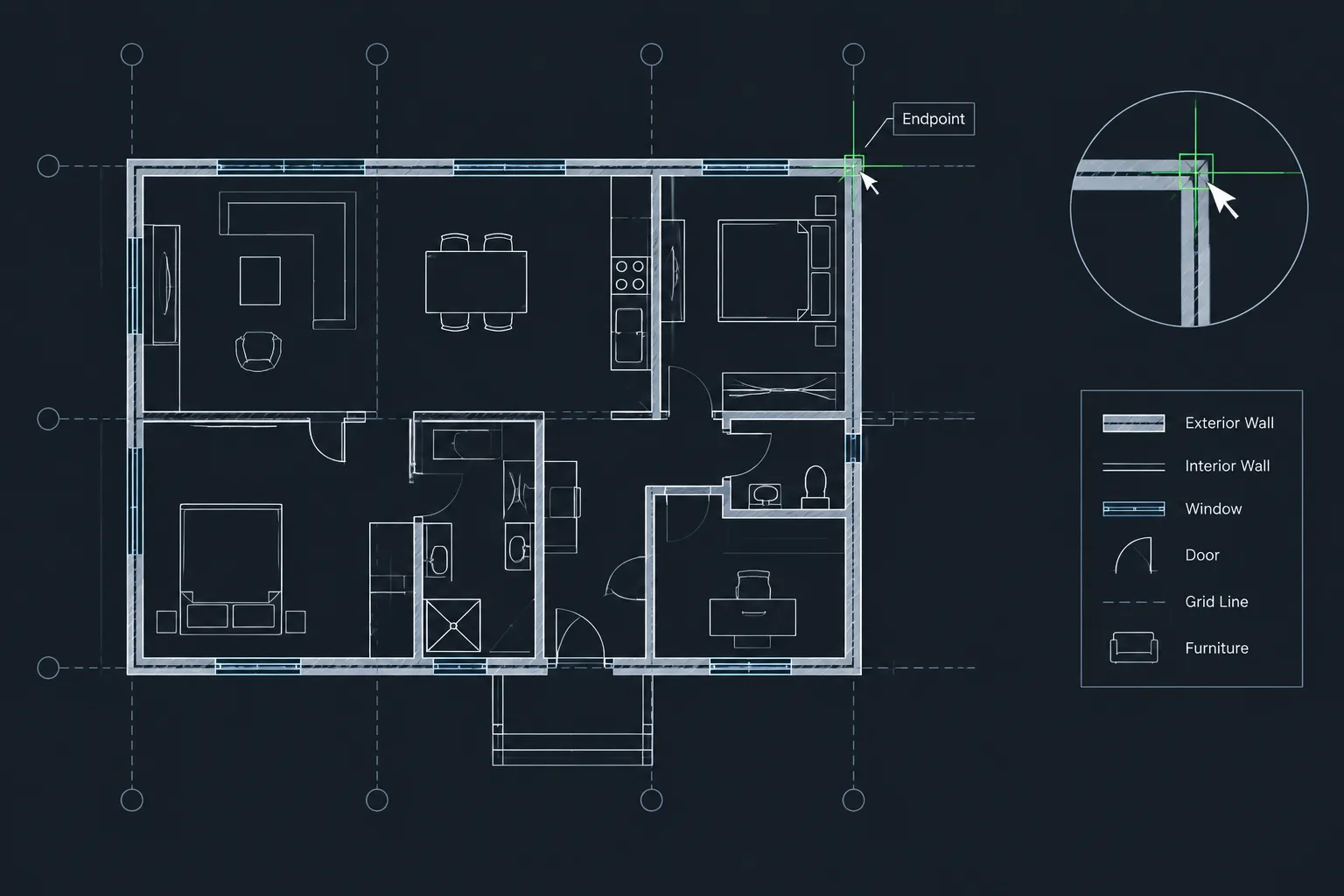
Parallel wall faces should remain parallel unless the design intentionally changes direction or thickness. Use precise drafting tools and object snaps rather than visually placing endpoints. When a wall changes thickness, create a clear transition instead of gradually drifting one boundary line.
Keep wall outlines separate from annotation, dimensions, hatch boundaries, and temporary construction geometry. Appropriate layer separation makes it easier to isolate the wall system and inspect the actual junction.
Drafting Common Intersection Types
Outside and Inside Corners
At a basic corner, extend the controlling wall faces until they meet and remove geometry beyond the intended intersection. Inspect both boundaries instead of cleaning only the prominent outer edge. An outside corner may appear correct while an interior finish line remains disconnected.
For walls with multiple visible layers, decide which layers turn the corner and which terminate. Avoid automatically connecting every parallel line. That approach can create a diagram that looks tidy but misrepresents the assembly.
T-Junctions
At a T-junction, one wall generally reads as continuous while another terminates against it. Preserve the boundary of the continuing wall where that boundary is meant to remain visible. Trim the terminating wall to the correct receiving face or layer.
The junction should not leave a short line across the end of the terminating wall unless that line represents a real material edge. Conversely, removing every line at the connection can make separate assemblies appear monolithic. Use the project’s graphic convention and the known construction intent.
Cross Intersections
Four-way intersections require careful review because several line segments converge in a small area. First establish the primary wall paths, then resolve the visible layers. Remove duplicate segments and avoid leaving tiny enclosed shapes that can interfere with hatching or area calculations.
If the intersection is unusually complex, an enlarged plan, section, or detail may communicate it better than dense full-building plan graphics.
Walls of Different Thicknesses
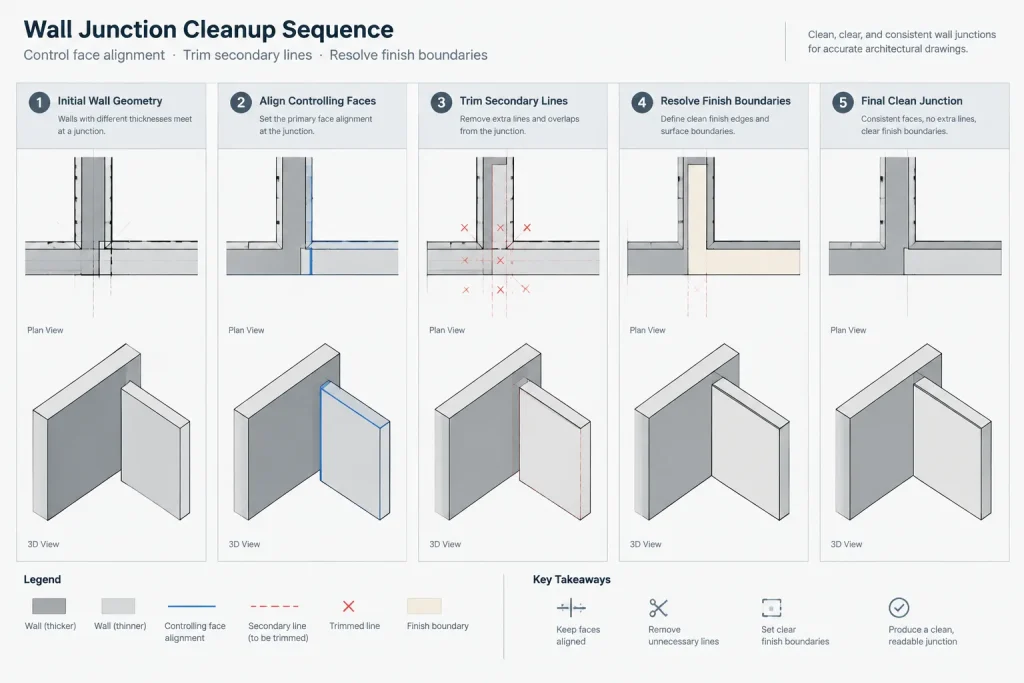
When a thinner wall meets a thicker wall, align the intended reference face rather than centering the walls automatically. The correct relationship may be driven by a finished room face, corridor alignment, structural support, exterior plane, or another design datum.
Show any resulting offset intentionally. A small step should not look like an accidental drafting error. Coordinate nearby dimensions so they clearly identify the controlling alignment.
Material and Finish Transitions
A wall junction may include a finish change even when the main wall construction continues. Keep finish boundaries distinct from the primary wall outline. If a finish line stops at a transition, terminate it cleanly and coordinate it with finish plans or interior elevations.
Avoid using wall outlines as finish boundaries merely because they are convenient. That shortcut can make later finish revisions unnecessarily disruptive.
Choosing What to Show at the Plan Scale
The appropriate level of detail depends on the purpose and scale of the view. A general floor plan may use simplified wall boundaries and poche, while an enlarged plan may distinguish additional layers and material returns.
| Drawing condition | Useful graphic approach | Coordination concern |
|---|---|---|
| General plan intersection | Clear wall limits with controlled lineweight and poche | Avoid unnecessary layer detail that clutters the view |
| Enlarged room plan | Show relevant offsets, finish faces, and opening relationships | Coordinate dimensions and interior elevations |
| Existing-to-new junction | Differentiate construction status using the project convention | Verify survey information and demolition scope |
| Complex assembly change | Use a detail reference where the plan cannot explain the condition | Keep the plan and referenced detail consistent |
| Wall meeting a column or shaft | Maintain a readable distinction between systems | Check structural and service clearances |
Simplification should remove visual noise without concealing an important transition. If two assemblies must be distinguished for coordination, do not merge them into a single heavy shape simply to improve appearance.
Lines, Polylines, Hatches, and Poche
Whether wall faces are drawn with lines or polylines, the project should use a predictable method. Randomly mixing object types can complicate editing, selection, and cleanup. Polylines can help maintain connected boundaries, but they do not eliminate the need to inspect vertices and intersections.
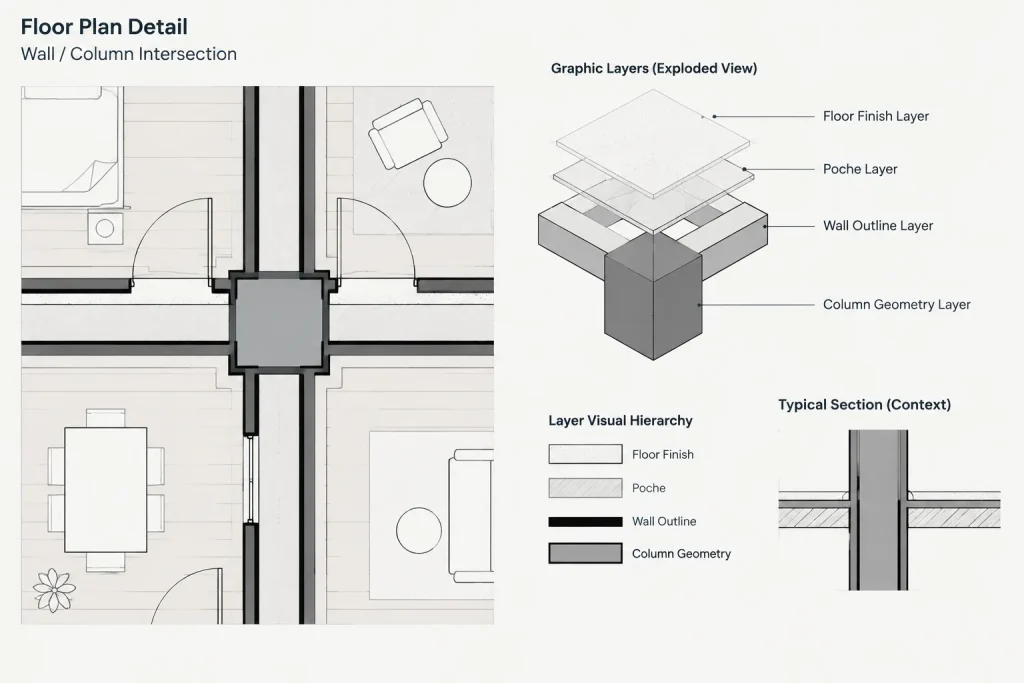
Hatches and solid poche should support the wall outline rather than replace it. Build dependable closed boundaries and keep small intentional openings under control. If hatch behavior becomes unstable, inspect the boundary geometry instead of covering the area with disconnected fill objects.
Use masking objects cautiously. A mask can hide an overlap without correcting the underlying lines. This may create acceptable output in one view while leaving inaccurate geometry for exports, backgrounds, or future revisions.
A Repeatable Wall Cleanup Workflow
- Isolate the relevant layers. Reduce visual noise from furniture, annotation, ceilings, and consultant backgrounds.
- Identify the controlling wall faces. Confirm the intended alignment and construction relationship.
- Extend primary geometry. Establish complete wall paths before trimming secondary lines.
- Resolve the junction. Trim or break only the segments that should terminate.
- Review secondary layers. Check finishes, membranes, furring, poche, and hatch boundaries where they are represented.
- Remove duplicate and residual geometry. Look for stacked lines, short fragments, and accidental closed shapes.
- Restore the complete plan display. Confirm that doors, casework, columns, fixtures, and dimensions still relate correctly.
- Check plotted output. Review the intersection at the intended sheet scale, not only while zoomed in.
Coordinate Adjacent Plan Elements
Wall cleanup should not occur in isolation. After modifying an intersection, review nearby doors and windows, especially frames located close to corners. Confirm that tags, dimensions, and clearance graphics have not become detached or misleading.
Also compare the condition with:
- Wall type designations and assembly descriptions.
- Interior and exterior elevations.
- Building sections and enlarged details.
- Finish plans and finish boundaries.
- Ceiling plans where wall height affects overhead conditions.
- Structural columns, braces, and slab edges.
- Mechanical, electrical, and plumbing backgrounds.
If an external reference controls part of the condition, avoid editing around an outdated background as though it were current. Record unresolved differences and update the reference through the project’s coordination process.
Quality-Control Checks Before Issue
Review wall intersections both visually and geometrically. A useful final check includes:
- Zooming into corners and T-junctions to find gaps and overshoots.
- Selecting suspicious dark lines to detect duplicates.
- Temporarily turning off poche or hatch layers to inspect outlines.
- Checking that wall hatches remain within intended boundaries.
- Reviewing dimensions for valid, stable reference points.
- Comparing repeated conditions for consistent treatment.
- Plotting or previewing the sheet with the intended lineweight settings.
- Confirming that simplified plan graphics do not conflict with referenced details.
A clean wall intersection should be easy to understand, easy to revise, and supported by the rest of the drawing set. The strongest CAD workflow combines precise geometry with disciplined graphic hierarchy and documented construction intent. When those elements are coordinated, even complex junctions remain manageable throughout design development and drawing production.
Turn Cleanup Decisions into Repeatable Drafting Rules
Many wall-intersection errors return because the drafter fixes the visible condition without recording the reasoning behind it. When the same assembly occurs elsewhere, another team member may resolve it differently. Repeated conditions should follow a shared approach based on the controlling wall face, visible assembly layers, construction status, and intended plan representation.
A useful project convention can clarify:
- Which wall reference governs alignment.
- How continuous and terminating walls are represented.
- When finish lines remain visible at a junction.
- How poche and hatch boundaries relate to wall outlines.
- When a complex condition should refer to an enlarged drawing.
- Which layers contain permanent geometry and which contain temporary review marks.
These conventions do not replace wall types, sections, or details. They help the CAD file express those sources consistently.
Review the Junction as Data, Not Only as Graphics
A clean plotted corner can still contain poor CAD geometry. Hidden duplicates, disconnected endpoints, unnecessary fragments, and masks may not be obvious on the sheet, but they can interfere with selection, hatching, area boundaries, exports, and future edits.
During review, distinguish between a graphic problem and an information problem. A graphic problem may be resolved by correcting linework or display hierarchy. An information problem requires confirmation of the assembly, alignment, finish extent, or construction status before drafting continues. Polishing an unresolved condition can make uncertainty harder to detect.
Use a Focused Handoff Check
Before another drafter or consultant receives the file, inspect edited intersections with the surrounding layers restored. Confirm that openings, room boundaries, dimensions, tags, columns, fixtures, and referenced details still align with the revised wall geometry.
Where construction intent remains uncertain, use the project’s review process instead of hiding the discrepancy with fill, masking, or improvised linework. A clearly identified coordination item is more useful than a visually complete junction that communicates the wrong relationship.
Frequently Asked Questions
Should every wall layer connect at an intersection?
No. Connect or terminate each represented layer according to the known assembly and the purpose of the drawing. Automatically joining every parallel line can misrepresent finish returns, structural components, or separate wall systems.
Why does wall hatch leak through a corner?
Hatch leakage commonly indicates an open, overlapping, or otherwise unreliable boundary. Inspect wall endpoints, polyline vertices, and small residual segments before adding masks or separate fill objects.
Which wall should continue through a T-junction?
The continuous wall should be determined from construction intent, wall types, and related drawings. Graphic convenience alone should not decide the relationship.
Should walls of different thicknesses be centered at the junction?
Not automatically. Align the face or datum that controls the design, such as a finished surface, structural face, corridor line, or exterior plane.
Can a masking object be used to clean an overlap?
A mask may improve appearance, but it does not correct inaccurate underlying geometry. Use masking cautiously and only where it supports an established drawing convention.
When should an intersection be shown in an enlarged detail?
Use an enlarged plan, section, or detail when the main plan cannot clearly communicate assembly changes, finish returns, offsets, or relationships with adjacent systems.