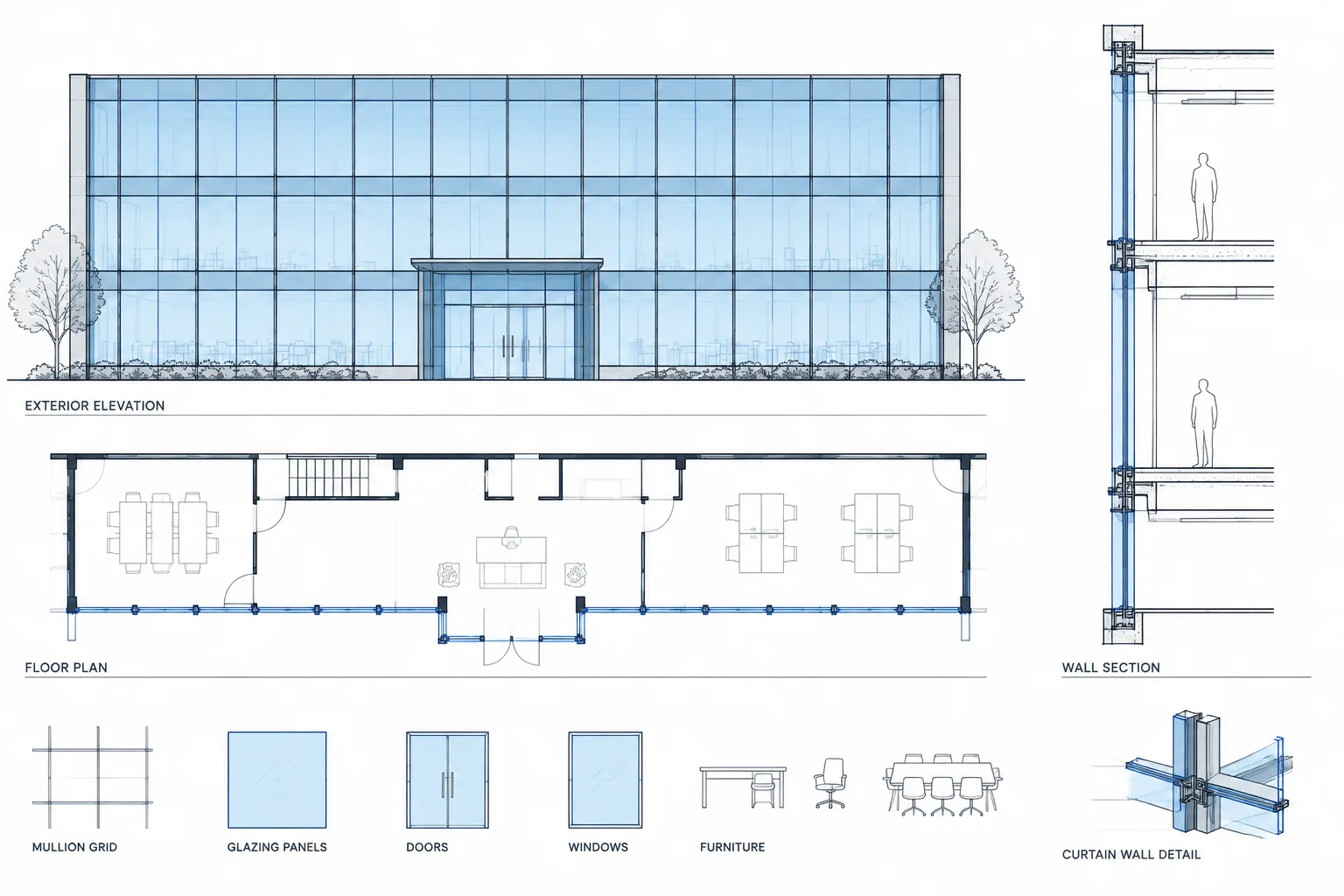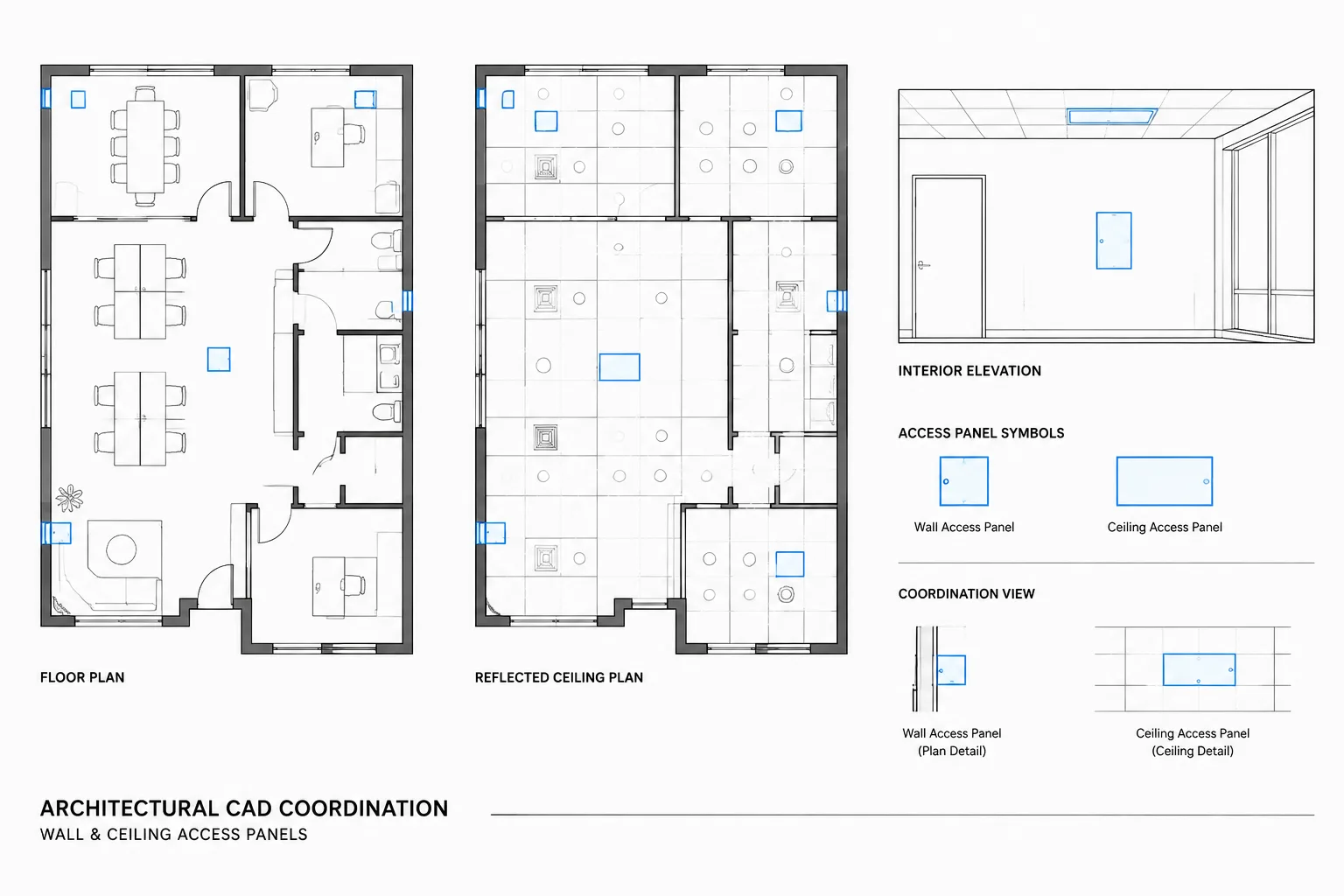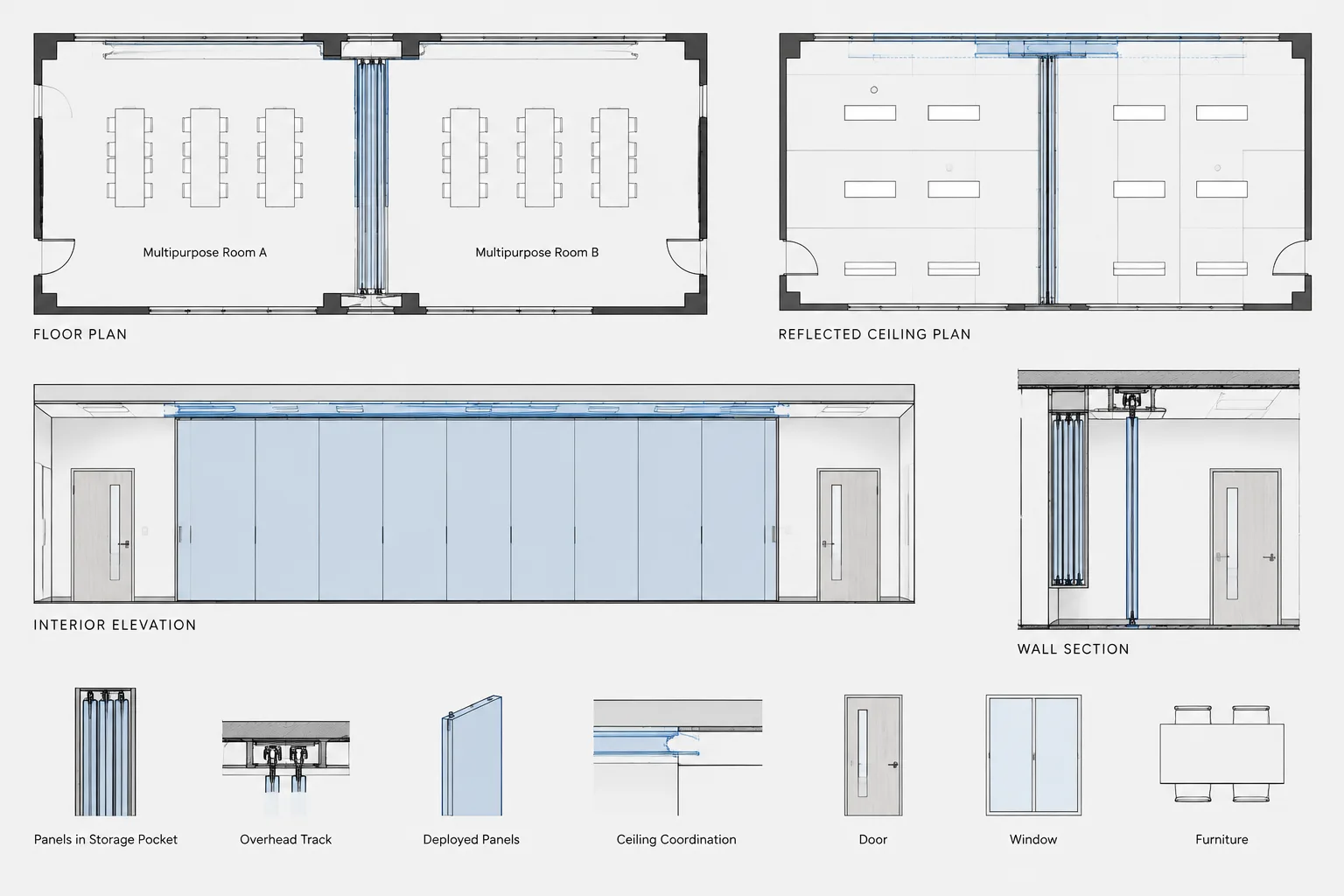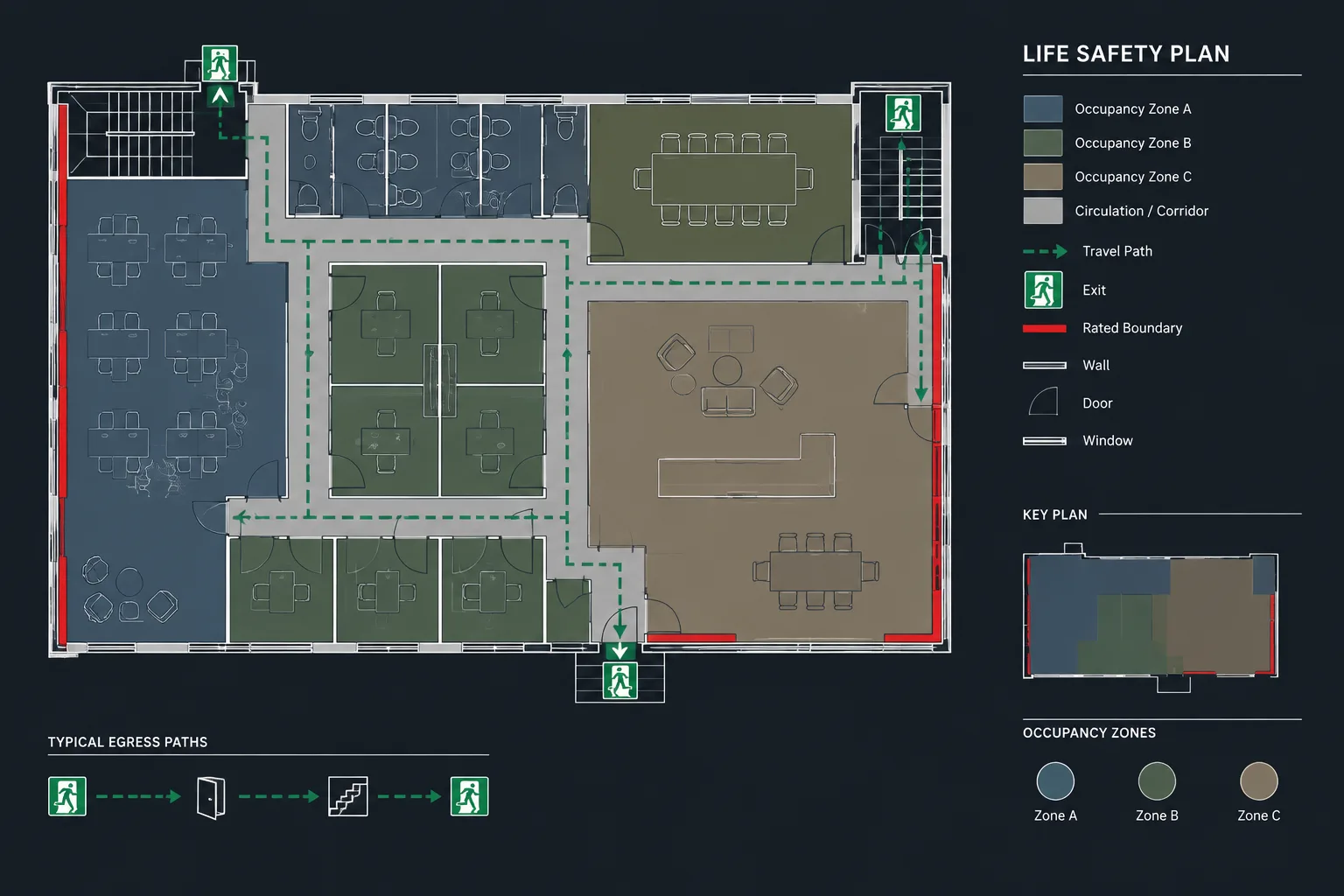
Viewport layer overrides help architectural CAD teams produce several drawing types from coordinated model-space geometry. Instead of changing the base appearance of a layer for every sheet, a drafter can adjust its visibility or graphic role within a particular paper-space viewport.
This guide explains how to use that separation responsibly. The goal is not merely to make a plan look cleaner, but to establish a readable sheet hierarchy while protecting the accuracy and consistency of the shared model.
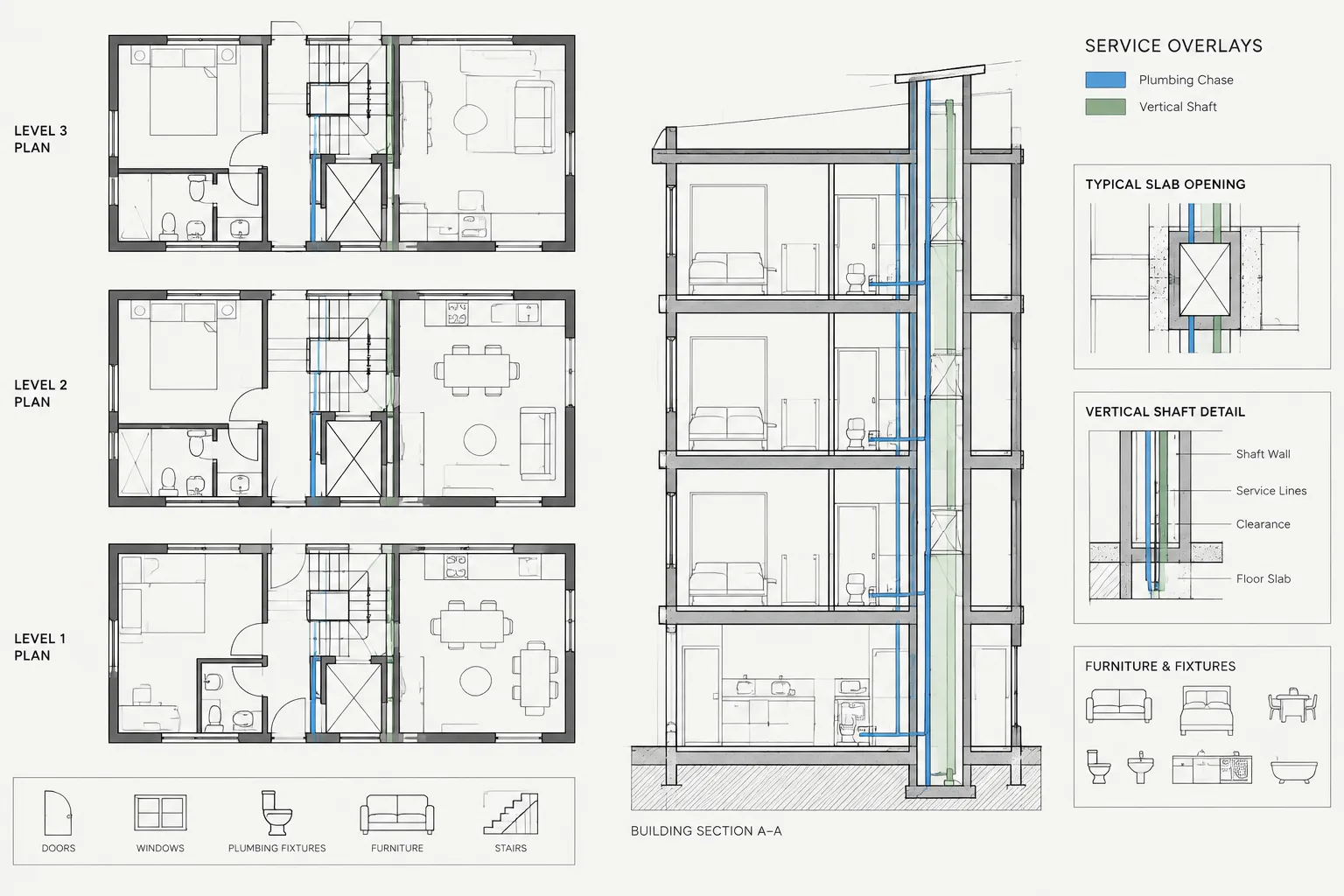
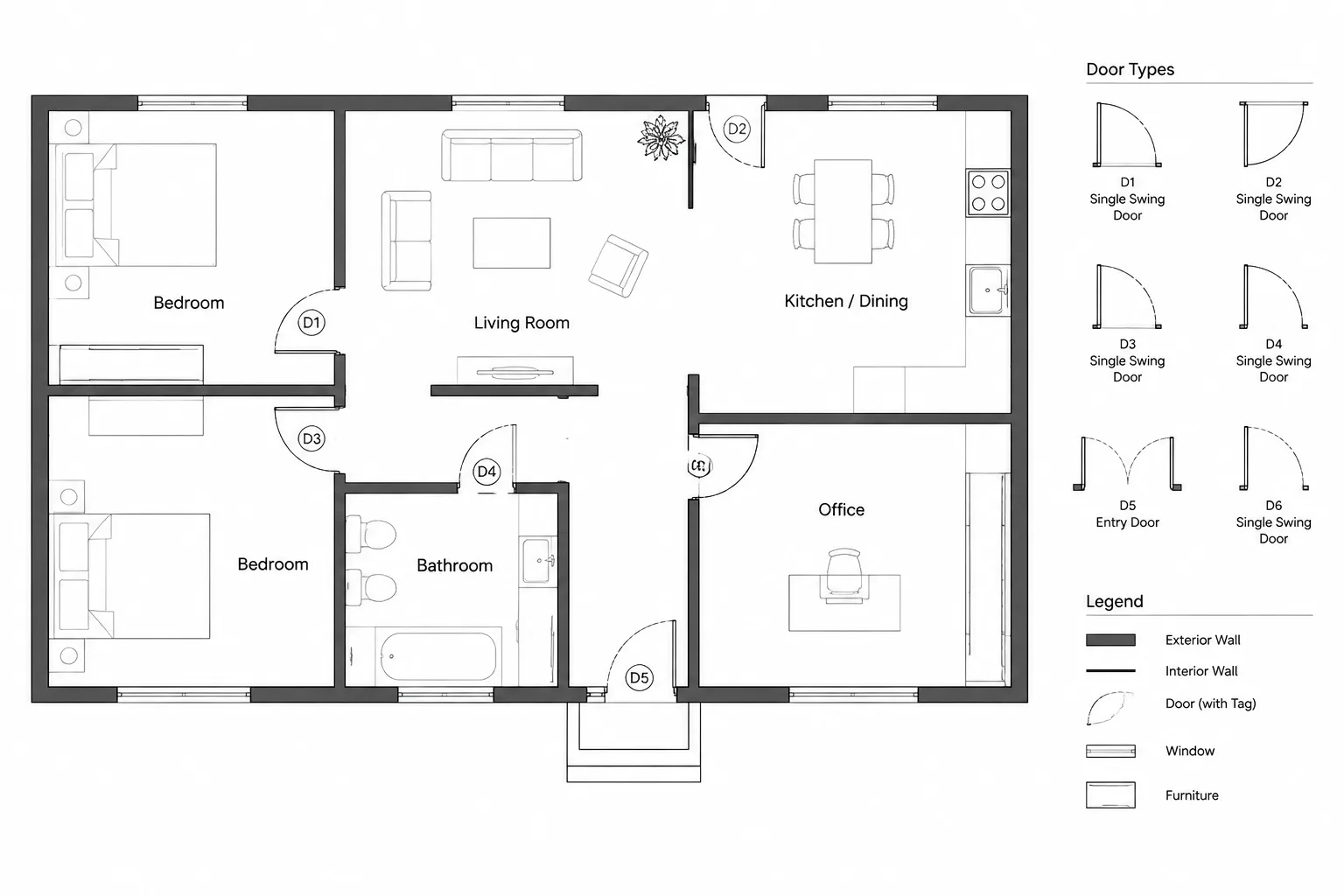
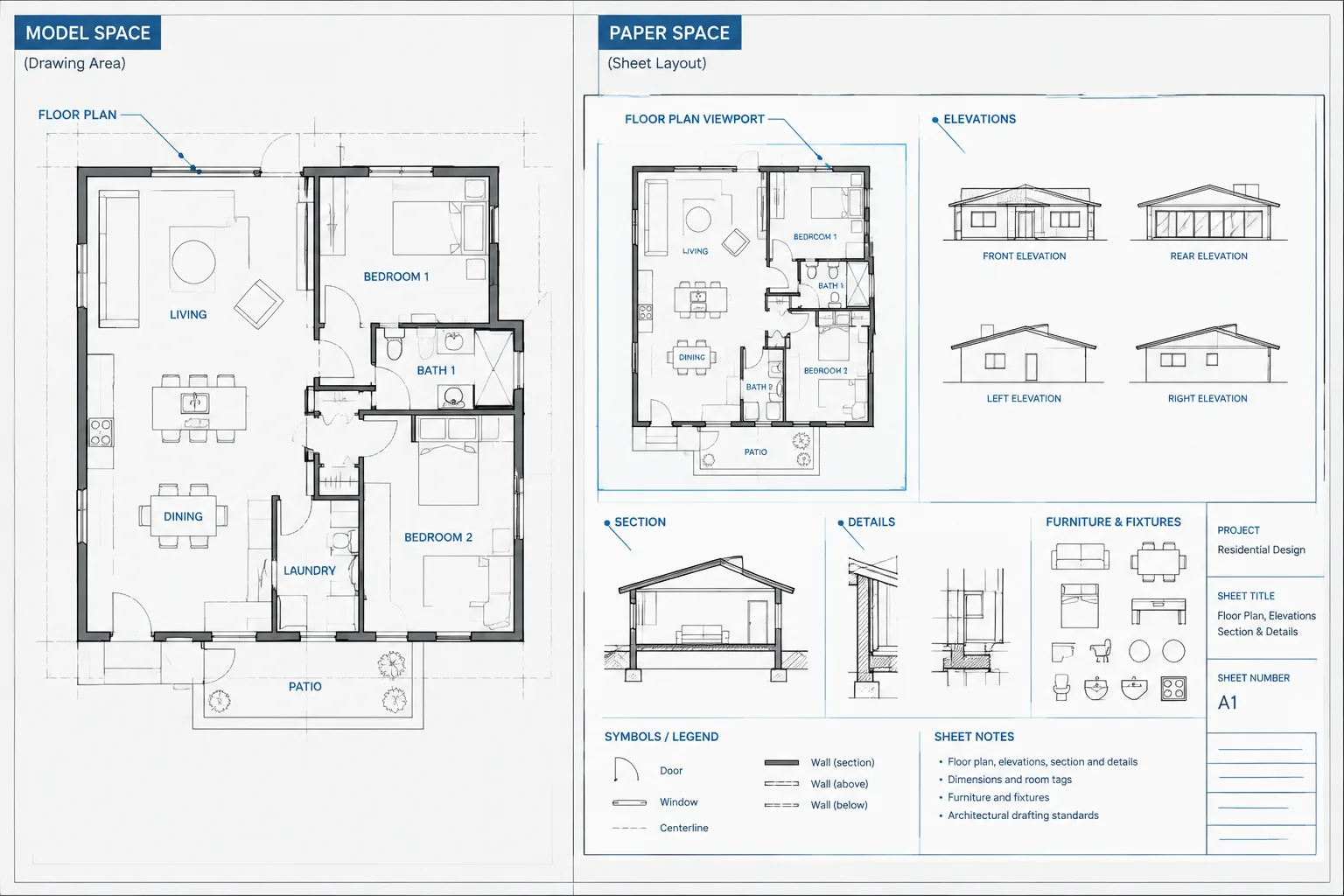
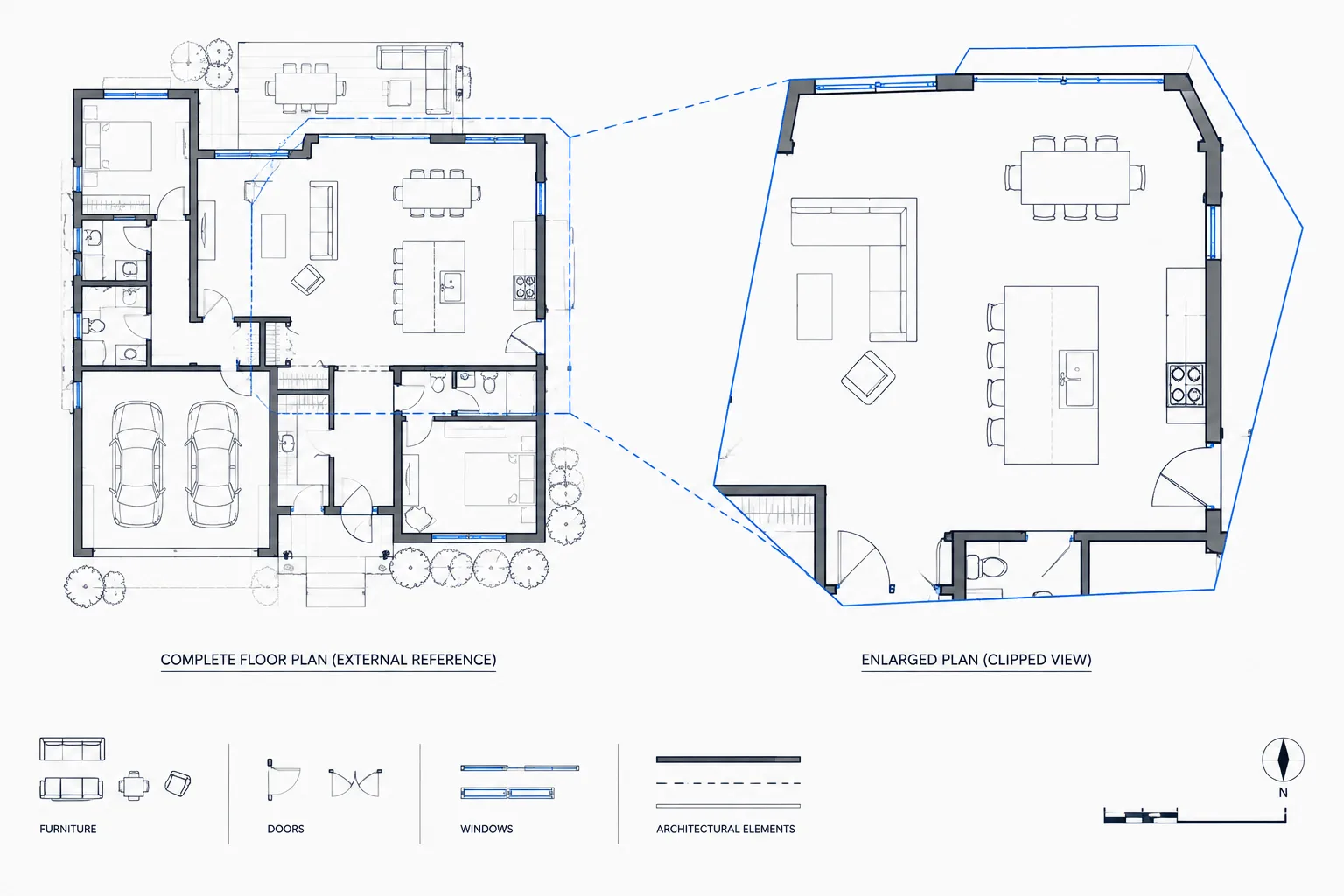
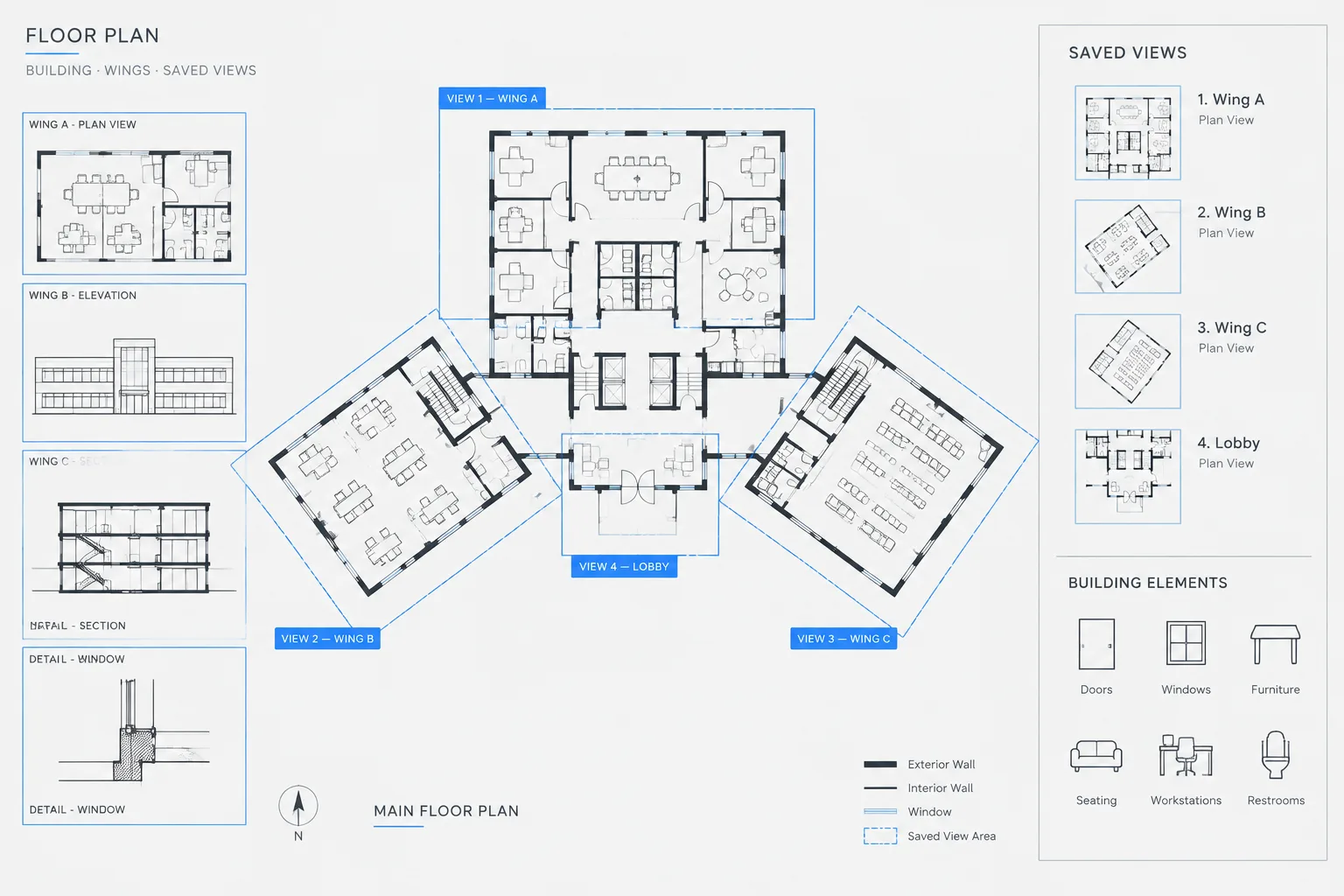
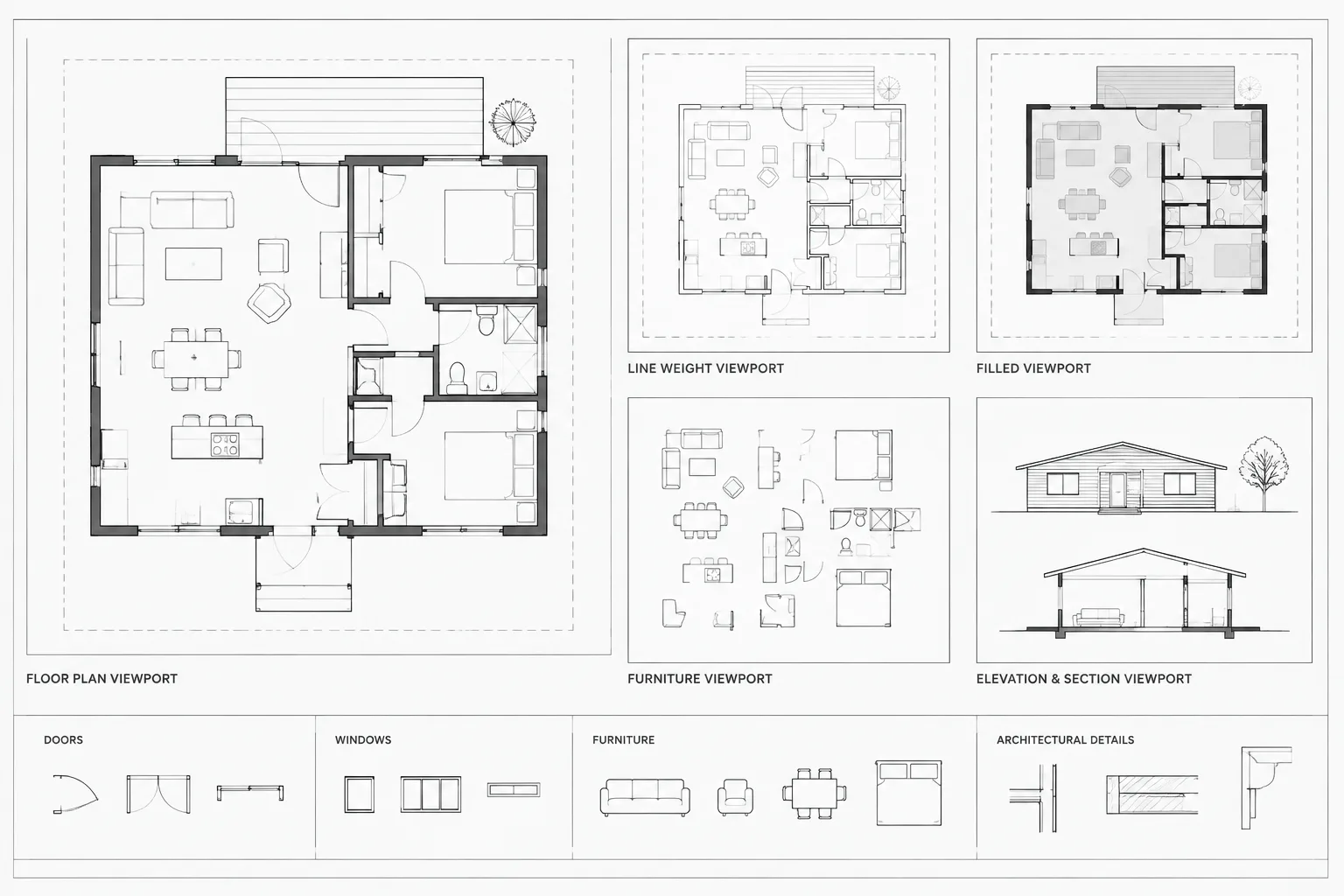
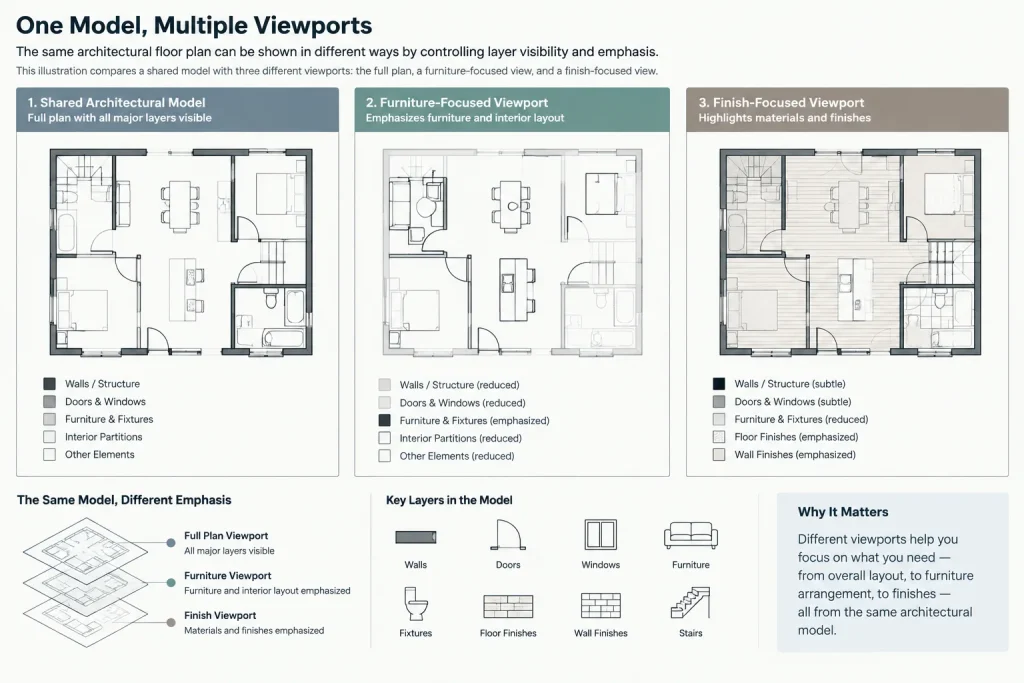
Architectural drawings often reuse the same model-space geometry across several sheets. A floor plan may appear as a construction plan, furniture plan, finish plan, enlarged plan, or consultant coordination background. Although the underlying walls, doors, fixtures, and equipment are shared, each view needs a different graphic emphasis.
Viewport layer overrides provide a practical way to control those sheet-specific graphics without changing the model itself. Within a paper-space viewport, selected layers can be frozen or assigned different display properties while retaining their normal properties elsewhere. Used carefully, this allows a drawing team to create focused views from coordinated geometry instead of maintaining unnecessary copies.
What Is a Viewport Layer Override?
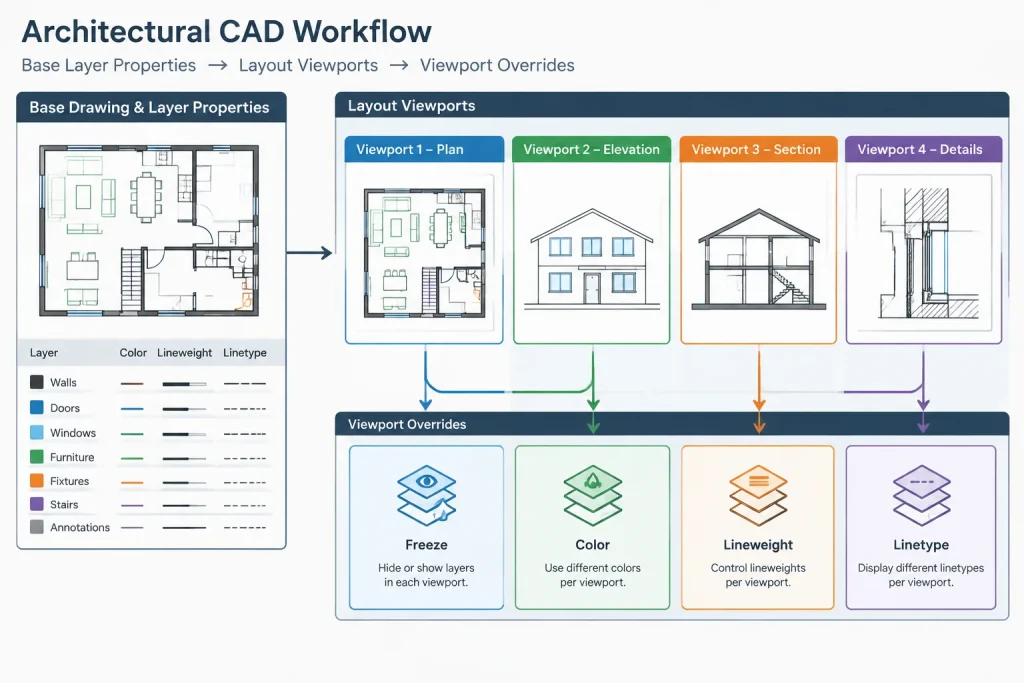
A viewport layer override is a layer property that applies only inside a particular layout viewport. Depending on the property being controlled, a layer can appear differently in one viewport while keeping its standard model-space appearance and its appearance in other viewports.
Common viewport-specific controls include:
- Freezing a layer in the active viewport
- Assigning a viewport-specific color
- Changing a layer’s viewport lineweight
- Applying a different linetype within the viewport
- Adjusting viewport transparency where the drawing and plotting workflow supports it
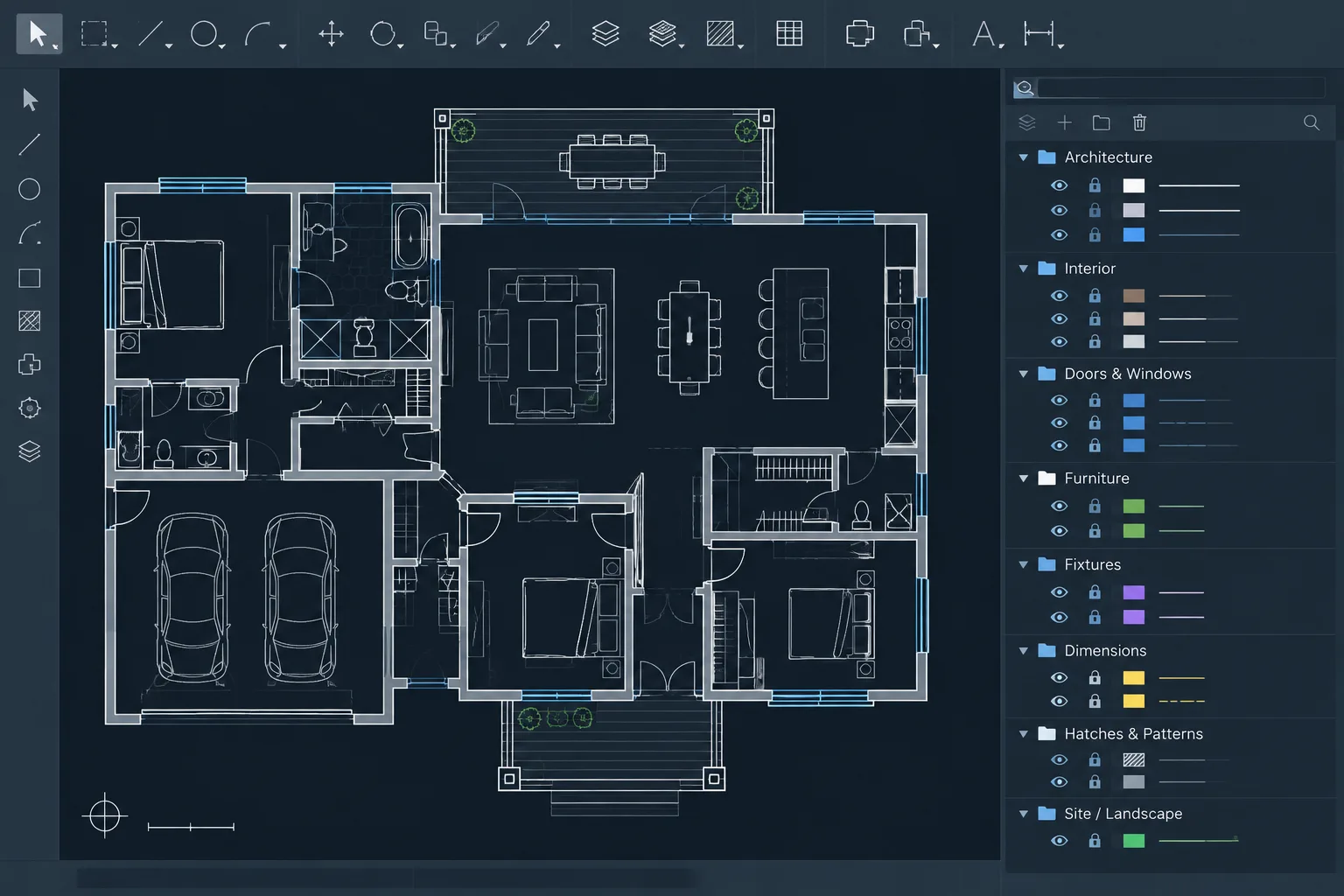
These controls do not replace good layer organization. They work best when objects already reside on meaningful layers and generally inherit their graphic properties from those layers.
Why Architectural Sheets Need Different Graphic Hierarchies
A single floor plan contains more information than every sheet should display with equal prominence. On a furniture plan, partitions may need to read as a restrained background while furniture, casework, and equipment become visually dominant. On a finish plan, room boundaries and finish information may matter more than movable furnishings. An enlarged plan may need additional annotation while suppressing information intended only for the overall plan.
Changing the base layer properties to suit one sheet can damage every other view that uses the same model. Duplicating geometry creates a different problem: edits may be made to one copy but not another. Viewport overrides preserve a common model while allowing each sheet view to communicate its purpose.
Plan the Base Layer Appearance First
Before applying overrides, establish a dependable default appearance for the model. Base layer properties should represent the most broadly useful graphic condition rather than a temporary sheet requirement.
A practical base setup includes:
- Clear layer names that identify the object or drawing function
- Consistent use of ByLayer properties for ordinary objects
- A deliberate relationship between layer colors, lineweights, and the plot-style system
- Separate layers for information that must be independently controlled
- Consistent xref layer naming and attachment practices
If walls, furniture, room tags, and finish symbols are mixed on one layer, viewport overrides cannot isolate them effectively. The solution is not a larger number of overrides; it is better object classification.
A Practical Viewport Override Workflow
1. Define the communication goal of the view
Decide what the viewport is intended to explain. Identify primary information, supporting context, and content that should not appear. This prevents random layer changes made only to make the sheet look quieter.
2. Set the viewport scale and boundary
Establish the view area and intended plotting scale before fine-tuning graphics. Linetypes, hatch density, annotation visibility, and apparent lineweight are easier to evaluate under actual sheet conditions.
3. Activate the correct viewport
Enter the viewport from the layout and confirm that it is the view you intend to edit. Viewport-specific layer changes are contextual. Accidentally editing the wrong viewport can produce subtle inconsistencies that appear only during plotting.
4. Freeze content that does not belong in the view
Use viewport freeze when an entire layer is irrelevant to that sheet view. This is generally clearer than masking unwanted objects or moving them outside the viewport. Examples might include furniture on a partition-focused plan or construction notes in a presentation view.
Do not freeze information solely because it creates a coordination conflict. If a real object affects the design, hiding it may conceal a problem rather than solve one.
5. De-emphasize supporting context
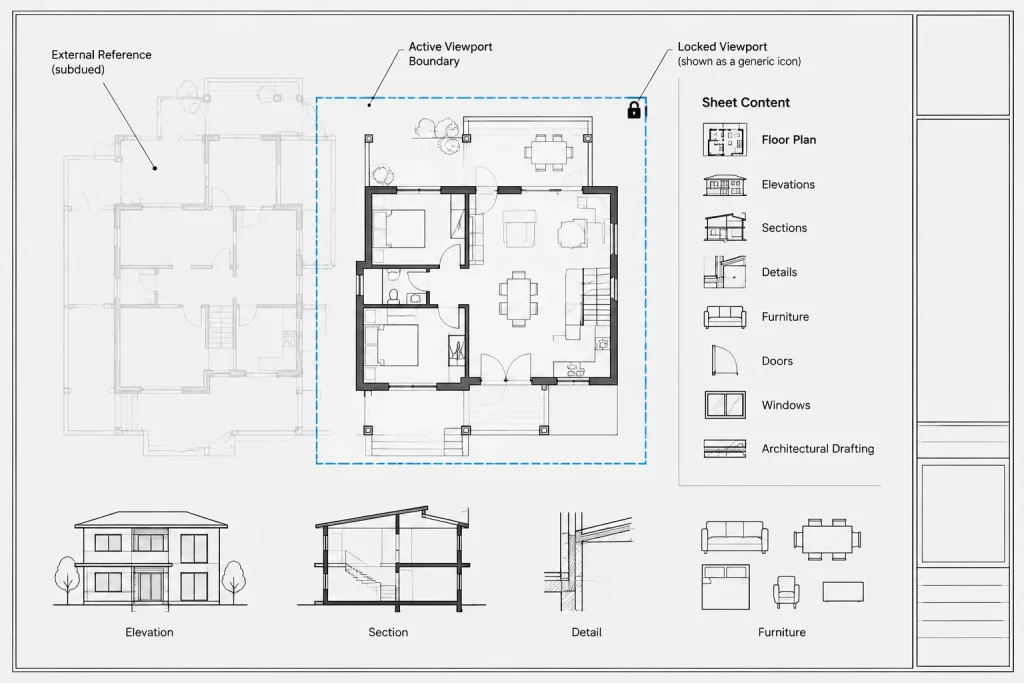
Apply viewport color or lineweight overrides to layers that should remain visible but subordinate. Existing backgrounds, remote site information, furnishings, or consultant reference geometry may need a lighter graphic role than the work being documented.
The correct appearance depends on the office plot-style workflow. In a color-dependent plot system, changing a viewport color may also change the plotted lineweight or screening behavior. In a named plot-style workflow, color and plotted appearance may be controlled differently. Always evaluate the plotted result rather than relying only on the screen display.
6. Review linetypes and hatches at sheet scale
A linetype that is clear in model space may become visually dense, sparse, or misleading in a viewport. Viewport linetype overrides can help distinguish special view conditions, but they should not be used to disguise incorrect object classification. Hatch patterns should also be checked for readability, especially where a background has been visually reduced.
7. Lock the viewport after setup
Once the view scale and position are established, lock the viewport to reduce accidental zooming or panning. Locking does not prevent all layer-management errors, but it protects a critical part of the sheet setup while annotation and graphic adjustments continue.
Choosing Between Freeze, Override, and Object Editing
| Need | Preferred approach | Reason |
|---|---|---|
| Remove a complete information category from one view | Freeze its layer in that viewport | Keeps the shared model unchanged |
| Keep context visible but less prominent | Use a viewport color or lineweight override | Preserves coordination information while changing hierarchy |
| Correct an object that is wrong in every view | Edit the object or its base layer | The problem belongs to the model, not the viewport |
| Control only a few objects mixed on a broad layer | Reconsider object layers or drawing structure | Overrides cannot reliably classify unrelated objects |
| Create a temporary review condition | Use a clearly managed temporary view or layer state | Avoids turning temporary graphics into undocumented sheet standards |
Viewport Overrides and External References
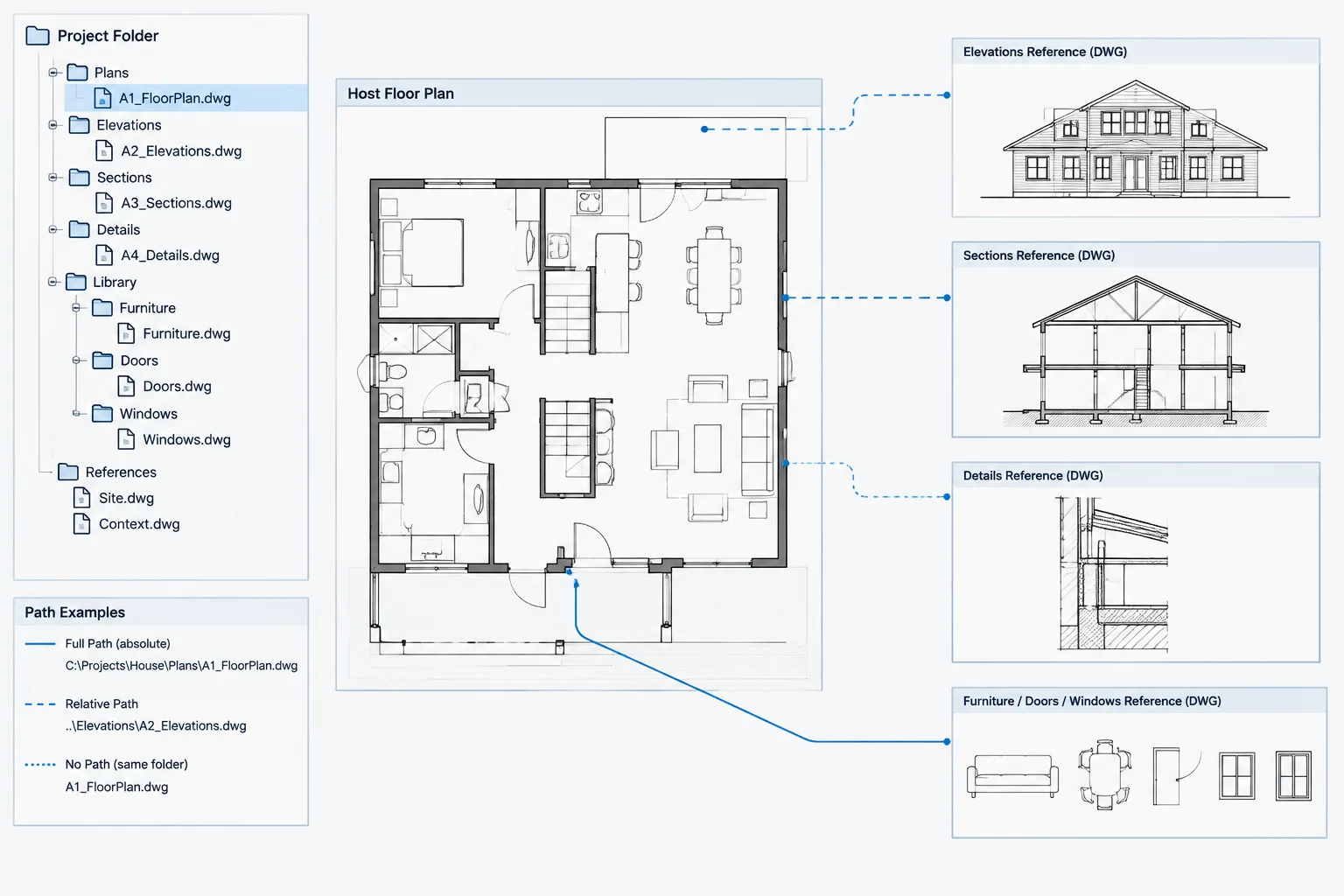
Architectural sheets frequently display layers from one or more external references. Viewport overrides can help turn an xref into a suitable background without modifying the source file. For example, a consultant base can remain coordinated while its layers are visually reduced in an architectural view.
However, xref layer changes require discipline. Renamed source layers, replaced files, reload behavior, and project layer settings can affect the appearance of references. Teams should test how their files retain xref layer overrides and avoid relying on fragile, undocumented exceptions.
When many viewports require the same xref appearance, consider whether the condition should be standardized through a repeatable layer-state or sheet-setup procedure. Rebuilding the same overrides manually invites inconsistency.
Common Problems and Their Causes
The viewport looks correct on screen but plots incorrectly
Check the assigned plot style, layer lineweights, viewport colors, transparency plotting settings, and whether the expected plot-style table is attached to the layout. Screen color alone is not proof of plotted hierarchy.
A layer disappears from only one sheet
Inspect whether the layer is frozen in that viewport. Also check the viewport boundary, annotation scale behavior, draw order, and xref status before assuming geometry has been deleted.
Overrides affect the wrong viewport
This usually happens when the wrong viewport was active during layer editing. Name layouts and views clearly, work deliberately, and verify the active viewport before making changes.
The drawing has too many exceptions to understand
Excessive overrides often indicate weak base layer standards or too much unrelated content in one model. Simplify the default graphics, separate information logically, and reserve overrides for genuine view-specific needs.
Quality-Control Checklist
- Confirm that each viewport has a clear drawing purpose.
- Verify viewport scale, crop, view orientation, and lock status.
- Check that hidden layers are intentionally hidden rather than concealing conflicts.
- Compare related viewports for consistent background graphics.
- Review xref visibility after references are reloaded.
- Plot or preview sheets using the intended plot-style configuration.
- Confirm that notes, dimensions, tags, and symbols remain legible.
- Document unusual overrides that another drafter might otherwise remove.
- Remove abandoned viewports and obsolete graphic experiments before issue.
Use Overrides as a Sheet Tool, Not a Repair Tool
Viewport layer overrides are most effective when they shape the graphic message of an otherwise organized drawing. They should not become a way to avoid correcting bad layers, duplicate geometry, unresolved coordination, or inconsistent object properties.
A reliable workflow starts with a clean shared model, assigns objects to purposeful layers, and then uses viewport controls to create the hierarchy needed by each sheet. The result is a coordinated drawing set in which plans can serve different communication goals without fragmenting the underlying architectural information.
A Useful Decision Rule for Viewport Graphics
When reviewing a graphic problem, first determine whether it belongs to the model or only to the sheet presentation. Geometry, classification, and base layer errors should be corrected at their source. A viewport override is appropriate when the information is valid but needs a different visual role in a particular view.
This distinction keeps the drawing set easier to maintain. It also helps another drafter understand whether an unusual appearance is intentional or the result of an unresolved modeling problem.
Coordinate Overrides Across Related Sheets
Related plans should use a recognizable graphic language. If referenced geometry is subdued in one viewport but visually dominant in another comparable viewport, readers may interpret the difference as meaningful even when it is accidental.
During sheet review, compare similar views side by side and check the treatment of walls, openings, fixtures, furniture, consultant backgrounds, annotations, and xrefs. Consistency does not require every viewport to look identical; it requires graphic differences to support the purpose of each drawing.
Record Intent, Not Just Appearance
A complex override setup can be difficult to troubleshoot when its purpose is undocumented. Project procedures should identify which information is primary, which layers serve as context, and which categories are intentionally excluded from each view type.
That record can take the form of an office workflow, a managed layer state, or concise project notes. The important point is that the intended hierarchy remains understandable after files are exchanged, references are reloaded, or another team member continues the work.
Final Review Principle
Judge viewport overrides from the plotted sheet, not from model space alone. A successful view keeps necessary coordination information available, removes irrelevant visual competition, and communicates its drawing purpose without altering the underlying architectural geometry.
Frequently Asked Questions
Do viewport layer overrides change model-space geometry?
No. They change how qualifying layer properties appear within a particular layout viewport. The underlying objects remain in the shared model unless they are edited separately.
When should a layer be frozen in a viewport?
Viewport freeze is appropriate when an entire layer does not belong in that sheet view. It should not be used to hide a genuine design or coordination conflict.
Why does a viewport override look different when plotted?
The plot-style configuration, layer properties, transparency handling, and viewport-specific colors or lineweights can all affect the output. Review the intended plot or preview rather than judging appearance only from the screen.
Can viewport overrides control individual objects?
They primarily depend on layer organization. If unrelated objects share a layer, the override cannot classify them independently. Reassigning objects to purposeful layers is usually clearer than building exceptions around weak organization.
Can overrides be applied to xref layers?
They can be useful for changing the presentation of referenced information without editing the source file. The team should still verify the result after references are reloaded or replaced and should document important exceptions.
Are viewport overrides a substitute for layer standards?
No. They are most dependable when objects use meaningful layers and generally inherit their properties through ByLayer settings. Excessive exceptions often indicate that the base drawing structure needs attention.
Why should a viewport be locked after setup?
Locking helps protect the established view position and scale from accidental navigation while sheet annotation and graphic refinement continue. Layer settings still require separate review.