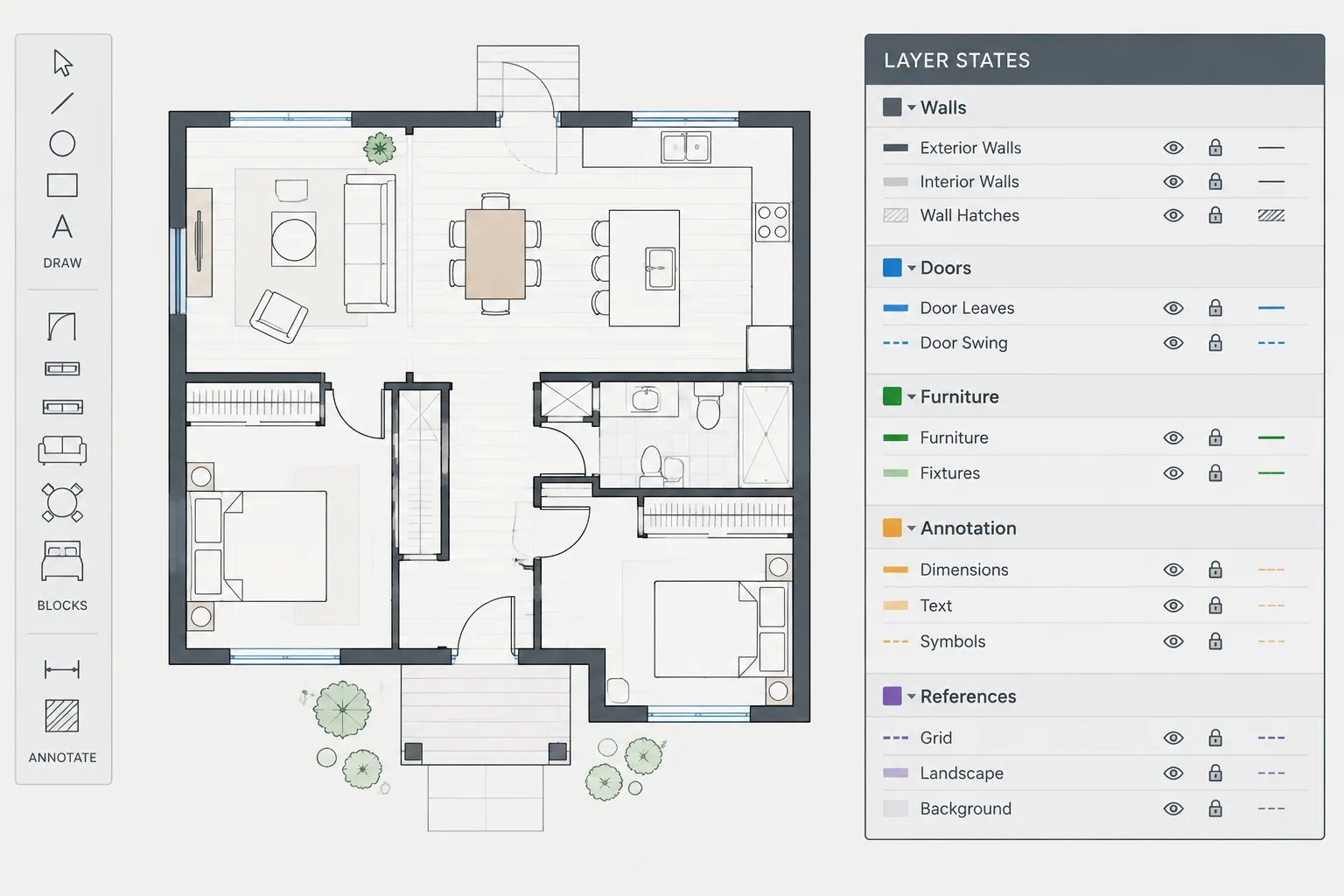
Architectural CAD layer states help drafters move between recurring drawing views without duplicating geometry or rebuilding visibility settings each time. A well-managed state can support editing, consultant coordination, sheet preparation, and quality control while keeping the underlying model organized.
This guide explains how to define the purpose of a state, choose what it restores, coordinate it with external references and viewports, and prevent saved configurations from disrupting established drawing graphics.
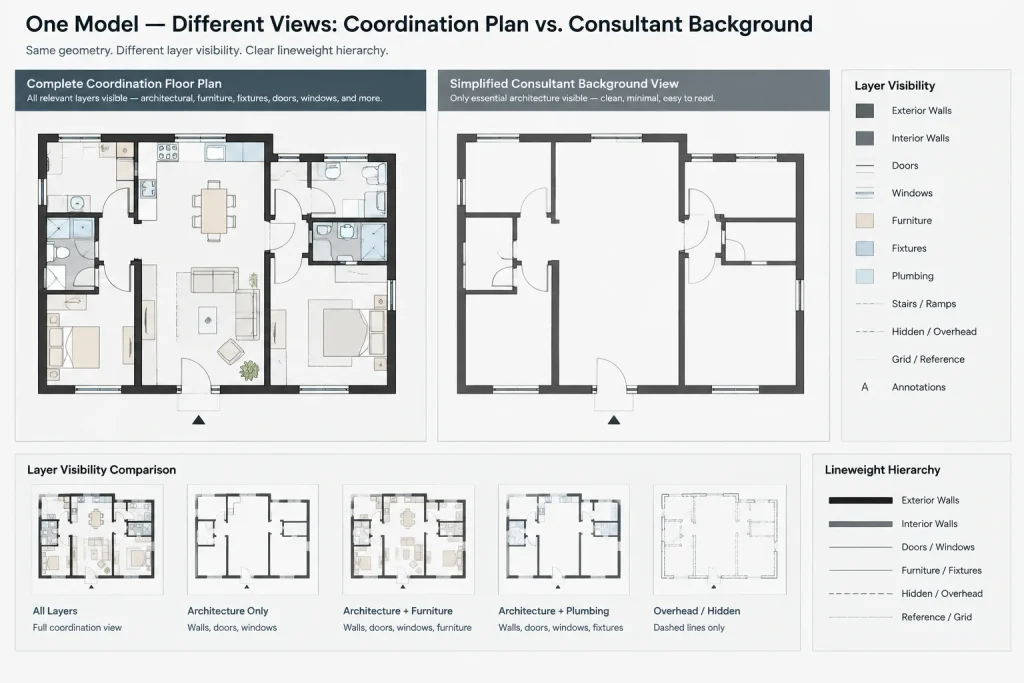
Architectural drawings often require several views of the same model-space information. A drafter may need a complete coordination view, a simplified background for consultants, a furniture review, and a clean sheet presentation without creating duplicate geometry. Layer states provide a practical way to manage these recurring layer configurations.
A layer state records selected layer properties so that a known drawing view can be restored later. Used carefully, it reduces repetitive layer switching and helps teams return to consistent display conditions. It does not replace a well-planned layer system, viewport organization, or drawing standards. Instead, it works as a control layer above those systems.
What an architectural layer state controls
A layer state can preserve the display and property conditions of layers at the time it is created. Depending on the settings selected in the CAD application, this may include whether layers are on, frozen, locked, or set to plot, along with properties such as color, linetype, lineweight, and transparency.
The exact properties restored should be reviewed before a layer state becomes part of a project workflow. A state intended only to control visibility should not unexpectedly replace carefully coordinated layer colors or lineweights.
Layer states are especially useful when the same drawing must repeatedly support different tasks:
- General architectural editing
- Furniture and equipment coordination
- Reflected ceiling or overhead coordination
- Consultant background preparation
- Existing, demolition, and new-work review
- Plot checking and presentation cleanup
- Focused reviews of doors, windows, rooms, or finishes
Layer states versus temporary layer controls
Temporary commands such as isolating, turning off, or freezing layers are useful during drafting, but they do not always provide a reliable path back to a recognized project view. A saved layer state creates a repeatable checkpoint.
| Method | Best use | Main limitation |
|---|---|---|
| Layer isolate | Quickly focusing on selected objects | The result may not represent a documented project view |
| Manual on, off, freeze, or thaw | Small adjustments during active drafting | Repeated setup is slow and easy to perform inconsistently |
| Viewport layer overrides | Controlling the appearance of a specific sheet viewport | Changes may apply only in that viewport and require separate coordination |
| Layer state | Restoring a named combination of layer conditions | An outdated or poorly configured state can restore unwanted properties |
These methods can work together. For example, a viewport may use viewport-specific controls for sheet presentation while a layer state provides the starting visibility arrangement.
Plan the view before saving the state
A useful layer state begins with a clear purpose. Avoid saving states with vague names such as “test,” “clean,” or “option.” Before creating one, decide who will use it and what information it should reveal.
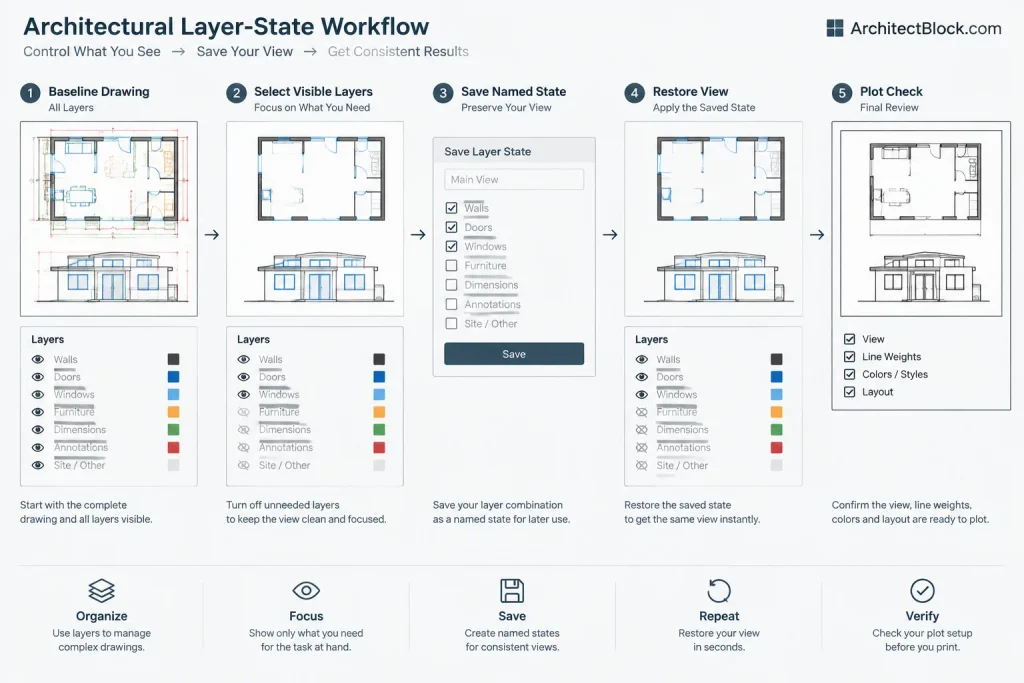
A dependable setup process is:
- Start from a known overall layer condition.
- Display the layers needed for the task.
- Hide or freeze information that creates clutter.
- Confirm that required reference files are loaded and visible.
- Check annotation, dimensions, symbols, and nonplot construction layers.
- Inspect the drawing at both an overall view and a detailed view.
- Save the state with a descriptive project naming convention.
Do not build the state from an unknown working condition. A forgotten hidden layer can become embedded in the saved configuration and remain unnoticed until plotting or coordination.
Create a practical naming convention
Layer-state names should communicate their scope without requiring users to open each state. A project may organize names by drawing type, discipline, purpose, or issue phase. The exact syntax matters less than consistency.
Useful name components can include:
- Drawing context: floor plan, ceiling plan, elevation, section, or site plan
- Purpose: working, coordination, background, review, or plot
- Scope: architectural, furniture, equipment, demolition, or consultant
- Status: current, archived, or temporary when the office permits temporary states
For example, a name structured around “floor plan – consultant background” is more informative than “layers off.” Avoid including a personal name unless the state is intentionally temporary and will be removed before issue.
Choose which properties the state should restore
This is one of the most important decisions in the workflow. A visibility state may need to remember only whether layers are on or frozen. A plotting state may also need to restore plotting and graphic properties.
Visibility-focused states
Use these when the objective is to reveal or conceal drawing categories while preserving the project’s established graphic standards. They are often appropriate for editing and coordination views.
Presentation-focused states
These may control a broader set of properties to create a specific graphic result. They require more careful management because restoring the state can change colors, lineweights, linetypes, or other properties that affect output.
Before adoption, test the state in a copy of the project file or in a controlled review drawing. Confirm exactly which properties are restored. Office templates and software configurations may differ, so do not assume every user’s layer-state settings are identical.
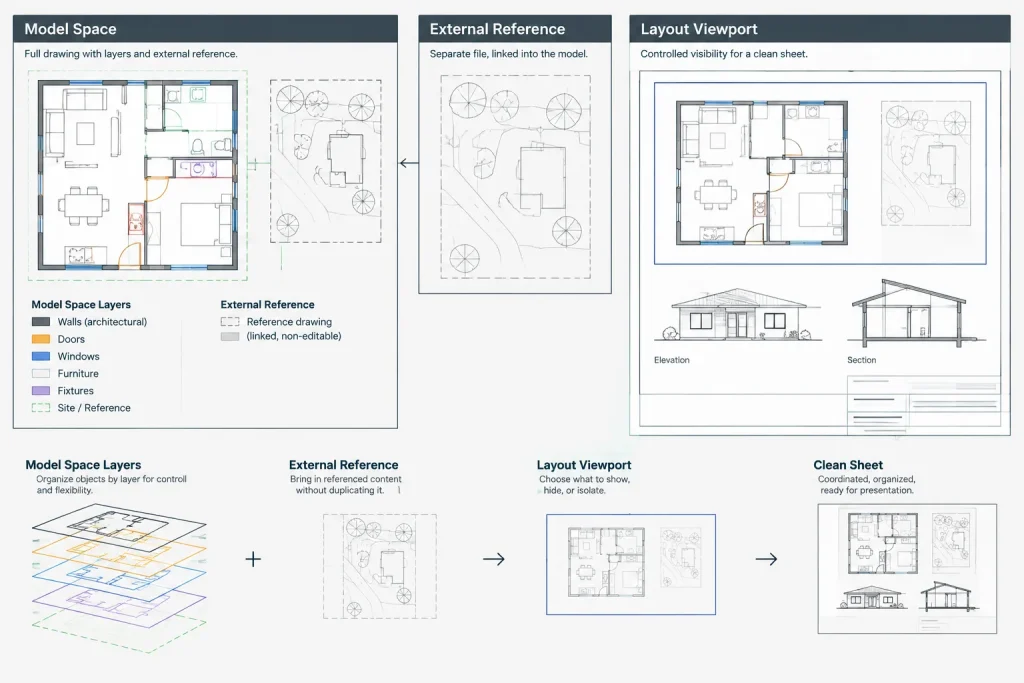
Coordinate layer states with external references
Architectural files commonly contain externally referenced plans, structural backgrounds, civil information, or consultant drawings. Layer states can become less predictable when referenced files are renamed, detached, reloaded with different layer structures, or substantially revised.
When references are involved:
- Use stable reference names and paths within the project environment.
- Check whether the state is intended to control reference-dependent layers.
- Review the state after a consultant replaces or reorganizes a background.
- Do not assume a layer state will correct inconsistent layer standards inside a referenced file.
- Confirm that required reference content has not been frozen or hidden accidentally.
A layer state should support external-reference coordination, not conceal unresolved reference problems.
Use layer states with layouts and viewports carefully
Model-space visibility and viewport-specific visibility are related but not interchangeable. A sheet viewport may need a unique combination of frozen layers or graphic overrides while the model remains fully visible for editing.
Before restoring a state, confirm whether you are working in model space, in a layout, or inside an active viewport. Then check whether the restoration is affecting global layer properties, viewport-specific properties, or both. An unplanned restore in the wrong context can alter the appearance of a sheet.
For important sheets, compare the viewport before and after restoration and produce a plot preview. The purpose is not only to confirm that unwanted information is hidden, but also to verify that essential tags, dimensions, match lines, references, and symbols remain visible.
A recommended project workflow
Establish baseline states
Create a small set of approved states after the layer system and reference structure are stable. A complete working view and a typical plot view can serve as useful baselines.
Limit state creation
Too many similar states become difficult to understand. Add a state only when the view will be restored repeatedly or shared by multiple team members.
Assign ownership
Decide who may revise shared states. Without ownership, users may overwrite a reliable state to solve a temporary display problem.
Review after major drawing changes
Recheck shared states when new layers are introduced, references change, drawing phases shift, or sheet content is reorganized. New layers may remain visible because they were not present when an older state was saved.
Remove obsolete states
Delete abandoned tests and superseded configurations before handoff or archiving. A concise set of clearly named states is easier to trust than a long list of uncertain options.
Common layer-state mistakes
- Saving from a dirty working view: Randomly hidden layers become part of the state.
- Restoring too many properties: A visibility change unexpectedly modifies drawing graphics.
- Ignoring newly created layers: New content appears in views where it does not belong.
- Using states as a substitute for standards: Inconsistent layer names and object placement remain unresolved.
- Overwriting a shared state: A temporary personal setup replaces a team-approved configuration.
- Skipping plot review: The model looks acceptable on screen, but required sheet information is missing.
Layer-state quality-control checklist
- Does the state have one clearly defined purpose?
- Is its name understandable to another project team member?
- Were the intended restoration properties selected?
- Are external-reference layers behaving as expected?
- Are nonplot and construction layers controlled correctly?
- Do annotation and dimensions remain visible where required?
- Has the state been checked in the correct model or viewport context?
- Does a plot preview match the intended drawing hierarchy?
- Has the state been reviewed after recent layer or reference changes?
Build repeatable views without duplicating geometry
The main value of architectural CAD layer states is repeatability. They allow one coordinated drawing environment to support several working and presentation needs without copying plan geometry into separate arrangements. Their reliability, however, depends on disciplined naming, controlled restoration settings, and regular review.
Keep the shared set small, document its purpose, and treat every saved state as part of the drawing’s organization rather than as a personal display shortcut. Combined with consistent layers, external-reference practices, and viewport checks, layer states can make architectural DWG files easier to edit, review, plot, and hand off.
Troubleshooting an unexpected layer-state result
If restoring a layer state produces the wrong view, avoid immediately resaving it. First determine whether the problem comes from the saved state, the current drawing context, or a change made elsewhere in the file.
- Check the working context: Confirm whether the state was restored in model space, on a layout, or inside an active viewport.
- Review restoration scope: Determine whether the state changed visibility only or also restored graphic and plotting properties.
- Inspect recent layer changes: Look for renamed, deleted, or newly created layers that were not part of the original configuration.
- Verify external references: Confirm that referenced drawings are loaded and that their layer structures still match the expected project setup.
- Compare with a known baseline: Restore an approved working view and identify which layer conditions differ.
- Validate the sheet: Review annotation, dimensions, symbols, references, and plot behavior before accepting the result.
This sequence helps separate a temporary display issue from a state that genuinely needs revision. If a shared state must be updated, document the reason and confirm the revised result with the project team before replacing the approved version.
Layer states as part of drawing governance
A saved state should be treated as managed drawing information rather than a personal convenience. Its name, purpose, restoration scope, and intended context should be understandable to anyone who receives the DWG file.
For team workflows, distinguish approved shared states from temporary troubleshooting views. This reduces the risk that a personal setup will be mistaken for a plotting or coordination standard. It also makes handoff easier because the recipient can identify which configurations are dependable and which should be removed.
Layer states are most effective when they reinforce a stable layer structure. They cannot correct objects placed on inappropriate layers, unclear reference organization, or inconsistent annotation practices. Used within a disciplined CAD workflow, however, they provide a reliable way to return to recognized drawing conditions and compare views without maintaining duplicate plan geometry.
Frequently asked questions about architectural CAD layer states
Do layer states create separate copies of drawing objects?
No. A layer state records selected layer conditions and properties rather than duplicating the underlying geometry. The same model information can therefore support different working or presentation views.
Why did a restored layer state change linework appearance?
The state may have been configured to restore graphic properties in addition to visibility. Review which properties are included before saving or applying the state, especially when project colors, linetypes, lineweights, transparency, or plotting behavior are already coordinated.
Why are newly added layers visible after restoring an older state?
An older state may not contain a recorded condition for layers created later. Shared states should be reviewed when the layer structure changes so that new content behaves appropriately in each recurring view.
Can a layer state replace viewport layer controls?
Not always. A layer state can provide a repeatable starting arrangement, while a sheet viewport may still require its own visibility or graphic treatment. Always confirm the active drawing context before restoring a state.
Should every temporary working view be saved?
No. Save a state when a configuration will be restored repeatedly, communicated to other users, or relied upon during review and plotting. Temporary experiments can make the state list harder to understand and maintain.
What should be checked before sharing a DWG with saved layer states?
Confirm that state names are clear, obsolete options are removed, references are available, restoration settings are intentional, and approved states produce the expected model and sheet views. A plot review should remain part of final drawing quality control.