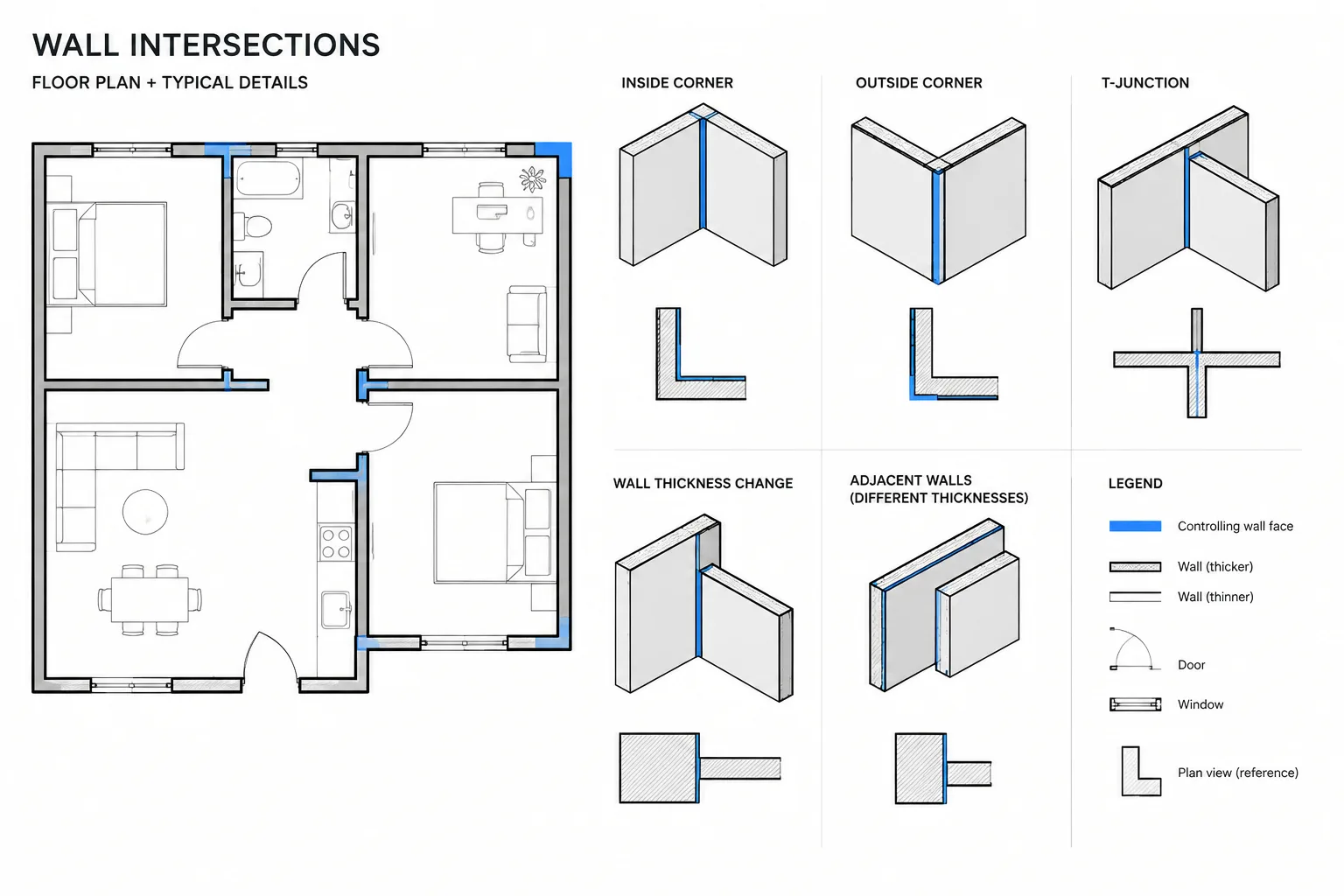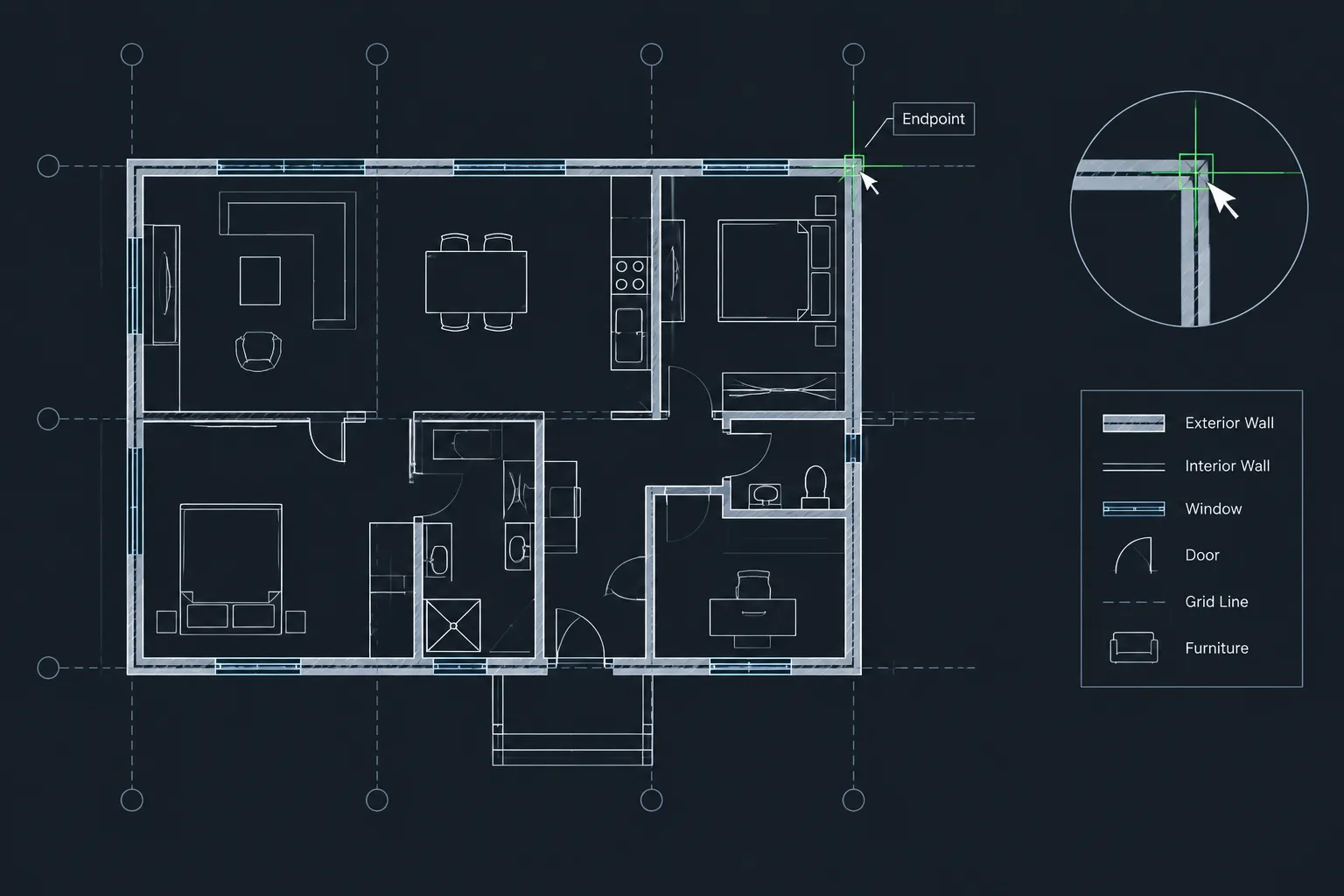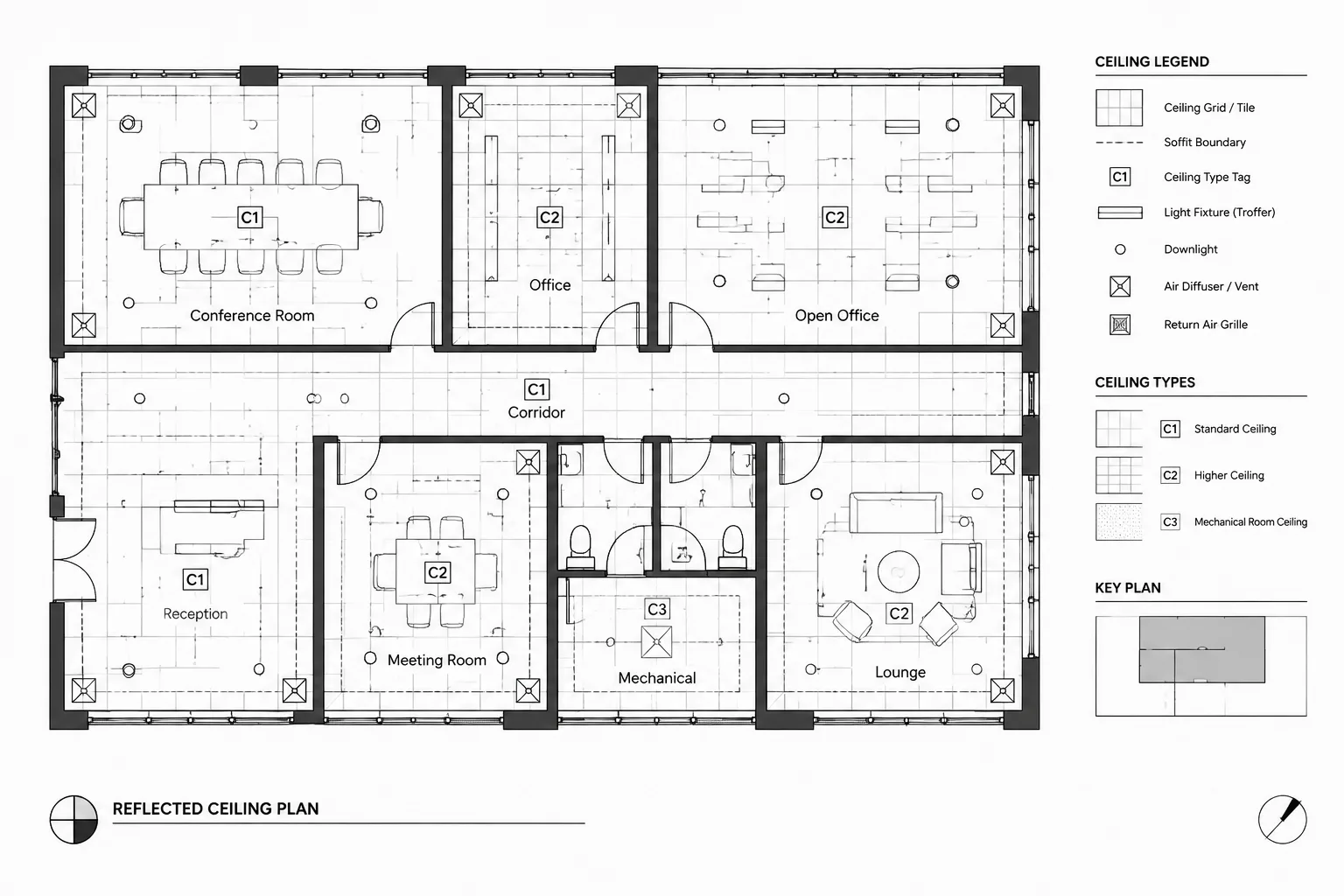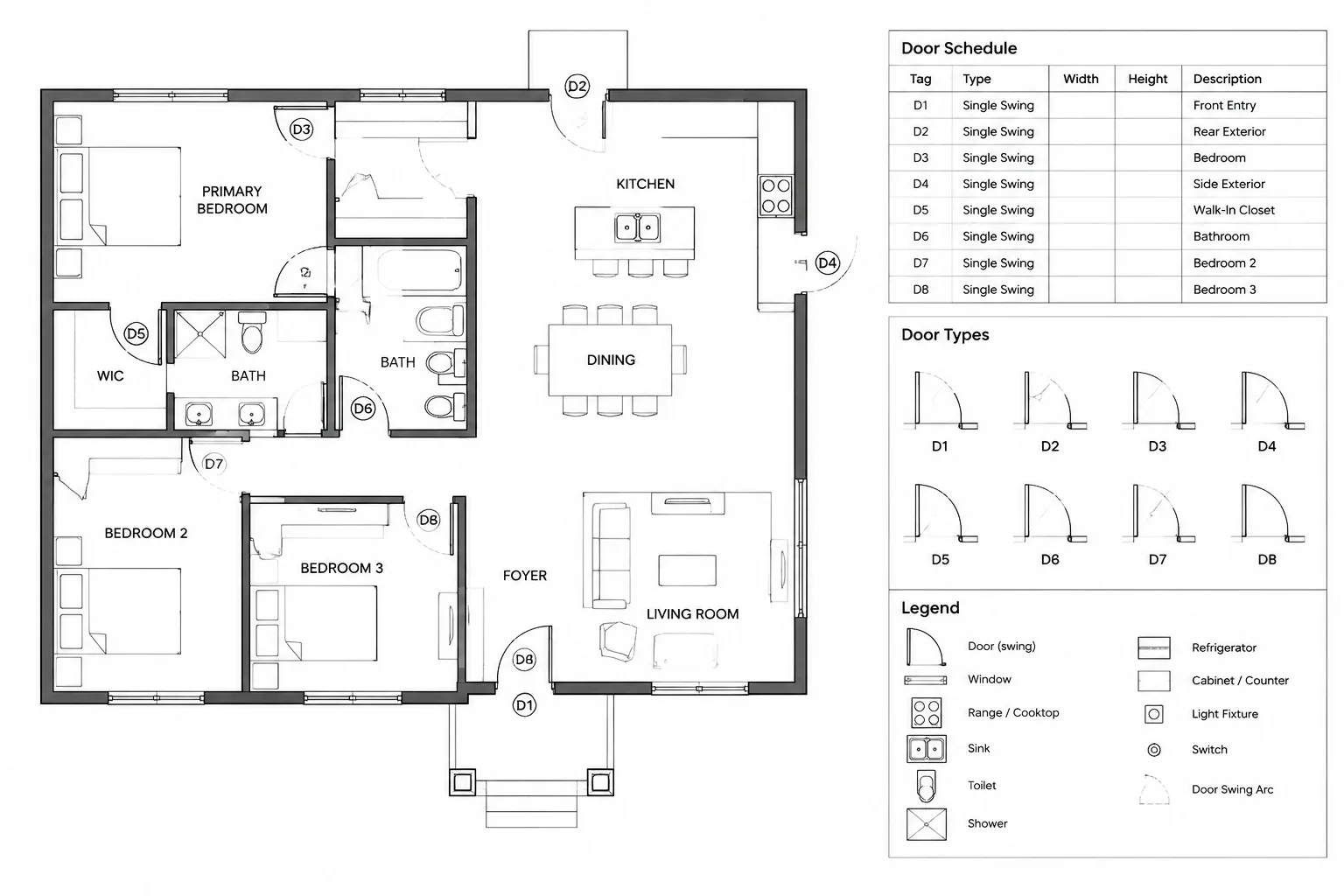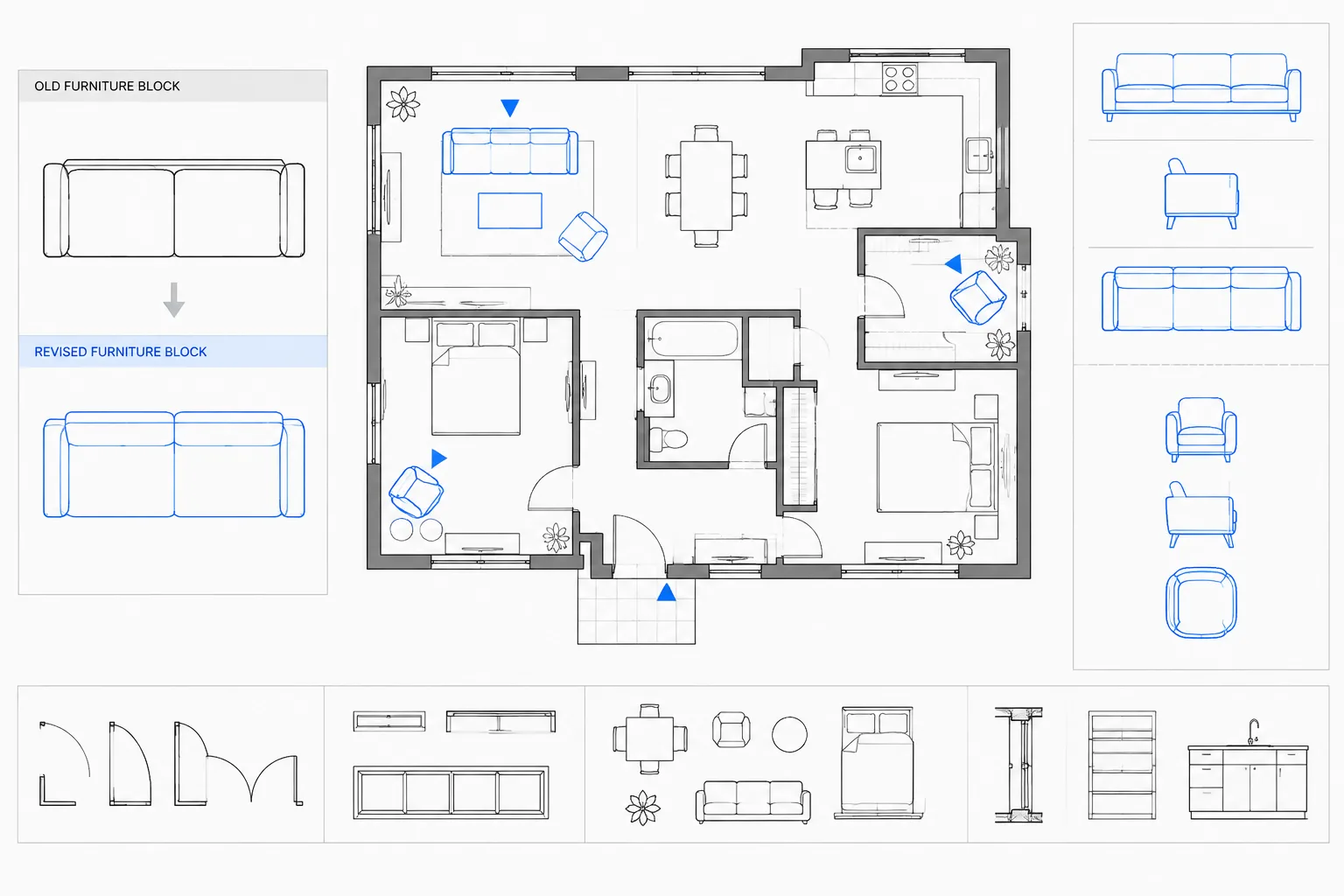
Replacing architectural CAD blocks safely requires more than matching visible geometry. The correct method depends on whether the change should affect selected references, every reference sharing a definition, or the reusable source stored in a block library.
This guide explains how to assess that scope before editing, preserve reference-specific information, and verify the result across the drawing. It is intended for common architectural content such as doors, fixtures, furniture, room tags, and annotation symbols.
Replacing a chair, plumbing fixture, door symbol, room tag, or other repeated block can look like a simple drafting task. In a coordinated architectural drawing, however, a block reference may carry attributes, rotation, scale, layer assignments, dynamic properties, or nested content. An uncontrolled replacement can move objects, erase useful data, or change every instance of a block when only one was meant to change.
A reliable workflow begins by deciding whether you need to replace selected references, redefine a shared block definition, or update the source file in a managed library. These operations solve different problems. Understanding the distinction helps prevent unintended changes across plans, elevations, schedules, and detail drawings.
Understand Block Definitions and Block References
A block definition is the stored collection of geometry, attributes, and other objects that describes a block inside a DWG file. A block reference is an inserted instance of that definition. Each reference can have its own insertion point, rotation, scale, layer, and attribute values.
This relationship explains why editing or redefining a block can change many objects at once. References with the same block name generally use the same definition in that drawing. Editing the definition changes the shared content, while deleting or replacing one reference affects only that selected instance.
Before making changes, identify which of the following outcomes is intended:
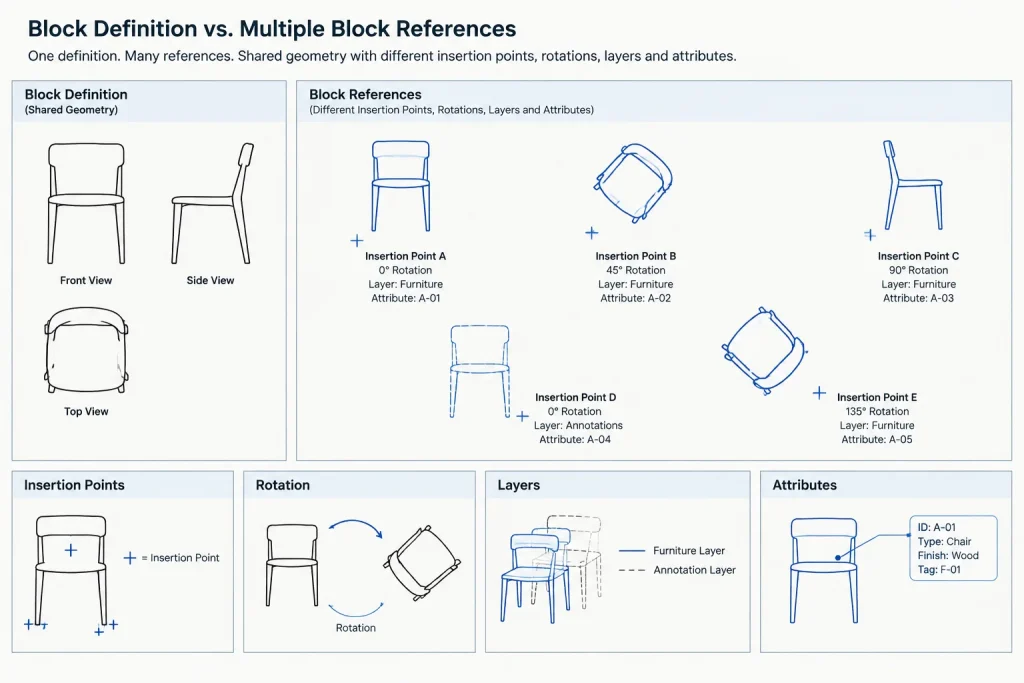
- Replace selected instances: Change only certain references while leaving the other instances unchanged.
- Redefine every instance: Update the shared definition so all references with that block name use revised content.
- Create a new variation: Preserve the original block and introduce a separately named type.
- Update a library source: Revise the master block file for future use, with controlled updates to project drawings.
Audit the Existing Block Before Replacement
Do not judge a block only by its visible linework. Select representative references and inspect their properties. Review the block name, layer, insertion point, rotation, scale, attributes, and whether the reference is dynamic. Check multiple examples because individual references may have different orientations or data.
Also determine whether the block contains nested blocks, hatches, text, wipeouts, or objects with fixed property overrides. Nested content may depend on other definitions already stored in the drawing. A visually simple symbol can therefore introduce naming conflicts or plotting problems when it is replaced.
Check the insertion point
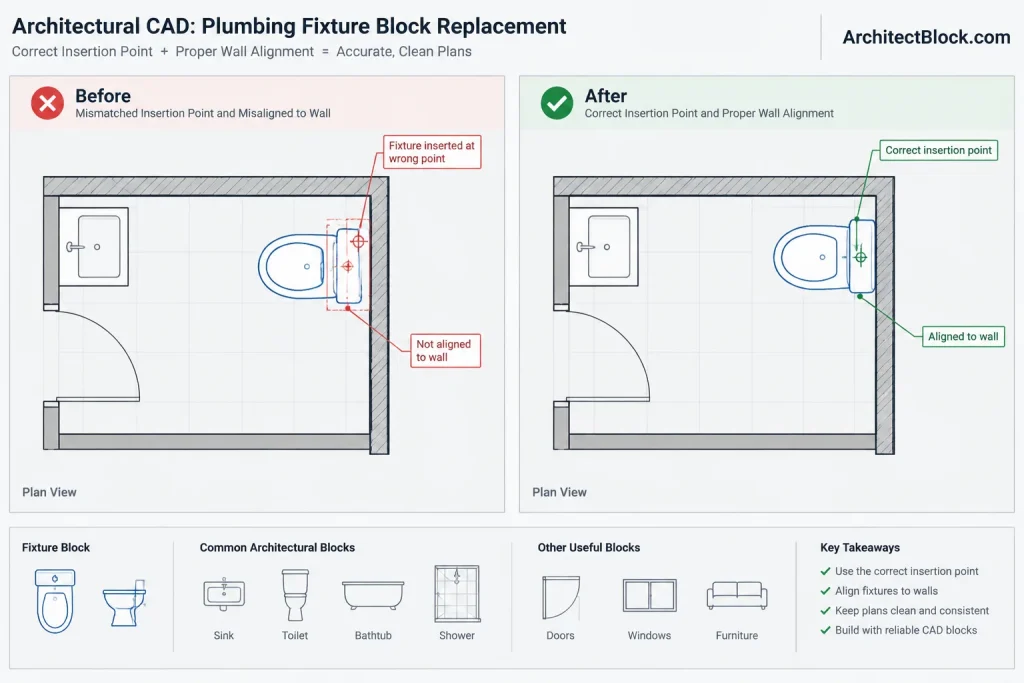
The insertion point is the anchor used to position a block reference. A replacement block with a different anchor may shift even when inserted at the exact coordinates of the original. For example, one fixture block might use a wall connection as its base point while another uses the center of its bounding geometry.
Compare the functional placement logic, not merely the outline. Door symbols may need to align with a jamb or hinge point, furniture may be located from a corner, and annotation symbols may be centered on a referenced object. If the new block uses a different anchor, revise its base point or plan a controlled offset during replacement.
Review scale and units
Confirm that the old and new blocks were created using compatible drawing units and full-size model geometry. Do not compensate for an incorrect source block by applying arbitrary reference scales unless that scaling is intentional and documented. A block that appears correct only because of an unexplained scale factor can create problems when copied into another file.
Record attributes and dynamic settings
If the block includes attributes, note the tag names and existing values. If it is dynamic, review the current visibility state, flip condition, stretch setting, or other exposed properties. A replacement block may not contain equivalent parameters, and similarly named blocks are not necessarily interchangeable.
Choose the Correct Replacement Method
| Situation | Preferred approach | Main risk to review |
|---|---|---|
| Only a few instances should change | Insert the new block and replace selected references individually | Placement, rotation, scale, and attributes may not transfer automatically |
| Every instance should receive revised geometry | Redefine the existing block definition | Unintended global changes within the current drawing |
| The new object represents a separate type | Create a new, clearly named block | Confusing type names or duplicate definitions |
| A master library symbol has been revised | Update the source, then test and distribute the definition deliberately | Project files may contain local variations that should not be overwritten |
| The content comes from an external DWG | Confirm whether it should be inserted as a block or referenced as an xref | Using block redefinition where external file coordination is actually needed |
Workflow for Replacing Selected Block References
Use an individual replacement workflow when only certain objects need to change, such as swapping selected furniture during space planning or replacing one fixture type in a room.
- Save a recoverable drawing state. Work in the correct project file and preserve a backup or controlled revision before making widespread edits.
- Load the new block carefully. Inspect its geometry, name, layers, base point, units, attributes, and plotting behavior in a test area.
- Capture the old reference properties. Note its insertion point, rotation, scale, layer, and attribute values.
- Place the new reference. Use the appropriate anchor and orientation rather than relying only on visual alignment.
- Transfer required data. Re-enter or verify attribute values. Do not assume tags with different names will map correctly.
- Remove the old reference. Delete it only after confirming that the replacement is correctly located.
- Review the result in context. Check clearances, adjacent linework, tags, dimensions, and any schedules affected by the change.
For many selected instances, use a repeatable replacement tool or a carefully tested script only after confirming how it handles reference properties and attributes. Automation can accelerate a sound method, but it can also repeat a placement or data error throughout the drawing.
Workflow for Redefining a Block Globally
Redefinition is appropriate when the intent is to revise all references that share a block name. Typical examples include correcting symbol graphics, simplifying excessive detail, fixing a base point, or updating a standard annotation component.
- Confirm the scope. Count or select the existing references and inspect where they occur. Look beyond the current view and active layout.
- Test the revised definition separately. Check its geometry, origin, layers, object properties, text, hatches, and nested content.
- Match the functional base point. Preserving the original anchor helps existing references remain in place after redefinition.
- Use the exact intended block name. Redefinition depends on the definition name. Similar names do not update one another.
- Accept the redefinition only when a global update is intended. Existing references using that definition should then display the revised content.
- Regenerate and inspect the drawing. Review plans, layouts, clipped views, and plotted output for unexpected results.
Redefinition occurs within the receiving DWG. Updating a block in one drawing does not automatically update unrelated project files that contain their own copy of the definition. Treat the library source and each project drawing as separate controlled locations.
Handle Attributes with Extra Care
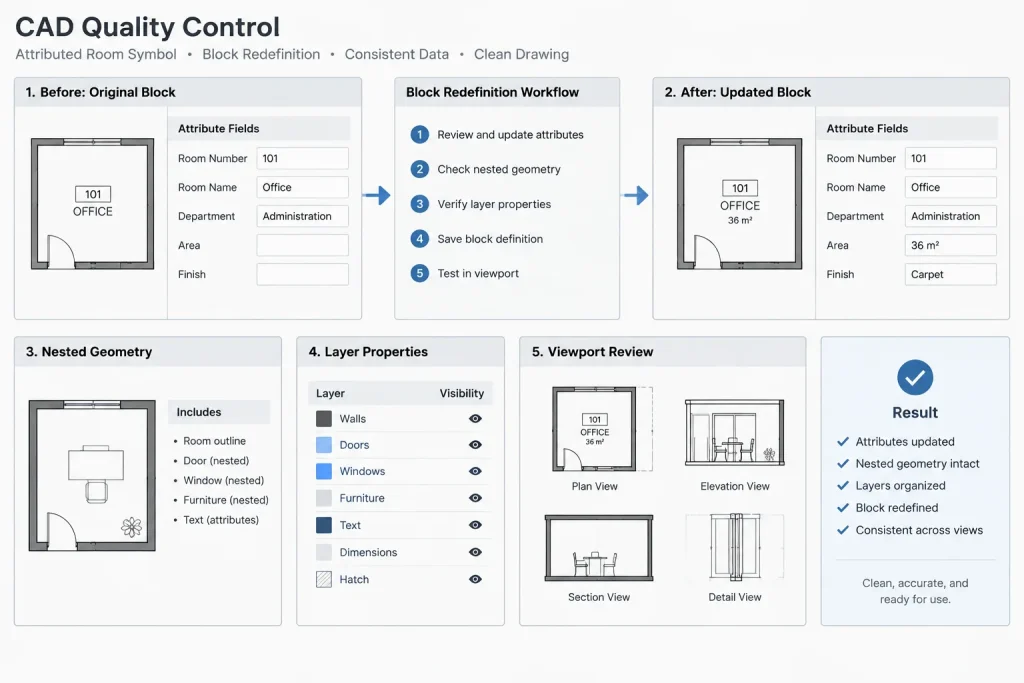
Attribute definitions belong to the block definition, while entered attribute values are associated with individual references. Changing the definition does not always make existing references match every revised attribute property automatically.
After redefining an attributed block, compare a new insertion with an existing reference. If synchronization is needed, the attribute synchronization process can update existing references to match the revised definition. Test it first: synchronization may affect attribute position, formatting, visibility, or other properties. Preserve project data and confirm that existing values remain associated with the correct tags.
Avoid casually renaming attribute tags. A new tag may be treated as a different data field rather than a renamed version of the original. This matters when tags feed extraction tables, schedules, or other downstream workflows.
Common Failure Modes
- Unexpected movement: The replacement uses a different insertion point or internal origin.
- Incorrect size: The source block was drawn in incompatible units or includes an unexplained scale condition.
- Wrong orientation: Rotation, mirroring, or dynamic flip settings were not preserved.
- Lost information: Attribute tags differ or values were not transferred and verified.
- Plotting changes: Objects inside the new definition use inappropriate fixed colors, lineweights, linetypes, or layers.
- Unexpected global edits: A shared definition was redefined when only selected references were meant to change.
- No visible update elsewhere: Other DWG files contain separate definitions and were not updated.
- Nested-name conflicts: The incoming block contains nested definitions that differ from identically named content already in the drawing.
Quality-Control Checklist
- Verify the intended replacement scope: selected references, the whole drawing, or the source library.
- Confirm block names, units, insertion points, rotation, and scale.
- Inspect internal layers and object properties.
- Compare attribute tags and preserve required values.
- Test dynamic properties and visibility states where applicable.
- Check nested blocks, text, hatches, masks, and draw order.
- Review dimensions, leaders, tags, and nearby geometry after replacement.
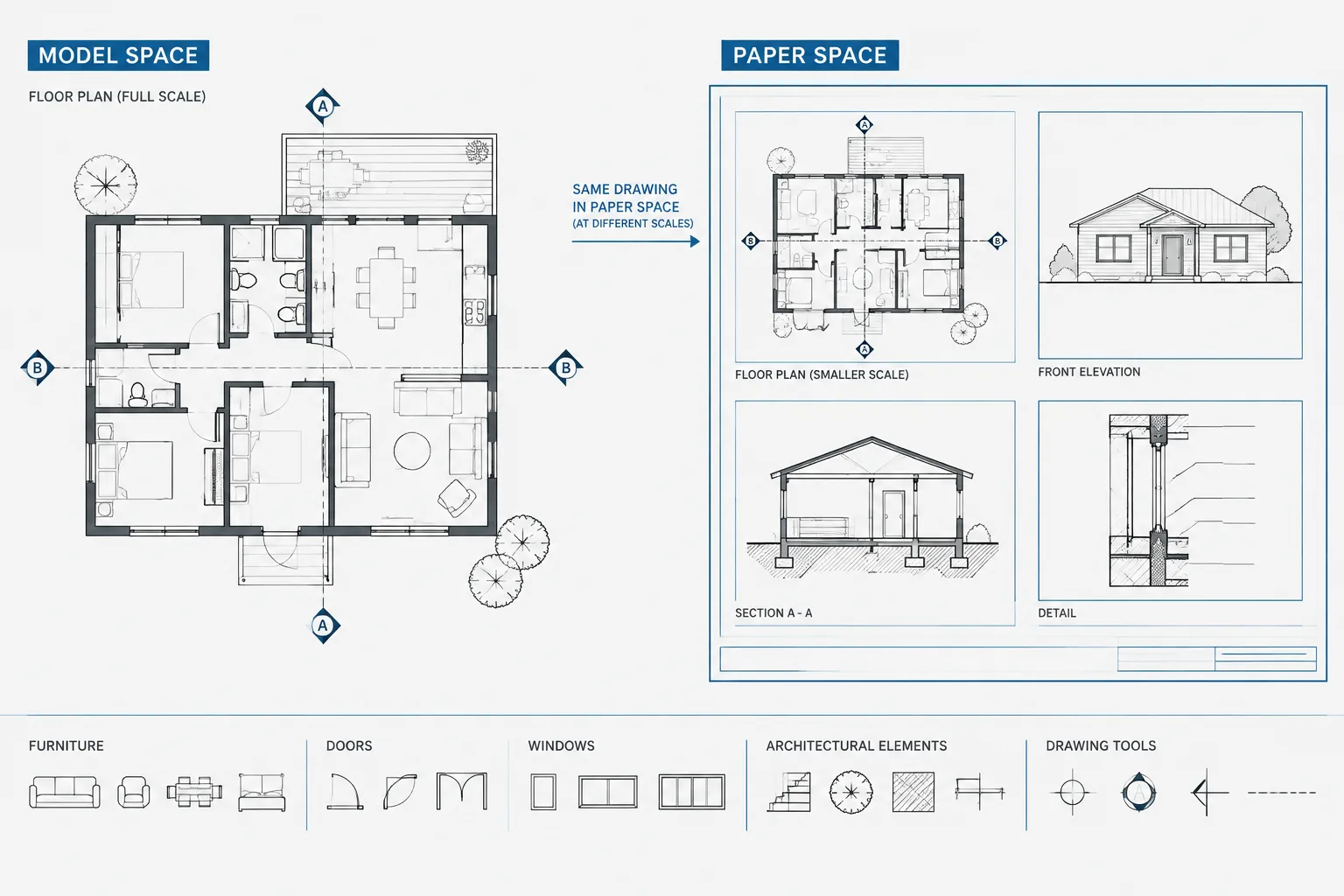
- Inspect relevant model views and paper-space viewports.
- Plot or preview representative sheets before issuing the drawing.
- Update the block library only after the revised source has been approved through the project’s normal review process.
Keep Project Blocks and Library Blocks Distinct
A central library should provide dependable starting content, but project drawings often contain approved local modifications. Replacing every project definition with the newest library version can erase those intentional differences. Use clear naming, revision notes, or library metadata to identify the source and purpose of important blocks.
The safest principle is simple: inspect first, choose the replacement scope deliberately, test in context, and verify both graphics and data. A block is not merely reusable linework. It is a coordinated drawing object whose definition, references, attributes, properties, and source must all remain under control.
A Practical Decision Test Before Editing
Before using any replacement or redefinition method, state the intended result in plain language. If the instruction is to change only the selected objects, preserve the original definition and use a separately named replacement. If every occurrence of the same block must change, review and redefine the shared definition. If future projects also need the revision, treat the library source as a separate controlled update.
This decision should be made from drawing intent rather than visual similarity. Two blocks can look alike while using different anchors, attribute tags, internal layers, dynamic behavior, or nested definitions.
Separate graphic checks from data checks
A replacement can look correct but still damage drawing information. Review the result in two passes:
- Graphic review: Confirm placement, orientation, apparent size, linework, visibility, draw order, and plotting behavior.
- Data review: Confirm block names, attribute tags and values, layers, reference properties, dynamic settings, and any information used by schedules or extraction workflows.
Validate representative conditions
Do not test only the easiest reference. Review examples with different rotations, layers, attribute values, visibility states, or mirrored conditions where those variations exist. A method that succeeds for one typical instance may fail when applied to a less obvious condition.
Close the change deliberately
After review, remove abandoned test content and confirm that obsolete definitions are not being used unintentionally. Record significant library revisions through the project’s established documentation process. The goal is not simply to display new geometry, but to leave the drawing understandable and maintainable for the next CAD user.
Frequently Asked Questions
What is the difference between replacing a block and redefining it?
Replacing a block reference changes a selected inserted object. Redefining a block changes the shared definition used by references with that block name in the current drawing. The second operation therefore has a much broader effect.
Why did a replacement block move after insertion?
The old and new blocks may use different insertion points or functional anchors. Compare the internal origins and determine whether placement should be controlled from a corner, center, connection point, jamb, hinge, or another meaningful location.
Will redefining a block update other project drawings?
Not automatically. Each DWG can contain its own stored definition. A revised library source and the definitions already embedded in project drawings must be managed as separate locations unless a controlled workflow updates them.
Can existing attribute values be lost during replacement?
Yes. Values may not transfer when attribute tags differ, when a new block omits required attributes, or when references are replaced without recording their data. Compare tag structures and verify values before deleting the original references.
Should a revised type keep the original block name?
Keep the original name only when the revised content is intended to replace that definition wherever it is used within the drawing. If the object represents a distinct type or approved variation, a clear new name helps prevent an unintended global change.
Why does the replacement plot differently even though it looks correct on screen?
The incoming definition may contain fixed object properties, different internal layers, masks, hatches, or linework that responds differently to the drawing’s plotting setup. Inspect the objects inside the definition and review representative plotted output.
When should content be managed as an external reference instead?
Use an external-reference workflow when the drawing needs coordinated content that remains linked to a separate source file. Block redefinition is better suited to reusable definitions stored inside the receiving DWG. The choice should reflect how the content must be maintained, not merely how it is inserted.