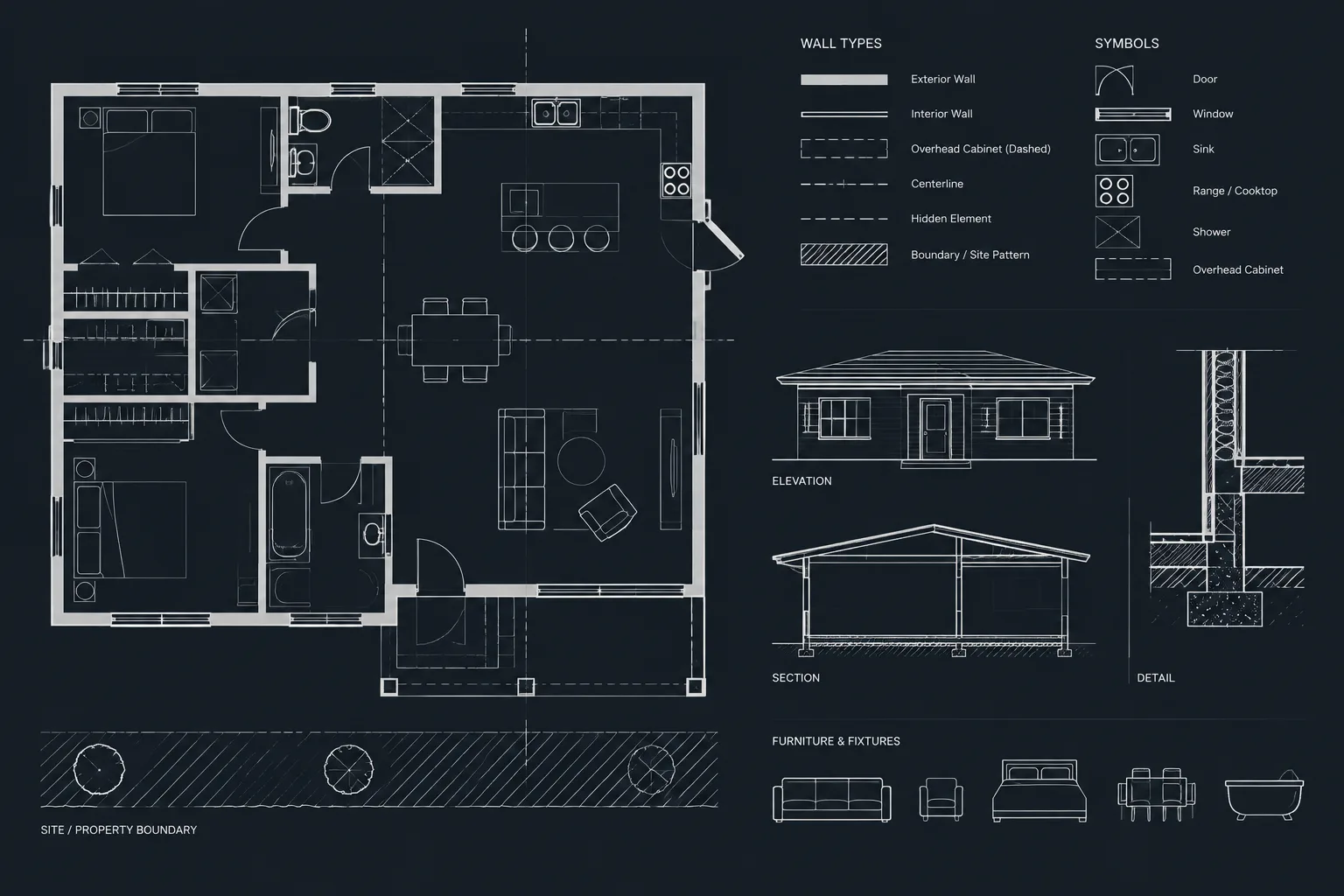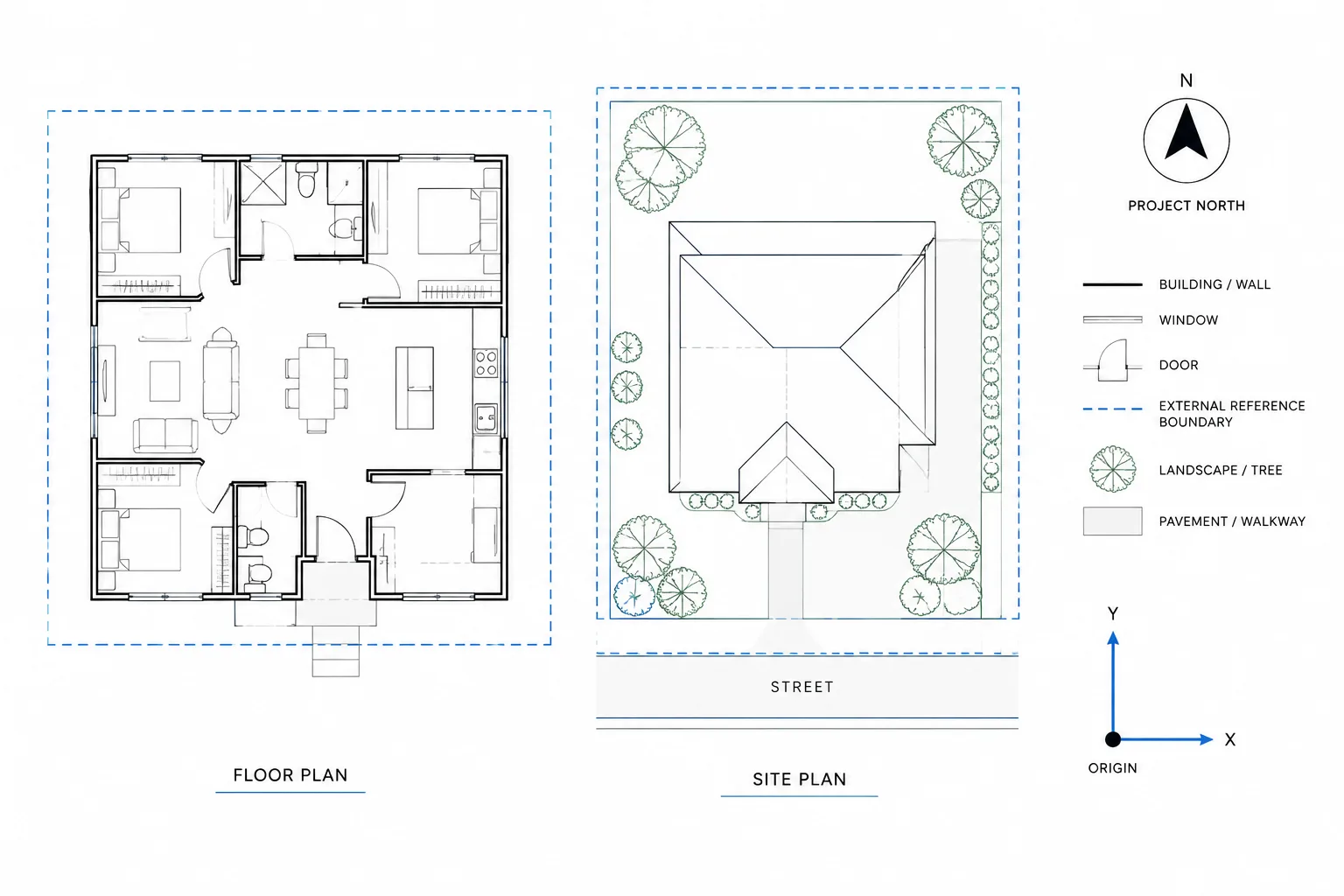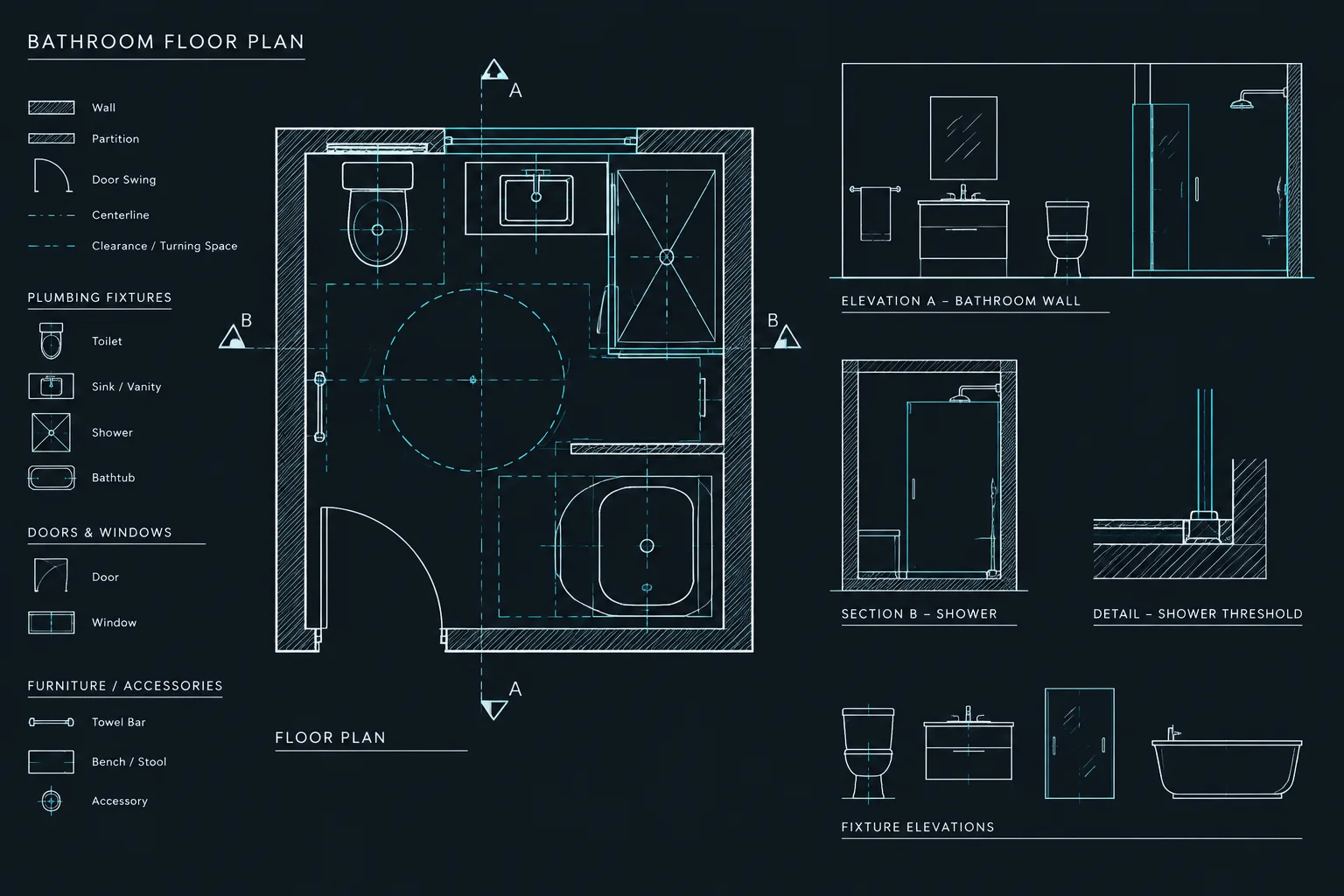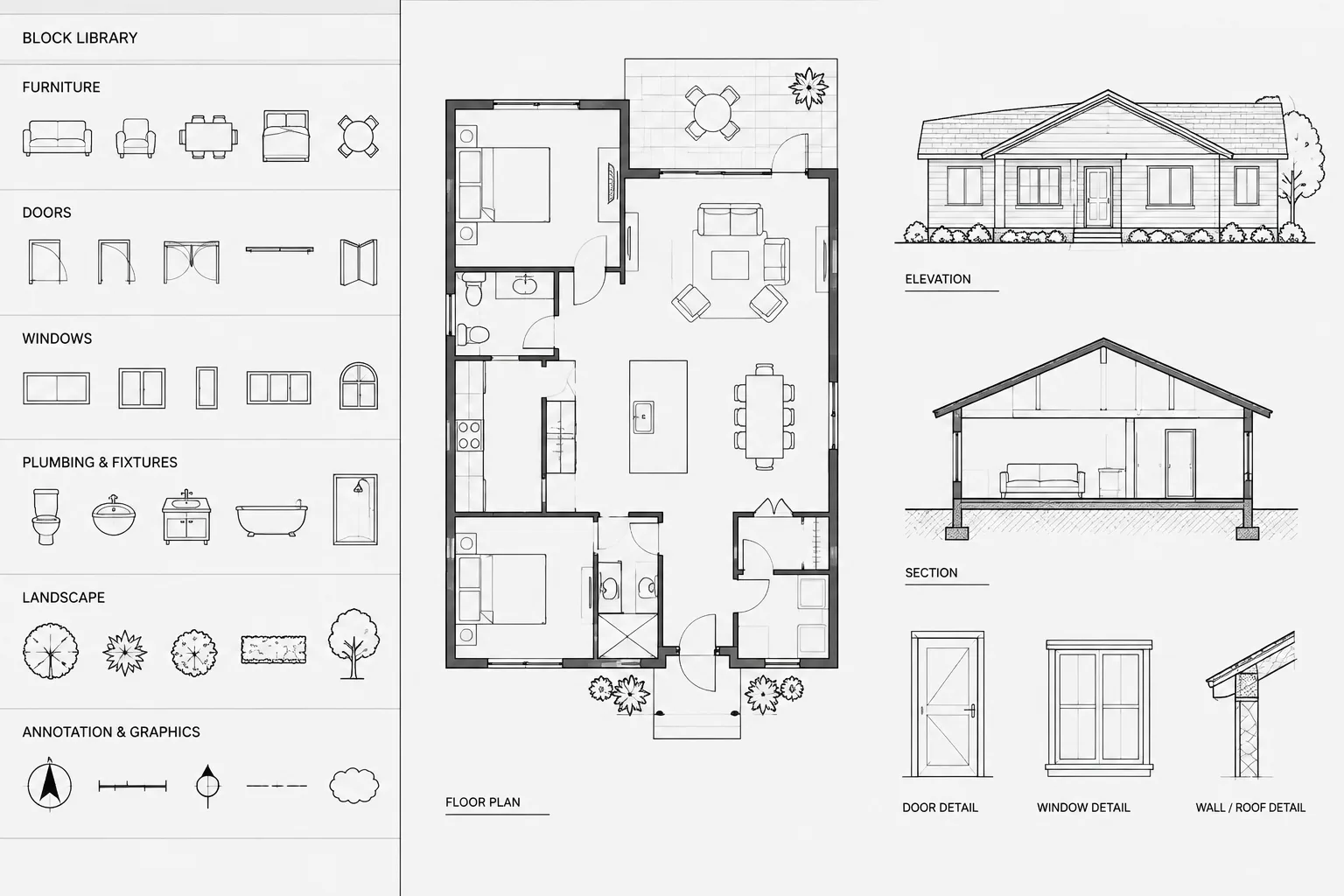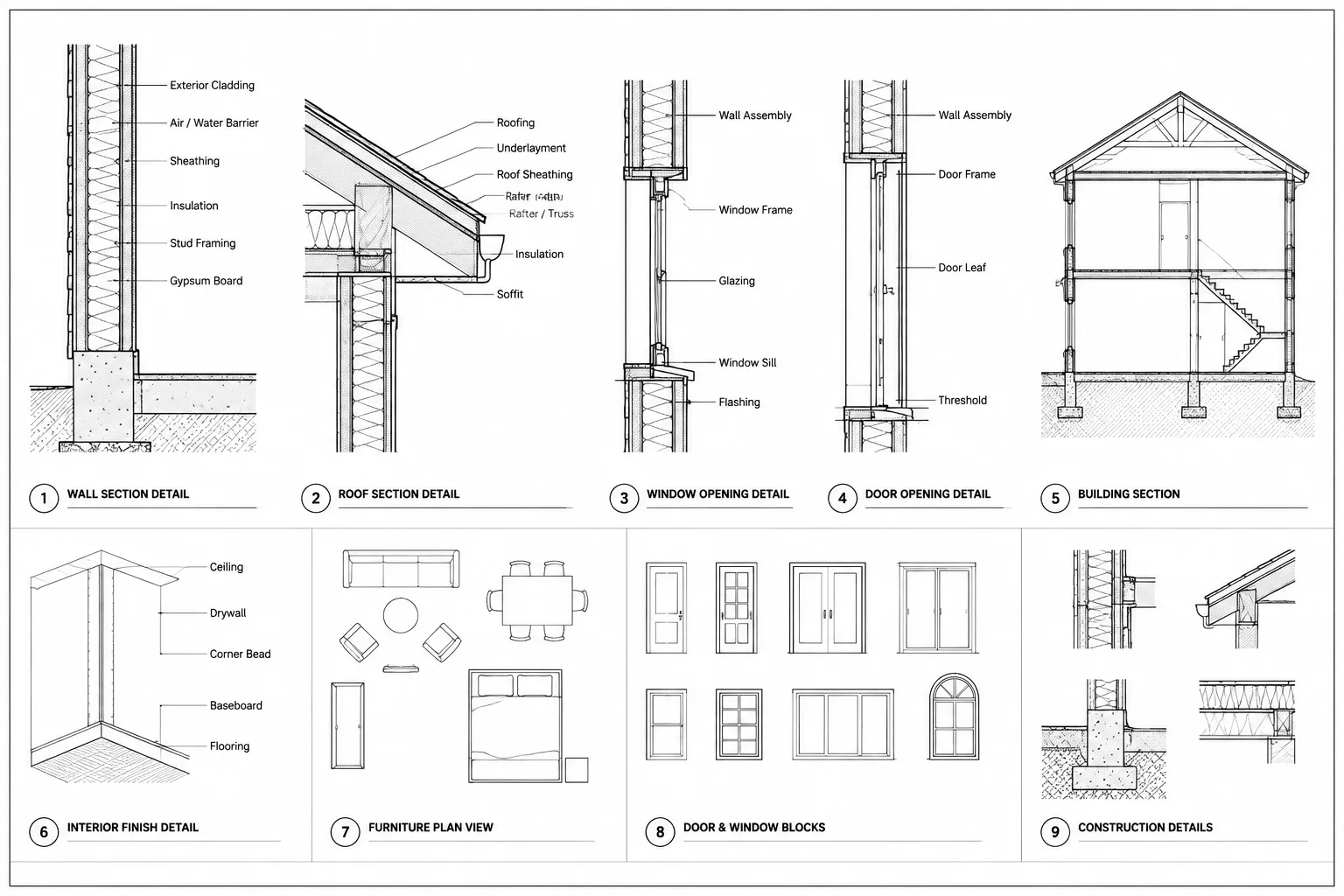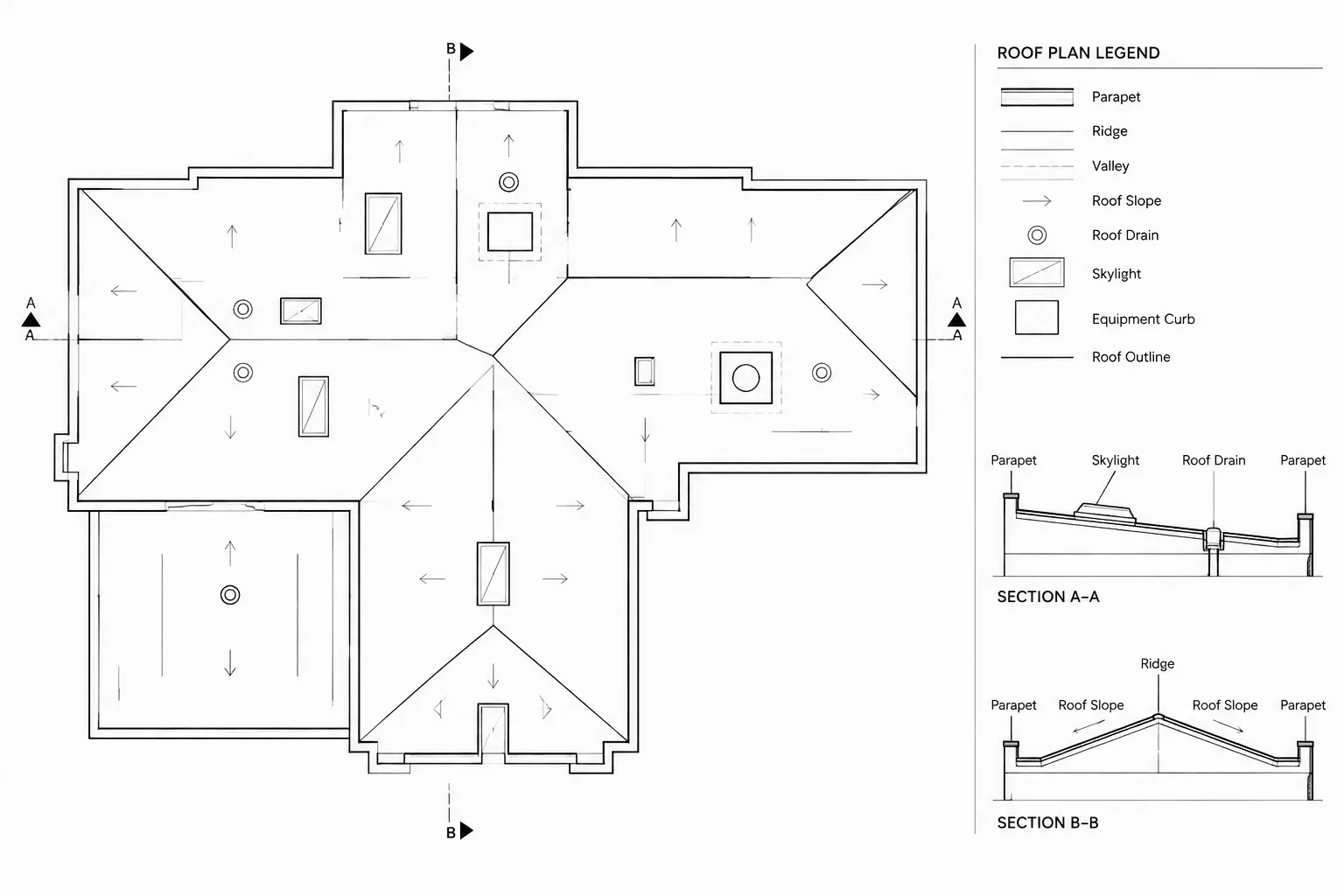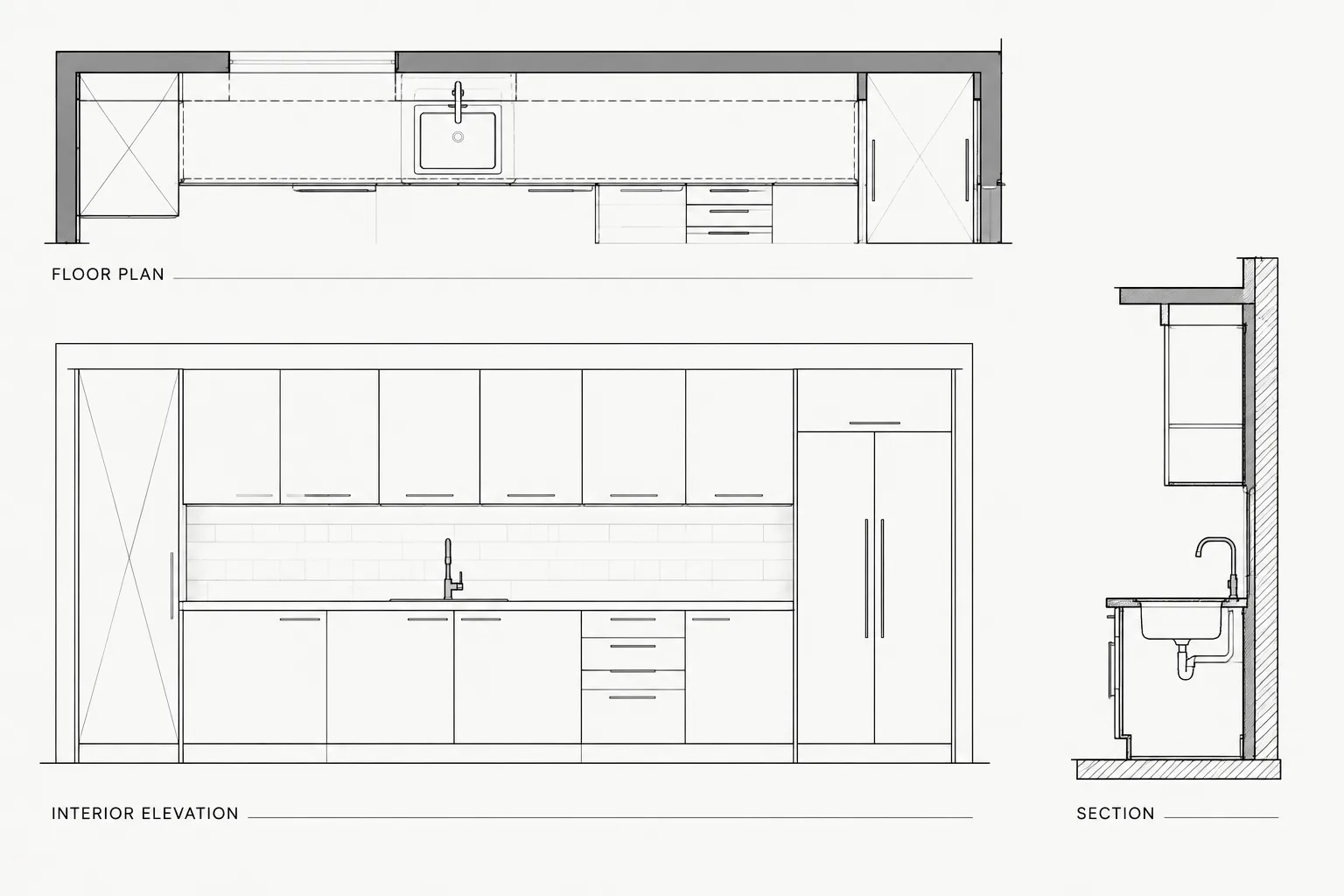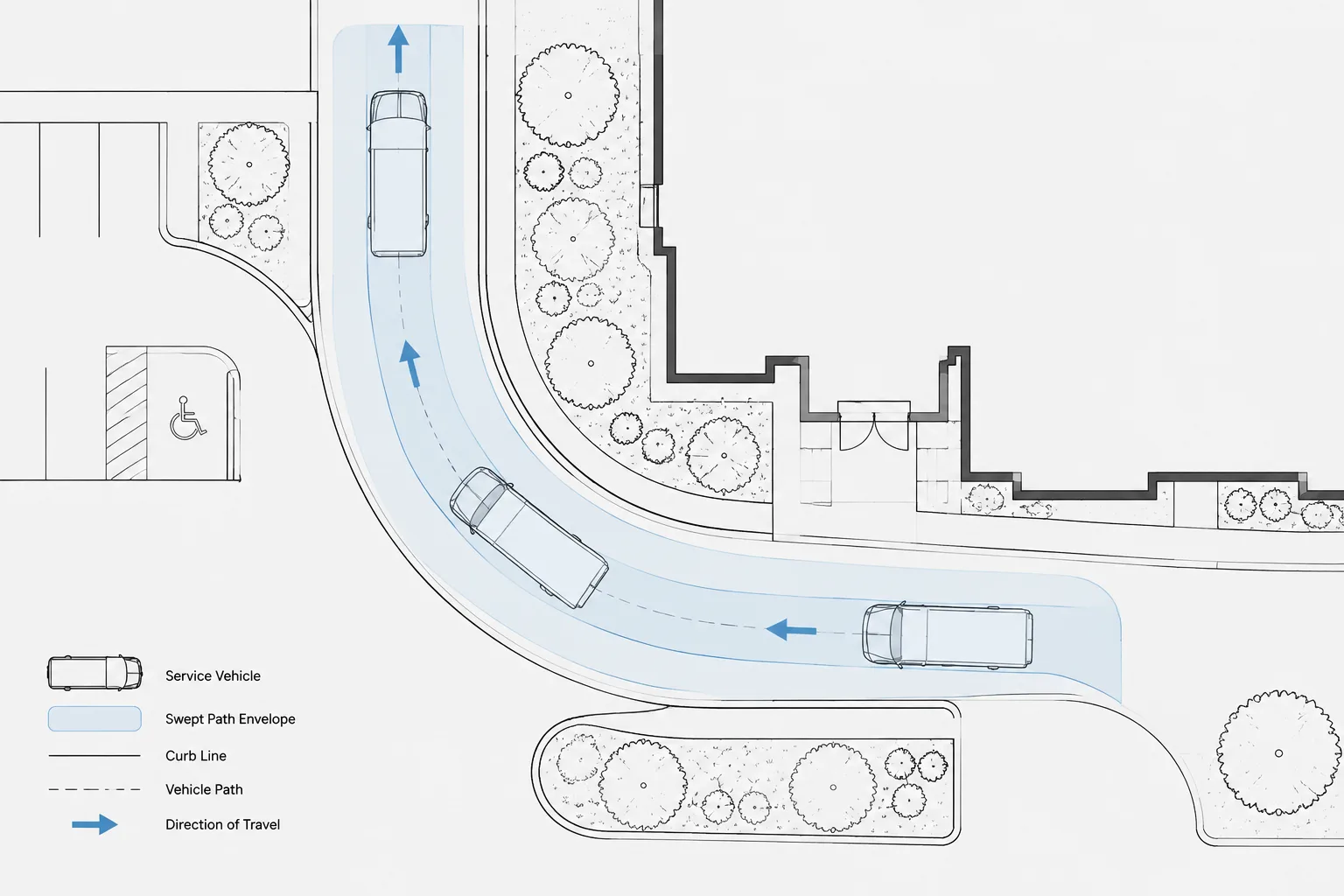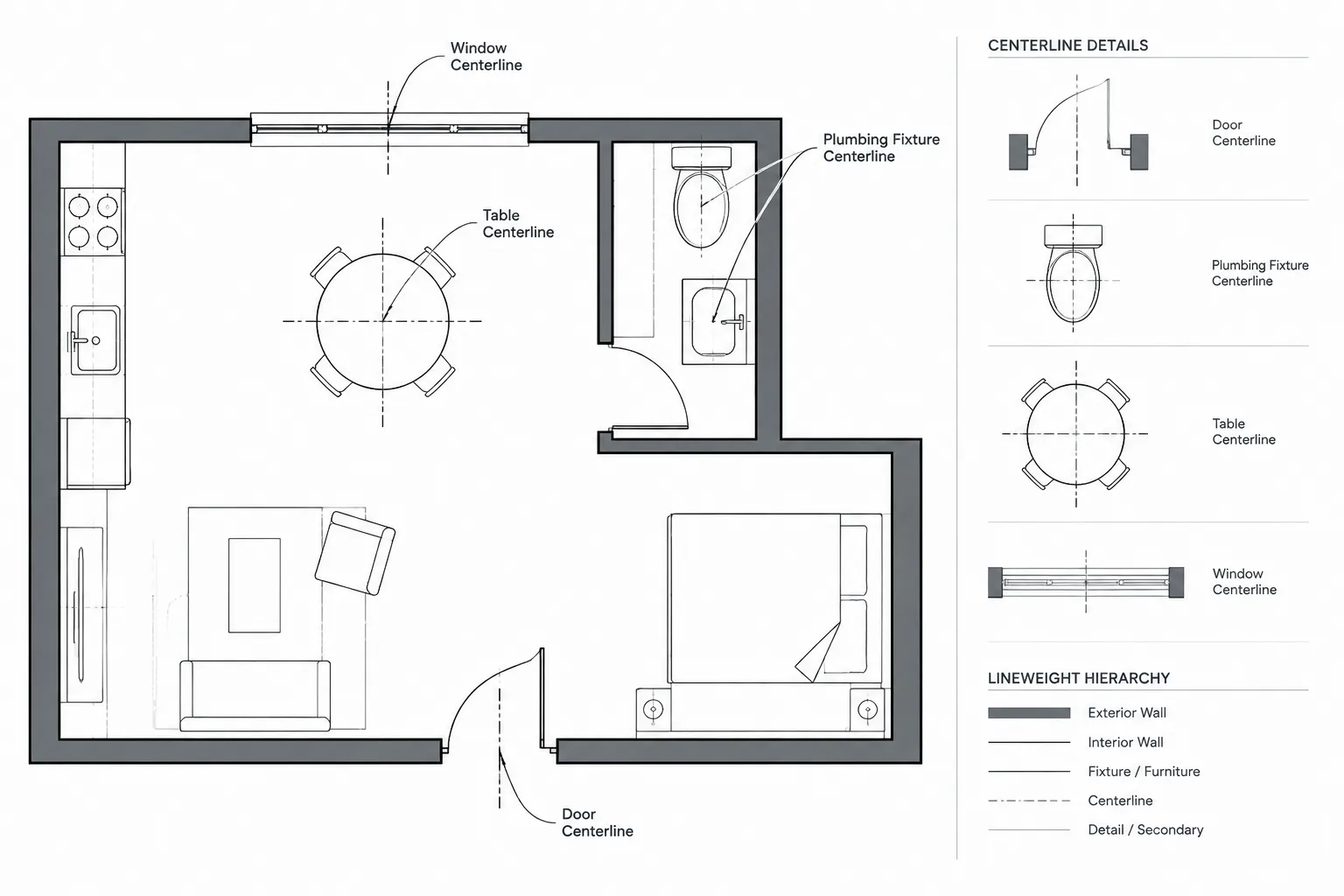
Centerlines in architectural CAD help communicate where an element is located, what geometry controls it, and how it aligns with information in other views. Although an axis may appear to be a minor graphic, it can influence dimensions, opening locations, fixture layouts, equipment coordination, and drawing interpretation.
This guide explains how to decide when a centerline is useful, select the correct controlling geometry, manage centerline layers and line types, and review alignment across plans, elevations, sections, blocks, and plotted sheets.
Centerlines are simple drafting elements, but they carry important design intent. In architectural drawings, a centerline may locate a door or window opening, align a plumbing fixture, establish the axis of equipment, or connect related information across plans, elevations, and sections. Used carefully, centerlines make layouts easier to understand and dimension. Used inconsistently, they can create visual clutter or suggest precision that the design does not actually require.
A reliable CAD workflow treats centerlines as controlled reference graphics rather than decoration. Their placement, visibility, line type, dimensions, and relationship to physical geometry should all support a specific coordination purpose.
What a Centerline Communicates
A centerline identifies the conceptual axis of an object, opening, space, or repeated arrangement. Unlike a wall face or cabinet edge, it usually does not represent a physical boundary. It represents a location from which other geometry can be positioned or interpreted.
Common architectural uses include:
- Locating doors, windows, louvers, and wall openings.
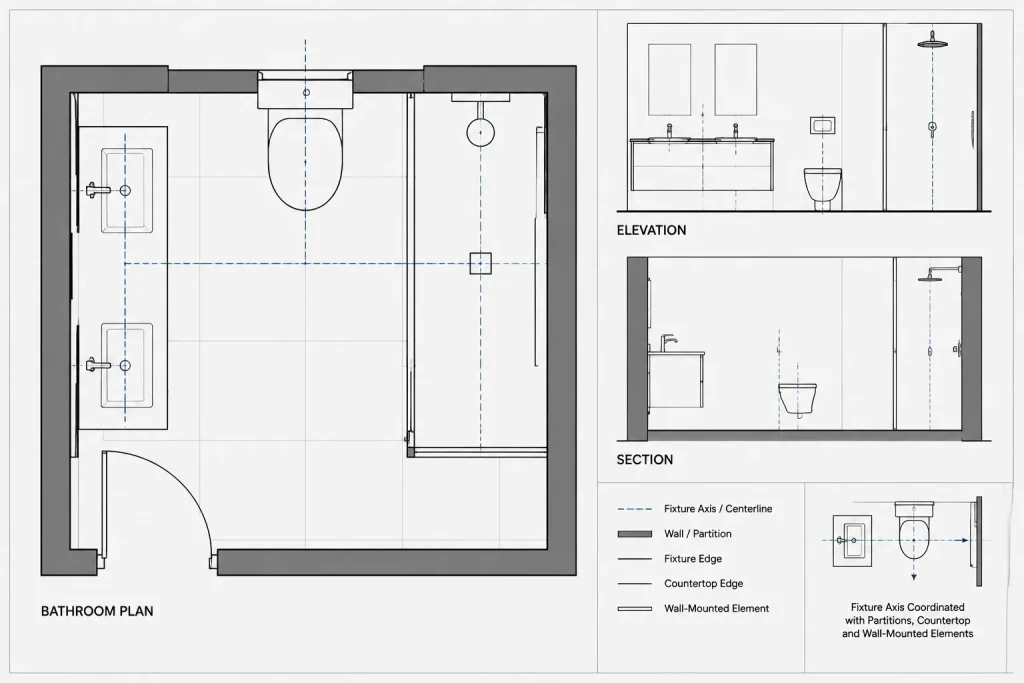
- Aligning plumbing fixtures with partitions, countertops, or tile patterns.
- Showing the axes of columns, structural members, or circular elements.
- Locating equipment, appliances, lighting elements, and ceiling devices.
- Establishing symmetry in elevations and interior layouts.
- Dimensioning repeated bays or regularly spaced components.
- Coordinating an element between a plan, section, and elevation.
A centerline should answer a useful question: What axis matters for layout, installation, or coordination? If the line does not help answer that question, it may not need to appear on the final drawing.
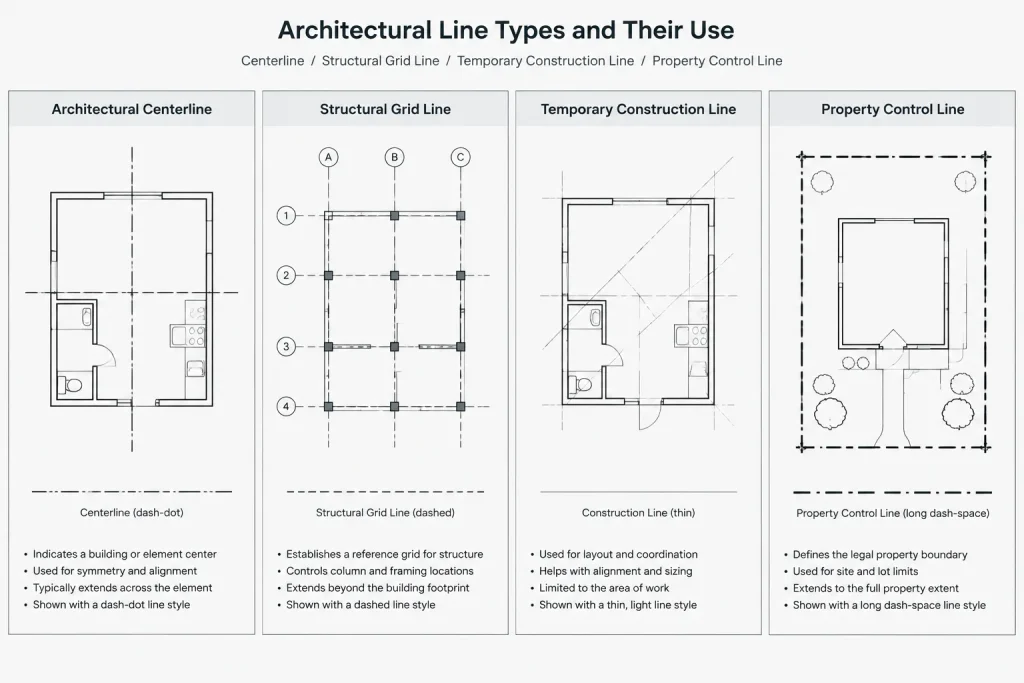
Centerlines, Grid Lines, and Construction Lines Are Not Interchangeable
These line types can look related, but they serve different roles.
| Drawing element | Primary purpose | Typical treatment |
|---|---|---|
| Centerline | Identifies the axis of an object, opening, or arrangement | Controlled line type with limited extension beyond the referenced geometry |
| Grid line | Establishes a named project-wide reference system | Continuous coordinated layout with identifying bubbles or labels |
| Construction line | Supports temporary drafting and geometric alignment | Usually nonplotting or removed after the geometry is complete |
| Property or control line | Represents a surveyed or legally significant boundary or reference | Distinct line type, annotation, and source verification |
Do not promote every temporary alignment line into a plotted centerline. Likewise, an architectural centerline should not replace a structural grid when the grid is the controlling project reference.
Choose the Controlling Geometry Before Drawing
Before placing a centerline, determine what the design is actually centered on. An opening may be centered in a room, between wall faces, within a finish module, or on a structural axis. Those conditions can produce different locations.
Use visible, verified geometry as the basis for the axis. Object snaps and geometric construction tools can help find midpoints, centers, and intersections, but the drafter must still decide which objects are authoritative. For example, centering a sink between rough partition faces may not produce the intended relationship to finished surfaces or adjacent casework.
It is also important to distinguish geometric center from functional center. An irregular piece of equipment may have a manufacturer-defined connection axis that does not match the center of its outline. A door opening may be located by its rough opening, frame, leaf, or design module depending on the drawing purpose. When that distinction matters, the annotation should make the intended reference understandable.
A Practical CAD Workflow
1. Establish a dedicated layer strategy
Place plotted centerlines on a clearly named layer with a suitable line type and lineweight. Avoid placing them on object layers simply because they pass through those objects. A separate layer allows the team to control visibility, plotting, and viewport presentation without editing the architectural geometry.
Temporary center axes used only for drafting should be kept on a nonplotting construction layer or removed after use. Separating permanent and temporary references prevents accidental output.
2. Draw from stable geometry
Create the axis from the geometry that controls the design. Use endpoints, midpoints, centers, perpendicular relationships, or intersections rather than placing the line by eye. If the source object later changes, verify that the centerline still represents the intended position.
Automatic centerline tools can be helpful where supported by the drawing workflow, but their results still require review. Imported objects, exploded blocks, unusual linework, and later edits may affect the relationship between the axis and the object.
3. Control the line’s extent
A centerline normally needs to extend far enough beyond the referenced object to remain recognizable, but not so far that it crosses unrelated geometry. Long centerlines through dense plans can be mistaken for grids, hidden elements, or boundaries.
Keep the extension visually consistent within a view. Where a single axis intentionally relates several objects, such as a vertically aligned group of fixtures, a longer shared line may be clearer than separate short segments.
4. Check line type appearance at output scale
A centerline may look correct in model space yet appear continuous, fragmented, or overly dense in a viewport or PDF. Check the drawing through the actual sheet setup. Model-space line type settings, viewport scale behavior, object properties, and plot configuration can all affect the result.
Avoid correcting appearance by manually drawing short dashes. Manual patterns are difficult to maintain and often become inconsistent when the geometry changes.
5. Dimension to the axis intentionally
Dimensions should connect to the centerline only when the axis is the required locating reference. Snap the dimension to the actual centerline geometry or a verified center point rather than to a nearby visual location.
Do not mix centerline dimensions and edge dimensions without making the chain understandable. A reader should be able to identify whether a dimension locates an opening center, a frame edge, a fixture face, or another physical boundary.
Coordinating Centerlines Across Drawing Types
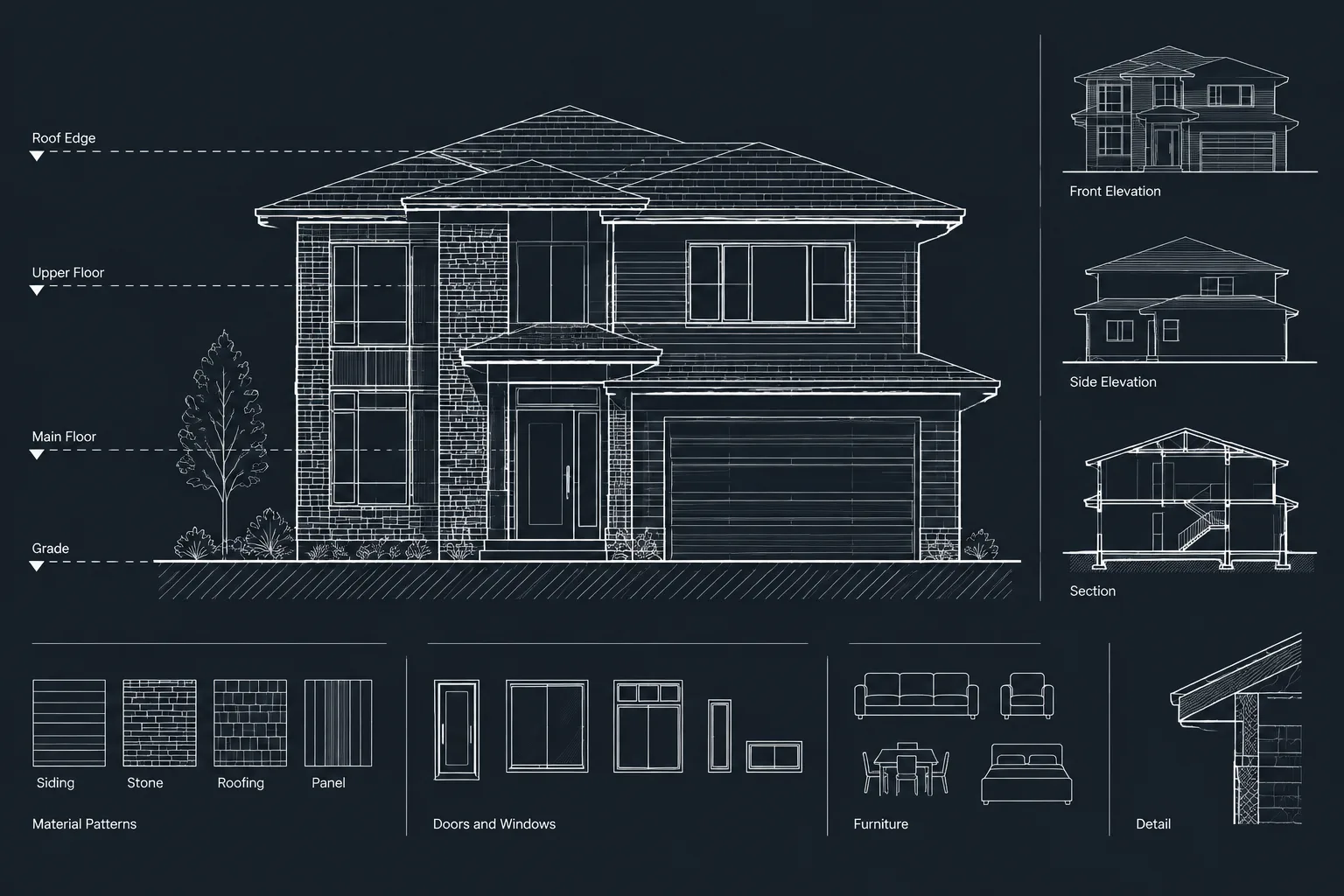
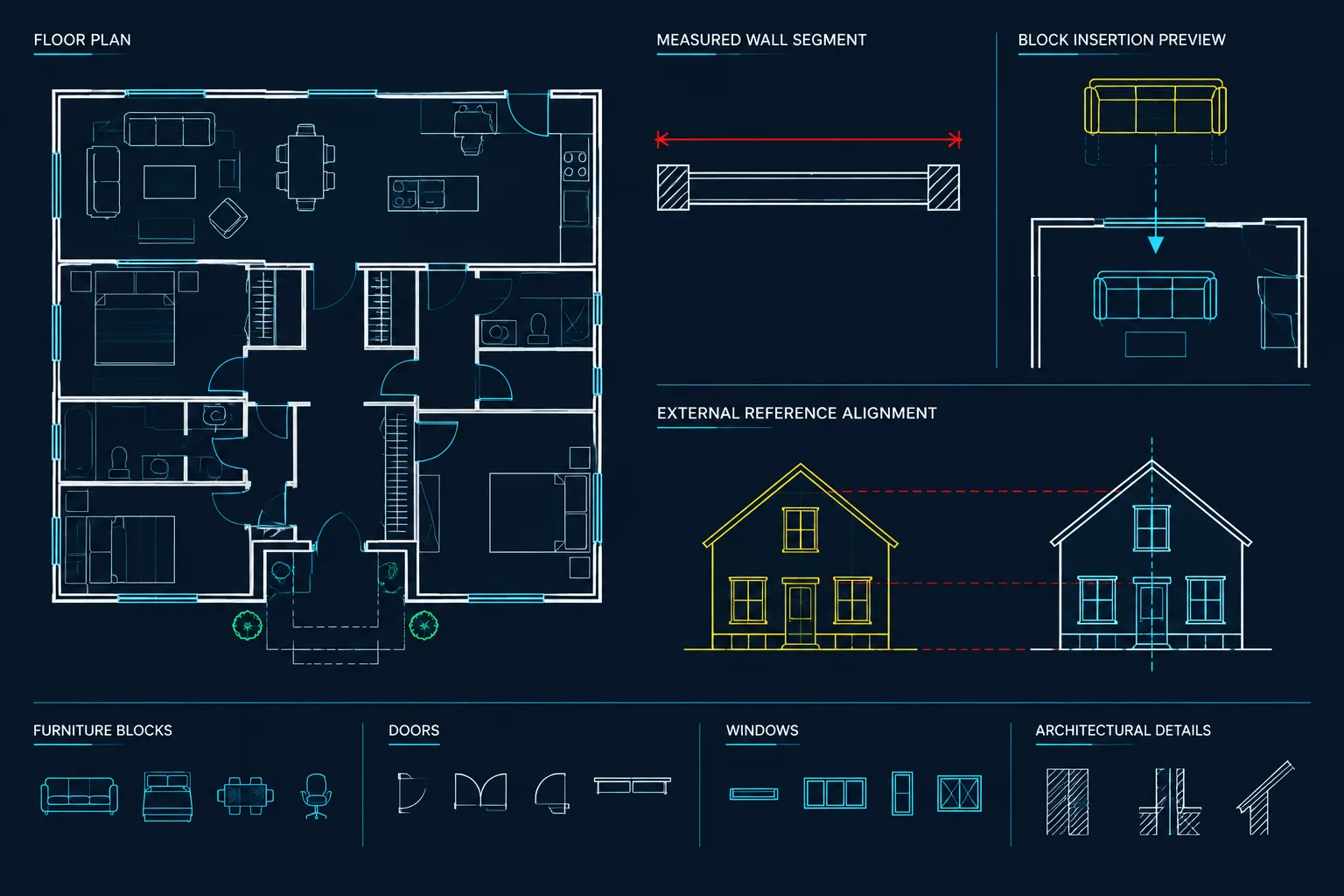
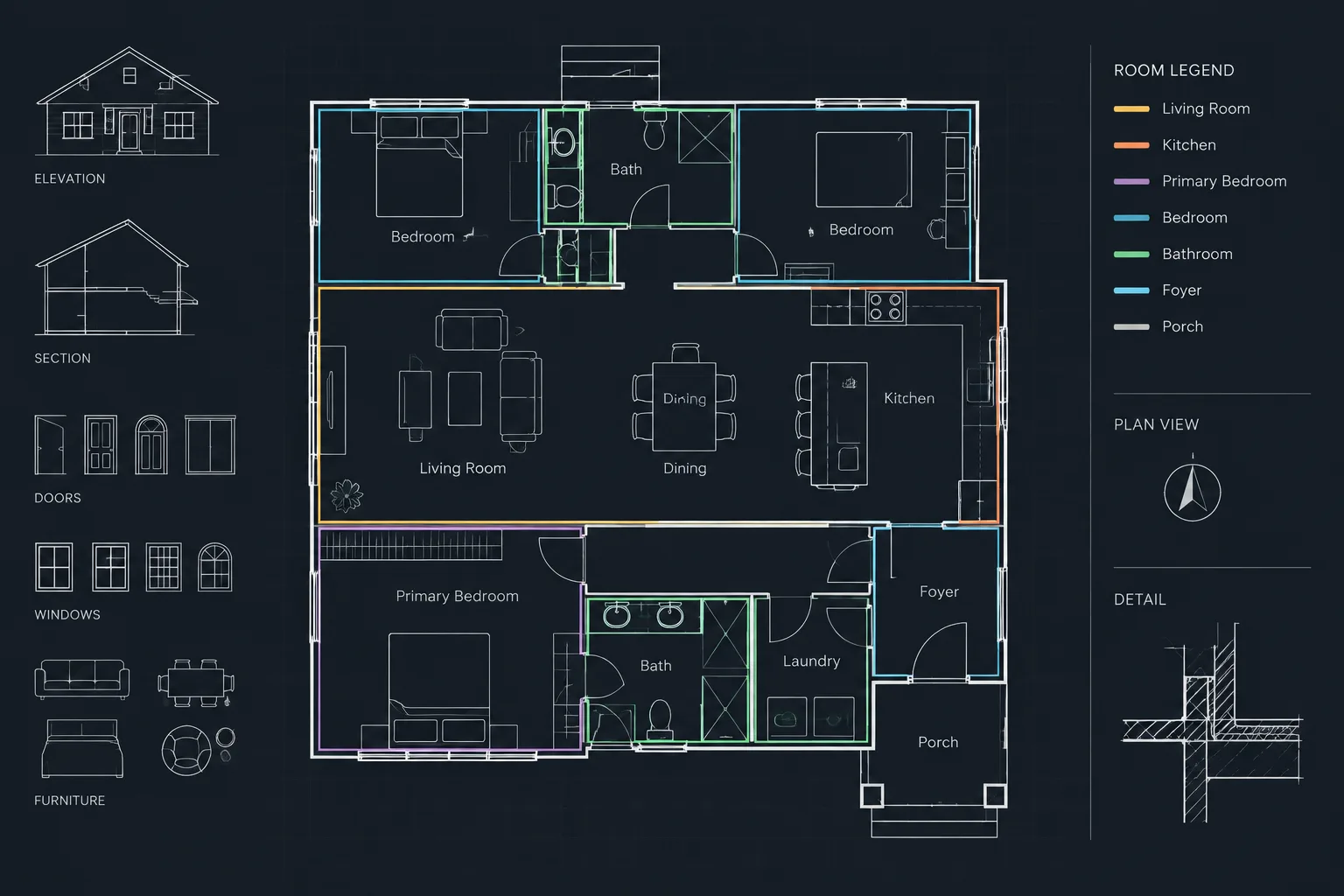
A centerline shown in one view may need to agree with several others. Window and door axes can connect floor plans with exterior elevations. Fixture axes may link enlarged plans, interior elevations, reflected ceiling plans, and consultant drawings. Equipment axes may affect openings, supports, utility connections, and access zones.
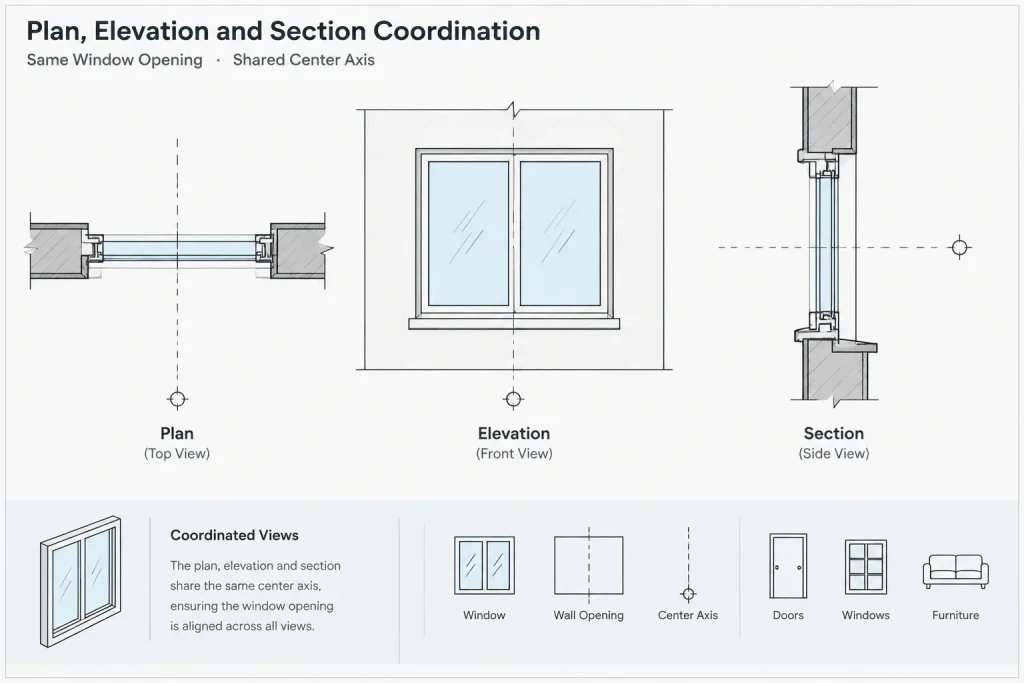
Use a repeatable review sequence:
- Confirm the controlling axis in the base plan.
- Compare the same element in elevations and sections.
- Check enlarged plans and interior elevations for matching alignment.
- Review referenced consultant backgrounds where the axis affects services or structure.
- Verify that tags and dimensions refer to the same element definition.
When an external reference is used as a background, avoid tracing its centerlines unless the project workflow requires a host-drawing copy. Duplicate axes can separate after revisions and make it unclear which line is current.
Centerlines in Blocks
Reusable blocks can include center marks or short centerlines when those graphics are consistently useful. Examples may include plumbing fixtures, circular tables, equipment symbols, and openings. However, embedding long centerlines inside blocks can create overlapping patterns and excessive linework when blocks are placed near walls or other objects.
Consider whether the axis belongs to the object definition or to the drawing layout. A center mark identifying the center of a circular object may belong in the block. A room-wide alignment axis usually belongs in the host drawing.
When editing blocks, keep center graphics on an appropriate layer and verify that their visibility and line type respond correctly after insertion. Do not rely on color alone to distinguish an axis from physical geometry.
Common Centerline Problems
- The line plots as continuous: Review line type assignment, scale behavior, viewport conditions, and plot output rather than replacing it with manual dashes.
- The centerline no longer aligns: Recheck the controlling geometry after wall, opening, block, or equipment revisions.
- Several centerlines overlap: Determine whether a shared axis can replace separate lines or whether some embedded block graphics should be hidden.
- The drawing is visually crowded: Show only axes that support dimensions, alignment, or coordination in that view.
- A dimension references the wrong point: Confirm the snap location and clarify whether the design is controlled by a center, face, edge, or opening limit.
- An axis is mistaken for a grid: Reduce unnecessary extension and maintain clearly different annotation conventions.
Final Quality-Control Checklist
- Each plotted centerline has a clear coordination or layout purpose.
- The axis is based on verified controlling geometry.
- Permanent and temporary reference lines are separated by layer.
- Line type appearance is legible at the intended sheet scale.
- Centerlines do not extend through unrelated drawing information.
- Dimensions clearly identify whether they reference an axis or a physical edge.
- Related plans, elevations, sections, and enlarged views agree.
- Block-based center graphics do not create duplicate or overlapping lines.
- The final PDF is reviewed, not just the model-space display.
Well-managed centerlines make architectural drawings easier to lay out, coordinate, and interpret. The goal is not to show every possible axis. It is to show the specific axes that communicate design intent and help the project team locate important elements accurately.
A Decision Framework for Adding a Centerline
Before adding an axis, identify who needs it and what decision it supports. A centerline may help a drafter construct geometry, help a reviewer compare views, or help a field user interpret a dimension. These purposes are related, but they do not always require the same graphic to remain visible in the final drawing.
- Identify the subject: Determine whether the axis belongs to an opening, fixture, component, room arrangement, or repeated layout.
- Identify the controlling reference: Decide whether the intended location relates to finished geometry, rough construction, a structural reference, or another verified object.
- Identify the required views: Show the axis only where it improves alignment, dimensioning, or coordination.
- Identify ownership: Establish whether the axis should remain in the host drawing, appear within a block, or come from a referenced background.
- Review the output: Confirm that the axis remains distinct from grids, boundaries, hidden geometry, and temporary construction graphics.
Centerlines as Part of Drawing Coordination
A dependable centerline workflow is less about drawing an axis and more about maintaining a consistent reference. If an opening, fixture, or equipment item moves, its dimensions and related views should be reviewed together. Leaving an outdated axis in place can communicate a false relationship even when the surrounding object geometry appears correct.
Centerlines should therefore be included in revision checks, block reviews, external-reference coordination, and final plot inspection. The strongest drawings use them selectively: enough to make design intent clear, but not so many that important references disappear into background linework.
Frequently Asked Questions About Architectural CAD Centerlines
What does a centerline represent in an architectural drawing?
It represents a conceptual axis used to locate, align, dimension, or coordinate an object or arrangement. It normally does not represent a physical edge or boundary.
Should every centered object have a visible centerline?
No. A plotted centerline should have a clear communication purpose. An axis used only to construct geometry can remain on a nonplotting layer or be removed when drafting is complete.
What is the difference between a centerline and a grid line?
A centerline identifies the axis of a particular object, opening, or arrangement. A grid line belongs to a broader named reference system used to coordinate locations across the project.
Should dimensions reference a centerline or an object edge?
Use the reference that controls the design and can be interpreted clearly. If the axis controls placement, dimension to the verified centerline. If a face, frame edge, opening limit, or other physical boundary controls placement, dimension to that geometry instead.
Why does a centerline appear continuous when plotted?
The cause may involve the assigned line type, display scale, viewport behavior, object properties, or plot configuration. Review the sheet or PDF output rather than judging the pattern only in model space.
Should centerlines be included inside CAD blocks?
Include them when the axis is an enduring and useful part of the object symbol. Keep layout-specific or room-wide axes in the host drawing so they can be controlled without creating overlapping block graphics.
How should centerlines be checked after a design revision?
Reconfirm the controlling geometry, dimensions, related views, block contents, and referenced backgrounds. A centerline that does not update with revised geometry can preserve an obsolete location.