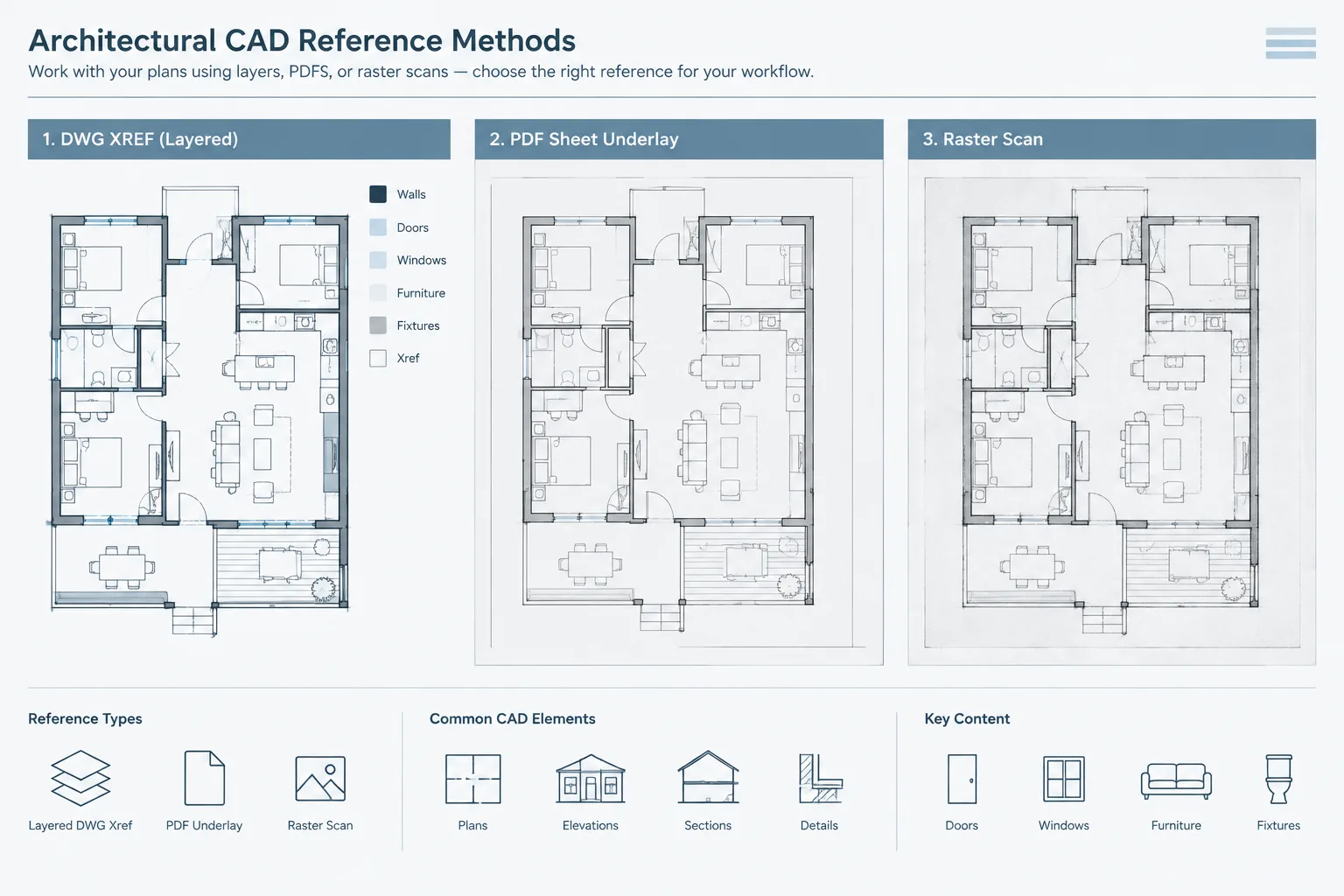
Nested xrefs in AutoCAD can make architectural drawing sets easier to coordinate, but only when each reference has a deliberate role. The attachment-or-overlay choice determines whether referenced content follows its host into downstream drawings, affecting sheet composition, consultant coordination, layer management, and file delivery.
This guide explains how both reference types behave within an architectural DWG hierarchy and how to identify propagation problems before they produce duplicate geometry or confusing dependencies.
External references help architectural teams separate plans, backgrounds, annotations, and consultant information into manageable DWG files. However, an xref can contain references of its own. These nested xrefs are useful for coordinated drawing systems, but they can also create duplicate geometry, unexpected file dependencies, and circular reference warnings.
The key decision is whether each DWG should be referenced as an attachment or an overlay. Both options display external drawing content in the current file. The difference becomes important when that current file is referenced into another drawing.
What Is a Nested Xref?
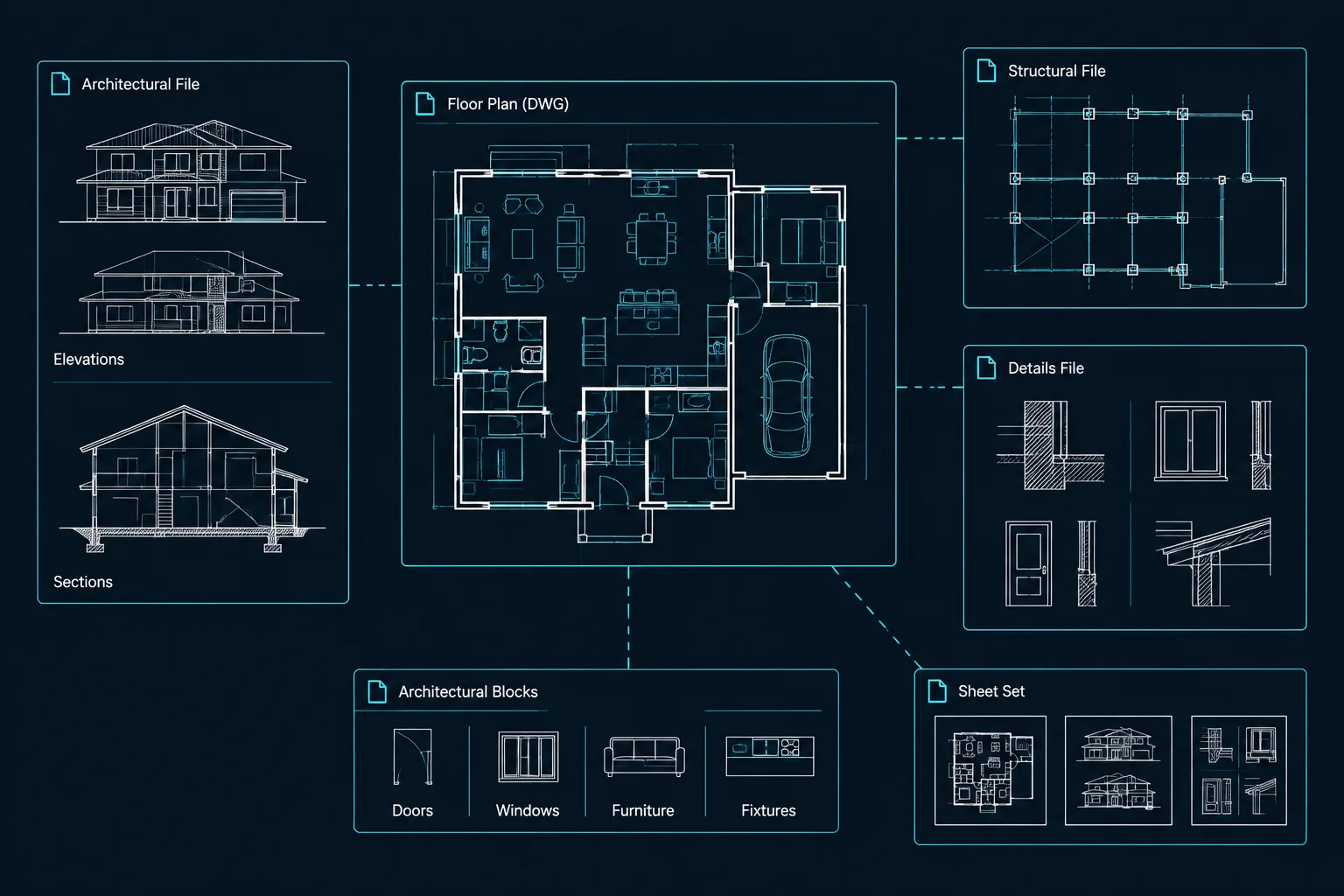
A nested xref is an external reference contained inside another referenced drawing. Consider a simple architectural file structure:
- A floor plan references a structural column background.
- A sheet file references the floor plan.
- The structural background is therefore nested beneath the floor plan in the sheet file.
Nested references are not inherently a problem. They allow a coordinated background to follow a parent drawing without being attached manually in every destination file. The challenge is controlling which references should continue through the file hierarchy and which should stop at the immediate host drawing.
Attachment and Overlay Compared
| Reference type | Behavior | Typical architectural use |
|---|---|---|
| Attachment | The xref can remain visible when its host drawing is referenced into another DWG. | Content intentionally designed to travel with the parent file. |
| Overlay | The xref displays in its immediate host but does not continue through the next level of referencing. | Coordination backgrounds that should not propagate into downstream files. |
For example, an architectural plan may use a structural plan as an overlay for coordination. When the architectural plan is later referenced into a sheet, the structural overlay does not automatically travel with it. This helps prevent the consultant background from appearing twice if the sheet or another parent file already references it separately.
An attachment is appropriate when the nested content is intended to behave as part of the referenced assembly. The choice should reflect drawing organization rather than convenience at the moment of insertion.
Why Overlays Are Common for Consultant Backgrounds
Architectural teams frequently reference structural, mechanical, electrical, plumbing, civil, and landscape files while coordinating their own work. These consultant files are usually supporting backgrounds rather than permanent components of the architectural model hierarchy.
Using overlays for consultant backgrounds can:
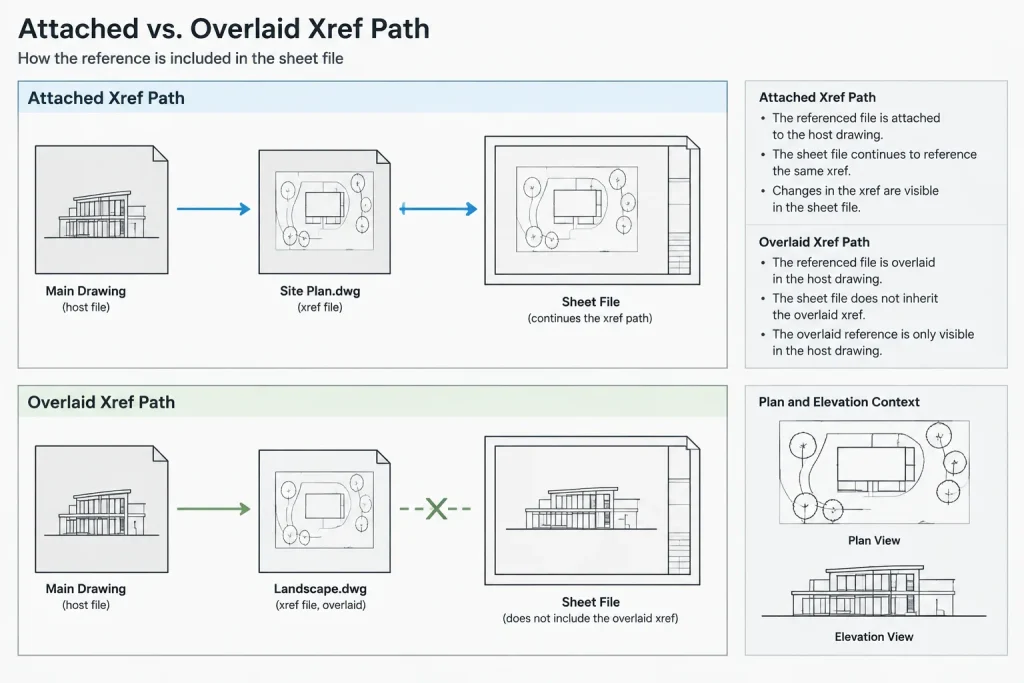
- Reduce the chance that the same consultant geometry appears through multiple reference paths.
- Keep architectural sheets from inheriting coordination information that was only needed in a working file.
- Make responsibility for attaching and displaying each discipline more explicit.
- Limit unnecessary dependencies when files are exchanged or archived.
An overlay does not make the referenced information less accurate or less important. It simply limits how far the reference travels through other DWG files.
When an Attachment May Be the Better Choice
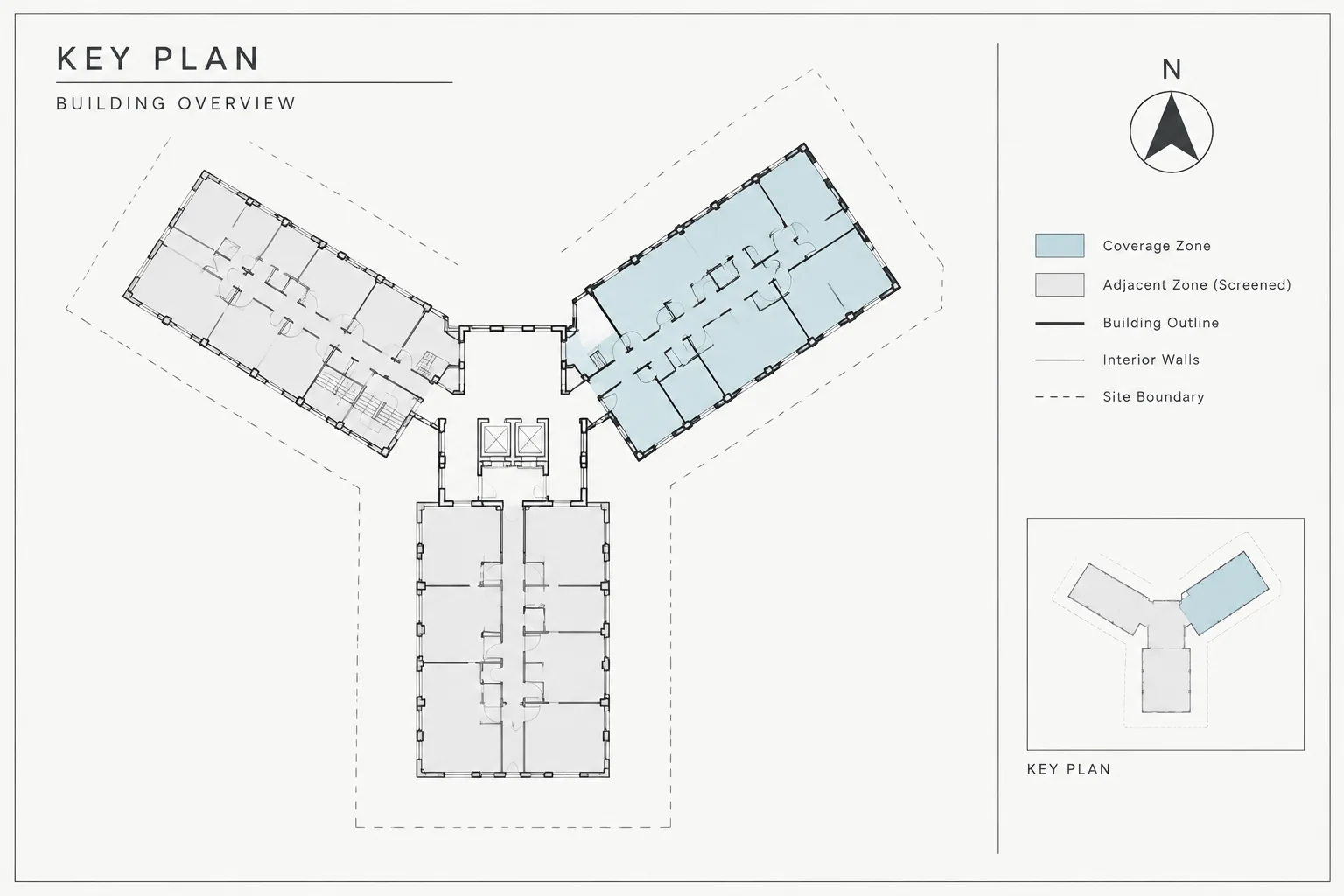
Attachments can be useful when a parent drawing is incomplete without its referenced components. A repeated building wing, unit plan, or coordinated base drawing may be assembled from several DWGs and then referenced into multiple destination files. If the component references must accompany that assembly, attachments may support the intended structure.
Before using an attachment, ask:
- Should this reference appear whenever the parent DWG is used?
- Could the destination drawing already contain the same file through another path?
- Will layer controls for the nested file remain understandable?
- Can another team receive the complete dependency set?
- Is the file hierarchy documented clearly enough for someone else to maintain?
If the answers are uncertain, an overlay is often the safer starting point for a coordination background. The project CAD standard should ultimately govern the decision.
A Practical Architectural Xref Hierarchy
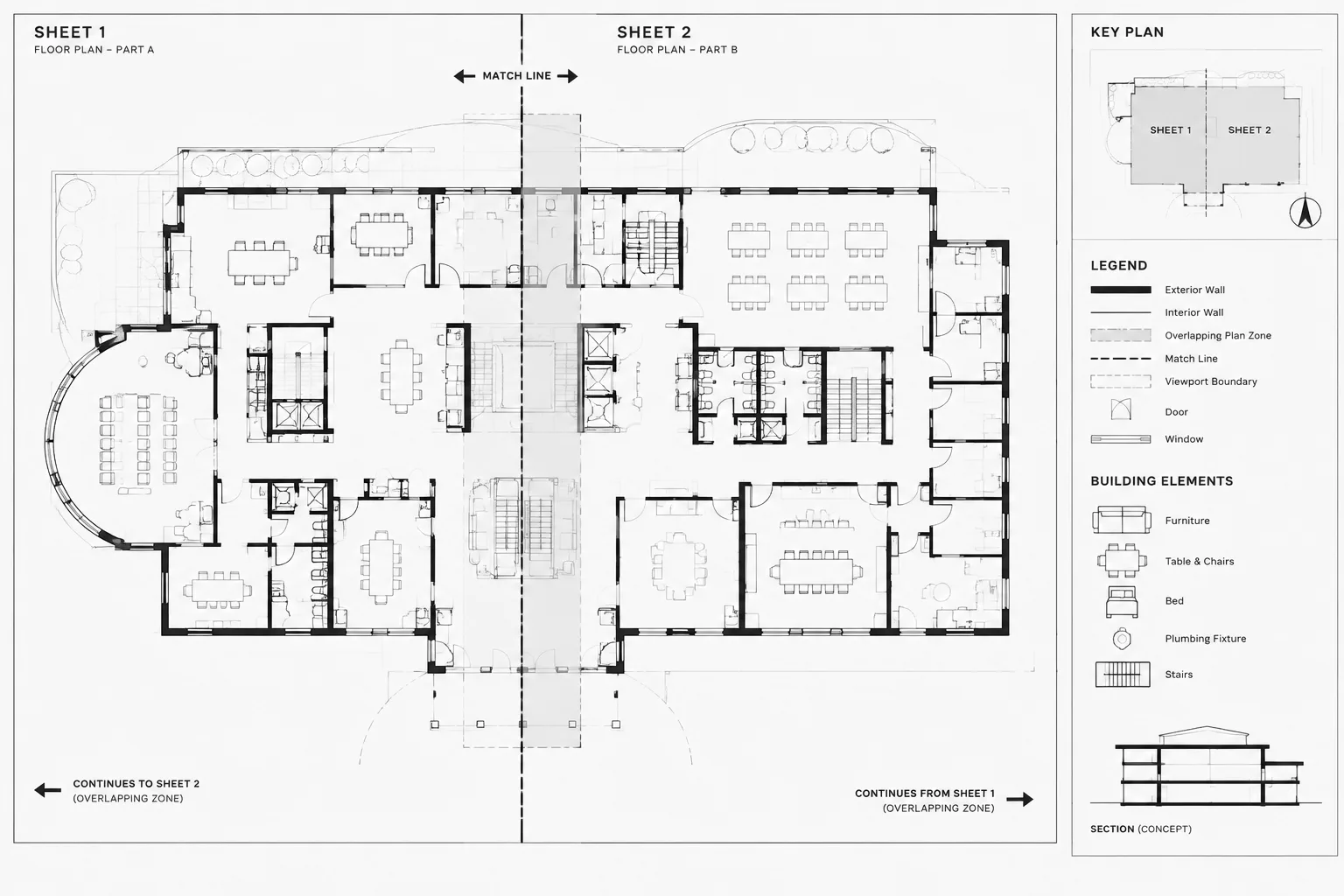
A controlled project generally separates model content from sheet composition. The exact arrangement varies, but a clear hierarchy might include source drawings, discipline model files, composite backgrounds, and sheet files.
Source or discipline files
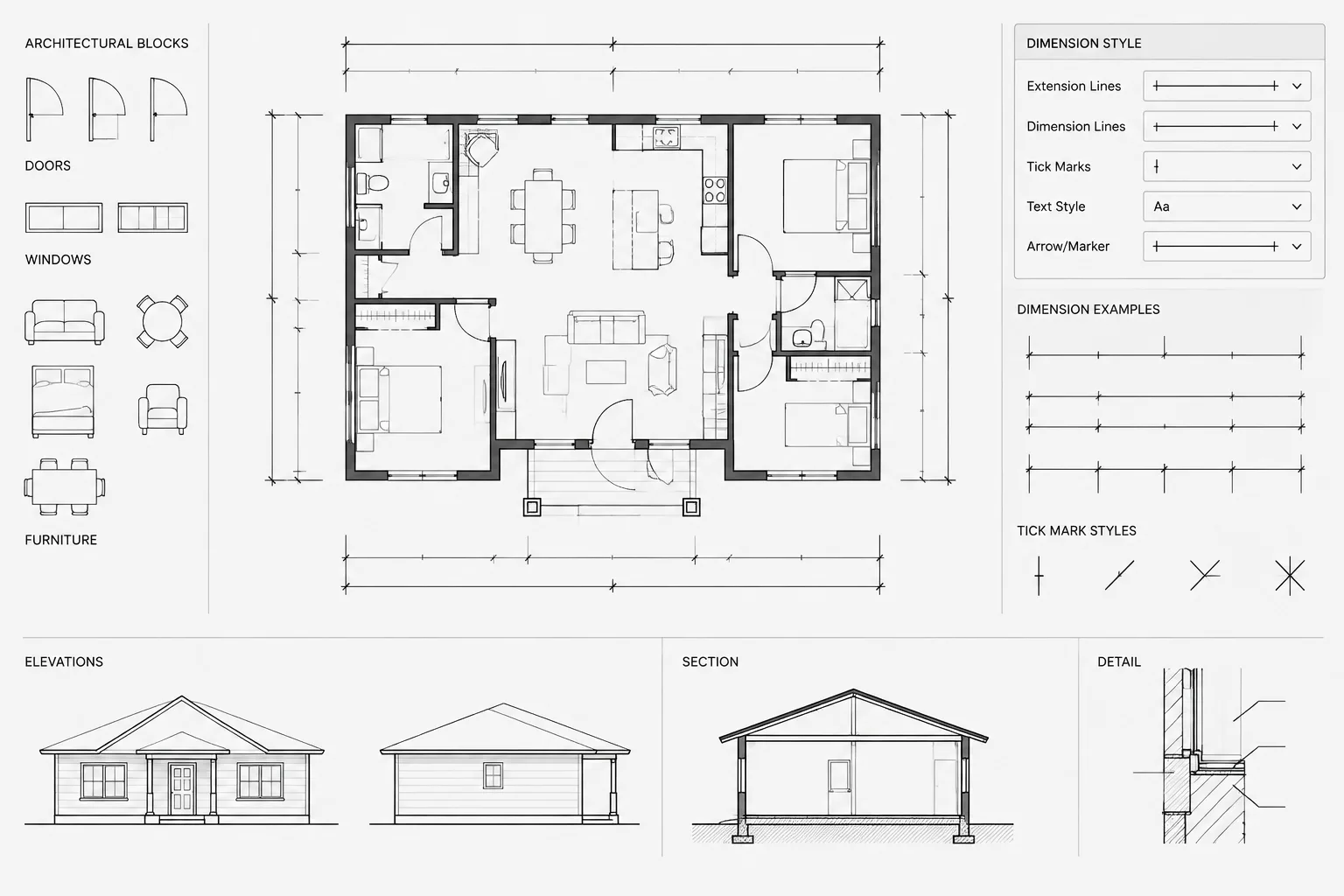
These files contain the primary editable geometry for a defined scope, such as an architectural floor plan, reflected ceiling plan, structural layout, or furniture plan. They should not depend on sheet-specific annotation unless the office workflow deliberately combines those functions.
Composite coordination files
A composite file may bring several disciplines together for review. Consultant references are often overlaid here so they do not propagate when the composite is referenced elsewhere. Composite files should have a clear purpose; otherwise, they can become unnecessary intermediate layers in the reference chain.
Sheet files
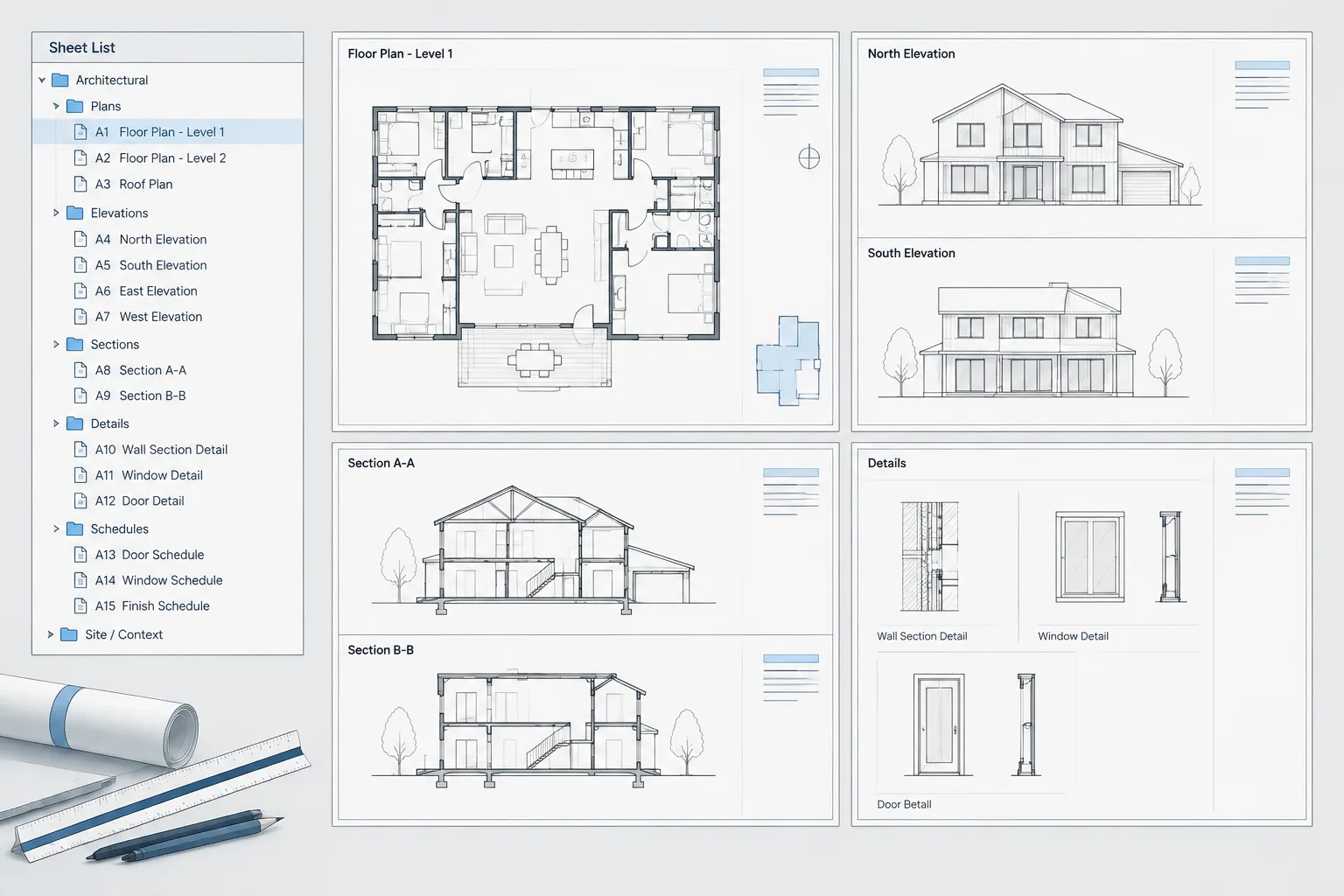
Sheet files typically reference the model information needed for plotted views. They may contain viewports, title block information, sheet notes, and view-specific annotation. A sheet should not inherit unrelated nested content merely because it exists in a working model file.
How Duplicate Xrefs Appear
Duplicate geometry often occurs when the same source DWG reaches a host through more than one reference path. For example, a sheet may attach an architectural model that already carries an attached structural file, while the sheet also references that structural file directly. The structural geometry can then appear in overlapping locations.
Warning signs include:
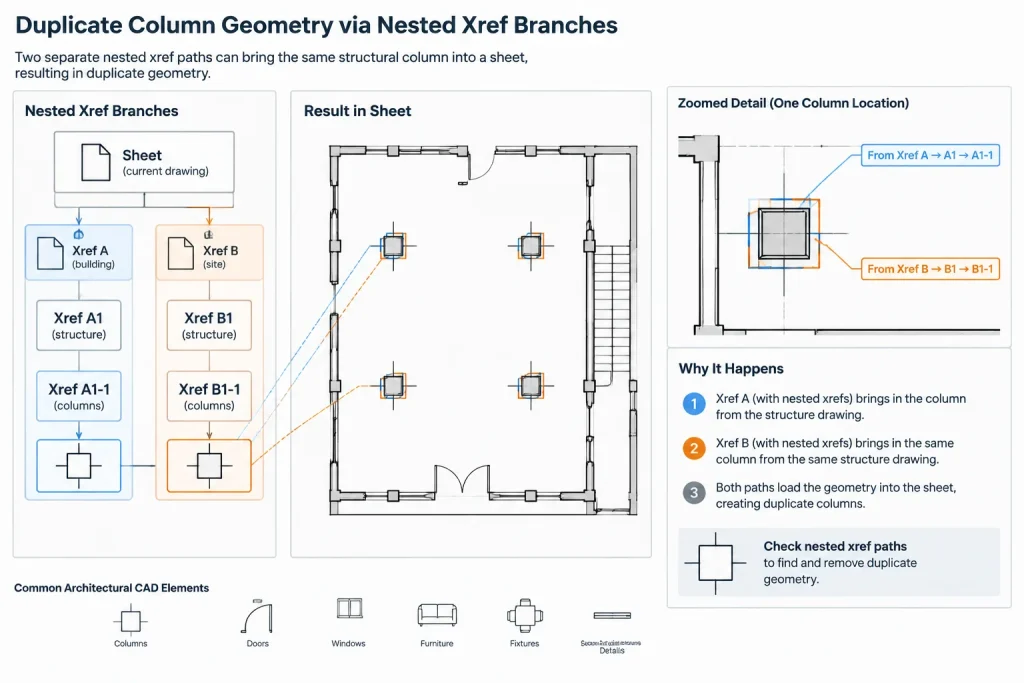
- Lines that appear unexpectedly heavy even though object properties seem correct.
- Repeated text, grids, columns, or room information.
- Two similarly named references in different branches of the xref hierarchy.
- Layer controls that seem to affect only one copy of visible geometry.
- A larger or slower drawing than the visible content would suggest.
Do not immediately erase or hide objects. First inspect the reference tree and determine how each instance entered the host file.
Finding and Correcting Circular References
A circular reference occurs when files eventually point back to one another. One DWG may reference a second file, while that second file directly or indirectly references the first. AutoCAD cannot resolve the loop as a normal reference chain.
To investigate a circular reference:
-
Open the External References palette and review the hierarchy rather than only the top-level file list.
-
Identify the reference branch that returns to a file already higher in the chain.
-
Open the file where the unnecessary relationship originates.
-
Detach the incorrect reference or change it to an overlay if it is needed locally but should not propagate.
-
Reload the affected references and confirm that the hierarchy now resolves as intended.
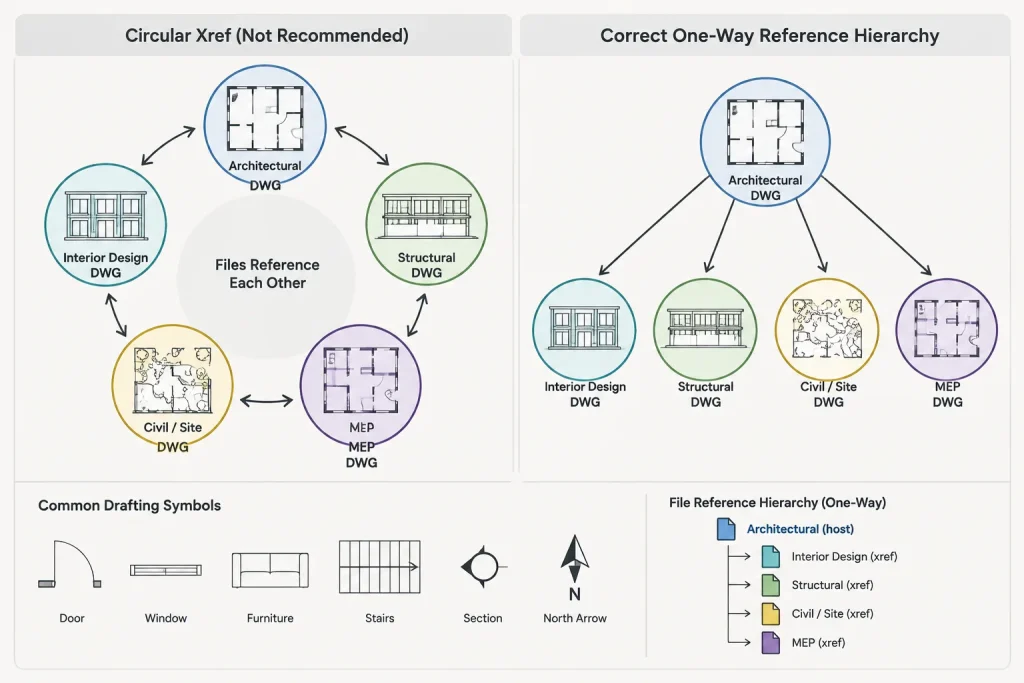
Changing every reference to an overlay can hide the organizational problem rather than solve it. Determine which file owns the information and which files merely need it for coordination.
Layer Management for Nested References
Nested references introduce additional xref-dependent layers. Their names reflect the reference hierarchy, helping distinguish external content from native layers. A complicated chain, however, can produce long layer lists and make visibility troubleshooting difficult.
Keep layer management practical by:
- Using stable, recognizable DWG names.
- Avoiding unnecessary chains of composite files.
- Applying layer filters or saved layer states where appropriate.
- Checking whether a layer belongs to the top-level xref or a nested reference before changing it.
- Testing viewport-specific settings on the sheet where they will be plotted.
If a nested layer cannot be controlled as expected, verify that the reference is loaded and that the visible object is not duplicated through another xref path.
Do Not Bind Xrefs Just to Simplify the List
Binding converts referenced content into information stored within the host drawing. That can be appropriate for a defined delivery or archival requirement, but it also breaks the live relationship with the source DWG. Future source updates will no longer flow into the bound content.
Before binding, confirm why it is required, preserve an unbound project copy, and inspect the resulting layers, blocks, and naming behavior. Binding should be a deliberate handoff decision, not a routine fix for poor reference organization.
Nested Xref Review Checklist
- Confirm that every top-level reference has a clear purpose.
- Expand the reference hierarchy and inspect nested dependencies.
- Use overlays for backgrounds that should stop at the immediate host.
- Use attachments only when nested content should accompany the parent drawing.
- Check for the same source DWG entering through multiple paths.
- Resolve circular relationships at their source.
- Verify saved paths and file availability before sharing the project.
- Reload references and review plotted sheets after changing the hierarchy.
- Document project-specific xref rules for the full team.
Final Workflow Principle
A reliable xref structure answers two questions: who owns the drawing information, and how far should that information travel? Overlays are effective for temporary or discipline-specific coordination backgrounds. Attachments are useful when referenced components are intended to remain with a parent drawing throughout the project hierarchy.
Review nested xrefs as part of drawing quality control, especially before issuing sheets, transmitting DWGs, or restructuring project folders. A shallow, intentional reference tree is easier to coordinate than a complex chain assembled without a clear propagation strategy.
A Simple Decision Method for Xref Type
Evaluate a reference according to ownership, destination, and propagation. Ownership identifies which discipline or drawing controls the source information. Destination identifies where the reference must be visible. Propagation determines whether it should continue when the host DWG is referenced elsewhere.
- Choose an overlay when the file is needed only as a local coordination background.
- Choose an attachment when the referenced content is an intentional part of an assembly that must travel with its parent.
- Review the hierarchy when the same source may already enter the destination through another branch.
- Follow the project CAD standard when the team has established reference ownership and delivery rules.
Quality-Control Questions Before Issuing Drawings
A visual check of the sheet is not always enough because overlapping references can look correct while still creating unnecessary dependencies. Review the reference tree and ask:
- Can the origin of every visible background be identified?
- Does each nested reference stop or continue at the intended point?
- Is any source DWG being introduced through more than one parent?
- Will recipients receive every file required to resolve the intended references?
- Do plotted views display only the disciplines and layers required for that sheet?
Record the reason for changing a reference type when the change affects shared files. This helps prevent another team member from reversing the decision without understanding its effect on downstream drawings.
Frequently Asked Questions
What is the main difference between an attached xref and an overlaid xref?
An attachment can continue into a downstream DWG when its host is referenced. An overlay appears in its immediate host but does not propagate through the next reference level.
Should consultant backgrounds usually be attached or overlaid?
They are commonly overlaid when they are needed for local coordination but should not automatically appear in downstream files. The correct choice still depends on the project’s documented CAD workflow.
Can changing an attachment to an overlay remove duplicate geometry?
It can prevent that reference from propagating through its host, but the complete hierarchy should be inspected first. Duplicate geometry may also result from the same source DWG being referenced directly through separate paths.
Does an overlay solve a missing xref path?
No. Attachment and overlay control propagation, not file availability. Missing or unresolved references require the saved path, file location, and transferred dependency set to be checked.
When should an xref be bound?
Binding may be appropriate for a defined handoff or archival workflow, but it removes the live relationship with the source drawing. It should not be used merely to conceal an unclear reference structure.
Why should the nested reference tree be checked before plotting?
The tree reveals dependencies that may not be obvious from the drawing display. Reviewing it can expose duplicate paths, unexpected nested files, and references that propagate farther than intended.