Architectural level datums organize vertical information across a drawing set. This guide focuses on the CAD decisions behind reliable datum annotation: defining the reference, identifying the measured surface, coordinating related views, and reviewing changes without separating annotation from geometry.
Use the workflow as a drafting and quality-control framework rather than as a substitute for project-specific survey information, office standards, consultant coordination, or professional review.
Architectural level datums provide a shared vertical reference for a building. They connect floor plans, elevations, sections, enlarged views, and details by identifying the heights of important building elements. When these markers are inconsistent, even a well-drafted drawing set can become difficult to interpret and coordinate.
A reliable datum workflow involves more than placing level symbols beside floor lines. The drafter must establish what each elevation represents, use a consistent project reference, distinguish design levels from actual field elevations, and update every affected view when the design changes. This guide explains how to organize that work in architectural CAD without treating a level marker as isolated annotation.
What Is an Architectural Level Datum?
A level datum is a stated vertical reference associated with a specific point, plane, or building element. In an elevation or section, it is commonly shown as a marker connected to a horizontal line or a precise point on the construction.
The marker may identify a finished floor, structural level, roof elevation, top of parapet, ceiling reference, landing, slab step, or another project-specific condition. Its exact meaning should be clear from the label. A value without a meaningful description can leave readers unsure whether it refers to finished construction, structural framing, or another surface.
Level datums are different from ordinary vertical dimensions. A dimension describes the distance between two references. A datum gives a reference an elevation relative to an established project base. Both may be needed: datums communicate the vertical system, while dimensions explain relationships between selected elements.
Establish the Vertical Reference Before Drafting
Every project should have a defined source for vertical elevation information. Depending on the project, levels may be based on a project datum, a survey datum, or another reference established by the design team. Do not assume that the drawing origin, the ground floor, and a surveyed elevation are automatically the same reference.
Before creating level annotations, confirm the following:
- Which reference controls the architectural elevation values.
- Whether values are project-relative, survey-based, or presented in both forms.
- What building surface each named level represents.
- How changes will be communicated between architectural and consultant files.
- Which drawing or project record is treated as the current source of truth.
If two vertical references must appear in the set, label them explicitly rather than relying on position or typography alone. A conversion between references should be verified from project information, not reconstructed from a plotted sheet or inferred from unrelated geometry.
Create a Consistent CAD Level Marker
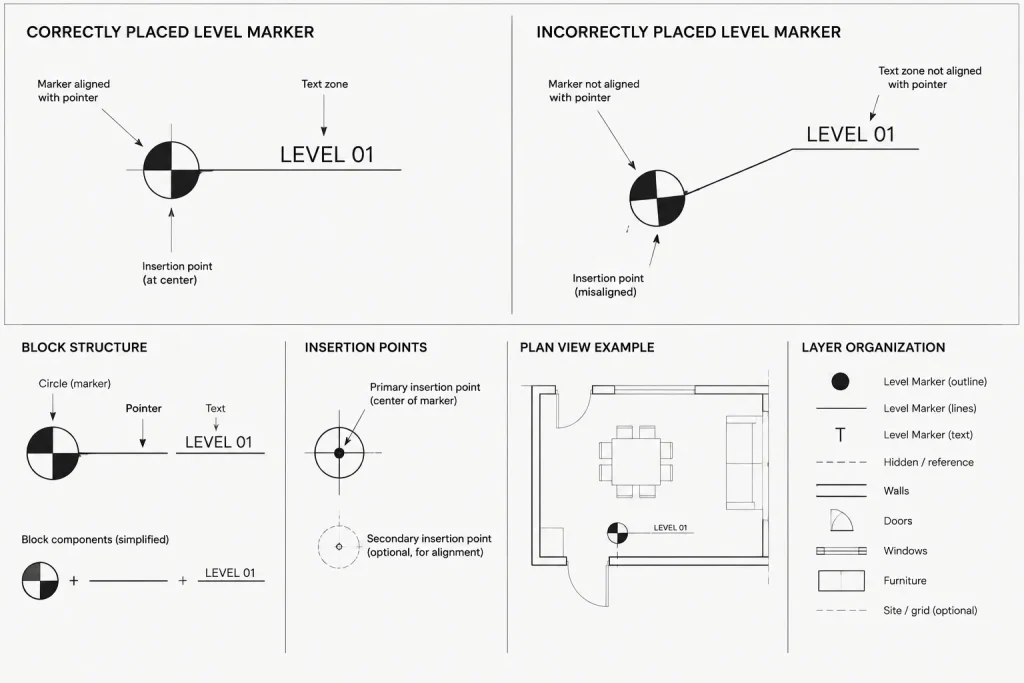
A reusable level marker is usually more dependable than separately drawn lines, text, and symbols. Build the marker as a clearly named block using the office’s approved graphic language. Keep the insertion point at the exact location that represents the measured elevation. This makes placement, movement, and verification more predictable.
A practical marker may contain:
- A pointer, target, or short datum line.
- A level name or element description.
- An elevation value.
- An optional qualifier identifying the reference system or surface.
- Attributes when editable data needs to remain organized inside the block.
Do not place the insertion point at an arbitrary corner of the symbol. The marker should snap to the floor line, roof edge, landing, or other reference it describes. Also avoid burying essential parts of the marker on unrelated layers. A predictable annotation layer and block definition make global visibility and plotting easier to manage.
Keep Graphics Legible at the Intended Sheet Scale
Level markers should be sized as annotation, not as physical building objects. Their text height, pointer length, and spacing must be evaluated in the plotted view. If a drawing uses annotative objects, confirm that the required scales are assigned and that the marker appears correctly in each viewport. If the office uses fixed-size annotation blocks, maintain separate controlled definitions where necessary rather than scaling markers randomly.
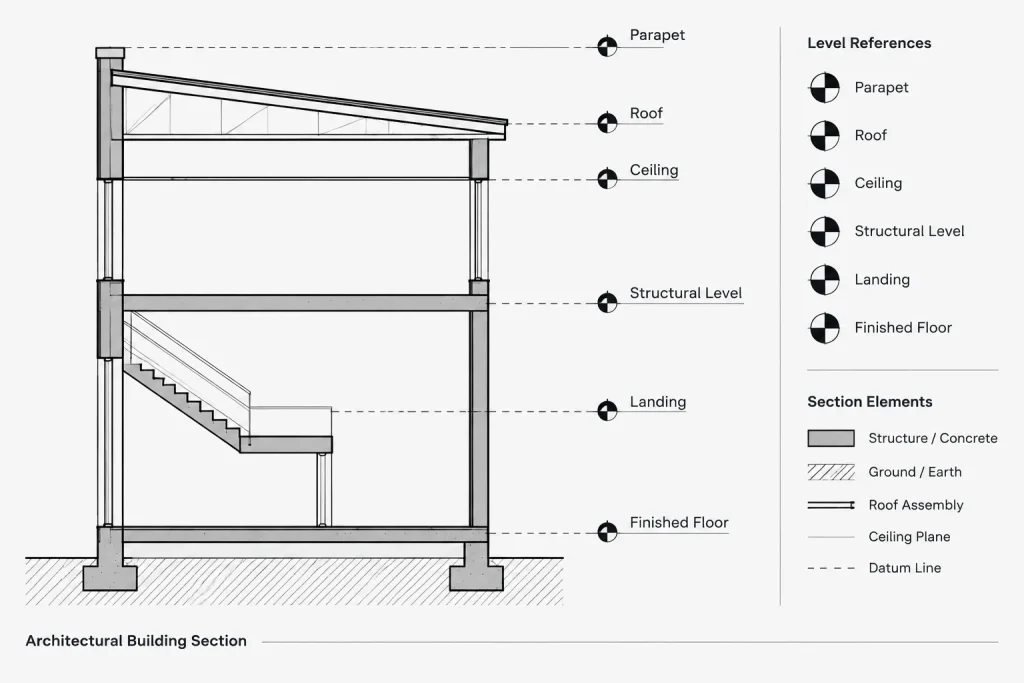
Place labels so they do not obscure wall profiles, floor assemblies, grids, dimensions, or break lines. In a dense section, markers may be aligned in a readable column, but their pointers must still communicate the correct reference.
Define What Each Marker Measures
One of the most common coordination problems is an ambiguous level label. For example, a floor assembly may contain a structural surface, underlayment, finish, and localized transitions. A generic floor label may not tell the reader which surface controls the stated elevation.
| Reference type | Drafting consideration | Coordination question |
|---|---|---|
| Finished floor | Point to the intended finished walking surface. | Do adjacent finish changes affect the stated level? |
| Structural level | Identify the structural surface or framing reference clearly. | Is the architectural buildup shown separately? |
| Roof level | Distinguish the roof surface, deck, edge, or parapet reference. | Does the roof slope make a single value insufficient? |
| Ceiling reference | Coordinate with reflected ceiling plans and interior elevations. | Is the marker describing the finish face or another plane? |
| Site or entry level | Relate the marker to the verified project or survey reference. | Is the same condition shown consistently on site and building drawings? |
Use labels that match the project’s established terminology. Do not alternate casually between similar abbreviations if they represent different surfaces. A concise note can prevent a costly interpretation error.
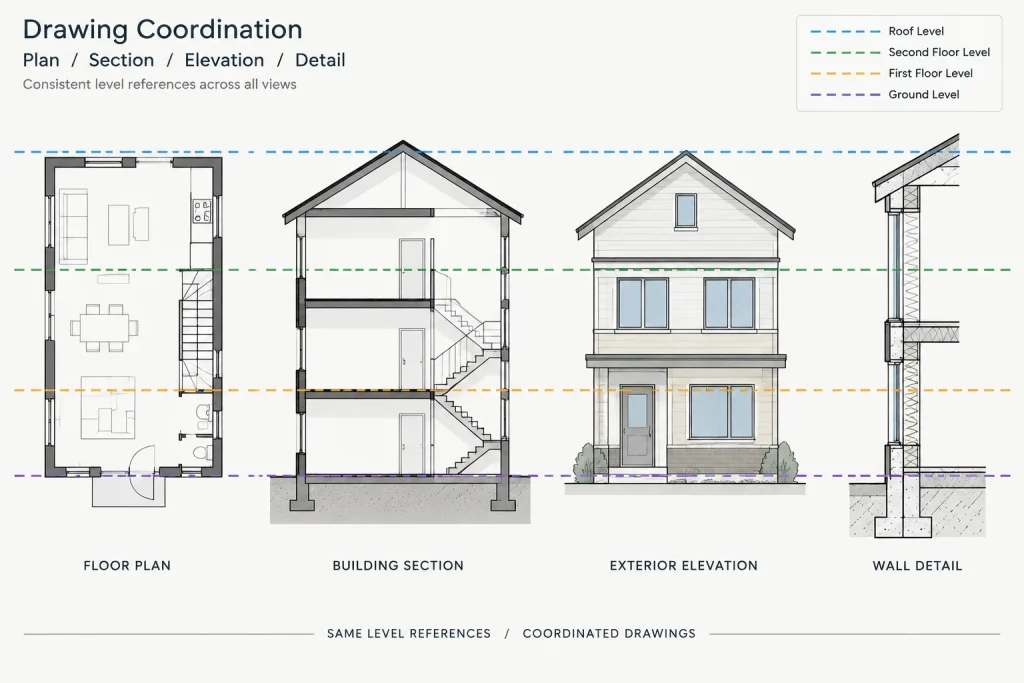
Coordinate Datums Across Drawing Types
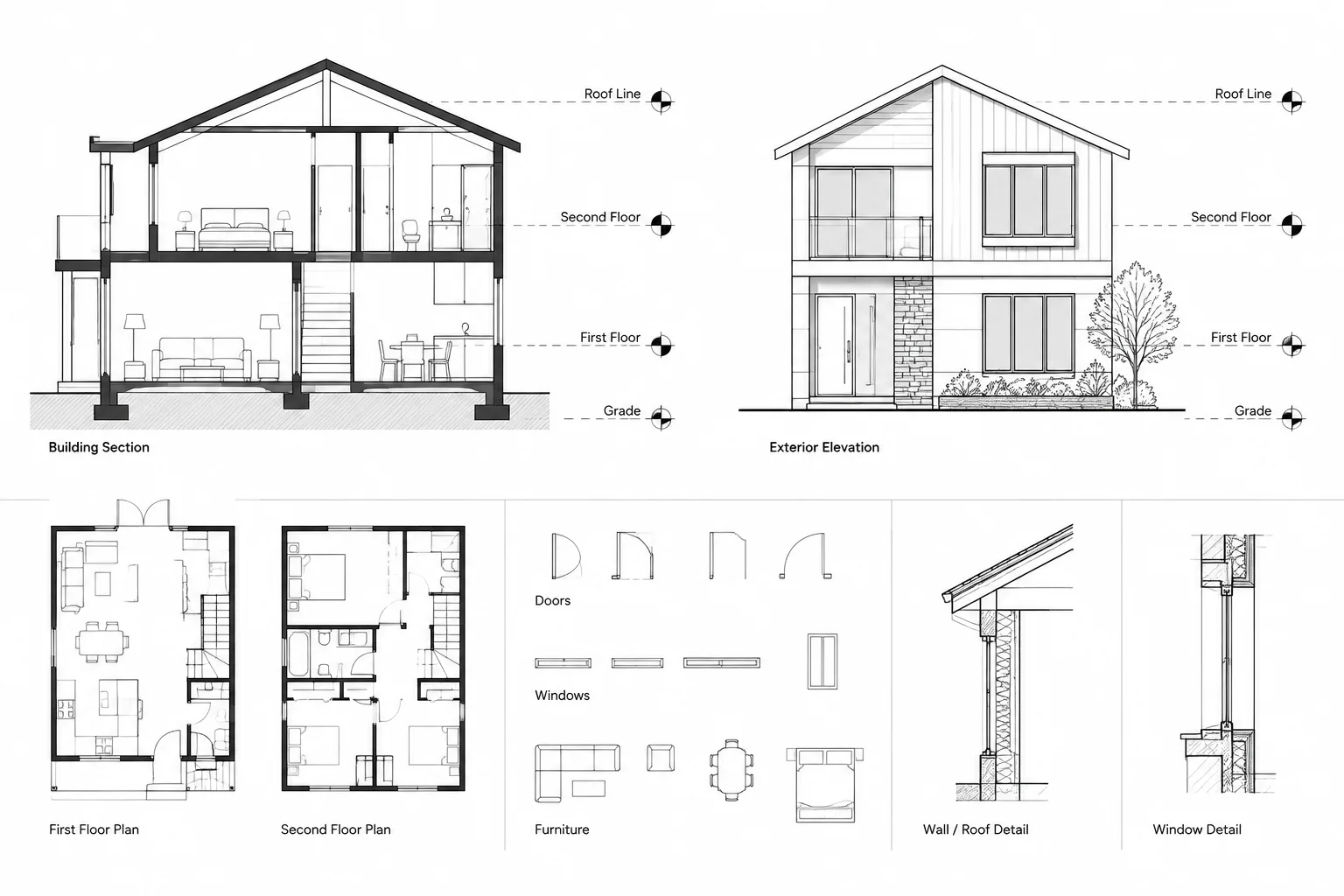
Floor Plans
Plans usually communicate vertical changes through spot elevations, level-change notes, slope information, stair references, or links to sections and enlarged views. Confirm that these values agree with the main building levels shown elsewhere. Pay particular attention to entrances, split levels, sunken areas, raised platforms, balconies, terraces, and changes in floor construction.
Building Sections
Sections often provide the clearest overview of the vertical system. Establish the primary levels first, then add secondary datums only where they improve understanding. Extending every possible level across an entire section can produce clutter and may imply that a localized condition continues through the building.
Exterior and Interior Elevations
Exterior elevation markers should correspond to the same references used in building sections. Interior elevations may need finished floor, ceiling, casework, opening, or feature levels, but these should not conflict with the controlling section. Where an interior elevation uses dimensions rather than repeated datums, its dimension chain should still reconcile with the project levels.
Wall Sections and Details
Detailed views may show more surfaces than general sections, including finish layers, structure, membranes, or roof edges. Avoid creating a new vertical reference simply because the detail contains additional geometry. Tie detailed information back to established levels and clearly identify offsets or local conditions.
Use a Level Register as a Coordination Tool
For a project with many drawings, maintain a simple working register of important levels. This can be an internal coordination table rather than a published schedule. Record the level name, controlling value, reference system, represented surface, source, and affected views.
The register helps separate approved project information from provisional drafting assumptions. It also provides a review checklist after floor-to-floor heights, roof profiles, site interfaces, or structural depths change. The register should support the drawings, not become an independent source that can drift out of sync.
A Reliable Revision Workflow
Changing a level is rarely a single-edit task. Use a controlled sequence:
- Confirm the revised value and what physical surface it represents.
- Identify plans, sections, elevations, details, and schedules affected by the change.
- Update controlling geometry rather than editing only the displayed text.
- Revise associated level markers, spot elevations, and vertical dimensions.
- Review stairs, ramps, doors, windows, ceilings, casework, and exterior interfaces influenced by the level.
- Coordinate updated backgrounds or reference files with other disciplines.
- Plot the affected sheets and perform a visual comparison before issue.
Editing a marker value without moving or verifying the referenced geometry creates false information. Conversely, moving the geometry without updating annotation leaves an obvious discrepancy. Treat the geometry and the reported value as a coordinated pair.
Common Datum Problems
- Markers point to different surfaces: Similar labels identify finish in one view and structure in another.
- Copied values remain unchanged: A duplicated section contains level text inherited from another location.
- Text is manually overridden: The displayed value no longer agrees with the marker location or drawing geometry.
- Local conditions appear continuous: A short step or roof change is shown as a full-building datum.
- Reference systems are mixed: Project-relative and survey-based values appear without clear identification.
- Xrefs are vertically misaligned: Referenced files use inconsistent insertion coordinates or base assumptions.
- Annotation is unreadable in the sheet: Symbols collide with dimensions or become too small at the viewport scale.
Final Quality-Control Checklist
- Verify the project vertical reference and terminology.
- Confirm every marker points to the intended surface.
- Compare primary levels across sections and elevations.
- Check plan spot elevations against related sections and enlarged views.
- Review roof, parapet, landing, entry, and floor-transition conditions.
- Look for duplicated or manually overridden values.
- Confirm referenced drawings are aligned vertically.
- Inspect annotation spacing and linework in plotted output.
- Recheck affected consultant backgrounds after revisions.
Architectural level datums are small graphic elements with project-wide consequences. A clear reference system, precisely constructed marker, consistent terminology, and disciplined revision process allow them to function as reliable coordination tools rather than decorative labels.
How to Apply the Datum Workflow During Drawing Review
A useful review starts with the controlling building section or other approved vertical reference, then follows each named level into the views where that condition appears. The goal is not merely to find matching text. Reviewers should confirm that every marker points to the same physical surface and uses the same reference system.
Review Geometry Before Annotation
Compare floor lines, roof profiles, landings, openings, ceilings, and site interfaces before checking the displayed elevation labels. If the underlying geometry is inconsistent, matching annotation may conceal rather than resolve the coordination problem.
Trace Each Level Through Related Views
Select a named level and follow it through sections, elevations, plans, enlarged views, and details. Where the level does not appear directly, examine the dimensions, spot elevations, and referenced geometry that depend on it. This view-by-view trace is especially useful after design revisions or updated consultant backgrounds.
Separate Global Levels From Local Conditions
A primary building level may apply across many views, while a slab recess, threshold, roof transition, or localized platform applies only within a limited area. The graphics should make that distinction clear. Extending a local datum too far can suggest continuity that the building geometry does not support.
Check the Published Sheet, Not Only Model Space
Datum markers can appear correct while drafting but become crowded, clipped, or visually disconnected in the sheet layout. Review the plotted composition with dimensions, grids, section graphics, notes, and referenced linework visible. Clear placement is part of technical accuracy because the pointer and label must remain associated with the intended surface.
Datum Information for CAD Handoffs
When files pass between team members or disciplines, communicate the vertical reference in plain language. Identify the controlling source, explain what named levels represent, and flag any local exceptions or provisional values. Do not expect the drawing origin, file insertion point, or similar-looking level text to explain the reference system by itself.
A clean handoff also avoids unexplained text overrides and duplicate marker definitions. Consistent block naming, annotation layers, attributes, and reference-file placement make it easier for another drafter to audit the information without guessing how the file was assembled.
Frequently Asked Questions
What is the difference between a level datum and a vertical dimension?
A level datum states the elevation of a point or plane relative to an established reference. A vertical dimension reports the distance between selected references. They serve related but different purposes and may appear together.
Should finished floor and structural level use the same marker?
They may use a consistent graphic family, but the label and pointer must identify the intended surface unambiguously. If both references are required, distinguish them rather than relying on readers to infer the difference from nearby linework.
Can a datum value be edited without changing the drawing geometry?
Only when verified project information confirms that the geometry remains correct and the annotation alone is wrong. In a design revision, the value, marker location, related geometry, dimensions, and dependent views should be reviewed together.
How should project-relative and survey-based elevations be shown?
Label the reference systems clearly and use only verified project information to relate them. Their relationship should not be inferred from the drawing origin, a plotted sheet, or unrelated geometry.
Why do level datums become unreliable in referenced CAD files?
Problems can occur when files use different base assumptions, insertion coordinates, reference systems, or manually overridden labels. Confirm vertical alignment and datum meaning when attaching or updating referenced drawings.
Where should a CAD level marker insertion point be located?
Place it at the exact point represented by the elevation. A meaningful insertion point helps the marker snap to the intended floor, roof, landing, or other surface and makes later verification more dependable.