When a CAD block is the wrong size, the fastest-looking fix is not always the correct one. A mismatch can originate in the block reference, the underlying definition, source and destination unit assumptions, nested content, or sheet presentation.
The workflow below helps isolate the cause before any geometry is changed. The goal is to preserve measurable model-space relationships, avoid unintended updates to repeated blocks, and leave a correction that other CAD users can understand and verify.
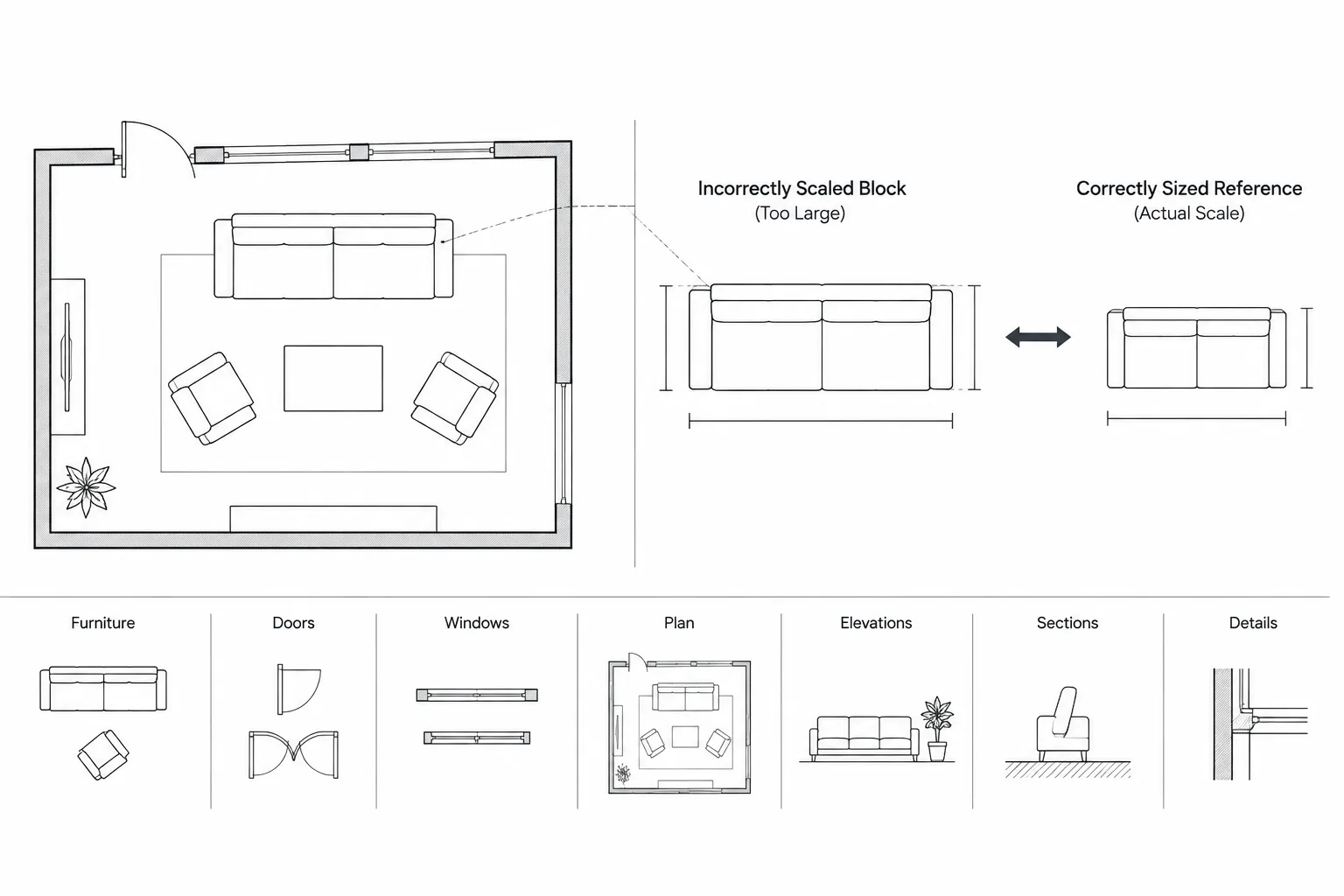
A CAD block that arrives much larger or smaller than expected is usually not a drawing failure. More often, the source file, destination drawing, or block definition carries a different assumption about units. The visible error may also come from an insertion scale, nested block, or geometry that was drawn at a convenient size rather than its real-world size.
The safest response is not to drag the block until it looks right. Architectural plans depend on measurable relationships. A chair, door, appliance, fixture, tree symbol, or site component should be checked against verified information before it becomes part of a working drawing.
This guide explains how to identify the source of a block scale problem, correct it without damaging other content, and reduce similar errors in a shared DWG library.
Start by Separating Units from Scale
Units and scale are related, but they are not the same thing.
- Drawing units describe what one drawing unit is intended to represent, such as an architectural or metric unit.
- Geometry size is the actual distance between points in model space.
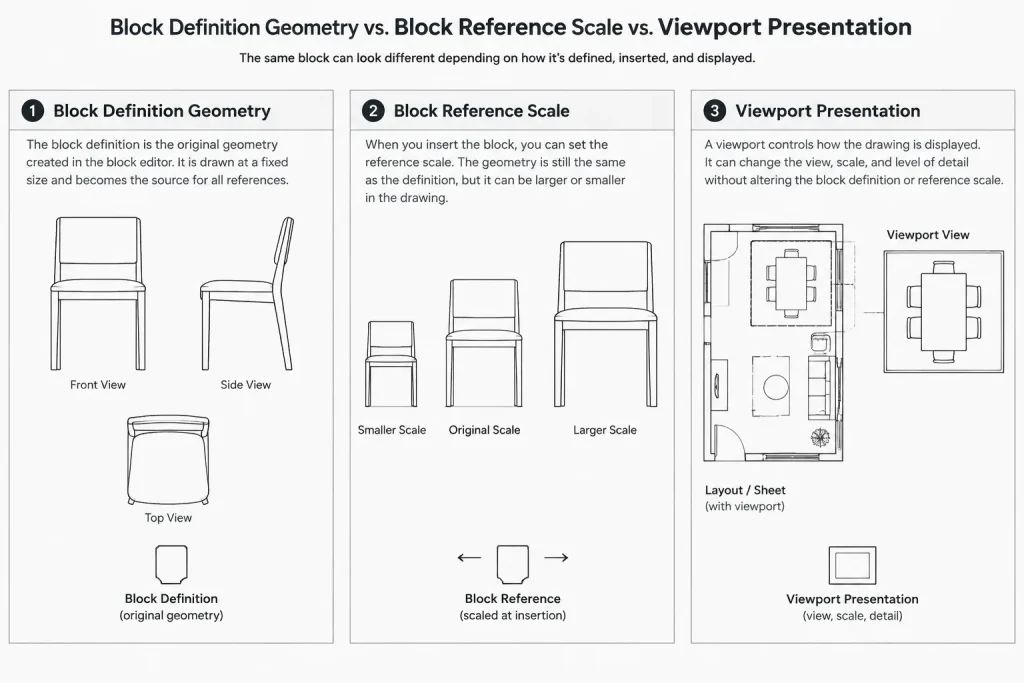
- Insertion scale is the scale applied to a block reference after its definition is inserted.
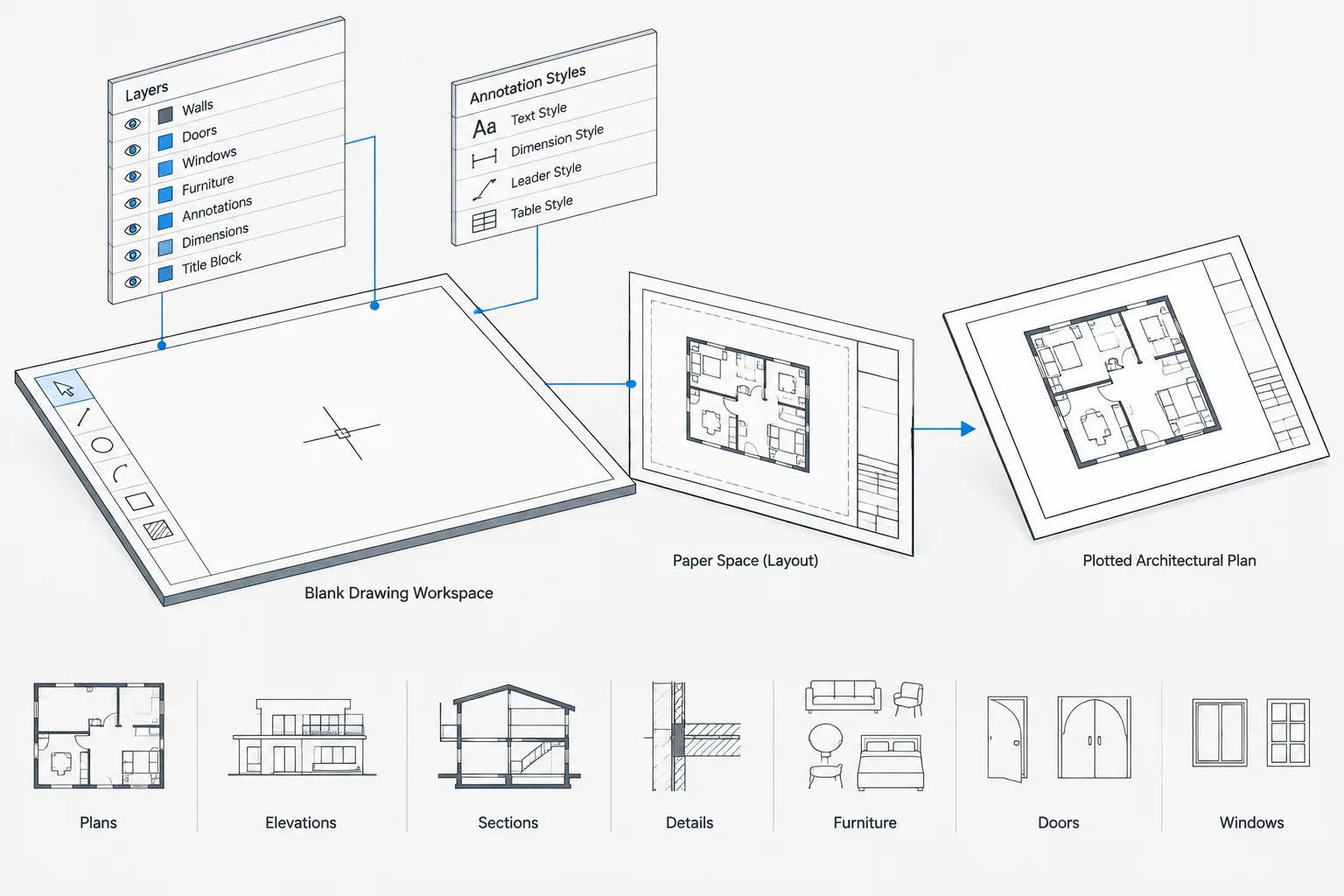
- Plot or viewport scale controls how model-space geometry appears on a sheet. It should not be used to correct an incorrectly sized object.
A block can have correctly drawn geometry but receive an incorrect insertion scale. It can also have a neutral insertion scale while its underlying geometry is the wrong size. These conditions require different corrections.
Do Not Trust Appearance Alone
Visual comparison can reveal that something is suspicious, but it cannot establish the correct size. Nearby walls, furniture, imported backgrounds, and viewports may also be incorrectly scaled.
Identify at least one trustworthy reference before making a correction. Depending on the content, that reference might be:
- A verified dimension supplied by a manufacturer or project document
- A known opening shown in a coordinated plan
- A surveyed distance in a site background
- A confirmed grid spacing
- A project geometry element already checked against the design source
Generic CAD blocks should not be treated as product specifications. If an exact product or code-dependent clearance matters, verify it from the applicable project source rather than assuming the downloaded geometry is authoritative.
A Step-by-Step Troubleshooting Workflow
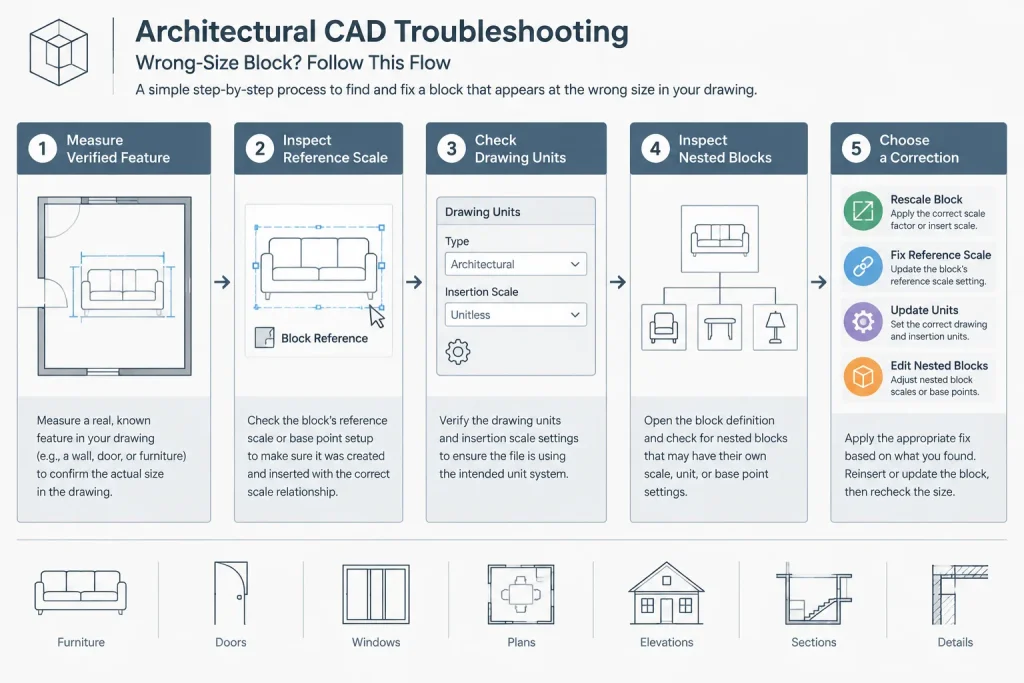
1. Work on a copy or controlled test area
Before redefining or scaling anything, save a recovery copy or place a test instance away from production geometry. If the same block definition appears throughout the drawing, editing the definition may change every instance. A test area lets you investigate without unexpectedly altering the plan.
2. Measure the inserted object
Use a distance or measurement tool to check a recognizable part of the block. Select endpoints that can be identified reliably. Avoid measuring across decorative curves, loose hatches, or ambiguous linework.
Record the measured distance and compare it with the verified target distance. The basic correction relationship is:
Correction factor = verified target distance divided by measured distance
This relationship helps diagnose the mismatch, but it should not automatically be applied to every object in the file. First determine where the error resides.
3. Inspect the block reference scale
Select the inserted block and review its scale properties. Check all axes rather than looking at only one. A block may be uniformly scaled, or it may have different values along different axes.
Unequal axis values can distort circles, door swings, furniture, and other components. Unless intentional deformation is part of the block design, architectural content should generally retain its proportions. Confirm the intended behavior before resetting or changing any scale value.
4. Open or inspect the block definition
If the reference scale appears reasonable, inspect the geometry inside the definition. Measure the same recognizable feature there.
This distinguishes two common cases:
- The definition is correct, but the reference is scaled incorrectly. Correcting the selected reference may be sufficient.
- The definition itself is drawn at the wrong size. The source geometry or definition must be corrected, preferably in a controlled library file.
Be careful when editing a definition already used in multiple locations. Correcting its geometry can update all references in the drawing.
5. Check source and destination unit assumptions
Review the intended units of both the source content and the receiving drawing. AutoCAD can use drawing unit settings and insertion-unit information to calculate a conversion when content enters another file. If unit information is missing, neutral, or incorrectly assigned, the resulting conversion may not match the geometry’s actual meaning.
Do not change a drawing’s unit settings merely to make one block look correct. Confirm the drawing-wide convention first. A project file containing walls, grids, dimensions, and consultant backgrounds may rely on its existing unit setup.
6. Look for nested blocks
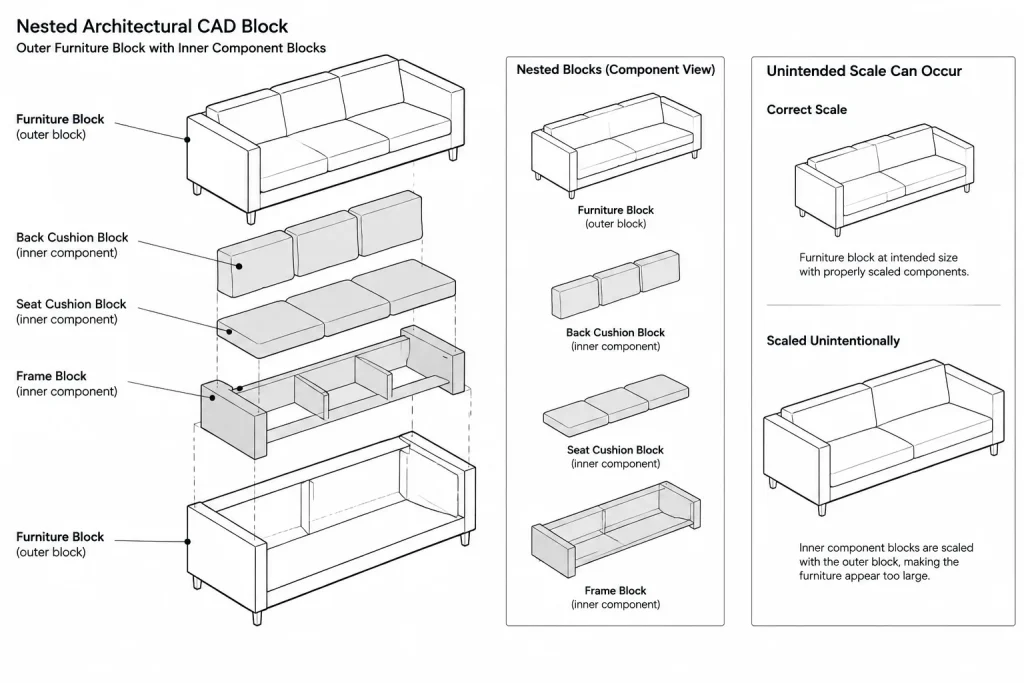
A block may contain other block references. The outer reference can appear to have a normal scale while an inner component carries an additional scale factor. This can produce confusing results, especially when blocks have passed through several files or library systems.
Inspect the hierarchy until you find the level at which the geometry changes size. Correcting the outermost reference may hide the symptom while leaving a poorly constructed definition in the library.
7. Check whether the content is an xref instead
An external reference resembles an inserted block in many workflows, but it remains linked to another drawing. If an xref is the wrong size, verify the source file’s units, geometry, attachment scale, and project coordinate expectations before modifying it.
A consultant background should not be scaled casually to align with architectural work. Scaling may conceal a unit mismatch or coordinate problem and can compromise later file exchanges.
Choosing the Right Correction
| Observed condition | Likely cause | Preferred response |
|---|---|---|
| One inserted instance is wrong while other instances are correct | Reference-level scale was changed | Correct or replace that reference after verification |
| Every instance of the block is consistently wrong | Definition geometry or source-unit assumption is incorrect | Repair the controlled definition and review affected instances |
| The object is stretched differently in each direction | Nonuniform scale values | Restore intended proportions or replace the distorted reference |
| A linked background is globally too large or small | Source and host unit mismatch | Resolve units with the file originator before scaling project geometry |
| Only part of a block is incorrectly sized | Nested reference or mixed source geometry | Inspect and repair the internal hierarchy |
| The block measures correctly but prints at an unexpected size | Viewport, annotation, or page setup issue | Troubleshoot sheet presentation rather than model geometry |
When to Scale a Reference and When to Redefine It
Scaling a single reference can be appropriate when the definition is intentionally generic or when that instance is meant to vary. For example, some diagrammatic symbols are designed for controlled graphic scaling rather than physical representation.
Redefining the source is more appropriate when a library component is intended to represent real-world geometry and every use should remain consistent. Doors, fixtures, appliances, furniture, and equipment often benefit from stable, verified definitions.
Avoid scaling physical components merely to make them fit a design. If a door, fixture, or piece of furniture does not fit the available space, that may indicate a design coordination issue. Changing the block’s proportions can conceal the conflict.
Common Mistakes That Create New Problems
- Scaling by eye: The result may look plausible while remaining measurably wrong.
- Using a paper-space viewport to compensate: This changes presentation, not the model’s physical relationships.
- Exploding the block immediately: Exploding can remove useful structure and make repeated corrections harder.
- Changing the entire drawing’s units for one object: This can disrupt other inserted content and coordination backgrounds.
- Ignoring unequal axis scales: A block can have the expected overall width while its internal geometry is distorted.
- Redefining a shared block without review: All references using that name may update.
- Assuming a familiar object has a universal size: Products and project requirements vary, so recognizable content still requires verification.
Preventing Scale Errors in a CAD Block Library
A well-managed library should communicate unit intent and make verification easy. For each reusable block, consider maintaining:
- A consistent real-world drafting convention for physical components
- A clearly selected insertion point
- Source information or a note describing what was verified
- A simple preview or test drawing showing the block beside known project geometry
- Separate categories for physical components and diagrammatic symbols
- A review process before downloaded content enters the office library
Test newly acquired content in a clean drawing before inserting it into a live project. Measure it, inspect its layers, check its insertion behavior, and look for nested definitions or unrelated objects. Renaming and standardizing the approved library copy can also reduce conflicts with generic block names already present in project files.
Final Quality-Control Check
After correcting a wrong-size CAD block, verify more than its overall width or height. Confirm that its proportions remain intact, its insertion point still supports placement, and its linework aligns with nearby geometry. Review tags, attributes, hatches, and nested components if present.
Finally, regenerate or reopen the relevant view and inspect the plotted sheet. The model should measure correctly, and the sheet should display it at the intended viewport scale. Treat those as separate checks: correct model geometry first, then correct drawing presentation.
A dependable correction is one that can be explained. You should be able to identify the verified reference, describe where the mismatch occurred, and show why the chosen fix does not compromise other instances or project files.
Turn the Diagnosis Into a Repeatable CAD Review
Once the immediate mismatch is corrected, document where it occurred. Record whether the problem belonged to the inserted reference, the block definition, an internal nested reference, an external reference, or the sheet setup. This distinction helps prevent the same faulty content from returning through another project file.
Compare a Clean Test With the Project Result
If the cause remains unclear, place the source content in a controlled test drawing and measure the same recognizable feature used in the project. A correct result in the test drawing points toward the receiving file, insertion behavior, or an existing definition with the same name. An incorrect result in both locations points toward the source geometry or its assigned unit meaning.
Watch for Existing Definitions With Matching Names
A project may already contain a block definition that uses the same name as incoming content. In that situation, the inserted reference may display according to the definition already stored in the destination drawing rather than the geometry the user expected. Inspect the active definition before assuming that the downloaded or transferred file is defective.
Preserve an Audit Trail
- Identify the trusted project or manufacturer reference used for verification.
- Note whether the change affected one reference or the shared definition.
- Review other instances after any definition-level repair.
- Keep unverified content outside the approved office library.
- Tell collaborators when a coordinated background or reusable component has been corrected.
This small record is especially useful when several people exchange DWG files. It converts a visual adjustment into a traceable drafting decision and reduces the chance that an earlier, incorrectly sized version will be reintroduced.
A Useful Diagnostic Principle
Correct the problem at the level where it begins. A reference-level error should not require rebuilding sound source geometry, while a faulty library definition should not be hidden by repeatedly scaling individual insertions. Model geometry and sheet presentation should also remain separate: first confirm that the object measures correctly, then confirm that the viewport and page setup display it as intended.
Frequently Asked Questions
Why does a CAD block insert much larger or smaller than expected?
The source and destination drawings may assign different meanings to their drawing units. The block reference may also carry an applied scale, or the geometry inside the definition may not have been created at its intended real-world size.
Should I scale the block until it looks right?
No. Measure a recognizable feature and compare it with a verified project, product, survey, or design reference. Scaling by appearance can preserve a hidden error or introduce a new one.
Why is only one instance of the block the wrong size?
That reference may have different scale properties from the other instances. Inspect the reference itself before editing the shared definition, because changing the definition can affect every occurrence that uses it.
Why does the block remain wrong after I reset its reference scale?
The underlying definition may contain incorrectly sized geometry or a nested reference with its own scale. Inspect the definition hierarchy and measure the geometry at each relevant level.
Can a block measure correctly but still print at the wrong size?
Yes. If model-space measurements are correct, investigate the viewport, annotation behavior, and page setup. Do not alter correct model geometry to compensate for a sheet-presentation problem.
Should I explode a wrong-size block before fixing it?
Usually not as a first step. Exploding can remove the reusable structure, separate attributes from their intended behavior, and make repeated corrections harder. Diagnose the reference and definition before deciding whether disassembly is necessary.
Why should an xref be handled differently from an inserted block?
An xref remains connected to an external drawing and often participates in a broader coordination workflow. Confirm its source units, geometry, attachment settings, and coordinate expectations with the file originator before applying a scale correction.