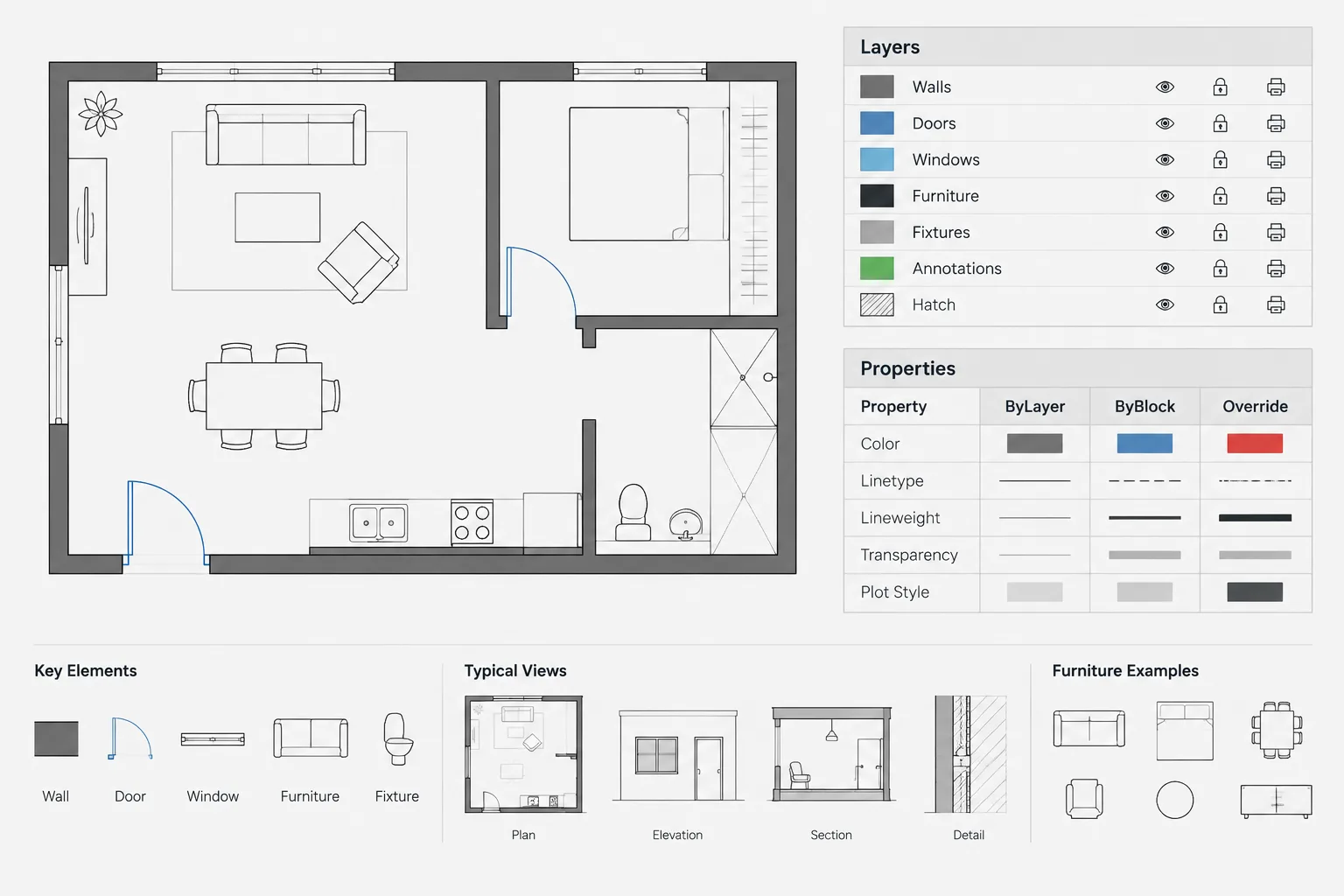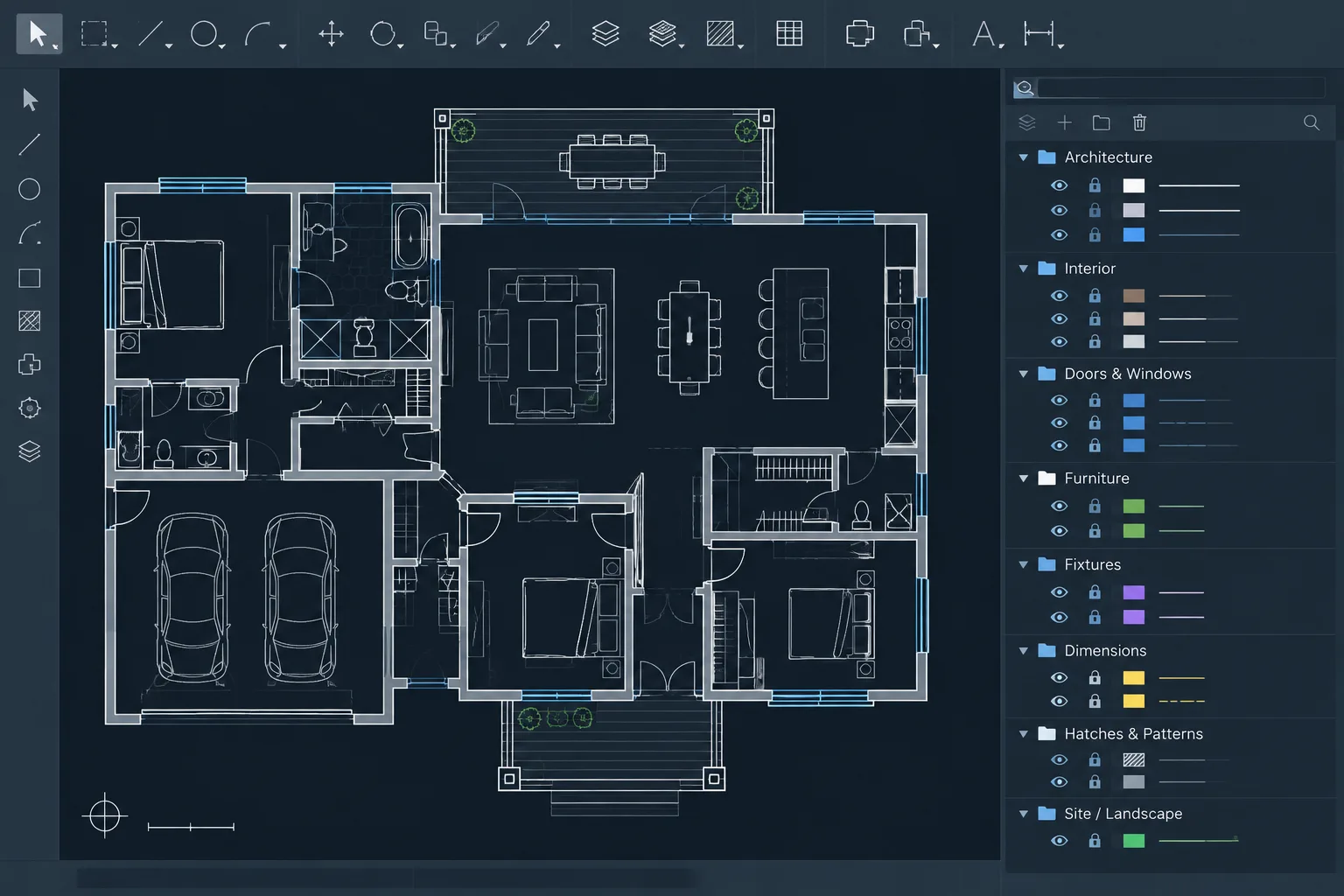
Layer filters in architectural CAD help drafters work through crowded layer lists without changing the underlying drawing organization. Their value becomes especially clear when host-file content, consultant references, annotation, existing conditions, and temporary coordination graphics appear in the same file.
The key is to treat filtering as a navigation method rather than a visibility command. A thoughtful filter structure makes layers easier to find and review, while the complete layer list remains the final reference for drawing-wide quality control.
Architectural drawings can accumulate a large number of layers as plans, annotations, consultant backgrounds, demolition graphics, details, and external references are combined. A well-designed naming convention helps, but names alone do not make a long layer list easy to navigate. Layer filters provide a practical way to display only the layers relevant to the task at hand.
A filter does not normally alter drawing geometry or permanently reorganize the file. It changes which layer names appear in the Layer Properties Manager, allowing the drafter to concentrate on a useful subset. This makes filters valuable for editing, troubleshooting, plotting review, and quality control—especially when a drawing contains externally referenced files.
What a layer filter does
A layer filter narrows the visible layer list according to selected criteria or a manually assembled group. For example, a drafter might create a filtered view containing only architectural dimensions, or one showing every layer received from a structural consultant.
Filtering the list is different from freezing, turning off, locking, or isolating layers. Those actions affect how drawing objects are displayed or edited. A filter primarily affects layer-list navigation. After applying one, the drawing may look exactly the same while the Layer Properties Manager becomes much easier to use.
This distinction is important. A filtered list should not be treated as proof that unrelated layers are off, frozen, or excluded from plotting. Always verify the actual layer properties and plotted result.
Property filters and group filters
Two filter approaches are especially useful in architectural CAD files.
Property filters
A property filter selects layers that meet defined conditions. The conditions may involve layer names or properties such as color, linetype, plot status, on/off state, frozen state, or locked state. Available criteria can depend on the software and drawing environment.
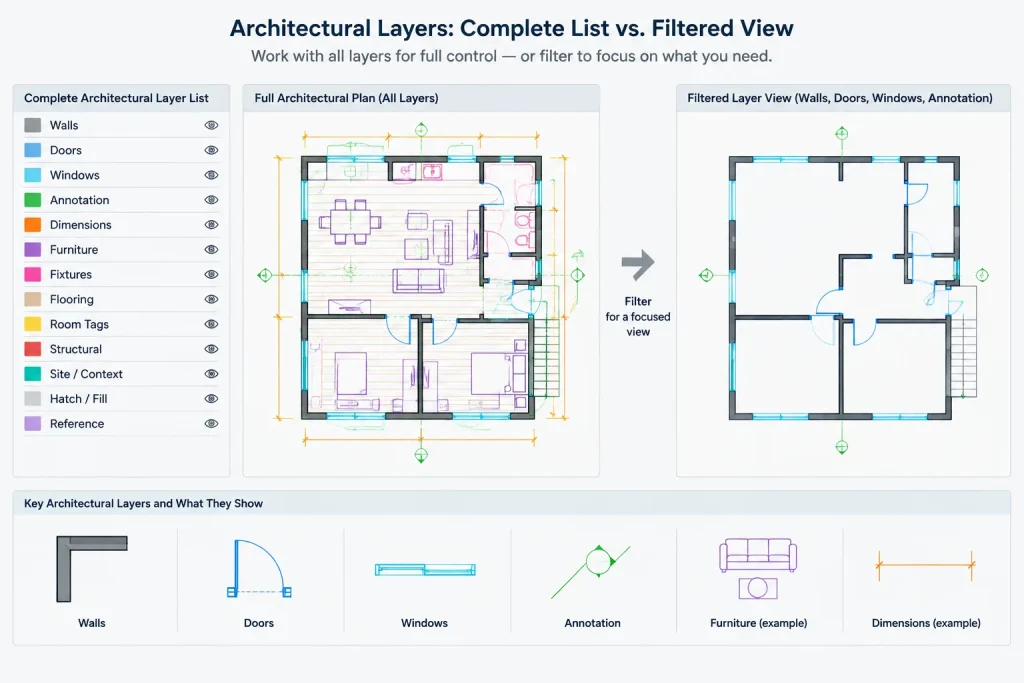
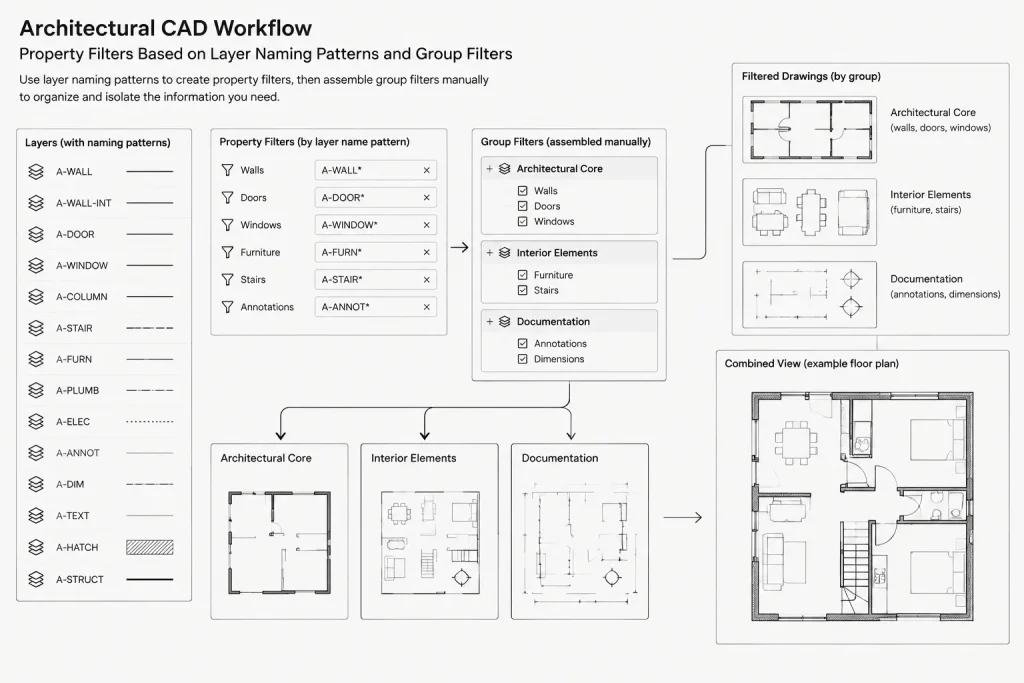
Name-based property filters are often the most dependable option when a project uses consistent layer naming. A rule can collect layers associated with doors, walls, dimensions, ceiling information, or another recognizable category. When a newly created layer matches the rule, it can appear in the filtered list automatically.
This automatic behavior makes property filters useful for standards-based drawings, but it also exposes inconsistent naming. A mistyped layer may disappear from an expected filter even though it remains in the drawing.
Group filters
A group filter is a manually curated collection of layers. It can combine layers that do not share a predictable name or property. A drafter might assemble a group containing the layers needed to revise a lobby plan, coordinate an enlarged restroom plan, or inspect reflected ceiling information.
Group filters offer direct control, but they require maintenance. New layers are not necessarily added automatically, and deleted or renamed layers can make a saved group less useful. They work best for deliberate task-based collections rather than as a substitute for a coherent layer standard.
| Filter approach | Best use | Main advantage | Common limitation |
|---|---|---|---|
| Property filter | Layers sharing a naming pattern or property | Can update as matching layers are added | Depends on reliable criteria |
| Group filter | Task-specific collections from unrelated categories | Allows manual selection | Requires ongoing maintenance |
| External-reference filter | Reviewing layers associated with attached references | Separates referenced content from host-file layers | Long or similar reference names can still be difficult to scan |
Build filters around real drafting tasks
A useful filter should answer a practical question. Avoid creating filters simply because a layer category exists. Too many filters can become another navigation problem.
Architectural teams may benefit from filters organized around tasks such as:
- Annotation review: dimensions, notes, tags, symbols, callouts, and reference markers.
- Plan geometry: walls, doors, windows, casework, fixtures, stairs, and major overhead information.
- Ceiling coordination: ceiling grids, soffits, lights shown in the architectural background, diffusers, access panels, and ceiling annotations.
- Demolition review: demolition geometry, notes, limits, and retained existing work where those categories are clearly separated.
- Nonplot review: construction lines, viewport controls, coordination aids, and other layers intended not to print.
- Consultant coordination: layers belonging to structural, mechanical, electrical, plumbing, civil, or landscape references.
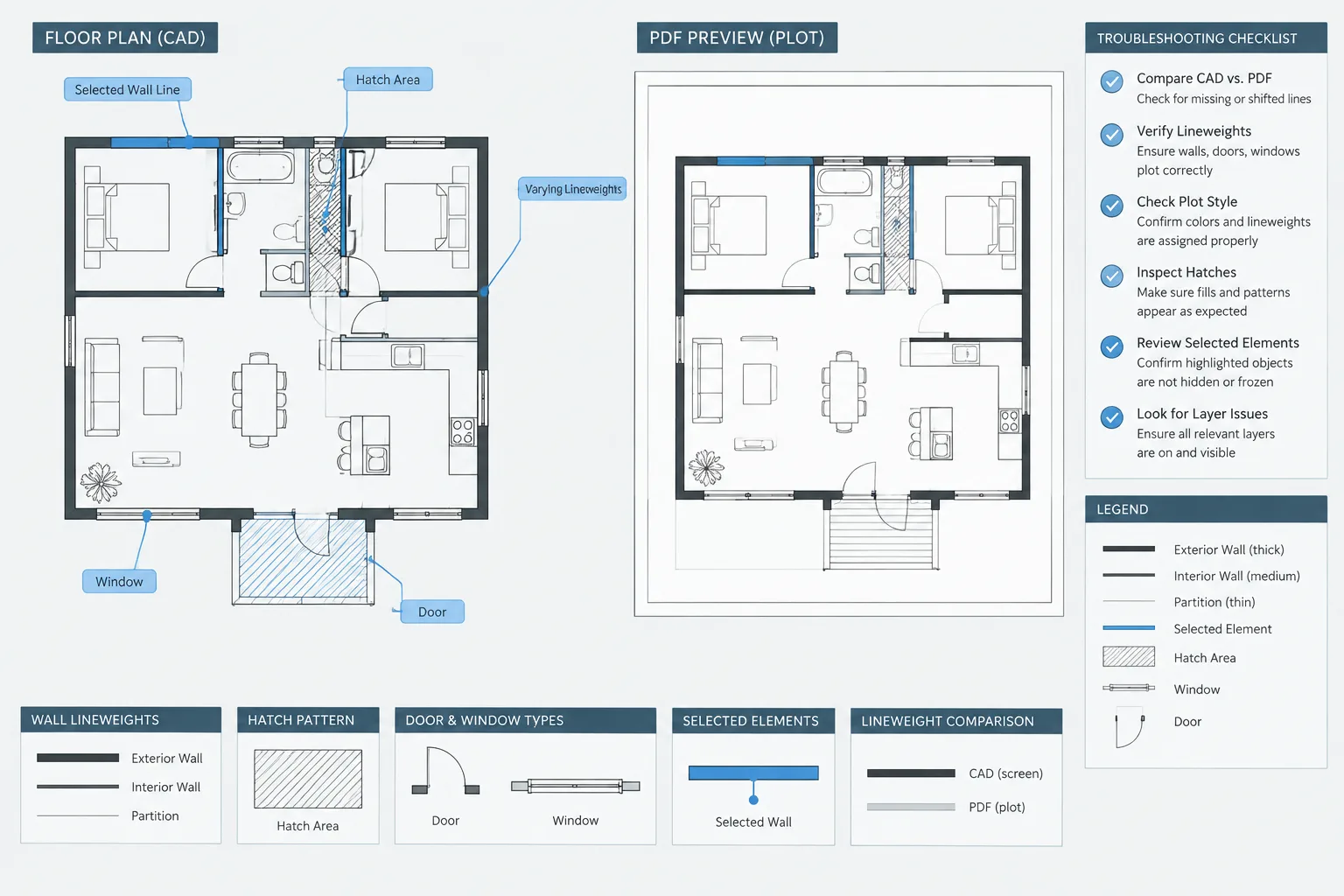
- Plot troubleshooting: layers with unusual colors, linetypes, lineweights, plot states, or viewport overrides.
The exact groupings should follow the project’s drawing structure. A filter named “Walls” is not useful if wall graphics are spread across unrelated names and disciplines without a dependable pattern.
A practical setup workflow
1. Inspect the complete layer list
Begin with the unfiltered layer list. Identify the host drawing’s layers, attached-reference layers, temporary content, imported layers, and naming inconsistencies. This prevents the filter structure from hiding existing problems.
2. Confirm the naming logic
Determine which part of each name identifies discipline, drawing content, status, annotation, or another project category. Do not assume that every file follows the same convention. Consultant files and legacy details may use different systems.
3. Create a small set of broad filters
Start with filters that support frequent operations, such as host-file layers, annotation, plan geometry, nonplot content, and external references. Test each filter against the full list before adding more specific ones.
4. Add temporary task groups when needed
Use group filters for focused work that crosses normal categories. A coordination group might include an architectural ceiling layer, selected structural framing layers, and relevant building-services layers. If the task is temporary, remove or rename the group afterward so its purpose remains clear.
5. Test new and renamed layers
Create or identify a representative layer that should match each property rule. Confirm that it appears in the expected filter. Also check whether the rule unintentionally captures unrelated names. A broad wildcard or partial-name condition can collect more layers than intended.
6. Return to the full list for final review
Before issuing or sharing the drawing, inspect all layers again. Look for objects placed on unintended layers, unexplained nonplot settings, frozen coordination content, or imported layers that were never reviewed. Filters accelerate work, but the complete list remains the authoritative inventory.
Managing externally referenced layers
External references often cause the largest increase in layer-list length. Referenced layer names commonly include an identifier showing which attached file they came from. This can help distinguish architectural layers from consultant content, but it also produces long lists when several references are loaded.
Use filters to separate host layers from referenced layers and, where helpful, to isolate a particular reference. This makes it easier to review visibility settings and viewport-specific presentation without accidentally changing similarly named host layers.
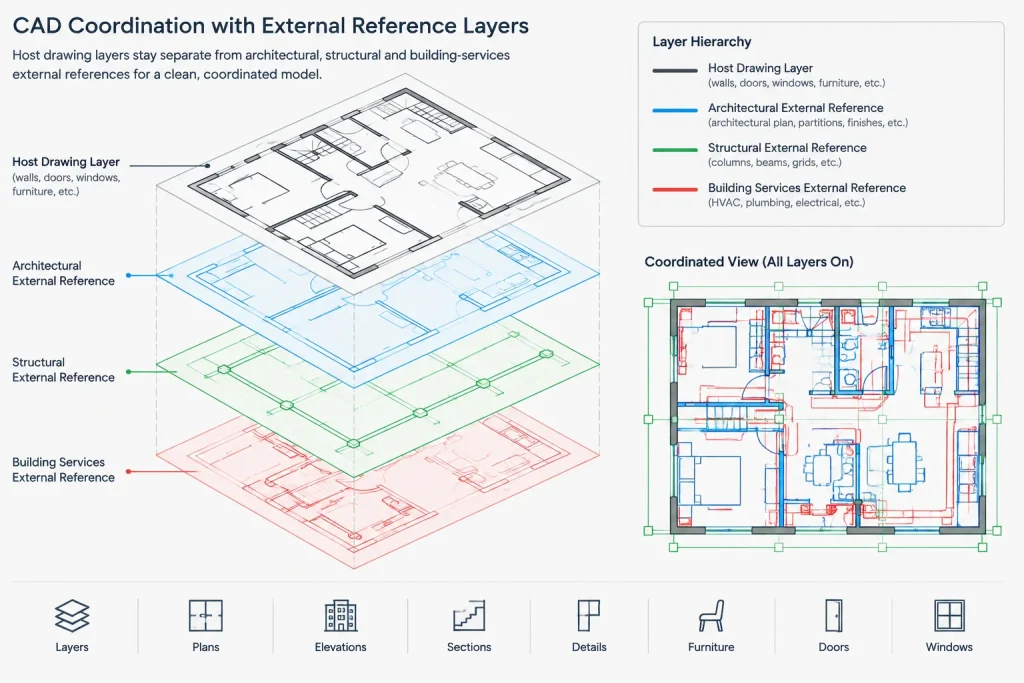
Be cautious when references are renamed, repathed, detached, or replaced. A filter based on a reference name may no longer return the expected layers. After any major reference-management change, verify the related filters rather than assuming they still work.
Using filters for quality control
Layer filters can reveal drawing inconsistencies when they are designed around review questions. Useful checks include:
- Which layers are set not to plot?
- Which layers are locked or frozen?
- Which layers use properties that differ from the project convention?
- Are annotation layers mixed with model geometry?
- Do imported or downloaded blocks introduce unexpected layers?
- Are reference-layer overrides still required?
These checks should be paired with visual review and test plots. A layer property may be technically correct while individual objects contain overrides or are placed on the wrong layer. Filters help narrow the investigation; they do not replace object-level inspection.
Common mistakes to avoid
- Confusing filtering with visibility: Removing a name from the displayed list does not necessarily hide its objects.
- Creating too many filters: A long filter tree can be as difficult to navigate as the original layer list.
- Relying on vague name matching: Short or ambiguous search patterns may collect unrelated layers.
- Ignoring manual group maintenance: Group filters can become incomplete after layers are added or renamed.
- Using filters to conceal poor organization: Duplicate, imported, or incorrectly named layers should be reviewed and corrected where appropriate.
- Editing referenced-layer properties without coordination: Presentation overrides may be necessary, but their effect should be understood and documented within the project workflow.
Keep the filter system understandable
Name filters according to their purpose rather than the person who created them. Clear labels such as “Host Annotation,” “Nonplot Review,” or “Structural Reference” are easier for another team member to understand than personal initials or vague terms such as “Working.”
If filters are distributed through a template, keep them broad enough to remain useful across projects. Project-specific group filters belong in the project drawing only when they support an ongoing workflow.
Architectural CAD layer filters are most effective when treated as navigation and review tools. They should reinforce a sound layer convention, not replace one. With a restrained filter structure, drafters can locate relevant layers faster, review consultant information more confidently, and troubleshoot complex drawings without losing sight of the complete file.
A decision framework for selecting a filter method
Choose the filter approach according to how reliably the desired layers can be identified. If they share a stable naming pattern or property, a property filter can remain useful as the drawing develops. If the required layers come from unrelated categories, a manually maintained group may provide better control.
- Use a property filter when the selection can be described by a clear and repeatable rule.
- Use a group filter when the selection reflects a temporary task, review area, or coordination purpose that cannot be inferred from layer properties.
- Use the complete layer list when auditing the file, investigating imported content, or confirming that a filter has not omitted an unexpected layer.
A useful test is whether another drafter could understand why each layer appears in the filtered list. If the reason is unclear, the filter name or selection logic may need refinement.
Troubleshooting an unexpected filter result
When an expected layer is missing, first return to the complete layer list and confirm that the layer still exists. Then review its spelling, properties, reference source, and current name against the filter criteria. This separates a filtering problem from a renamed, detached, or otherwise changed layer.
If a filter returns too many layers, examine the matching condition for ambiguous wording. A short name fragment may occur in several unrelated categories. Tightening the rule is generally more dependable than repeatedly removing unwanted layers from a task group.
Filter checks for drawing handoff
Saved filters can influence how quickly another team member understands a file, even though they do not replace project documentation. Before handoff, remove obsolete task groups, rename unclear filters, and confirm that property rules still return meaningful results.
Filters should also be checked after substantial changes to external references or layer naming. A filter may remain present while its results become incomplete, so the existence of a saved filter does not confirm that it is still accurate.
Frequently asked questions
Does a layer filter turn layers off or freeze them?
Not normally. A layer filter primarily limits which names are displayed in the layer-management list. Layer visibility and editability depend on separate properties such as on, off, frozen, locked, and viewport-specific settings.
Why is a layer missing from a property filter?
The layer may not satisfy the current rule. Check its name, properties, and source against the filter criteria. Naming inconsistencies and changes to external references are common causes.
When is a group filter better than a property filter?
A group filter is useful when a task requires layers that do not share a dependable name or property. It allows deliberate selection but must be reviewed when layers are added, renamed, or removed.
Can layer filters replace a naming standard?
No. Filters are most dependable when they build on consistent layer naming and organization. They can make a disorderly list easier to browse, but they do not correct duplicate, ambiguous, or incorrectly assigned layers.
Should filters be used during drawing quality control?
Yes, as focused review tools. They can help identify nonplot, locked, frozen, referenced, or unusually configured layers. Final review should still include the complete layer list, object-level inspection, and verification of the plotted result.
Do external-reference filters need maintenance?
They may. Renaming, replacing, detaching, or reorganizing a reference can affect name-based results. Review related filters after reference-management changes.