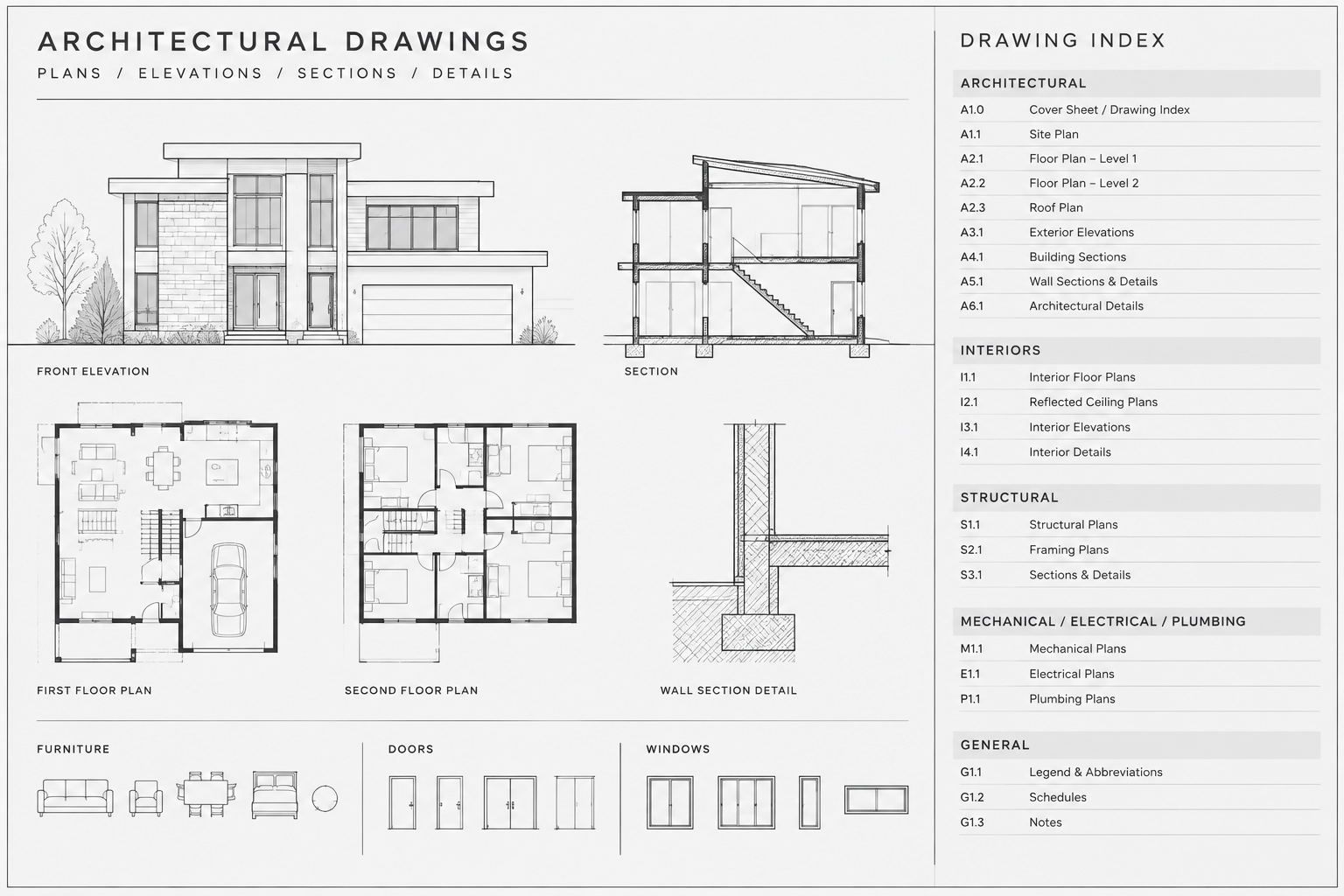
An architectural drawing index is more than a list of sheets. It helps readers understand the structure of a drawing set, confirms which sheets are included in an issue, and provides a central reference for sheet numbers and titles. When the index is maintained carefully, it also exposes coordination problems such as duplicate numbers, inconsistent titles, missing sheets, and outdated issue information.
The challenge is that a drawing index often repeats data already shown in title blocks. If the two locations are updated separately, they can drift apart. A reliable workflow therefore begins with a clear source of truth, consistent naming rules, and a defined review process. The following approach can be used in AutoCAD and adapted to other CAD platforms without depending on a particular office standard.
Decide What the Drawing Index Needs to Communicate
Before drawing the table, determine its purpose. A small architectural set may need only sheet numbers and titles. A larger or multidisciplinary set may also benefit from discipline headings, issue status, revision indicators, or notes identifying sheets that are not part of the current issue.
Include only information that the team can maintain accurately. Every additional column creates another coordination task. Information such as scale is often better kept in view titles because a sheet may contain several views at different scales.
| Index information | Practical use | Coordination concern |
|---|---|---|
| Sheet number | Provides the primary reference for each sheet | Must match the title block exactly |
| Sheet title | Describes the sheet’s principal content | Should follow one capitalization and naming convention |
| Discipline or group | Separates architectural sheets from consultant content | Categories should match the actual project organization |
| Issue status | Clarifies whether a sheet belongs to a particular package | Requires deliberate updates at every issue |
| Revision indicator | Highlights sheets affected by a revision | Must agree with revision records and title-block information |
The drawing index does not replace the formal issue record, project transmittal, or revision documentation. Its role should be defined by the project team rather than assumed.
Establish the Sheet List Before Formatting the Table
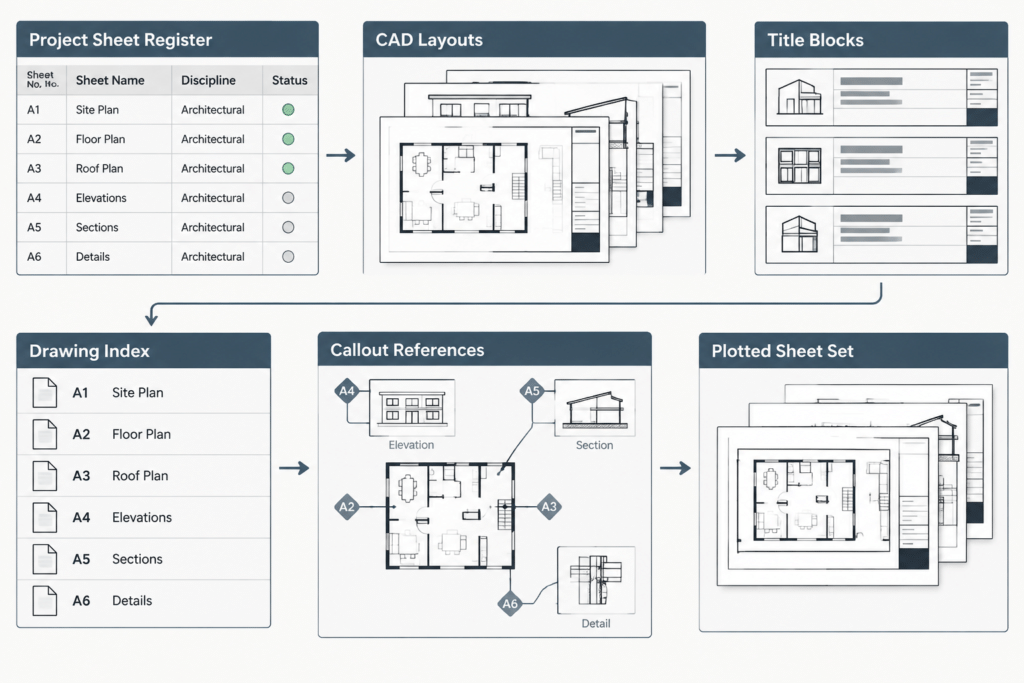
Build the sheet list from the current project files, not from an old index copied from another job. Review layout names, title-block attributes, issued PDFs, and the team’s drawing register as applicable. Resolve discrepancies before spending time on table graphics.
A working sheet list can begin in a spreadsheet or a plain project register. At minimum, track the proposed sheet number, exact title, file or layout location, responsible team member, and current status. Internal tracking fields do not all need to appear in the published index.
Check the list for common conflicts
- Two sheets using the same number
- A title block and index showing different titles
- Placeholder sheets that were never developed
- Layouts that remain in the DWG but are not intended for issue
- Sheets renamed after callouts were placed
- Consultant sheets listed under an incorrect discipline
- Removed sheets that disappear without an explanatory project record
This review should happen before final sheet references are coordinated. Changing a sheet number late in production can affect section markers, elevation references, detail callouts, notes, and external project documents.
Create a Clear Sheet-Numbering Logic
Sheet-numbering systems vary among firms, clients, agencies, and project types. Do not assume that one sequence is universally required. Use the applicable project requirements and document the chosen logic for everyone producing drawings.
A useful system generally allows a reader to identify a broad discipline or drawing group and distinguish one sheet from another. The sequence should also leave a practical way to add a sheet without forcing unnecessary renumbering across the entire set. However, excessive unused gaps can make the index harder to scan, so flexibility should be balanced with clarity.
Sheet titles should be concise but specific. Repeated titles such as “Plan” or “Details” are difficult to navigate. Qualifiers can identify the level, area, phase, orientation, or subject when needed. Apply the same word order across related sheets so they sort and read consistently.
Choose a CAD Index Method
There are several valid ways to create an architectural drawing index in CAD. The best choice depends on project size, team practices, and the reliability of the available sheet data.
Manual text and linework
A manually drafted index is simple and visually flexible, but every row must be checked by hand. It may be acceptable for a compact, stable set. Use aligned text objects and controlled spacing rather than approximating columns by eye.
CAD table
A native table object keeps rows and columns aligned and makes insertion or reordering easier. Establish a table style that controls text, cell margins, borders, and heading emphasis. Avoid excessive grid lines; alignment and spacing can often provide sufficient structure.
Linked or data-driven list
A linked workflow can reduce repetitive entry when sheet information is stored consistently in attributes, fields, a sheet-management system, or an external register. Automation does not eliminate review. Incorrect source data can populate the index efficiently while still being wrong.
Before adopting a data-driven method, test how it handles renamed layouts, added sheets, removed sheets, consultant files, sorting, and plotted output. Keep a documented fallback process so the index can still be verified if links break.
Format the Index for Fast Scanning
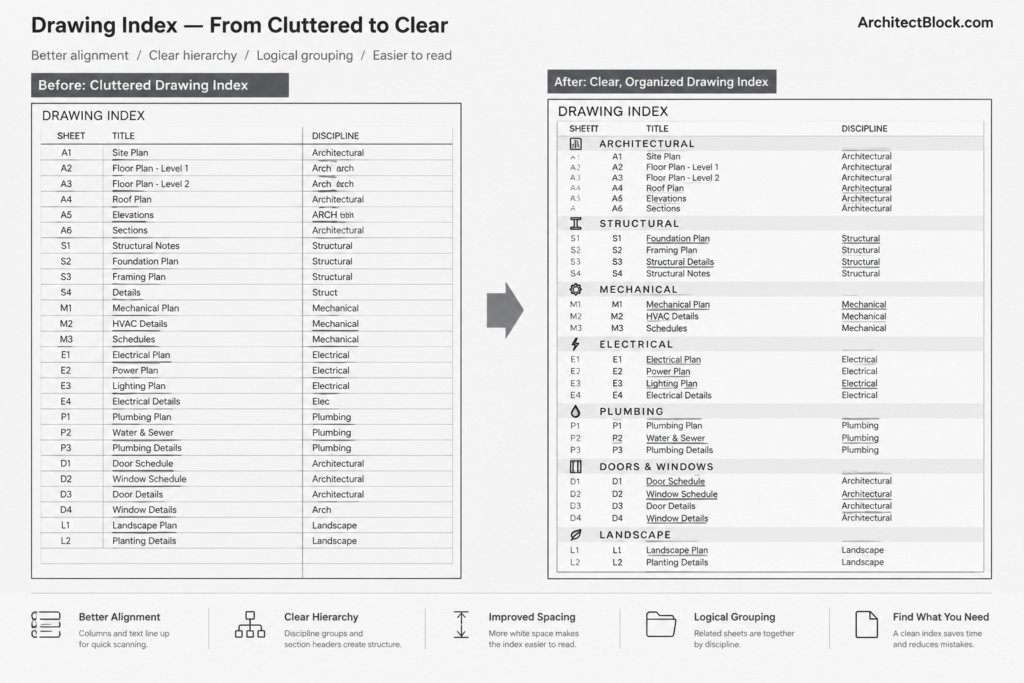
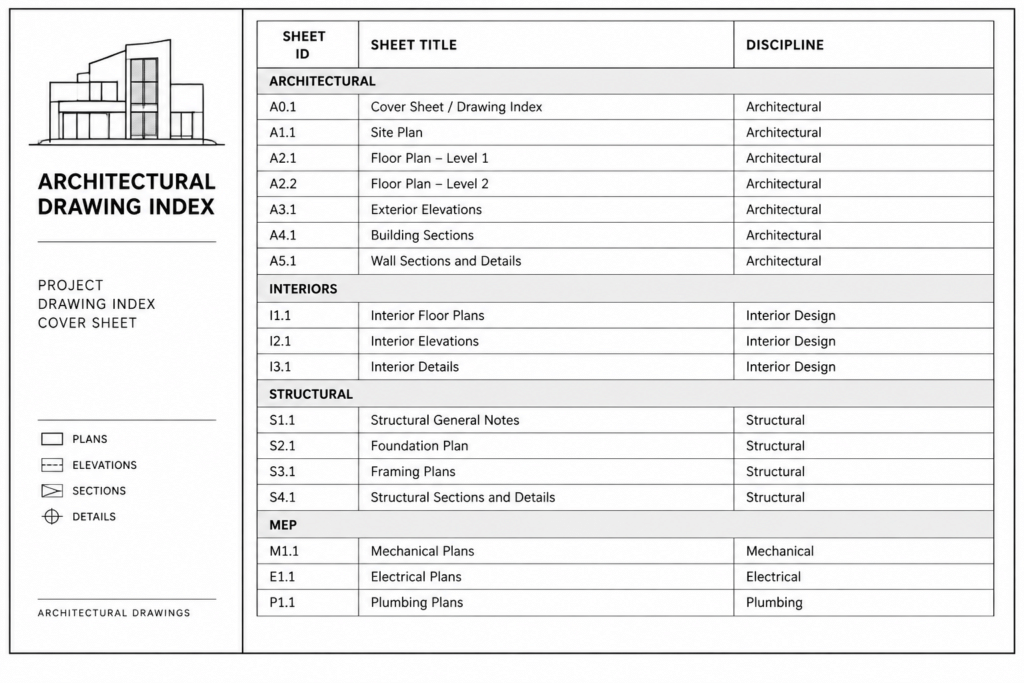
The index should be legible at the plotted sheet scale and fit the graphic language of the cover sheet. Create a clear hierarchy between the index title, discipline headings, sheet numbers, sheet titles, and optional status information.
- Align sheet numbers in a consistent column.
- Keep titles close enough to their numbers to read as pairs.
- Use discipline headings or restrained spacing to divide long lists.
- Avoid decorative borders that compete with the information.
- Use the same text style conventions applied elsewhere in the set.
- Allow long titles to wrap predictably rather than crowd adjacent columns.
If the index extends across multiple columns, preserve a logical reading order. Do not split a discipline group in a way that makes readers search unpredictably from one part of the sheet to another.
Coordinate the Index with Title Blocks and Callouts
Select one controlled source for each sheet number and title. In a manual workflow, that source may be the project drawing register. In a managed workflow, it may be title-block data or a sheet database. The important point is that the team knows where changes begin and how they propagate.
When a sheet is renamed or renumbered, review more than the index. Search the architectural set for references to the old identifier, including section marks, elevation marks, detail bubbles, enlarged-plan callouts, general notes, schedules, and continuation references. Also notify consultants when their drawings refer to the affected sheet.
A filename does not necessarily need to duplicate the full sheet title, but the relationship between files, layouts, and published sheets should be understandable. Avoid ambiguous layout names such as “new,” “copy,” or “final,” which provide little help during auditing.
Handle Added, Removed, and Unissued Sheets Deliberately
Adding a sheet is straightforward when the numbering sequence has room and references are updated. Removing a sheet requires more judgment. Simply deleting a row can make recipients wonder whether the set is incomplete, particularly if the sheet appeared in an earlier issue.
The appropriate treatment depends on the project stage, contractual procedures, and client requirements. A removed sheet might remain identified in the project record, be marked according to the team’s issue convention, or be omitted from a newly defined package. Do not invent a status label without confirming what it means for the project.
Similarly, avoid listing undeveloped placeholder sheets in an issued index unless the issue procedure explicitly calls for them. Internal planning lists and published drawing indexes serve different purposes.
Perform a Pre-Issue Index Audit
The drawing index should be checked from the same plotted output that recipients will receive. Model-space accuracy does not guarantee that every row is visible, legible, or current on the final sheet.
- Compare every index row with its plotted title block.
- Confirm that each issued sheet appears once and only once.
- Check the sorting order and discipline groupings.
- Look for clipped text, broken wrapping, or missing font characters.
- Verify that optional status and revision information reflects the current issue.
- Confirm that unissued layouts have not been included accidentally.
- Review references affected by recent sheet-number changes.
For larger sets, divide the check between two people: one reads from the index while the other confirms the plotted sheets. This simple cross-check is often more reliable than reviewing the same source repeatedly on screen.
Treat the Index as Project Data, Not Cover-Sheet Decoration
A dependable architectural drawing index in CAD begins with controlled sheet information and ends with a plotted-set audit. Graphic formatting matters, but it cannot compensate for an inaccurate list. By defining the index’s purpose, maintaining one source of truth, coordinating changes with title blocks and callouts, and reviewing every issue, the project team creates a navigation tool that remains useful throughout design and documentation.