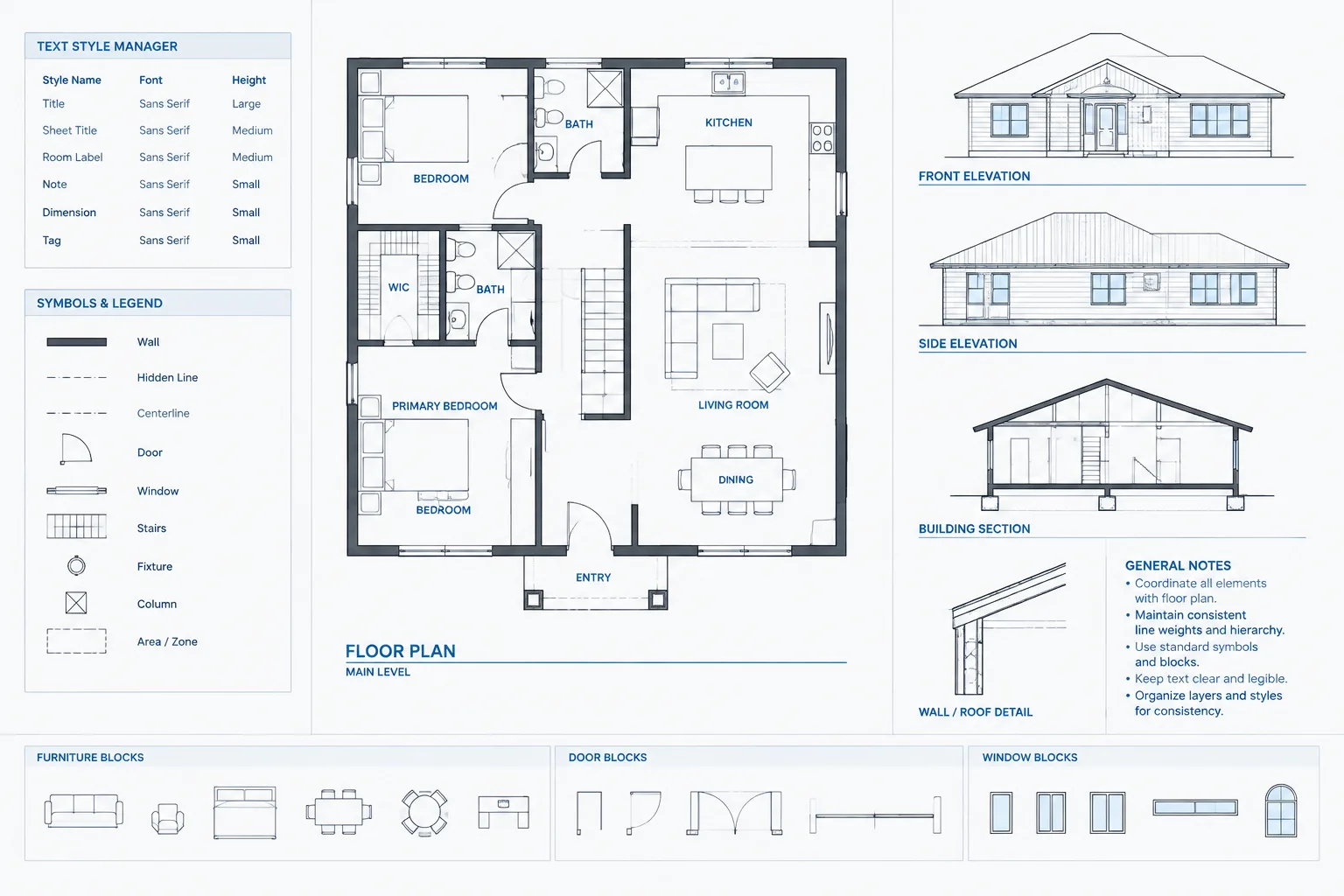
Architectural CAD text styles are part of a larger annotation system. A well-built style may still produce inconsistent results when text objects contain overrides, blocks carry legacy attributes, referenced files depend on unavailable fonts, or plotting exposes spacing problems that were not obvious on screen.
This guide explains how to organize text styles around drafting purpose, coordinate them with related annotation controls, and review the resulting DWG and PDF output. The goal is not typographic variety, but predictable annotation that remains readable and manageable throughout the drawing workflow.
Text styles are a small part of a DWG file with a large effect on drawing quality. They influence how notes look, how much space labels occupy, whether consultant files display correctly, and whether a plotted sheet feels coordinated. Poorly managed styles can produce substituted fonts, inconsistent text widths, crowded callouts, and annotation that changes unexpectedly between drawings.
A reliable architectural CAD text-style workflow starts by separating appearance from purpose. The font controls the basic character shapes, while text styles, annotation objects, layers, and object-specific settings determine how those characters are used. Treating all of these elements as one setting makes troubleshooting difficult. Treating them as a coordinated system makes templates and project files easier to maintain.
What an AutoCAD Text Style Controls
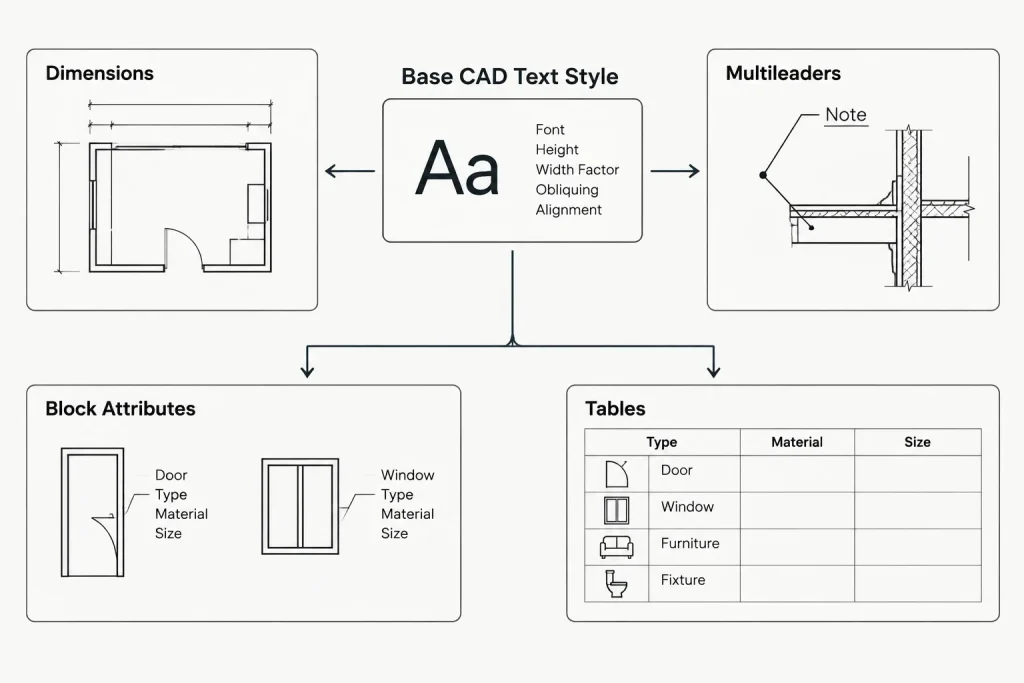
A text style is a named definition that can be assigned to single-line text, multiline text, attributes, dimensions, multileaders, tables, and other annotation objects. Depending on the configuration, it may control:
- The font file or typeface
- Font variants such as bold or italic when supported
- Width factor
- Oblique angle
- Whether text is annotative
- A fixed model-space height, if one is assigned
- Special orientation or display behavior
The text style does not necessarily control every visible text property. An individual object may contain overrides, and dimension styles, multileader styles, table styles, or block attributes may add another level of control. When text appears inconsistent, check the entire chain rather than editing the font alone.
Begin with a Limited Style Family
Architectural files rarely benefit from a long list of nearly identical text styles. A concise family is easier to understand and less likely to produce accidental differences. Create styles only when they represent a meaningful graphical or functional distinction.
A practical family might distinguish general annotation, emphasized headings, condensed text for constrained locations, and symbols that require a specialized font. The exact names should follow the office template and project standards. Names should describe purpose or appearance clearly enough that another drafter can select the correct style without opening each definition.
| Style category | Typical use | Coordination concern |
|---|---|---|
| General annotation | Notes, room labels, plan labels, and detail text | Should remain readable across the intended sheet scales |
| Heading or emphasis | Drawing titles, schedule headings, and major labels | Use emphasis consistently rather than through random object overrides |
| Condensed annotation | Narrow tags or space-limited schedule content | Confirm that reduced width does not harm readability |
| Symbol or special character style | Content that depends on a particular character set | Verify that the required font is available wherever the file will be opened |
Avoid creating separate styles merely to represent every text height. In many workflows, height is better controlled by the annotation object, dimension style, multileader style, or annotative scale behavior. A fixed height within the base text style can prevent downstream styles from controlling text as intended.
Choose Fonts for Reliability as Well as Appearance
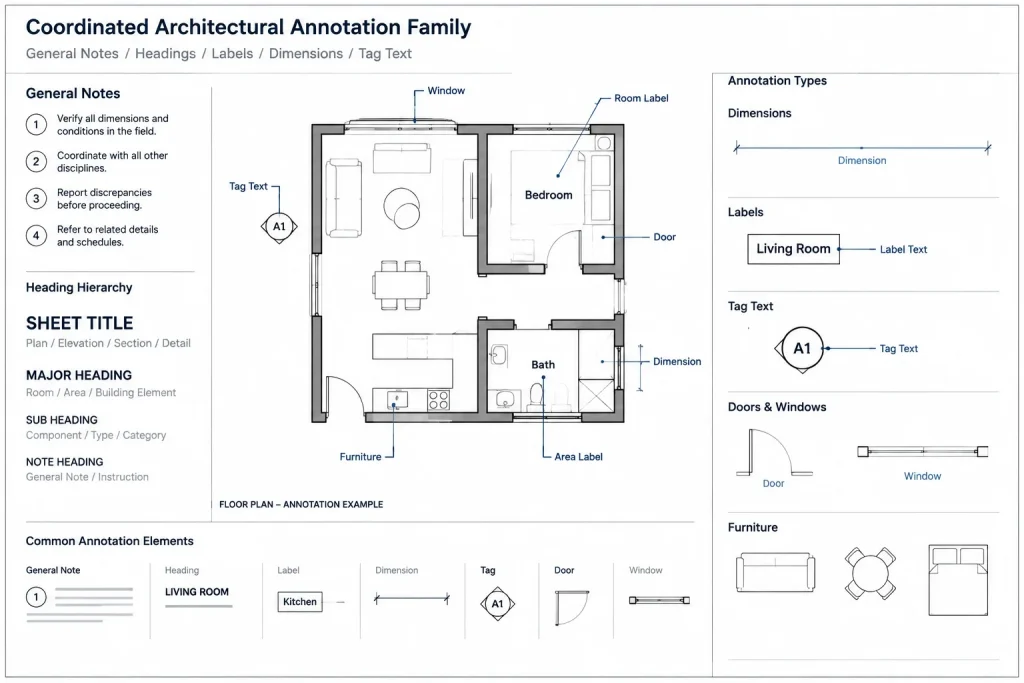
Architectural annotation should remain clear on screen, in PDF output, and in printed sets. Typeface selection is therefore a technical decision as well as a visual one.
AutoCAD drawings commonly use either SHX fonts or system-installed outline fonts. SHX fonts are lightweight and have a long history in CAD documentation. Outline fonts can provide familiar typographic forms and broader formatting options, but their availability depends on the receiving computer and file-delivery process. Neither category is automatically correct for every office.
Before adopting a font, test:
- Uppercase and lowercase readability
- Numbers, punctuation, and common architectural symbols
- Character spacing in dense notes
- PDF appearance at the intended output size
- Searchability and text extraction in exported PDFs, when required
- Availability on project team computers
- Behavior when the DWG is shared with consultants or archived
Do not judge the font only from a zoomed-in model-space view. Thin strokes, tight spacing, or distinctive letterforms may look attractive on screen but become difficult to read after plotting or reduction.
Coordinate Text Styles with Annotation Styles
Text styles should serve as stable building blocks. Object-specific style systems can then control how text participates in dimensions, leaders, tables, and tags.
Dimensions
A dimension style typically references a text style while also controlling placement, offsets, precision, and other dimension-specific properties. If dimensions look wrong, confirm both the assigned dimension style and its referenced text style. Editing the text style may affect many dimension styles at once, so review the broader drawing before making a global change.
Multileaders
Multileader styles coordinate text with leader lines, landing behavior, content type, and spacing. A consistent text style helps notes match other annotation, but the multileader definition should remain the main control point for leader-note graphics.
Block attributes
Room tags, door tags, window tags, section markers, and title-block fields often contain attributes. Attribute text can be harder to audit because it is stored inside block definitions and may also include object-level formatting. Updating a text style does not always remove local formatting or repair an improperly built attribute. Test tag blocks after any style revision.
Tables
Schedules may use different text treatments for titles, headers, and data cells. These differences should be managed deliberately through the table style where possible. Manually formatting individual cells creates exceptions that are difficult to maintain.
Model-Space and Paper-Space Text Strategy
The correct text-height workflow depends on where annotation is placed and how it is scaled. Model-space annotation may use annotative behavior or a scale-based drafting method. Paper-space annotation is generally composed directly for the plotted sheet. A project can use either approach successfully, but mixing methods without clear rules often produces mismatched text.
Document where each annotation category belongs. For example, model-specific notes may remain with the plan geometry, while sheet-specific titles and general sheet notes may belong in paper space. The important point is not to force every object into one location, but to make its scaling behavior predictable.
When annotative text is used, confirm that the object carries only the scales it actually needs. Unnecessary scale representations can clutter the file and make annotation appear in unintended viewports. Also verify that the text style, text object, and associated annotation style are not relying on conflicting scale methods.
Control Overrides Before They Spread
Object overrides are useful for genuine exceptions, but they should not become the normal way to format text. Common overrides include a different font, width factor, height, color, or inline formatting inside multiline text.
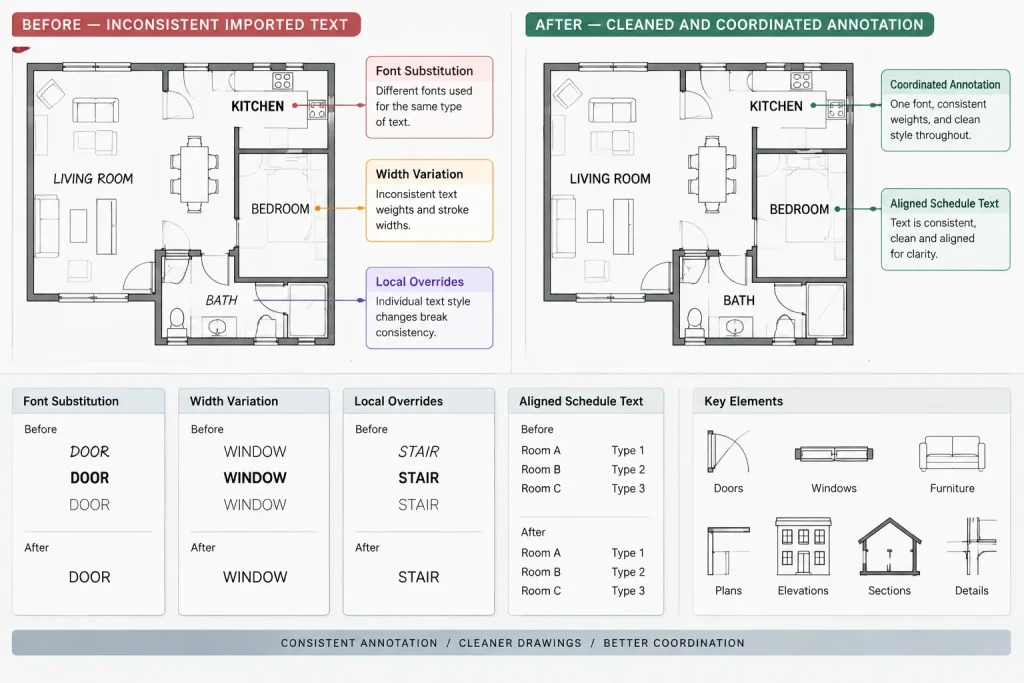
An override can make two objects report the same named style while looking different. This is especially common with text copied from another DWG, pasted from external documents, or reformatted inside the multiline text editor. When standardizing a file, inspect both the named style and the object properties.
Use property matching cautiously. It can help correct inconsistent text, but it may also transfer layer, color, annotation settings, or other properties that should remain different. Apply it to a controlled sample first, then verify the result.
Manage Incoming Consultant and Legacy Text
External files may introduce duplicate styles, unavailable fonts, unfamiliar naming systems, and styles that differ only slightly. Do not immediately rename or delete everything. First determine whether the DWG will remain an external reference, be used as a background, or be incorporated into the architectural file.
If the file remains referenced, it is often safer to preserve its internal styles and control its graphic appearance through layer and reference-management methods. If content must be copied into the architectural drawing, place it on appropriate layers and convert its annotation to the project system in a controlled pass.
Font-substitution warnings deserve attention. Substitution can alter character widths, line breaks, tag boundaries, and schedule alignment. Locate the affected styles, identify whether the original font is legitimately available to the project, and review the plotted output after any replacement.
A Practical Text-Style Quality-Control Pass
Run a focused annotation review before major drawing issues and after importing significant outside content.
- Review the text-style list for duplicates, temporary names, and unused experiments.
- Confirm that standard notes use the intended general annotation style.
- Check dimensions, multileaders, tables, and attributes for the correct referenced styles.
- Search visually for unexpected fonts, widths, oblique text, and inconsistent capitalization.
- Inspect multiline text for local formatting overrides.
- Check annotation in viewports at the scales used on the sheets.
- Plot or export representative sheets and review them at normal reading size.
- Open the deliverable package in a clean environment when possible to expose missing font dependencies.
- Confirm that special symbols display correctly in both DWG and PDF output.
- Purge obsolete definitions only after verifying that they are not required by blocks or project content.
Build the System into the Template
The best time to solve text consistency is before project drafting begins. Store the approved text styles in the architectural template, then connect them to the office dimension, multileader, table, and annotation-block systems. Include a small annotation test area or template sheet that shows representative notes, tags, dimensions, and titles.
Keep the system restrained. Every additional style creates another choice, another dependency, and another item to review. A small, tested set of architectural CAD text styles generally produces more dependable drawings than a large catalog of subtle variations.
Finally, treat text as part of the drawing hierarchy rather than decoration. Font, size, spacing, lineweight, and placement work together to tell the reader what is important. A coordinated text-style workflow helps that hierarchy survive editing, referencing, plotting, file exchange, and long-term archiving.
Diagnosing Text Problems Without Creating More Styles
When annotation looks wrong, begin with the visible object and trace its controls outward. Creating a replacement style too early can hide the immediate symptom while adding another definition that must be maintained.
- Identify the object type. Determine whether the content is text, multiline text, an attribute, a dimension, a multileader, or a table cell.
- Check the assigned named style. Confirm that the object references the intended project definition rather than an imported or temporary style.
- Inspect local formatting. Look for object-level height, width, font, color, oblique, or inline formatting that changes the style’s normal appearance.
- Review the parent annotation system. Dimensions, multileaders, tables, and block attributes may obtain part of their appearance from another style or definition.
- Verify font availability. A substituted font can change spacing and line wrapping even when the style name remains unchanged.
- Test the output condition. Review the annotation in its viewport and in exported or plotted output rather than relying only on model-space appearance.
This sequence helps distinguish a damaged definition from an isolated override, an unavailable font, or an incorrect annotation-scale condition.
Text-Style Handoff Considerations
A dependable handoff includes more than a clean list of style names. The receiving team must be able to reproduce the intended character shapes and understand which styles belong to the architectural file, referenced backgrounds, and specialized annotation objects.
Before issuing or archiving a DWG package, review representative notes, tags, dimensions, schedules, and title information. Resolve avoidable font dependencies, but do not make broad substitutions without checking line breaks, symbol characters, block boundaries, and table alignment. If external references retain their own annotation systems, keep that distinction clear rather than forcing every referenced definition into the host drawing.
What a Successful Text System Looks Like
A successful system is easy for another drafter to interpret. Style names communicate purpose, routine text uses a common visual language, emphasis is deliberate, and exceptions can be explained. Annotation remains stable when files are referenced, exchanged, plotted, and reopened in the project environment.
The strongest quality-control result is not simply a shorter style list. It is a drawing in which each remaining style has a clear role and the connected dimensions, leaders, tables, and blocks use it predictably.
Frequently Asked Questions
Why does text look different even when objects use the same style?
One object may contain local formatting, a different height, annotation settings, or properties supplied by a dimension, multileader, table, or block definition. Compare both the named style and the object-level properties.
Should every text height have its own CAD text style?
Not necessarily. In many workflows, height is controlled by the annotation object or its related style system. Separate text styles are more useful when they represent a meaningful difference in purpose, font, width, or other consistent appearance.
Why does annotation change when a DWG is opened on another computer?
The receiving environment may not have the required font. Font substitution can alter character shapes, spacing, wrapping, and alignment. Review font dependencies and test the exchanged file in an appropriate project environment.
Can changing a text style affect dimensions and tags?
Yes. Dimensions, multileaders, attributes, tables, and other objects may reference that style. Review dependent annotation throughout the drawing before treating a style edit as an isolated change.
Should consultant text styles be deleted from an architectural file?
Not automatically. First determine whether the consultant content remains in an external reference or has been incorporated into the host drawing. Referenced content may need to retain its original definitions, while copied annotation can be converted through a controlled review.
How should architectural CAD text styles be checked before issue?
Review the style list, object overrides, annotation scales, font availability, special characters, tags, dimensions, tables, and representative plotted or exported sheets. Confirm that cleanup does not remove definitions still used inside blocks or other project content.