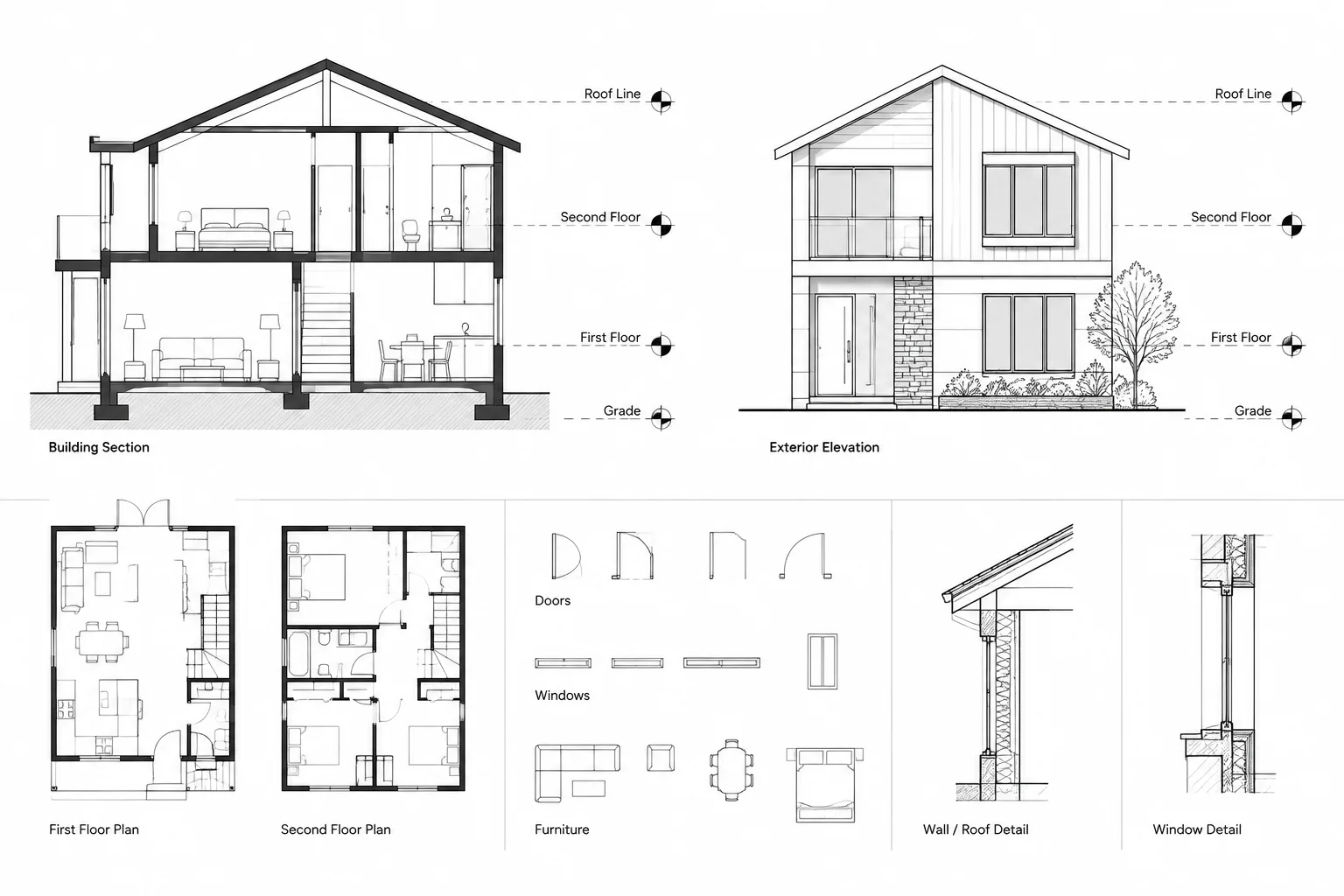
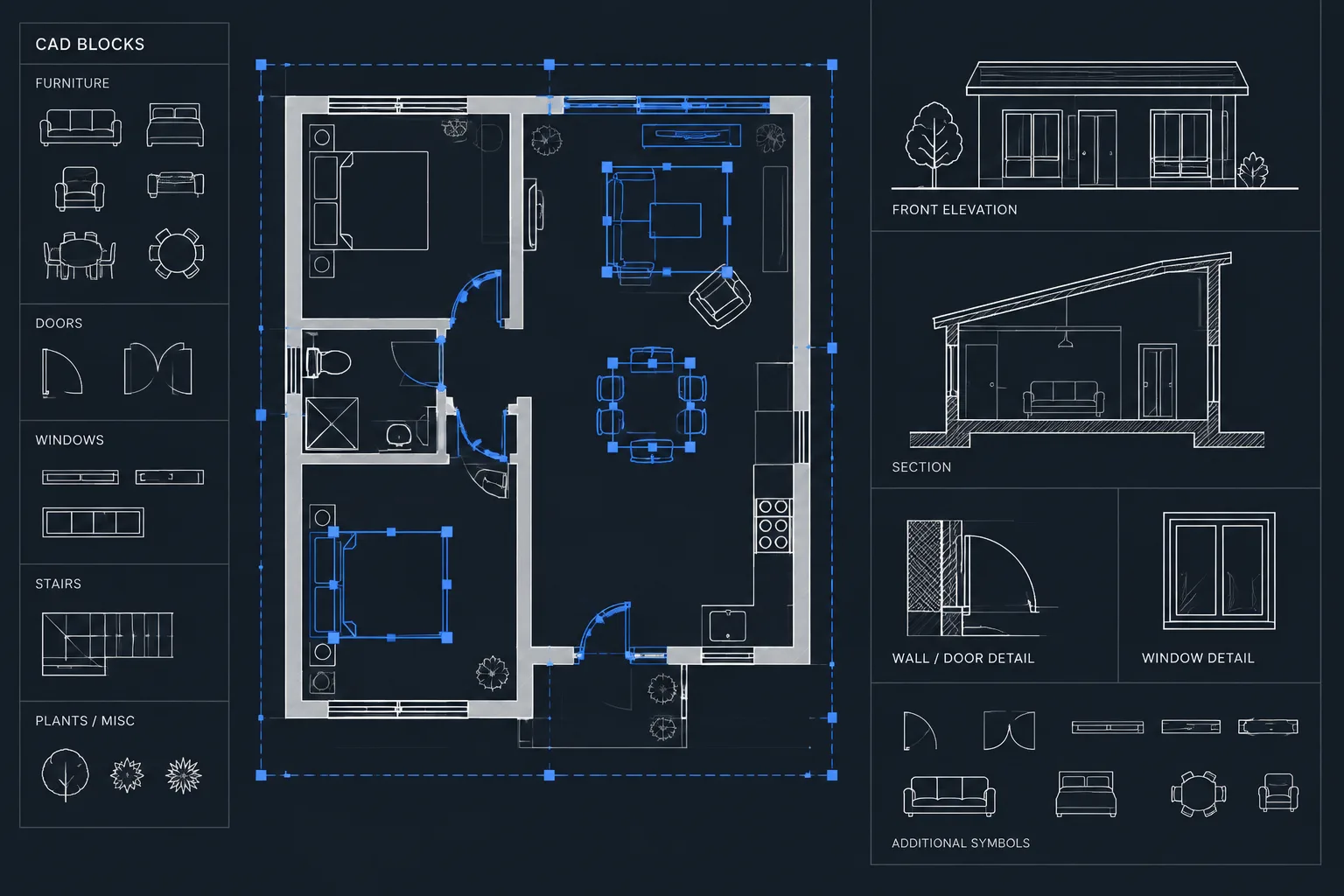
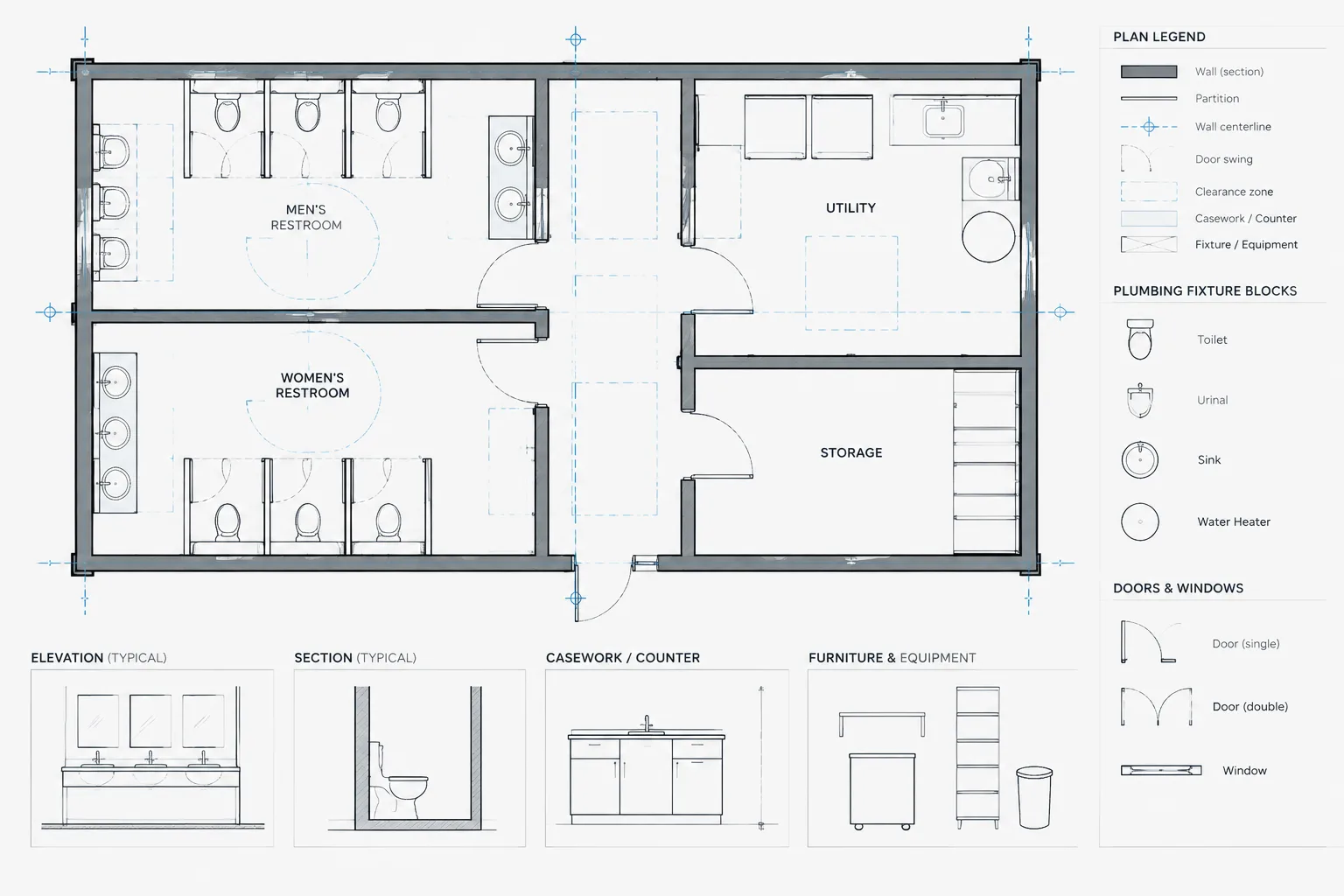
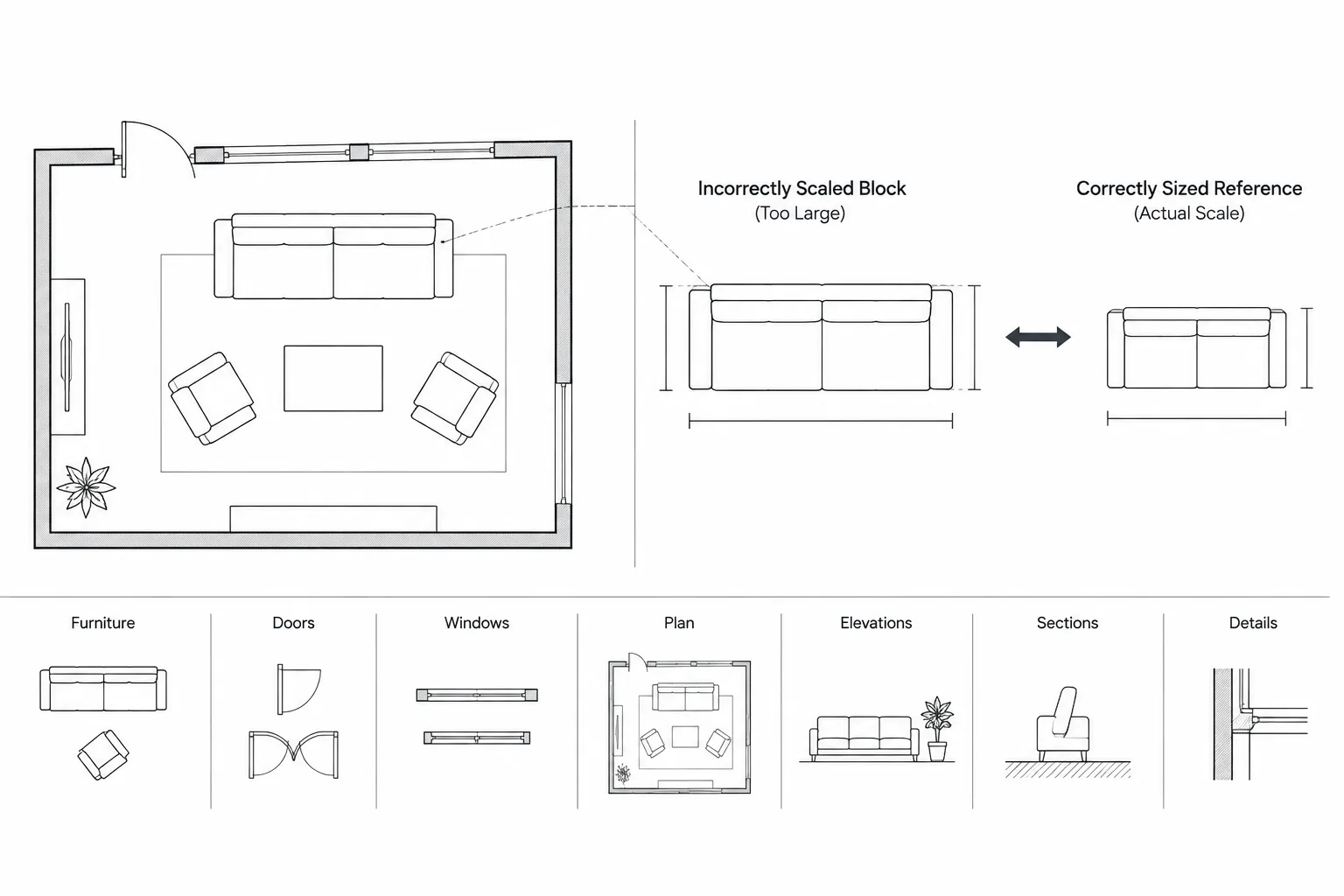
This bathroom layout 1.9×1.8m DWG provides a compact plan reference that can be reviewed, adapted, and coordinated within a broader architectural drawing set. Before incorporating the block into a project, confirm the drawing units, measured extents, fixture relationships, and orientation in your CAD environment.
A compact bathroom plan requires more than fitting fixtures inside the room boundary. Door operation, usable circulation, plumbing locations, wall construction, and project-specific clearance requirements should all be checked as the design develops.
Discover the ideal solution for compact washrooms with our Bathroom Layout Size 1.9×1.8m DWG file. This high-quality CAD Block is designed for architects, interior designers, and builders seeking efficient bathroom planning in limited spaces. The file provides a clear and detailed layout, featuring essential fixtures and optimal circulation paths. Compatible with AutoCAD and other popular CAD software, it streamlines your workflow and ensures precise integration into your design projects. Perfect for residential apartments, guest bathrooms, and renovation projects, this DWG file helps you achieve functional and stylish results in small bathroom spaces.
Please log in or register to download this file.
How to Evaluate the Bathroom Layout
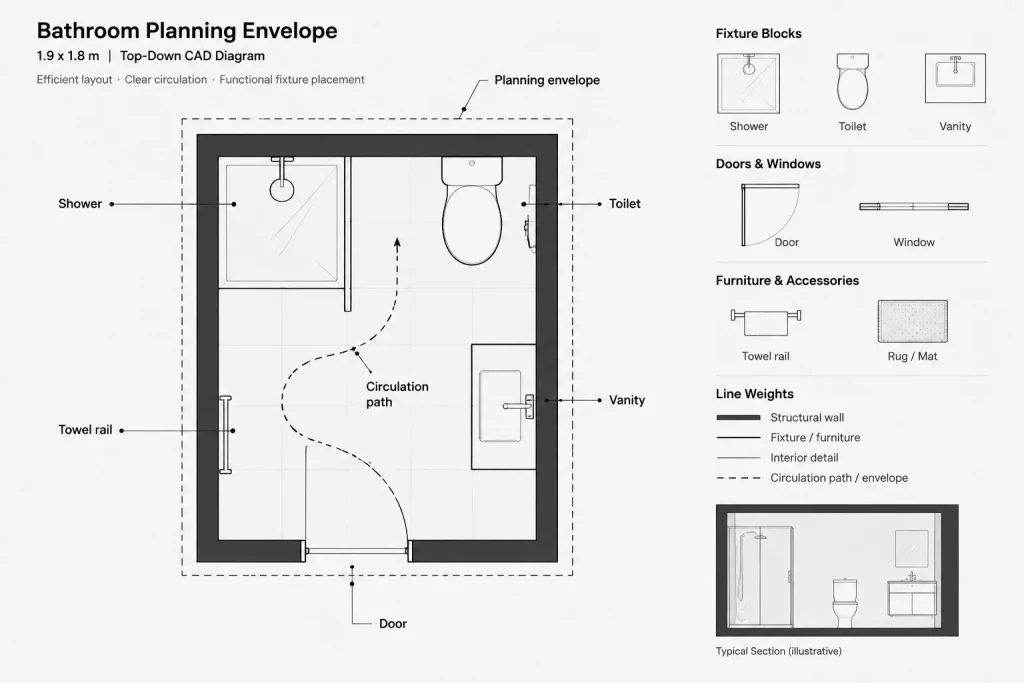
Begin by comparing the room outline with the dimensions and wall conditions in your floor plan. Check whether the downloaded geometry represents finished wall faces, structural boundaries, or a general planning envelope. This distinction can affect fixture placement and available interior space.
Fixture and Circulation Review
Inspect the space around each fixture rather than evaluating the symbols alone. A plan may appear organized while still creating conflicts during actual use. Review approach space, movement between fixtures, access for cleaning, and whether any door or panel could obstruct the circulation path.
- Entry: Check the door position, swing, and interaction with nearby fixtures.
- Fixture use: Confirm that each element has suitable operating space for the intended project.
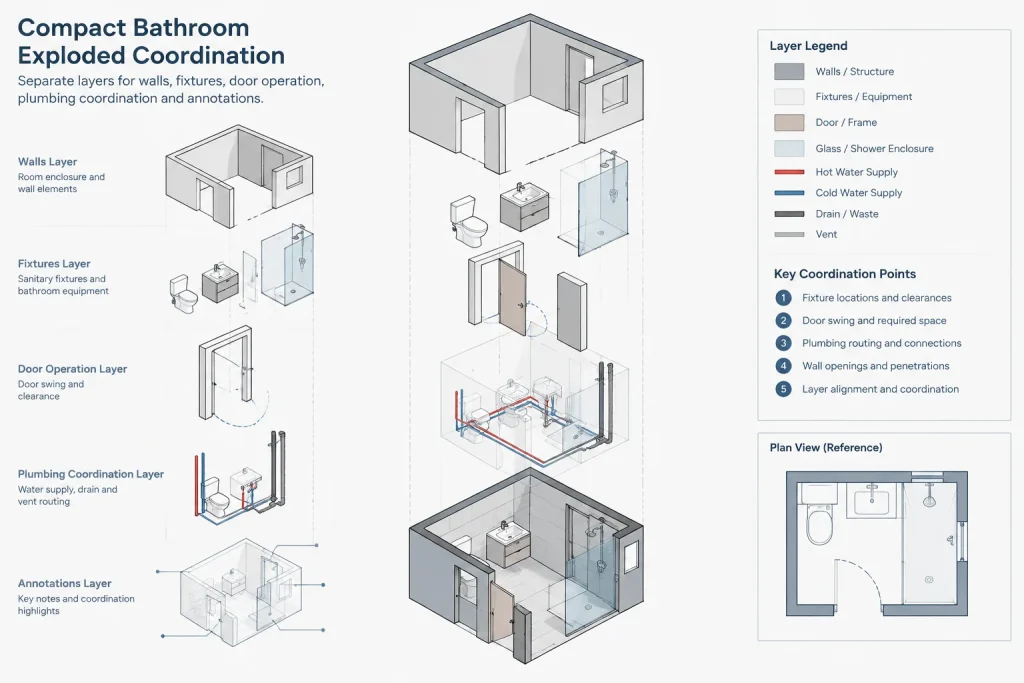
- Plumbing coordination: Compare fixture locations with supply, waste, vent, and wall-routing requirements.
- Wall conditions: Account for finishes, partitions, shafts, and service zones that may reduce usable room area.
- Documentation: Add dimensions, fixture references, notes, and material information according to the drawing set.
Using the DWG in an Architectural Workflow
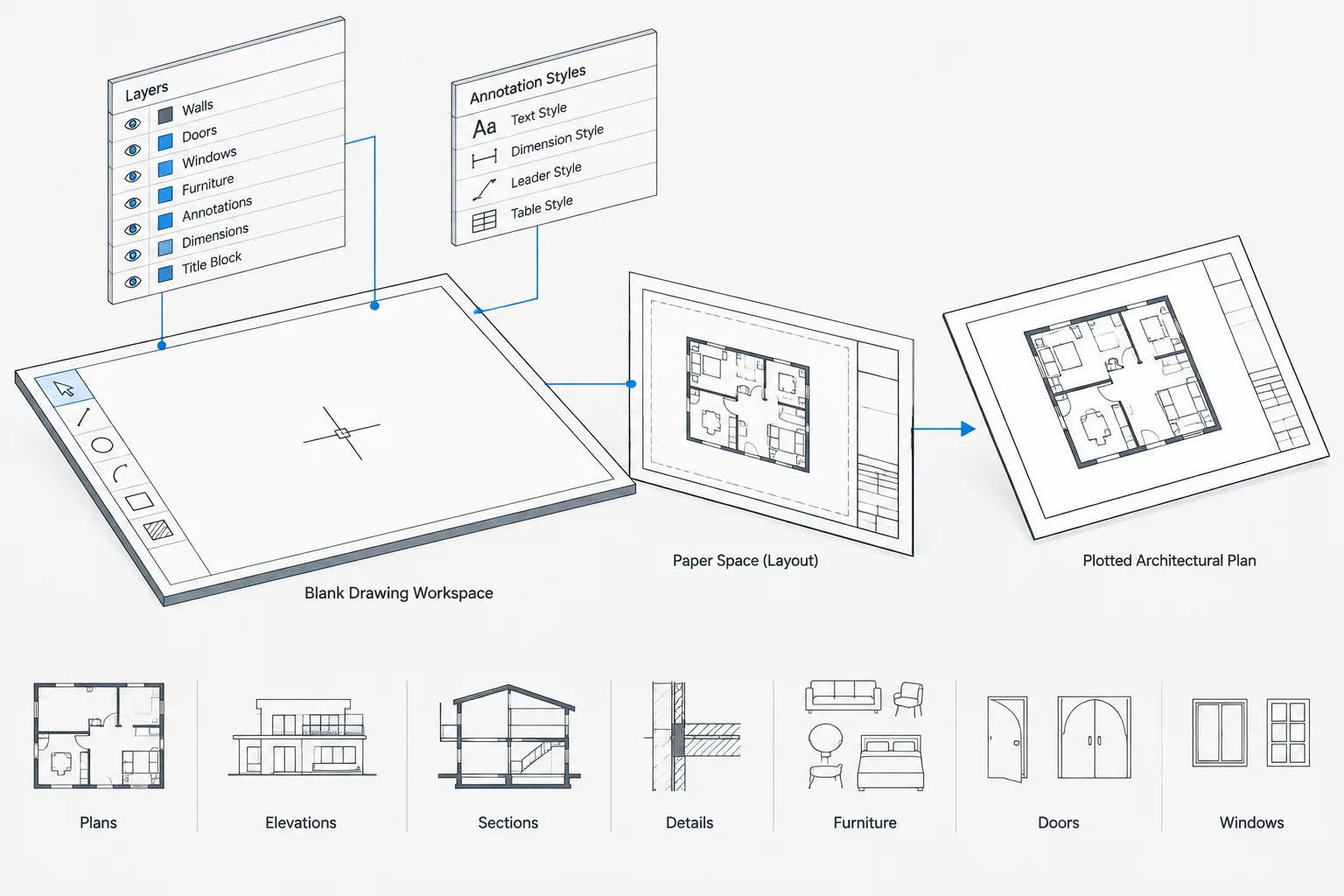
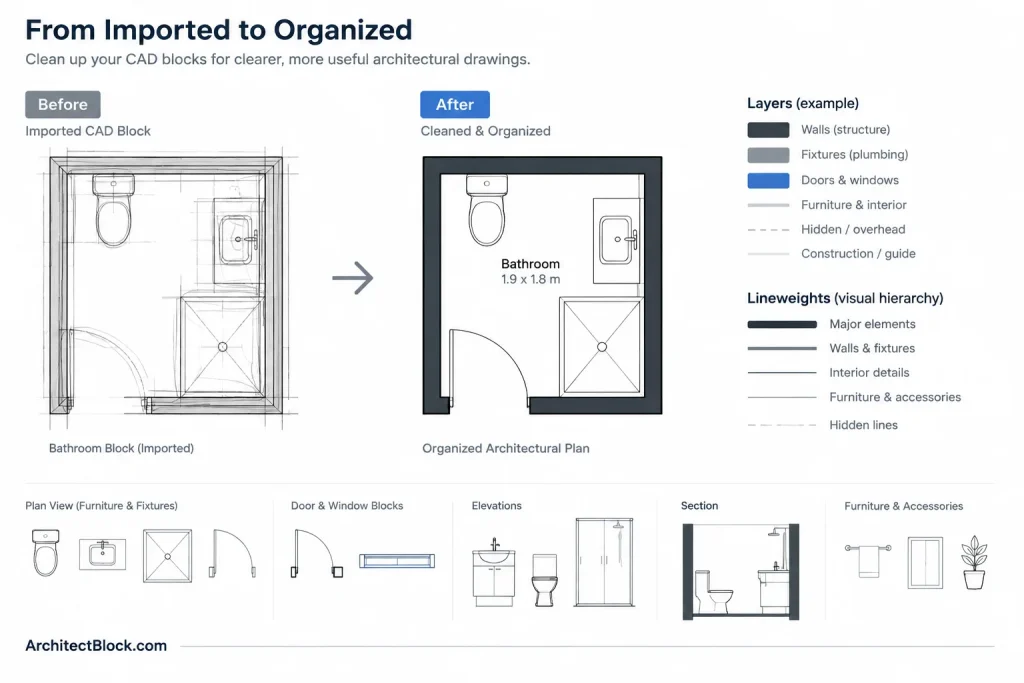
After opening or inserting the DWG, verify its units and compare a known extent with the host drawing. Review the imported layer names, colors, linetypes, lineweights, blocks, and text styles before merging the content into an office standard. Keeping imported geometry on controlled layers makes later editing and quality checking easier.
The layout can also be compared with related bathroom fixture CAD blocks, door blocks, plumbing symbols, floor-plan annotations, and dimensioning references. These supporting resources help turn a standalone plan into coordinated architectural documentation.
Project Verification
Treat the CAD block as a planning and drafting resource rather than automatic confirmation of code compliance or construction suitability. Required clearances, accessibility provisions, ventilation, waterproofing, fixture specifications, and plumbing arrangements depend on the project and governing requirements. A qualified professional should verify the final layout before construction or permit use.
Frequently Asked Questions
What does this bathroom layout DWG represent?
The source describes a compact bathroom plan sized 1.9×1.8m. Open the file to inspect the exact fixture symbols, geometry, layers, and drawing organization included in the download.
Should the DWG be inserted directly into a floor plan?
It can be used as a starting reference, but first confirm units, extents, orientation, and layer behavior. Adjust the geometry to match the actual wall construction, door condition, plumbing arrangement, and documentation standards of the project.
How should circulation be checked?
Review how a user enters, approaches each fixture, operates doors or panels, and moves through the room. Check for overlapping swing areas and other conflicts rather than relying only on the apparent open floor area.
Does the drawing confirm compliance with building requirements?
No standalone CAD block should be treated as proof of compliance. Applicable clearance, accessibility, plumbing, ventilation, and construction requirements must be checked for the project and location.
What should be reviewed after opening the file?
Inspect drawing units, geometry size, layers, blocks, linetypes, lineweights, text styles, and unnecessary imported content. Then coordinate the plan with the host drawing before issuing documentation.