Xref layer control in AutoCAD helps architectural teams coordinate shared drawings without forcing every referenced file to use the same graphic treatment. The key is to distinguish information that should be corrected in the source DWG from presentation changes that belong in the host drawing or an individual viewport.
This guide explains how to make that decision, organize architectural backgrounds, troubleshoot objects that resist layer changes, and verify that overrides remain dependable after reference updates.
External references allow an architectural team to use plans, consultant backgrounds, surveys, and other drawings without copying their geometry into every working file. The arrangement is efficient, but it creates an important drafting question: where should the graphic appearance of referenced layers be controlled?
A source DWG may need one appearance when opened directly and another when used as a background. For example, a structural plan may be plotted normally on a structural sheet but shown as a subdued reference beneath an architectural plan. A reliable xref layer control workflow separates source information from host-drawing presentation while keeping updates predictable.
Understand the source and host relationship
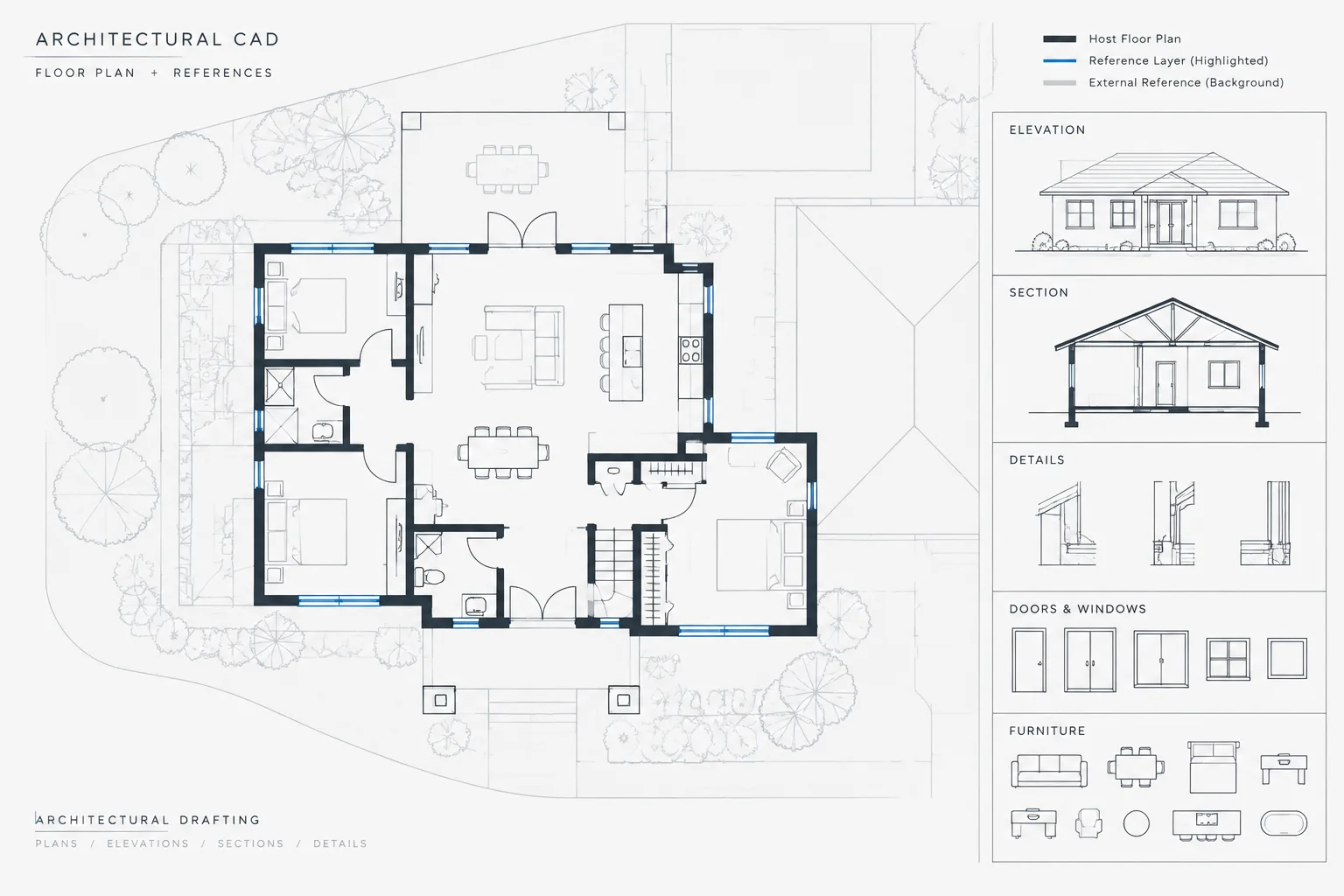
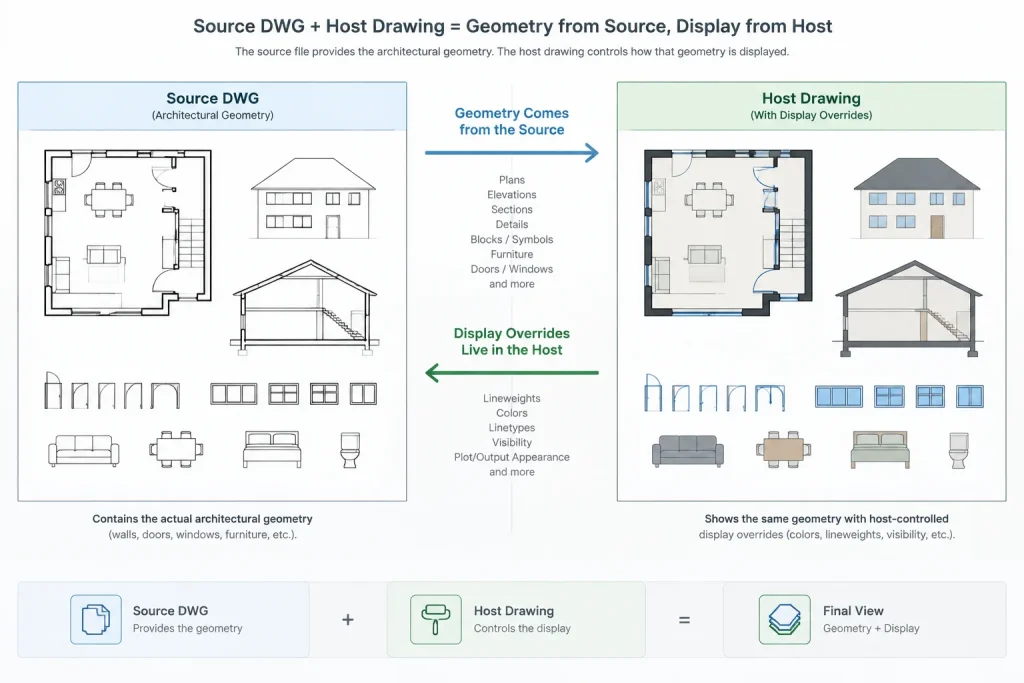
The source drawing contains the referenced geometry and its native layers. The host drawing attaches the source as an xref and can control how the reference appears in that particular file.
In the host drawing, xref-dependent layers are commonly displayed with the reference name followed by the source layer name. This prefix helps distinguish referenced layers from native host layers. If the same source file is attached under different reference names, its layers may appear as separate groups.
Changes made to an xref layer in the host drawing generally affect presentation in that host. They do not rewrite the corresponding layer definition in the source DWG. Conversely, editing the source may affect every host that uses it after the reference is reloaded.
Decide whether a problem belongs in the source or the host
Not every xref graphics issue should be solved with an override. First decide whether the issue is informational or presentational.
- Correct the source when geometry is on the wrong layer, information is missing, objects are duplicated, or the drawing contains an actual drafting error.
- Use a host override when correct source information needs a different color, lineweight, linetype, or visibility for a particular architectural view.
- Use a viewport override when the reference should look different in one sheet viewport but remain unchanged elsewhere.
- Coordinate with the file author when the apparent graphic problem reveals unclear layer usage or inconsistent object properties.
This distinction prevents a host file from becoming a collection of overrides that conceal unresolved problems in the source.
Establish a clear graphic role for each reference
Before changing layer properties, define why the xref is present. A reference may be primary drawing content, a coordination background, an existing-conditions base, or temporary checking information. Each role suggests a different graphic treatment.
| Reference role | Typical graphic objective | Control approach |
|---|---|---|
| Primary architectural base | Normal drawing hierarchy | Preserve intentional source properties where practical |
| Consultant coordination background | Visible but subordinate | Apply consistent host-level layer properties |
| Existing conditions | Clearly distinguish from proposed work | Use a coordinated layer and plotting strategy |
| Temporary review reference | Support comparison without plotting | Control visibility and verify plot settings |
| Sheet-specific context | Appear differently in selected views | Use viewport layer overrides |
The exact colors and lineweights should follow the project plotting system. Do not assume that a screen color alone predicts the final PDF appearance.
A practical xref layer control workflow
1. Verify the reference before styling it
Confirm that the expected DWG is attached, the file path resolves correctly, and the xref is positioned at the intended project origin. Check whether the reference is loaded and whether multiple attachments are creating duplicate geometry. Graphic adjustment should come after basic reference coordination.
2. Review source layer organization
Inspect the xref-dependent layer list in the host. Look for useful groups such as walls, grids, equipment, text, dimensions, hatches, and overhead information. If the source uses unclear or inconsistent layers, broad overrides may produce unexpected results.
Avoid immediately turning off every unfamiliar layer. First identify what the layer contains and whether another view depends on it.
3. Apply only the necessary host-level overrides
Use the host drawing’s layer controls to adjust the properties of xref-dependent layers. Host-level changes are appropriate when the reference should have the same appearance throughout the drawing.
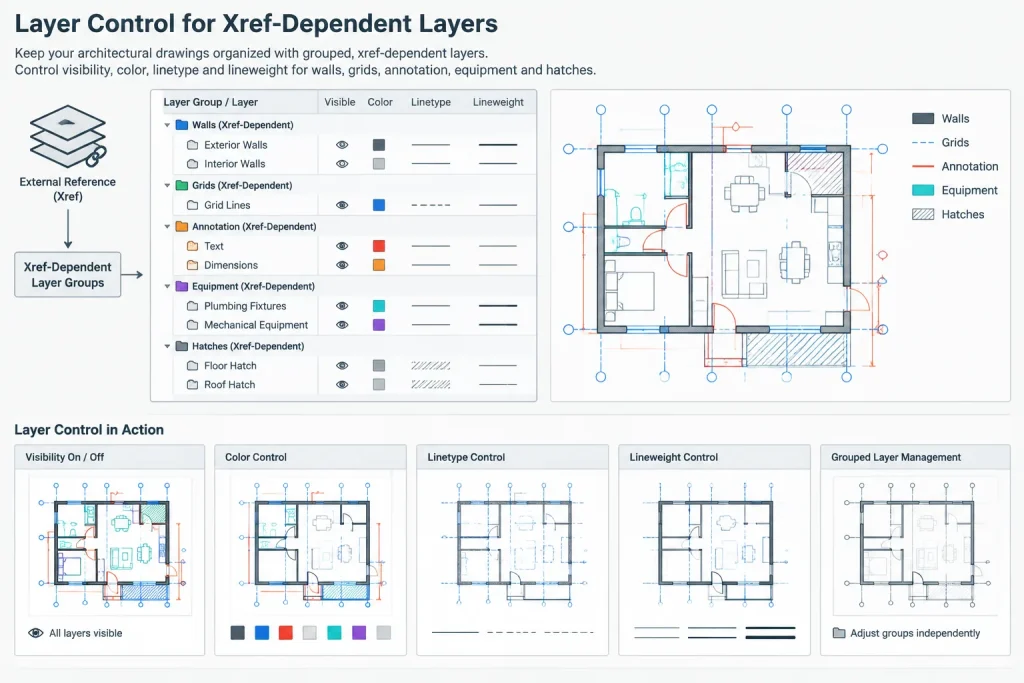
Typical adjustments include suppressing source annotation that conflicts with architectural notes, reducing the plotted emphasis of background geometry, or assigning a more suitable linetype to a coordination layer. Keep the number of exceptions manageable. A simple, deliberate override set is easier to troubleshoot than many isolated changes.
4. Reserve viewport overrides for sheet-specific needs
A viewport layer override changes layer presentation only in a selected paper-space viewport. This is useful when the same attached background supports several sheets with different communication goals.
For example, a ceiling-related layer may need emphasis in one view but remain subdued in a general plan. Apply the exception at the viewport level rather than changing the xref globally. Clearly document such overrides because they can be easy to miss when working in model space.
5. Test retention after reloading
AutoCAD includes controls that determine whether changes to xref-dependent layer properties are retained when references are reloaded or reopened. Office templates may not all use the same settings, so do not assume that an override will persist.
After establishing the intended display, save the host, reload the xref, close and reopen the drawing, and review the affected layers. If properties reset or unexpected source changes appear, inspect the drawing’s xref layer retention settings before recreating the overrides. Teams using more detailed synchronization controls should test them with a copy of a project file before changing office-wide behavior.
6. Check the plotted result
Review both the working display and a plotted PDF. Confirm that background information is legible without competing with primary architectural content. Pay particular attention to dense hatches, grids, hidden lines, annotation, and objects near cut geometry.
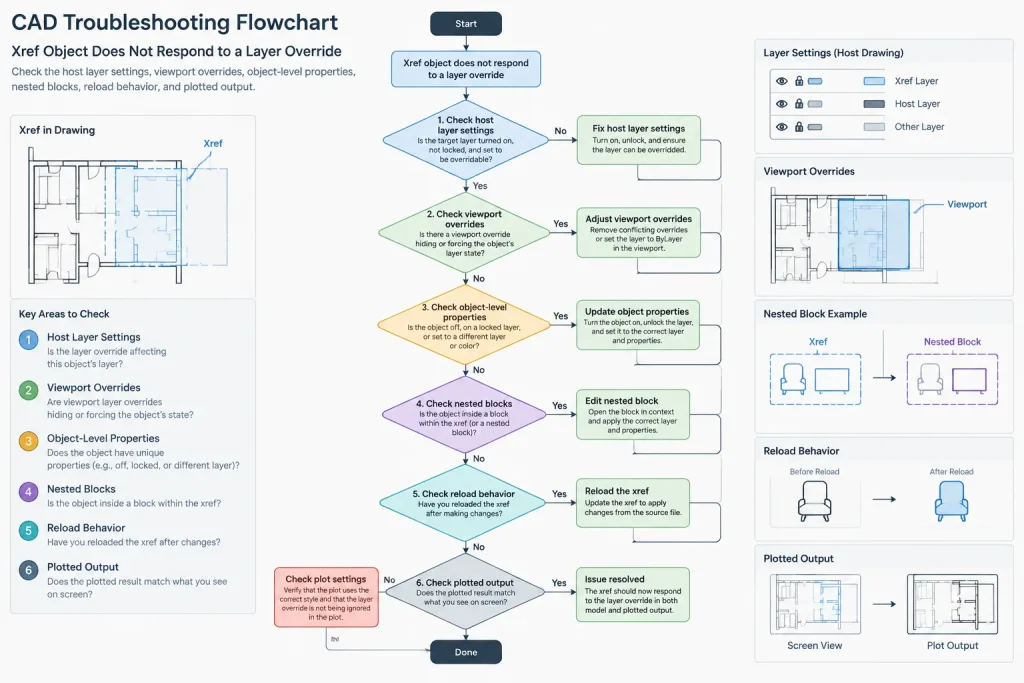
A background that looks suitably light on screen may still plot too heavily, while a faint display color may disappear through a particular plot-style setup. Plot verification is part of xref layer control, not a separate final task.
Why some xref objects ignore layer changes
Layer overrides work most predictably when source objects inherit their properties from their layers. Objects with individually assigned colors, linetypes, or lineweights may not respond as expected to a simple layer change.
AutoCAD provides an xref property override control that can help display referenced objects according to their layers even when source objects contain property exceptions. Use this carefully. It can improve background consistency, but it can also mask questionable drafting practices or remove intentional distinctions in the source file.
Nested blocks can add another complication. Geometry inside a block may inherit properties from the insertion layer, use its own internal layers, or contain direct property assignments. If only some objects resist an override, inspect the source object’s layer and property structure rather than repeatedly changing the host.
Common mistakes to avoid
- Editing consultant source files only to change appearance: This can be overwritten by the next file exchange and may affect other users.
- Using visibility controls without understanding content: Turning off a layer may remove information needed for coordination.
- Applying global changes for a single sheet: Use a viewport-specific solution when the exception belongs to one view.
- Relying only on screen appearance: Always review the plotted output through the project’s actual page setup and plot style.
- Ignoring hardcoded object properties: A layer change cannot reliably control every object if the source drawing does not use consistent property inheritance.
- Renaming xrefs casually: The reference name helps identify dependent layers, and changing it can disrupt saved layer-control expectations.
- Failing to retest after updates: Reloading a revised source can introduce new layers or alter previously coordinated graphics.
Quality-control checklist
- Confirm the correct reference file and project position.
- Identify the role of the xref in the current drawing.
- Separate source errors from host presentation needs.
- Use host-level overrides for drawing-wide treatment.
- Use viewport overrides only for view-specific exceptions.
- Check whether object-level properties are defeating layer control.
- Reload and reopen the file to verify property retention.
- Review newly added xref layers after source updates.
- Plot a representative sheet and inspect the final hierarchy.
- Communicate source-file problems instead of hiding them indefinitely.
Keep the workflow understandable
Effective xref layer control is not about forcing every reference into one visual style. It is about preserving reliable source information while giving each host drawing the presentation needed to communicate clearly.
Start with a defined graphic role, make the fewest overrides necessary, and distinguish drawing-wide controls from viewport-specific exceptions. When source layers, object properties, reload behavior, and plotting are all checked together, referenced backgrounds remain easier to update and far less likely to create last-minute sheet problems.
Document xref presentation decisions for project handoff
Layer overrides are easier to maintain when another CAD user can understand why they were applied. A brief project record can identify the role of each reference, the intended graphic hierarchy, any deliberately hidden layer groups, and the viewports containing special exceptions.
Record unresolved source issues separately from presentation decisions. This prevents a drafting error from being mistaken for an intentional override and helps the team determine whether a future update should be corrected in the source or accommodated in the host.
Use a diagnostic sequence when graphics change unexpectedly
- Confirm the reference: Verify that the expected file is loaded under the intended reference name.
- Identify the control level: Determine whether the appearance comes from the source, the host layer definition, or a viewport override.
- Inspect object properties: Check whether the affected objects inherit their appearance from their layers or use direct property assignments.
- Review recent updates: Look for newly introduced layers, changed layer names, revised blocks, or altered source properties.
- Test the output: Compare model-space display, viewport appearance, and plotted results before changing the override strategy.
This sequence narrows the cause before additional overrides are added. It also reduces the risk of solving a local display problem in a way that creates inconsistent graphics elsewhere in the drawing set.
Frequently asked questions
Should xref colors be changed in the source drawing or the host drawing?
Correct the source when its layer organization or object properties are wrong. Use the host when correct source information needs a different appearance only as an architectural background.
When should a viewport layer override be used?
Use a viewport override when an xref layer must look different in a particular sheet view while retaining its normal host-level appearance elsewhere.
Why does an xref object remain unchanged after its layer is modified?
The object may have a directly assigned property, may be nested inside a block with a different inheritance structure, or may be controlled by a viewport-specific setting. Inspect the source object’s layer and property behavior before adding more host overrides.
Why do xref layer settings change after a reload?
The drawing’s reference-layer retention behavior may not match the expected workflow, or the source update may have introduced changed or newly named layers. Save, reload, reopen, and review the affected layer groups to isolate the cause.
Can screen color alone confirm that a background will plot correctly?
No. Final appearance also depends on the drawing’s page setup, plot style, lineweight behavior, and viewport presentation. Review a representative plotted output before accepting the background hierarchy.
How should newly added xref layers be handled?
Review their contents and purpose before turning them off or applying broad styling. New layers may contain required coordination information, annotation, or geometry that was not present during the original setup.