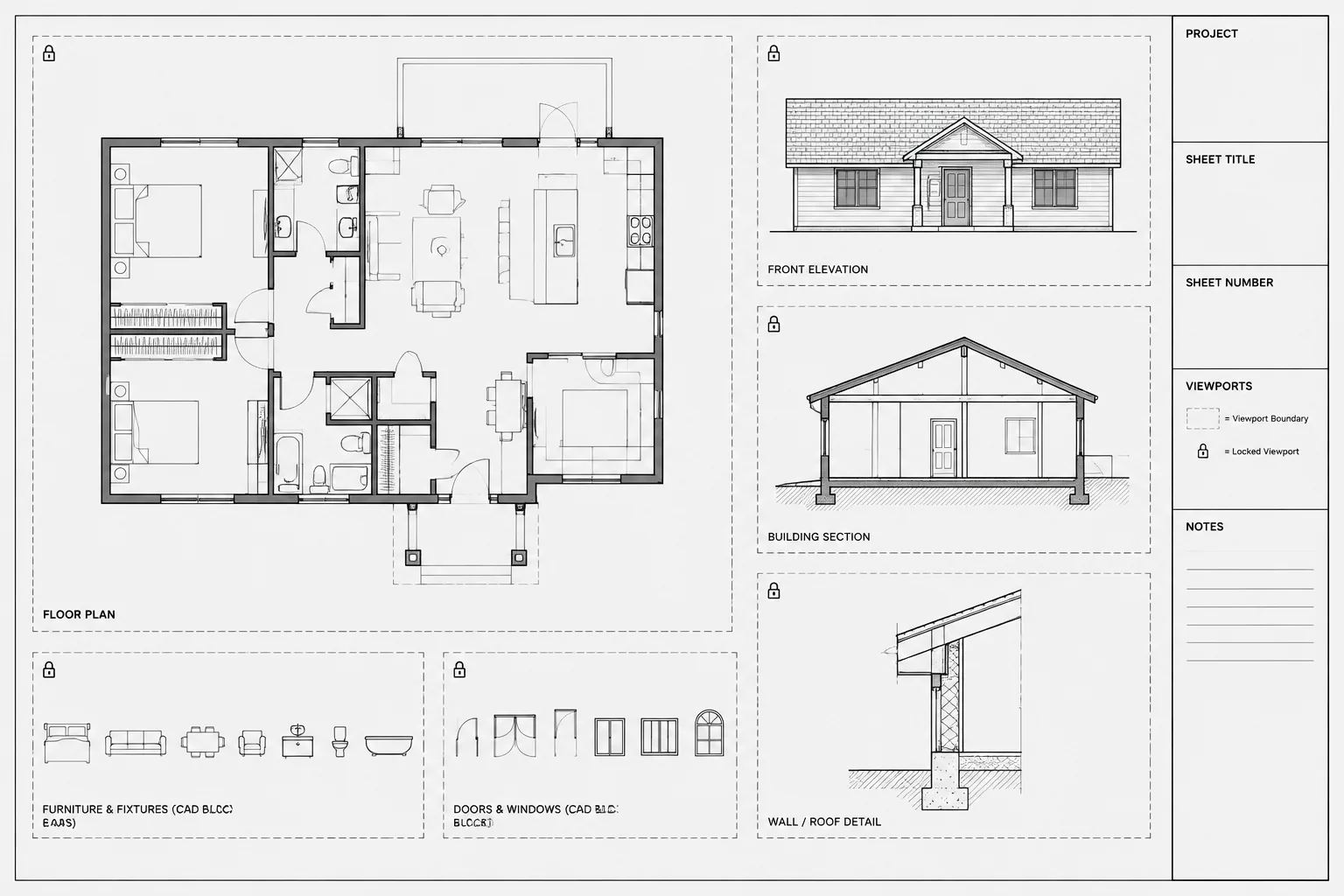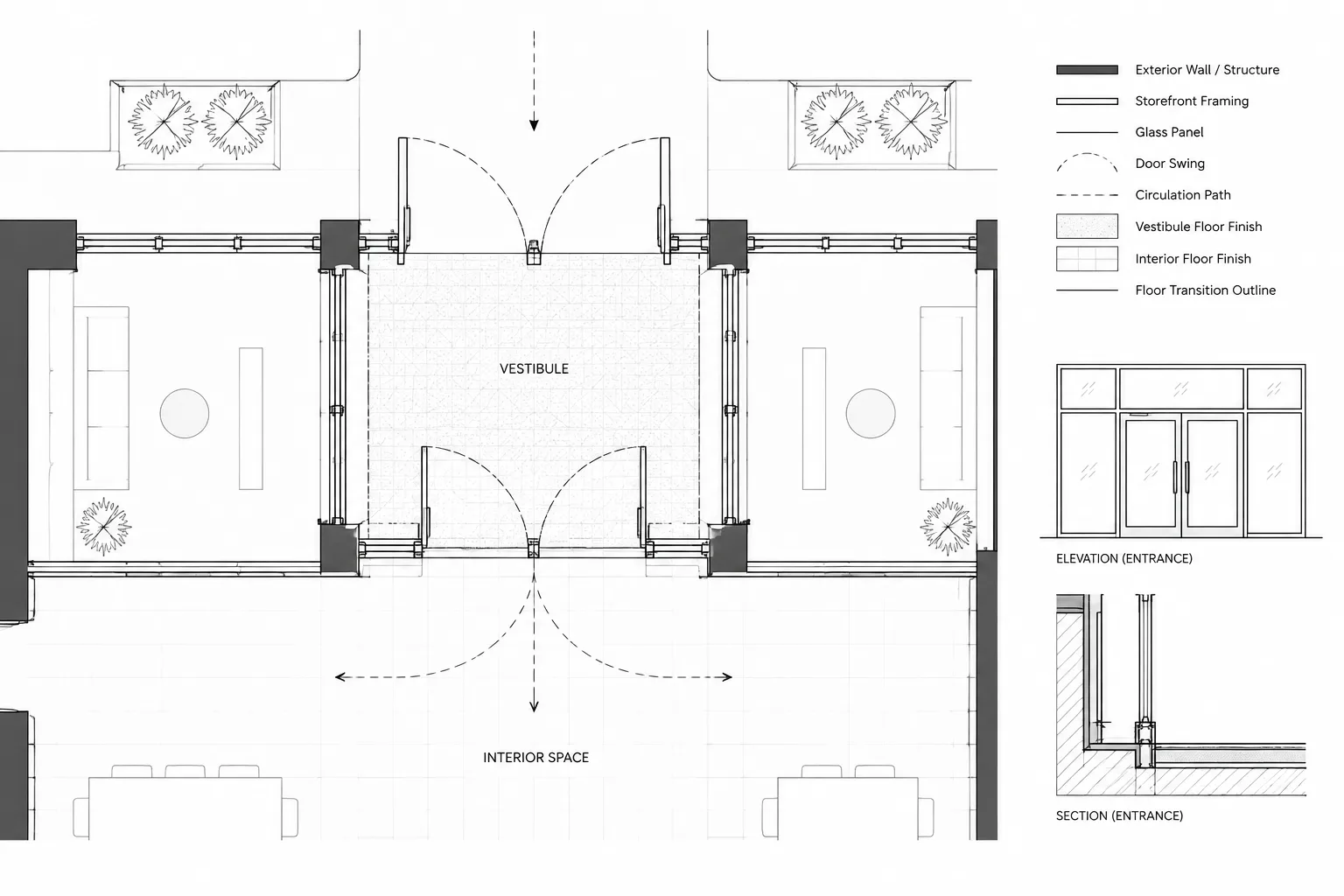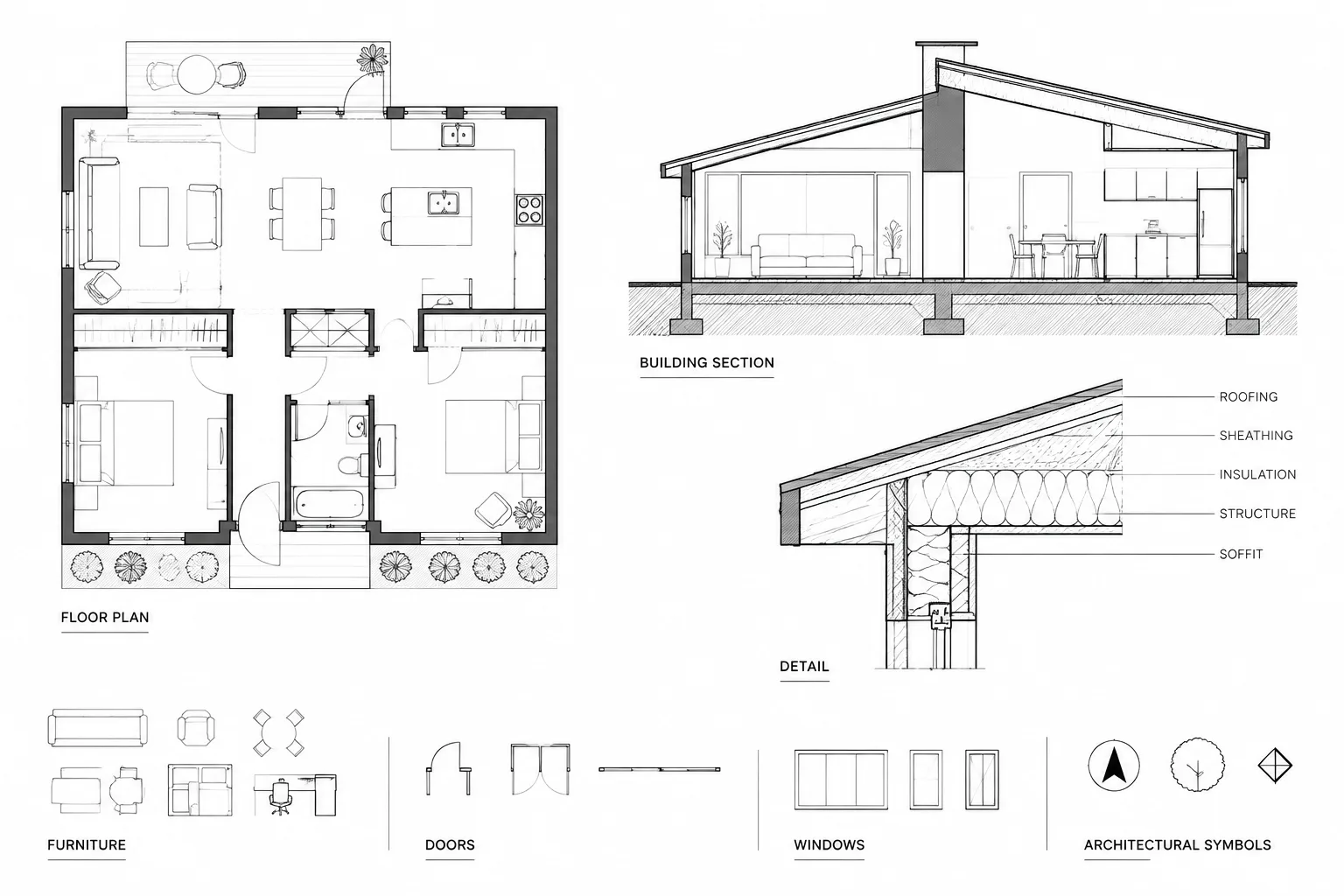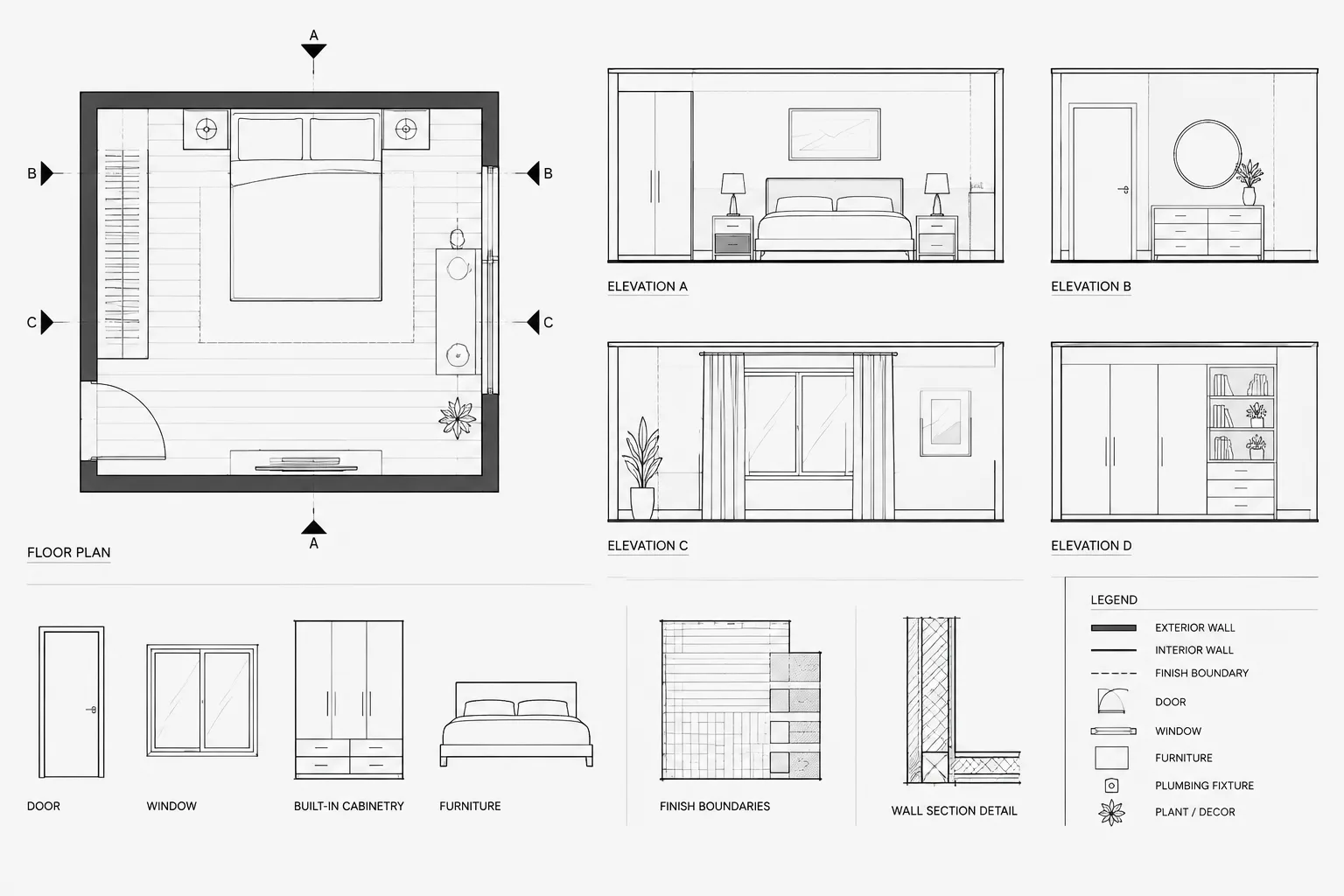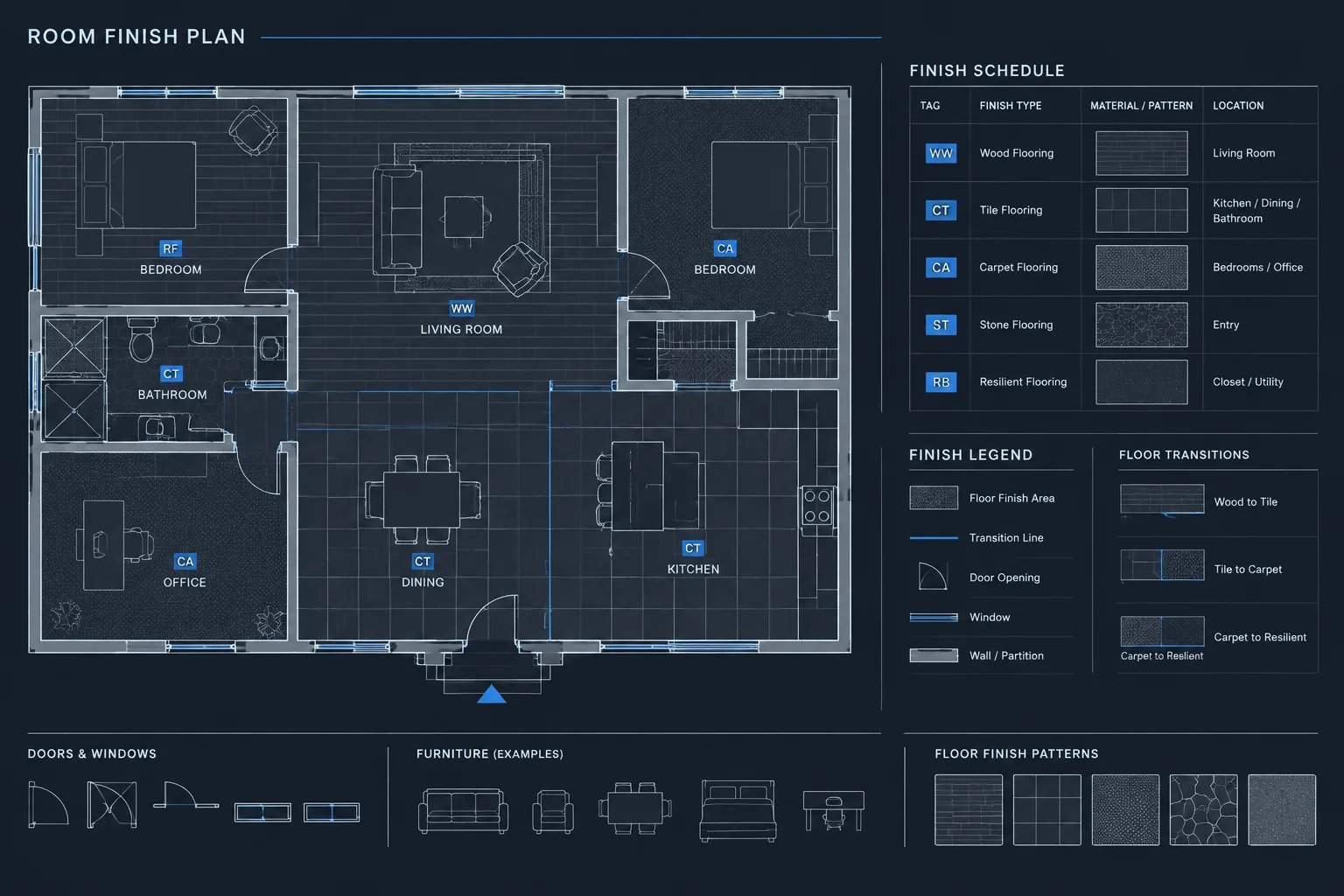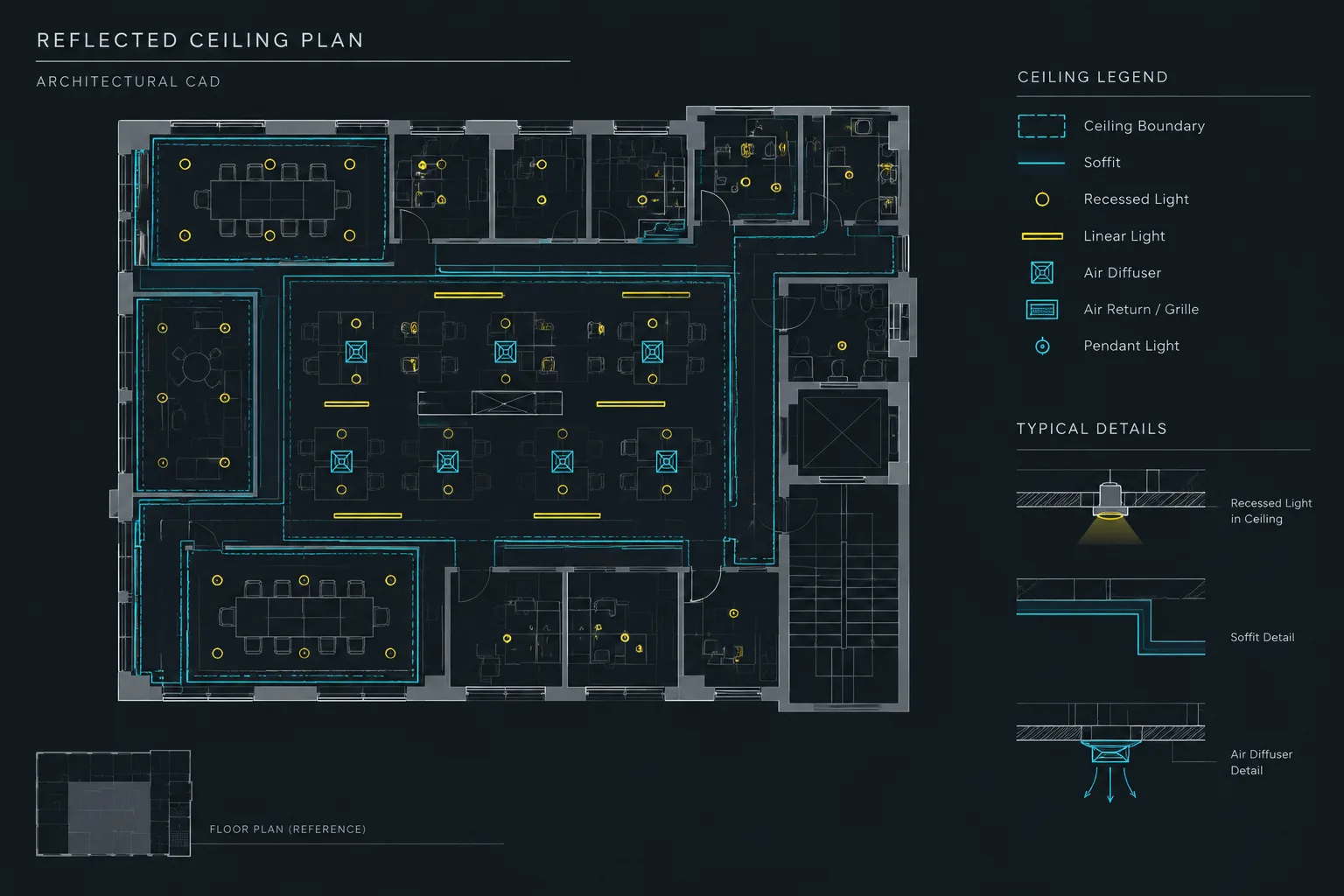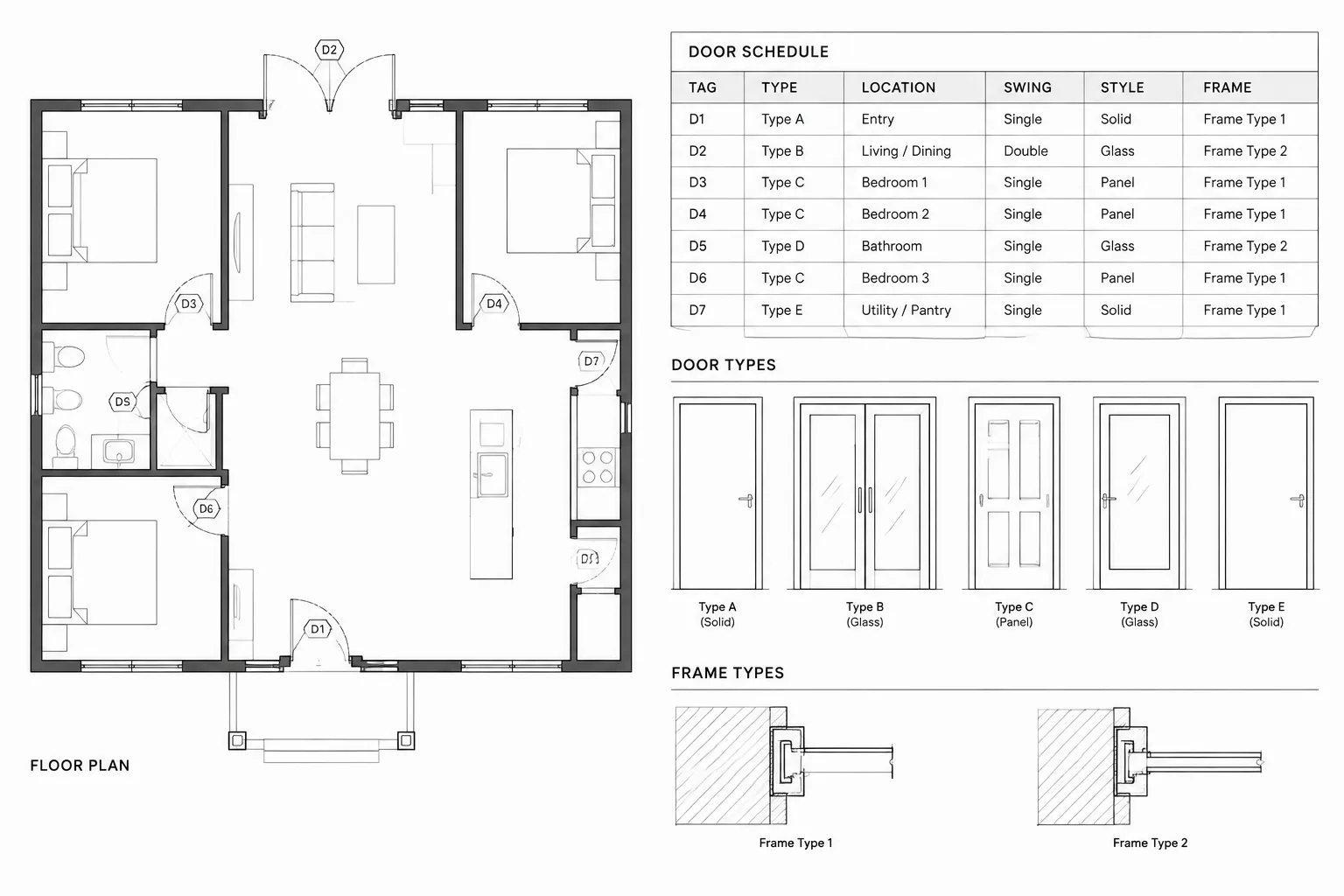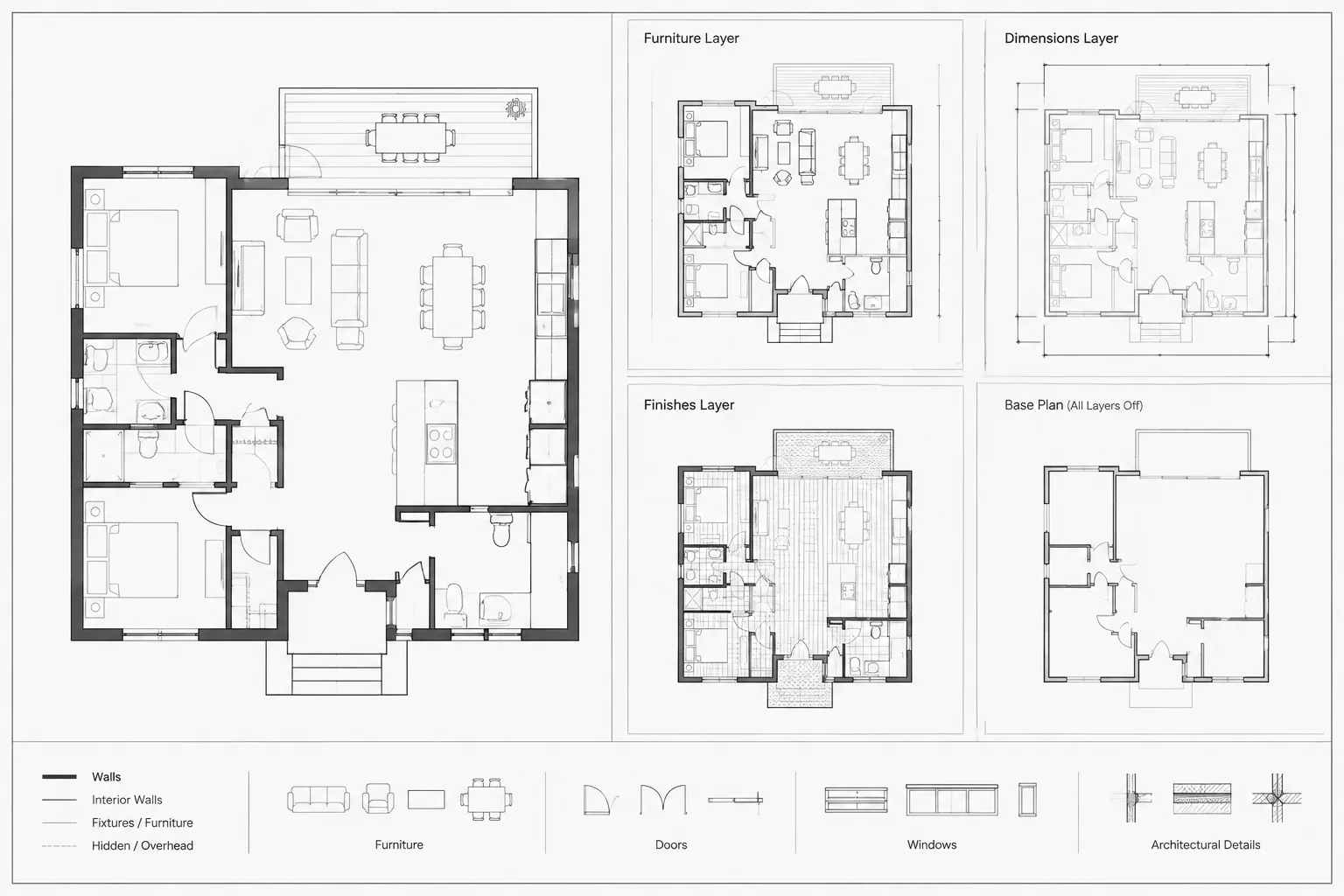
Architectural sheet sets frequently reuse the same model-space geometry while requiring different visual priorities in each paper-space view. Viewport layer overrides provide a controlled way to adjust that presentation without creating duplicate plans or altering the drawing’s normal layer appearance.
This guide explains how to use viewport-specific layer controls, distinguish them from global changes, troubleshoot inconsistent graphics, and review the plotted result. The goal is a repeatable sheet workflow that remains understandable to other CAD users.
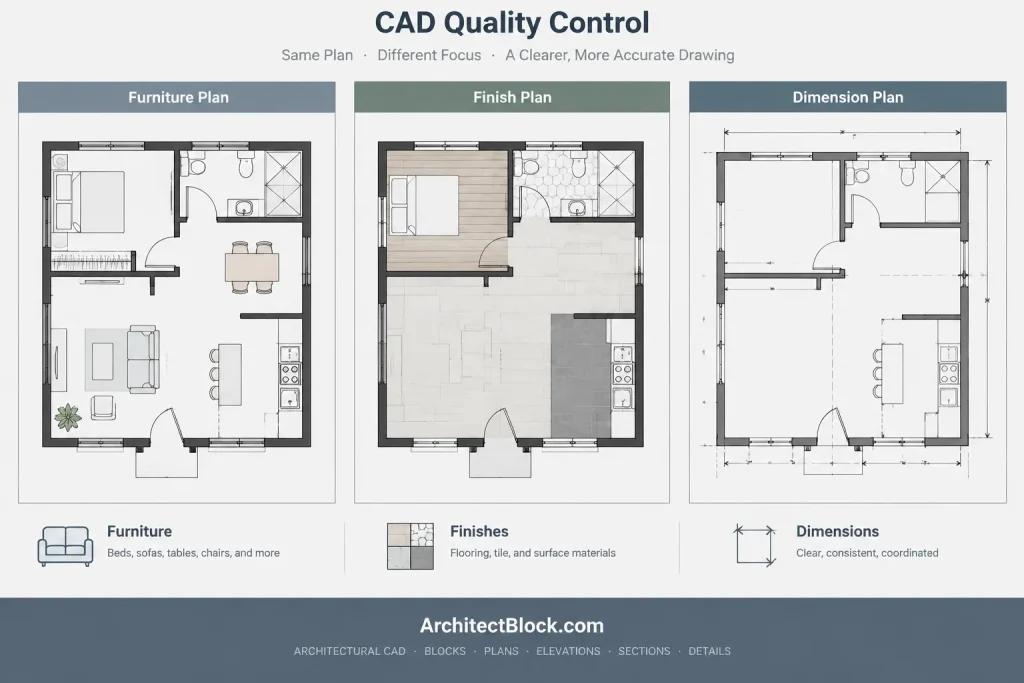
A single architectural model often appears on several sheets for different purposes. The same floor plan may serve as the background for a dimension plan, furniture plan, finish plan, life-safety plan, or enlarged area plan. Although the geometry is shared, each sheet needs a different graphic emphasis.
Viewport layer overrides in AutoCAD make this possible without changing the model-space layer properties for every drawing. They allow selected layer properties to appear differently in an individual paper-space viewport. Used carefully, overrides reduce duplicate geometry and help each sheet communicate its intended information. Used without a clear system, they can create confusing differences between viewports and difficult plotting problems.
What Is a Viewport Layer Override?
A viewport layer override is a layer property that applies only inside a particular paper-space viewport. The layer retains its normal global properties elsewhere in the DWG, including model space and other viewports.
For example, a furniture layer may use its normal plotted lineweight in a furniture plan viewport but appear lighter in a dimension plan viewport. The objects remain on the same layer, and their model-space properties do not need to be edited.
Typical viewport-specific controls include:
- Freezing or displaying a layer in the selected viewport
- Changing the viewport-specific layer color
- Assigning a different viewport linetype
- Changing viewport lineweight
- Adjusting viewport transparency where appropriate
- Applying viewport plot-style properties when supported by the drawing’s plot-style workflow
These are presentation controls, not geometry changes. They should not be used to disguise modeling errors, incorrect layer assignments, or unresolved coordination issues.
Global Layer Properties Versus Viewport Overrides
The distinction between global and viewport-specific properties is essential. A global layer change affects the layer throughout the drawing. A viewport override affects only the selected viewport.
| Control | Scope | Typical architectural use |
|---|---|---|
| Global color or lineweight | Model space and all viewports without overrides | Establishing the normal graphic hierarchy for the project |
| Layer Off | Generally affects the drawing display broadly | Temporarily hiding content during editing |
| Global Freeze | Removes the layer from display and regeneration throughout the drawing | Suppressing content that is not needed in the current file |
| VP Freeze | Selected paper-space viewport only | Removing furniture from one plan while retaining it in another |
| VP Color or lineweight | Selected paper-space viewport only | Halftoning a background or emphasizing plan-specific information |
Before changing a layer, ask whether the result should apply everywhere or only on one sheet view. This simple question prevents many accidental graphic changes.
Common Architectural Uses
Creating a subdued background
A ceiling plan, finish plan, or equipment plan may need the architectural walls and openings for orientation without allowing them to compete with the sheet’s primary content. Viewport color or lineweight overrides can reduce the visual emphasis of selected background layers while leaving their normal appearance intact in other plans.
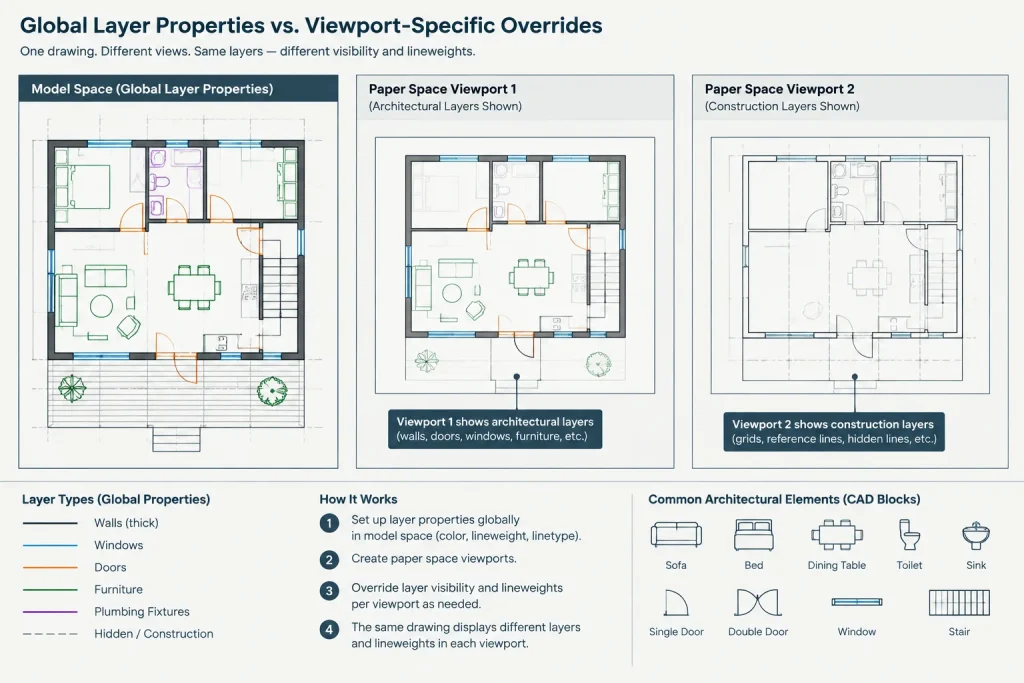
The background should remain readable. Excessive lightening can make walls, doors, room boundaries, or reference information disappear in the final PDF or on a physical print.
Showing different information from one base plan
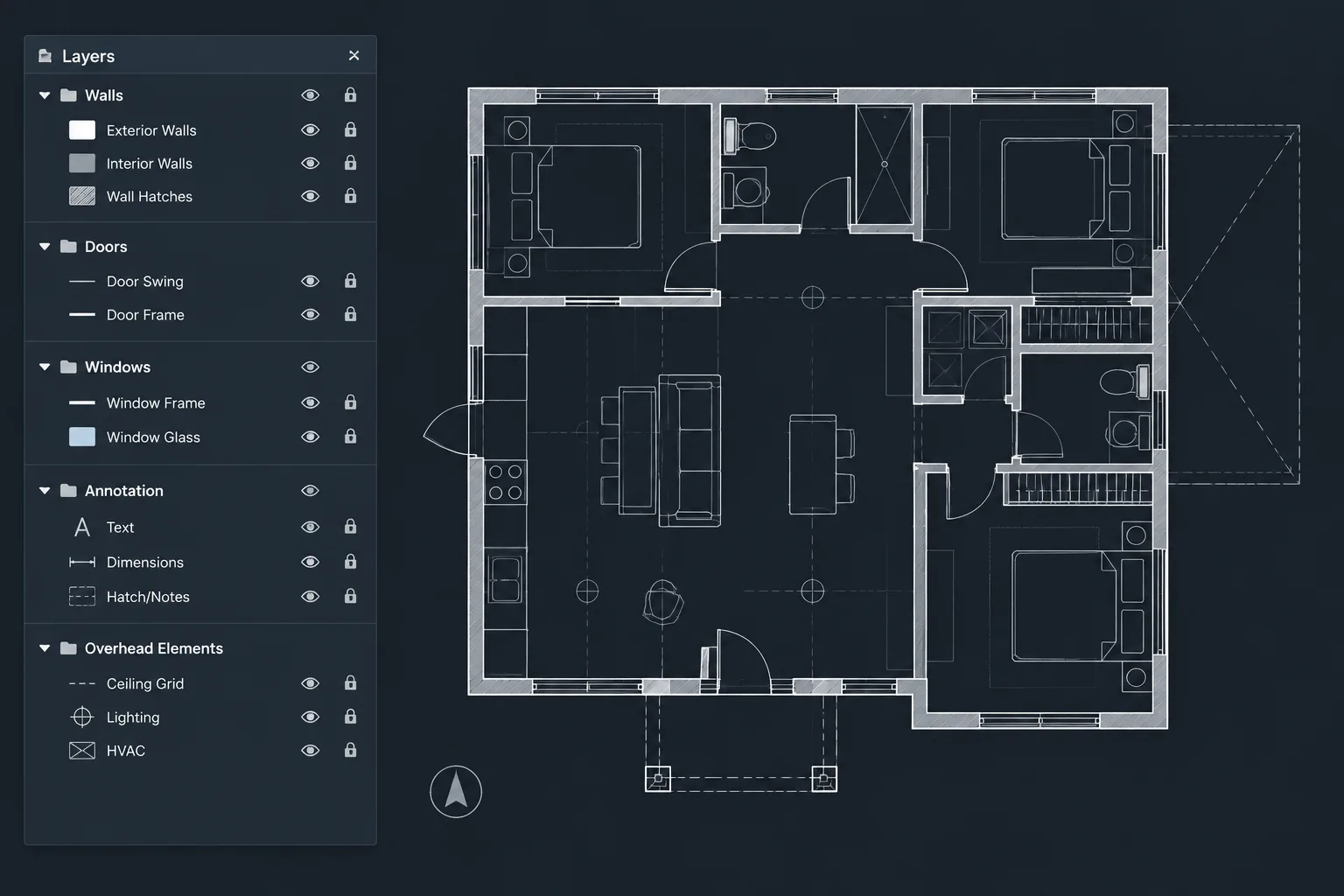
Separate viewports can display the same model-space area with different layers frozen. A furniture sheet can emphasize furniture and equipment, while a floor finish sheet can display finish boundaries and tags with nonessential content suppressed.
This method is most reliable when model geometry is already separated into purposeful layers. Viewport overrides cannot compensate for unrelated objects grouped together on a poorly organized layer.
Controlling enlarged plans
An enlarged plan may require more annotation, stronger detail graphics, and less surrounding context than the overall floor plan. VP Freeze can remove layers that clutter the enlargement, while viewport-specific lineweights can improve the hierarchy at the plotted scale.
Objects should not be hidden merely because they are inconvenient. Confirm that suppressed elements are genuinely unnecessary for the enlarged view and are documented elsewhere when required.
Managing referenced consultant or base information
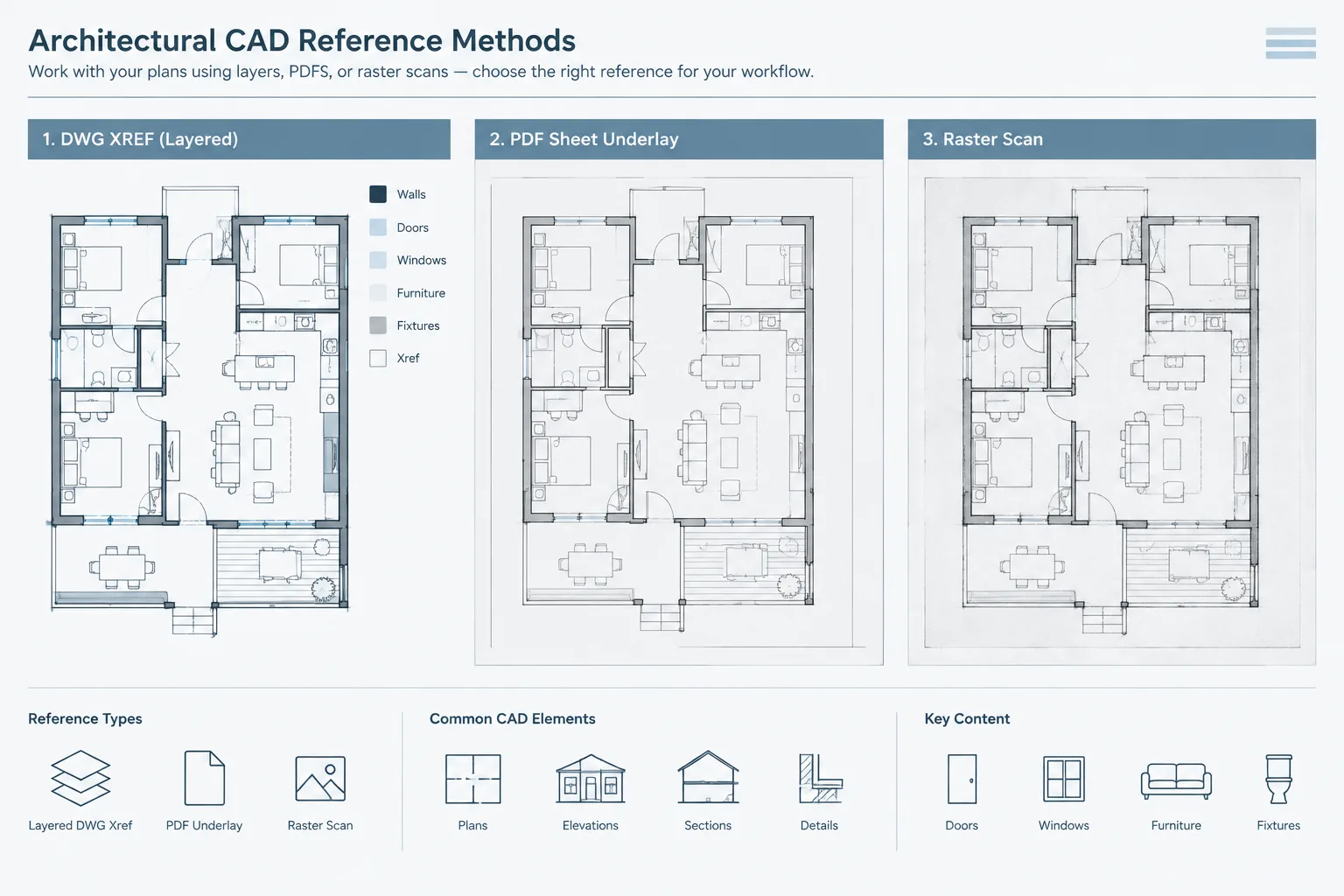
Layers from an attached reference can often be controlled in the host drawing’s viewport. This allows a consultant background or architectural base to appear differently from the host drawing’s primary content.
Layer names and reference paths can change during coordination, so overrides applied to referenced layers should be reviewed whenever an updated file is received. A replaced or renamed reference may not preserve the expected visual result.
A Reliable Setup Workflow
1. Establish the normal model-space graphics first
Begin with a dependable global layer standard. Assign objects to appropriate layers and confirm that normal colors, linetypes, and lineweights produce a usable base drawing. Viewport overrides should refine that system rather than replace it.
2. Create and set the paper-space viewport
Create the viewport, display the required area, assign the intended scale, and set the view orientation. Lock the viewport after its view and scale are correct so routine editing does not accidentally change the sheet composition.
3. Activate the intended viewport
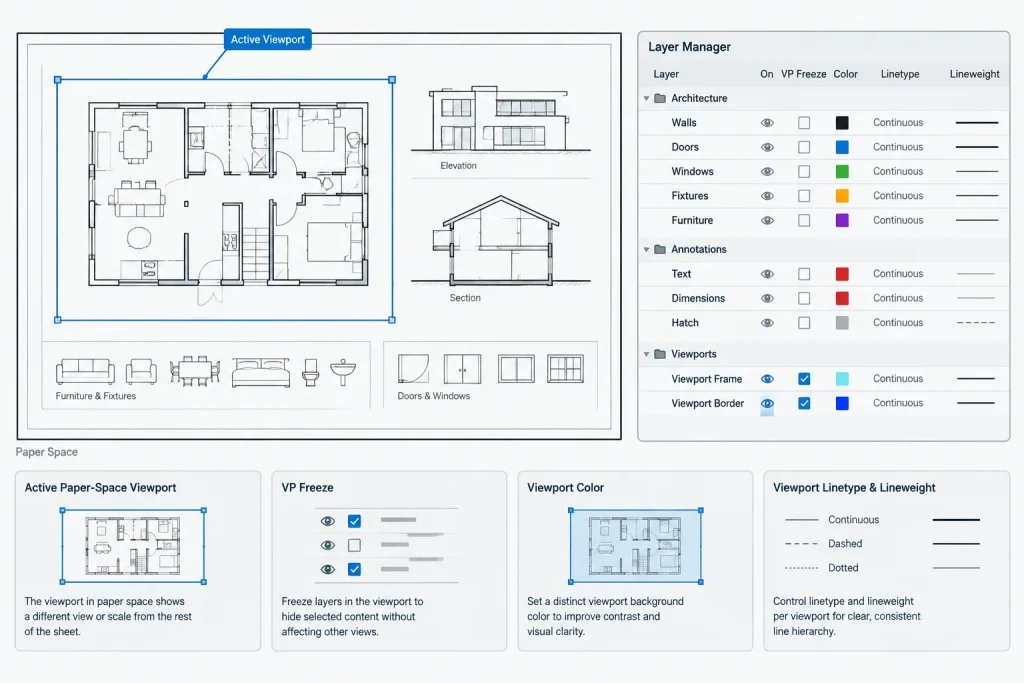
Viewport-specific changes must be applied to the correct viewport. In paper space, enter the viewport and confirm visually that it is active before opening the Layer Properties Manager.
This is a frequent source of mistakes. A user may think a sheet-specific override is being created while actually changing a global layer property or modifying a different viewport.
4. Apply only the necessary overrides
Use VP Freeze for content that should not appear in the selected view. Use viewport color, linetype, or lineweight overrides when the content should remain visible but needs a different graphic role.
Avoid overriding every layer. A short, intentional list is easier to review than a viewport whose appearance depends on many hidden exceptions.
5. Test the plotted output
On-screen appearance is not a substitute for a PDF review. Plot the sheet using the actual page setup and plot-style configuration. Check whether overridden colors map to the intended output, whether thin lines remain legible, and whether transparency produces an acceptable result.
6. Compare related viewports
Review the viewport beside related plans. Confirm that common elements align and that graphic differences reflect sheet purpose rather than accidental settings. If several viewports are intended to match, verify their layer states directly rather than relying on appearance alone.
VP Freeze and New Viewport Freeze
VP Freeze controls whether a layer appears in the currently selected viewport. New viewport freeze controls whether a layer begins frozen in subsequently created viewports. The latter can be useful for layers that should normally remain absent from new sheet views, such as temporary construction information or specialized annotations.
Use this setting cautiously. A layer automatically hidden in new viewports can be overlooked during sheet creation. Project templates should document intentional defaults so another drafter understands why content does not appear.
How Overrides Interact with Object Properties
Viewport layer overrides work most predictably when objects use ByLayer properties. If individual objects have hard-coded colors, linetypes, or lineweights, a layer override may not produce the expected result.
When a viewport refuses to display the intended hierarchy, inspect the objects before adding more overrides. Check:
- Whether the object is on the expected layer
- Whether its color, linetype, and lineweight are set ByLayer
- Whether the object is nested inside a block or external reference
- Whether the correct viewport is active
- Whether the plot style changes the final appearance
- Whether another layer setting is suppressing the content
Correcting object and block properties usually produces a more maintainable result than stacking exceptions.
Troubleshooting Unexpected Viewport Graphics
A layer appears in one viewport but not another
Compare VP Freeze settings for the layer in both viewports. Also check whether one viewport was created with the layer set to freeze automatically in new viewports.
The override is visible on screen but not in the PDF
Review the page setup, plot-style table, object properties, and lineweight display. A color override may map to a plotted weight or screening behavior that differs from its screen appearance.
An xref update changes the sheet appearance
Look for renamed, added, or removed reference layers. Confirm that reference-layer property behavior is consistent with the project’s xref settings, then recheck each affected sheet viewport.
The wrong sheet view changed
Verify which viewport was active when the edit was made. If a global property was changed accidentally, restore the intended base layer property and then apply the change through the appropriate viewport-specific column.
Quality-Control Checklist
- Confirm that model-space layer properties provide a coherent base graphic standard.
- Use ByLayer properties for ordinary drawing objects whenever practical.
- Lock viewport scale and position after setup.
- Check that overrides were applied to the intended viewport.
- Keep overrides limited to clear sheet-specific purposes.
- Review VP Freeze settings for required plan information.
- Recheck overridden xref layers after reference updates.
- Plot a PDF using the actual sheet page setup.
- Compare related plans for unexplained graphic differences.
- Remove obsolete overrides when a viewport’s purpose changes.
Use Overrides as a Presentation Layer, Not a Repair Tool
Viewport layer overrides are most valuable when the underlying architectural model is already organized. They provide a controlled presentation layer between shared model geometry and the needs of a particular sheet. This makes it possible to reuse coordinated plans while giving dimensions, finishes, ceilings, furniture, and other drawing types their own visual hierarchy.
The best workflow starts with correct geometry, deliberate layer assignments, and dependable global plotting properties. Viewport overrides are then applied sparingly, documented through consistent office practices, and verified in the final plotted output. That approach keeps sheet graphics flexible without making the DWG difficult to understand or maintain.
Documenting Overrides for Team Use
A viewport can look correct while still being difficult for another drafter to interpret. Because many overrides are visible only when the relevant viewport and layer properties are examined, teams should treat them as deliberate sheet settings rather than informal visual adjustments.
When a sheet depends on viewport overrides, the drawing workflow should make the reason clear. Useful practices include:
- Define the view’s purpose: identify whether the viewport is emphasizing dimensions, finishes, furniture, reflected ceiling information, or another drawing category.
- Preserve a dependable base: keep global layer properties suitable for the normal model and reserve overrides for genuine sheet-specific differences.
- Use consistent treatment: apply the same graphic logic to viewports serving the same purpose instead of adjusting each one by eye.
- Review transferred work: inspect viewport settings when a layout is copied, a sheet is repurposed, or model content is moved between drawing files.
- Record unusual exceptions: if a required layer is intentionally hidden or given an unexpected appearance, document that decision through the project’s established CAD coordination method.
Auditing a Viewport Before Sheet Issue
A useful audit starts by comparing what the viewport is intended to communicate with what its layer configuration actually displays. Select the viewport, inspect its viewport-specific columns, and look for settings that no longer support the sheet purpose.
Pay particular attention to layers that contain boundaries, openings, annotations, reference geometry, or coordinated consultant information. A visually quiet background may be appropriate, but necessary context should remain identifiable in the plotted sheet.
If the viewport has accumulated many exceptions, reconsider the underlying layer organization. Simplifying object assignments or restoring ByLayer properties may be more reliable than adding further overrides. The most maintainable result is usually the one with a sound global layer structure and a small set of intentional viewport differences.
Frequently Asked Questions
Do viewport layer overrides change model-space geometry?
No. They change how layer content is displayed in a selected paper-space viewport. The objects and their geometry remain in model space unless they are edited separately.
Why does a viewport override fail to change an object’s appearance?
The object may use a hard-coded property instead of ByLayer, reside on a different layer than expected, or be nested within a block or external reference. Plot-style behavior can also make the final output differ from the screen display.
Should VP Freeze be used instead of turning a layer off globally?
Use VP Freeze when the layer should disappear only from the selected viewport. A global layer control is more appropriate when the change is intended to affect the drawing broadly.
Can viewport overrides be applied to xref layers?
Referenced layers can often be controlled through the host drawing’s viewport settings. Review those controls after reference updates because renamed, replaced, added, or removed layers can affect the sheet appearance.
Are viewport overrides a substitute for good layer organization?
No. Overrides work best when geometry is already assigned to purposeful layers and ordinary object properties follow the drawing’s layer standard. They should refine sheet presentation rather than conceal drafting or coordination problems.
When should an override be removed?
Remove an override when the viewport’s purpose changes, the base layer standard now provides the desired result, or the exception no longer communicates useful information. Obsolete overrides make future troubleshooting harder.