Choosing between relative and full xref paths affects whether an architectural DWG set remains connected when project folders move between workstations, shared storage, consultants, and archives. This guide explains how each path type behaves, where references commonly fail, and how to verify that a host drawing is loading the intended source file.
External references help architectural teams separate floor plans, backgrounds, consultant information, and sheet files into manageable DWGs. That organization only works when each host drawing can locate its referenced files. A missing xref may be caused by a renamed folder, a moved project, an unavailable server location, or a path saved in a form that does not match the current working environment.
Understanding relative vs. full xref paths is therefore an important part of architectural drawing organization. The right choice can make a project easier to archive, transfer, and open on another workstation without manually repairing references.
What an xref path does
When one DWG references another, the host drawing stores information that AutoCAD uses to find the referenced file. The stored path does not control the xref’s insertion point, scale, rotation, or attachment type. It only addresses where the source file is located.
AutoCAD commonly provides three ways to save that location:
- Full path: Records the file location from the drive or network root through the complete folder structure.
- Relative path: Records the file location in relation to the folder containing the host drawing.
- No path: Stores the referenced filename without a project-specific folder route.
These options can point to the same source DWG while producing very different results when a project is copied, issued, archived, or opened by another user.
Relative, full, and no-path references compared
| Path type | Primary advantage | Common risk | Typical use |
|---|---|---|---|
| Relative | Project folders can often move together without breaking their internal relationships | Folder relationships must remain consistent | Organized project directories, consultant packages, and archives |
| Full | Points explicitly to one known location | The address may fail on another workstation or after a folder move | Controlled shared environments where the source location is intended to remain fixed |
| No path | Keeps the saved reference address simple | AutoCAD may find the wrong same-named file or may not find the file at all | Closely controlled folders or workflows with established file-search rules |
How relative paths support portable project folders
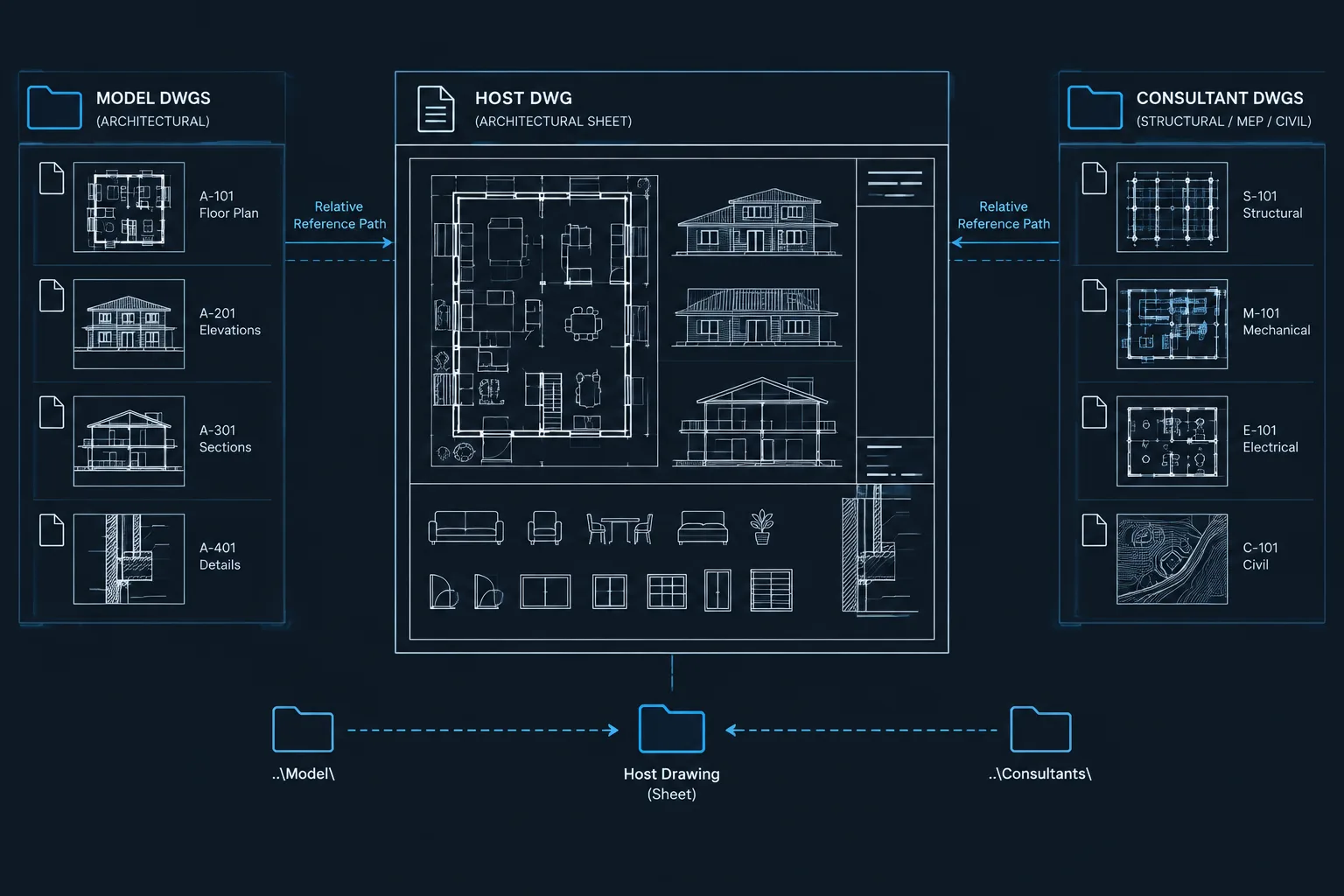
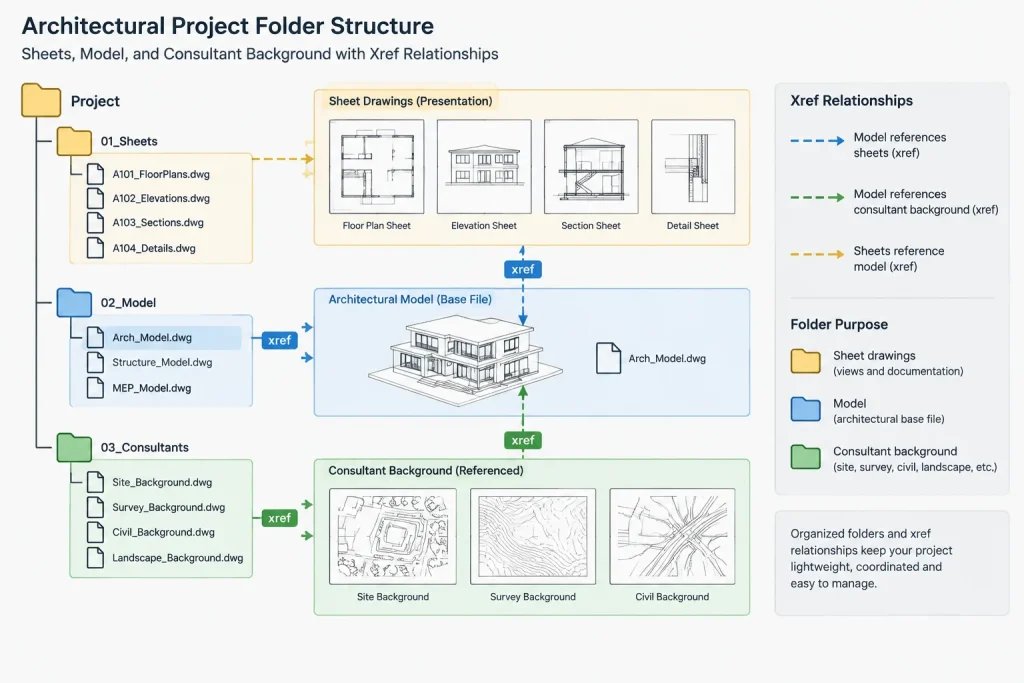
A relative path describes how to travel from the host drawing’s folder to the referenced file. For example, a sheet DWG may point to a floor-plan background stored in a nearby model folder. If the complete project directory is copied to a different drive while the internal folder arrangement remains unchanged, that relationship can remain valid.
This makes relative paths useful for architectural projects that are packaged for another team member, transferred between office and remote environments, or preserved as an archive. The project root can change, but the relationship between the sheet and model folders stays the same.
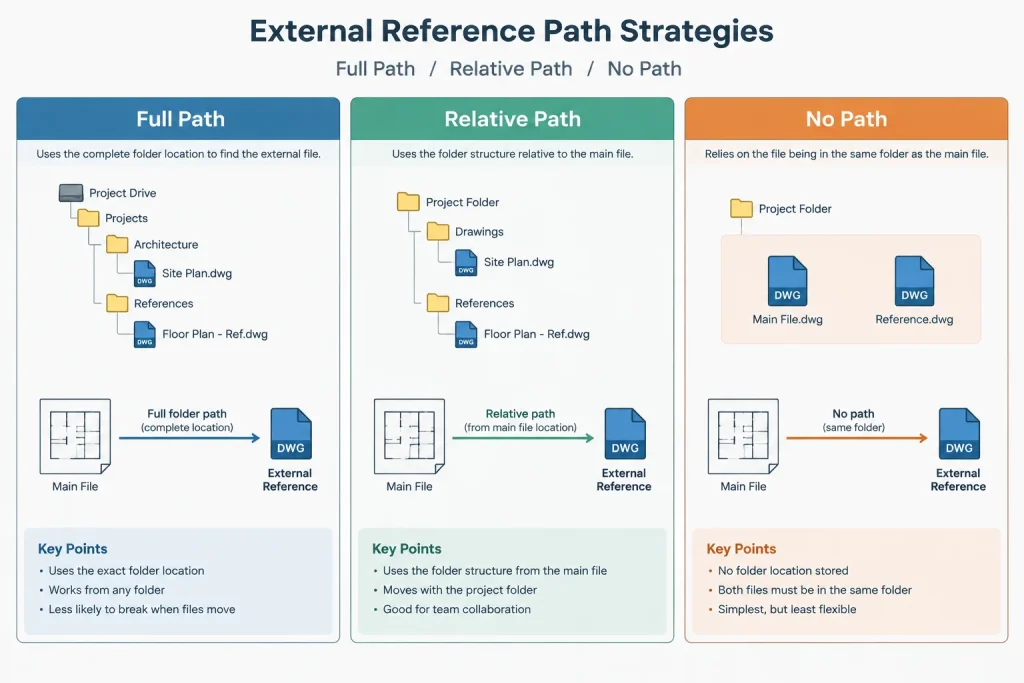
Relative paths are not automatically immune to project changes. Moving only the host drawing, moving only its reference, renaming an intermediate folder, or separating a package can still break the link. Their reliability depends on maintaining the intended internal directory structure.
A practical folder relationship
A project may separate drawing files into folders for architectural models, consultant backgrounds, and sheets. A sheet file can use relative paths to reach the model and consultant folders. Users do not need identical drive letters or an identical parent directory above the project folder, but they do need the packaged folders to retain their relationship to one another.
Before assigning relative paths, save the host drawing in its intended project folder. AutoCAD needs a saved host location as the basis for calculating the relationship.
When a full path may be appropriate
A full path records the complete location of the referenced file. This can be useful when a project team intentionally maintains a central source at a stable shared address. The explicit path also helps a user identify exactly which folder was expected when the reference was attached.
The disadvantage is portability. A drive letter, server name, user folder, or mapped location that works for one person may not exist for another. Even within one office, two users may reach the same server through different addresses. A full path can also become obsolete when a project is reorganized or archived.
Full paths should therefore be a conscious workflow decision rather than an unnoticed default. If a file is expected to travel outside its current environment, review its saved paths before delivery.
Understanding the no-path option
No path stores the reference by filename rather than by a specific project folder route. AutoCAD must then locate the file through the available drawing and file-search environment. This can be convenient when the host and referenced drawings are deliberately kept together or when an office has tightly managed search locations.
The main concern is ambiguity. Architectural projects often reuse filenames such as floor plans, grids, or backgrounds. If more than one accessible folder contains the same filename, a drawing can potentially resolve to an unintended source. A loaded status alone does not prove that the correct file was found.
When using no path, verify the resolved source location in the external-reference interface and inspect the drawing content. Do not assume that a familiar filename represents the current project file.
A reliable path-management workflow
1. Establish the project folders first
Create and agree on the folder structure before attaching numerous backgrounds. Avoid building references from temporary download folders, email-attachment locations, personal desktops, or other locations that are unlikely to remain part of the project.
2. Save the host DWG
Place the host drawing in its intended folder and save it. This is especially important when the project will use relative paths because the host location provides the starting point for the saved relationship.
3. Attach the verified source file
Confirm that the selected DWG is the correct project source rather than an exported copy, outdated issue, or similarly named file. Path management cannot correct a reference that began with the wrong source.
4. Choose the path type deliberately
Use relative paths when the project directory is intended to function as a portable unit. Use a full path when a stable centralized location is genuinely required. Use no path only when the team understands and controls how the file will be found.
5. Review resolved locations
In the External References palette, compare the saved path with the resolved file location. The saved path is the address recorded in the host drawing; the resolved location indicates the file AutoCAD actually found. This distinction is valuable when diagnosing unexpected content.
6. Test outside the original environment
For an important handoff or archive, test a copy of the complete project package in a separate location. Open representative sheet files, reload their references, and inspect plans, elevations, sections, and consultant backgrounds. Testing reveals dependencies that may remain hidden on the original workstation.
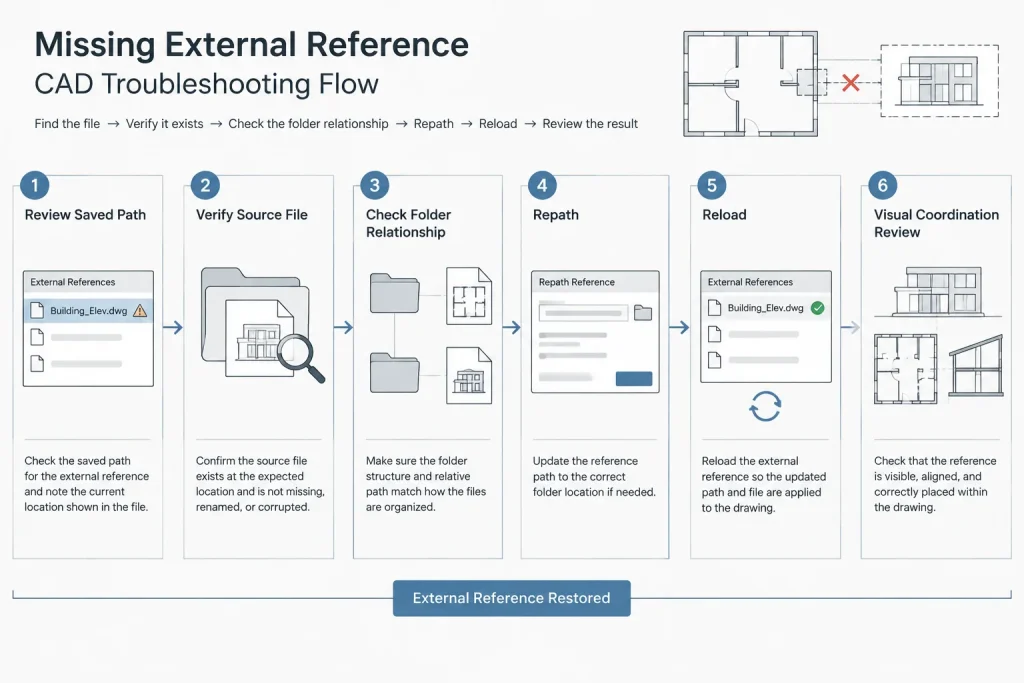
Troubleshooting a missing or incorrect xref
When an xref cannot be found, avoid immediately browsing to the first similarly named DWG. Diagnose the break methodically:
- Read the saved path and identify the location the host expects.
- Confirm whether the source file still exists and whether its filename has changed.
- Check whether the host DWG or referenced file was moved independently.
- Look for renamed project or discipline folders.
- Verify access to required shared storage.
- Search for duplicate filenames before repathing the reference.
- Confirm that the selected replacement contains the expected project content.
- Reload the xref and inspect its alignment, visibility, and drawing extents.
If multiple references are missing after a project move, repair the folder organization before editing each path individually. Restoring the expected folder relationship may resolve several relative references at once.
Path changes and architectural quality control
A path repair is not merely an administrative task. Loading the wrong background can affect room layouts, openings, dimensions, reflected ceiling information, and consultant coordination. After changing a path, review more than the xref status.
- Confirm that the referenced project, floor, and discipline are correct.
- Check that the xref appears at the expected coordinates and orientation.
- Inspect key intersections such as grids, walls, stairs, shafts, and exterior limits.
- Review reference-dependent layer visibility in representative viewports.
- Look for unresolved nested references within the newly selected file.
- Plot or preview representative sheets to catch display differences.
Do not compensate for an incorrect source by moving, rotating, or scaling the xref until its identity and coordinate setup have been verified. A visually convenient adjustment can hide a larger coordination problem.
Recommended practice for architectural DWG projects
For many portable architectural project structures, relative paths provide a useful balance between organization and transferability. They work best when the team treats the project directory as a coordinated package and avoids casual folder changes.
Regardless of path type, consistent filenames, controlled folders, and pre-issue testing matter more than the setting alone. Before sharing a project, inspect the actual dependency chain rather than assuming that all loaded files will remain available elsewhere. A dependable xref workflow combines a deliberate path strategy with source verification, folder discipline, and drawing-level quality control.
Turn the path choice into a project policy
Xref reliability improves when the team makes path handling part of the drawing setup rather than leaving it to individual preference. The project policy should identify which folders belong inside the transferable project directory, which references depend on controlled shared storage, and who is responsible for reviewing dependencies before a handoff.
Apply the policy consistently to sheet files, model backgrounds, and consultant references. A mixture of path strategies may be appropriate, but each exception should have a clear reason. Unexplained full paths, temporary source locations, and duplicate filenames make troubleshooting harder for the next person who opens the project.
Document what should travel with the DWGs
A drawing package is more dependable when recipients can understand its folder logic without reconstructing the original workstation. Use clear folder and file names, keep required backgrounds with the intended package, and remove uncertainty about which files are current.
Before delivery, review representative host drawings and confirm that their resolved references come from the packaged or approved locations. This check is especially important when a file loads successfully on the author’s workstation, where existing search locations may conceal a missing package dependency.
Separate path problems from drawing problems
A valid path only confirms that AutoCAD found a file. It does not confirm that the file is current, correctly coordinated, or appropriate for the host drawing. Conversely, an xref that appears misaligned may have a coordinate or source-selection problem rather than a path-format problem.
Troubleshooting should therefore establish the source file’s identity and resolved location before changing its insertion settings or editing project geometry. This sequence helps prevent a path repair from masking an outdated background or an incorrect discipline file.
Frequently asked questions
Why does a relative xref path break after copying a project?
A relative path depends on the folder relationship between the host DWG and the referenced file. It can break if only part of the project is copied, an intermediate folder is renamed, or the host and reference are moved separately.
Does a loaded xref mean AutoCAD found the correct file?
No. AutoCAD may locate a same-named file in an accessible location. Compare the resolved location with the expected project source and inspect the referenced content before accepting it.
Should every architectural xref use a relative path?
Not necessarily. Relative paths are often useful for portable project directories, while a full path may support an intentionally fixed shared source. The correct choice depends on how the project is stored, transferred, and maintained.
Why must the host drawing be saved before assigning a relative path?
The host DWG needs a known folder location so AutoCAD can describe the referenced file’s location in relation to it.
What should be checked after repathing an xref?
Verify the resolved source, project identity, discipline, alignment, orientation, layer display, nested references, and representative sheet output. Do not rely only on the loaded status.
Can changing an xref path alter its scale or insertion point?
The stored path addresses the source file location. It does not itself define the xref’s scale, rotation, insertion point, or attachment behavior.