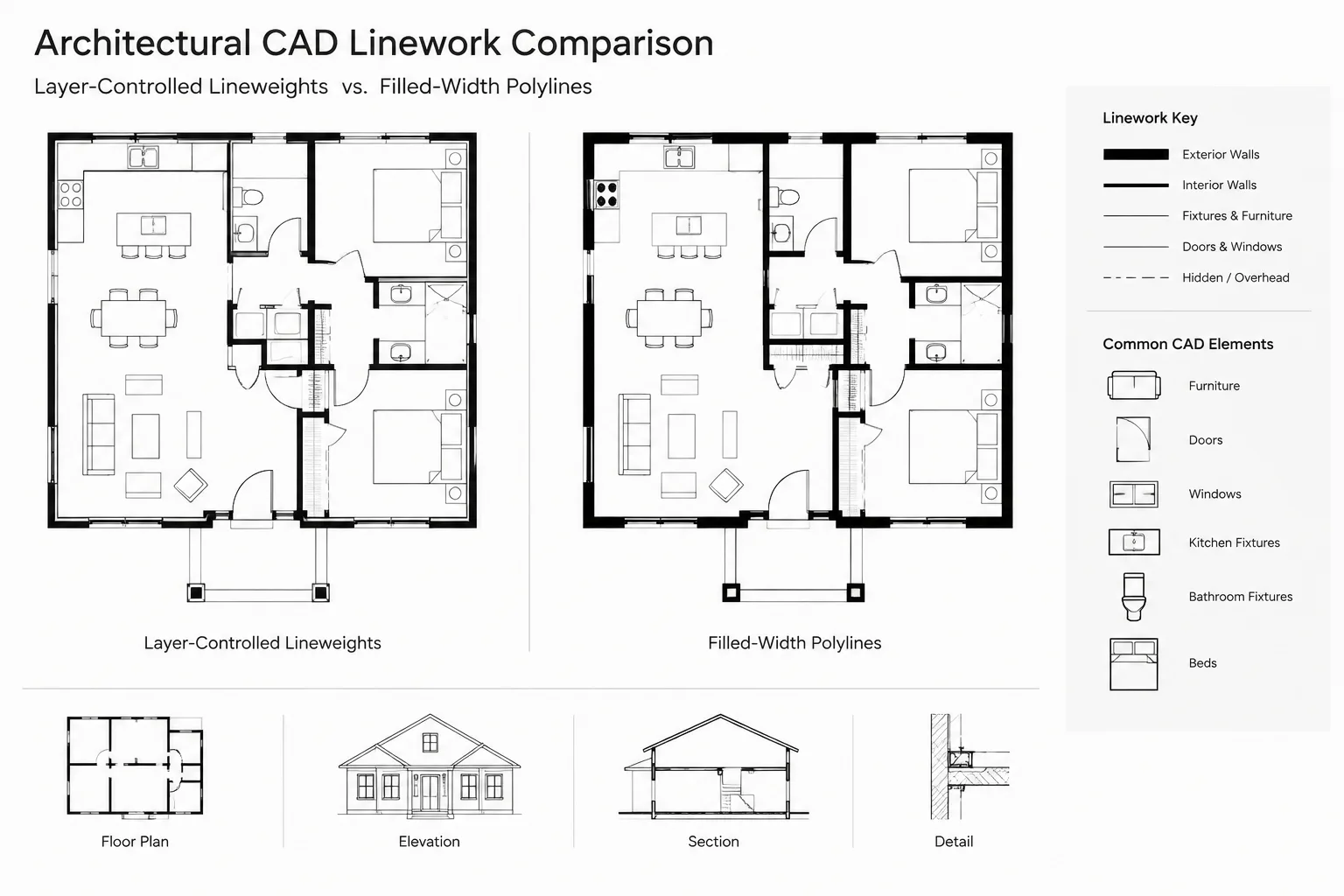
Choosing between polyline width and lineweight is a drawing-organization decision, not merely a visual preference. Although both can produce a heavier appearance, they respond differently to model scale, viewport presentation, object editing, and plotting.
This guide explains how to select the appropriate property, diagnose unexpectedly heavy CAD objects, and maintain a clear architectural graphic hierarchy without embedding unnecessary width into ordinary linework.
Polyline width and lineweight can both make a line appear heavier, but they are not interchangeable. One is part of the drawn geometry, while the other is primarily a display and plotting property. Confusing them can create inconsistent sheets, oversized symbols, difficult edits, and graphics that change unexpectedly between viewports.
For most architectural drawings, lineweight should control the hierarchy of ordinary lines. Polyline width is better reserved for graphics that intentionally need a measurable band or filled path. Understanding that distinction makes floor plans, diagrams, details, and exported PDFs easier to manage.
The basic difference
A lineweight describes how heavy an object should display or plot. It may be assigned directly to an object, inherited from its layer, or controlled through the drawing’s plotting system. It does not normally change the object’s underlying path.
Polyline width creates a visibly wide strip along the polyline path. The width is expressed in drawing units and is part of the object’s geometric appearance. A wide polyline therefore behaves more like a filled band than a thin path with a plotting instruction.
| Characteristic | Lineweight | Polyline width |
|---|---|---|
| Primary purpose | Printed and displayed line hierarchy | Wide geometric paths and graphic bands |
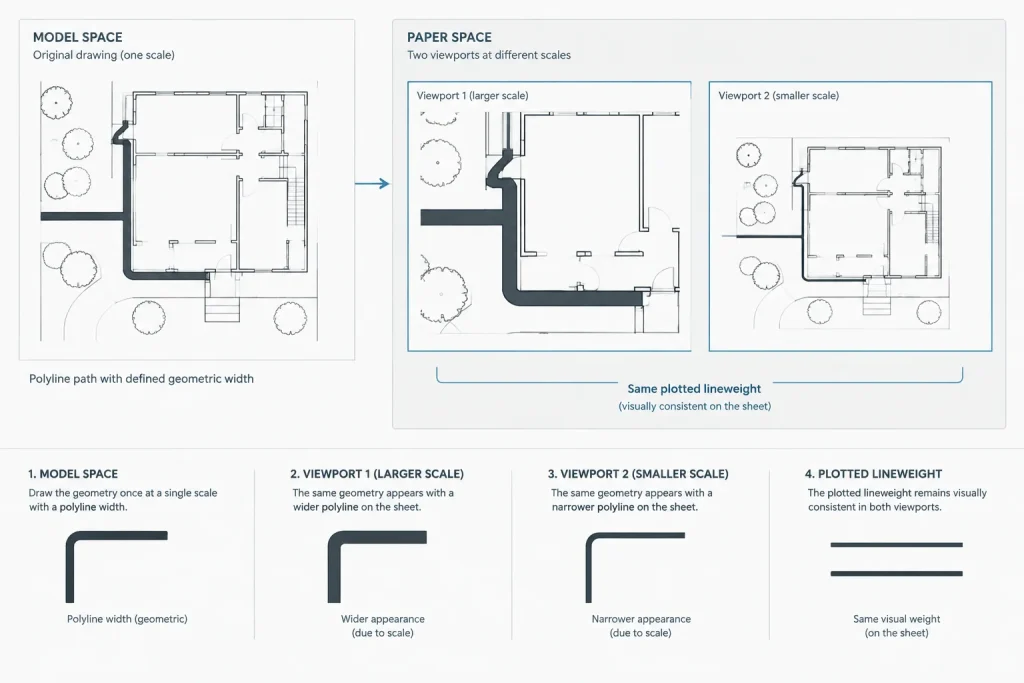
| Relationship to scale | Usually intended to represent a sheet-based plotted thickness, subject to page setup | Uses model-space drawing units and changes apparent plotted size with viewport scale |
| Geometry | Underlying path remains a line or curve | Polyline displays as a filled-width object |
| Typical control | By layer, by object, or through plot-style settings | Polyline properties, segment widths, or polyline editing tools |
| Best architectural use | Cut lines, outlines, projection lines, annotation, and detail hierarchy | Diagram routes, graphic bands, selected poche, and specialized symbols |
Why lineweight is usually the better drafting tool
Architectural drawings depend on a repeatable visual hierarchy. Elements cut by a plan or section plane may read more strongly than projected objects, while surface patterns and secondary information remain lighter. Layer-based lineweights allow that hierarchy to be adjusted systematically without rebuilding geometry.
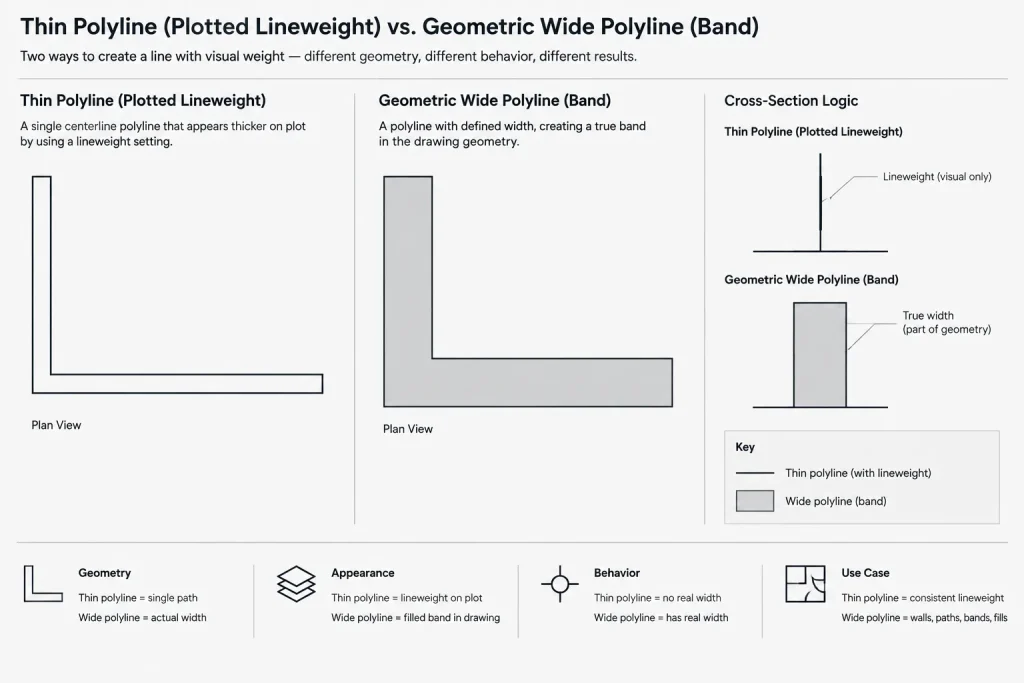
A zero-width polyline can still carry a lineweight. This is often the preferred setup for wall outlines, room boundaries, detail components, and other conventional drafting objects. The polyline remains easy to offset, trim, snap to, and coordinate, while its printed strength is controlled independently.
Lineweight also works well across drawings shown at different viewport scales. Because it is commonly treated as an output thickness rather than a model-space width, the same layer can retain a consistent visual role on multiple sheets. Page setup and plot-style configuration still matter, so a PDF plot test is essential.
When polyline width is useful
Polyline width is appropriate when the width itself is part of the intended graphic. Common examples include circulation diagrams, route diagrams, broad arrows, simplified utility paths, filled break symbols, and presentation graphics. It can also help create a deliberate band that must scale with the model rather than remain visually constant on the sheet.
A polyline may have a constant width or varying start and end widths. Tapered segments can be useful for diagram arrows or directional graphics. These effects should be used intentionally because they make the object behave differently from a conventional thin drafting line.
Wide polylines can occasionally support architectural poche or symbolic graphics, but they should not become a substitute for well-defined boundaries and hatches. A hatch bounded by clear linework is generally easier to revise when wall profiles, openings, or material extents change.
Where wide polylines cause problems
Using width to represent walls
Drawing a wall as one wide centerline may look efficient, but it hides the two actual wall faces. Openings, intersections, finish offsets, dimensions, and detail references usually need explicit edges. Separate wall boundaries or a properly managed wall workflow provide clearer coordination geometry.
Using width to fix weak plotting
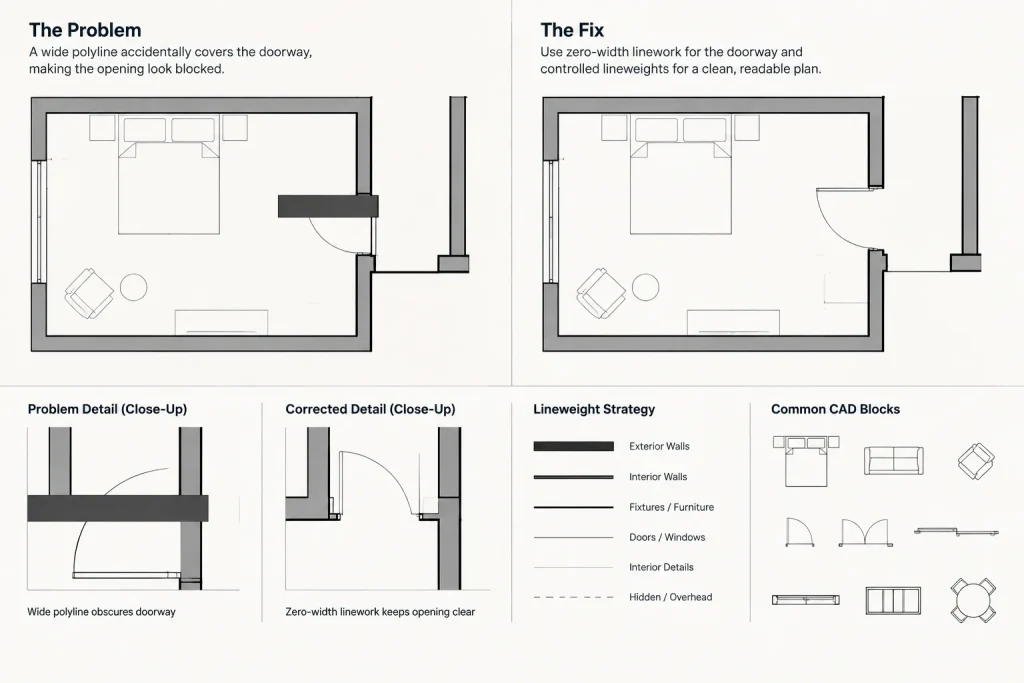
If ordinary plan lines plot too lightly, increasing polyline width treats the symptom rather than the setup problem. Check object layers, assigned lineweights, plot styles, page setup, and whether lineweights are enabled for plotting. Adding geometric width can make the same object look excessive in another viewport.
Mixing model-width graphics across scales
A wide polyline shown in two differently scaled viewports will not occupy the same thickness on each printed view. It scales with the model. This may be correct for a real-width diagram element, but it is usually undesirable for standard architectural outlines or annotation symbols.
Leaving accidental widths in copied content
Downloaded blocks and consultant backgrounds may contain polylines with unexpected global or segment widths. These objects can appear as solid bars, obscure nearby information, or plot differently after units and scales are reconciled. Setting a polyline’s width to zero is often part of cleanup, but only after confirming that the width was not intentional.
A practical decision process
- Ask whether the thickness belongs to the sheet or the model. If it is part of the drawing’s printed hierarchy, use lineweight. If it represents a model-space band, polyline width may be appropriate.
- Check whether actual edges are needed. Walls, curbs, counters, and similar objects usually require separate boundaries for dimensions and coordination.
- Consider multiple viewport scales. Test any wide polyline in every scale at which it will appear.
- Keep conventional linework ByLayer where practical. Centralized layer control is easier to audit than scattered object overrides.
- Plot before standardizing the result. Model-space display alone is not a reliable prediction of PDF output.
How to inspect an unexpectedly heavy object
When a line appears much heavier than nearby objects, do not assume its layer lineweight is responsible. Select it and review its object type and properties.
- Confirm whether the object is a line, polyline, spline, hatch, or block reference.
- If it is a polyline, inspect its global width and, where relevant, individual segment widths.
- Check whether lineweight is set directly on the object or inherited from the layer.
- Review the object’s layer and that layer’s properties.
- If the object is inside a block, edit or inspect the block definition rather than only the inserted reference.
- Check viewport overrides, plot-style behavior, and page setup.
- Create a test PDF and compare it with the intended sheet hierarchy.
The Properties palette can reveal most object-level settings. Polyline editing tools can change widths or convert connected geometry where appropriate. Use caution with bulk changes: a drawing may contain intentional wide diagram lines alongside accidental ones.
Recommended layer and block practices
Use dedicated layers for diagram graphics or other intentional wide polylines. A clear layer name helps reviewers understand that the heavy appearance is geometric rather than a plotting accident. Avoid placing wide diagram paths on the same layers used for ordinary architectural outlines.
Inside reusable blocks, favor ByLayer or ByBlock properties according to the office’s block strategy. Avoid unexplained combinations of fixed color, fixed lineweight, and polyline width. Such combinations are difficult to diagnose after the block is inserted into a project with a different plotting configuration.
Before adding a downloaded CAD block to a library, inspect its polylines at more than one zoom level and in a test plot. Confirm that wide elements are intentional, that their appearance remains useful at expected scales, and that they do not mask attributes or adjacent geometry.
Quality-control checklist
- Ordinary architectural line hierarchy is controlled primarily through layers and plotting settings.
- Wide polylines are limited to graphics that genuinely require model-space width.
- Wall and object faces needed for dimensions are represented by explicit geometry.
- Copied blocks have been checked for accidental global and segment widths.
- Wide graphics have been reviewed in every relevant viewport.
- Lineweight display settings are not being mistaken for final plotted output.
- The PDF has been checked at normal viewing size as well as at high zoom.
Use each property for its intended job
The simplest rule is to use lineweight for drafting hierarchy and polyline width for intentional geometric bands. Lineweight keeps architectural graphics flexible across layers, viewports, and sheets. Polyline width is valuable when an object’s visible width must scale with the model or form part of a diagram.
Keeping those roles separate produces cleaner DWG files and makes plotting problems easier to diagnose. It also prevents graphic shortcuts from replacing the explicit boundaries needed for reliable architectural coordination.
Applying the distinction during drawing review
A useful review begins by identifying the purpose of each heavy graphic. Cut elements, projected outlines, annotation, and secondary detail generally belong to a sheet-oriented hierarchy. Their appearance should remain manageable through layers, object properties, and plotting controls. Diagram paths and intentionally filled strokes belong to a different category because their visible width is part of the graphic itself.
This classification also improves file handoff. A reviewer can understand conventional linework by checking its layer and plotting behavior, while dedicated diagram layers signal that a wide appearance is intentional. When both methods are mixed without a clear system, troubleshooting requires inspecting geometry, object overrides, block definitions, viewport settings, and output configuration.
Coordinate appearance before editing geometry
Before changing an unexpectedly heavy object, compare its model-space appearance with its plotted result. A display setting may make assigned lineweights look prominent on screen without indicating a geometry problem. Conversely, a wide polyline may appear acceptable in one view but cover adjacent information elsewhere because its width follows the model.
If a correction is required, preserve the design intent. Removing all widths from selected polylines may repair imported linework, but it may also destroy arrows, route bands, poche, or symbolic graphics. Separate accidental settings from deliberate graphics before making a bulk edit.
Document the office convention
A concise CAD standard should state that ordinary architectural hierarchy is managed through layers and plotting properties, while geometric width is reserved for identified graphic uses. Naming dedicated layers for those uses makes the distinction easier to audit and helps prevent copied content from introducing unexplained heavy bands.
The same convention should be applied to reusable blocks. Clean property inheritance, intentional geometry, and a verified test plot make blocks more predictable when they move between drawings with different layer structures or plotting configurations.
Frequently asked questions
Can a polyline use lineweight without having polyline width?
Yes. A polyline can retain a thin geometric path while receiving its plotted strength from an assigned or inherited lineweight. This is usually preferable for conventional architectural linework.
Why does a polyline look like a solid band?
The object may have a global width or widths assigned to individual segments. It could also be part of a block whose internal geometry carries those properties. Inspect the object type, width settings, layer, and block definition before changing it.
Should polyline width be used to draw walls?
Usually not when wall faces must support openings, dimensions, intersections, finishes, or detail coordination. Explicit boundary geometry provides usable edges, while a single wide path can conceal where those faces actually occur.
Why does a wide polyline look different in separate viewports?
Polyline width belongs to model-space geometry, so its apparent thickness on the sheet changes with viewport scale. Lineweight is generally better when a line must maintain a consistent role in the plotted hierarchy.
Can changing an object’s layer remove its polyline width?
Not necessarily. Polyline width is an object property and may remain after the object is moved to another layer. Inspect and revise the width directly if it is accidental.
How should imported blocks with heavy lines be cleaned?
Inspect the block definition and distinguish intentional bands from accidental widths. Then review object properties, layer inheritance, plotting behavior, and the resulting PDF before adding the block to a reusable library.