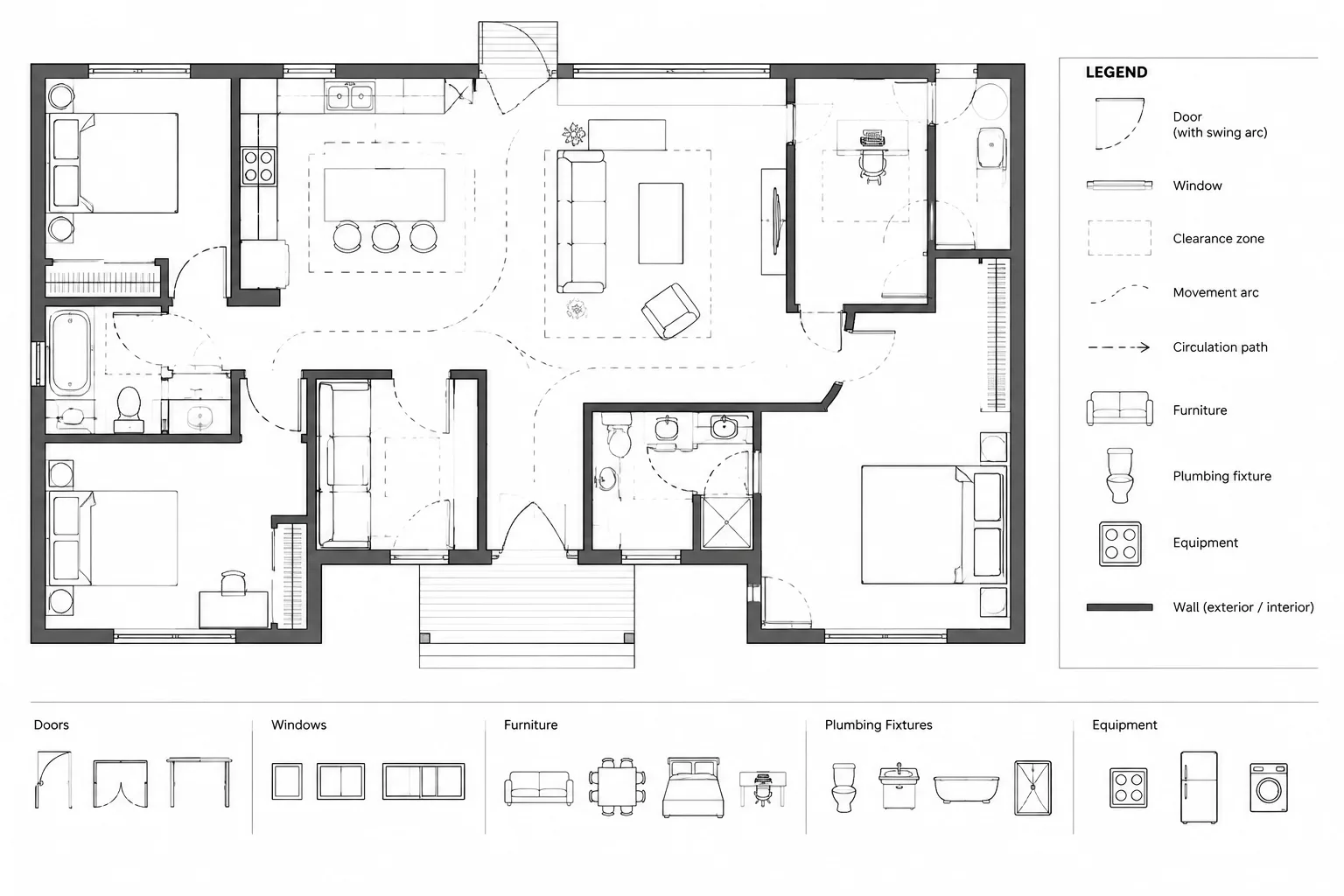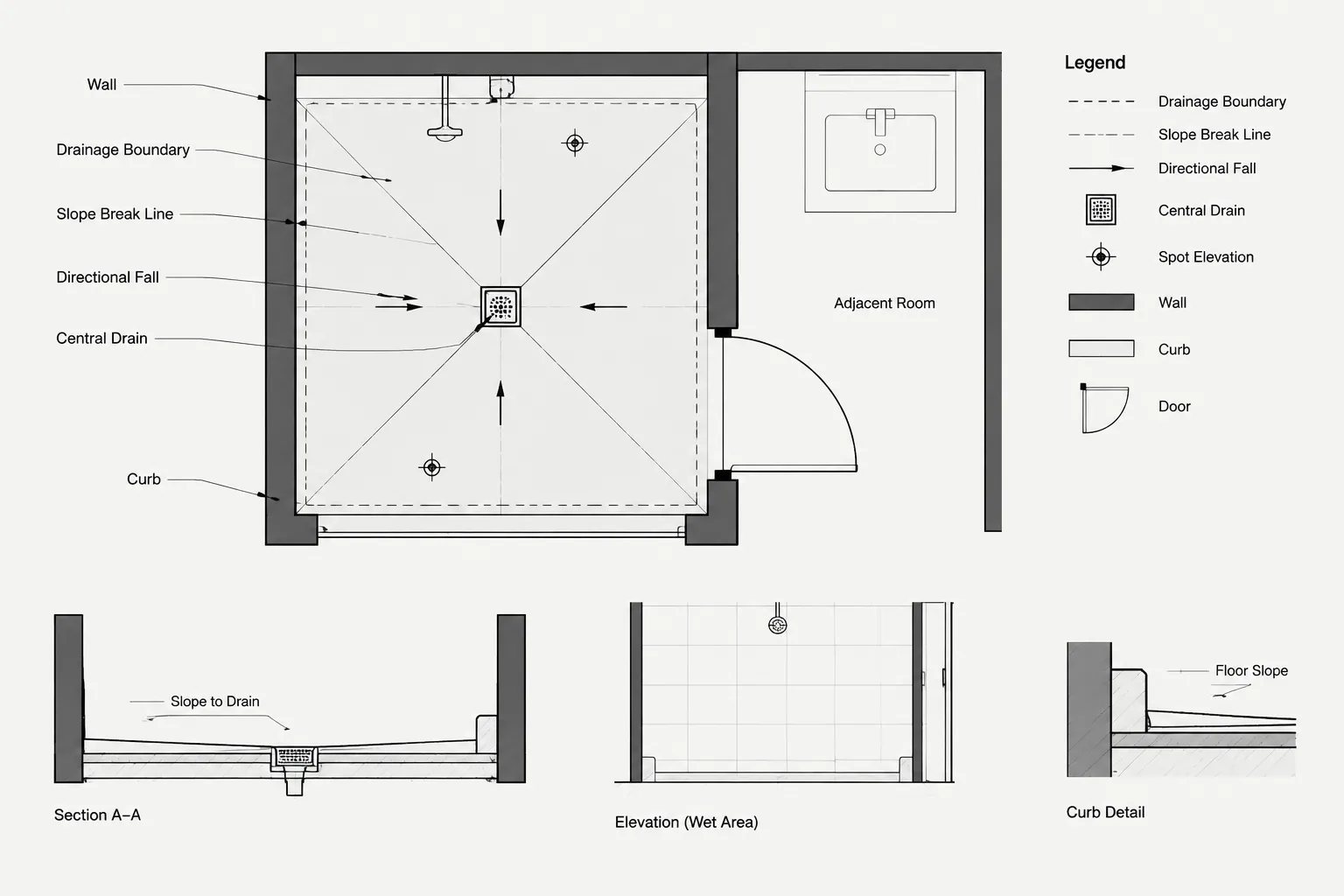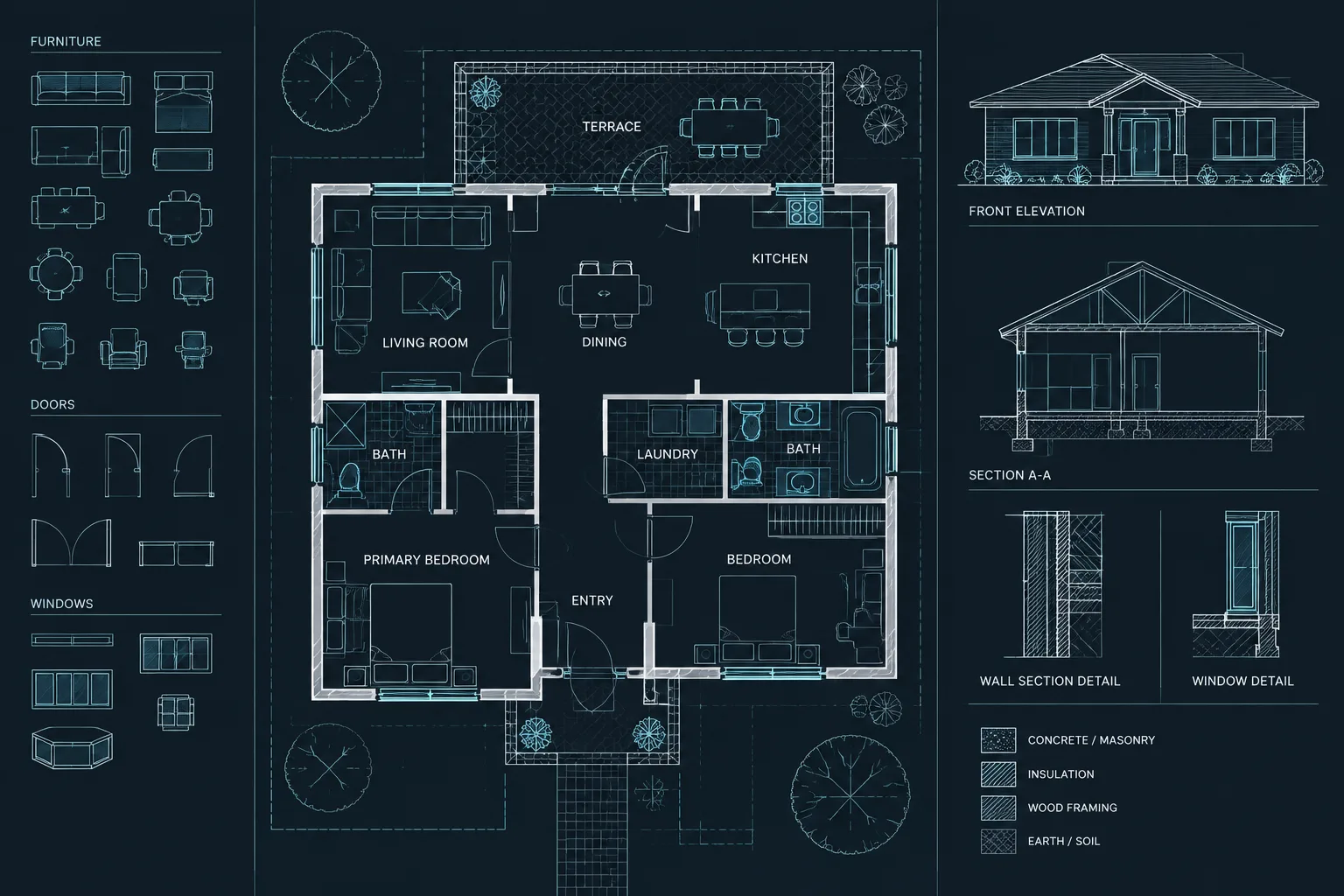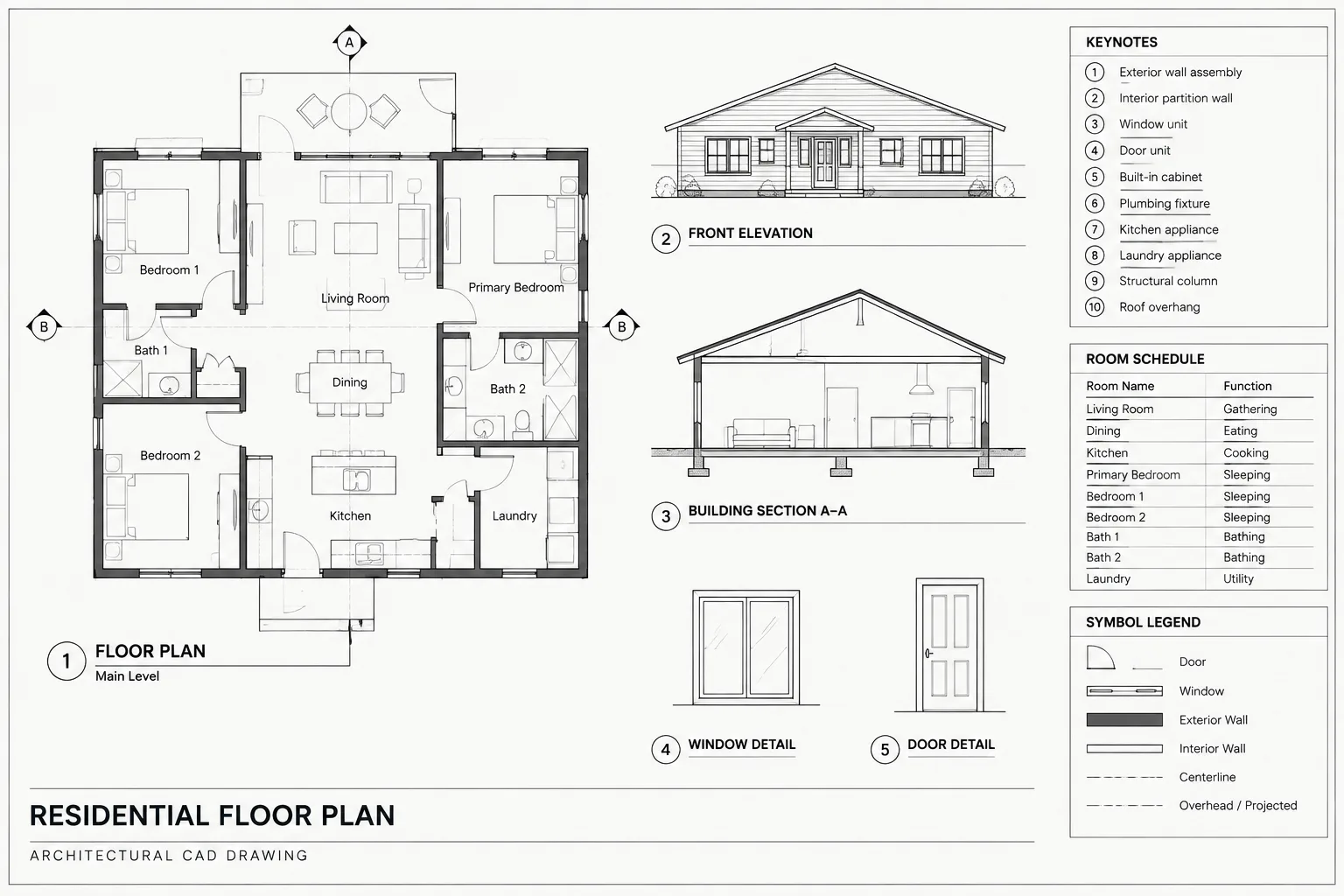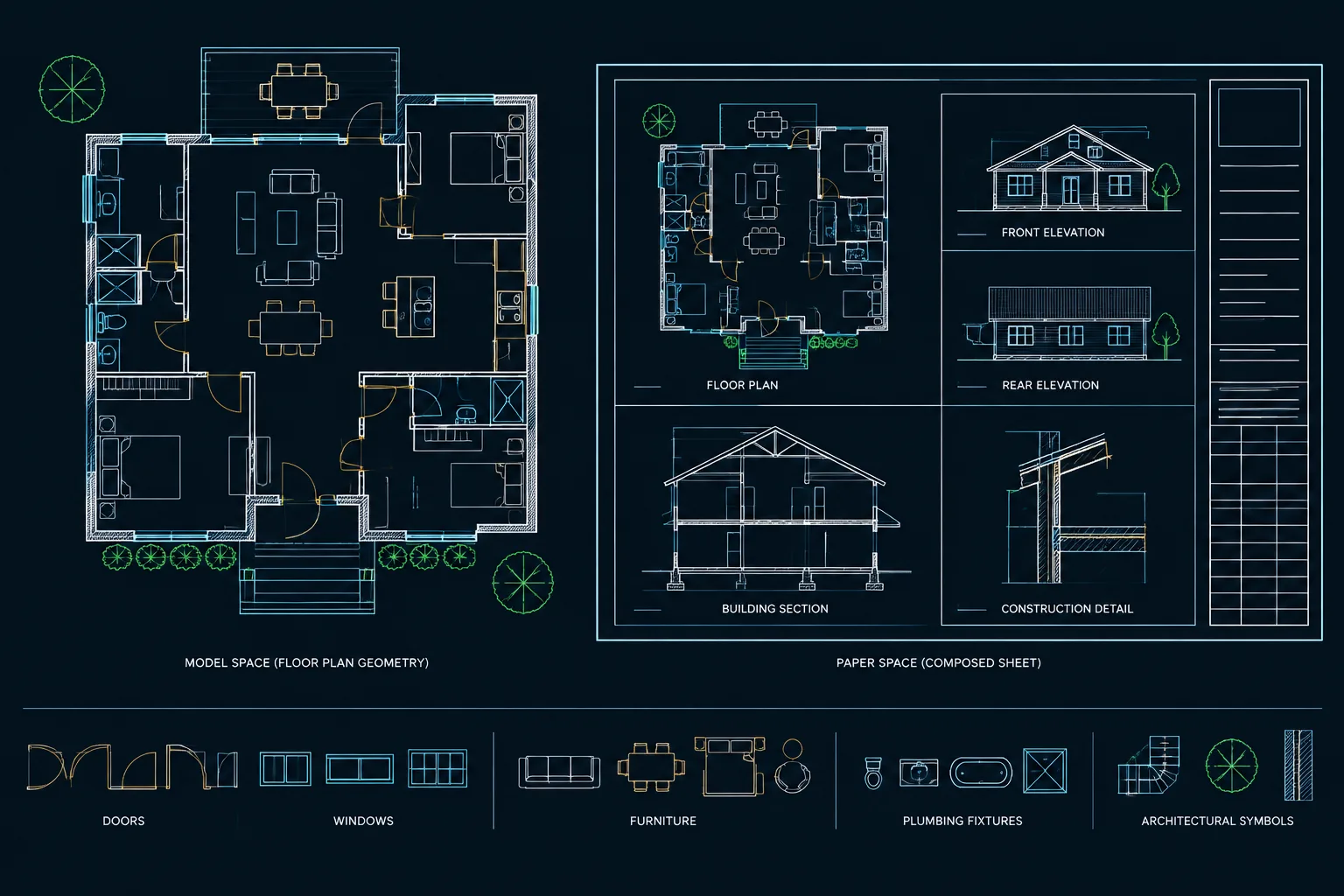
Understanding model space vs paper space is central to building an architectural CAD file that remains coordinated as sheets, views, and annotations change. The distinction is less about what the software permits and more about giving every object a clear role.
This guide explains how to separate project geometry from sheet presentation, choose a consistent annotation workflow, and avoid common DWG organization problems. Use it as a planning reference for new files or as an audit checklist when reviewing an inherited drawing.
One of the most important organizational decisions in an architectural DWG is where each object should live. Walls, doors, dimensions, detail titles, schedules, and sheet notes can all be drawn successfully, yet the file may still become difficult to manage if those objects are placed in the wrong space.
A reliable model space versus paper space strategy separates the building model from the sheet presentation. That separation makes viewports easier to manage, reduces duplicated information, and helps drawings remain understandable when they are reused, referenced, or issued to consultants.
The basic distinction
Model space is generally where architectural geometry is drawn at its real-world size. It represents the building, site, assembly, or detail being documented.
Paper space, also called a layout, represents a plotted sheet. It contains the title block, viewports, and information that belongs specifically to that sheet. A viewport acts as a controlled window from the layout into model space.
The useful question is not simply, “Can this object be placed here?” In many cases, AutoCAD allows either choice. The better question is, “Does this object describe the project geometry, or does it organize a particular sheet?”
| Drawing content | Typical location | Reason |
|---|---|---|
| Walls, doors, windows, stairs, fixtures, and site geometry | Model space | These objects describe the project and may appear in multiple views. |
| Section and elevation geometry | Model space | The linework belongs to the drawing model rather than one sheet border. |
| Title block and sheet border | Paper space | They define the plotted sheet rather than the building. |
| Viewports | Paper space | They control which model-space views appear on a sheet. |
| General sheet notes and issue information | Paper space | They usually apply only to the current layout. |
| Dimensions, tags, and callouts | Depends on office workflow | They may be model-based, sheet-based, or annotative, but the method must be consistent. |
| Graphic legends and schedules | Depends on reuse and source | Project-wide content may be maintained centrally; sheet-specific content may stay on the layout. |
What normally belongs in model space
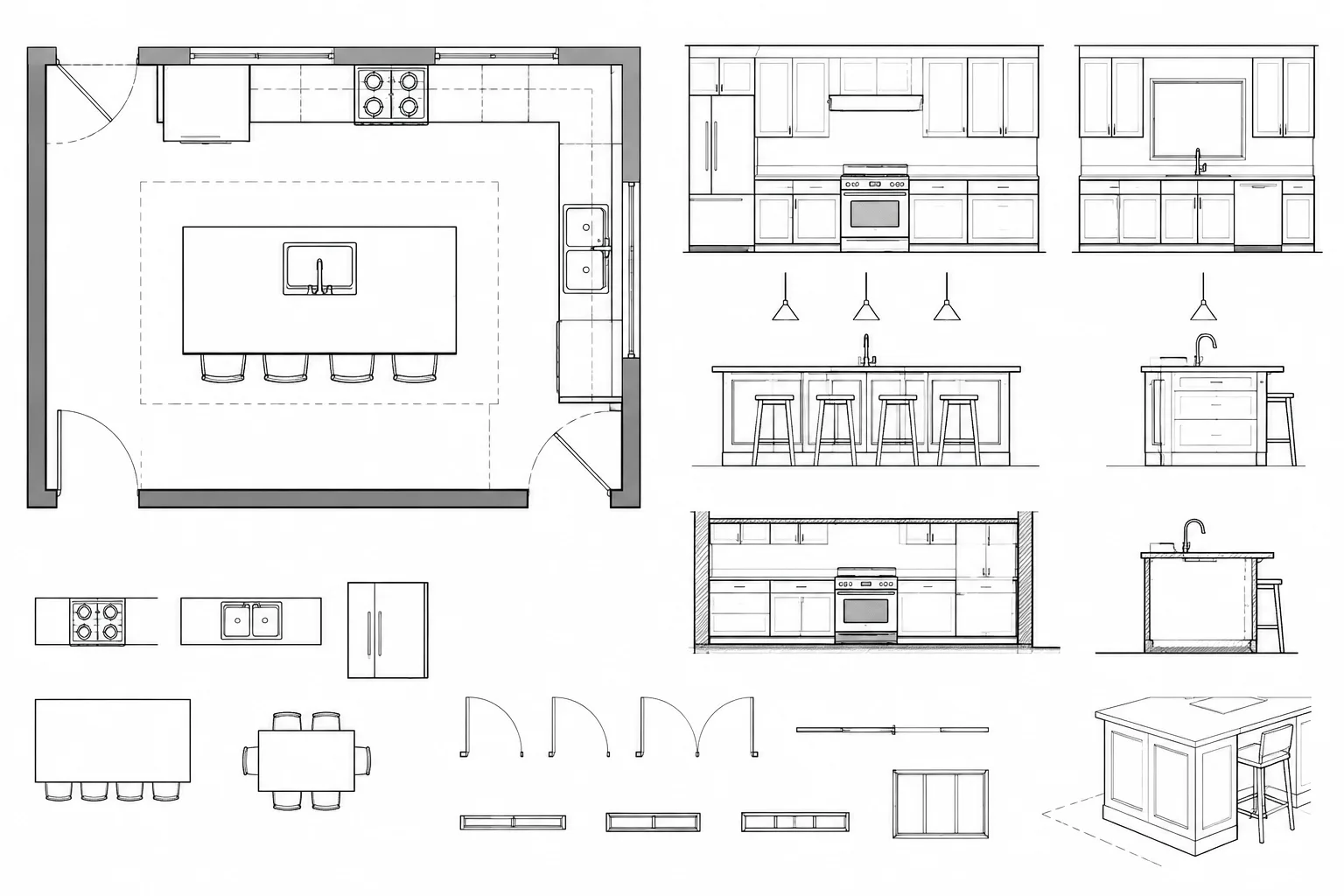
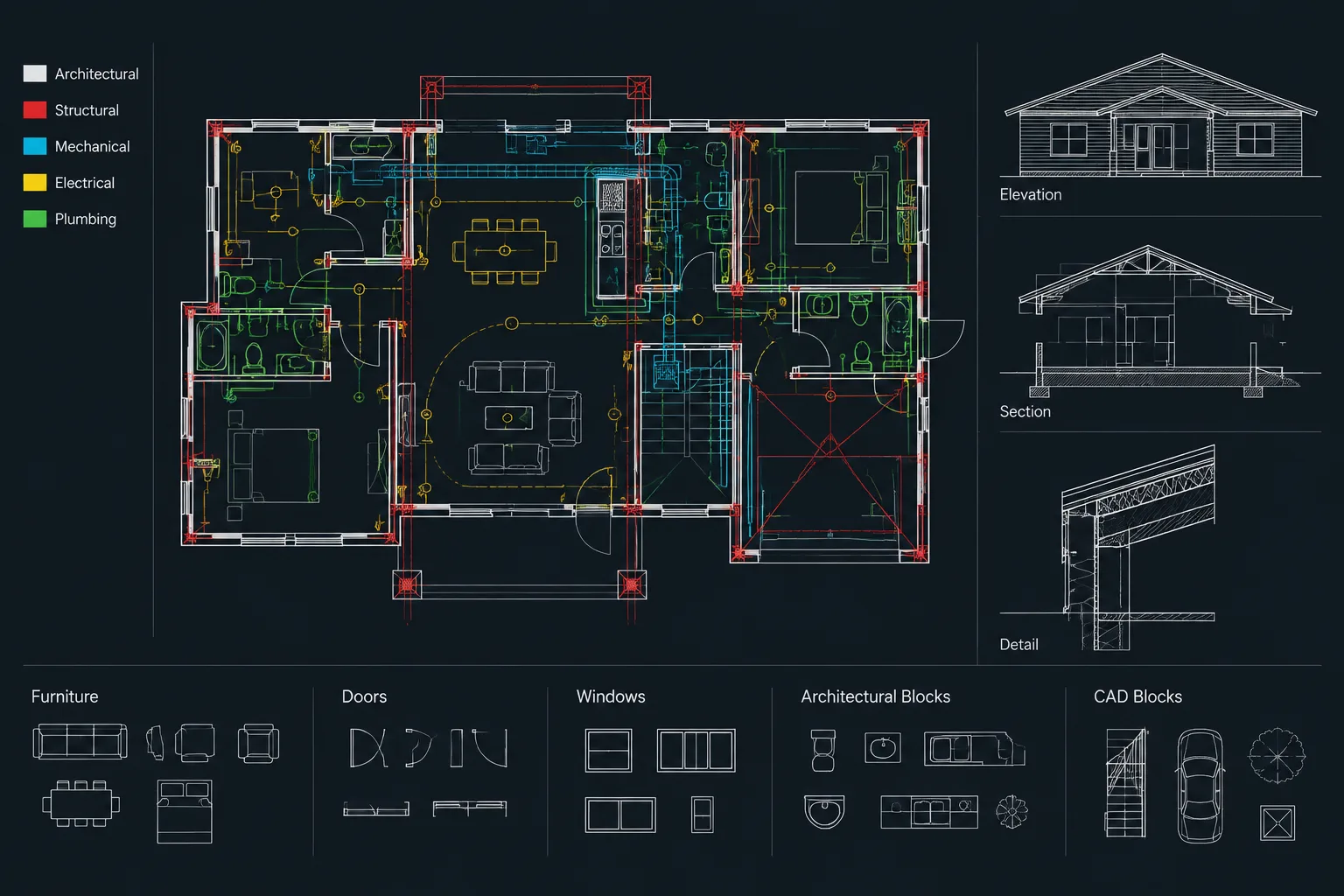
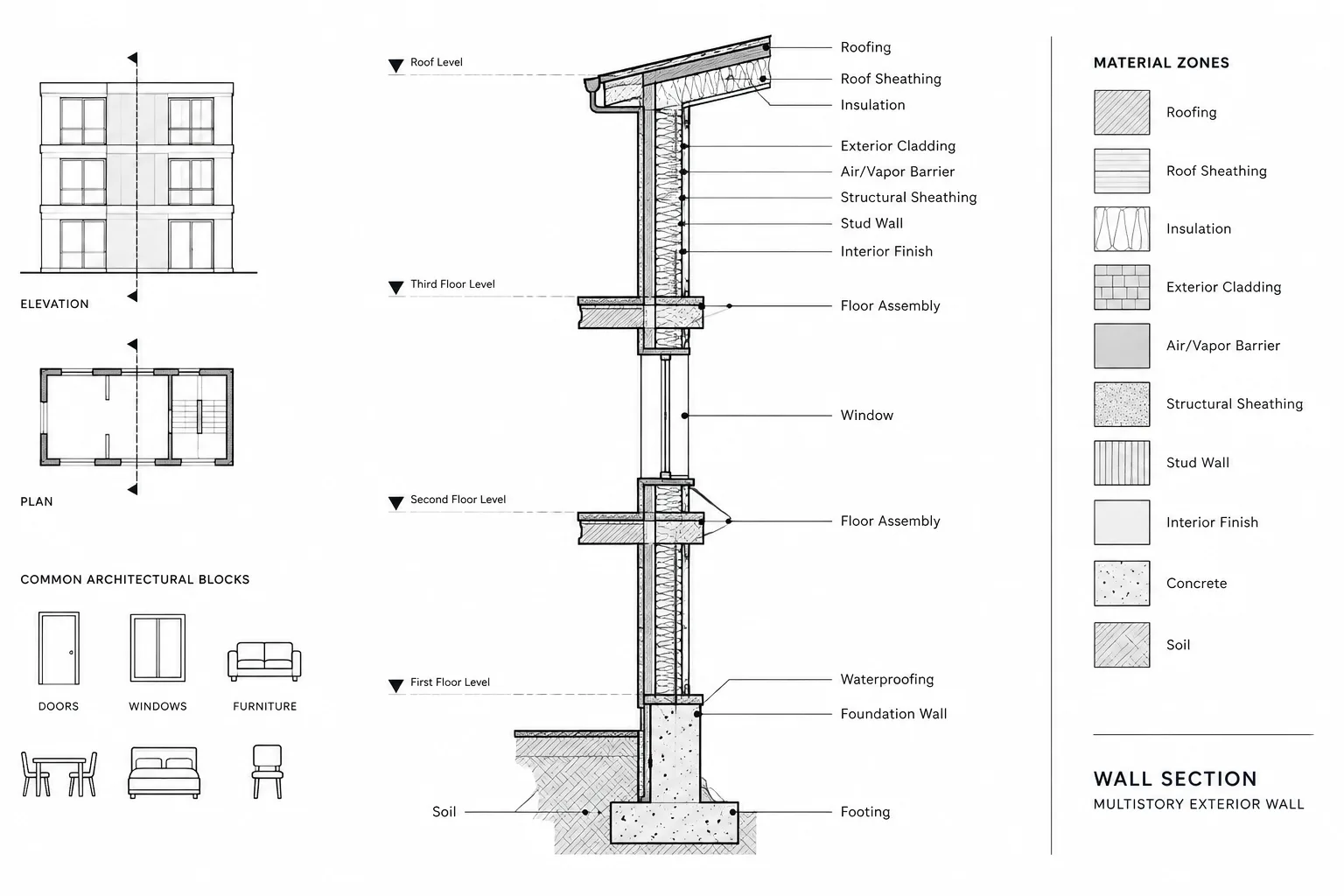
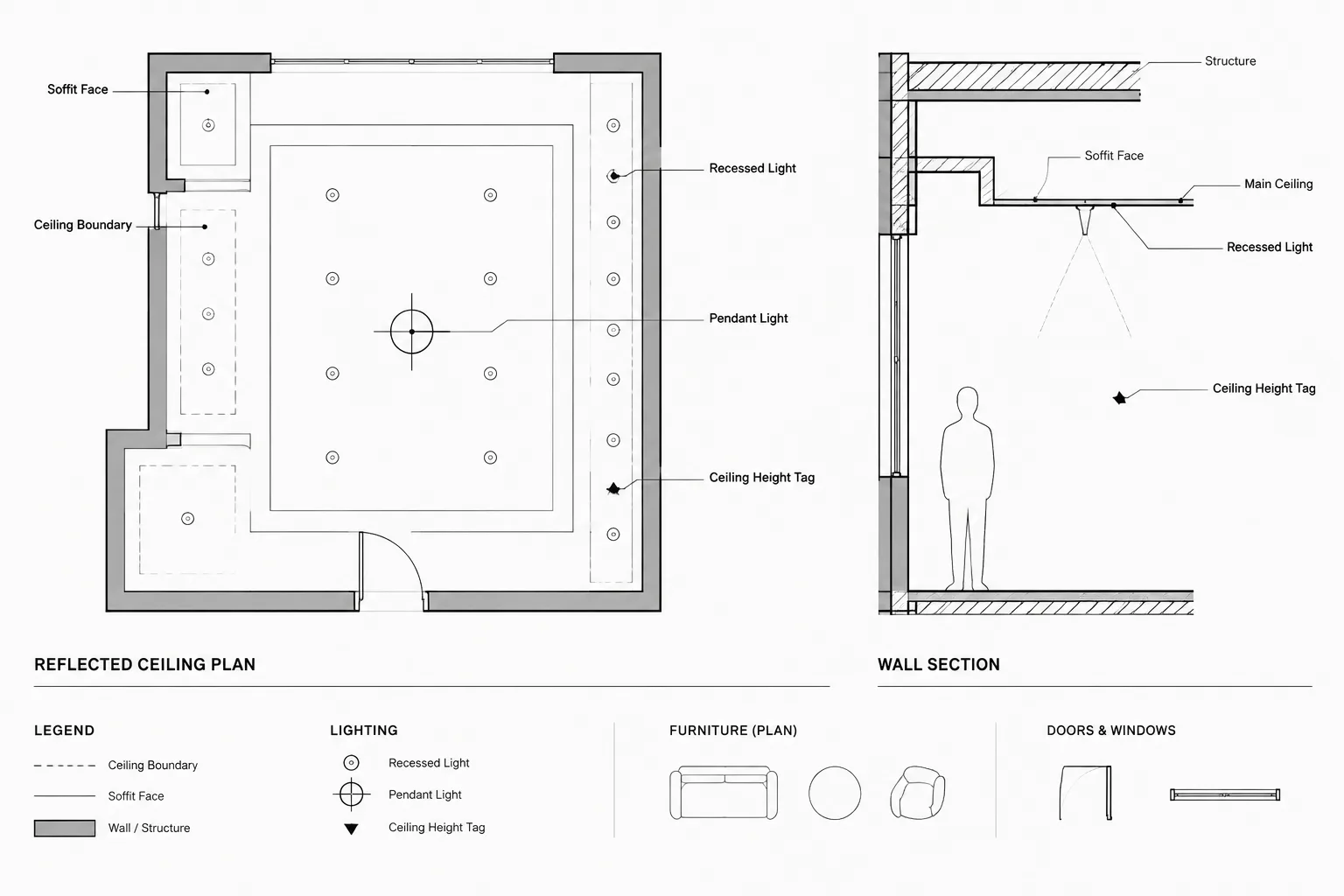
Place geometry in model space when it represents a physical or diagrammatic part of the project. This commonly includes floor plans, roof plans, reflected ceiling geometry, elevations, sections, enlarged plans, and drafted details.
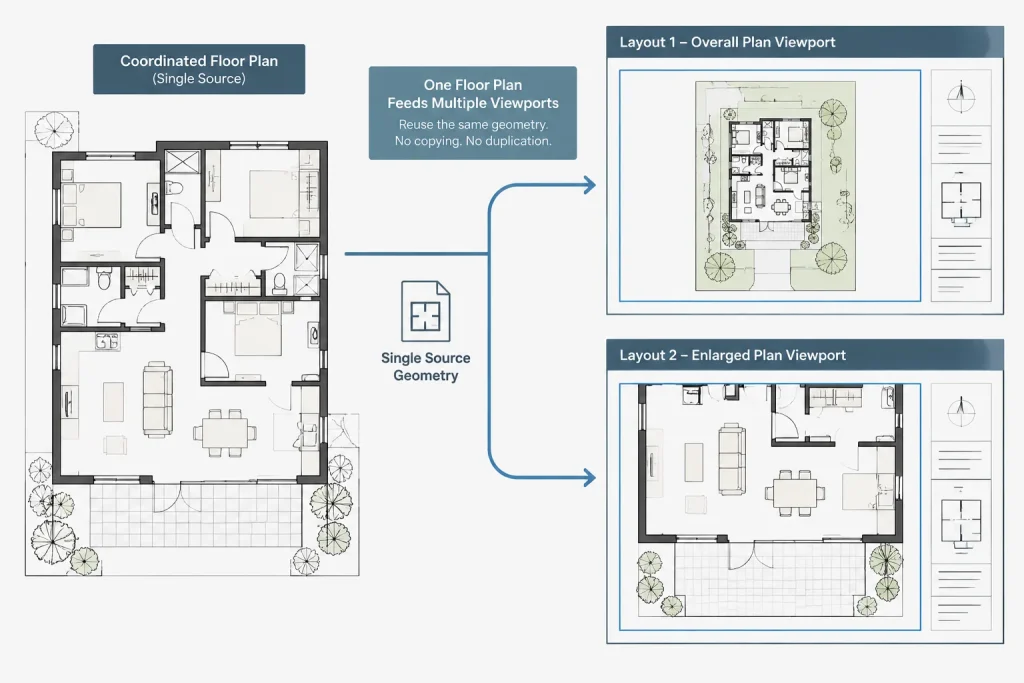
Model-space content should be organized so that it can be viewed through more than one viewport without being copied. For example, a floor plan may appear in an overall plan viewport and again in an enlarged-plan viewport. Keeping the underlying geometry in one location allows both views to reflect the same drawing changes.
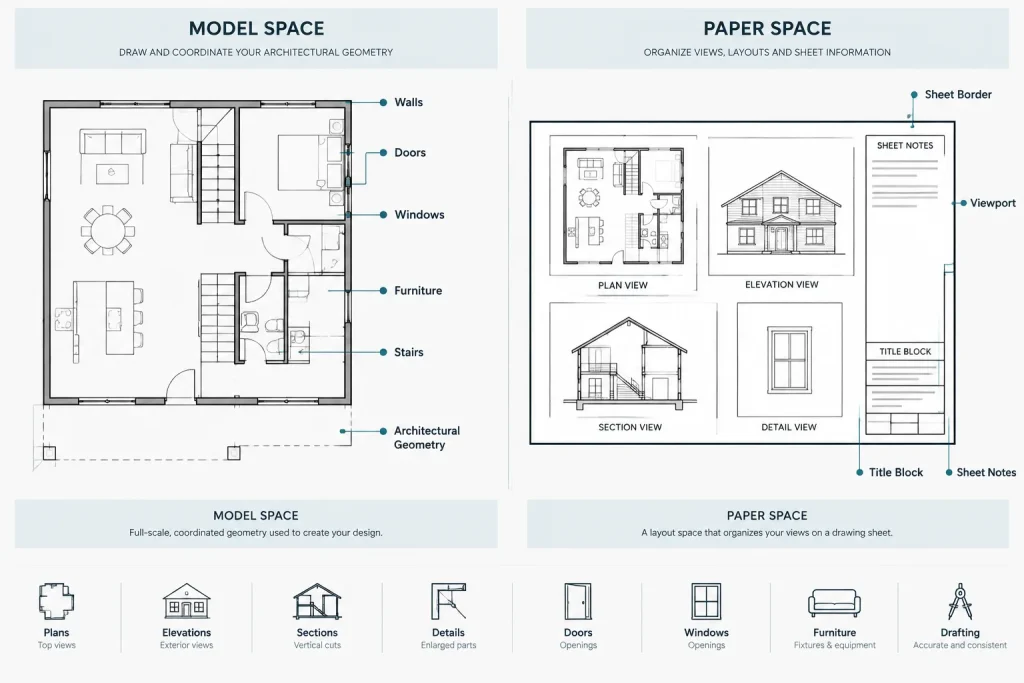
Symbols that are tied directly to project locations often belong with the model as well. Examples include door tags, room tags, section marks, elevation marks, and equipment identifiers. Their exact placement depends on the annotation system, but keeping location-dependent information near the referenced geometry can improve coordination.
Avoid drawing title blocks, sheet borders, or viewport-specific labels beside the building in model space. A row of simulated sheets can make navigation harder and encourages users to plot from loosely controlled windows rather than defined layouts.
What normally belongs in paper space
Paper space is best used for information that defines or organizes a sheet. This includes the title block, sheet number, sheet title, issue data, project identification, and other border information. Viewports and viewport clipping boundaries also belong on the layout.
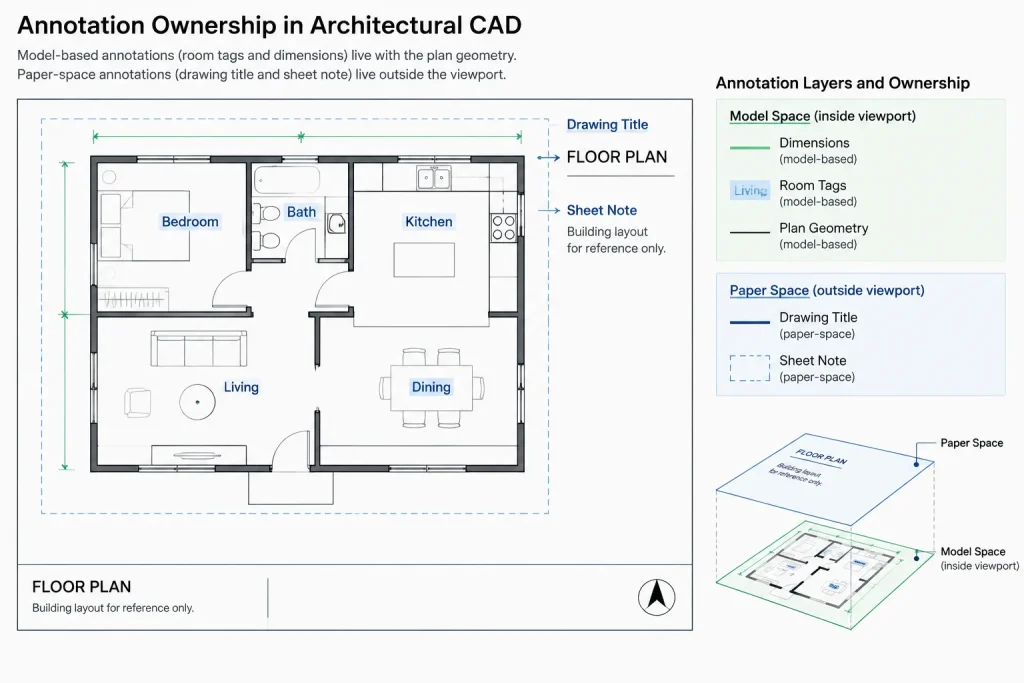
Sheet-specific notes are usually clearer in paper space. A note that applies only to one presentation of a plan should not appear unexpectedly in every viewport showing that area. The same principle applies to a sheet-specific north arrow, graphic scale, drawing title, or explanatory label.
Paper space is also useful for arranging views. A plan, elevation, section, and detail can be composed on a sheet without moving their source geometry in model space. The layout controls presentation; the model remains in its coordinated location.
Where should dimensions and annotations go?
Dimensions and annotation require a deliberate office standard because several valid workflows exist. Problems arise when methods are mixed without clear rules.
Model-space annotation
In a model-space approach, dimensions, tags, and notes are placed near the geometry they describe. This keeps related content together and can work well when a view has a stable intended presentation. Annotative objects may be used so text and symbols display appropriately through viewports at different scales.
The main risk is viewport overlap. An annotation intended for one plan view may appear in another viewport unless layers, annotation visibility, or view boundaries are managed carefully.
Paper-space annotation
In a paper-space approach, dimensions and notes are placed directly on the layout while referencing geometry visible through a viewport. This can provide precise control over sheet composition and makes it easy to keep annotations unique to one sheet.
However, layout annotation can become disconnected from the model if viewports are moved, rescaled, or replaced without review. Users must also enter the correct space when editing, which may slow coordination if project geometry and notes are maintained by different team members.
A controlled hybrid approach
Many architectural drawing sets use a hybrid method. Location-based tags and dimensions may remain with model geometry, while drawing titles, sheet notes, graphic scales, and layout-specific instructions stay in paper space.
A hybrid method is effective only when the boundary is documented. A vague rule such as “put notes wherever they fit” creates duplicate labels, inconsistent plotting, and uncertainty during revisions. A better standard identifies where each annotation category belongs and how it is controlled.
A practical setup workflow
- Establish project geometry in model space. Keep plans and related views at real-world size and use a known project origin. Do not move the building merely to improve its position on a sheet.
- Create or insert the title block on a layout. Confirm that the layout, plotting device, paper definition, and plot style follow the project’s publishing method.
- Create viewports for the required views. Pan within each viewport to compose the view rather than relocating model geometry.
- Set and verify viewport scales. Once the view is composed, lock the viewport to reduce accidental zoom changes.
- Apply viewport-specific layer control where necessary. A layer may need different visibility or graphics on an enlarged plan than on an overall plan. Use these controls intentionally rather than changing the base model for one sheet.
- Add annotations according to the project standard. Keep the chosen model-space, paper-space, or hybrid method consistent across related sheets.
- Plot a test PDF. Review text size, lineweights, viewport boundaries, clipped information, and the relationship between drawing titles and displayed views.
Common organizational mistakes
Duplicating the model for each sheet
Copying a plan to create separate sheet views produces multiple versions of the same geometry. Changes may be made to one copy but missed in another. Prefer one coordinated source viewed through separate viewports whenever practical.
Moving geometry to center a viewport
Moving the building to improve sheet composition can disrupt xrefs, consultant backgrounds, coordinates, and related views. Adjust the viewport view instead.
Leaving viewports unlocked
An accidental zoom can change the drawing scale or crop important information. Viewport locking should be part of sheet setup and pre-issue review.
Placing all notes in both spaces
Duplicate notes may plot on top of one another or present conflicting instructions. When migrating an older drawing, identify which version is authoritative before deleting or relocating anything.
Using paper space to hide model problems
Masking, trimming, or covering incorrect geometry only on a layout may make one sheet look finished while leaving the underlying drawing unresolved. Correct the model when the issue represents a project condition; use layout graphics only for genuine presentation needs.
Quality-control questions before issue
- Is physical project geometry located in model space rather than drawn independently on layouts?
- Are title blocks and sheet-specific issue fields confined to paper space?
- Are viewport scales verified and viewport displays locked?
- Do dimensions, tags, and notes follow one documented placement method?
- Does annotation appear only in the views where it is intended?
- Can the source geometry be revised without updating duplicate copies?
- Have all layouts been checked in a plotted PDF rather than only on screen?
Build the rule around ownership
The clearest model space versus paper space standard is based on ownership. If an object describes the building or a coordinated drawing view, it generally belongs in model space. If it describes the sheet, issue, or presentation of a viewport, it generally belongs in paper space.
Dimensions and annotations sit between those categories, so they require an explicit project rule. Once that rule is established, consistent placement makes DWG files easier to edit, reference, audit, and publish across an architectural drawing set.
How to audit an inherited DWG
Before reorganizing an existing file, determine how it currently plots. Open each layout, identify its viewports, and note which visible objects come from model space and which are drawn directly on the sheet. This prevents useful sheet information from being mistaken for duplicate model content.
Classify objects by purpose
Ask whether each object describes the project, identifies a coordinated location, or controls a particular sheet presentation. Project geometry usually remains reusable across views. Sheet borders, issue fields, and layout-specific instructions usually have meaning only within their layout.
Check for hidden dependencies
A note or symbol that appears unnecessary in model space may be visible through another viewport. Likewise, paper-space annotation may depend on the position and scale of a particular viewport. Review layer states, clipped views, references, and plotted output before moving or deleting content.
Consolidate cautiously
If several copies of a plan exist, do not assume they are identical. Compare them to determine whether they represent accidental duplication, separate design conditions, or intentionally different drawing views. Establish the authoritative geometry before consolidating the file.
Document the office rule
A useful CAD standard should name the location of each content category rather than relying on a broad instruction to keep drawings organized. The standard can address geometry, location-based tags, dimensions, general notes, drawing titles, legends, schedules, viewport boundaries, and title-block information.
The rule should also explain who maintains each category. Clear ownership helps prevent a model editor from overlooking sheet annotation or a sheet editor from covering a geometry problem with layout-only graphics.
Review the published result
Model space and paper space organization ultimately supports reliable drawing output. Review every layout as a composed sheet and confirm that annotations are legible, view boundaries are intentional, information is not duplicated, and viewport changes have not altered the intended presentation. A clean on-screen model is not a substitute for checking the published drawing.
Frequently asked questions
Should architectural geometry ever be drawn in paper space?
Primary project geometry is generally better maintained in model space so it can be coordinated and reused through viewports. Paper-space linework is more appropriate when it serves a genuine sheet-presentation purpose rather than replacing unresolved model content.
Does every layout need separate model geometry?
No. Multiple layouts and viewports can present the same coordinated model-space geometry in different ways. Separate copies should not be created merely to arrange content on different sheets.
Can dimensions be placed in either space?
Yes, provided the project follows a controlled method. Model-space dimensions stay near the geometry, while paper-space dimensions remain tied to a particular sheet presentation. Mixing methods without documented rules can create omissions and duplicate information.
Why should a viewport be locked?
Locking helps protect the established view after its scale and composition have been verified. It reduces the risk that an accidental zoom or pan will change the published drawing.
Where should drawing titles and graphic scales go?
These items commonly belong in paper space because they describe a particular viewport or sheet presentation. Their placement should follow the project annotation standard.
What is the safest way to reorganize an older DWG?
First inspect every layout and plotted view. Identify object ownership, compare suspected duplicates, and verify layer and viewport dependencies before relocating or deleting anything. Preserve a recoverable source copy during the audit.