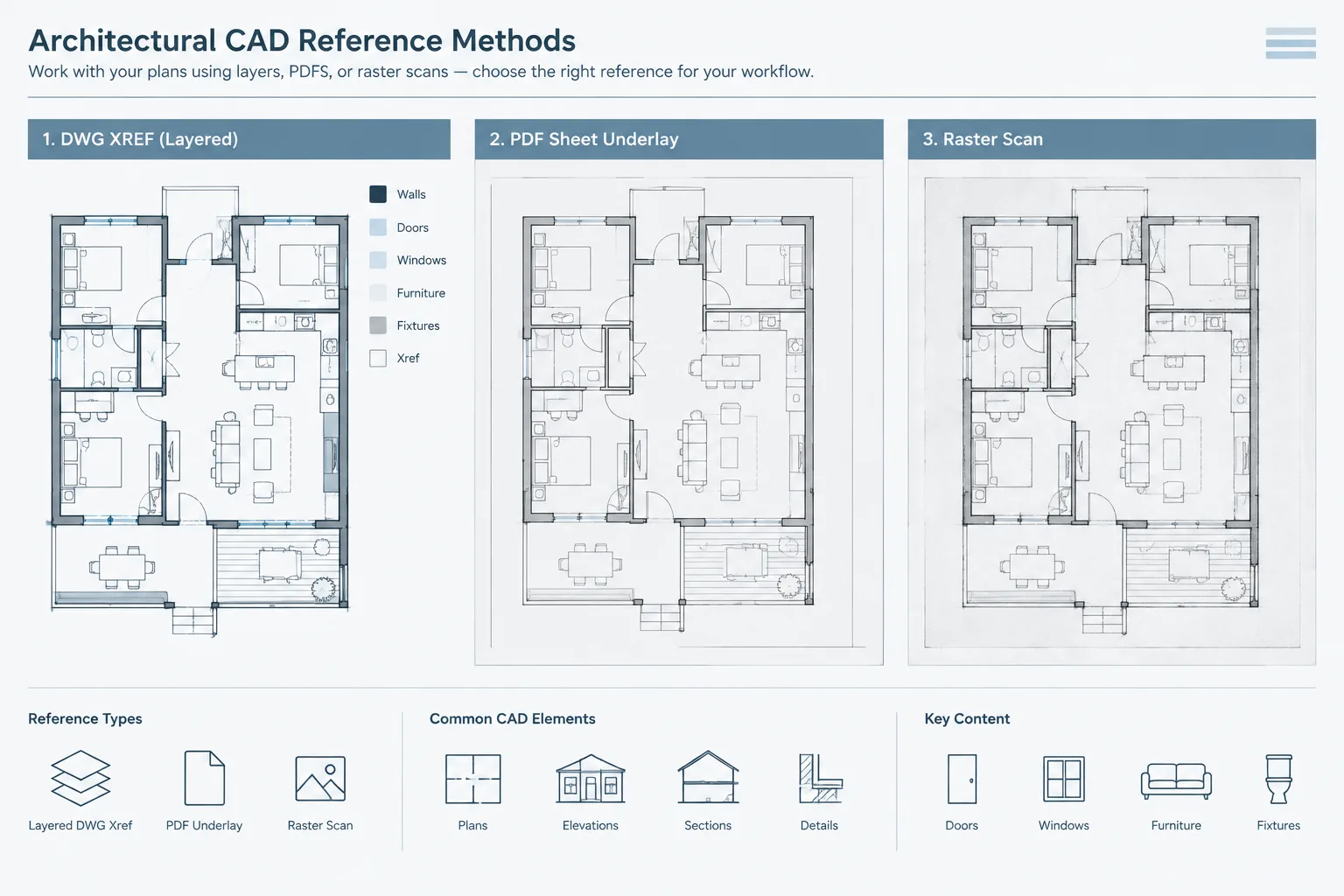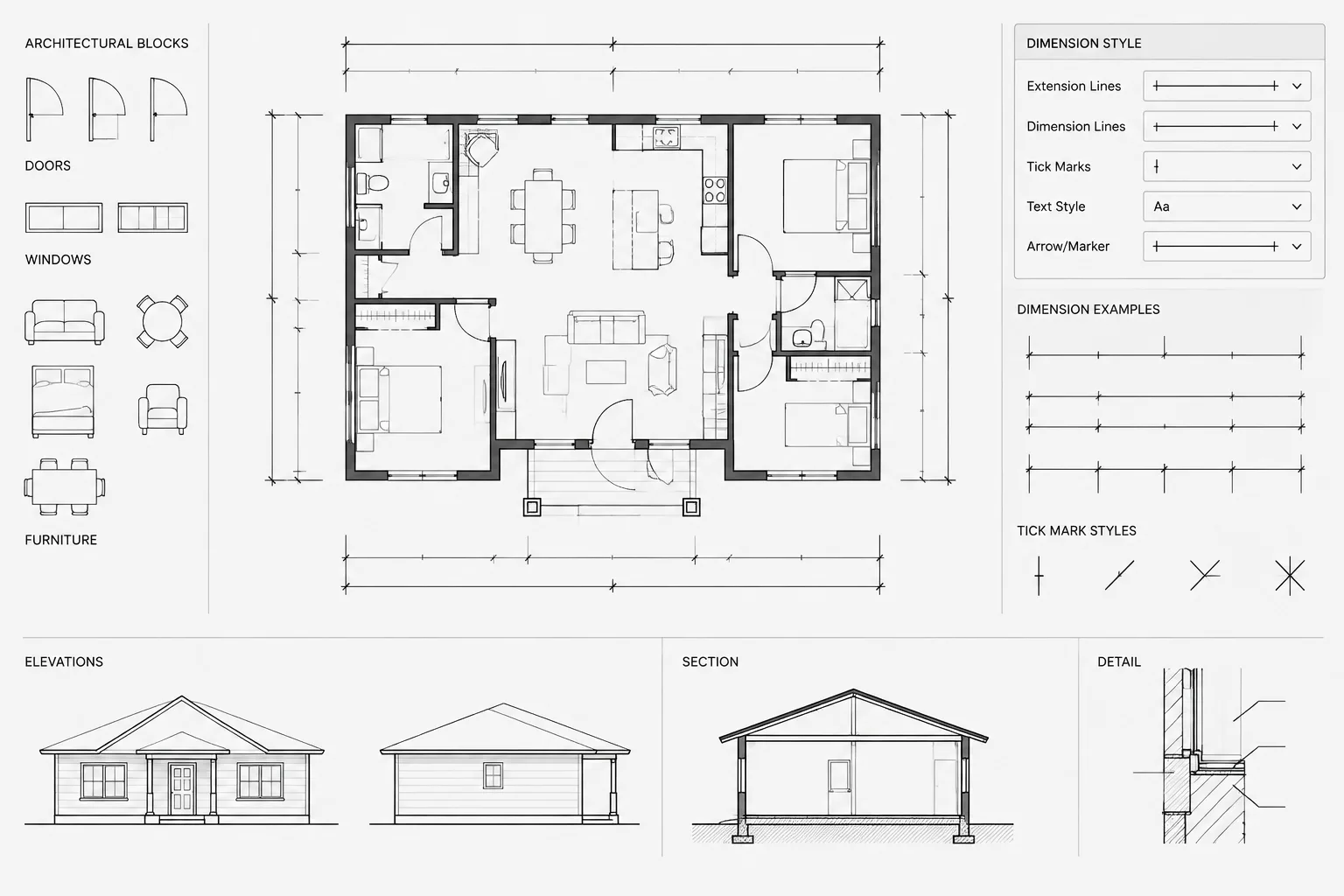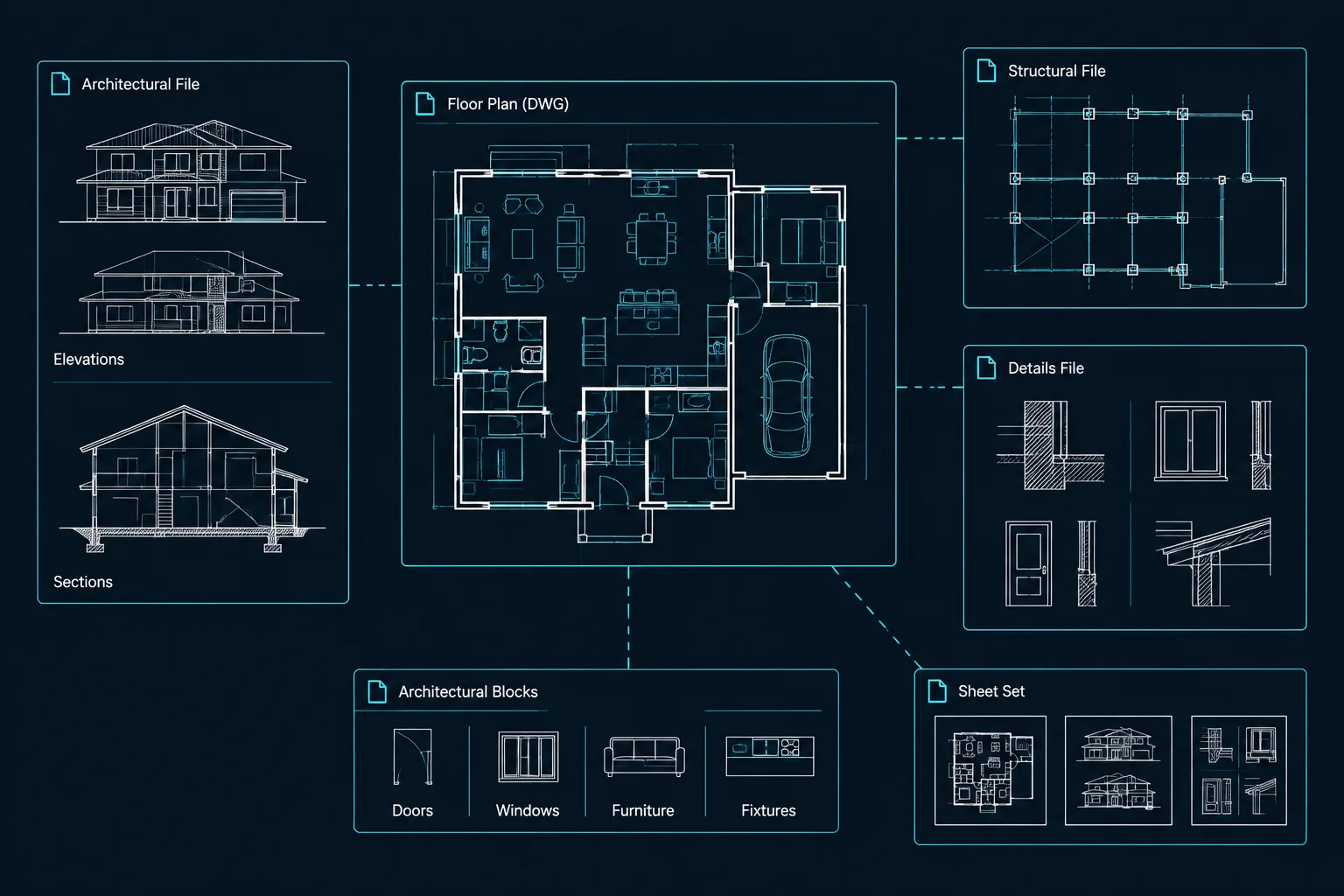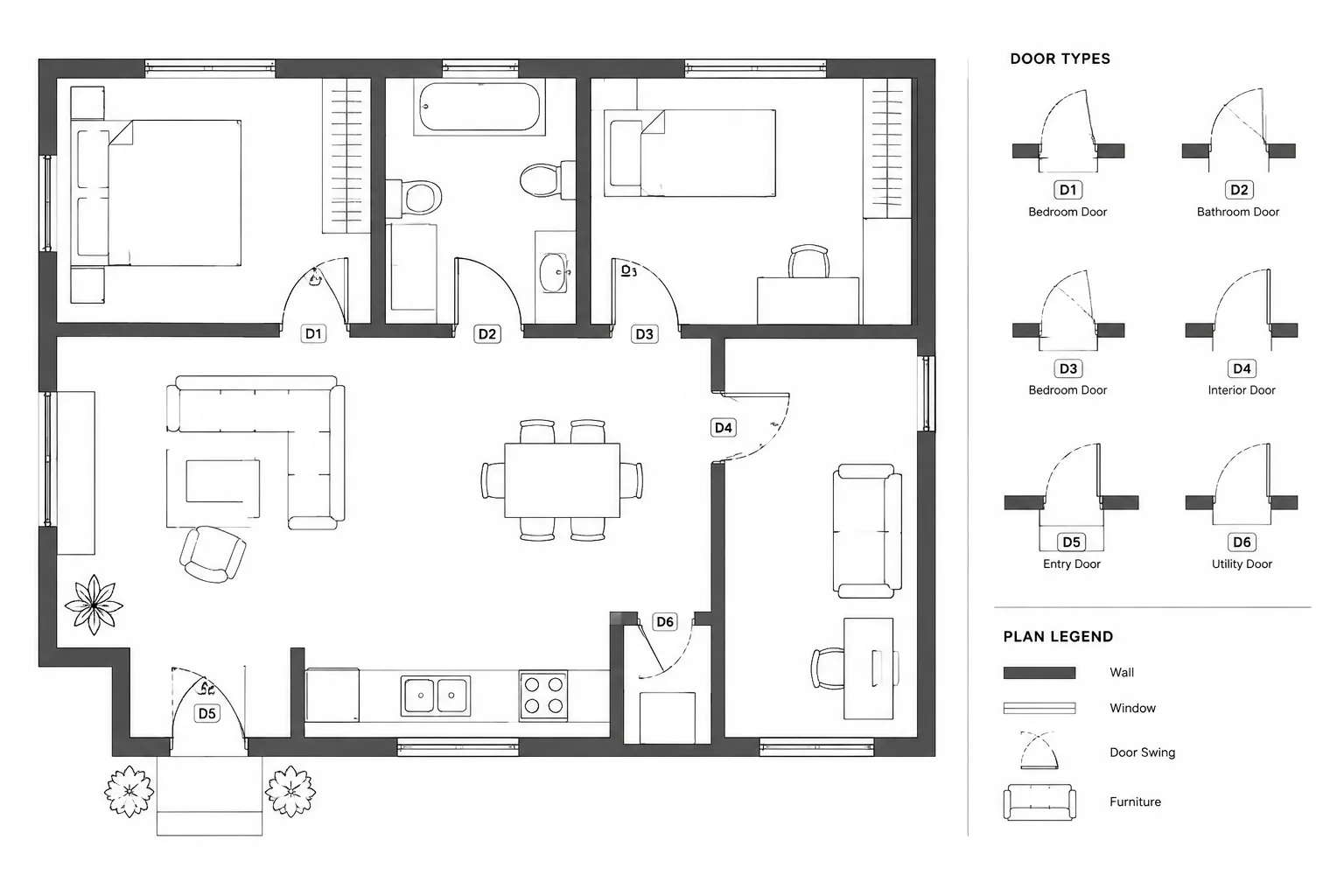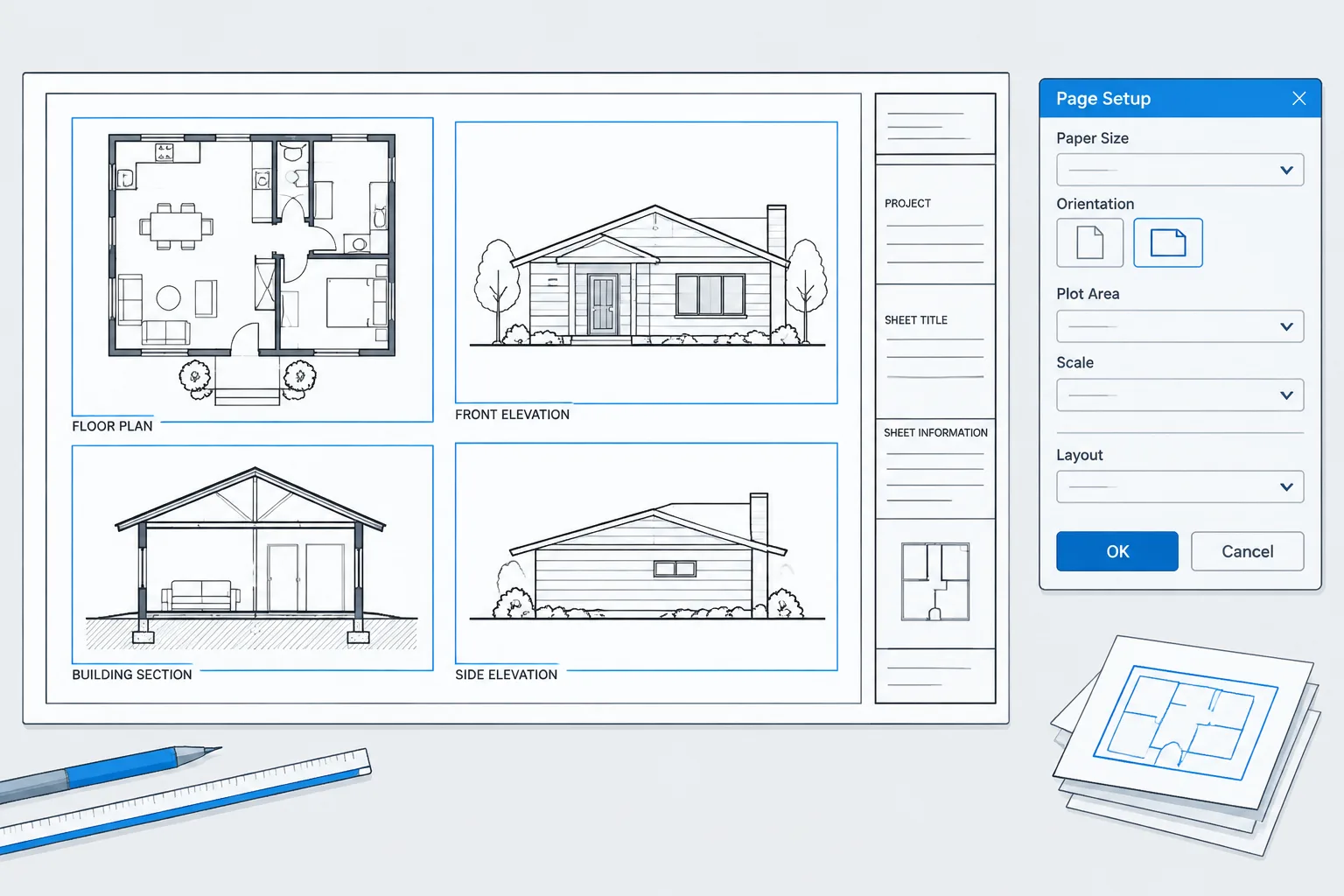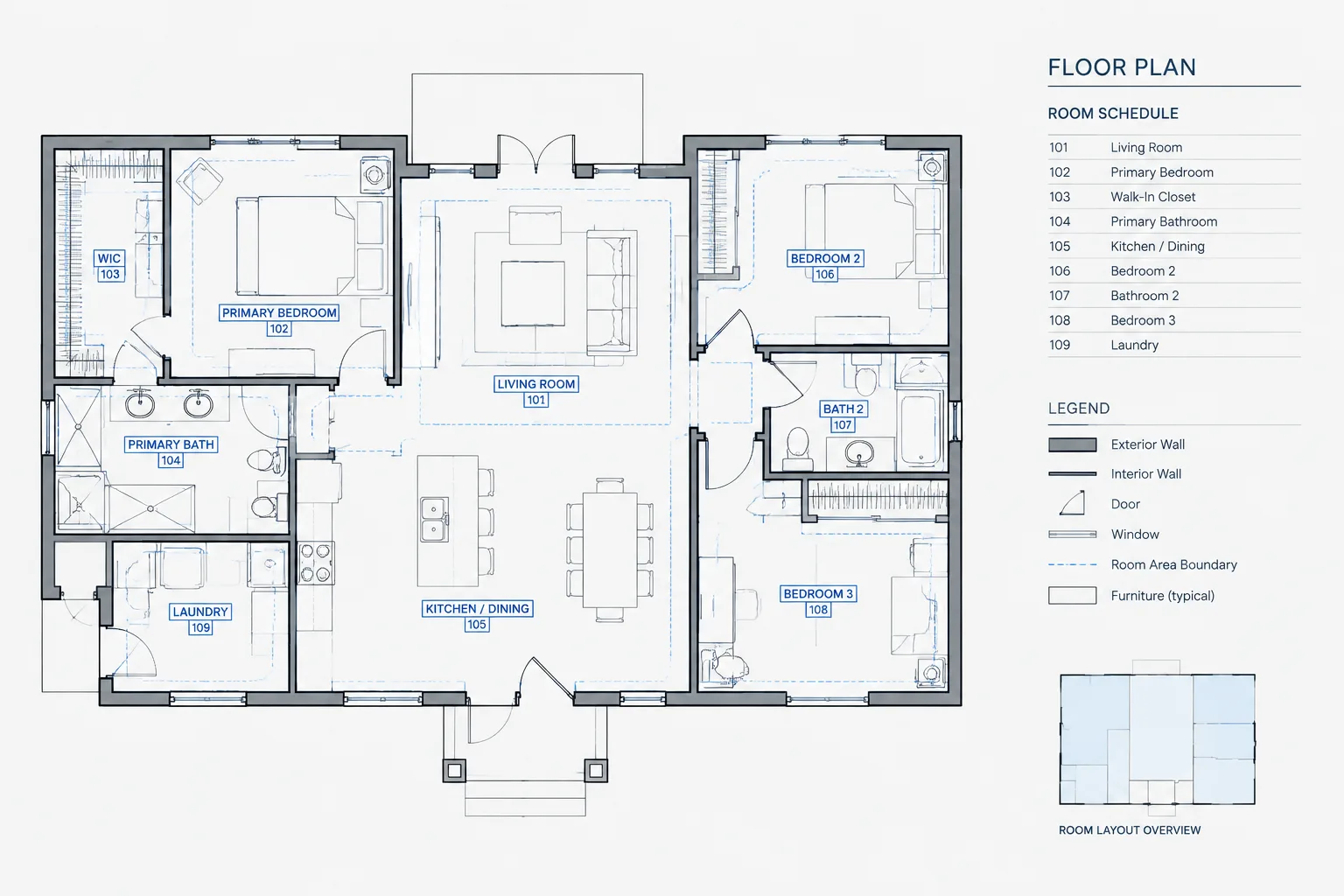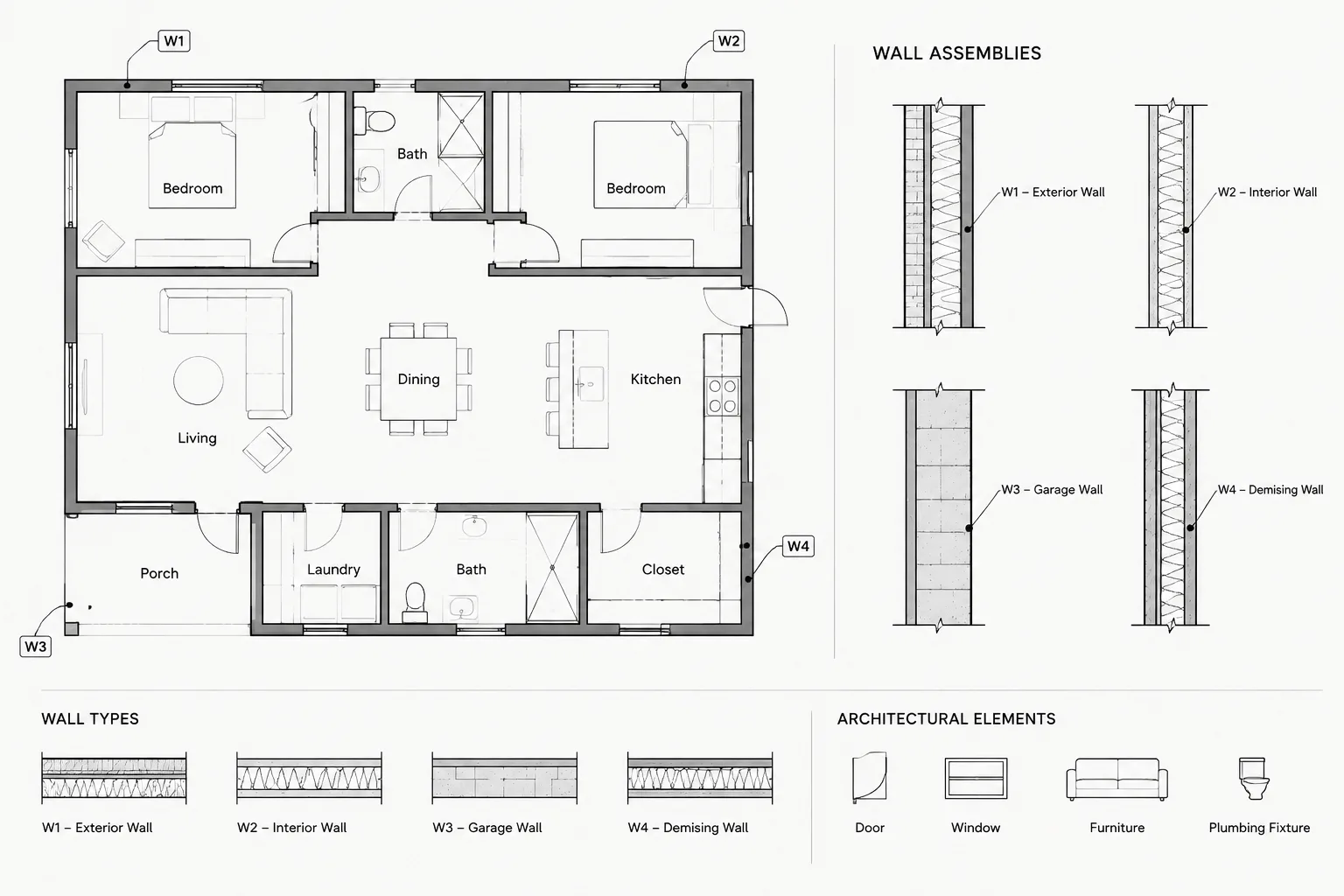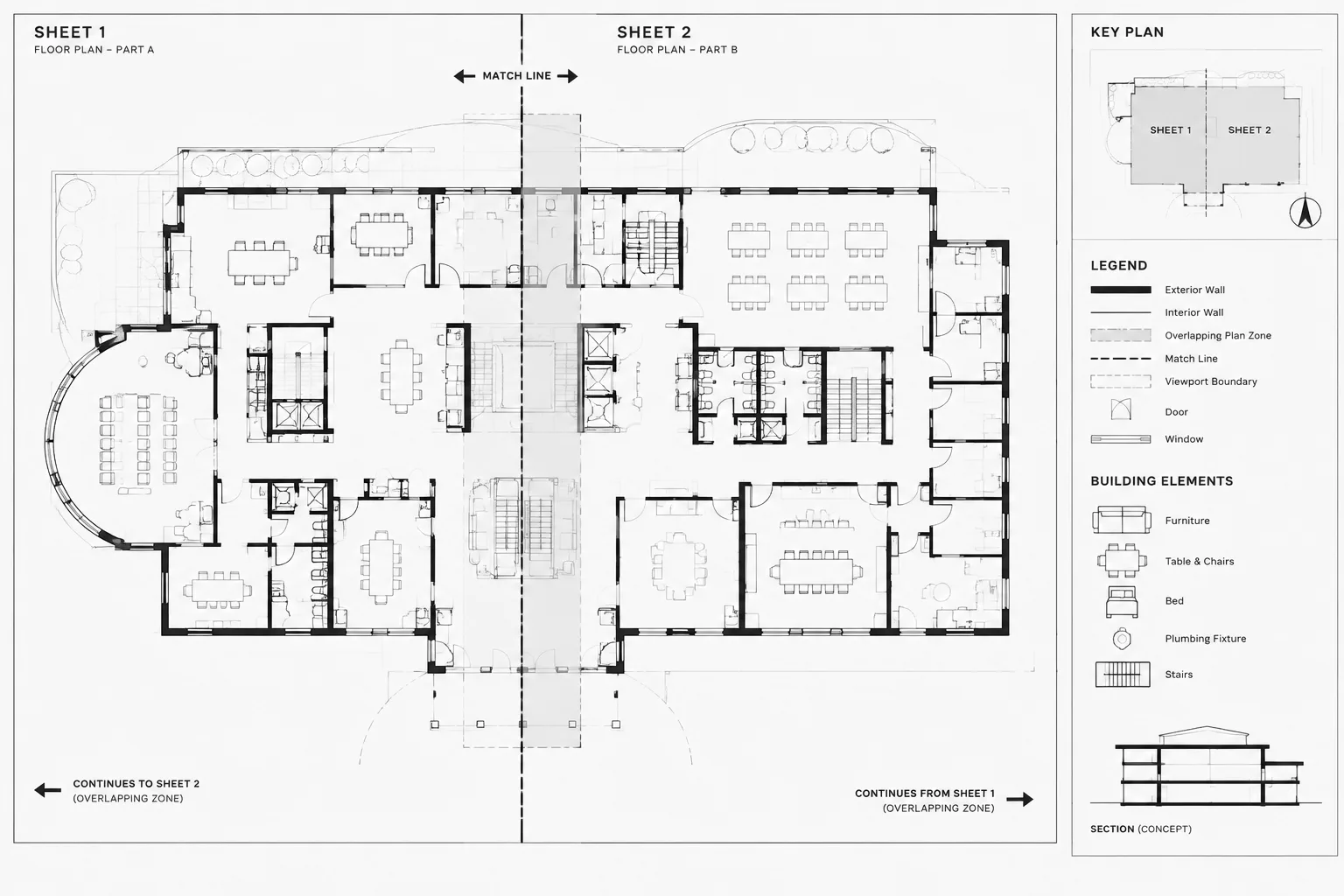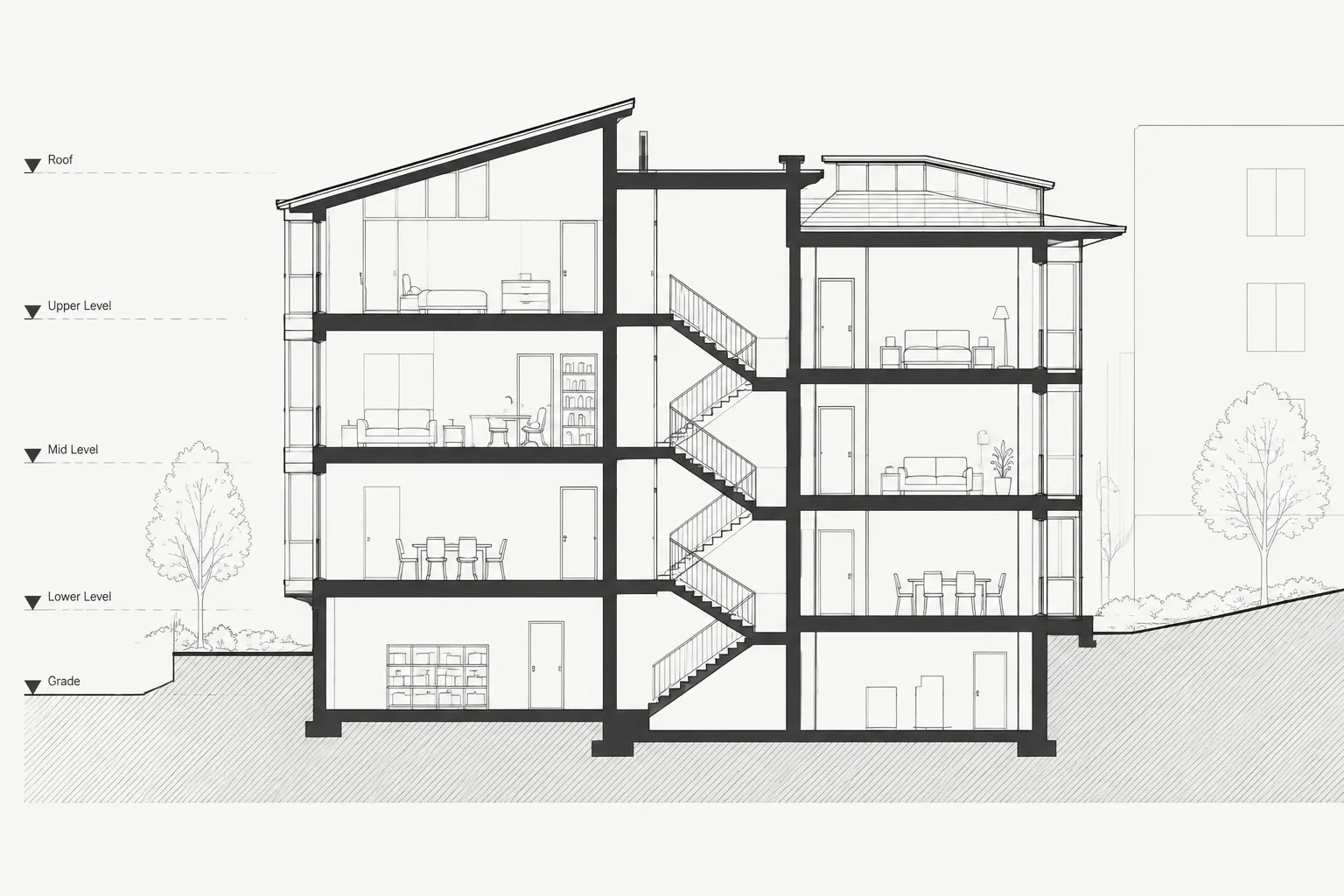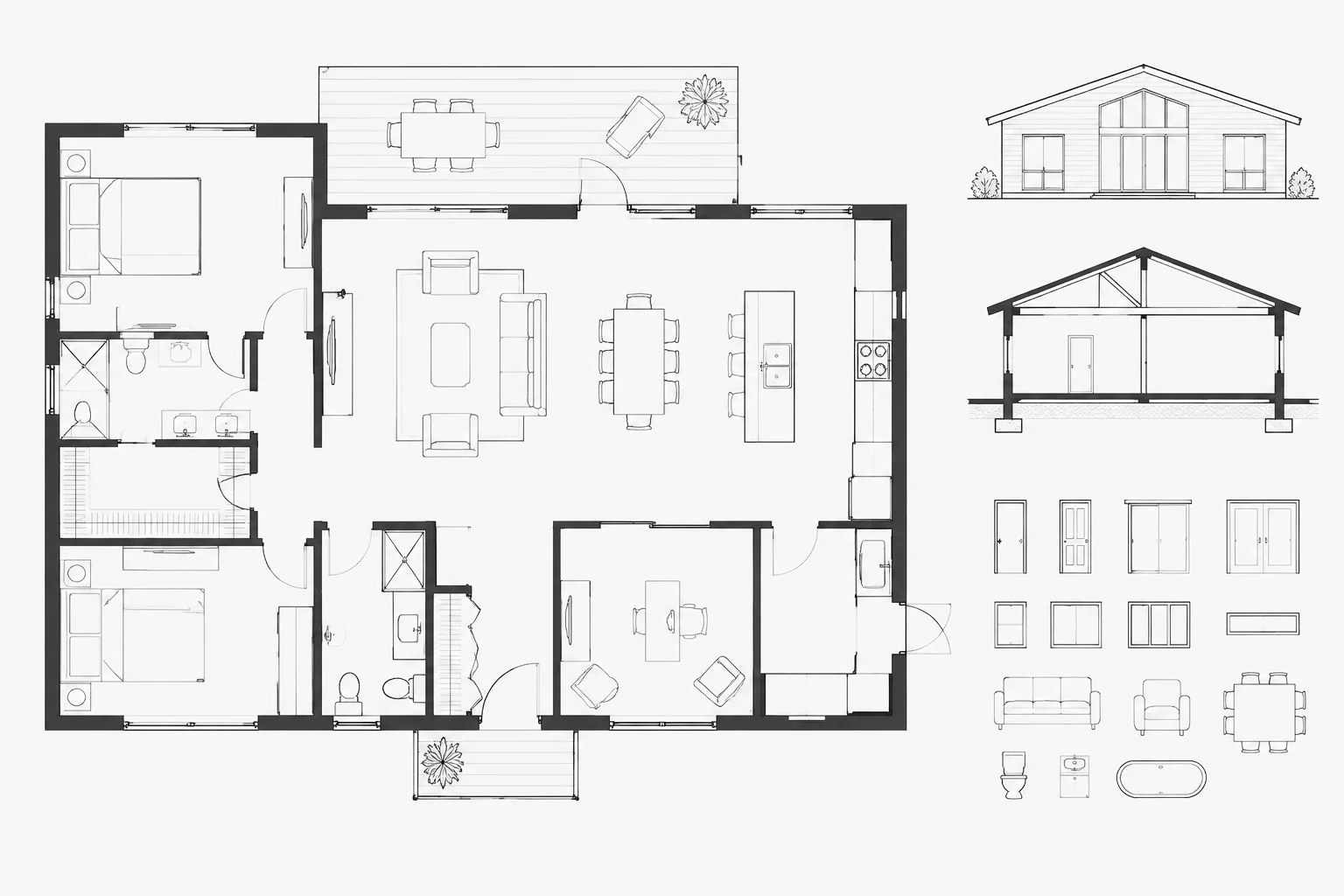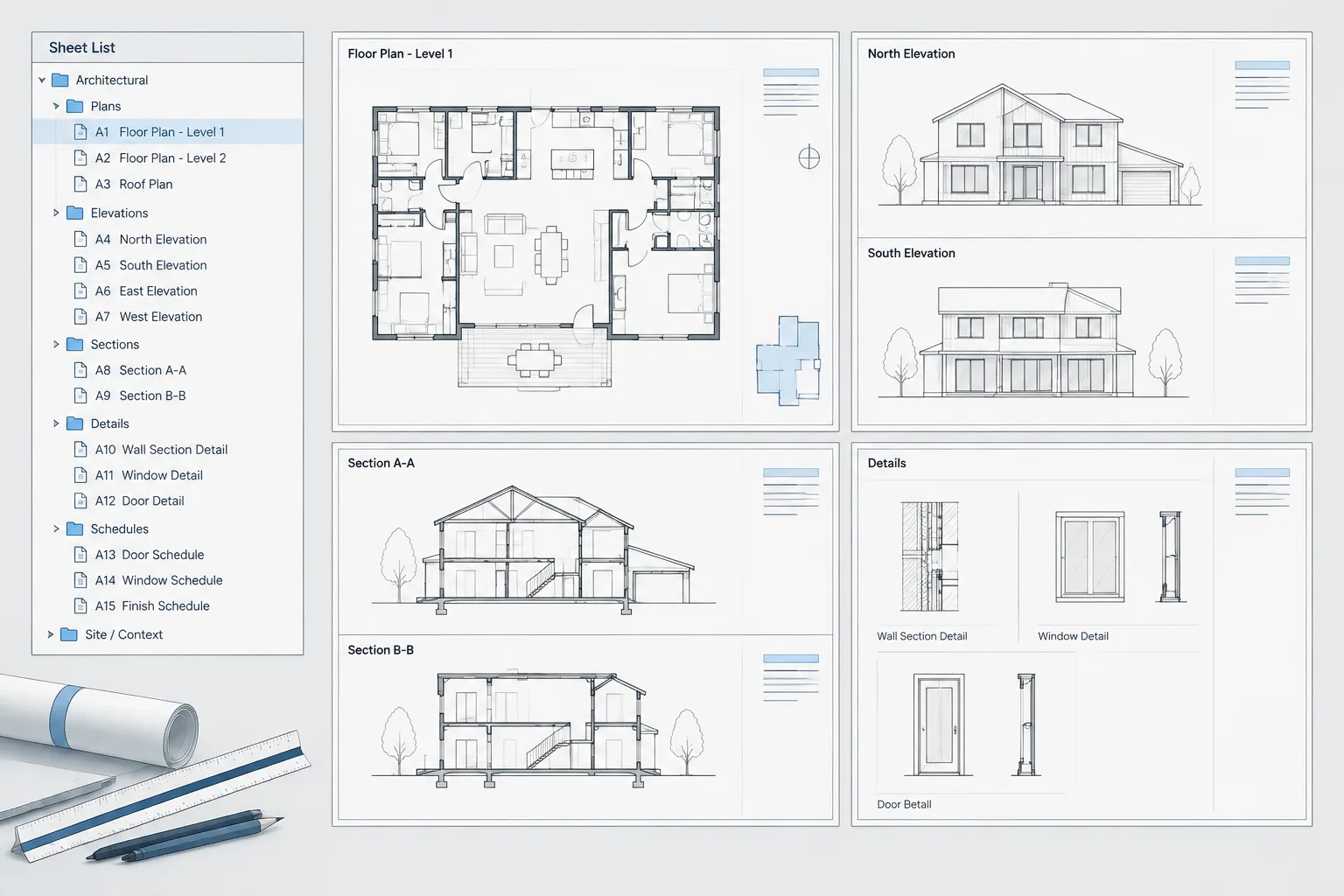
Managing an architectural drawing package involves more than arranging layout tabs. Sheet identities, title-block information, issue packages, page setups, and file locations must remain coordinated as the project changes. An AutoCAD Sheet Set Manager workflow provides a central structure for handling those relationships while leaving drawing geometry in its existing DWG files.
This guide explains how to prepare layouts, organize subsets, assign managed properties, connect title-block fields, create publishing selections, and check the set before issue. It also identifies an important boundary: Sheet Set Manager can improve document organization, but it does not replace drawing coordination, file management, or professional review.
Architectural projects often begin with a manageable collection of DWG files and layouts. As the drawing set grows, however, sheet numbers change, titles evolve, disciplines add drawings, and repeated title-block information becomes harder to control. AutoCAD Sheet Set Manager provides a structured way to organize these sheets without combining every drawing into one file.
A sheet set is an index connected to existing paper-space layouts. It can group sheets into logical subsets, store project and sheet properties, help populate title-block fields, and support coordinated publishing. It does not replace a sound DWG folder structure, external-reference strategy, or quality-control process. Its value comes from creating a managed layer above those files.
What a sheet set manages
A sheet set is stored in a DST file. This file records the structure of the set and references layouts in project DWGs. The architectural geometry remains in the drawing files; the DST file does not become a container for the model.
A well-organized sheet set can help a team manage:
- The order of sheets in the drawing set
- Sheet numbers and sheet titles
- Discipline or package subsets
- Project-level information shared by many sheets
- Sheet-specific information used in title blocks
- Named sheet selections for recurring issue packages
- Batch plotting or publishing from a defined list
For architectural work, the clearest convention is usually to treat one paper-space layout as one sheet. A single DWG may contain one layout or several layouts, depending on office standards and project needs. The important point is that each managed layout has an unambiguous identity.
Plan the drawing set before creating the DST file
Sheet Set Manager works best when the underlying files are already reasonably organized. Before building the set, review the project folder, sheet layouts, title blocks, and file permissions.
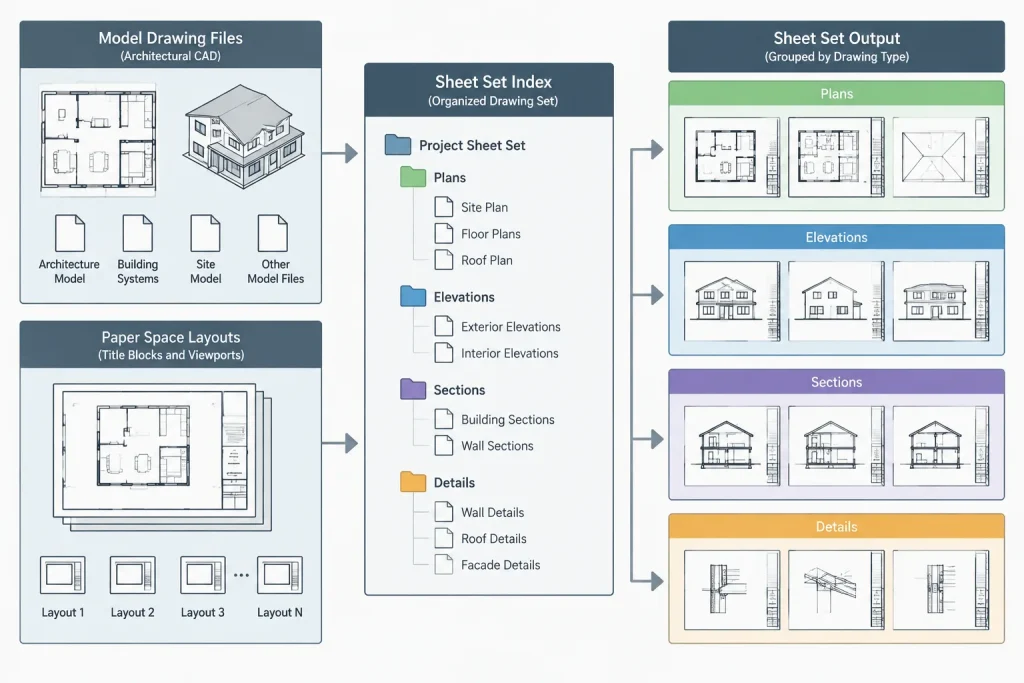
Confirm layout readiness
Each intended sheet should have a paper-space layout with a stable layout name, title block, viewport arrangement, and page setup. Remove abandoned test layouts or label them clearly so they are not added accidentally.
Decide how sheets will be grouped
Subsets act like folders inside the sheet set. They can reflect drawing disciplines, project phases, issue packages, or another consistent office structure. A typical architectural set might separate general information, plans, reflected ceiling plans, elevations, sections, and details. Subsets should help users find sheets; they should not create unnecessary nesting.
Identify shared and sheet-specific data
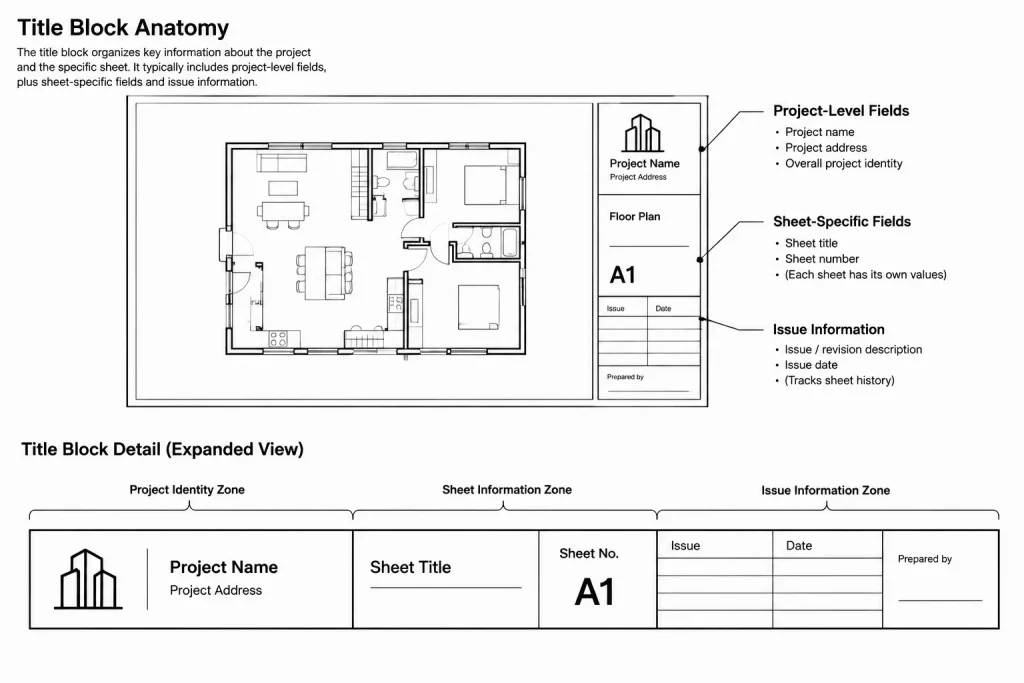
Separate information that applies to the entire project from information unique to a sheet. A project name or project identifier is set-level data, while a sheet number and sheet title belong to an individual sheet. Making this distinction early reduces duplicated manual entries.
A practical setup workflow
1. Start from existing drawings or a controlled template
A sheet set can be created around existing layouts or established from a prepared office workflow. When adding existing sheets, verify that each selected layout is the actual issue layout rather than a working or archive layout.
2. Save the DST file in a stable project location
Place the DST file where authorized team members can reach it through the project’s normal storage system. Avoid treating a personal desktop or temporary transfer folder as the permanent location. The sheet set depends on references to project drawings, so casually moving or renaming files can interrupt those relationships.
3. Create a simple subset structure
Build only the subsets needed for navigation and publishing. Add sheets to the appropriate subset and arrange them in the intended drawing-index order. Do not assume that filename order, layout-tab order, and sheet-set order will remain identical; establish which one controls the issued set.
4. Review sheet properties
Open the properties of each sheet and confirm its number and title. These values can support title-block fields, drawing indexes, and publishing names. Use a consistent naming convention, but do not force every descriptive phrase into a filename when the sheet title property is the more appropriate location.
5. Define custom properties carefully
Custom sheet-set properties can hold recurring project information. Custom sheet properties can hold values that differ by sheet. Create only properties with a clear purpose and agreed ownership. A long list of vaguely named fields becomes difficult to maintain and may result in conflicting title-block information.
6. Connect title-block attributes with fields
Title-block attributes can be configured to display fields linked to sheet-set or sheet properties. This allows selected information to update from the managed source rather than being retyped on every layout.
Test the field behavior on a copy or sample sheet before applying it across the project. Confirm that field values display correctly, update as expected, and plot without unresolved placeholders. Keep manually entered information visibly distinct from managed information during setup and review.
7. Standardize page setups
Consistent page setups reduce variation in paper size, plot area, orientation, plot style, and output device settings. Before relying on batch publishing, test representative sheets from different subsets. A successful plot from one layout does not prove that every sheet has a compatible setup.
What should be controlled where?
| Information | Preferred control point | Coordination note |
|---|---|---|
| Project name | Sheet-set property | Useful when the same value appears throughout the set |
| Sheet number | Individual sheet property | Check title blocks, indexes, and references after renumbering |
| Sheet title | Individual sheet property | Use consistent capitalization and terminology |
| Layout geometry | DWG paper space | Viewports, notes, and sheet composition remain in the drawing |
| Drawing content | Model DWGs and references | The sheet set organizes sheets but does not coordinate model geometry |
| Publish order | Sheet-set order or saved selection | Review before every formal issue |
Using sheet selections for issue packages
Not every issue includes every sheet. A project may require a permit package, pricing package, consultant background issue, or selected revision issue. Named sheet selections can preserve commonly used groups without rearranging or deleting sheets from the full set.
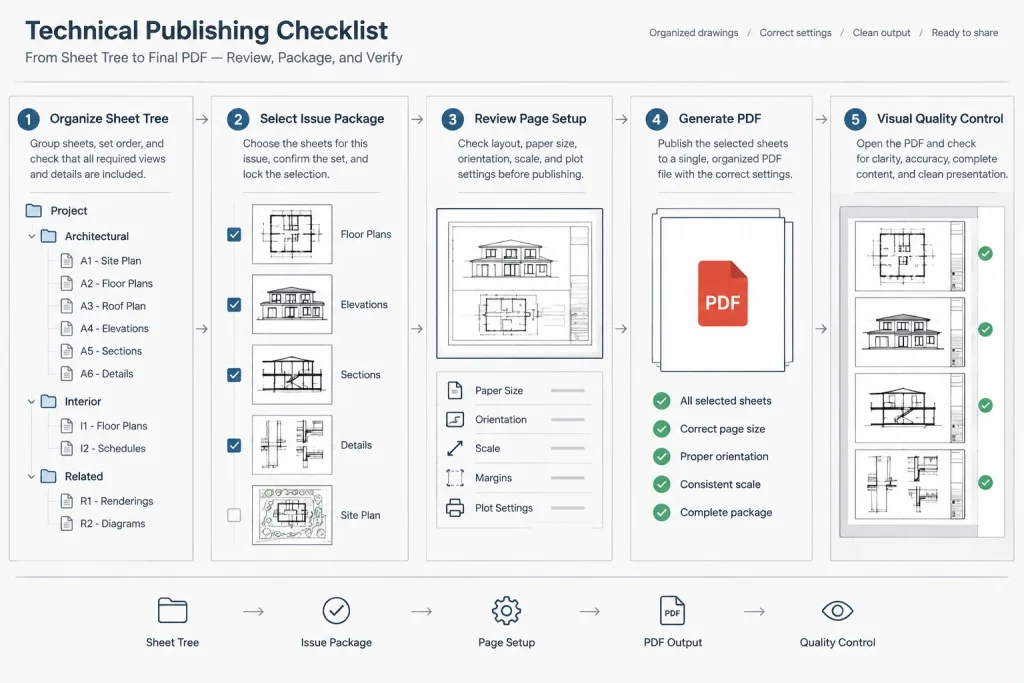
Treat each saved selection as a publishing aid rather than proof that the package is complete. Before release, compare the selected sheets with the drawing index and issue requirements. A saved list can become outdated when sheets are added, withdrawn, or renumbered.
Renaming and renumbering without losing control
Sheet numbers and sheet titles may change during design. Update managed properties through the agreed workflow, then inspect every place where the old identity might remain. This includes the title block, drawing index, callout references, filenames, transmittal records, and previously exported PDFs.
Renaming a sheet property is not necessarily the same as renaming a DWG file or layout tab. These identifiers serve different purposes. If the office requires them to match, define that as a documented procedure rather than assuming the software will keep every name synchronized automatically.
Common problems and likely causes
- A sheet appears missing: The layout may not have been added, the source DWG may have moved, or a different sheet selection may be active.
- A title block shows an old value: The attribute may contain static text, reference the wrong property, or need its fields updated.
- A sheet cannot be edited: Another user may have the drawing or sheet-set data open, or file permissions may restrict access.
- Batch output is inconsistent: Layouts may use different page setups, plot styles, output settings, or sheet sizes.
- Duplicate numbers appear: Sheets may have been copied or added without a property review.
- References break after file movement: Project drawings or the DST file may have been relocated outside the established folder workflow.
Quality-control checklist before publishing
- Confirm that the DST file opens from the shared project location.
- Check that every required layout appears once in the correct subset.
- Review sheet order against the current drawing index.
- Search for duplicate or blank sheet numbers.
- Verify titles against the visible title blocks.
- Update fields and inspect sheets for unresolved values.
- Confirm that withdrawn or archive sheets are excluded.
- Test page setups and plot styles on representative sheets.
- Review the final PDF visually instead of relying only on a successful publish message.
- Record the issued sheet list according to the project’s document-control procedure.
A management tool, not a substitute for coordination
AutoCAD Sheet Set Manager is most effective when responsibilities are clear. One person or role should oversee set structure and shared properties, while sheet authors remain responsible for the content and layout of their drawings. The team should also agree on how new sheets are added, how numbers are assigned, and how issue selections are verified.
A sheet set cannot determine whether a plan agrees with a section, whether a detail is appropriate, or whether a drawing complies with project requirements. It can, however, make the document structure easier to navigate, reduce repeated title-block entry, and provide a more reliable path from individual DWG layouts to an organized architectural drawing package.
Introducing Sheet Set Manager into an existing project
Moving an established drawing package into Sheet Set Manager should be treated as a document-control task rather than a simple software setup exercise. Existing layout names, visible sheet numbers, filenames, title-block attributes, and drawing-index entries may not agree. Those conflicts should be identified before managed properties are connected to title-block fields.
Establish the current source of truth
Determine which record currently controls sheet numbers, titles, and issue status. Depending on the office workflow, that may be the visible title block, a drawing index, or an external document register. Resolve discrepancies before using the sheet set as the managed source.
Pilot the workflow on representative sheets
Test the proposed property names, title-block fields, page setups, and publishing process on a controlled sample. Include sheets with different layout conditions so the review can reveal inconsistent attributes, obsolete layouts, or plotting differences before the workflow is expanded.
Document ownership and editing rules
Teams should know who maintains the DST structure, who may create or rename sheets, who controls shared project properties, and who verifies issue selections. Clear ownership helps prevent duplicate sheet identities and unreviewed changes to information displayed across the set.
Keep sheet identity separate from file identity
A sheet may be described by its sheet number, sheet title, layout name, DWG filename, and position within the set. These identifiers can support different purposes and should not be assumed to match automatically. If an office requires a naming relationship between them, document the rule and include it in quality-control reviews.
When a sheet changes, review every dependent record rather than checking only the Sheet Set Manager palette. The managed property may be correct while static title-block text, drawing references, indexes, exported documents, or issue records still show earlier information.
Evaluate the published package, not only the publish process
A completed publishing operation confirms that output was generated; it does not confirm that the correct sheets were selected or that every page is graphically acceptable. Review the resulting package for sheet order, title consistency, missing content, unresolved fields, orientation, plotting appearance, and excluded archive material.
The strongest workflow combines Sheet Set Manager with stable project storage, disciplined paper-space layouts, consistent title blocks, controlled page setups, and a documented issue review. Each part supports the others, while remaining independently subject to checking.
Frequently asked questions
Does the DST file contain the architectural drawings?
No. The DST file records the sheet-set structure and references layouts in project DWG files. Model geometry, paper-space content, viewports, and annotations remain in the drawings.
Can several layouts from the same DWG be included?
Yes. A DWG may contain several managed layouts if that arrangement follows the project or office workflow. Each layout should have a clear identity so users can distinguish issued sheets from working or archive layouts.
Will changing a sheet number update every drawing reference?
Do not assume that it will. A managed sheet property can update correctly while static text, callouts, indexes, filenames, transmittals, or previously exported files retain the earlier number. Review each affected record after renumbering.
Why does a title block still show outdated information?
The displayed attribute may contain static text, reference a different property, or require its fields to be updated. Check both the attribute configuration and the value stored in the relevant sheet or sheet-set property.
Are saved sheet selections reliable for recurring issues?
They are useful publishing aids, but they are not a substitute for issue review. A saved selection can become outdated when sheets are added, withdrawn, moved, or renumbered.
What should be checked when a sheet disappears from the set?
Confirm that the intended layout still exists, that the source DWG remains in the managed project location, and that the expected sheet selection is active. Also check whether the sheet was removed from its subset or replaced by another layout.
Does Sheet Set Manager coordinate plans, sections, and details?
It organizes sheet records and publishing information, but it does not determine whether drawing content agrees across views. Designers and reviewers must still coordinate geometry, annotations, references, and project requirements.