
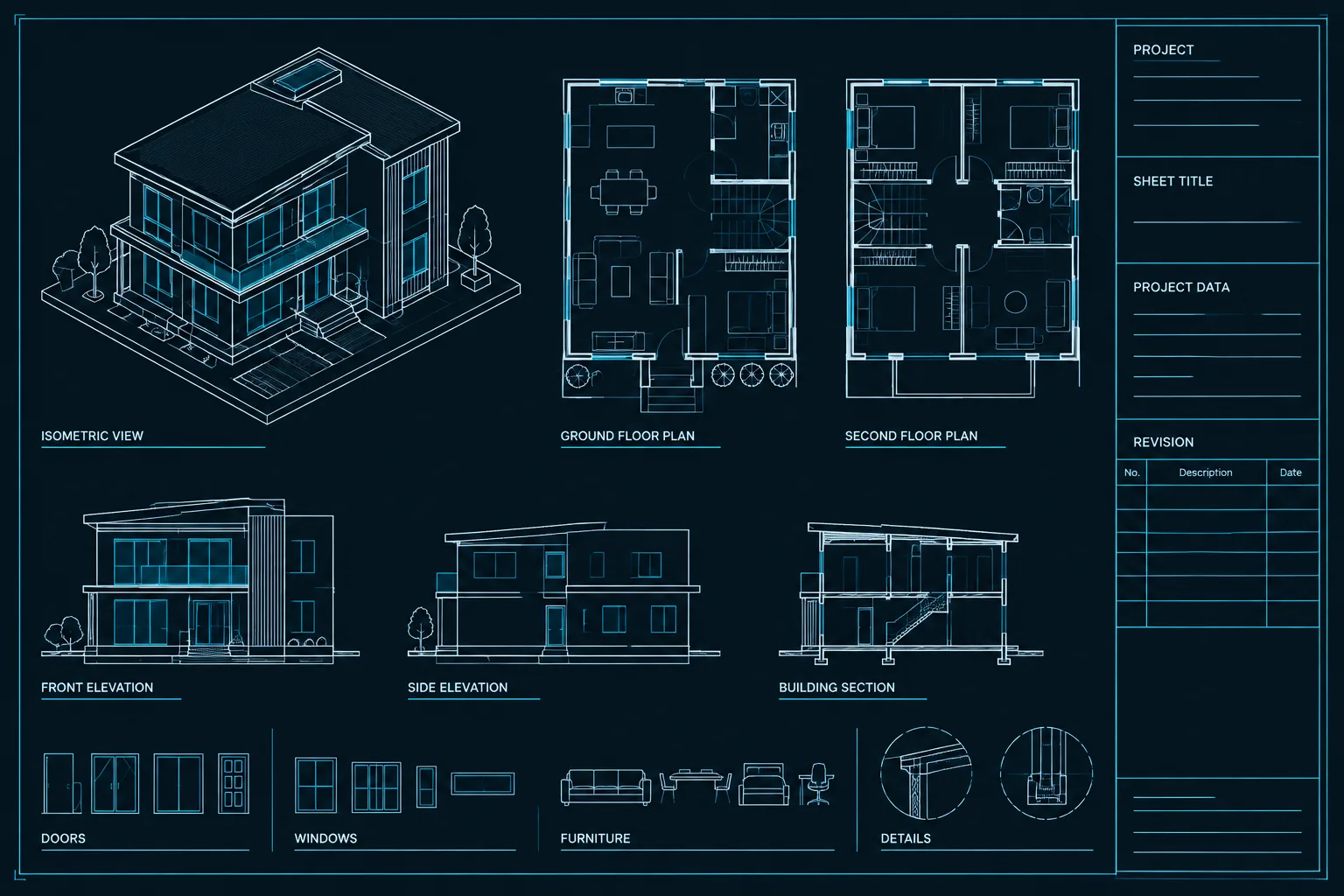
Architectural title blocks connect sheet graphics with the project data needed to identify, issue, review, and coordinate a drawing set. Their reliability depends less on decorative formatting than on clear ownership of information, consistent data entry, and a controlled method for updating shared content.
This guide explains how to structure architectural title blocks in AutoCAD, choose between blocks and external references, manage variable information, and check the resulting sheets before issue. The workflow should always be adapted to the firm’s documented procedures and the requirements of the current project.
An architectural title block does more than frame a drawing. It identifies the project, drawing, sheet, responsible parties, issue status, and other information needed to interpret the document. When title blocks are built inconsistently, even a well-drafted set can contain mismatched sheet titles, obsolete issue dates, or unexplained abbreviations.
A reliable architectural title block AutoCAD workflow separates stable graphic content from information that changes by project, sheet, or issue. It also gives the project team a repeatable way to update and review every sheet without manually rebuilding the border.
What belongs in an architectural title block?
The exact content depends on the office, client, project type, and applicable submission requirements. Before building a template, identify which information is required and who is responsible for maintaining it. A typical title block may contain the following categories:
- Project name and location
- Owner or client information
- Architect or design firm identification
- Consultant identification where applicable
- Sheet number and sheet title
- Drawing scale information or a scale reference note
- Issue purpose, issue date, or document status
- Revision records
- Drawing authorship, checking, or approval fields used by the office
- Project number and other internal tracking data
- Professional seals or signatures when required and properly authorized
- General notices or ownership statements approved for use by the firm
Do not assume that a title block downloaded from another project contains the right language or submission fields. Treat it as reference geometry until its content has been reviewed for the current project.
Organize information by how often it changes
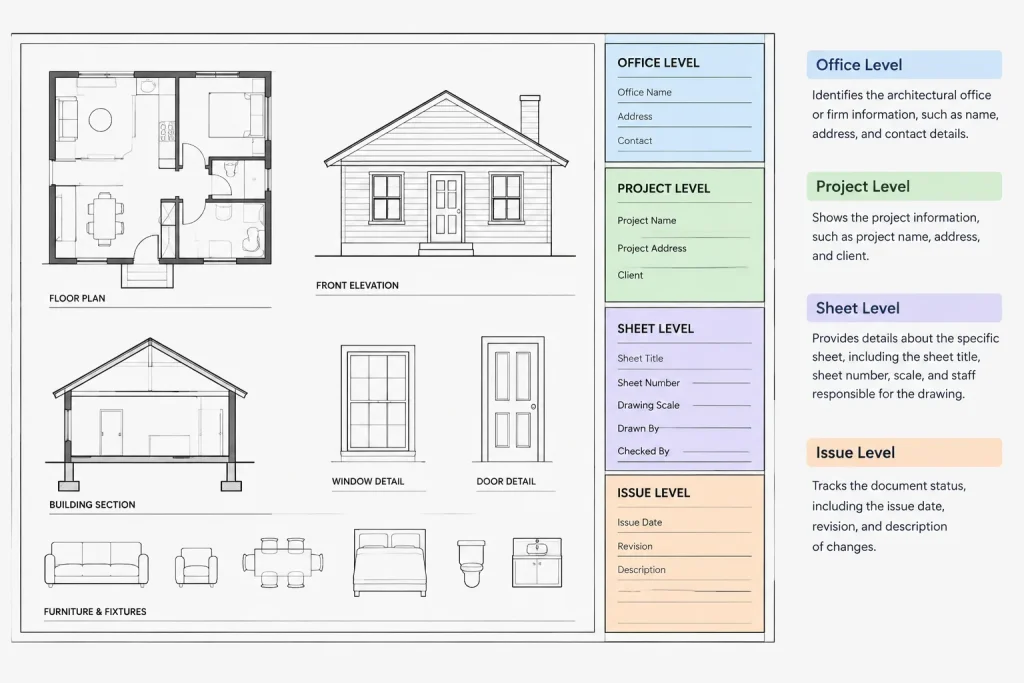
A practical title block becomes easier to maintain when its content is divided into three data levels.
| Data level | Typical content | Recommended control |
|---|---|---|
| Office-level | Firm identity, standard graphic hierarchy, approved notices | Controlled office template or source file |
| Project-level | Project name, address, client, project number, consultant list | Shared project title block data |
| Sheet-level | Sheet number, title, scale reference, author, checker | Editable fields or attributes on each layout |
| Issue-level | Issue description, date, status, and revision entries | Managed through the project issue process |
This structure helps prevent repetitive edits. Project information should not need to be retyped independently on every sheet if the production method can reference a common source. Sheet-specific information, by contrast, must remain individually editable.
Choose how the title block will be stored
Block inserted in each layout
A title block can be created as a block and inserted into paper space on each sheet layout. Attributes can hold sheet-specific information such as the sheet number and title.
This method is portable and straightforward, but updating stable graphics across a large set may require block redefinition or another controlled update process. It is important to confirm that edits have reached every drawing and layout.
Externally referenced title block
An xref can hold the border, linework, logos, and other shared graphic content. Each sheet then references the same source file. Sheet-specific text may remain in the host layout as attributes, fields, or ordinary text according to the office workflow.
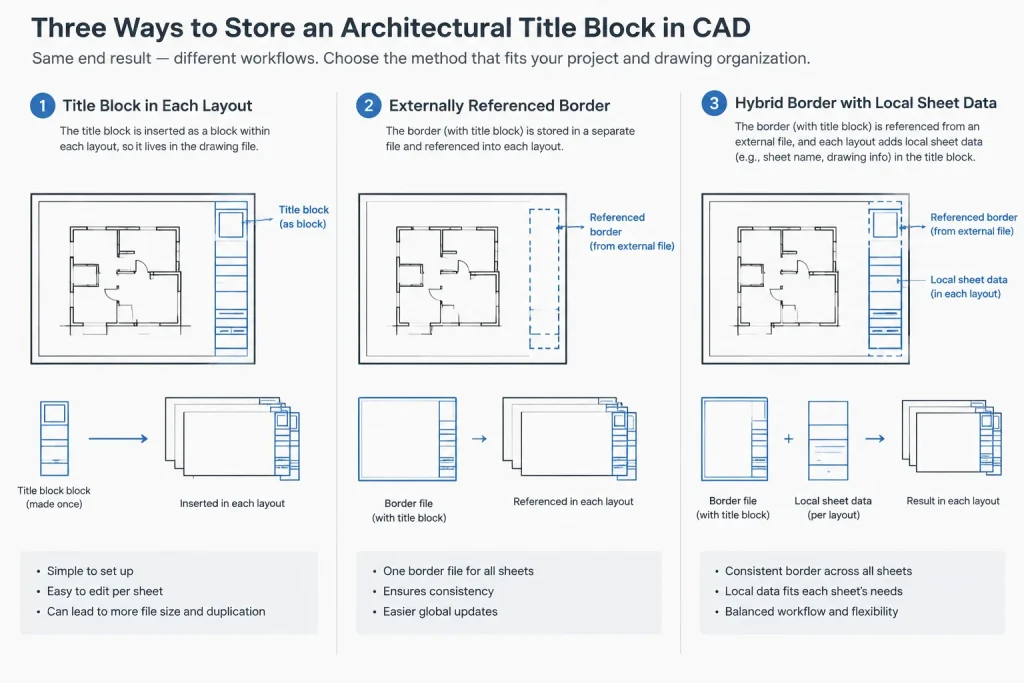
An xref makes centralized graphic revisions easier, but it introduces a file dependency. Relative paths and a disciplined folder structure help keep the reference available when the project is moved or packaged.
Hybrid title block
Many teams use a hybrid approach: stable border graphics are referenced, while changing sheet data is stored locally. This allows a border correction to update throughout the set without forcing every sheet to share the same sheet number or title.
Whichever method is selected, document it in the project setup notes. Avoid mixing unrelated title block methods across the same drawing set unless there is a clear reason.
Build the title block in paper space
The title block normally belongs on a layout because it describes the plotted sheet rather than the building model. Set up the intended page configuration first, then place the title block relative to the printable sheet area. Do not compensate for an incorrect page setup by randomly scaling or moving the border.
Keep model geometry out of the title block definition. Floor plans, elevations, sections, and details should appear through viewports or another documented sheet workflow. This separation allows the same model content to support multiple sheets without becoming entangled with border graphics.
Use a clear graphic hierarchy
The sheet number and title should be easy to locate. Supporting information should remain readable without competing with the drawings. Lineweights, text sizes, spacing, and grouping should follow the office plotting system and be tested in an actual PDF output.
Reserve areas for content that may expand, including consultant names, issue records, and revisions. A field that looks generous in the template may become crowded when a real project name or long sheet title is entered.
Use attributes and fields carefully
Block attributes are useful for structured title block data because they give editable values consistent prompts and tags. Use descriptive attribute tags rather than vague labels. A clear tag such as a project identifier is easier to audit than a generic sequence of unnamed text values.
AutoCAD fields can display information derived from supported drawing or sheet properties. They can reduce duplicate typing, but they should not be treated as self-verifying. A field may be linked correctly while its source property is wrong or incomplete.
After editing source data, update and inspect the displayed result. Plot a test sheet to confirm that field backgrounds, missing values, or placeholder text do not appear in issued output. If a project uses Sheet Set Manager, align title block fields with the established sheet and project property structure rather than creating competing data sources.
Separate graphics from editable data with layers
Title block linework, fixed text, variable data, revision content, and non-plot guidance can be separated logically. The exact layer names should follow the project standard, but the purpose of each layer should be clear.
Keep essential border content on layers that are expected to plot. Use non-plot layers only for genuine production aids, such as alignment guides or notes to the CAD team. Do not place critical issue information on a layer that can be switched off casually.
Assign properties consistently through the chosen layer and plot-style workflow. Scattered object-level color, linetype, or lineweight overrides make later maintenance harder and can create unexpected PDF output.
Plan the revision and issue areas
Revision information and issue information are related but not always interchangeable. An issue area may describe the purpose or status of a complete sheet release, while a revision area may record later changes. Define how each is used before drafting the title block.
Make the available space realistic for the project’s anticipated documentation process. If a revision area fills, the team needs an approved method for continuing or consolidating the record. Do not simply shrink text until it becomes difficult to read.
Revision entries in the title block should agree with revision identifiers shown on the drawing and with the project’s issue records. Removing revision marks from a view without reviewing the corresponding title block entry can leave an incomplete or misleading history.
Create a repeatable title block setup workflow
-
Confirm requirements. Review office, client, consultant, and submission needs before drawing the border.
-
Establish the sheet configuration. Select the intended layout and page setup before positioning graphics.
-
Draft stable content. Build the border, information zones, and approved office graphics.
-
Define variable data. Identify which values are project-level, sheet-level, and issue-level.
-
Select the storage method. Decide whether stable content will be a block, xref, or hybrid system.
-
Test long values. Enter realistic project names, sheet titles, and consultant information to find crowded areas.
-
Test the plot. Review a generated PDF at normal reading size, not only inside the CAD editor.
-
Protect the source. Store the approved template or xref where unauthorized project edits will not silently change the office master.
Common title block problems
- Duplicate sheet numbers: Copying layouts without updating identifiers can create conflicting sheets.
- Stale project information: Reusing an old project file may carry obsolete addresses, clients, dates, or consultant names.
- Unresolved attributes: Blank values or default prompts may remain unnoticed until plotting.
- Broken xrefs: Referenced borders can disappear when folders are moved or files are transmitted incorrectly.
- Manual data conflicts: Sheet lists, title blocks, and issue records may disagree when maintained separately.
- Incorrect page setup: A title block may be clipped, offset, or reduced because the layout targets the wrong output configuration.
- Unreadable revision records: Excess entries may be compressed instead of being managed through an approved documentation procedure.
- Unauthorized graphic changes: Editing a shared border source can alter many sheets unexpectedly.
Title block quality-control checklist
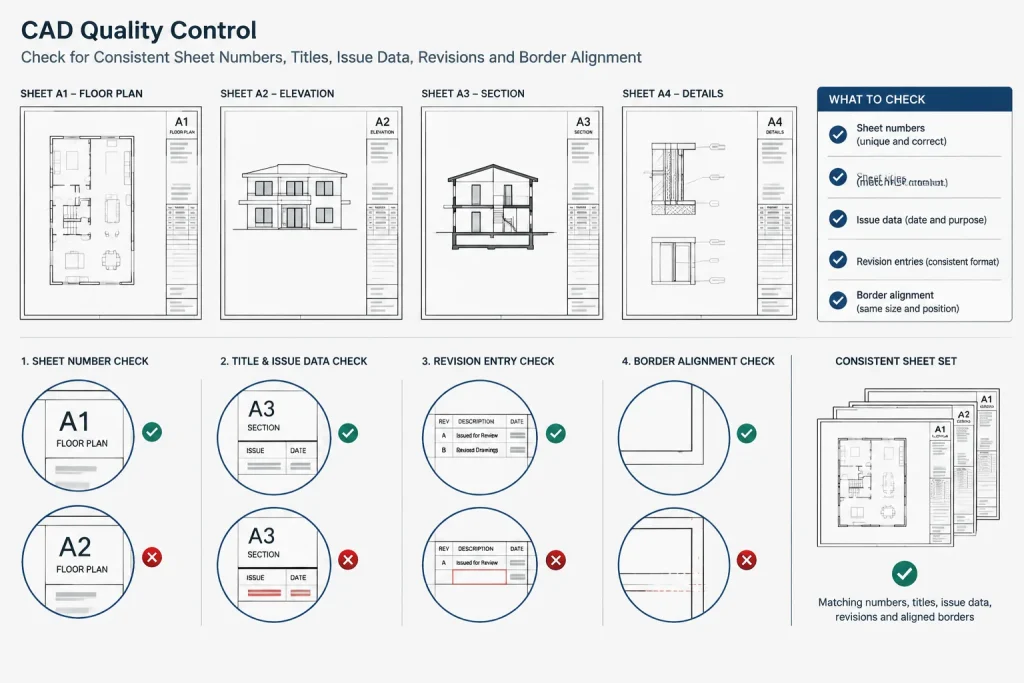
Before issuing a drawing set, review both individual sheets and the set as a whole:
- Confirm every sheet has a unique and correct number.
- Compare sheet titles with the drawing index or sheet list.
- Verify the project name, location, client, and project identifier.
- Check issue descriptions, dates, and revision entries against the issue record.
- Confirm referenced border files are loaded and display correctly.
- Look for blank attributes, placeholder values, and unresolved field text.
- Verify that title block content is not hidden by viewport geometry or masks.
- Check that seals, signatures, and professional information are used only through the authorized process.
- Inspect PDF output for clipping, weak linework, incorrect text weight, and crowded data.
- Package dependent files when delivering editable DWG documents.
A good title block system makes errors visible rather than merely making sheets look consistent. By separating stable graphics from controlled data, placing the title block correctly in paper space, and reviewing the plotted set, a CAD team can maintain clearer and more dependable architectural documents.
Assign responsibility for title block data
A technically sound title block can still fail when no one knows who maintains each field. During project setup, identify responsibility for office graphics, project identity, sheet information, consultant data, issue status, and revision records. This makes it easier to determine whether a questionable value should be corrected in the shared source, the project data, or the individual layout.
Responsibility should follow the team’s document-control process. A drafter may enter sheet information, while another team member reviews issue data or authorizes changes to professional information. The important point is that editable access does not automatically equal approval authority.
Validate the template before broad use
Test a title block in a working drawing rather than evaluating only the clean template. Populate every editable area, attach any required references, place typical viewport content, and generate the intended output. This can reveal overlapping text, clipped borders, hidden information, broken references, and inconsistent plotting behavior before the template is copied across the set.
Also test the workflow used to update shared information. A successful edit should reach the intended sheets without overwriting values that belong only to individual layouts. If the update path is unclear, document it before production expands.
Troubleshoot the data source before correcting the display
When title block information appears wrong, first determine whether the displayed object or its source data is responsible. Replacing visible text may hide the immediate problem while leaving an incorrect property, attribute, or shared reference in place.
- Wrong on one sheet: Inspect the local attribute, field, layout property, or manually entered text.
- Wrong throughout the project: Review the shared project data or referenced border source.
- Correct in the drawing but wrong in output: Check layer visibility, plotting properties, masks, and page configuration.
- Missing after files are moved: Review reference paths and confirm that dependent files were included.
- Different from the sheet list: Identify which record is authoritative before changing either location.
Review the drawing set as a coordinated record
Sheet-by-sheet checking is necessary, but it does not expose every coordination problem. A set-level review can reveal duplicate identifiers, inconsistent project wording, gaps in the sheet sequence, conflicting issue descriptions, and title differences between the layouts and the drawing index.
Complete the review from the issued output as well as the DWG files. The plotted document is where clipping, weak hierarchy, crowded records, and hidden content become most apparent. Any final correction should be made at the proper source so the drawing file and issued output remain aligned.
Frequently asked questions
Should an architectural title block be placed in model space or paper space?
The title block normally belongs in paper space because it identifies and frames the plotted sheet. Building geometry generally remains in model space and is presented through viewports or another documented sheet workflow.
Is a block or an xref better for a title block?
A block is portable and can carry editable attributes on each layout. An xref makes shared graphic updates easier but depends on reliable file paths. A hybrid method can keep stable border graphics referenced while retaining sheet-specific data locally.
What is the difference between an attribute and a field?
An attribute stores structured, editable information within a block. A field displays information obtained from a supported drawing or sheet property. Both require review because a correctly functioning object can still display incorrect source data.
Why does a title block look correct in AutoCAD but plot incorrectly?
Possible causes include the page configuration, plot-area selection, layer plotting status, object overrides, masks, missing references, or content extending beyond the printable area. Review the generated output rather than relying only on the layout display.
How should a reused title block be handled?
Treat it as unverified source material. Remove obsolete project data, review notices and professional information, inspect attributes and fields, confirm the storage method, and test the output against the current project requirements.
How can duplicate sheet information be reduced?
Separate shared project data from sheet-specific values and define an authoritative source for each category. A set-level quality-control review should compare title blocks, the drawing index, and the issue record before release.
