AutoCAD xref paths determine how a host drawing locates linked DWG files. A reference may display correctly on its creator’s workstation yet become missing, resolve to an unintended copy, or fail after the project folder is transferred.
This guide compares relative, full, and no-path xrefs from an architectural file-management perspective. It explains how folder structure, saved locations, filename control, and delivery testing affect the reliability of linked plans, backgrounds, models, and sheets.
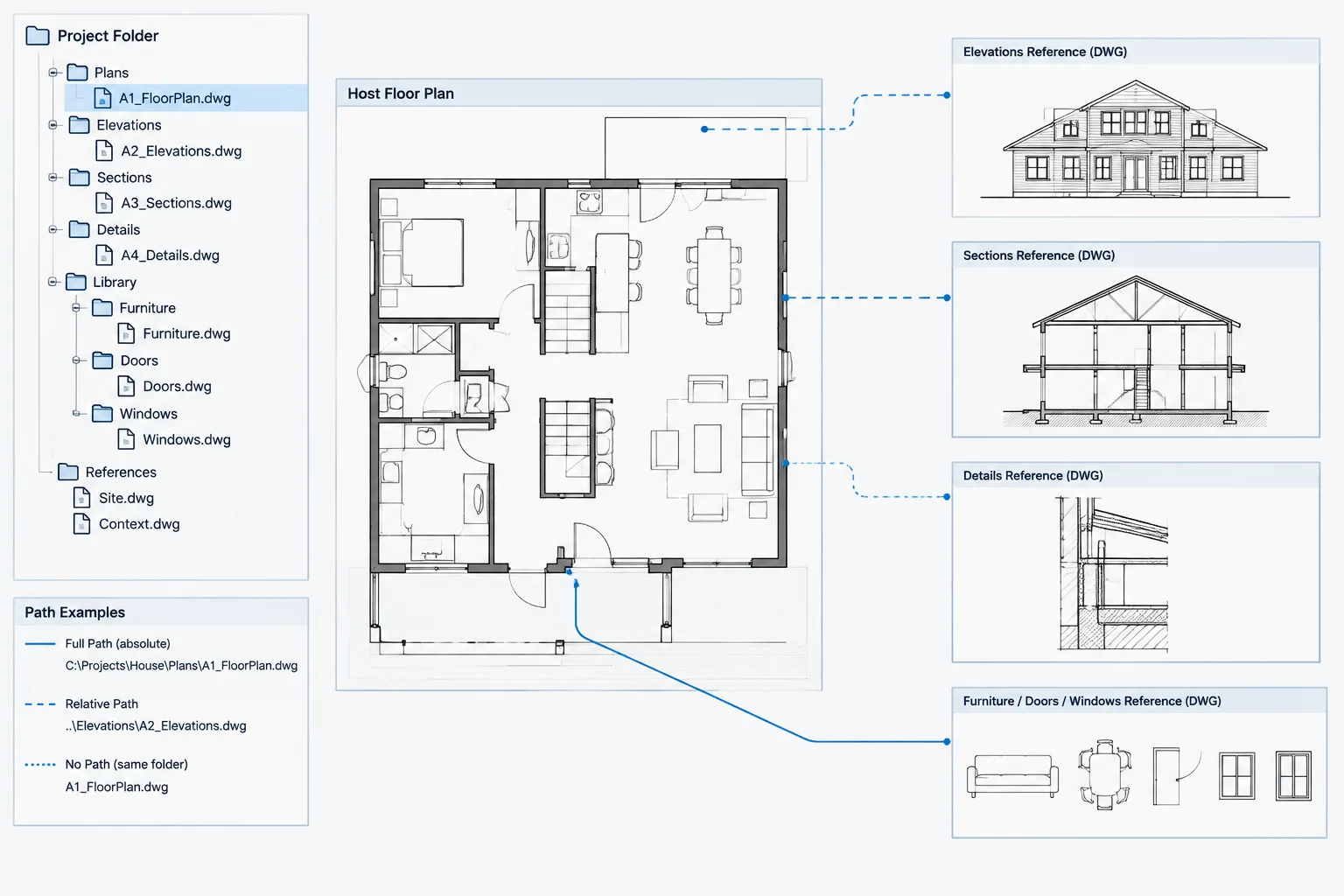
External references allow an architectural drawing to display information from another DWG without copying that geometry into the host file. A floor plan can reference a structural background, a sheet can reference a model file, and multiple disciplines can work from coordinated bases. This arrangement is effective only when AutoCAD can locate each referenced file.
The saved path assigned to an xref determines where the host drawing expects to find it. Choosing between a full path, relative path, and no path affects how reliably a project opens on another workstation, after a folder is moved, or when drawings are packaged for a consultant. Path management is therefore part of drawing coordination, not merely an administrative setting.
What an xref path controls
When a DWG is attached as an external reference, the host drawing retains information that helps AutoCAD locate the source file. The External References palette commonly shows both the path saved in the host and the location where the file was actually found.
These values may be different. For example, a host drawing may contain an outdated saved path while AutoCAD still finds the reference through another available search location. The drawing can appear correct on one computer but fail when opened elsewhere. Checking only whether the xref is visible can therefore hide a portability problem.
Xref path selection does not change the referenced geometry. It changes how the relationship between files is recorded and resolved.
Comparing the three path types
| Path type | How it identifies the file | Typical advantage | Primary risk |
|---|---|---|---|
| Full path | Records the complete file location, including the drive or network hierarchy | Points to one explicit location | May fail when another user does not have the same drive or folder structure |
| Relative path | Records the source location in relation to the saved host drawing | Usually travels well when the project folder structure remains intact | Can break if files are moved independently or the folder relationship changes |
| No path | Stores the referenced filename without a folder location | Can support simple folders or controlled search-path environments | May locate the wrong same-named file or fail when the file is not in a searched location |
When a full path is useful
A full path identifies a specific location in the computer or network file system. It may be appropriate when a referenced resource must remain in a centrally managed location that is consistently available to everyone using the project.
Full paths can work well inside a stable office environment, especially when workstation access and network mappings are standardized. They can also make the intended source location easy to identify during troubleshooting.
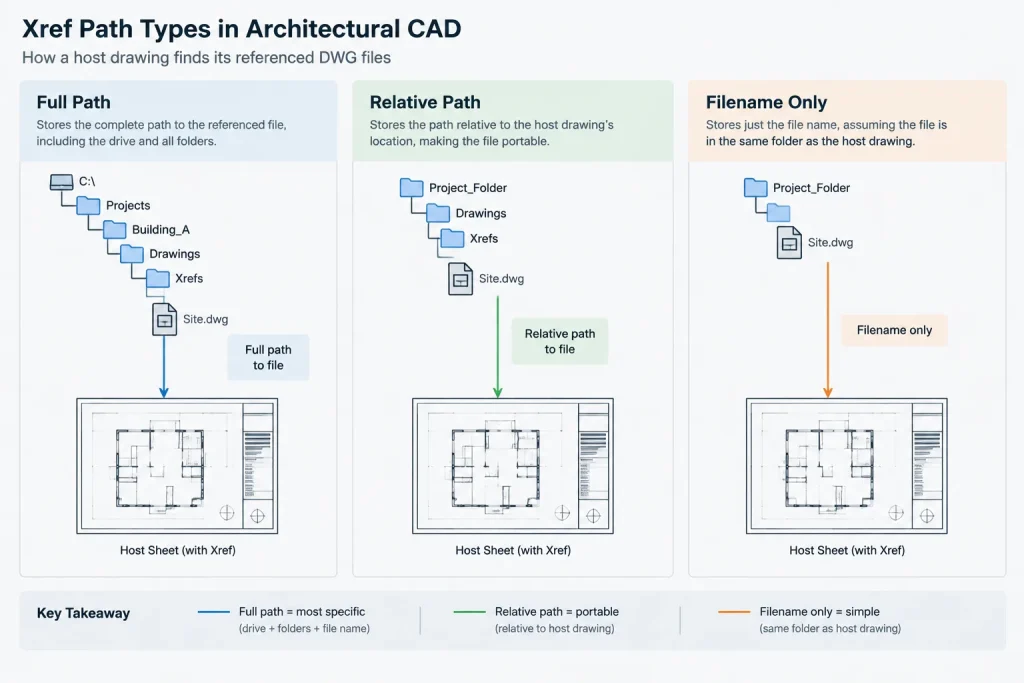
The disadvantage appears when the drawing leaves that environment. A recipient may not have the same drive assignment, server name, user folder, or directory hierarchy. A path that is valid for the author may be meaningless on a consultant’s system. Full paths can also become obsolete after server migrations or project archiving.
Use a full path intentionally rather than accepting it simply because it was created during attachment.
Why relative paths are common for project files
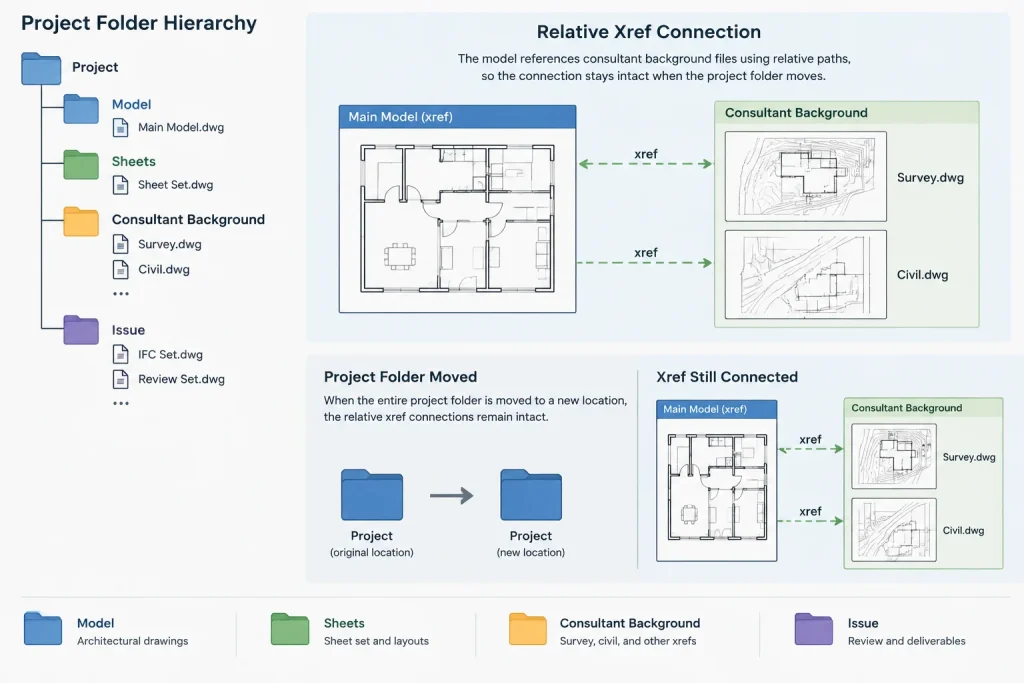
A relative path describes where an xref is located in relation to the host DWG. If a sheet file references a model in a neighboring project folder, that relationship can remain valid when the entire project directory is copied to a different drive.
This makes relative paths useful for project packages with a consistent internal structure. The top-level folder can move while the relationship between sheets, models, consultant backgrounds, and support files remains unchanged.
The host drawing must first have a saved location before AutoCAD can establish a meaningful relative relationship. A new, unsaved drawing does not yet have a folder from which to calculate that relationship.
Relative paths are not automatically unbreakable. If someone moves only the host drawing, renames an intermediate folder, or separates an xref from the project package, the saved relationship can fail. Their reliability depends on maintaining the folder structure as a coordinated system.
A practical relative-path folder concept
- Keep host sheets and source models within the same overall project directory.
- Separate model files, sheet files, consultant backgrounds, and issued files into clearly named folders.
- Avoid personal desktop locations, temporary download folders, and user-specific directories.
- Move or archive the complete project structure rather than isolated host drawings.
- Use unique, disciplined filenames so that missing references are not replaced by unrelated files with matching names.
When no path may be appropriate
The no-path option saves the xref filename without preserving its folder hierarchy. AutoCAD must then locate the file through the host drawing’s location or other applicable search locations.
This method can be convenient when the host and references are deliberately kept together, or when an organization has a tightly controlled resource environment. It can also reduce dependence on a particular drive structure.
However, no path provides less information about the intended source. If duplicate filenames exist in different accessible locations, users may not immediately recognize which copy has been loaded. It is also less suitable when a project depends on a clear hierarchy of model and sheet folders.
Before using no path, confirm that the team’s file storage rules make filename-only resolution predictable.
A reliable setup workflow
1. Save the host drawing in its project folder
Establish the host DWG’s permanent or working location before attaching references. This is especially important when relative paths are expected.
2. Verify the source file
Confirm that the xref is the correct architectural, structural, civil, or building-services background. Open it separately when necessary and check its filename, drawing units, coordinate relationship, and revision status.
3. Attach from a controlled project location
Do not attach a file directly from an email cache, downloads directory, or temporary coordination folder. Place the verified source in the designated project structure first.
4. Select the path type deliberately
Use the path policy established for the project. Relative paths are often practical for portable project directories, while a stable shared resource may justify a full path. No path should be used only when the search environment is controlled.
5. Review saved and resolved locations
In the External References palette, inspect the recorded path and the location from which the file was found. An xref that currently displays may still have an outdated saved path.
6. Test the project as a package
When practical, copy the project folder to a temporary controlled location and open representative host drawings. This helps reveal dependencies on personal drives, external folders, or uncollected support files.
How to repair a missing or misdirected xref
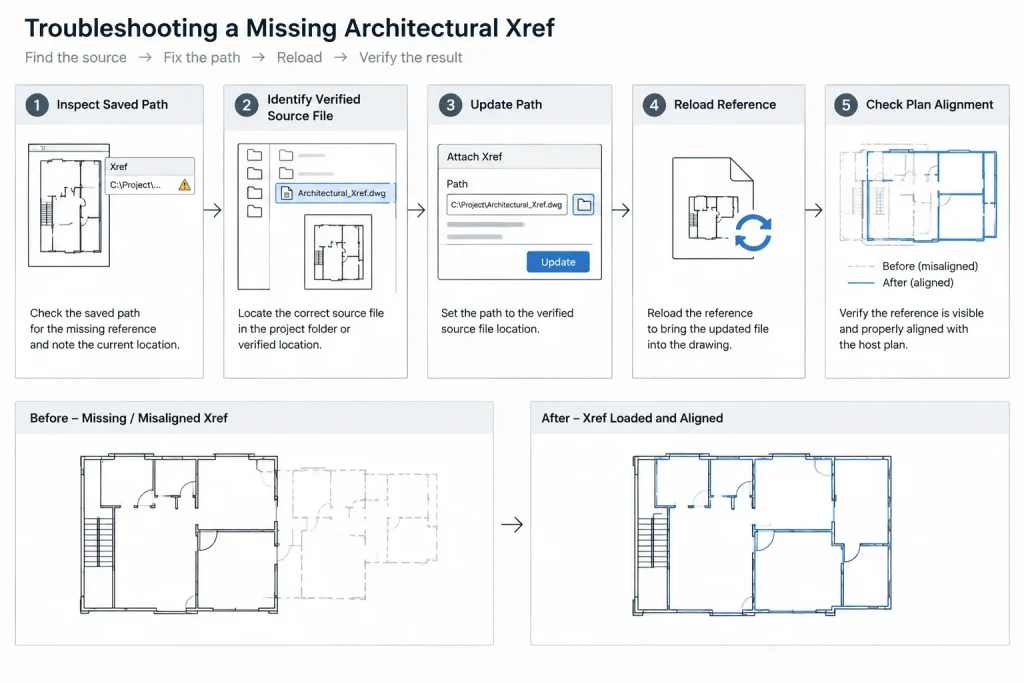
A missing xref should not be fixed by attaching the first similarly named DWG available. Determine which file the host was intended to use.
- Read the missing reference name and its saved path.
- Check the project’s file register, transmittal information, or coordination records.
- Search the controlled project directories for the expected source.
- Compare candidate files by content and revision status rather than filename alone.
- Update the path to the verified file.
- Reload the reference and inspect its position, scale, orientation, and visible content.
- Save the host drawing and reopen it to confirm that the repaired path persists.
If an xref loads from an unexpected location, treat that as a coordination issue even when the display looks correct. A stale or unofficial background can produce believable but inaccurate drawings.
Changing project locations without breaking references
Before moving a project, identify drawings that act as hosts and files that act as references. Preserve their internal folder relationships during the transfer. Relative paths generally tolerate a change to the top-level project location, but they do not tolerate arbitrary rearrangement inside that project.
After migration, open a selection of sheet and model files rather than testing only one drawing. Projects may contain nested references, discipline-specific folders, images, PDFs, font dependencies, and other linked resources that follow different resolution rules.
If paths must be revised, use a controlled process and keep a record of the old and new project locations. Avoid having multiple team members repair paths independently, since they may connect host drawings to different copies of the same background.
Path management checks before DWG delivery
- Confirm that every visible xref comes from the intended project source.
- Review unresolved, unloaded, and not-found references.
- Check for paths that point to personal or temporary folders.
- Look for duplicate filenames in active and archive directories.
- Verify nested xrefs needed by the recipient.
- Preserve the planned project folder hierarchy in the delivery package.
- Open packaged drawings from their delivered location before issue.
- Do not bind references automatically unless the recipient’s requirements and the project workflow call for it.
Establish a project-wide path policy
The best path type is not simply the one that works on the current workstation. It is the one that remains understandable and reliable for the people who create, review, exchange, archive, and reopen the drawings.
Document where xrefs belong, which path type should be used, who may replace consultant backgrounds, and how revised files are introduced. Combine that policy with consistent filenames and a stable folder structure. These small controls prevent missing-reference warnings from becoming larger coordination errors and make architectural DWG sets easier to transfer throughout the project lifecycle.
Choose a path type based on the drawing relationship
The most useful question is not which path type is universally best, but what relationship the host drawing must preserve. A project model that travels with its sheets has different file-management needs from a shared office resource that remains in a controlled central location.
- Use a relative path when the host and reference belong to a portable project structure that will be moved or delivered as a unit.
- Use a full path when the intended source must remain at an explicit, consistently available location.
- Use no path only when filename-based discovery is predictable and duplicate filenames are carefully controlled.
Distinguish a found xref from a verified xref
An xref that loads is not necessarily the correct xref. AutoCAD may find a file even when the saved location is stale, and a matching filename does not establish that the drawing has the intended content or revision status.
Verification should consider the saved path, resolved location, project records, visible content, and coordinate relationship together. If those indicators disagree, investigate the source before continuing production work.
Treat folders and filenames as coordination tools
Path reliability depends on more than the attachment setting. Clear folder roles help users distinguish active models, sheet files, received consultant backgrounds, issued material, and archived copies. Unique filenames reduce the chance that a host drawing will connect to an unrelated file carrying the same name.
When a project is moved, preserve the relationships that its path strategy expects. When a consultant background is replaced, update it through a controlled project location rather than attaching directly from a temporary transfer folder.
Use reopening as the final path check
After repairing or changing an xref path, save and close the host drawing, then reopen it from the location in which it will actually be used. This tests whether the relationship persists independently of the current session. For a delivery package, perform the check from the packaged folder rather than relying only on the original working directory.
Frequently asked questions about AutoCAD xref paths
Why does an xref work on one computer but not another?
The original computer may have access to a drive, server, personal folder, or search location that is unavailable elsewhere. Compare the path saved in the host drawing with the location from which the reference was actually resolved.
Does a relative path make an xref portable?
A relative path can support portability when the host drawing and referenced file retain the same folder relationship. It can still fail if either file is moved independently or if part of the internal project hierarchy is renamed or rearranged.
Can an xref be wrong even when it is visible?
Yes. A host may load an outdated, unofficial, or same-named copy from an unexpected location. Confirm the resolved source and review its content and revision status rather than relying on visibility alone.
When should no path be avoided?
Avoid filename-only resolution when duplicate names exist, references are distributed among several uncontrolled locations, or the project depends on a clear folder hierarchy. In those conditions, the intended source may be ambiguous.
Should missing references be reattached immediately?
First identify the intended source. Review the recorded path, project directories, coordination records, and candidate files before updating the host. Reattaching the first matching filename can introduce an incorrect background without an obvious warning.
What should be checked after an xref path is repaired?
Reload the reference and inspect its source, position, scale, orientation, and visible content. Save and reopen the host drawing to confirm that the corrected relationship remains valid.