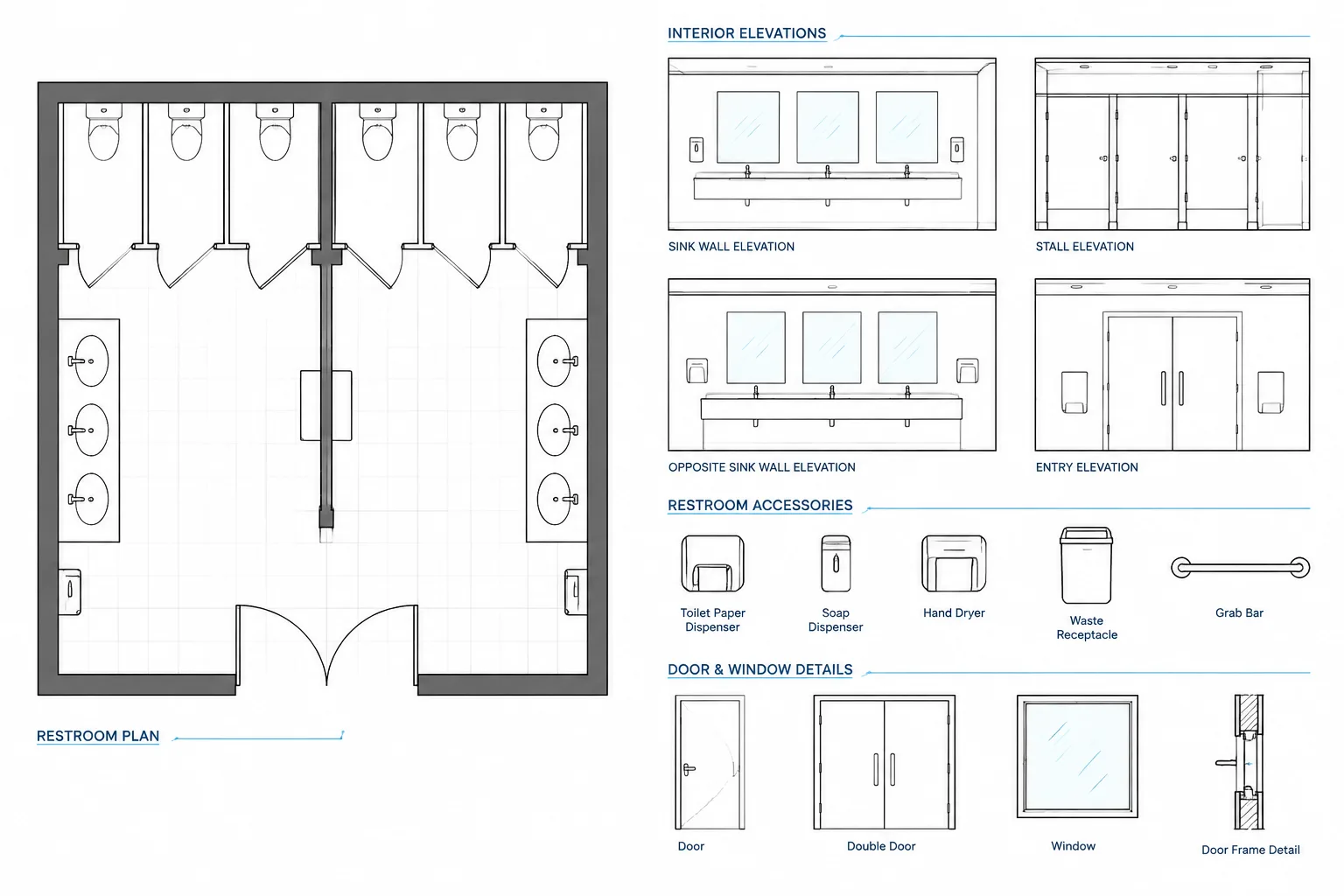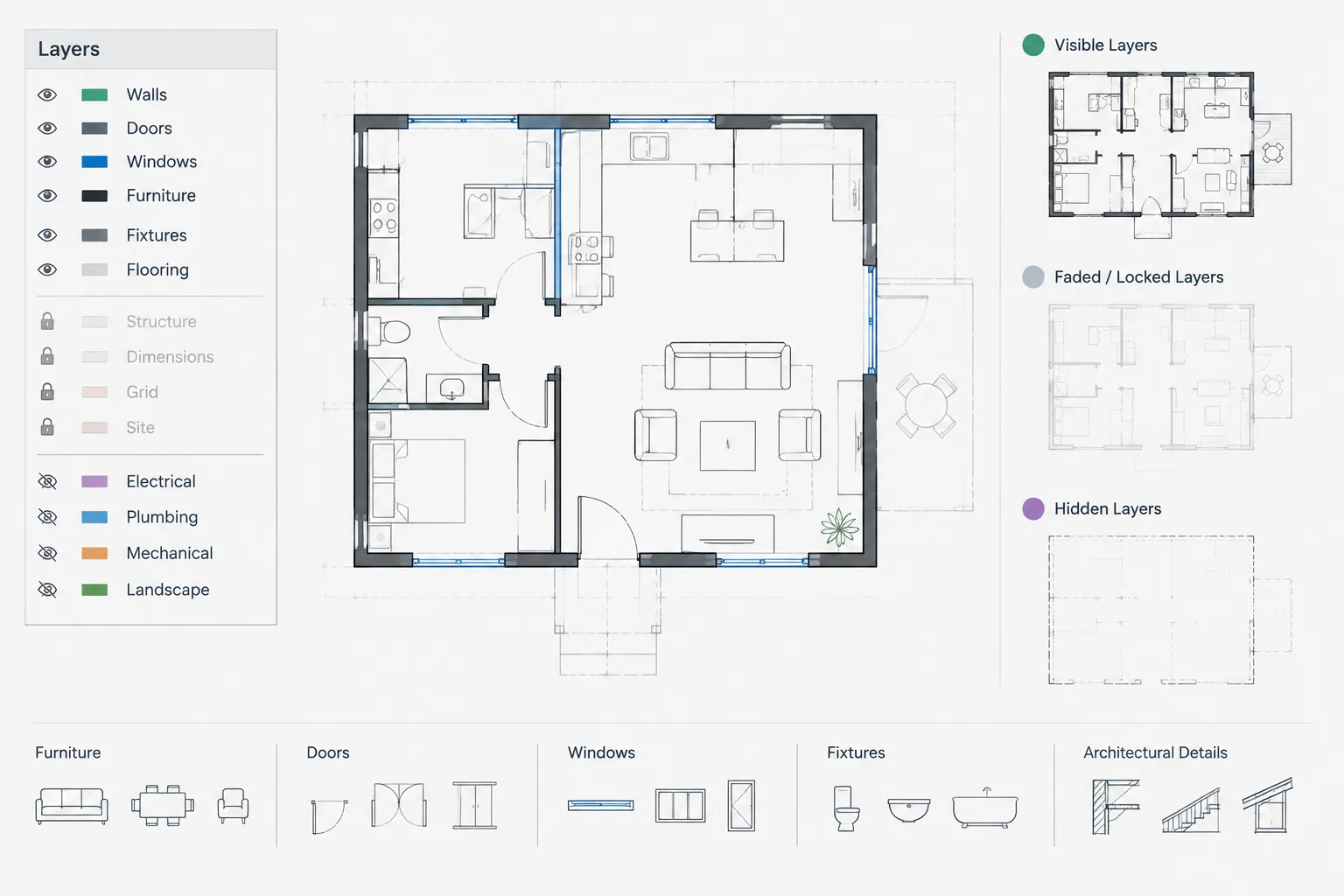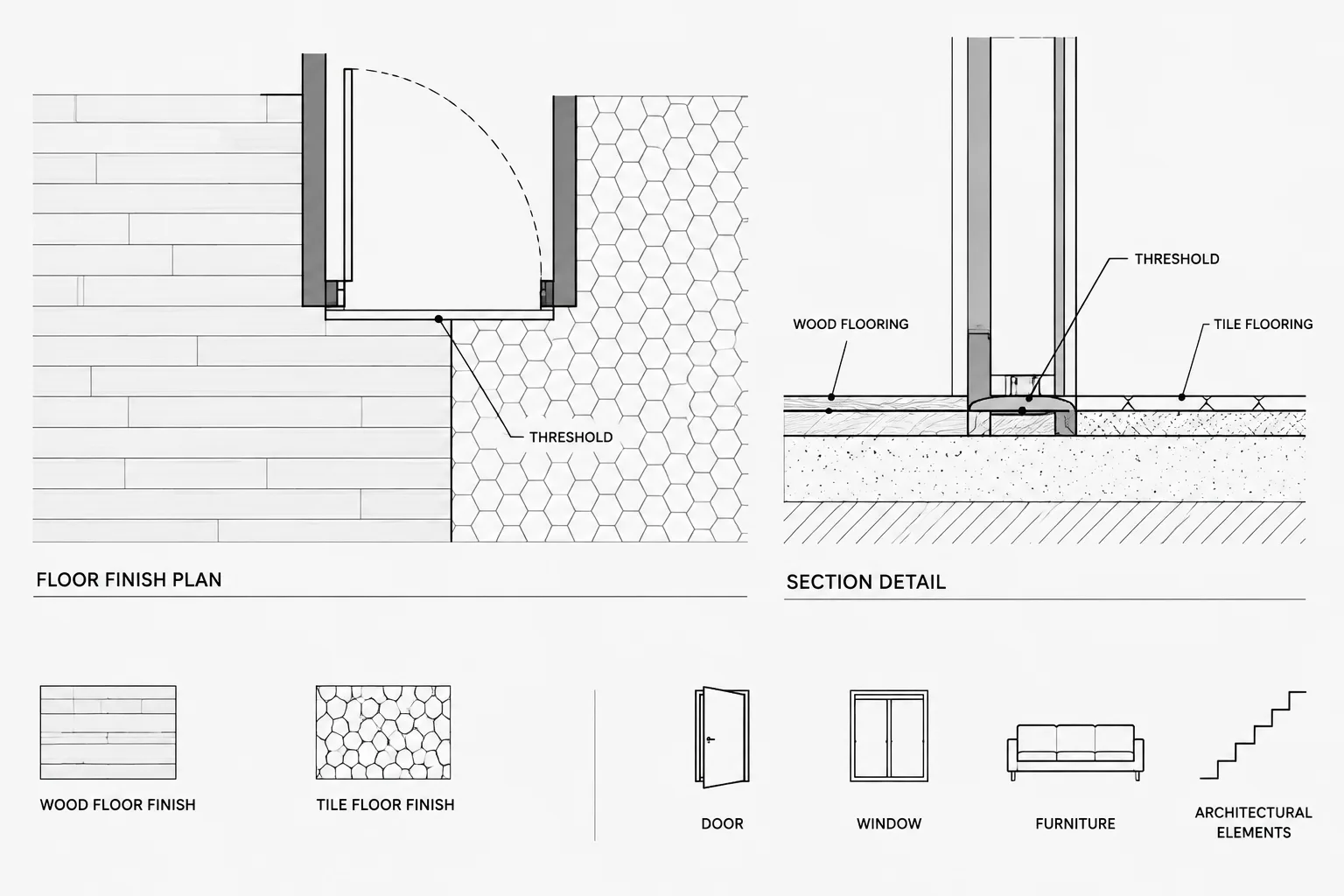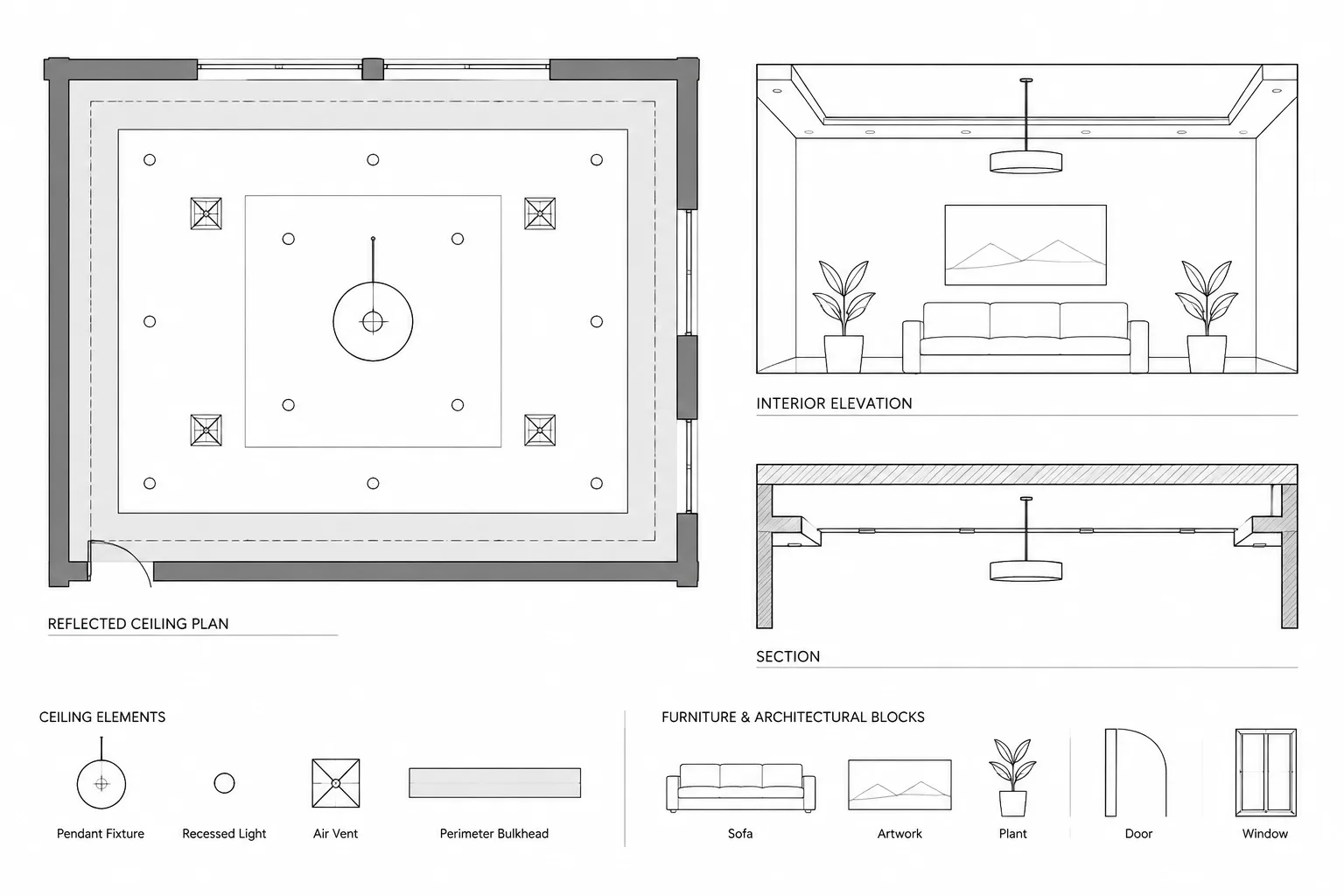
Effective AutoCAD object selection is less about clicking quickly and more about controlling the scope of an edit. Architectural drawings often combine walls, annotations, hatches, blocks, references, and long objects within the same visible area, so an apparently simple selection can have consequences elsewhere in the file.
This guide explains how to choose an appropriate spatial or property-based method, refine the resulting selection set, and verify it before changing the drawing. The workflow is especially useful when working in crowded plans, enlarged views, detail drawings, and coordinated backgrounds.
Selecting objects may seem like a basic CAD task, but it has a direct effect on drawing accuracy. An incomplete selection can leave part of a wall assembly unchanged, while an overly broad selection can alter annotations, xrefs, hatches, or geometry that should remain untouched. In a dense architectural plan, visual inspection alone is rarely enough.
A dependable object-selection workflow combines geometric selection methods, property-based filters, layer control, and a final verification step. The objective is not simply to select objects quickly. It is to build a selection set that matches the intended scope of the edit.
Understand the selection set before editing
A selection set is the group of objects affected by a command or property change. It may contain one object, every object on a layer, or a filtered collection spread across an entire drawing.
Before making a change, define the selection in practical terms. For example:
- All door tags in the current floor plan
- Only the wall lines inside one renovation area
- Every hatch using a particular layer
- Text objects within an enlarged plan
- Geometry crossing a proposed section line
This short definition helps determine whether a spatial method, such as a crossing window, or a property-based method, such as Quick Select, is more appropriate.
Window and crossing selections are not interchangeable
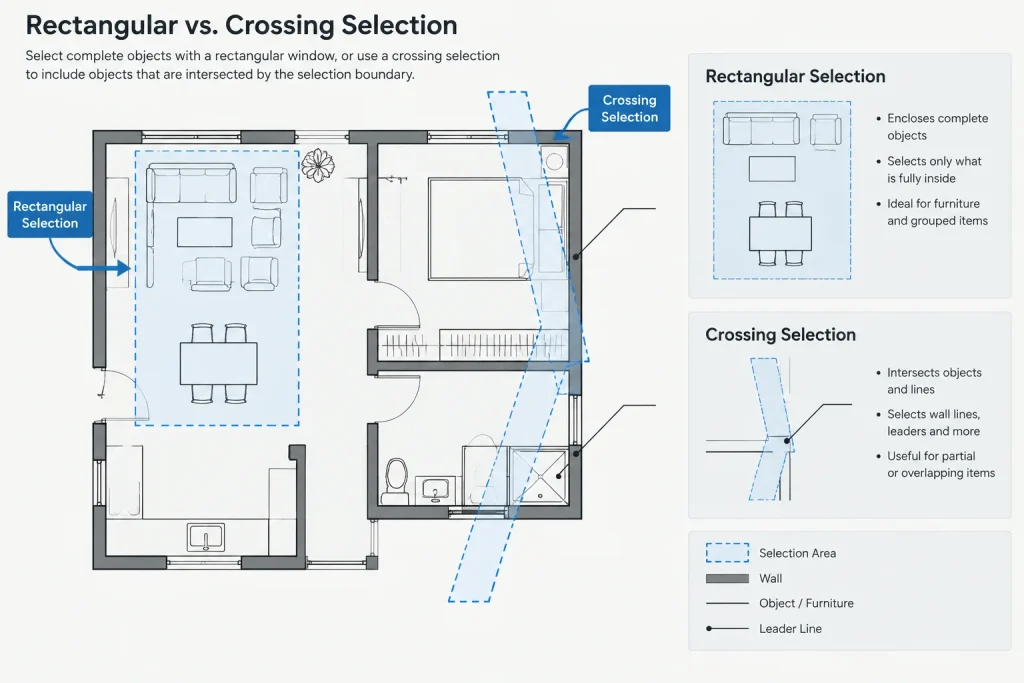
The two common rectangular selection methods behave differently. That difference is especially important around walls, casework, grids, dimensions, and other objects that extend beyond the visible area being edited.
| Selection method | What it selects | Typical architectural use |
|---|---|---|
| Window | Objects completely enclosed by the selection boundary | Selecting furniture or notes fully contained within a room |
| Crossing | Objects enclosed by or intersecting the selection boundary | Selecting wall lines, grids, or leaders that pass through an edit area |
In the default directional workflow, dragging from left to right creates a window selection, while dragging from right to left creates a crossing selection. Interface appearance can vary with display settings, so direction and behavior are more reliable indicators than boundary color.
Use a window when partial objects must remain excluded. Use a crossing selection when objects that pass through the area must be included. If the selection crosses a long grid line, room boundary, or continuous wall polyline, confirm whether selecting the entire object is actually intended.
Use polygon and fence methods for irregular areas
Rectangular boundaries are often inefficient in angled plans, stepped building footprints, and crowded detail drawings. AutoCAD provides additional selection methods that can follow the shape of the work area more closely.
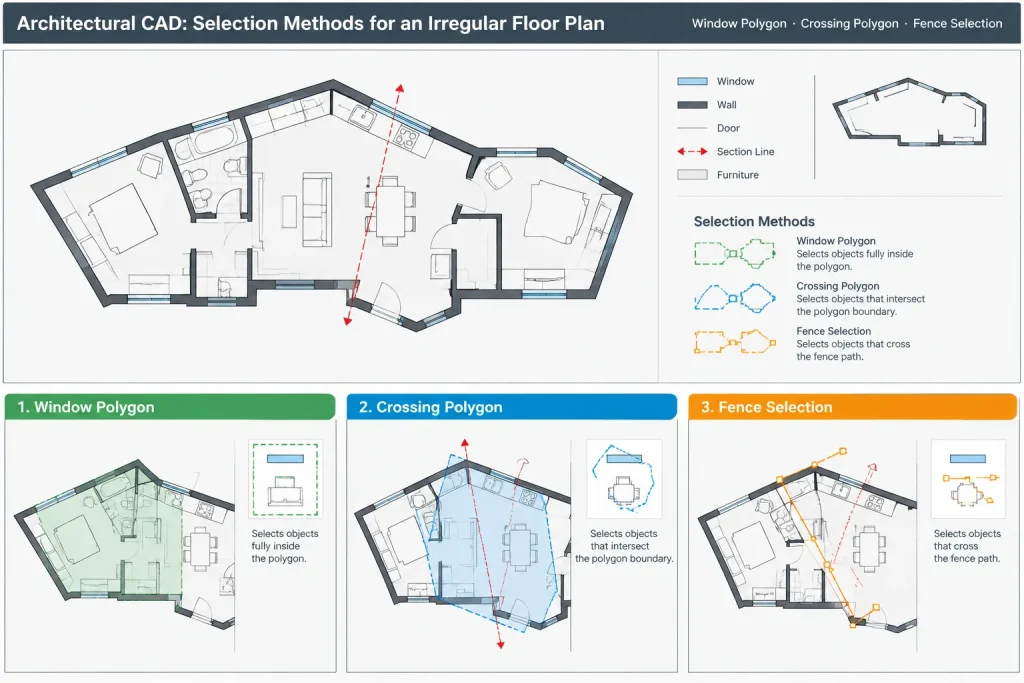
Window polygon
A window polygon selects objects completely contained within an irregular polygonal boundary. It is useful for isolating objects inside an angled room, a nonrectangular tenant area, or a portion of a site plan without including nearby geometry.
Crossing polygon
A crossing polygon includes objects that are inside or intersect the polygon. This can help capture wall segments and annotations around an irregular renovation limit, but it can also select long objects extending well beyond that limit.
Fence selection
A fence selects objects crossed by a temporary path. It is effective when the goal is to find geometry intersecting a route rather than filling an area. Architectural uses include selecting lines crossed by a section cut, locating objects passing through a narrow corridor, or identifying geometry along a proposed opening.
These options are available during compatible object-selection prompts. Enter the full selection option shown at the command line rather than relying on customized command aliases.
Control overlapping objects with selection cycling
Architectural drawings frequently contain coincident or overlapping objects. A door tag may sit over a wipeout, a hatch may cover linework, or multiple xrefs may overlap at a shared project origin. Repeated clicking can select the wrong item without making the conflict obvious.
Selection cycling allows the user to choose from overlapping selectable objects at the cursor location. Use it when:
- A hatch is selected instead of a wall line
- Text, a leader, and a background mask overlap
- Several viewport objects occupy the same sheet area
- Duplicate geometry is suspected
- An xref appears to block selection of nearby host-drawing objects
Read the object type and available description before confirming the choice. The Properties palette can then be used to verify the selected object’s layer, color behavior, linetype, and other relevant properties.
Use Quick Select for property-based selection
Quick Select is useful when screen location is less important than object data. It can build a selection set from criteria such as object type, layer, color, linetype, or another available property.
A practical workflow is:
- Decide whether to search the entire drawing or an existing selection.
- Choose the object type, such as text, polylines, blocks, or hatches.
- Select the property that distinguishes the required objects.
- Define the matching condition and value.
- Apply the filter and inspect the resulting selection.
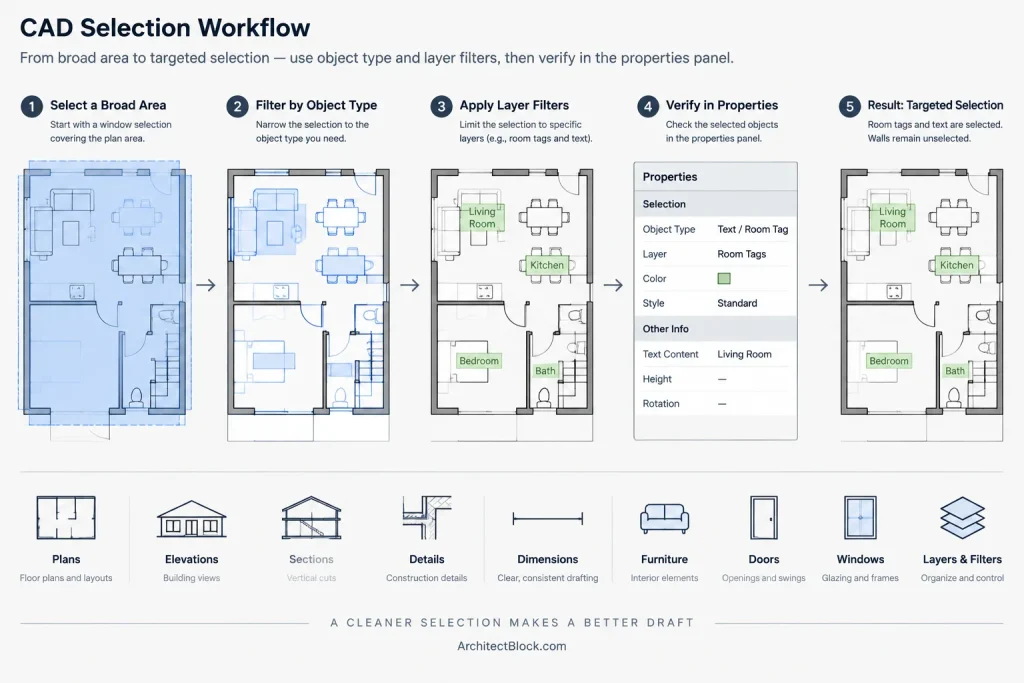
For example, a drafter could first make a crossing selection around an enlarged restroom plan and then apply Quick Select only to text objects on the annotation layer. This two-stage method is often safer than filtering the entire drawing.
Be cautious when filtering by color or linetype. Architectural objects should commonly inherit graphic properties through their layers, but imported details and legacy files may contain object-level overrides. A color-based selection may therefore capture unrelated objects or miss objects that appear similar on screen.
Use Select Similar as a starting point, not proof
Select Similar can quickly find objects that share properties with a selected example. It is helpful for collecting repeated room tags, matching detail bubbles, similar blocks, or linework assigned to the same layer.
However, similarity depends on the active comparison settings and the properties stored in the objects. Two symbols that look identical may be different block definitions. Conversely, unrelated lines may qualify as similar because they share basic properties.
After using Select Similar, zoom to multiple parts of the drawing and review the highlighted set. Do not assume that visual resemblance or a shared layer guarantees equivalent drawing meaning.
Combine layer control with object selection
Layer isolation, locking, freezing, and turning layers off can reduce selection mistakes, but they should be used deliberately. Temporarily isolating wall layers may make wall editing easier, while locking an xref layer can prevent accidental movement of a consultant background.
Layer control is most effective when the drawing already has consistent layer assignments. If doors, wall lines, notes, and hatches are mixed on the same layer, isolating that layer will not produce a clean editing environment.
Before a large edit:
- Lock reference information that should remain visible but unchanged.
- Temporarily isolate the layers relevant to the task.
- Confirm whether objects inside blocks or xrefs require source-file editing.
- Restore the intended layer state after completing the work.
Add and remove objects without restarting
A nearly correct selection set does not always need to be discarded. During an active selection prompt, objects can be added or removed using the available selection options. Depending on user settings, modifier-key behavior may also help remove selected items.
This is useful when a crossing selection captures most of a wall assembly but also includes a room tag or nearby dimension. Remove the unwanted items, then continue the command only after reviewing the remaining set.
If the selection becomes difficult to understand, cancel and rebuild it. A fresh, clearly defined selection is safer than continuing with a set that has been repeatedly modified without verification.
Verify the selection before making a global change
Selection highlighting is helpful but can be hard to read in a dense plan. Before moving objects, changing layers, redefining properties, or deleting geometry, perform a short verification:
- Check the reported object count for an obvious mismatch.
- Inspect the Properties palette for mixed object types or unexpected layers.
- Zoom to the edges of the selection area.
- Look for long polylines, leaders, grids, and room boundaries extending outside the view.
- Confirm that xrefs, locked objects, and paper-space elements are handled as intended.
- Save or create a controlled recovery point before a broad drawing-wide edit.
For repetitive cleanup, test the selection logic on a small area first. Once the result is understood, apply the same method to the larger drawing.
A practical selection strategy for architectural CAD
The most reliable method is usually a combination of tools rather than a single command. Start with spatial scope, narrow the set by object properties or layers, and then verify what remains.
For example, when updating room-name text in one project area, first make a window or crossing selection around that area. Next, filter the selection by text type and annotation layer. Finally, inspect the object count and properties before applying the change. This workflow protects similar annotation elsewhere in the building.
Accurate object selection is a form of drawing coordination. It reduces accidental edits, supports consistent layer management, and makes complex architectural DWG files easier to maintain. The few seconds spent checking a selection set are usually far less costly than finding an unintended change during plotting or final review.
Choose the selection method from the editing intent
Before starting a command, describe what should change and what must remain untouched. That distinction usually indicates the safest selection approach.
- Use a window when every selected object must be fully contained within the work area.
- Use a crossing method when the edit must include objects passing through the area.
- Use a polygon when the architectural boundary is irregular or angled.
- Use a fence when intersection with a path is more important than containment within an area.
- Use Quick Select when object type or stored properties define the required set more clearly than location.
- Use Select Similar to gather likely matches, followed by a review of the results.
Apply a scope, refine, verify workflow
A dependable architectural workflow can be summarized as scope, refine, and verify. First, limit the geographic area with a window, crossing boundary, polygon, or fence. Next, refine that group by object type, layer, or another relevant property. Finally, inspect the set before applying the edit.
This sequence is safer than beginning with a drawing-wide property filter when the intended change applies to only one plan area. It also makes unexpected objects easier to identify because the selection starts from a controlled context.
Review drawing meaning, not only object appearance
Objects that look alike do not necessarily serve the same architectural purpose. Similar text may belong to room names, dimensions, keynotes, or consultant information. Matching linework may represent walls, casework, overhead elements, or reference geometry. Verify layers, object types, block identities, and drawing context rather than relying on appearance alone.
Pause before destructive or broad edits
Deletion, movement, layer reassignment, and global property changes deserve an additional review. Look beyond the current view for continuous polylines, grids, leaders, boundaries, and other objects that may extend farther than expected. If the selection logic is uncertain, canceling and rebuilding the set is preferable to proceeding with an ambiguous group.
Frequently asked questions
Why did a crossing selection include an object outside the visible edit area?
A crossing boundary selects an object when any part of that object intersects the boundary. The selected object may continue beyond the current view, as can happen with long polylines, grid lines, leaders, or room boundaries. Inspect the highlighted object and its properties before editing it.
When should I use a window instead of a crossing selection?
Use a window when objects must be completely enclosed to qualify. It is useful when nearby or partially intersecting geometry must remain excluded. Use crossing when objects passing through the work area also need to be captured.
Is Quick Select safer than selecting objects on screen?
Neither method is automatically safer. Quick Select is effective when reliable properties distinguish the required objects, while screen-based methods provide geographic control. Combining a limited spatial selection with a property filter often gives better control than using either method alone.
Why can Select Similar return unexpected objects?
The result depends on the properties used for comparison. Unrelated objects may share those properties, while visually matching objects may use different block definitions or overrides. Treat the result as a candidate set and verify it before making changes.
How can I select linework hidden beneath a hatch or annotation?
Use selection cycling to review overlapping selectable objects at the cursor. Confirm the object type and description, then check the selected object’s properties if the overlap makes identification uncertain.
Can layer isolation replace selection verification?
No. Layer isolation can reduce visual and selection clutter, but it depends on consistent layer assignments. Misplaced objects, object-level overrides, blocks, and referenced content can still complicate the result. Verify the final selection set even after controlling layer visibility.
What should I do if a selection set becomes confusing?
Cancel the operation and rebuild the selection from a clearly defined scope. A fresh selection is easier to review than a set that has been repeatedly expanded and reduced without a clear record of what remains.