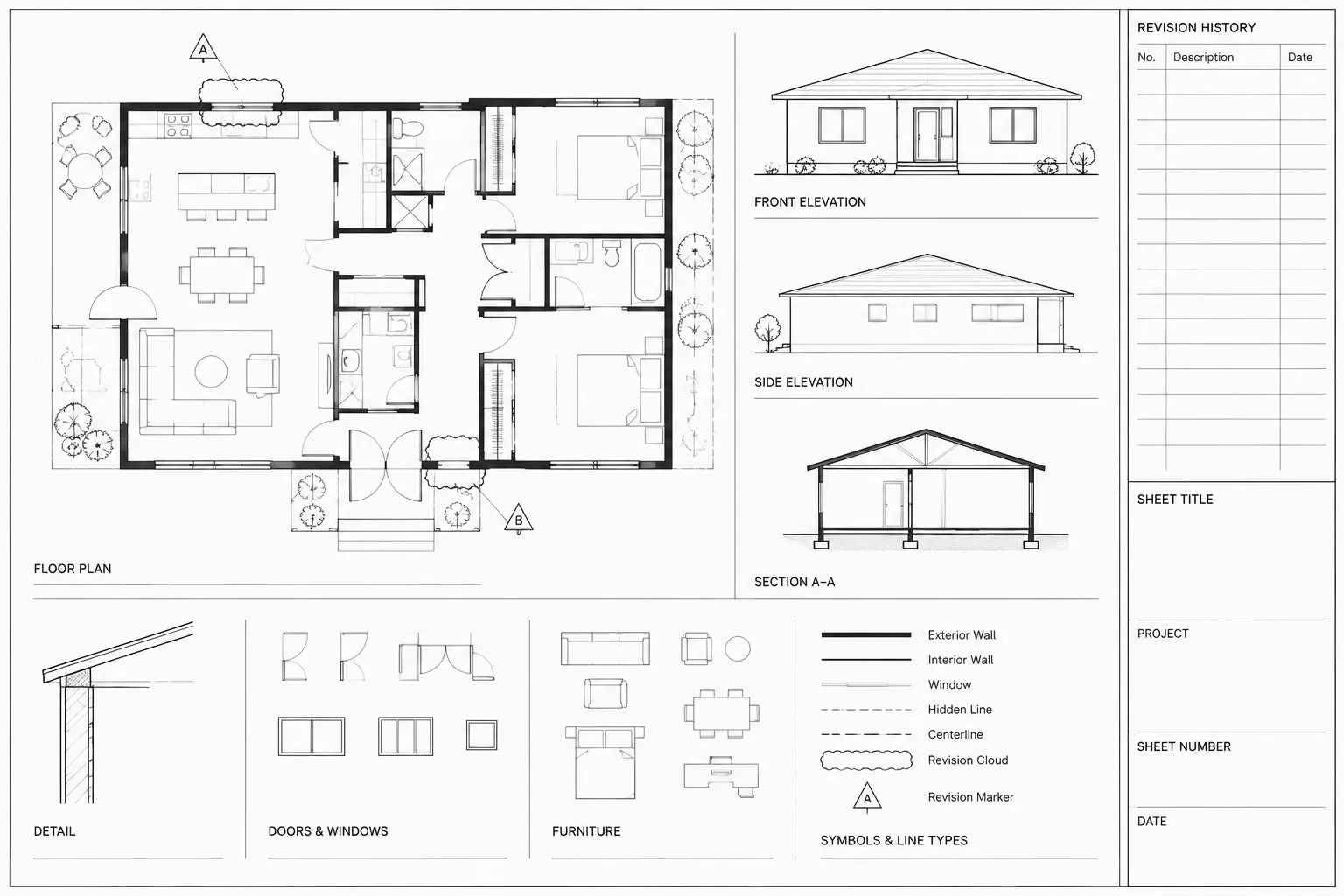
Revision clouds and delta tags in CAD are effective only when the graphics, identifiers, sheet records, and issued files describe the same change. This guide explains how to define cloud boundaries, coordinate revision markers, manage layers and referenced drawings, and verify the final plotted output.
The workflow applies to architectural plans, elevations, sections, details, schedules, and sheet annotations. Because revision conventions vary by office and project, use the methods here as a coordination framework and follow the approved document-control procedure for the actual drawing set.
Revision clouds help readers locate changes on an architectural sheet, but they do not explain the change by themselves. A dependable revision workflow connects each cloud to a revision identifier, the sheet’s revision record, the issue history, and the underlying drawing change. Without that coordination, clouds can become visual clutter or, worse, point to work that is no longer current.
The drafting task is not simply to draw a scalloped boundary around edited geometry. The real objective is to present an accurate snapshot of changes associated with a defined issue. Office standards, owner requirements, consultant agreements, and project delivery procedures should determine which changes are identified and how long revision graphics remain visible.
Understand the Parts of a Revision Record
A typical architectural revision record may involve several related elements. Their names and graphic appearance vary between projects, so they should be established before sheets are issued.
| Element | Purpose | Coordination concern |
|---|---|---|
| Changed drawing content | Represents the actual design or documentation change | Must be complete before the revision graphics are finalized |
| Revision cloud | Directs attention to a changed region | Should enclose the relevant work without obscuring it |
| Delta tag or revision marker | Associates the cloud with a revision identifier | Must agree with the sheet record and issue documentation |
| Sheet revision entry | Records the revision identifier, description, and other project-defined information | Must reflect only the revisions applicable to that sheet |
| Drawing index or issue register | Tracks the sheets included in an issue | Must agree with the title block and delivered files |
A cloud without a corresponding record is ambiguous. A sheet revision entry without a visible cloud may also be confusing unless the project procedure intentionally omits clouds for that issue. Treat these components as a coordinated system rather than independent annotations.
Decide What the Cloud Should Enclose
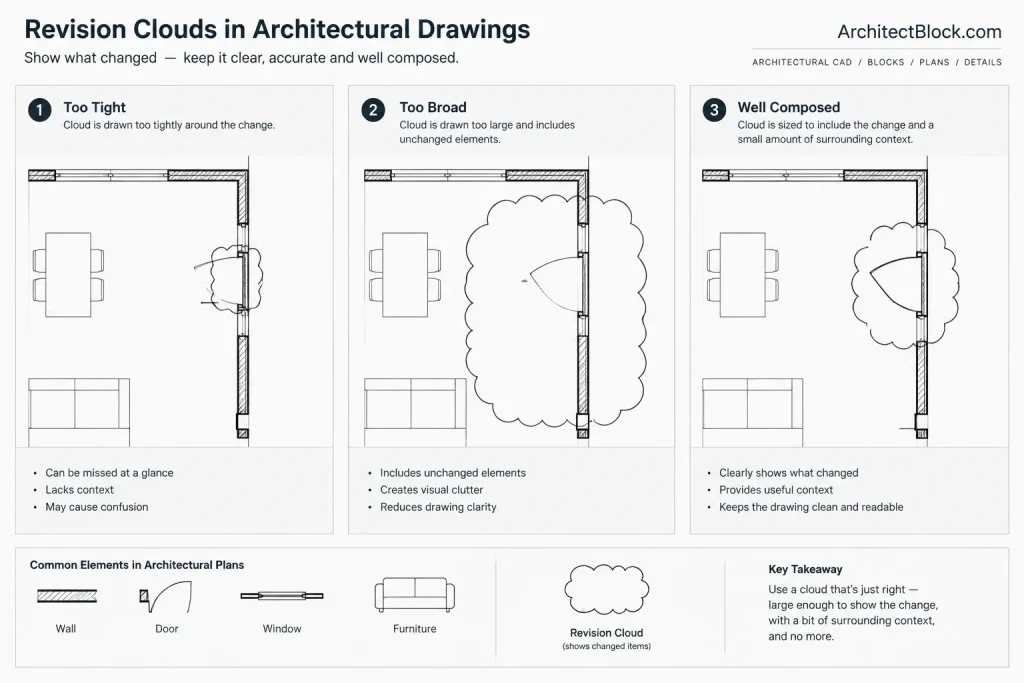
Cloud the smallest practical area that communicates the change clearly. A boundary that is too tight can hide part of the affected work, while an oversized cloud can imply that unchanged content was revised.
Consider the full effect of an edit. Moving a door may also change dimensions, wall geometry, room tags, finish information, hardware references, or nearby notes. If those related edits form one understandable change, a single cloud may be clearer than several overlapping clouds. If changes are unrelated, separate clouds usually make them easier to review.
Cloud the documentation change, not just the edited object
A revision cloud should account for everything that changed on the sheet. For example, replacing a window type may require edits to a plan tag, an elevation, a schedule, and a detail reference. Each affected view should be reviewed independently. A cloud placed only around the plan symbol does not identify changes elsewhere in the set.
Conversely, avoid clouding automatically regenerated or repositioned annotation when the information has not meaningfully changed. The project team should distinguish substantive revisions from drafting cleanup according to its issue procedure.
Establish a Dedicated Layer Strategy
Revision graphics should be easy to display, plot, isolate, and retire. A dedicated layer or coordinated group of layers provides more control than placing clouds on general annotation layers.
A practical setup may separate current revision graphics from previous ones, or it may use one revision layer with controlled properties and status tracking. The right choice depends on the office template and project complexity. At minimum, the layer strategy should answer these questions:
- Can the current issue’s clouds and tags be isolated quickly?
- Can previous revision graphics be hidden without deleting the issue history?
- Will the graphics plot consistently across all affected sheets?
- Are object properties controlled by the intended layer rather than scattered overrides?
- Can a checker distinguish revision annotation from design geometry?
Use clear layer names that fit the project’s established naming system. Avoid creating improvised layers for each sheet unless the project workflow specifically depends on that structure.
Choose Model Space or Paper Space Deliberately
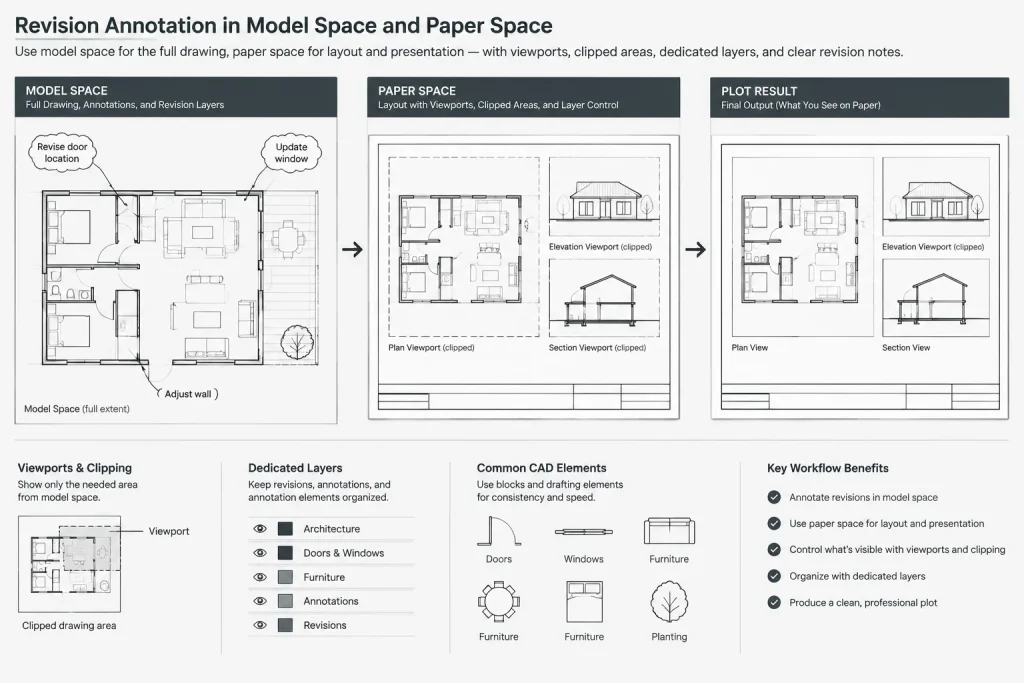
Revision clouds can be placed in model space or paper space, but the choice should match what is being revised and how the sheet is assembled.
Model-space clouds
Model-space clouds can remain associated with plan, elevation, or section geometry. This may be useful when multiple sheets display the same referenced drawing area. However, a model-space cloud can unintentionally appear through more than one viewport, particularly when sheets use different crops or layer settings.
Paper-space clouds
Paper-space clouds are sheet-specific and can be positioned around a viewport, note block, schedule, or other layout content. They are often easier to control for a particular issue sheet. Their main limitation is that they do not automatically follow model geometry if the viewport crop, scale, or position changes.
A hybrid workflow is possible, but it needs rules. For example, a team might place geometry-related clouds with the drawing content and use paper space for sheet notes or schedules. Consistency matters more than choosing one location for every situation.
Create Legible Cloud Geometry
The cloud should read as revision annotation rather than building geometry. Its arc pattern should appear consistent at the plotted sheet scale, and the boundary should remain distinguishable from walls, property lines, insulation symbols, and other curved graphics.
Before creating clouds, confirm the intended drawing units, annotation method, viewport scale, and plot appearance. Test the result on an actual sheet or PDF rather than judging it only while zoomed into model space. A cloud that looks smooth on screen may become dense and heavy when plotted, while a sparse cloud may resemble an ordinary line.
Keep the boundary clear of dimensions, tags, and critical linework where possible. If a cloud must cross dense information, adjust its path rather than masking important content. Do not use the cloud to conceal incomplete drafting.
Coordinate Delta Tags and Revision Identifiers
A revision marker commonly contains an identifier that corresponds to the sheet revision record. The marker shape is not universal, so follow the approved project convention rather than assuming every project uses the same symbol.
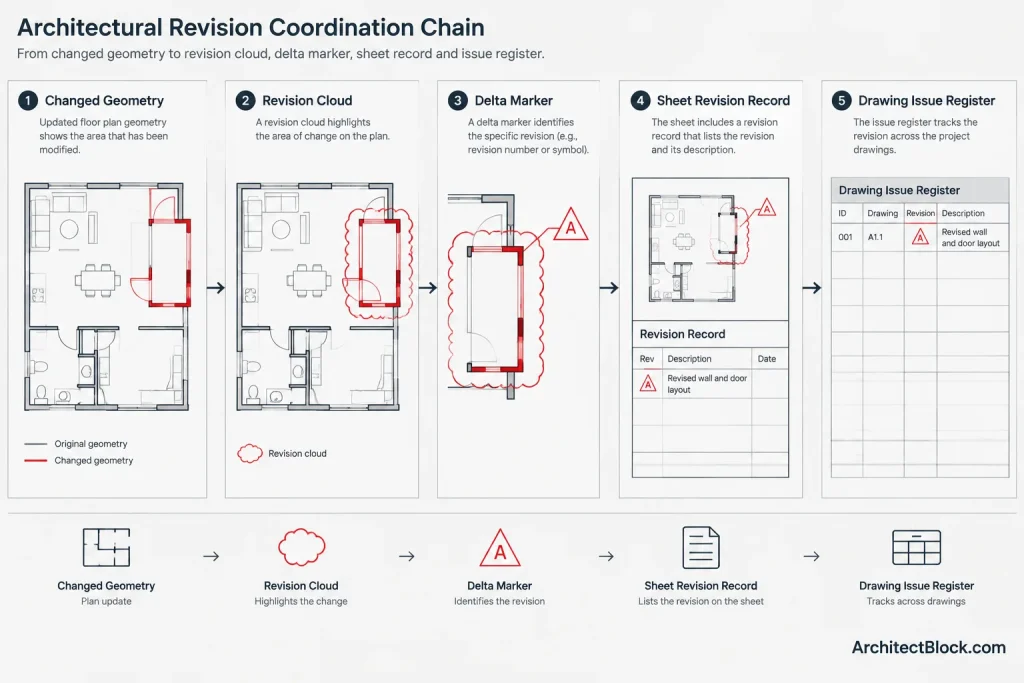
Place the tag close enough to establish an obvious relationship with its cloud. Avoid locating it where it could be mistaken for a keyed note, detail callout, door tag, or other annotation. When one identifier applies to several clouds on a sheet, the project convention should clarify whether each cloud receives a marker or whether another grouping method is used.
If tags are blocks with attributes, keep the attribute values consistent and avoid exploding them for routine editing. A controlled block definition improves graphic consistency and makes identifiers easier to check. Before issue, verify that no placeholder values, duplicate markers, or unassociated tags remain.
Handle Previous Revision Clouds Carefully
Old clouds should not simply accumulate forever unless the project procedure explicitly calls for that presentation. Multiple generations of clouds can obscure the current issue and make it difficult to determine what changed when.
Common approaches include hiding previous clouds while retaining revision entries, moving superseded graphics to a nonplotting archive layer, or preserving issue-specific sheet files. The appropriate method depends on contractual and recordkeeping procedures. Deleting prior graphics without preserving an issued record can make later review difficult, so coordinate the cleanup method with the project manager or document-control process.
Never assume that changing a layer state in the working file is an adequate archive. Issued PDFs, transmitted DWGs, issue registers, and other project records should be managed according to the team’s established document-control requirements.
Coordinate Revisions Across Referenced Files
Changes often originate in an externally referenced plan but are documented on several host sheets. This creates a coordination risk: the model change may be correct while the revision annotation is missing from one or more layouts.
After modifying a referenced file, identify every sheet and view that displays the affected area. Check plans, enlarged plans, reflected ceiling plans, elevations, sections, and schedules as applicable. Do not rely only on the sheet where the edit was first noticed.
Also review viewport layer overrides and clipped references. A cloud stored in an external reference may be hidden in a host viewport even though the revised geometry is visible. Reload references and inspect the plotted sheets before concluding that the annotation is complete.
Use a Repeatable Revision Workflow
-
Confirm the issue scope. Establish the revision identifier, sheet scope, description method, and required issue records.
-
Complete the drawing edits. Resolve the underlying change and update related views, annotations, and schedules.
-
Review affected sheets. Search beyond the source drawing for dependent information and repeated references.
-
Add clouds and markers. Use the approved layers, annotation location, block definitions, and graphic settings.
-
Update sheet records. Coordinate the title block, sheet list, and issue register as required by the project.
-
Plot a check set. Review cloud legibility, identifier consistency, viewport visibility, and sheet completeness in the output format.
-
Resolve and recheck. Correct mismatches, regenerate the output, and verify that the delivered files reflect the same issue state.
Pre-Issue Quality-Control Checks
- Every current cloud corresponds to an actual change.
- Every revision marker agrees with the sheet revision entry.
- No marker is detached from or ambiguously related to a cloud.
- Clouds enclose all relevant edits without implying unrelated changes.
- Related plans, elevations, sections, details, and schedules have been reviewed.
- Previous revision graphics are handled according to the project procedure.
- Clouds and tags remain visible in the final plotted output.
- Revision layers, object properties, and block attributes follow the project CAD standard.
- The sheet list and transmitted files agree with the intended issue.
- No draft notes, temporary clouds, or placeholder identifiers remain.
Make Revision Graphics Part of Document Control
Architectural revision clouds in CAD are most useful when they are treated as document-control elements rather than decorative markup. Their geometry, location, identifier, layer, and issue status all carry meaning. A disciplined workflow makes current changes easy to find while preserving a reliable record of what was issued.
The final check should always be performed on the actual deliverable, not only in the working DWG. A correct cloud hidden by a viewport setting or missing from the published sheet does not communicate the revision. Coordinating the drawing change, revision annotation, and issue record is what turns a cloud into useful project information.
Review Revisions from the Reader’s Point of View
A useful final review asks whether someone unfamiliar with the recent drafting work can understand where the change occurred and which revision record applies. The reviewer should not need to infer the connection from file history, layer names, or conversations that are absent from the issued set.
Begin with the revision marker and follow the information path in both directions. The marker should lead clearly to a cloud, the cloud should surround changed documentation, and the identifier should agree with the sheet record. Starting from the sheet record, a reviewer should also be able to locate the corresponding revision graphics without searching through unrelated annotations.
Check the impact path
Architectural information is often repeated or referenced in several places. A change visible in a plan may affect a callout, enlarged view, elevation, section, schedule, note, or title block entry. Trace those relationships before declaring the revision complete. This impact check is especially important when the underlying geometry is stored in a referenced file but the annotation is controlled in sheet layouts.
Separate revision status from graphic appearance
A visible cloud does not prove that its revision is current, and a hidden cloud does not prove that its record has been retired correctly. Revision status should be confirmed through the project’s issue information rather than inferred from color, layer visibility, or screen display. Those graphic controls support the workflow, but they are not substitutes for document control.
Use exception checks before publishing
In addition to reviewing expected revisions, search for conditions that should not remain in the deliverable. Typical exceptions include an identifier without a cloud, a cloud without an identifier, repeated tags with conflicting values, revision graphics visible through an unintended viewport, and current changes placed on a hidden or nonplotting layer.
Complete the review in the published format as well as the CAD file. This confirms that linework, viewport settings, plotting properties, and sheet records communicate the intended revision after the drawing leaves the authoring environment.
Revision Cloud and Delta Tag FAQ
Does every revision cloud need a delta tag?
The answer depends on the approved project convention. Where markers are required, each cloud or clearly defined cloud group should have an unambiguous relationship to the applicable revision identifier. Do not assume that an unmarked cloud will be understood correctly.
Should revision clouds be drawn in model space or paper space?
Use the location that matches the content and sheet workflow. Model-space clouds can remain associated with drawing geometry, while paper-space clouds provide sheet-specific control. Whichever method is selected, test viewport visibility and maintain it consistently across the set.
Can several related edits share a revision cloud?
Related edits may be grouped when the boundary communicates a coherent change without implying that unrelated content was revised. Separate clouds are clearer when edits have different purposes or are far enough apart that grouping would create ambiguity.
Should previous revision clouds remain visible?
Follow the project’s document-control procedure. Previous graphics may be hidden or archived while their issue records are retained, but working-layer changes should not be treated as a replacement for preserving issued documents.
Why is a cloud visible in the DWG but missing from the issued sheet?
Possible causes include viewport-specific layer settings, clipped references, nonplotting layers, object property overrides, or differences between model and layout visibility. Inspect the actual output and trace the affected object through its layer, reference, viewport, and plot settings.
What should be checked after a referenced drawing changes?
Review every host sheet and view that displays or depends on the revised content. Also check related annotations, schedules, callouts, and viewport settings rather than reviewing only the source drawing.