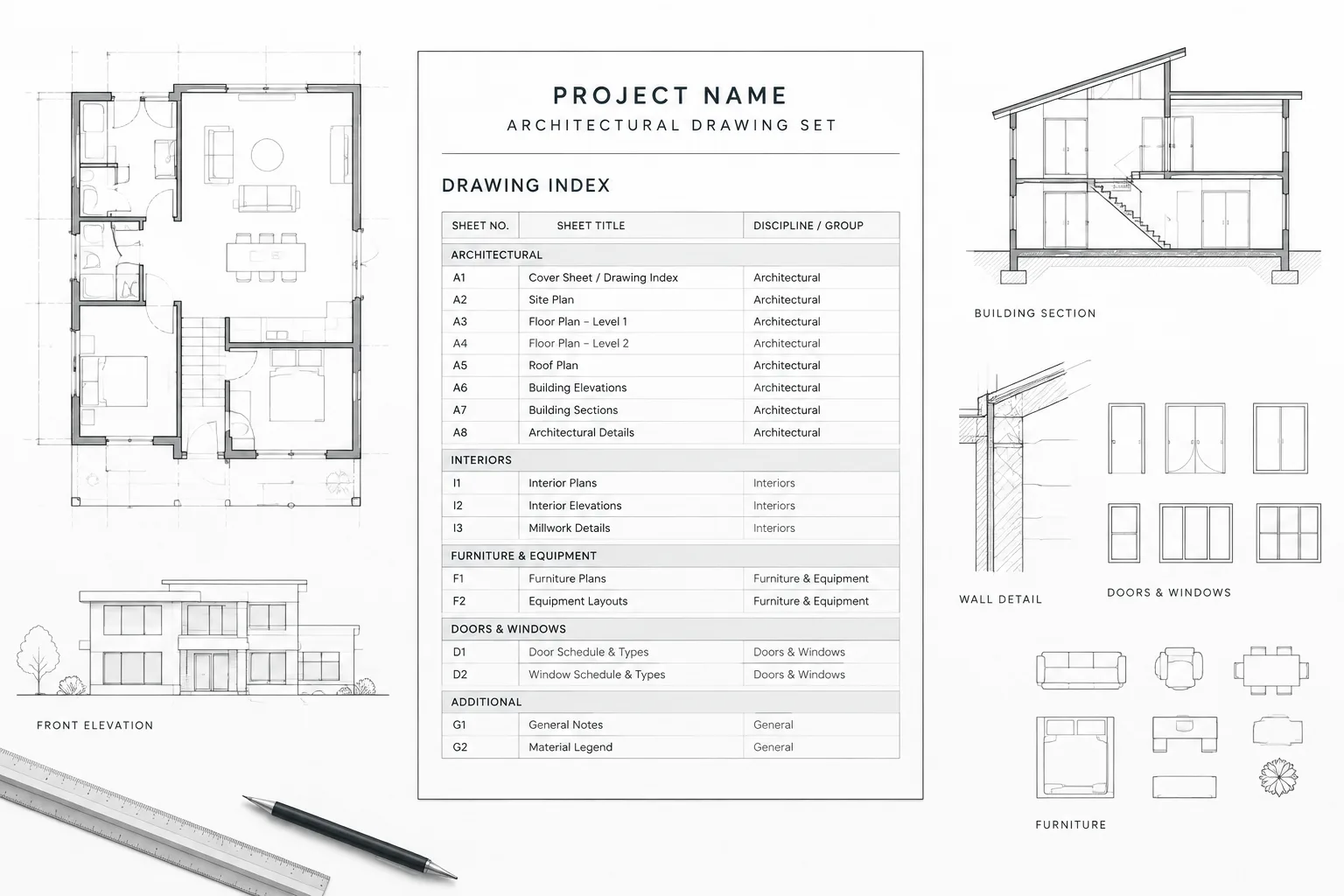
An architectural drawing index in CAD helps readers understand what a drawing package contains and where each sheet belongs. Its value depends on coordination: sheet numbers, titles, layouts, issue records, and published files must describe the same deliverable.
This guide explains how to establish a reliable source for sheet data, organize the index, manage changes, and perform a final comparison before release. The goal is a repeatable workflow that catches discrepancies without treating automation as a substitute for document review.
An architectural drawing index is more than a list placed near the front of a drawing set. It is a navigation tool, an issue record, and a coordination checkpoint. When the index is inaccurate, reviewers may look for sheets that do not exist, overlook newly added drawings, or receive conflicting information about the current set.
A dependable architectural drawing index in CAD should reflect the sheets actually included in an issue—not merely the sheets planned at the beginning of the project. The workflow therefore needs clear ownership, consistent sheet data, and a repeatable comparison between the index, title blocks, layouts, and published files.
What an Architectural Drawing Index Should Communicate
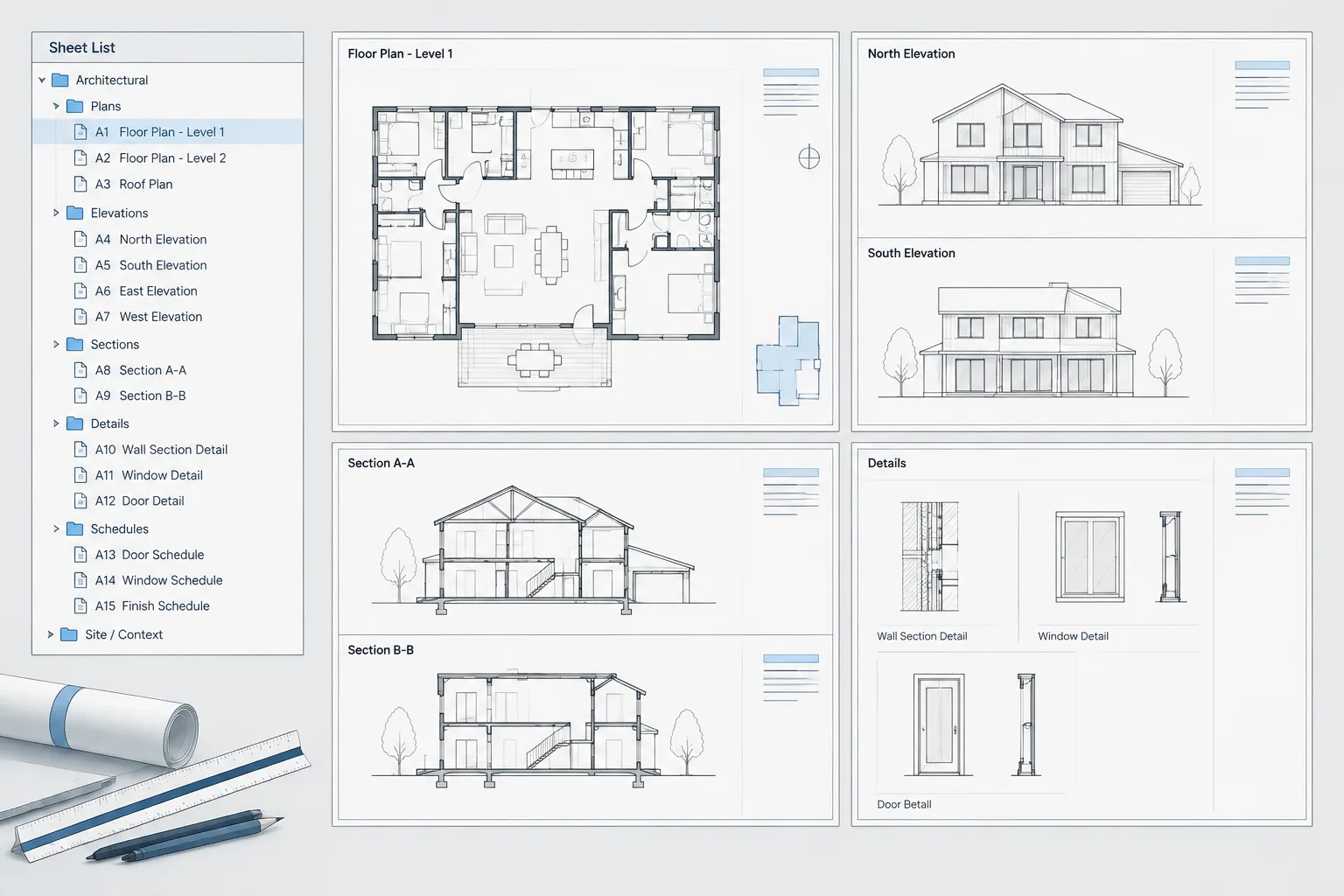
At minimum, the index identifies each issued sheet by its sheet number and title. Depending on the project and office workflow, it may also organize sheets by discipline, drawing series, package, phase, or issue status.
Common index information includes:
- Discipline or drawing group headings
- Sheet numbers
- Complete sheet titles
- Issue or revision information when required by the project
- Indicators for sheets added, removed, or intentionally omitted from a package
- Supplementary notes explaining partial or separate drawing packages
Avoid turning the index into a second title block database. Include information that helps recipients understand and navigate the deliverable, but do not duplicate unrelated project data simply because space is available.
Establish One Authoritative Source for Sheet Data
Index errors often begin when sheet numbers and titles are typed independently in several places. A title block may show one title, the drawing index another, and the published file name a shortened variation. Each independent entry becomes another opportunity for inconsistency.
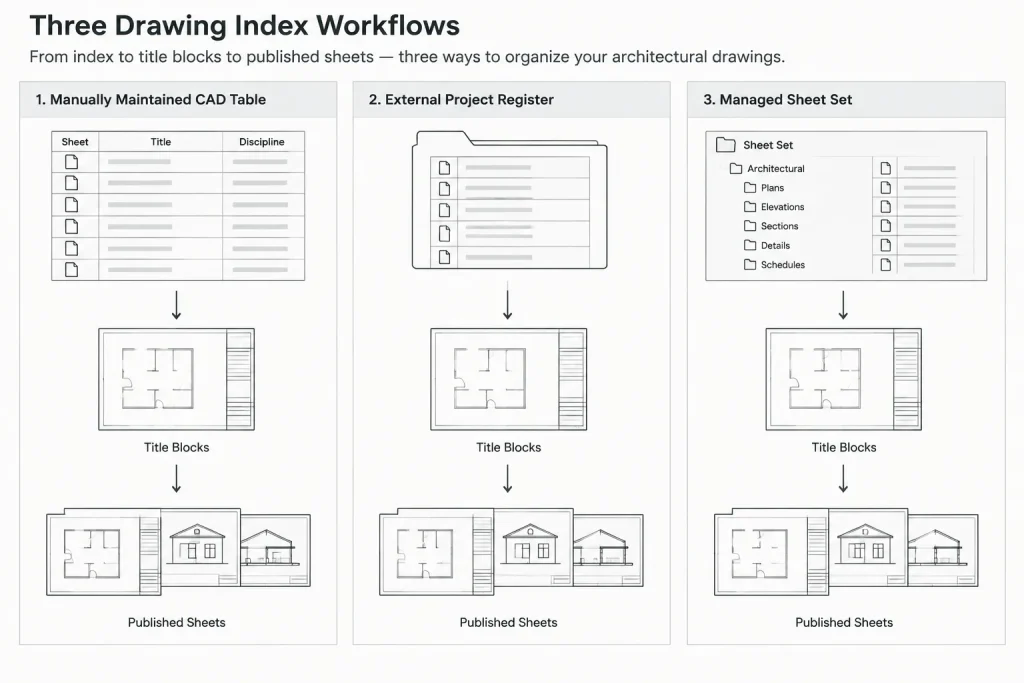
Decide which project record controls sheet information. Depending on the office, this may be a managed sheet set, a project spreadsheet, a drawing register, or a carefully maintained CAD table. Other locations should be generated from or checked against that source whenever practical.
The authoritative record should include inactive and planned sheets as well as issued sheets, but their status must be clear. A planned sheet should not appear as part of a formal issue unless it is genuinely included or is deliberately identified according to the project’s document-control procedure.
Choose a Suitable CAD Index Method
Manually Maintained CAD Table
A native CAD table is straightforward and works well for small sets. It can be placed directly on a cover sheet or drawing list sheet and edited without relying on an external file.
The main limitation is manual coordination. Every title or number change must be updated in both the sheet and the index. This method is safest when one person controls the register and performs a formal comparison before every issue.
Externally Managed Register
A spreadsheet or document-control register can serve as the master sheet list. The CAD index may be linked, imported, or recreated from approved data according to the team’s software and publishing process.
This approach can help larger teams manage sorting and status information, but links must be tested. A table that displays correctly on one workstation may not update as expected after files are moved, packaged, or opened by another user. Preserve a stable plotted result and verify it before release.
Managed Sheet Set Workflow
A managed sheet set can reduce repeated typing by associating sheet records with layouts and title block data. It may also support the creation of a sheet list from managed project information.
Automation does not remove the need for review. Duplicate layouts, temporary sheets, inconsistent properties, and drawings outside the managed set can still produce an incomplete or misleading index. Treat generated data as a coordination aid rather than proof that the package is correct.
Build a Clear Index Structure
Start by grouping sheets in the same way users expect to navigate the set. Discipline headings are common, but the structure may also need to distinguish separate buildings, project areas, permit packages, bid packages, or record documents.
Within each group, sort by the project’s established numbering logic. Do not reorder entries merely to improve visual balance. The sequence should make missing numbers, inserted sheets, and unexpected duplicates easy to notice.
| Index component | Coordination purpose | Typical check |
|---|---|---|
| Group heading | Separates disciplines or packages | Confirm every issued sheet is under the correct heading |
| Sheet number | Provides the primary drawing reference | Compare with the title block and published sheet |
| Sheet title | Describes the sheet’s content | Match wording, capitalization, and abbreviations |
| Status or issue note | Clarifies package inclusion | Confirm it reflects the current transmittal |
Use consistent capitalization, punctuation, and title length conventions. Similar sheets should follow a similar naming pattern so readers can distinguish overall plans, enlarged plans, elevations, sections, schedules, and details without guessing.
Coordinate the Index with Title Blocks and Layouts
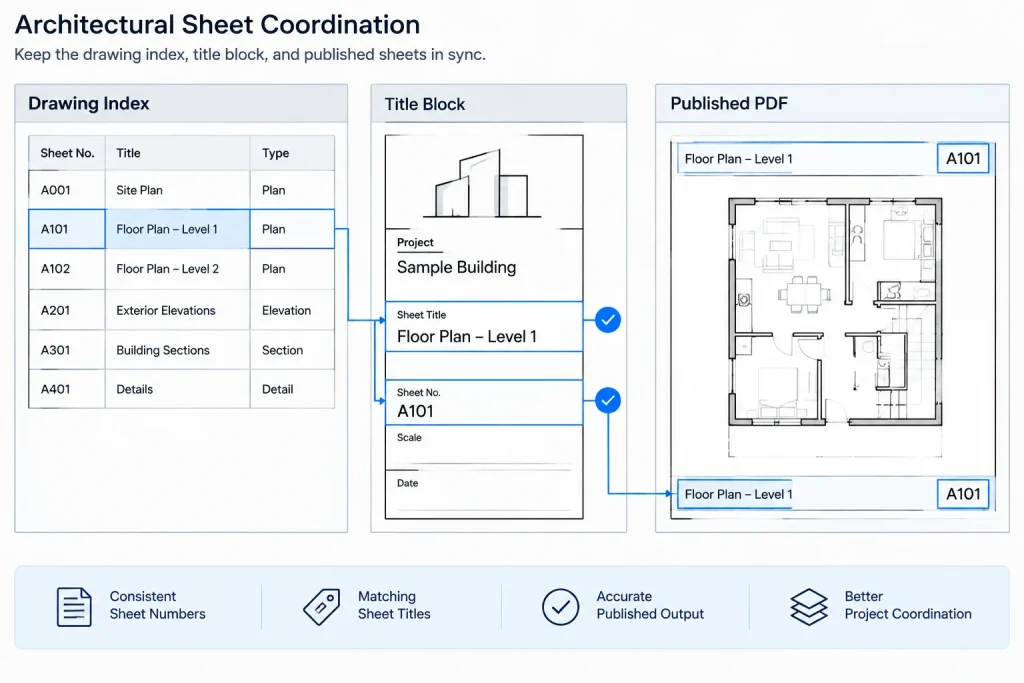
The index should be checked against the information visible on every sheet, not just against model-space content. A drawing file may contain several layouts, abandoned test layouts, or layouts that are intentionally excluded from publication.
For each issued layout, verify:
- The sheet number is unique within the package.
- The full sheet title matches the index.
- The layout is included in the correct publishing set.
- The title block shows the intended project and issue information.
- The drawing content corresponds to the stated title.
- Any dependent callouts refer to the final sheet number.
Also check the reverse condition: every entry in the index must have a corresponding issued sheet. This two-way comparison catches both unlisted sheets and index entries that point to missing drawings.
Handle Added, Removed, and Reserved Sheets Carefully
Changes to the drawing list require more than inserting or deleting a row. A new sheet may affect cross-references, bookmarks, publishing order, consultant registers, and transmittal records. A removed sheet may still be referenced by plan callouts or general notes.
Do not silently leave a blank line for a deleted sheet unless the project procedure calls for that treatment. Similarly, do not present reserved sheet numbers as issued drawings. The index should make the status understandable without suggesting that unavailable content is part of the package.
Before renumbering existing sheets to close a sequence gap, consider the downstream effect. Sheet numbers may already appear in callouts, schedules, specifications, review comments, and consultant drawings. Maintaining an established number can sometimes be less disruptive than creating a visually perfect sequence, but the project team should make that decision deliberately.
Keep Revision Information Understandable
If the drawing index includes revision or issue information, define exactly what the notation represents. It might identify the latest revision affecting each sheet, indicate inclusion in a particular package, or record the sheet’s original issue. Mixing those purposes creates confusion.
Revision data on the index should agree with the corresponding title block and the project’s issue record. Do not infer revision status from visible revision clouds alone. Clouds may be removed, retained, or displayed according to the project’s documentation procedure, while the formal revision record remains elsewhere.
Control Graphics Without Hiding Information
Drawing indexes often contain many rows, so legibility depends on disciplined formatting. Use a readable text style, consistent row spacing, clear group headings, and restrained linework. Heavy grids around every cell can compete with the actual data.
If the index extends across multiple columns or sheets, establish an obvious reading order. Repeat column headings where needed and keep each sheet number with its title. Avoid splitting a group in a way that makes the next discipline or package difficult to identify.
Plot the index at its intended sheet size during development. A table that looks comfortable when zoomed in may become crowded or faint in the published PDF.
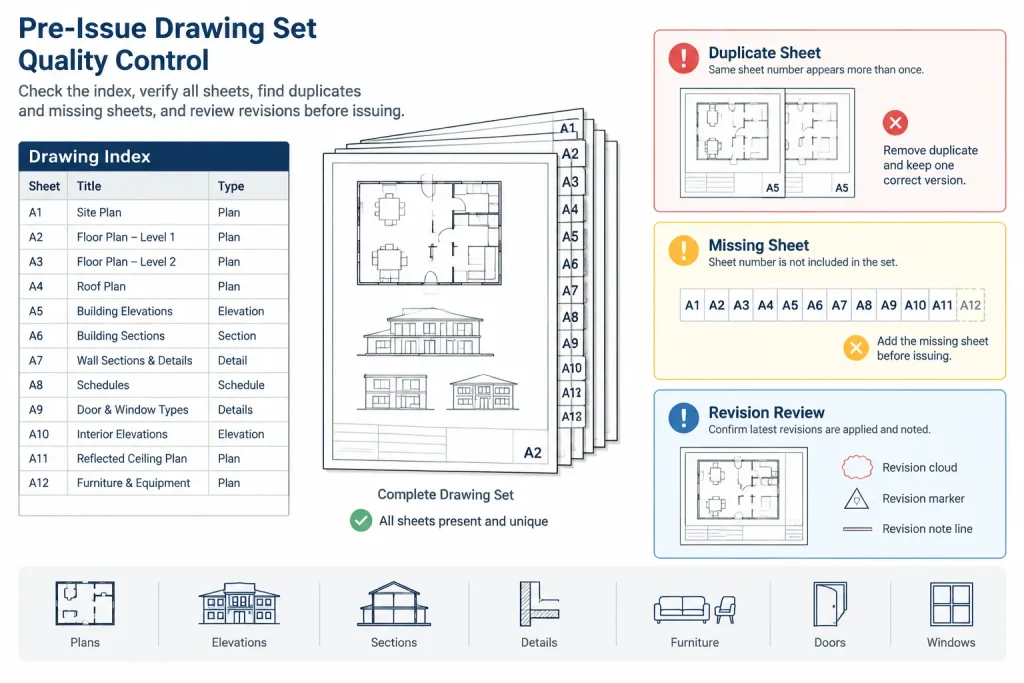
Pre-Issue Drawing Index Checklist
- Compare every index entry with the corresponding title block.
- Confirm every published sheet appears in the index.
- Confirm every indexed sheet is present in the published package.
- Search for duplicate sheet numbers.
- Check title spelling, capitalization, and abbreviations.
- Verify discipline and package grouping.
- Review added, removed, and reserved sheet statuses.
- Confirm revision or issue notations use one defined meaning.
- Check layout order and PDF sheet order.
- Review cross-references affected by renumbering.
- Plot the index and inspect its legibility at final output size.
A Reliable Final Comparison Method
For the final review, compare three things side by side: the authoritative sheet register, the published PDF sheet list, and the visible title block on each page. Work through the package sequentially and record discrepancies rather than correcting them informally during the check.
After corrections, republish and repeat the comparison. This matters because changing a sheet property or table row does not guarantee that the final output was regenerated with the updated information.
A well-maintained drawing index gives the entire project team a trustworthy map of the document set. The key is not elaborate formatting or maximum automation. It is controlled data, consistent sheet identification, and a verified relationship between the index and the files actually delivered.
Using the Index as a Document-Control Checkpoint
The drawing index should be reviewed as part of the publishing process rather than treated as a cover-sheet graphic. Once issue preparation begins, use the approved sheet record as a controlled snapshot. Proposed sheets, internal layouts, and drawings intended for another package should remain clearly distinguishable from the material being released.
Assign responsibility for approving changes during this review. If several team members can independently rename layouts, edit title blocks, or revise the register, late corrections may introduce new conflicts. A designated coordinator can collect discrepancies, confirm the intended information, and direct updates to the appropriate source.
Record Differences Before Correcting Them
When the index, title block, and published package disagree, record the difference before editing files. The discrepancy may reveal a broader coordination problem rather than a simple typing error. For example, a mismatched title could indicate that an outdated layout was published or that a sheet was assigned to the wrong package.
- Identify the affected sheet: Note the sheet number, title, and relevant package.
- Compare the available records: Check the controlling register, layout, title block, and published output.
- Confirm the intended result: Resolve uncertainty with the person responsible for document control.
- Update the source: Correct the authoritative record or the drawing data that is out of alignment.
- Republish and verify: Review the regenerated deliverable rather than assuming the edit reached the output.
Separate Content Review from Presentation Review
Index quality involves both accurate data and readable presentation. Check content first so that formatting changes do not distract from missing sheets, duplicate references, or incorrect status information. Then review column flow, headings, spacing, and plotted legibility.
This separation also makes responsibilities clearer. Project staff can confirm sheet identity and package status, while CAD reviewers can inspect table behavior, layout organization, and output quality. The final approval should consider both.
Why Bidirectional Checking Matters
A comparison performed only from the index to the sheets can confirm that listed entries exist, but it may not reveal an issued sheet that was never added to the index. Checking from the published package back to the index exposes that opposite error.
The same principle applies to sheet changes. When a sheet is renamed, added, removed, or reassigned, review references leading to that sheet as well as the sheet record itself. An accurate index cannot compensate for unresolved callouts or package information elsewhere in the set.
Frequently Asked Questions
What is the difference between a drawing index and a sheet register?
A drawing index is the reader-facing list included with a drawing package. A sheet register is the project record used to manage sheet data and may also contain planned, inactive, or internal entries. The register can act as the authoritative source, while the index should represent the package actually issued.
Should unused layout tabs appear in the architectural drawing index?
Not unless they are intentionally included in the issued package or identified according to the project’s document-control procedure. Test layouts, obsolete sheets, and internal work areas should not be mistaken for deliverable sheets.
Can a generated sheet list be accepted without manual review?
No. Generation can reduce repeated data entry, but it cannot confirm that every intended sheet was published or that excluded layouts were handled correctly. Compare generated information with the visible title blocks and final output.
How should a removed sheet be shown?
Follow the project’s established issue procedure and make the status unambiguous. Avoid presenting the sheet as currently available when it is absent from the package. Also review callouts, notes, and other records that may still refer to it.
Why can the CAD index differ from the published drawing set?
Common causes include stale linked data, outdated title block attributes, excluded layouts, publishing from the wrong file set, or changes made after the index was updated. Reviewing the final output is necessary because correct source files do not automatically prove that the delivered package is correct.
When should the drawing index be checked?
Review it whenever sheet data or package composition changes, and perform a formal comparison during issue preparation. After corrections, check the republished output so the review reflects what recipients will actually receive.