This bathroom ideas 2.6×1.4m DWG resource is intended as a compact layout reference for architectural drafting and space-planning studies. It can help users examine how sanitary fixtures, access, circulation, and service locations may be coordinated within a narrow room footprint.
Use the drawing as a starting point rather than a project-ready solution. Before incorporating it into construction documents, confirm the file units, drawing scale, wall references, fixture sizes, door operation, plumbing strategy, and applicable project requirements.
Discover the perfect solution for compact spaces with our DWG file featuring Bathroom Ideas Size 2.6×1.4m. This detailed CAD Block provides a functional and stylish bathroom layout, ideal for small homes, apartments, or renovation projects. Easily compatible with AutoCAD and other popular CAD software, this file ensures seamless integration into your architectural plans. Use it to visualize efficient space usage, optimize plumbing placement, and enhance design presentations. Download this professional bathroom DWG file to streamline your design process and impress clients with practical, space-saving solutions.
Please log in or register to download this file.
How to Review the Bathroom Layout
Begin by identifying whether the stated 2.6×1.4m size refers to the inside face of the room, the outside face of the walls, or another dimension reference. This distinction affects available floor area and should be resolved before the block is coordinated with a floor plan.
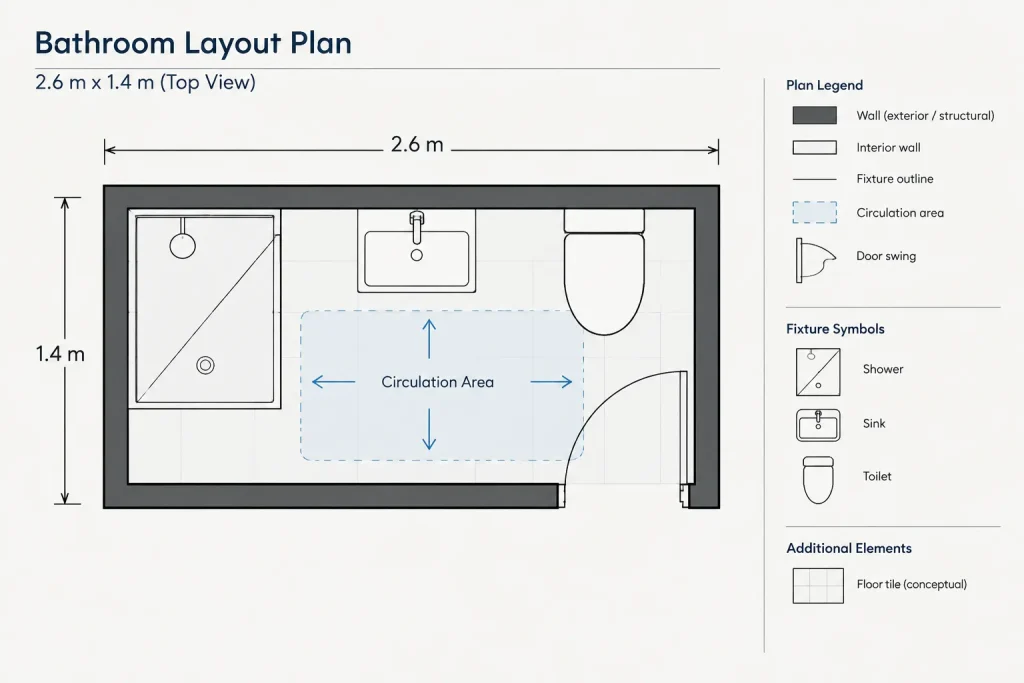
Fixture Placement and Circulation
Check the relationship between each fixture and the usable movement area. Door swings, cabinet fronts, shower access, and fixture approach zones should be reviewed together rather than as isolated symbols. A plan can appear organized while still creating conflicts when doors or fittings are shown in operation.
Plumbing and Building Coordination
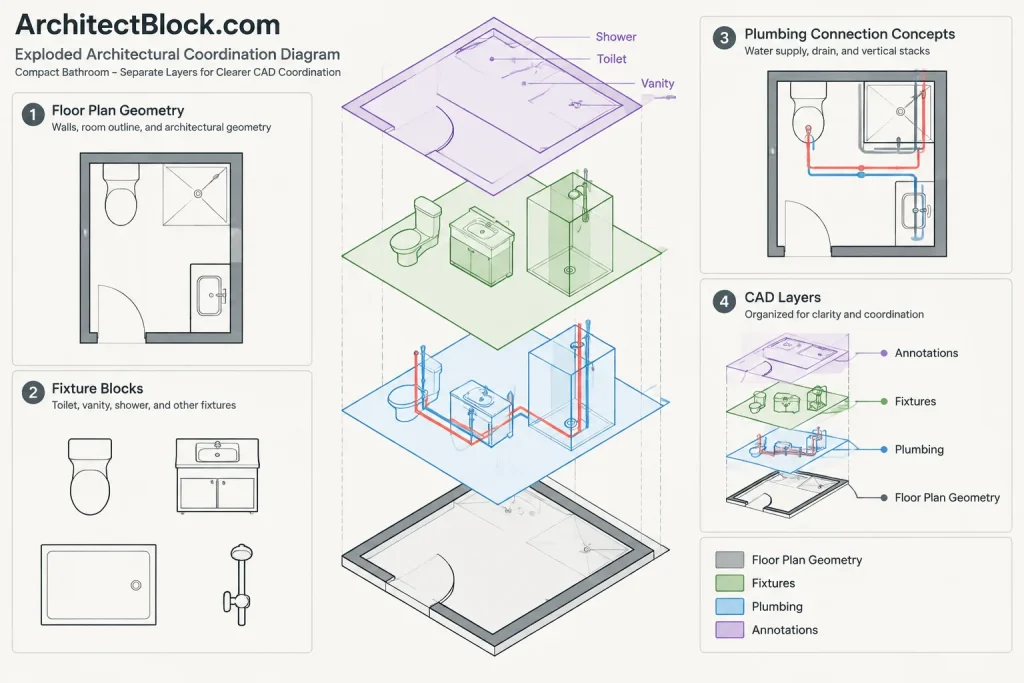
Review where supply, waste, and ventilation routes could connect to the surrounding plan. Grouping plumbing connections may simplify coordination, but the appropriate arrangement depends on the building structure, wall construction, floor system, and existing services. Confirm these conditions with the relevant project consultants.
CAD File Checks
- Units and scale: Verify the drawing units before inserting or referencing the DWG.
- Layers: Inspect layer names, colors, lineweights, and visibility settings.
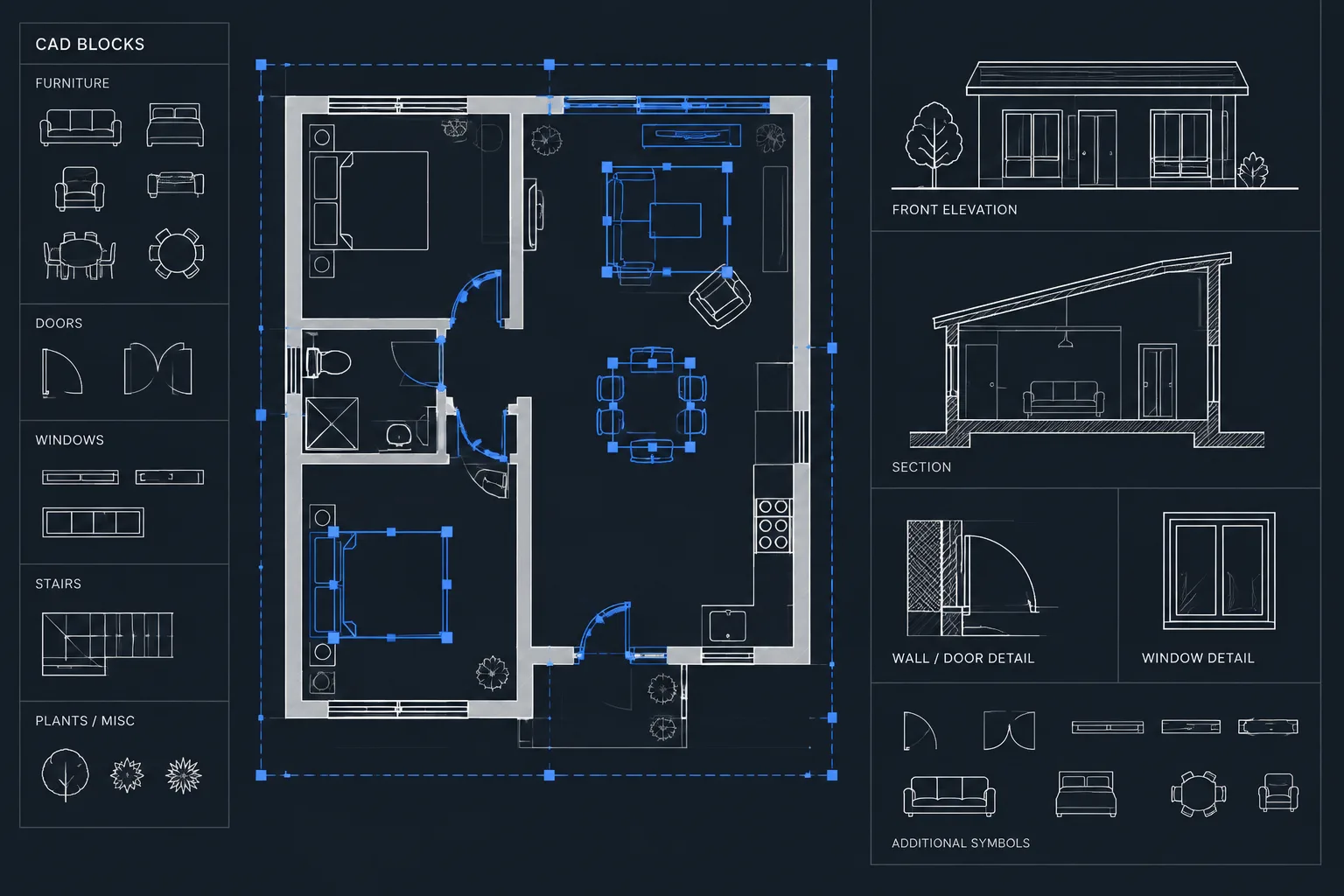
- Blocks: Check whether fixtures and annotations are reusable blocks or separate geometry.
- Linework: Remove unintended duplicate or overlapping objects before documentation.
- Annotations: Confirm that dimensions and notes remain readable at the intended drawing scale.
- Insertion point: Establish a logical base point for reliable placement in the larger plan.
Using the DWG in an Architectural Workflow
Insert the bathroom drawing into a working copy of the project file and compare it with the actual wall layout. Keep imported content on controlled layers until the geometry has been reviewed. If fixture blocks are replaced with office-standard or manufacturer-specific symbols, preserve their intended orientation and connection points while checking the real product information.
Related drafting references may include bathroom fixture CAD blocks, door-swing diagrams, plumbing symbols, room-layout examples, dimensioning guidance, and CAD layer organization. Reviewing those topics together provides better context than treating the bathroom plan as a standalone block.
Important Project Verification
The downloadable layout should not be treated as proof of code compliance, accessibility, waterproofing performance, ventilation adequacy, or construction feasibility. Requirements vary by location and project type. A qualified design professional should verify clearances, fixture selection, service routing, enclosure details, and applicable regulations before the layout is issued for construction.
Frequently Asked Questions
What does the 2.6×1.4m description represent?
It identifies the stated bathroom size in the source title and description. Open the DWG and inspect its dimension references to determine whether those values correspond to internal room dimensions, wall extents, or another measurement basis.
Can this bathroom DWG be inserted directly into a floor plan?
It can be used as a drafting reference, but first verify units, scale, insertion point, layers, and wall alignment. The fixture arrangement should also be checked against the actual project conditions.
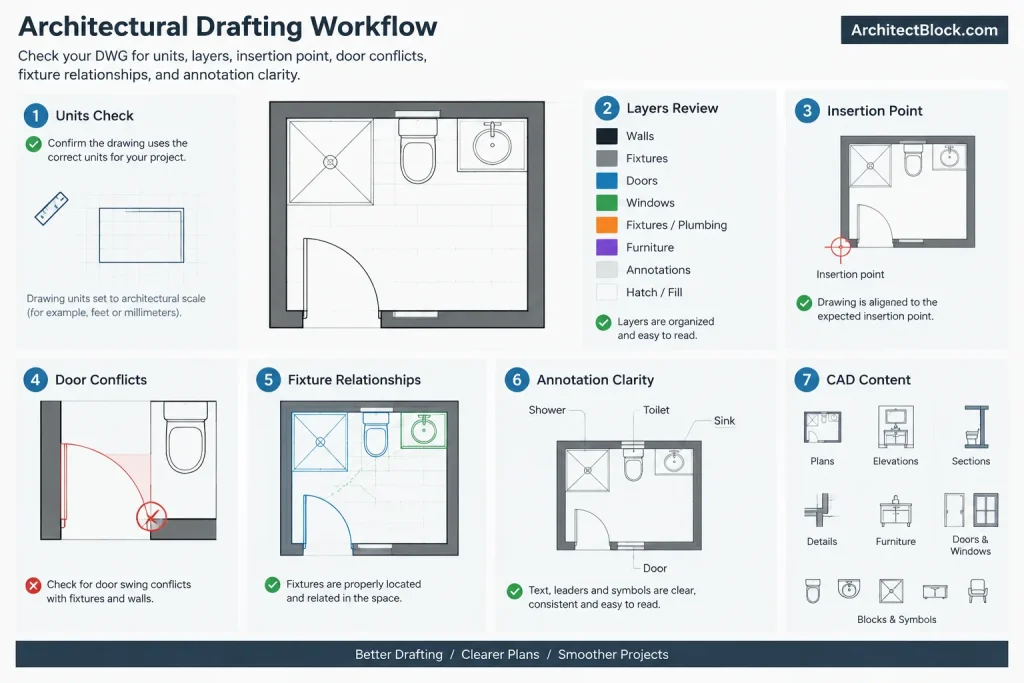
What should be checked around the bathroom door?
Review the complete door swing and its relationship to fixtures, fittings, cabinets, and circulation. Also confirm that the selected door configuration is appropriate for the project requirements.
Does the DWG establish plumbing locations?
The layout may help visualize fixture relationships, but plumbing routes and connection points must be coordinated with the building structure and service design. Do not infer concealed pipe locations from fixture symbols alone.
Is the layout automatically suitable for construction?
No. A CAD layout is a design and drafting resource. Construction use requires project-specific verification of dimensions, products, clearances, waterproofing, services, and applicable regulations.