AutoCAD layer filters help architectural teams navigate crowded layer lists without changing the underlying DWG content. They are especially useful when a drawing combines model information, annotations, sheet graphics, consultant backgrounds, and externally referenced files.
This guide explains how property filters and group filters differ, where each fits in an architectural workflow, and why filters should be treated as navigation aids rather than visibility or plotting controls. It also covers coordination, maintenance, quality control, and common mistakes that can make a filter structure harder to use.
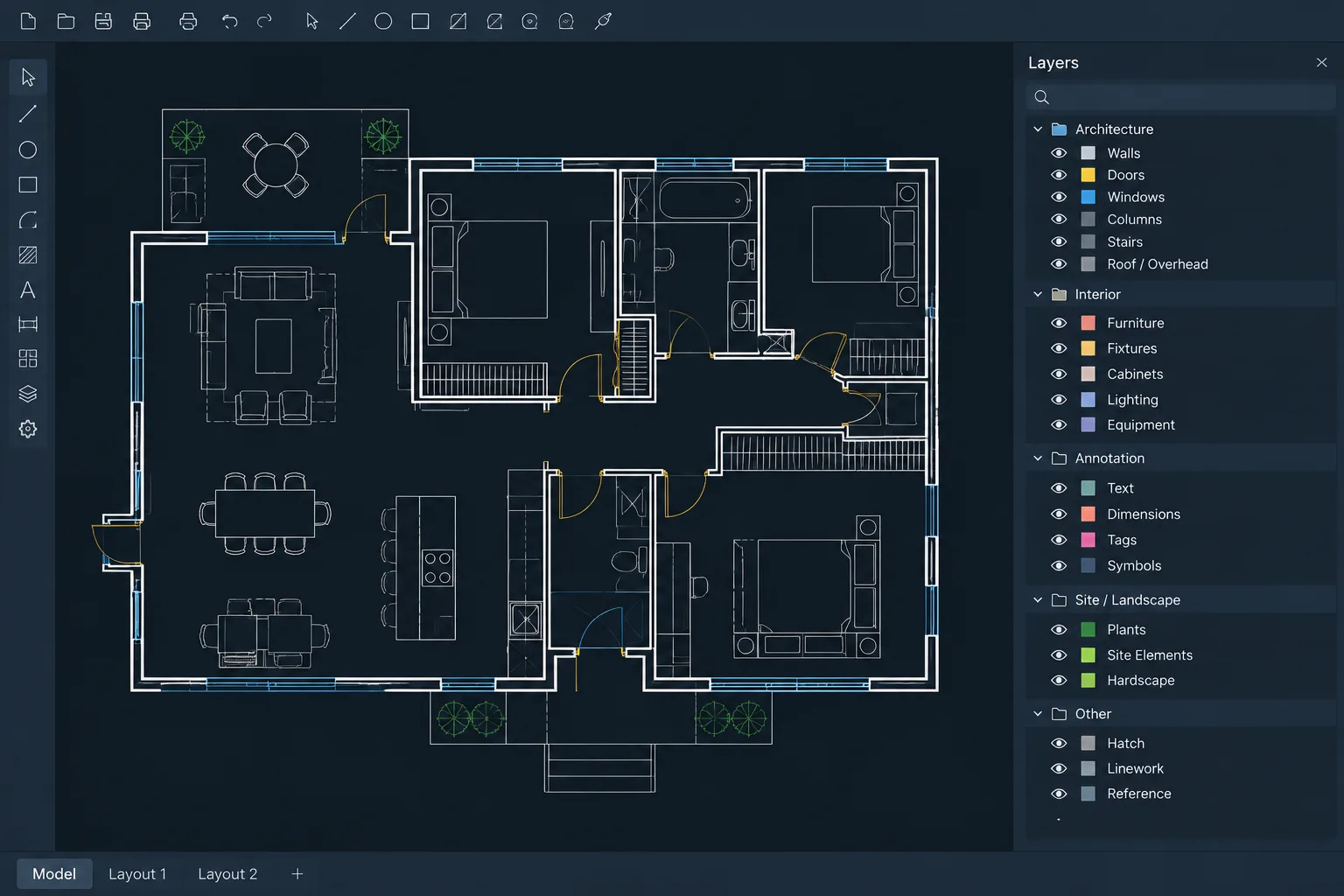
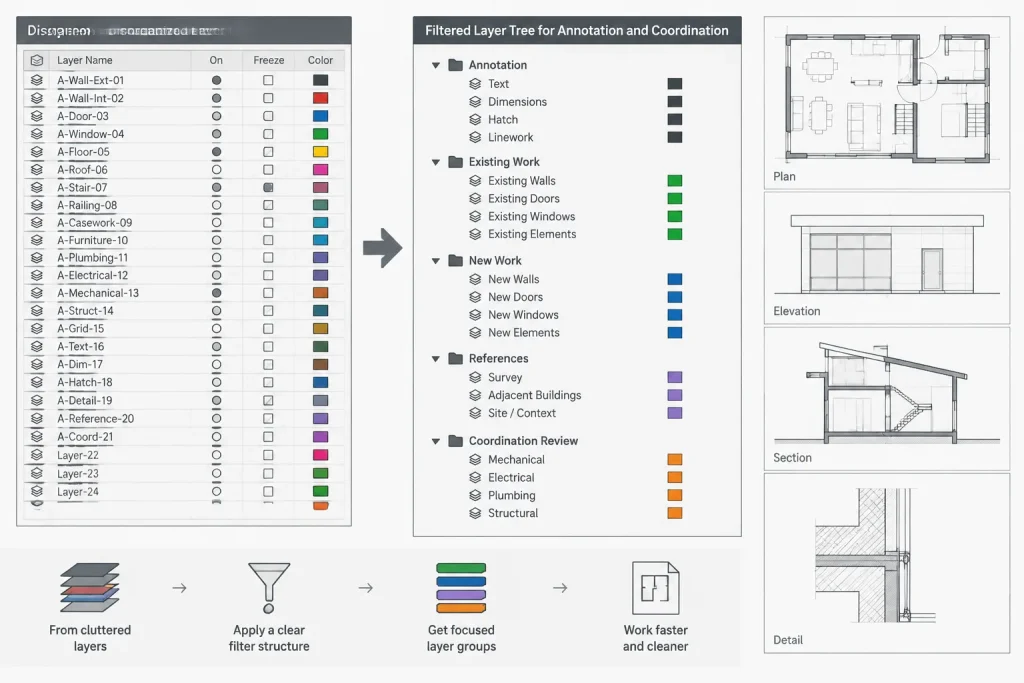
Architectural drawings can accumulate long layer lists as plans, annotations, details, consultant backgrounds, and external references come together. Even when the layers follow a consistent naming system, finding the correct layer in the Layer Properties Manager can become slow and error-prone.
Layer filters provide a practical way to narrow that list without renaming layers or changing the objects in the drawing. They can isolate layers by shared properties or collect selected layers into task-specific groups. Used carefully, filters make complex DWG files easier to navigate while preserving the project’s established layer structure.
What a layer filter does
A layer filter controls which layer names are displayed in the Layer Properties Manager. It does not hide drawing objects, change plot output, or alter the properties of the layers it contains. Think of it as a viewing tool for the layer list rather than a visibility control for the drawing itself.
This distinction matters because layer filters are sometimes confused with layer states, isolation commands, or viewport overrides. Those tools manage layer conditions or drawing appearance. A filter simply helps users find and work with a relevant subset of layers.
Property filters and group filters
AutoCAD provides two main filter concepts that are useful in architectural production: property filters and group filters. They solve different organizational problems.
| Filter type | How layers are included | Typical architectural use |
|---|---|---|
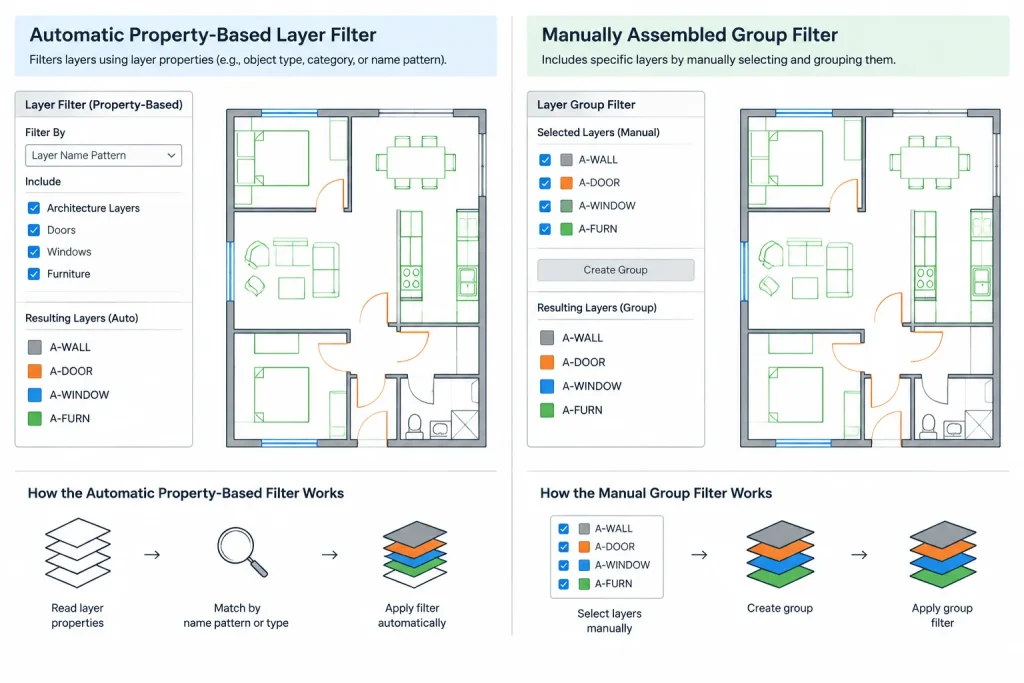
| Property filter | Layers are matched automatically by name or another layer property | Finding annotation layers, demolition layers, nonplot layers, or layers sharing a naming prefix |
| Group filter | Layers are selected and added manually | Collecting layers used for a particular review, sheet type, drawing area, or coordination task |
Property filters
A property filter searches for layers that meet defined criteria. The criteria can be based on layer names and, where appropriate, properties such as color, linetype, plot status, or visibility condition.
Name-based filters are often the most reliable choice for architectural work because they take advantage of an established layer naming convention. For example, a project may use recognizable name segments for walls, doors, dimensions, ceilings, existing construction, or demolition. A filter can display matching names without requiring users to scroll through every layer in the file.
Because a property filter updates according to its criteria, a newly created layer can appear in the filter automatically if it follows the same naming structure. This makes property filters useful for repeatable categories that will continue to develop during the project.
Group filters
A group filter is a manually assembled collection. Its layers do not need to share a name or property. This makes it useful when the desired set reflects a workflow rather than a formal layer category.
For example, a drafter reviewing a building entrance might create a group containing relevant wall, glazing, door, finish, ceiling, annotation, and reference layers. The layer names may be unrelated, but the group keeps them together for that specific review.
Group filters require more maintenance than property filters. A new layer will not normally join a manual group merely because it relates to the same drawing task. Someone must review and add it.
A practical architectural setup workflow
Start with a healthy layer structure
Filters are not a substitute for clear layer naming. Before creating them, review the drawing for duplicate concepts, unclear abbreviations, imported layers, and obsolete content. If the underlying layer list is inconsistent, filters may conceal the disorder rather than solve it.
Coordinate any renaming with the project team. Renaming layers in a shared or referenced workflow can affect standards, consultant expectations, and downstream file management.
Identify recurring navigation tasks
Create filters for work that users perform repeatedly. Useful categories may include:
- Architectural annotation layers used for text, dimensions, tags, and callouts
- Existing, demolition, and new-work layers where the project naming convention distinguishes them
- Plan-specific content such as reflected ceiling or furniture information
- Nonplot construction and layout layers that require periodic review
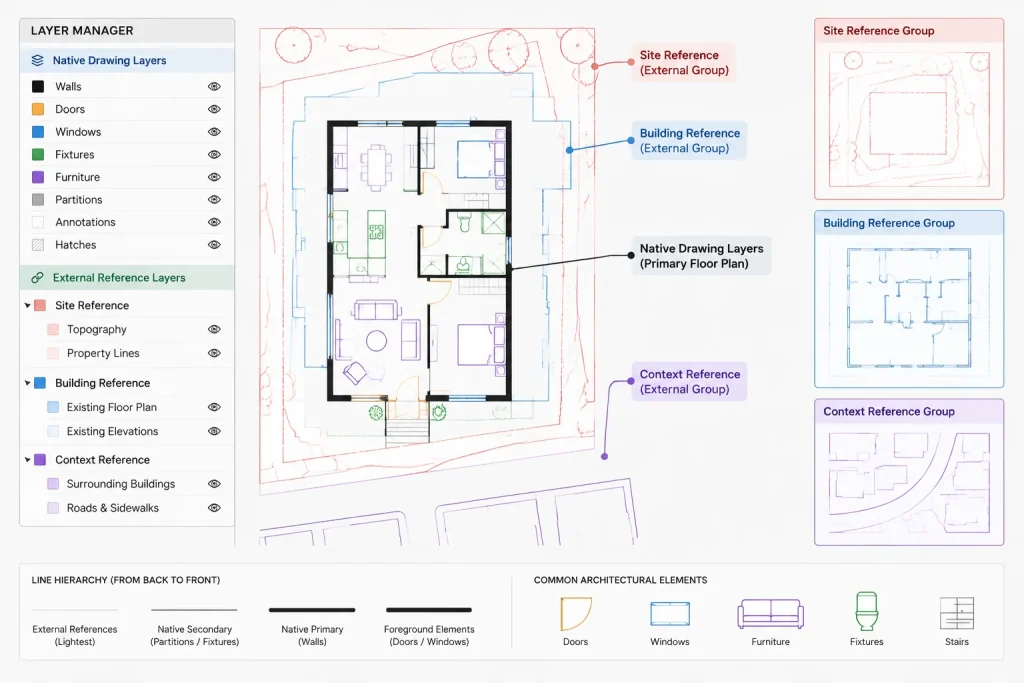
- Layers belonging to attached external references
- Layers used during a focused coordination check
Avoid creating a filter for every possible category. An excessive filter tree can become another navigation problem. Begin with a small set that supports real project tasks.
Choose automatic or manual membership
Use a property filter when the category can be expressed consistently through layer names or properties. Use a group filter when membership depends on judgment, drawing location, or a temporary review purpose.
If a group is created for a short coordination exercise, give it a name that makes its temporary purpose clear. Remove obsolete groups after the review so other users do not mistake them for maintained project standards.
Test the filter results
After creating a filter, inspect the displayed list rather than assuming the criteria worked. Check for both missing layers and unrelated matches. Short or ambiguous name fragments can capture more layers than intended.
Testing is especially important when consultant layers use naming conventions different from the architectural file. A pattern that works for native layers may not classify externally referenced layers correctly.
Using filters with externally referenced drawings
Xrefs can add many prefixed layer names to a host drawing. These layers are necessary for visibility and graphic control, but they can dominate the Layer Properties Manager and make native architectural layers harder to find.
Filtering the list by reference name or by recognizable xref layer patterns can separate consultant backgrounds from host-drawing layers. This is helpful when reviewing a structural, civil, mechanical, electrical, or other linked background.
However, a filter does not establish an xref management policy. Teams still need to decide where reference appearance should be controlled, how overrides are documented, and who is responsible for coordination. Filters only make the relevant layers easier to locate.
Layer filters compared with other layer tools
| Tool | Primary purpose |
|---|---|
| Layer filter | Narrows the layer names shown for management |
| Layer state | Captures and restores selected layer conditions |
| Layer isolate | Temporarily emphasizes selected objects by changing the visibility behavior of other layers |
| Viewport layer override | Changes selected layer properties within a particular paper-space viewport |
| Xref layer control | Manages the appearance and visibility of layers supplied by referenced drawings |
These tools can support one another. A filter may help locate the layers that need attention, while a layer state or viewport override performs the actual graphic change.
Common mistakes to avoid
Treating a filter as a plotting control
Selecting a filter does not mean that only its layers will plot. Always verify actual layer visibility, plot settings, viewport conditions, and sheet output separately.
Building filters around unreliable colors
Color-based filters can be useful in a tightly controlled office system, but color may represent different purposes in files received from outside sources. Name-based criteria are often easier to interpret and maintain.
Creating overlapping filters without clear names
Overlapping membership is not inherently wrong, but users should understand why each filter exists. Names such as “Plan Review,” “Plan Layers,” and “Plan Check” provide little guidance unless their roles are documented.
Assuming manual groups update themselves
A group filter can become incomplete as the drawing evolves. Include important group filters in periodic drawing reviews, especially before a milestone issue or consultant handoff.
Using filters to disguise poor standards
If users cannot identify a layer’s purpose without hiding most of the list, the naming system may need attention. Filters should improve access to a sound structure, not make an uncontrolled structure appear organized.
A simple quality-control review
Before relying on saved filters in a project drawing or template, check the following:
- Filter names describe a clear production or review purpose.
- Property criteria match the project’s actual layer naming system.
- Results include expected native and referenced layers where applicable.
- Manual groups have been reviewed for newly added layers.
- Temporary coordination filters have been removed or clearly labeled.
- Users understand that filters do not control plotting or object visibility.
- The filter list remains short enough to navigate efficiently.
Use filters as a navigation system, not a replacement standard
Layer filters in AutoCAD are most valuable when they reduce search time while leaving the project’s layer standards intact. Property filters are well suited to repeatable naming patterns, while group filters support focused and temporary collections that do not share consistent properties.
A restrained filter structure can make large architectural files easier to review, particularly when multiple xrefs and drawing types are present. The best setup remains understandable to another team member opening the DWG for the first time: clear layer names underneath, useful filters above them, and no confusion about which tools actually control the published drawing.
Documenting filters for team use
A layer filter is most effective when another drafter can understand its purpose without asking the person who created it. Use names that describe a drawing category, production activity, or review task rather than a vague personal shorthand.
For property filters, document the naming logic they depend on. This helps team members recognize whether a missing layer indicates an incorrect filter criterion or a layer name that does not follow the project convention. For group filters, make it clear that membership is manually maintained and may need review as the drawing develops.
Applying filters during drawing handoffs
Before issuing a DWG to another team member or consultant, review saved filters alongside the layer list. Remove abandoned test filters, identify temporary coordination groups, and confirm that filter names remain meaningful outside the original author’s workflow.
Do not assume that a recipient will use the same filter organization. The underlying layer names and properties must remain understandable because they carry the drawing structure; filters only provide an optional way to navigate it.
Choosing a filter strategy
- Use a property filter when membership can be derived from a stable naming pattern or dependable layer property.
- Use a group filter when layers must be collected through professional judgment for a particular review or task.
- Use another layer tool when the goal is to change visibility, restore layer conditions, control a viewport, or manage plotted appearance.
- Revise the layer structure when filters are compensating for unclear, duplicated, or inconsistent layer names.
The practical test is whether the filter reduces search effort without hiding organizational problems. A useful filter remains easy to explain, easy to verify, and appropriate for the way the project team actually works.
Frequently asked questions
Do AutoCAD layer filters hide objects in the drawing?
No. A layer filter narrows the layer names displayed for management. Object visibility is controlled through layer conditions and other drawing tools.
What is the difference between a property filter and a group filter?
A property filter automatically matches layers using defined criteria. A group filter contains layers selected manually, even when those layers do not share a common name or property.
Can a layer filter control what plots?
No. Plot results depend on actual layer settings, object properties, viewport conditions, and the drawing’s plotting configuration. A filter only changes how the layer list is presented.
Why is an expected layer missing from a property filter?
The layer may not match the filter criteria, its name may depart from the project convention, or the criteria may be too restrictive. Compare the layer’s actual name and properties with the filter logic.
Do group filters update when new layers are created?
Manual groups generally require review and maintenance. A related new layer should not be assumed to join a group automatically.
Are filters useful for xref layers?
Yes. Filters can make referenced layers easier to locate by matching recognizable reference names or layer patterns. They do not replace the project’s xref coordination and graphic-control procedures.
Should every layer category have its own filter?
Not necessarily. Filters should support recurring production or review tasks. Too many narrowly defined filters can create another complicated list to manage.